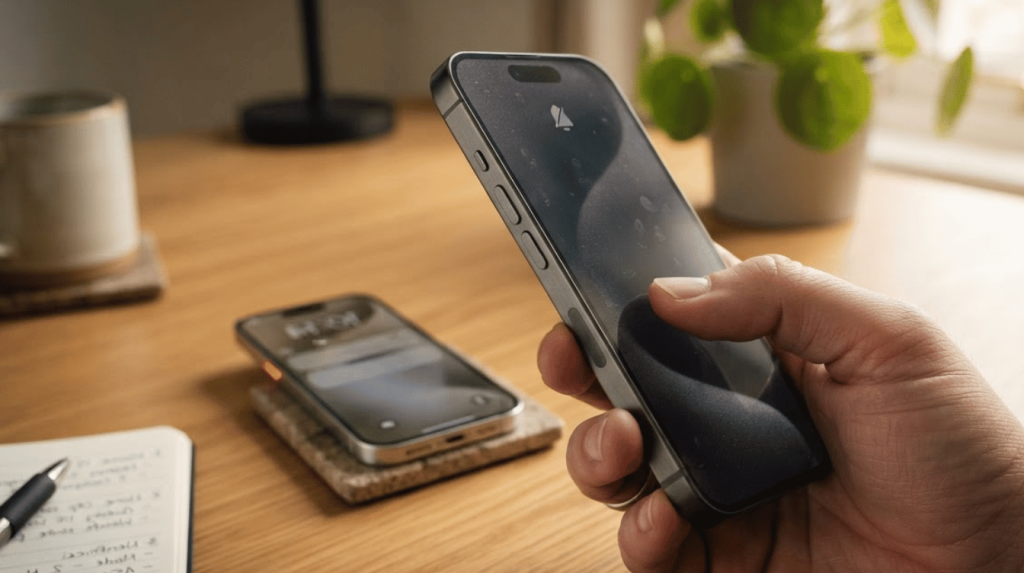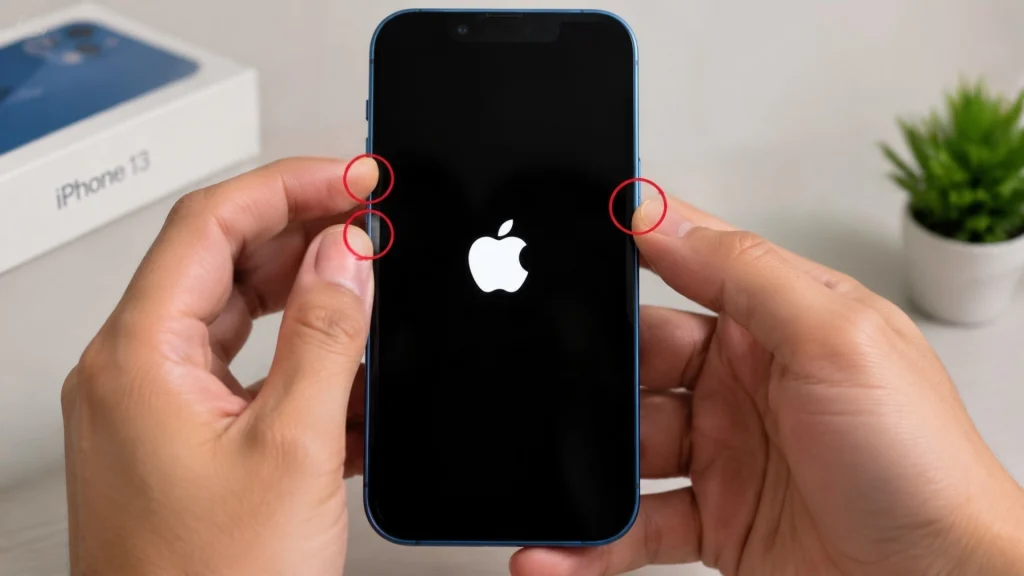
Seeing your iPhone suddenly stop syncing can feel confusing, especially when photos, messages, or files refuse to update.
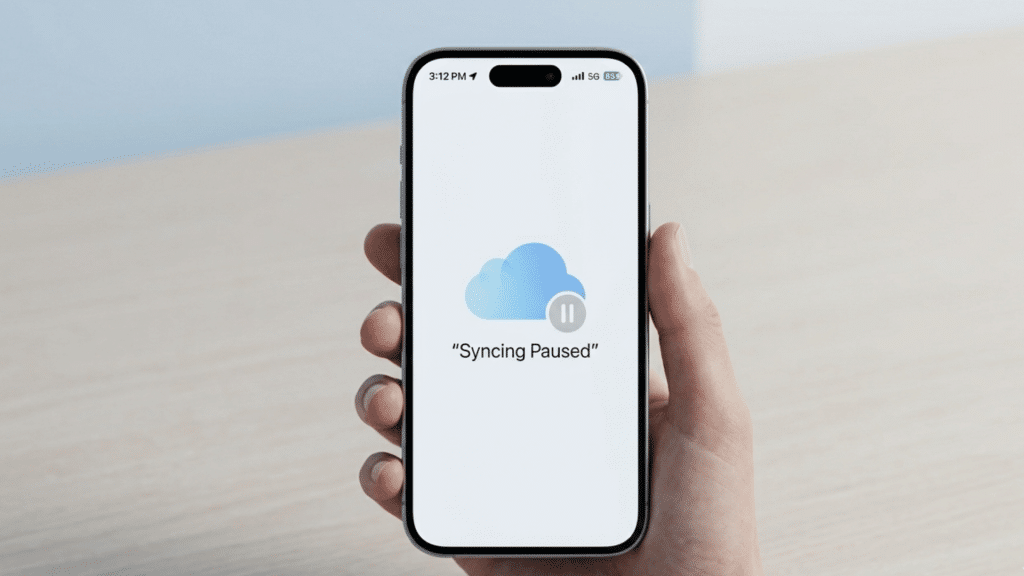
I’ve noticed many people run into the same problem and start searching for answers after seeing the syncing with iCloud paused message on their screen. The good news is that this issue is often easier to fix than it looks.
In this guide, I’ll explain why iCloud syncing pauses, what causes it, and the simple steps you can take to get things working again.
You’ll also learn how to check settings, free up storage, fix connection problems, and avoid the issue in the future.
Doesn’t matter if you use an iPhone, iPad, or Mac; these tips can help you get your device syncing normally again without stress.
What Does Syncing with iCloud Paused Mean?
Syncing With iCloud Paused means your Apple device has temporarily stopped updating data through iCloud.
This prevents your files, photos, messages, and backups from syncing across devices.
This message usually appears when your iPhone, iPad, or Mac cannot complete the syncing process. Common reasons include poor internet connection, low battery, Low Power Mode, full iCloud storage, or Apple server issues.
When syncing pauses, new photos may not upload, messages may stop updating, and backups may remain unfinished.
The problem is common and often temporary. In many cases, iCloud starts syncing again once the device is connected to stable Wi-Fi or a power source.
Sometimes, you may need to adjust a few settings or restart your device to get everything working normally again.
Apps Commonly Affected By the Issue
Several Apple apps and services rely on iCloud syncing to stay up to date across your devices.
- Messages: Text messages and iMessages may stop updating across devices, leading to missing conversations or delayed message delivery.
- Photos: New photos and videos may not upload to iCloud, preventing them from appearing on your other Apple devices.
- iCloud Backups: Automatic backups may pause or fail, temporarily leaving your recent device data unsaved in iCloud storage.
- Notes: Notes may stop syncing across devices, causing recent edits or newly created notes to temporarily appear missing.
- Contacts: Updated contact details may not sync correctly, which can lead to outdated information across your connected Apple devices.
- iCloud Drive Files: Documents and files stored in iCloud Drive may stop updating or downloading properly across devices.
Your data is not deleted when syncing pauses. Everything already synced stays intact on both the device and iCloud. Only new changes or uploads stop moving until the issue is resolved.
Why Is Your iCloud Syncing Paused?
Several settings, connection problems, and storage issues can stop iCloud from syncing properly across Apple devices.
1. Weak or Unstable Internet Connection
iCloud needs a stable internet connection to upload and download data between devices.
If your Wi-Fi signal is weak or keeps disconnecting, syncing may pause automatically. This is common when using public Wi-Fi, slow mobile data, or unstable home networks.
Large photo libraries and backups especially need a strong connection.
Many users notice that resumes sync once they reconnect to reliable Wi-Fi or restart their router and device to establish a fresh connection.
2. Low Power Mode Is Turned On
Low Power Mode helps save battery life by limiting background activities on your iPhone. One of the features that can slow down or pause is iCloud syncing.
When this setting is active, your device may stop syncing photos, messages, backups, and files until charging begins.
Many people see the syncing paused message after their battery drops below 20 percent. Turning off Low Power Mode or plugging the device in to power it often fixes the issue quickly.
3. Your iCloud Storage Is Full
When your iCloud storage runs out, your device cannot upload new files, photos, or backups.
This often causes syncing to pause because there is no available space for new data. Many users do not notice the problem until backups fail or photos stop appearing across devices.
Deleting old backups, large videos, duplicate photos, or unused files helps free up iCloud storage.
Upgrading your storage plan can also help restore normal syncing.
4. Apple Server Problems
Sometimes the problem is not caused by your device at all. Apple’s iCloud servers may experience temporary outages or slowdowns that interrupt syncing services.
During these periods, Messages, Photos, backups, and iCloud Drive may stop updating correctly.
You can check Apple’s System Status page to see if iCloud services are currently affected.
When a yellow dot appears next to iCloud services, the issue is on Apple’s end, and no local fix will help. In most cases, syncing resumes automatically once Apple fixes the server issue.
5. Outdated iOS or macOS Version
Older software versions may contain bugs or compatibility problems that interfere with iCloud syncing. Apple regularly releases updates to fix syncing errors, improve stability, and support newer iCloud features.
If your iPhone, iPad, or Mac has not been updated for a long time, syncing problems may become more common.
Many users solve the paused syncing issue simply by installing the latest iOS or macOS update and restarting their device afterward.
6. Low Data Mode Blocking Syncing
Low Data Mode reduces internet usage by limiting background network activities on your device.
While this feature helps save mobile data or reduce Wi-Fi usage, it can also pause iCloud syncing.
Photos, backups, and files may stop updating until the setting is disabled. This problem often occurs when users switch networks or enable data-saving features without realizing it.
Turning off Low Data Mode in Wi-Fi or cellular settings usually allows syncing to resume normally.
7. Incorrect Date and Time Settings
Your device depends on correct date and time settings to connect securely with Apple’s servers.
If the time zone or clock is incorrect, iCloud may fail to sync properly and display a paused message.
This issue sometimes happens after traveling, manual clock changes, or software glitches. Setting the date and time to update automatically can solve the problem.
I once fixed the issue simply by turning automatic date and time back on after changing time zones.
Many users notice resume syncing shortly after correcting these settings on their devices.
8. VPN or Firewall Interference
VPN apps and strict firewall settings can sometimes block iCloud from connecting properly to Apple’s servers.
This may interrupt syncing for photos, files, backups, and messages. Some VPN services route internet traffic through different locations, which can confuse secure Apple connections.
On Mac computers, security software or firewall settings may also interfere with syncing.
Temporarily disabling the VPN or checking firewall permissions often helps restore normal iCloud syncing without additional troubleshooting steps.
Tips that Help Fix iCloud Syncing Issues
Small device settings and connection changes often affect how smoothly iCloud syncing works across Apple devices.
- Restart Your Device: Restarting refreshes background system processes and network connections, which often quickly resolves temporary syncing issues on Apple devices.
- Use Stable Wi-Fi: Strong and reliable Wi-Fi helps iCloud upload photos, backups, messages, and files without unexpected syncing interruptions or delays.
- Keep Battery Charged: iCloud syncing may pause on low battery, especially when Low Power Mode automatically limits background tasks and internet activity.
- Check iCloud Storage: Full iCloud storage prevents new data from syncing across devices, including photos, backups, files, notes, and messages.
- Update Device Software: Installing the latest iOS or macOS updates fixes bugs that may interfere with normal iCloud syncing and background processes.
- Turn Off Low Power Mode: Low Power Mode reduces background activity and can temporarily pause syncing for photos, files, backups, and messages.
- Review iCloud Settings: Incorrect iCloud settings may sometimes prevent apps like Photos or Messages from syncing correctly across connected Apple devices.
- Wait During Apple Outages: Temporary Apple server problems can pause syncing worldwide until iCloud services return to normal operation for affected users.
Simple Ways to Fix iCloud Syncing Paused

Several device settings, storage limits, and connection problems can interrupt iCloud syncing and cause the paused message to appear.
1. Check Your Internet Connection
iCloud needs a stable internet connection to sync photos, files, messages, and backups. If your Wi-Fi is weak or keeps disconnecting, syncing may pause automatically.
This often happens on public Wi-Fi or slow home networks.
Try switching to a stronger Wi-Fi connection or restarting your router.
You can also turn Airplane Mode on and off to refresh your connection. After reconnecting, give your device a few minutes to resume syncing normally.
2. Plug Your Device Into Power
Your device may pause syncing when the battery gets low. Apple devices sometimes limit background tasks to save battery life, especially when many files are waiting to be uploaded.
Plug your iPhone, iPad, or Mac into charging power and keep Wi-Fi turned on.
Large photo libraries and backups may take time to complete, so leaving the device charging for a while often helps.
Many users notice syncing resumes automatically once the battery starts charging again.
3. Turn Off Low Power Mode
Low Power Mode helps extend battery life by reducing background activities. One of the activities it may pause is iCloud syncing.
When this setting is enabled, photos, files, and messages may stop updating across devices. To fix this, open Battery settings and turn off Low Power Mode.
After disabling it, reconnect to Wi-Fi and wait a few minutes. In many cases, iCloud syncing resumes without requiring any additional troubleshooting steps.
4. Turn Off Low Data Mode
Low Data Mode reduces internet usage by limiting background syncing and automatic updates. While useful for saving mobile data, it can interfere with iCloud services.
Photos may stop uploading, backups may pause, and files may not update correctly.
Check your Wi-Fi and cellular settings to see if Low Data Mode is enabled.
Turning it off gives iCloud permission to use internet data normally again, which often quickly and easily resolves paused-syncing problems.
5. Free Up iCloud Storage
When your iCloud storage becomes full, syncing can stop because there is no room for new data.
Photos, backups, files, and messages may remain stuck until storage space becomes available. Open your iCloud storage settings and review what is using the most space.
Deleting old backups, large videos, duplicate photos, or unused files can help.
If needed, upgrading to a larger iCloud storage plan may restore syncing and prevent future storage-related syncing problems.
6. Update iOS, iPadOS, or macOS
Outdated software can sometimes create bugs that affect iCloud syncing. Apple regularly releases updates to improve device performance and fix syncing problems.
Check for available updates on your iPhone, iPad, or Mac and install the latest version.
After updating, restart the device so the system changes can fully apply.
Many users find that syncing problems disappear after updating because the latest software improves compatibility between Apple devices and iCloud services.
7. Restart Your Device
Restarting your device is a simple fix that often solves temporary software glitches. Small system errors can interrupt the connection between your device and iCloud servers.
Turning the device off and back on refreshes system processes and network connections. After restarting, connect to WiFi and keep the device unlocked for several minutes.
A friend of mine once fixed my paused syncing issue simply by restarting my iPhone and reconnecting to WiFi.
This gives iCloud time to reconnect and resume syncing photos, files, backups, and messages across your Apple devices.
8. Check iCloud Drive and App Settings
Sometimes syncing pauses when iCloud is turned off for certain apps.
Photos, Messages, Notes, or iCloud Drive may stop syncing if the feature was accidentally disabled. Open iCloud settings and check that the apps you want to sync are enabled.
On Mac, review your Apple Account settings as well.
Turning syncing back on for the affected app often restores normal updates and allows files, messages, or photos to appear correctly across devices again
What Reddit Users Say About iCloud Syncing Paused?
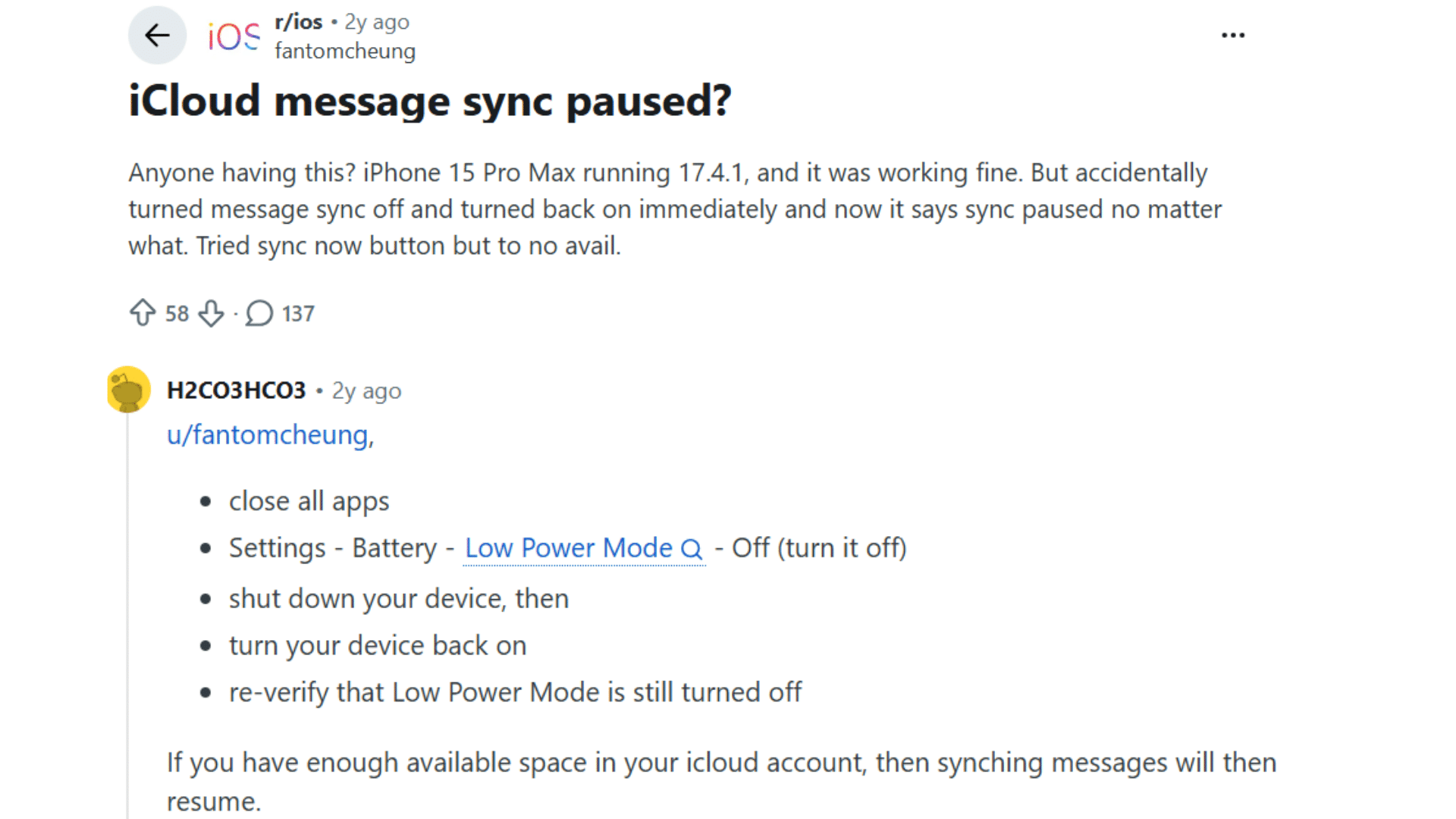
Reddit discussions about the “syncing with iCloud paused” issue show that many Apple users experience syncing problems after software updates, device upgrades, storage limitations, or the activation of Low Power Mode.
Common complaints included Messages not syncing, Photos staying paused, backups failing, and iCloud Drive files not updating across Apple devices.
Several users said “Sync Now” did not work, while others fixed the sync issue by disabling Low Power Mode, reconnecting to WiFi, restarting devices, or signing back in to iCloud.
Network resets and overnight charging were also common fixes shared by users.
Discussions additionally revealed that temporary Apple server issues sometimes caused syncing interruptions worldwide.
Most community fixes focused on stable connections, storage space, and updated device settings.
Syncing with iCloud Paused on iPhone vs Mac
The syncing issue can appear differently depending on whether you are using an iPhone, iPad, or Mac.
| Issue Area | iPhone or iPad | Mac |
| Common Cause | Low Power Mode or weak Wi-Fi | Incorrect iCloud settings or firewall issues |
| Photos Syncing | Photos may stop uploading | Photos may stop downloading or updating |
| Messages Syncing | iMessages may pause syncing | Messages may not refresh across devices |
| Backup Problems | iCloud backups may fail | Mac usually uses local backups instead |
| Storage Issues | Full iCloud or device storage | Full iCloud or Mac storage |
| Network Problems | Mobile data and Wi-Fi interruptions | VPN or firewall interference |
| Quick Fix | Charge the device and reconnect to Wi-Fi | Restart the Mac and check iCloud settings |
| Software Updates | iOS updates fix many syncing bugs | macOS updates improve syncing stability |
When Should You Contact Apple Support?
You should contact Apple Support if iCloud syncing stays paused after trying basic fixes like restarting, updating software, or checking storage and Wi-Fi.
If the problem continues for several days or affects important data, professional help may be needed.
Some syncing problems can be caused by account issues, corrupted system files, or underlying software bugs that regular troubleshooting cannot fix.
Contact Apple Support if you see repeated errors, failed backups, missing photos, or iCloud connection issues.
In some cases, Apple may guide you through advanced settings or account verification steps.
Before contacting support, make sure your device is updated and, if possible, backed up. This helps protect your data during troubleshooting and makes the support process easier and faster.
How to Prevent iCloud Syncing Problems in the Future?
Simple device maintenance and correct settings can help keep iCloud syncing running smoothly across your Apple devices.
- Use Reliable Wi-Fi: Stable internet connections help iCloud sync photos, files, messages, and backups without frequent interruptions or delays.
- Keep Devices Updated: Regular iOS and macOS updates fix software bugs that may interfere with normal iCloud syncing and background processes.
- Maintain Free iCloud Storage: Enough storage space allows backups, photos, messages, and files to upload correctly without syncing pauses caused by full storage.
- Avoid Constant Low Power Mode: Low Power Mode limits background activity, which can repeatedly pause syncing for photos, files, messages, and iCloud backups automatically.
- Review iCloud Settings Often: Checking app-syncing settings helps ensure Photos, Messages, Notes, and iCloud Drive remain enabled across all connected devices.
- Charge Devices During Syncing: Large backups and photo uploads work better when devices stay connected to a power source and to stable Wi-Fi simultaneously.
Conclusion
iCloud syncing issues can be frustrating, especially when your photos, messages, or files stop updating across devices.
The good thing is that most paused syncing issues are caused by simple settings, storage limits, or connection problems that can usually be fixed without much trouble.
By checking your WiFi, battery settings, software updates, and iCloud storage, you can often get everything working normally again in just a few minutes.
Since many people experience this problem differently, your experience may also help someone else facing the same issue.
Feel free to share what worked for you or any syncing problems you noticed in the comments below.
Frequently Asked Questions
Will Photos Be Deleted If iCloud Is Not Paid?
No, your existing photos usually stay safe temporarily, but new uploads, backups, and syncing may stop until storage space becomes available again.
What Takes Up the Most Storage on an iPhone?
Photos, videos, apps, messages, and downloaded media usually take up the most storage space on an iPhone over time.
What Is the Secret Button on the iPhone?
The secret button usually refers to the Apple logo Back Tap feature, which lets you trigger actions by tapping the phone’s back.
How to Turn Off iCloud without Losing Photos?
Download or save your photos to your device first, then disable iCloud Photos after confirming your pictures are fully stored locally.