Your iPad is slow, and it’s genuinely frustrating. You picked it up expecting it to respond the way it always did, only to find yourself staring at a spinning wheel or watching apps take three times as long as they should to open.
If you’ve been sitting there asking yourself why your iPad is so slow, you’re not alone.
It’s one of the most common complaints from iPad users, and the good news is that it usually comes down to a handful of fixable causes.
A slow iPad rarely has a single culprit. The degradation tends to happen gradually, so you might not notice it until the device feels noticeably sluggish.
This blog post covers the most common causes and exactly what to do about each one.
Is It Normal for an iPad to Slow Down Over Time?
All devices slow down with use. As you install more apps, those apps accumulate data, your storage fills up, and new versions of iPadOS are built with newer hardware in mind, which means older chips have to work harder to run the same code.
Background processes pile up. The battery that powers all of this also degrades with every charge cycle.
There is a difference, though, between temporary lag and long-term performance decline. Temporary lag often has a clear cause: too many apps open, a heavy download running in the background, or a weak network connection.
Long-term decline happens gradually. Understanding what you are dealing with matters because the fix is different.
Why Is My iPad So Slow?
Most iPads don’t slow down overnight. The degradation tends to happen gradually, which means you might not notice it until the device feels noticeably sluggish.
Understanding the root causes helps you fix the right problem instead of guessing.
1. Too Many Apps Running in the Background
iPadOS keeps apps suspended for faster reopening, but many continue refreshing content in the background.
Social media, email, weather, and news apps constantly download updates, consuming RAM and processor power. When several apps refresh simultaneously, the iPad may feel slow even during simple tasks.
Excessive background activity can also increase battery drain and heat. You can manage this feature in Settings > General > Background App Refresh.
2. Low Storage Space
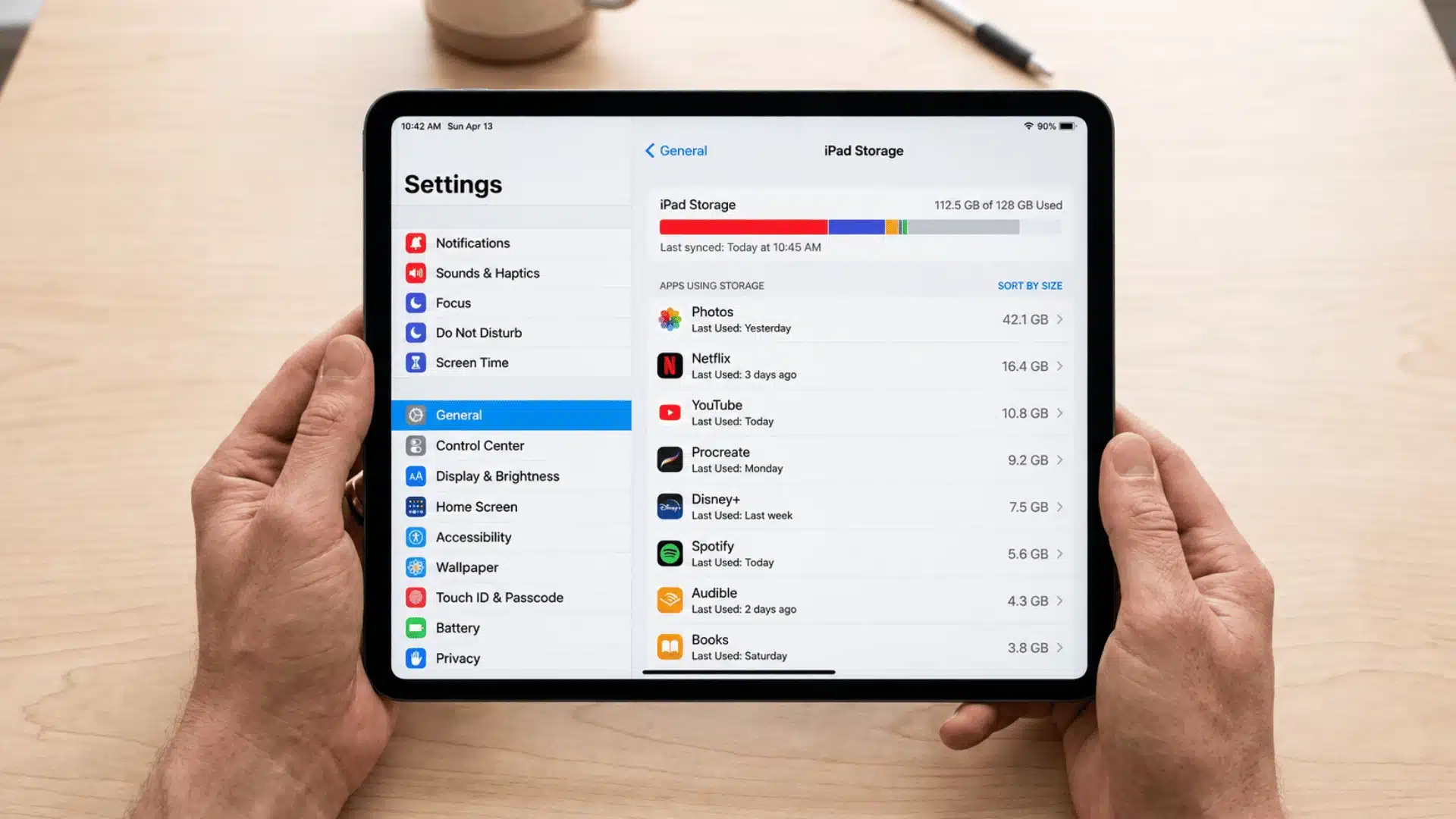
An iPad needs available storage space to run smoothly because iPadOS uses part of it as temporary memory for active tasks.
When storage becomes nearly full, apps reload more often, multitasking slows down, and overall responsiveness drops. Photos, downloads, cache files, and unused apps quietly consume storage over time.
Keeping 10 to 20 percent of storage free usually improves performance noticeably. Check usage in Settings > General > iPad Storage.
3. Outdated iPad OS Version
Running an outdated iPadOS version can reduce performance because older software often contains unresolved bugs and memory issues.
Apple regularly releases updates that improve stability, optimize processing, and fix compatibility problems affecting apps and system functions.
Newer applications are also designed around recent iPadOS versions, which means outdated devices may struggle running them efficiently.
Updating the system can improve speed, responsiveness, and security. Check for updates in Settings > General > Software Update.
4. Weak Internet Connection
A weak internet connection can make an iPad seem slow even when the device itself is functioning properly.
Apps that rely on online access, such as streaming services, browsers, and social media platforms, become sluggish during network congestion or unstable Wi-Fi signals.
Slow page loading, buffering, and delayed responses are common signs of poor connectivity. Testing offline apps like Notes or Photos helps identify the issue. Restarting the router may improve performance quickly.
5. Old Battery Health
An aging iPad battery can reduce performance because older batteries struggle to deliver stable power during demanding tasks.
As battery capacity drops, apps may open more slowly, animations can lag, and overall responsiveness may decline.
Apple also notes that aging batteries may lower brightness and slow processing during heavy workloads.
Apple’s performance management may lower brightness and slow processing on devices with degraded batteries. On supported models, check Settings > Battery > Battery Health to see maximum capacity.
6. Heavy Apps and Games
Some apps naturally demand more processing power, especially video editors, 3D games, AR tools, and large social media platforms.
Older iPads with limited RAM and aging processors often struggle with these workloads, causing lag, overheating, dropped frames, and slower multitasking.
Running multiple heavy apps or using Split View further increases system pressure. If a slowdown happens only in certain apps, the app itself is usually the main cause.
7. Too Much Cache and Junk Data
Cached files help apps and websites load faster by storing temporary data locally, but too much cached data can eventually slow performance.
Over time, browsers and apps collect temporary files and corrupted cache that waste storage space. Safari, in particular, tends to accumulate browsing data after extended use.
Clearing the cache regularly can improve browsing speed, free up storage, and fix responsiveness issues without deleting important personal information.
How to Clear Cache on iPad to Make It Faster?
Clearing your cache is one of the most effective quick fixes for a sluggish iPad, especially if the slowness is concentrated in your browser.
There is no single system-wide cache-clearing button in iPadOS, so the process involves clearing it app by app.
1. Clearing Safari Cache
To clear Safari cache on an iPad, open Settings > Apps > Safari, then tap Clear History and Website Data. To remove cache only, go to Advanced > Website Data > Remove All Website Data.
Set the timeframe to All History before confirming. This clears cookies, cached files, and browsing data that may affect performance.
Most websites will sign you out, so keep your login details and saved passwords ready.
2. Clearing Chrome Cache
If Chrome is the preferred browser, open the app and tap the three-dot menu in the bottom right corner. Go to Settings, then Privacy, and select Clear Browsing Data.
Choose Cached Images and Files along with any other data you want to remove. Confirm the action to clear the cache.
This can improve browser speed, free up storage space, and fix issues caused by outdated website files.
3. Clearing App Cache Individually
iPadOS does not offer a universal cache-clearing option for all apps. Some apps include a cache reset feature in their settings, so check there first.
If unavailable, open Settings > General > iPad Storage, select the app, and tap Offload App. This removes the app while preserving personal data. Reinstalling the app often clears cached files and improves performance.
Quick Fixes to Speed Up Your Slow iPad
Simple performance adjustments can reduce lag, improve responsiveness, and help an iPad handle apps, browsing, and multitasking more smoothly during everyday use.
- Restart the iPad: Restarting clears temporary memory and fixes small software glitches that slow performance. Power off the device, wait about 30 seconds, then turn it back on.
- Close problematic apps: Use the App Switcher to close apps that are frozen or not working properly. Avoid force-closing every app because iPadOS already manages memory efficiently.
- Free up storage space: Remove unused apps, old downloads, and duplicate photos. Extra free space helps iPadOS handle updates and background tasks more smoothly.
- Disable Background App Refresh: Turn off Background App Refresh for apps that do not need constant updates. This reduces processor activity and improves responsiveness on older iPads.
- Reduce motion effects: Enable Reduce Motion in Accessibility settings to limit animations and transitions, helping the iPad feel faster while navigating menus and apps.
- Update apps and iPadOS: Install the latest software and app updates regularly. Updates often include performance improvements, bug fixes, and stability enhancements.
- Reset Network Settings: If browsing feels slow, resetting Network Settings can fix Wi Fi or cellular connection issues. Keep in mind this removes saved Wi-Fi passwords and VPN settings.
When Your iPad is Too Old to Fix
There is a point where software fixes stop helping because the hardware can no longer keep up. Four signs point clearly to this:
- Apps crash frequently, even after reinstalling or updating, because older processors and limited RAM struggle with modern app requirements.
- iPadOS updates have stopped arriving because the model is no longer supported, which means missing security patches and growing compatibility problems.
- The battery drains within a few hours even with minimal use, often because components work harder to support demanding apps on aging hardware.
- Severe lag persists after clearing storage, resetting settings, and updating software, indicating the internal hardware can no longer maintain smooth daily performance.
Apple typically supports iPad models for six to eight years with software updates. If your model no longer receives new iPadOS versions, it will fall further behind app requirements every year.
iPad Repair vs Upgrade: When Should You Replace It?
Repairing an iPad makes sense when the device still performs well overall, and the main issue is battery-related slowdowns during demanding tasks or extended use.
A battery replacement from an Apple Authorized Service Provider can restore smoother performance at a lower cost than buying a new device.
However, repairs become less practical when the logic board or storage components are damaged, since those fixes can approach the cost of a replacement.
Upgrading is often the smarter choice for iPads that are five or more years old, no longer receive software updates, or struggle with modern apps and multitasking.
Comparing iPad vs Samsung tablet options can also help identify which device better fits current needs, especially since newer processors deliver faster and more reliable everyday performance.
Tips to Keep Your iPad Running Smoothly Over Time
Prevention is easier than recovery. A few consistent habits keep performance stable over months and years:
- Regular storage cleanup: Go through Settings > General > iPad Storage at least once a month and remove unused apps, duplicate files, old downloads, and media that no longer serve a purpose.
- Keeping at least 10–20% free storage: Maintaining around 5–10 GB of free space allows iPadOS to manage temporary files, updates, and background processes more efficiently, which often improves overall responsiveness and speed.
- Avoid unnecessary widgets and background apps: Too many active widgets and constantly running background apps consume memory, battery, and processing power, so keeping only essential ones helps the iPad stay smoother during daily use.
- Update apps regularly: App developers release updates to fix bugs, improve compatibility with newer iPadOS versions, reduce crashes, and optimize performance, making regular updates important for maintaining stable long-term performance.
- Restart the device weekly: Restarting the iPad once every week clears temporary system memory, refreshes background services, and prevents small performance slowdowns from building up over extended periods of continuous use.
When to Contact Apple Support
Some issues go beyond software troubleshooting and may point to hardware damage that requires professional repair.
Persistent freezing that continues even after restarting the device, overheating during light use or while the device is idle, and a touchscreen that remains unresponsive after a full restart are all signs that should not be ignored.
Other hardware-related problems, such as a rapidly swelling battery, distorted display, or audio issues, also indicate the need for expert assistance.
In these situations, contacting Apple Support or visiting an Apple Store Genius Bar is the safest option.
Attempting to open or repair the device yourself can void any remaining warranty and may lead to further damage.
Conclusion
A slow iPad rarely means the device is done for. In most cases, the issue stems from storage buildup, background apps, outdated software, Safari cache, or a battery that has been through years of charging cycles.
A quick cleanup often fixes more than expected. Learning how to clear the cache on an iPad is one of the easiest maintenance habits to keep.
It takes a minute, costs nothing, and can noticeably improve browsing speed and app performance. Pair that with regular storage checks and an occasional restart, and the iPad stays smoother for much longer.
If lag continues after every fix, check whether the model still supports new iPadOS updates. Older unsupported devices may simply be reaching the end of their lifespan.
Found a fix that helped? Share it in the comments so others can try it too.
Frequently Asked Questions
How Do I Fix iPad Lagging After an iPad OS Update?
After a major update, your iPad may lag for 1–2 days while re-indexing. Restart your device and keep it plugged in with Wi-Fi on. Avoid heavy use during this period.
Does Force-Closing All Apps Make My iPad Faster?
No, iPadOS manages memory efficiently. Force-closing apps frequently can actually slow down your device as they reload from scratch. Only close frozen apps.
Why Does My iPad Overheat and Become Slow?
Overheating usually happens due to heavy apps, too many background processes, direct sunlight, or a failing battery. Let it cool down and reduce multitasking.