Locked out of your phone and can’t remember the password? That instant panic is real. One wrong attempt after another, and suddenly your Android feels like it belongs to someone else.
The good news is you’re not stuck. There are practical and safe ways to figure out how to unlock an Android phone without a password, and you don’t need to be a tech expert to try them.
Some methods keep your data intact, while others reset everything, so knowing your options upfront can save you time, stress, and possibly your data too.
What Happens When You Get Locked Out of Your Android Phone?
When you get locked out of your Android phone, it usually comes down to the type of lock you set. Most devices use a PIN, pattern, or password.
A PIN is a short number code, a pattern is a swipe-based shape, and a password can be a mix of letters and numbers.
After a few wrong attempts, Android temporarily blocks further tries to prevent unauthorized access. This is a built-in security feature, not a glitch.
The system is designed to protect your personal data, like photos, messages, and accounts.
At that point, the only paths forward usually involve either verifying your identity through your Google account or using methods like Factory Reset Android Without Password through recovery mode to restore access at the system level.
One important thing to know: if you perform a factory reset on a phone running Android 5.1 or later, Factory Reset Protection (FRP) will activate.
This means you will need to sign back in to the Google account previously linked to the device before you can use it again. If you do not have those credentials, access will remain blocked even after the reset.
Proven Methods to Unlock Your Android Phone
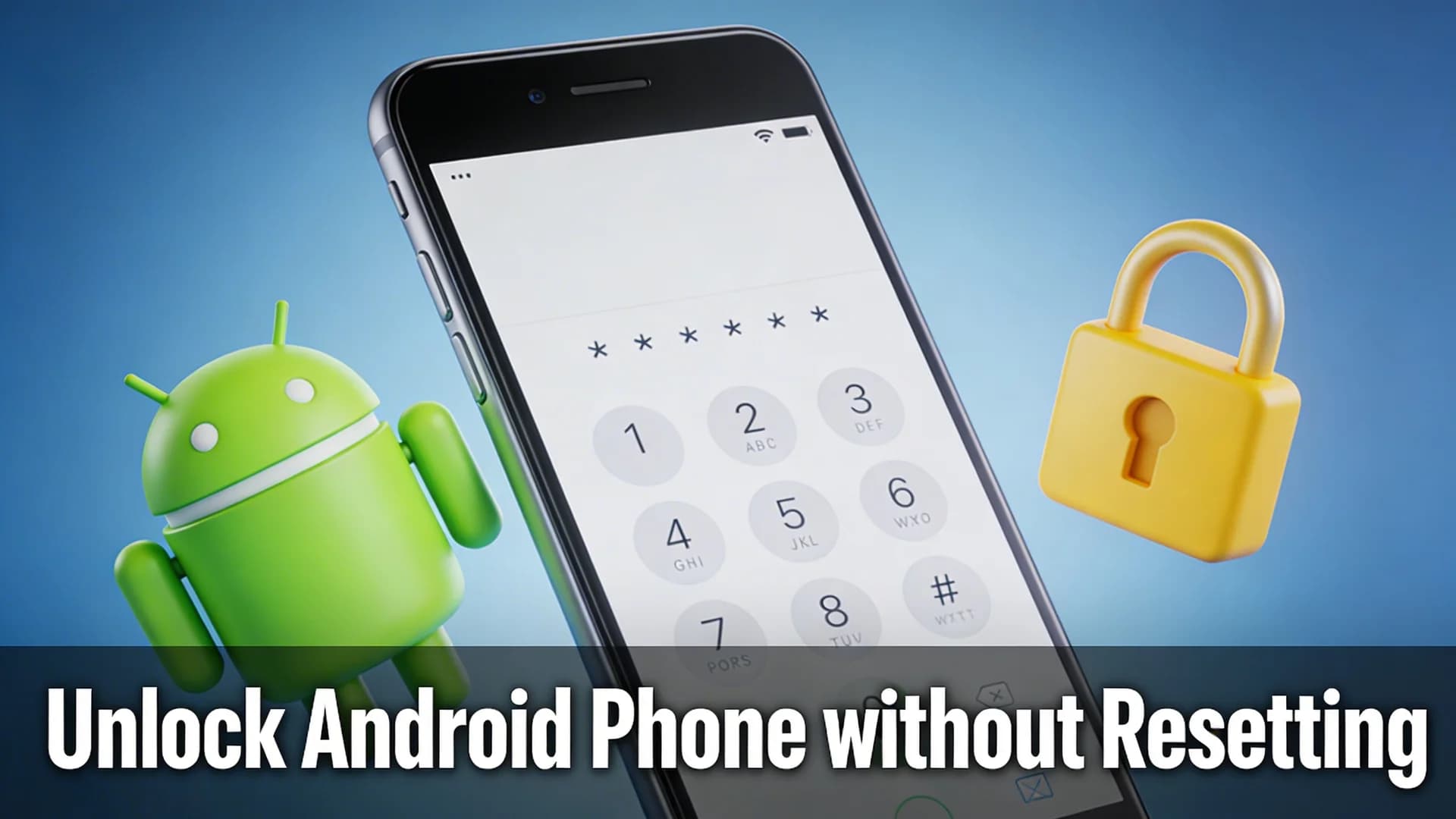
Getting locked out can be stressful, but there are reliable ways to regain access, depending on your device, settings, and situation, without risking your data or security.
Method 1: Using Google Find My Device
Google Find My Device lets you remotely control your phone using your Google account. It works by connecting your device to your account and the internet.
First, go to the Find My Device website on another device and log in. Select your locked phone, then choose the erase option to reset it.
This method works best when your phone is online and linked to your Google account. The main limitation is that it erases all data, and it will not work if the device is offline.
Method 2: Use Samsung Find My Mobile
Samsung users get an extra advantage with Find My Mobile. This service is available if your phone is linked to a Samsung account and has remote unlock enabled.
Visit the Find My Mobile website, log in, and select your device. Click on the unlock option and confirm your identity. Your phone will be unlocked remotely within seconds.
Your PIN, password, pattern, and biometrics will be cleared remotely, and you can set a new lock screen from within Settings once you are back in.
This is one of the easiest methods because it does not erase your data. However, it only works on Samsung devices with the feature enabled beforehand.
Samsung tip: To enable remote unlock before you need it, go to Settings > Biometrics and security > Find My Mobile, then turn on Remote unlock. This one setting can save you a lot of trouble later.
Method 3: Forgot Pattern Feature
Older Android devices offer a built-in way to recover access using the “Forgot Pattern” option. After several failed attempts, this option appears on the screen.
Tap it and log in using your Google account credentials. Once verified, you can set a new lock. This method is simple and does not erase data.
However, it is less common now because newer Android versions have removed this feature for better security, making it unavailable on most modern smartphones.
However, Google removed this feature starting with Android 5.0 (Lollipop). If your phone runs Android 5.0 or later, this option will not appear.
Most phones sold after 2015 will not have it, which means it applies only to a small number of older devices still in use today.
Method 4: Factory Reset Your Phone
A factory reset is the last option when nothing else works. It completely wipes your phone and removes the lock.
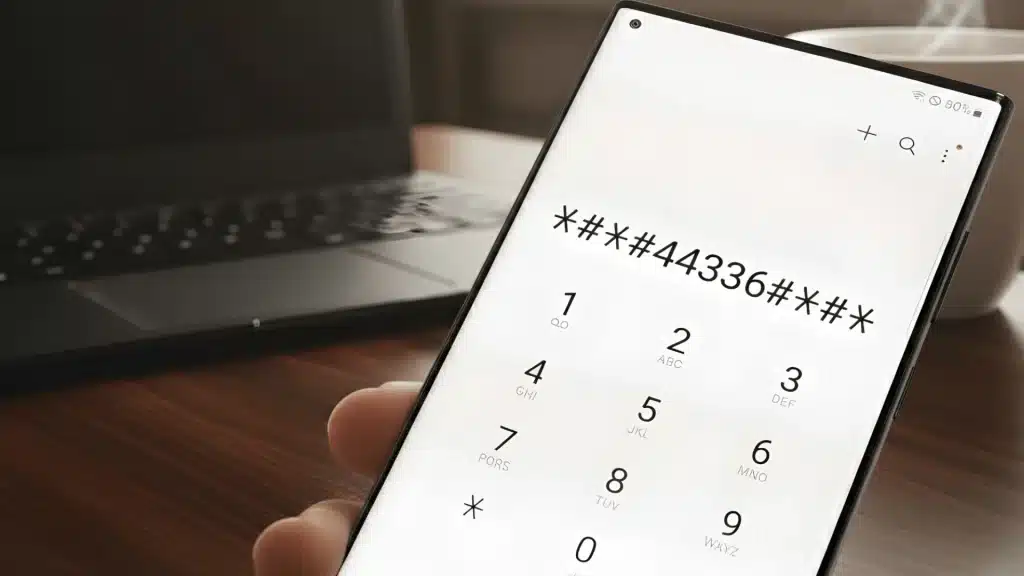
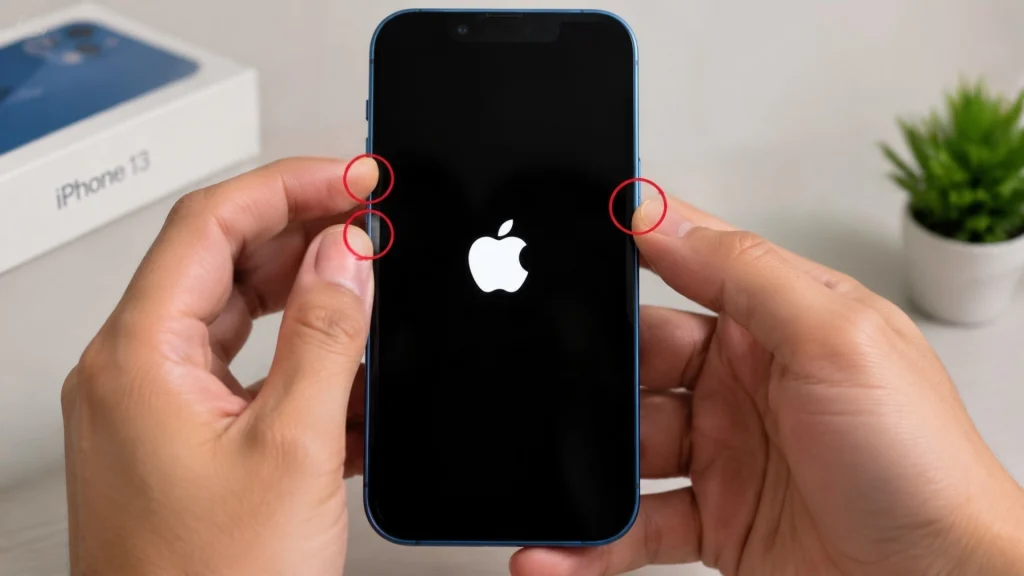
To do this, turn off your device and boot into recovery mode by pressing a combination of buttons, usually power and volume keys. If you want a detailed walkthrough of every step, the process of resetting an Android phone when locked covers exactly how to navigate recovery mode and complete the wipe safely.
Select the factory reset option and confirm. This will erase all data, including apps, photos, and settings.
After a reset, you can restore data using backups from Google or cloud services if you had them enabled earlier.
Method 5: Use Safe Mode
Safe mode helps when a third-party lock screen app is causing the issue. It disables all downloaded apps temporarily.
To enter safe mode, press and hold the power button, then tap and hold the power off option until safe mode appears.
Once your phone restarts, go to settings and uninstall the lock app. After removing it, restart your phone normally. This method works only if the lock is from an app, not the default system lock.
After the reset, Android will require you to sign back in to the Google account previously linked to the device due to Factory Reset Protection. Make sure you have those credentials available before you begin.
What to Avoid While Trying to Unlock Your Phone?
When trying to unlock your phone, avoid using unknown apps or tools that promise quick results. Many of these are unreliable and can harm your device.
Some apps may request unnecessary permissions or attempt to install malware. This puts your personal data, like photos, passwords, and banking details, at risk.
Be cautious of websites claiming “instant unlock” solutions, as they are often scams designed to steal information or money.
Stick to official methods from Google or your device manufacturer. If something sounds too easy or suspicious, it is usually not safe to trust.
How to Prevent Getting Locked Out Again
Avoid the frustration of getting locked out by setting up smart security backups and simple habits that keep your access secure without making things complicated later.
- Use fingerprint or face unlock: Set biometric unlock for quick access and reduce chances of forgetting your main password or PIN.
- Keep a backup PIN: Always remember a simple backup PIN that you can recall easily if biometric unlock fails.
- Turn on Find My Device: Enable this feature to remotely control, locate, or reset your phone if you ever get locked out again.
- Store passwords securely: Use a trusted password manager or a safe place instead of relying solely on memory.
- Set up Extend Unlock in advance: Configure a trusted location or trusted device now, so you have a no-password fallback if you forget your PIN in the future.
- Avoid frequent password changes: Frequent changes increase the risk of forgetting them, so keep them stable and memorable.
Conclusion
Getting locked out of your device can feel frustrating, but there are safe and practical ways to handle it.
This guide on how to unlock an Android phone without a password offers options based on your situation, including using Google tools, Samsung features, or a reset.
The key is to stay calm and choose a method that protects your data. Going forward, setting up backup access and security features can help prevent this stress again.
If you have faced this issue or tried any methods, please share your experience in the comments.