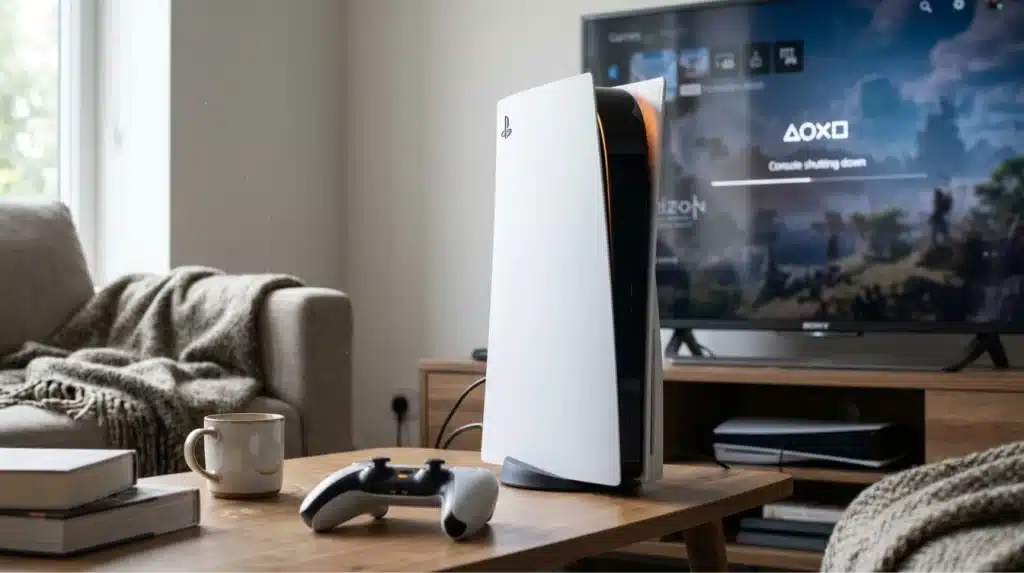
Every PlayStation 5 owner eventually needs to know how to turn off PS5 correctly, whether after a long gaming session or before packing up the console.
Sony built more than one shutdown option into the system, and each works a little differently depending on your setup.
Some players reach for the DualSense controller, others prefer the button on the console itself, and a few need to power down with no TV connected at all.
Skipping the proper shutdown steps, or choosing the wrong method for the situation, can lead to lost progress or a console that struggles to start next time.
The steps below cover every situation, from a fully charged controller to a completely blank screen.
Why PS5 Shutdown Isn’t as Simple as it Looks
Sony rebuilt how PlayStation consoles power down when the PS5 first launched, and habits carried over from the PS4 don’t always work the same way anymore.
Holding the PS button used to handle everything, but now a single tap opens a proper menu, and the console recognizes three separate power states rather than a simple on/off, part of a broader shift toward smarter console power design across the industry.
That extra layer explains why a simple question like turning the system off can have several different answers, depending on whether a controller is nearby, a TV is connected, or the console needs to be reached from another room entirely.
Ways to Turn Off PS5
Each situation calls for a slightly different approach, so here are the five ways to power down a PS5, covering the controller, the console itself, and even a phone across town.
1. With the Controller

This is the fastest method whenever the DualSense controller is charged and paired to the console.
- Press the PS button to open the Control Center.
- Move to the Power icon on the right side of the taskbar.
- Select Turn Off PS5 from the menu that appears.
This works while the TV stays switched on the whole time, and the current session saves automatically, so there’s no need to close games manually first, a convenience worth remembering when weighing different gaming platforms.
2. Using the Console Button
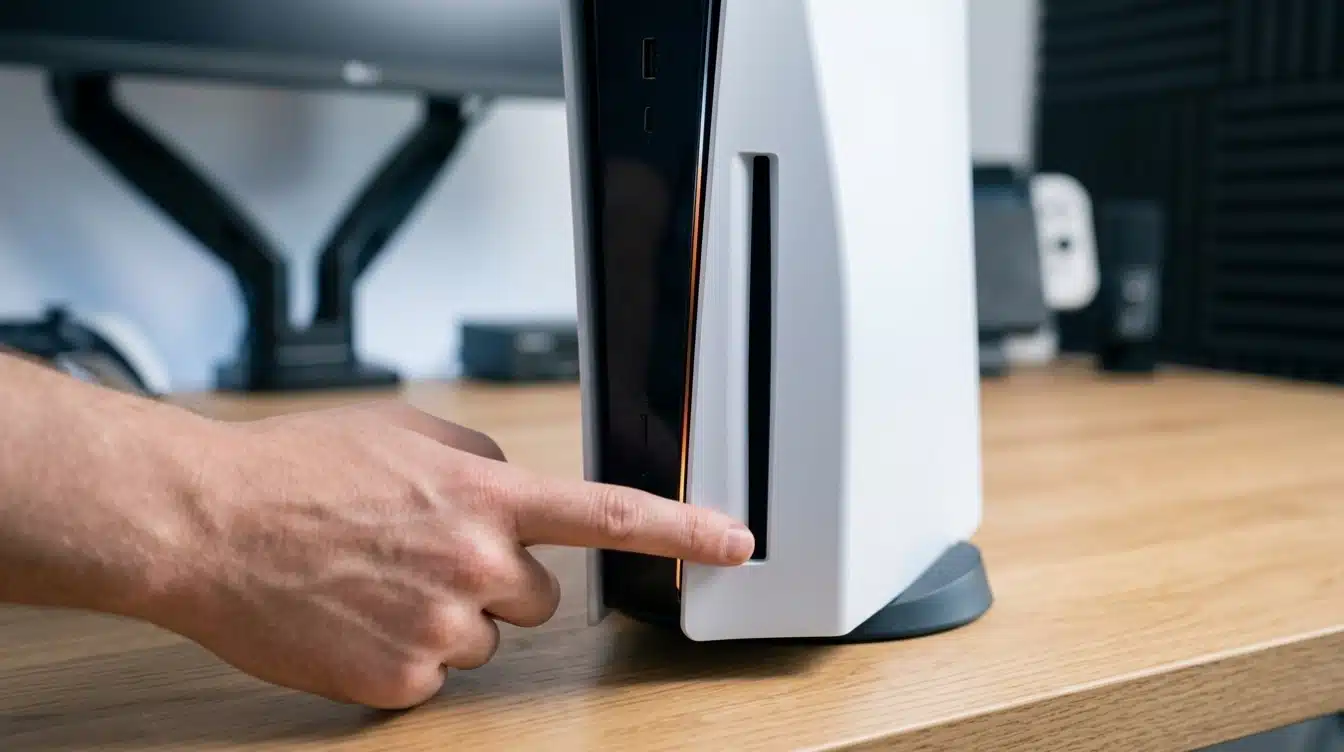
When the controller is missing or its battery has died, the button still works without extra accessories.
- Find the power button below the disc slot on Disc Edition, or the only button on Digital Edition.
- Press and hold, letting the first beep pass, since that triggers Rest Mode only.
- Release once a second beep confirms shutdown has started.
A steady light means the console is still finishing up, while a dark panel confirms it’s safe to unplug.
3. Without a TV Connected
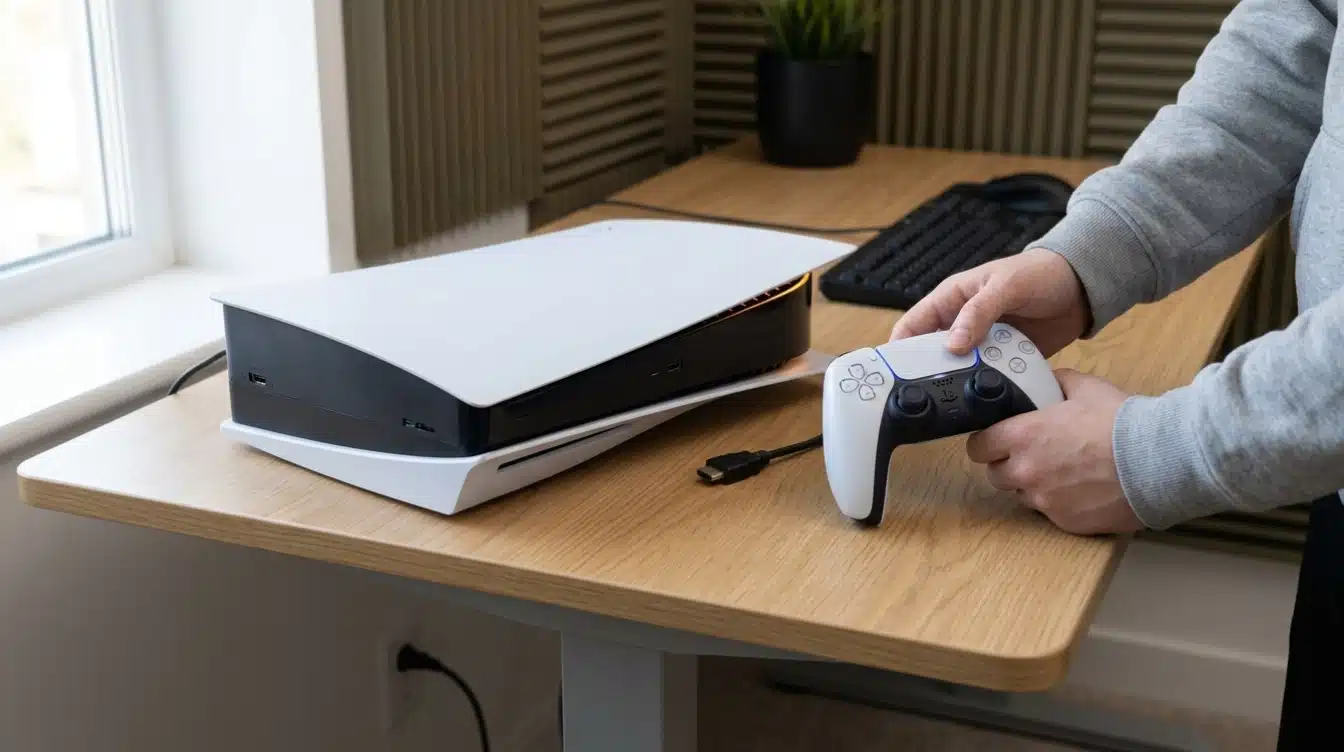
A PS5 doesn’t need a screen connected to shut down properly, which helps whenever the television is off or busy with something else.
- Use the controller or console button methods exactly as described above.
- Count the beeps carefully, since one signals Rest Mode and two confirm a full shutdown.
- Watch the small indicator light to confirm the shutdown finished.
No extra settings or menus are needed, since both approaches work without any screen attached at all, much like the flexibility of a handheld streaming companion.
4. Remotely, With the PlayStation App
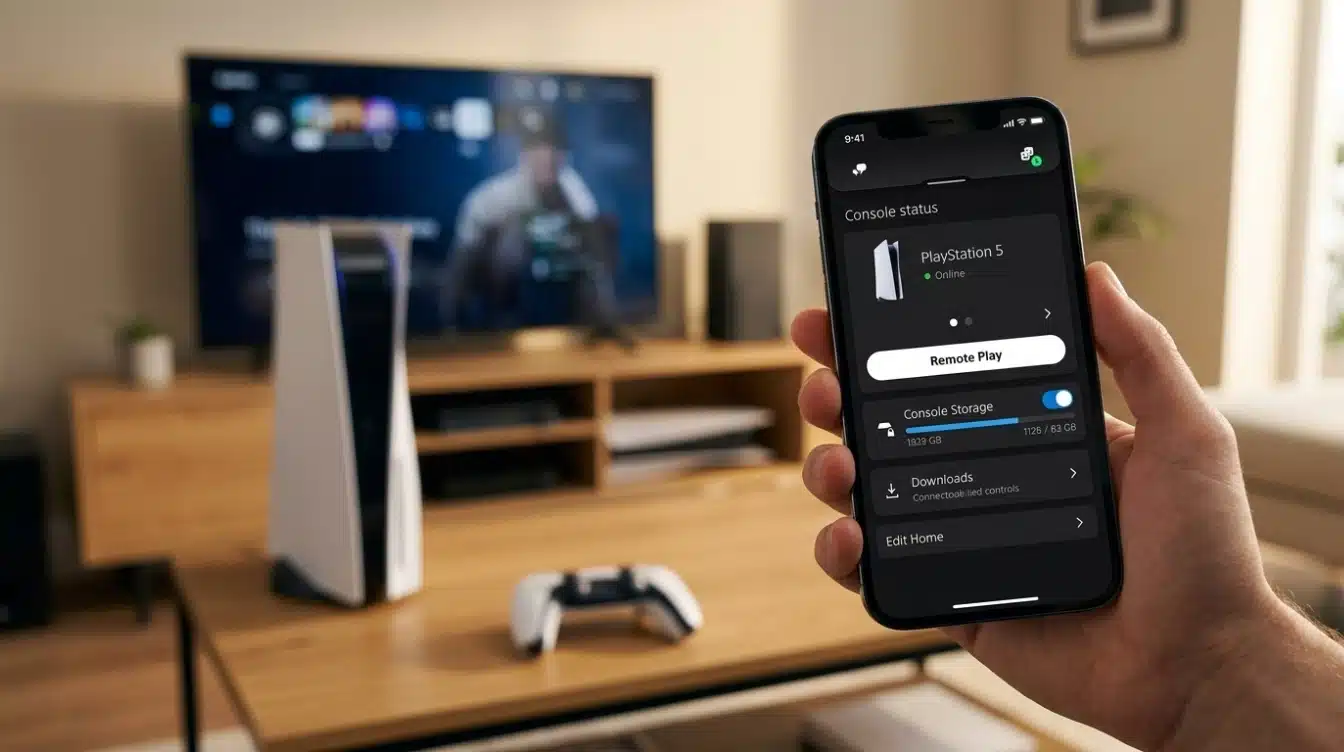
Forgetting to shut the console down before leaving home isn’t a problem, since the app can reach a PS5 left in Rest Mode.
- Confirm Remote Play is enabled under Settings> System> Remote Play.
- Open the PlayStation App and connect to the console.
- Go to Settings and select Disconnect to power it off.
Both devices need to share the same PSN account for this method to work, which is one more reason to keep home devices properly secured.
5. Just the DualSense Controller
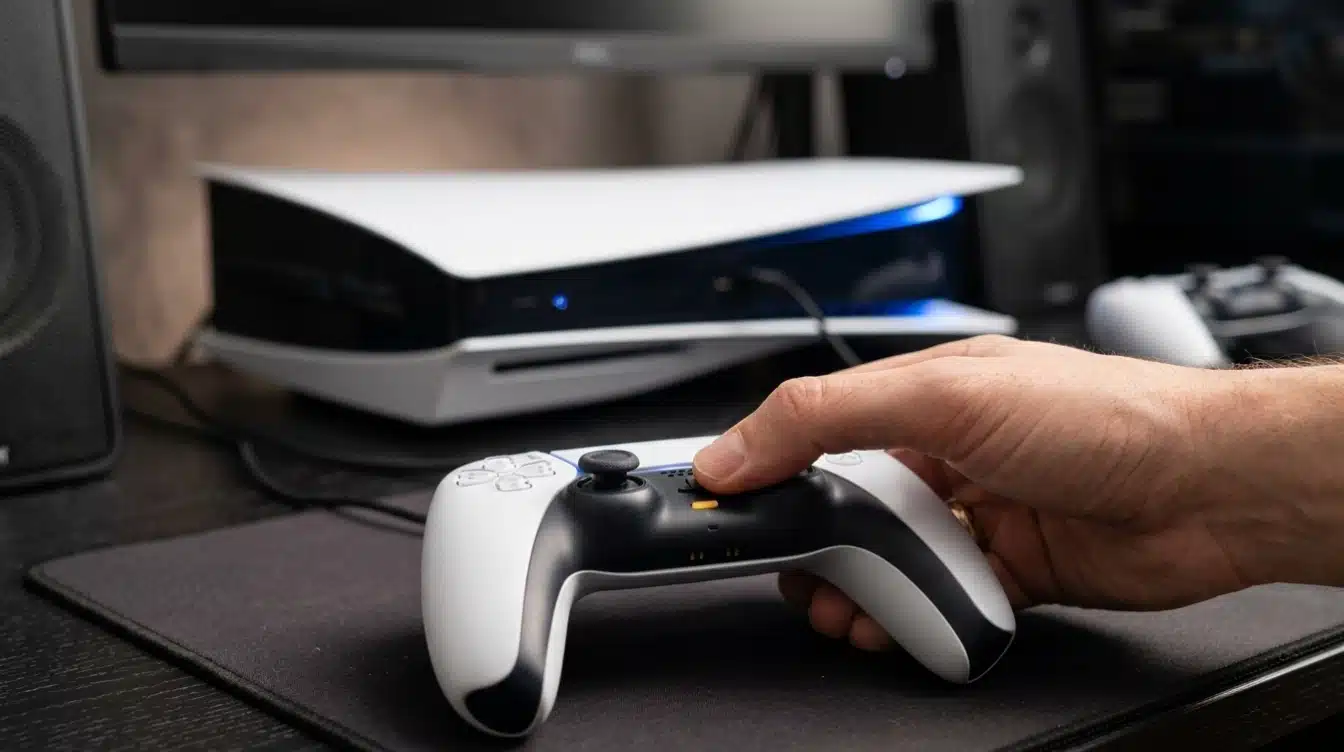
A controller can be switched off entirely on its own, without touching the console at all, which helps preserve its battery.
- Press and hold the PS button for about ten seconds until the light bar goes dark.
- Or open Settings, select Accessories, choose Controllers, and select Turn Off.
The console can stay powered on or sit in Rest Mode the whole time, and the controller reconnects automatically the next time it’s needed, the same logic that applies to adjusting in-game audio preferences elsewhere on the system.
What Actually Happens when You Hit “Turn off”
The screen going dark doesn’t mean the console has finished. Behind that black screen, the PS5 writes your save data to the SSD, closes any background downloads gracefully, and flushes system caches so the next boot starts clean.
This process usually takes just a few seconds, but it’s the reason Sony builds in that brief delay between “shutdown initiated” and the indicator light actually going dark.
Pulling the plug during that window is one of the few ways a routine shutdown can turn into a corrupted save or a console that needs a longer repair boot next time.
Rest Mode or Full Shutdown: Which Should You Choose
Rest Mode and a full shutdown both stop active gameplay, but they behave very differently in terms of power draw, background downloads, and how fast the console restarts when you need it again.
| Factor | Rest Mode | Full Shutdown |
|---|---|---|
| Power use | About 0.5W, per Sony’s rating | Minimal, close to zero |
| Downloads and updates | Continue if enabled in settings | Pause until powered on |
| Controller charging | Continues over USB | Stops once console is off |
| Startup speed | Almost instant | Takes longer to boot |
| Best for | Short breaks, overnight downloads | Moving the console, long trips away |
Picking between the two comes down to how soon another session is planned and whether background downloads or controller charging matter more than saving electricity while the household sleeps, a balance long studied in broader looks at idle device power.
How to Turn off the DualSense Controller Without Turning off PS5
Turning off the controller is different from shutting down the PS5. This option is useful when the console needs to stay on, but you want to conserve controller battery. To turn off only the DualSense:
- Press the PS button to open the Control Center.
- Select Accessories.
- Choose your Wireless Controller.
- Select Turn Off.
The PS5 remains on while the controller disconnects. Sony also confirms that turning off the console or placing it into Rest Mode automatically turns off the connected controller. This is why the controller shutdown method should not be confused with turning off the PS5 in the Power menu.
What to Do if PS5 Won’t Turn Off
If the PS5 Power menu stops responding or shutdown appears stuck, start with simple fixes before using Safe Mode. First, check the power indicator. A flashing white light usually means the console is still shutting down, so do not unplug it yet.
If the system still responds, select Power > Restart PS5, then try shutting it down normally again. If the console is frozen, press and hold the physical power button until it turns off, and wait until the indicator goes completely dark before disconnecting power.
If the problem keeps returning, update the PS5 system software or use Safe Mode options such as Repair Console Storage, Update System Software, or Clear Cache and Rebuild Database.
Use Reset PS5 or system software reinstallation only as a last resort because reinstalling the software deletes console data.
Common Mistakes When Turning Off a PS5
Small shutdown mistakes can leave the console in Rest Mode, interrupt system processes, or make it seem fully off when it is still finishing background tasks.
| Mistake | What to Do Instead |
|---|---|
| Selecting Rest Mode by accident | Choose Turn Off PS5 |
| Unplugging while the light flashes | Wait until the indicator is off |
| Assuming a black TV means PS5 is off | Check the console’s power light |
| Turning off only the controller | Use Power > Turn Off PS5 |
| Using Remote Play’s Disconnect option | Use the PS5 Control Center for a full shutdown |
| Relying only on console beeps | Check the indicator because beeps can be muted |
Checking the console indicator before disconnecting power is the safest final step, since a dark screen or silent system does not always mean shutdown is complete.
Final Thoughts
Knowing how to turn off PS5 properly comes down to matching the method to the moment: the controller for everyday convenience, the console button when hardware is unavailable, and either option when no TV sits nearby.
Rest Mode suits short breaks and background downloads, while a full shutdown fits longer gaps or a console that needs to be packed up and moved somewhere new.
The troubleshooting steps above should resolve most stuck shutdowns without a trip to a repair shop or a call to support. Ready to power down for the night?
Grab the controller, follow the shutdown steps above, and rest easy knowing every save loaded safely before the screen went dark.
Frequently Asked Questions
Does Turning off PS5 Delete Save Data or Game Progress?
No, a normal shutdown never deletes save data or game progress. Both the controller and console button methods save your session automatically first. Data loss is a real risk only if the console loses power unexpectedly or gets unplugged mid-shutdown.
Is It Safe to Leave PS5 in Rest Mode Every Night?
Yes, Rest Mode was built for regular overnight use and draws far less power than leaving the console fully on. Repeatedly entering and leaving it doesn’t wear down the hardware, since it’s a designed power state, not a workaround.
What if PS5 Doesn’t Beep when Powering Down?
A missing beep usually means system sounds are muted, not that shutdown failed. Watch the front panel light instead: a brief blink followed by darkness confirms the console powered down correctly either way.
Can Unplugging PS5 Right After Shutdown Cause Damage?
Turning off a PS5 doesn’t cut power the instant the screen goes dark; the console keeps writing data briefly afterward. Pulling the plug during that window is what risks corrupted saves, so a short pause helps.