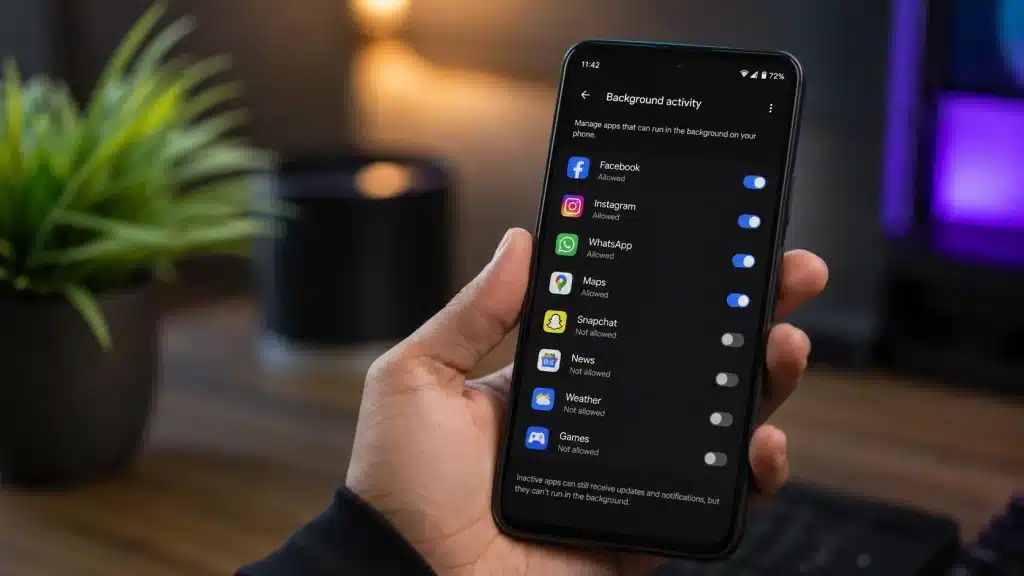
Your phone should not feel like it is working overtime while sitting untouched. Yet one glance at battery stats can reveal a forgotten app quietly draining power, warming your device, eating data, and slowing every swipe.
This usually comes down to background app activities running unnoticed.
Restarting helps for a while, but the problem returns because Android apps keep syncing, refreshing, and checking for updates in the background.
If you have searched for how to stop apps running in the background on Android, you already know a restart is not a lasting fix.
Luckily, better control does not require advanced settings or risky tricks. A few built-in Android options can limit hidden activity, extend battery life, and keep your phone running smoothly.
What Background App Activities Actually Mean
Background app activity is anything an app does after you close it or switch away from it.
It can include checking messages, syncing photos, tracking delivery updates, refreshing feeds, or using location in the background. Some of it is helpful, but plenty of it runs without you noticing.
Android manages this through wake locks, which let apps keep part of the processor awake even when the screen is off.
When a buggy app keeps a wake lock active for too long, it can drain the battery overnight and slow the phone down during the day. With dozens of apps installed, small background tasks quickly add up. That is why newer Android versions limit background activity more aggressively.
Unrestricted background access can also affect privacy, especially when apps collect location or usage data you did not intend to share.
Why Background Apps Drain Battery and Slow Your Phone
Two issues often get mixed up: slow performance and fast battery drain. They feel connected, but they usually have different causes.
- Slow Phone: Too many apps hold RAM and use CPU in the background, making switching, typing, and scrolling feel sluggish.
- Battery Drain: Apps keep pinging GPS, Wi-Fi, or mobile data, or syncing on a schedule.
- Wake Locks: These are the sneaky ones. An app may keep the processor partly awake to finish a task, then fail to release it.
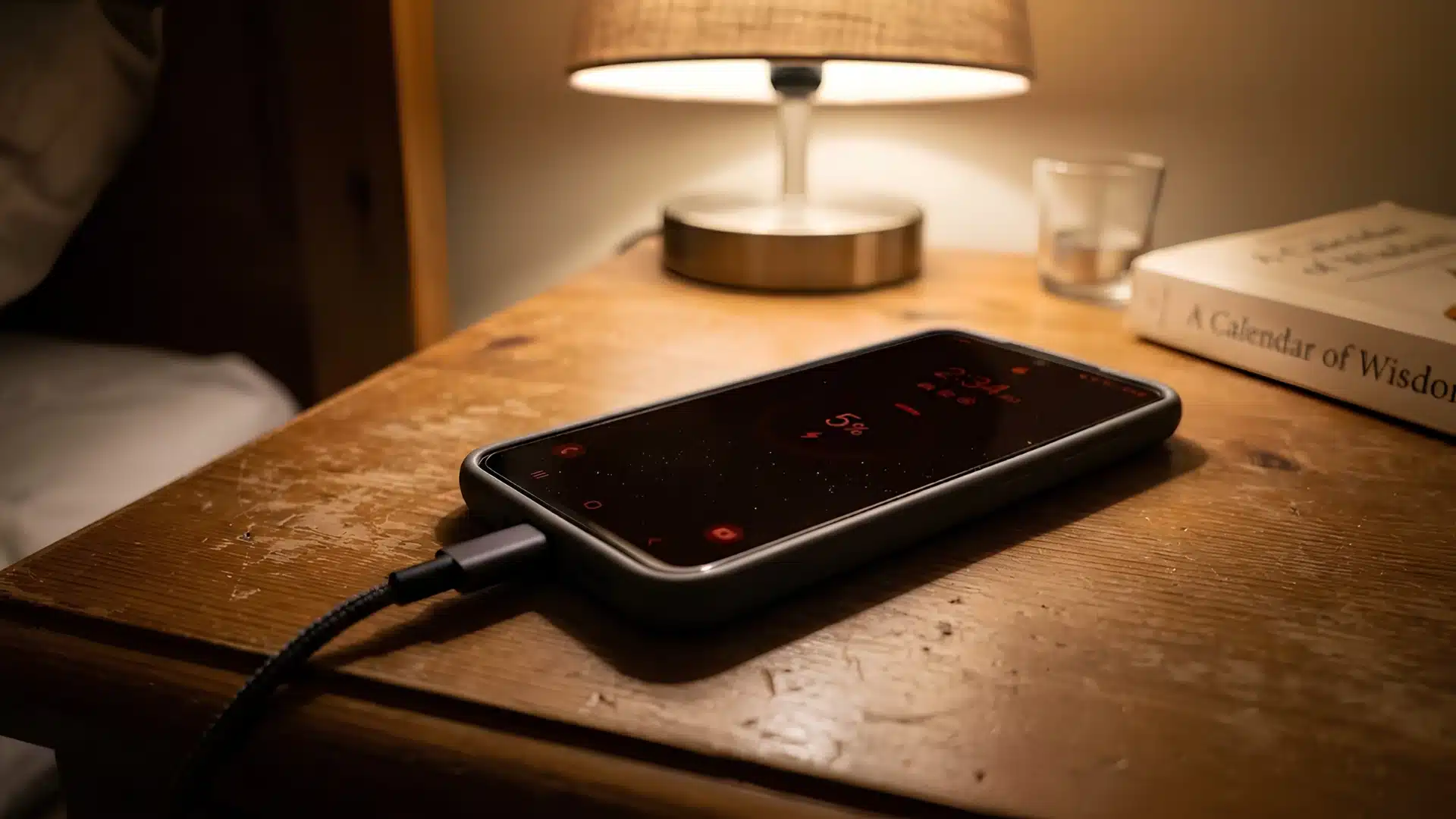
- Overnight Drain: That is why a phone can go from 100% to 60% by morning without being used.
Fixing wake locks and unnecessary background activity can improve battery life more than clearing recent apps.
How to Stop Apps from Running in The Background on Android
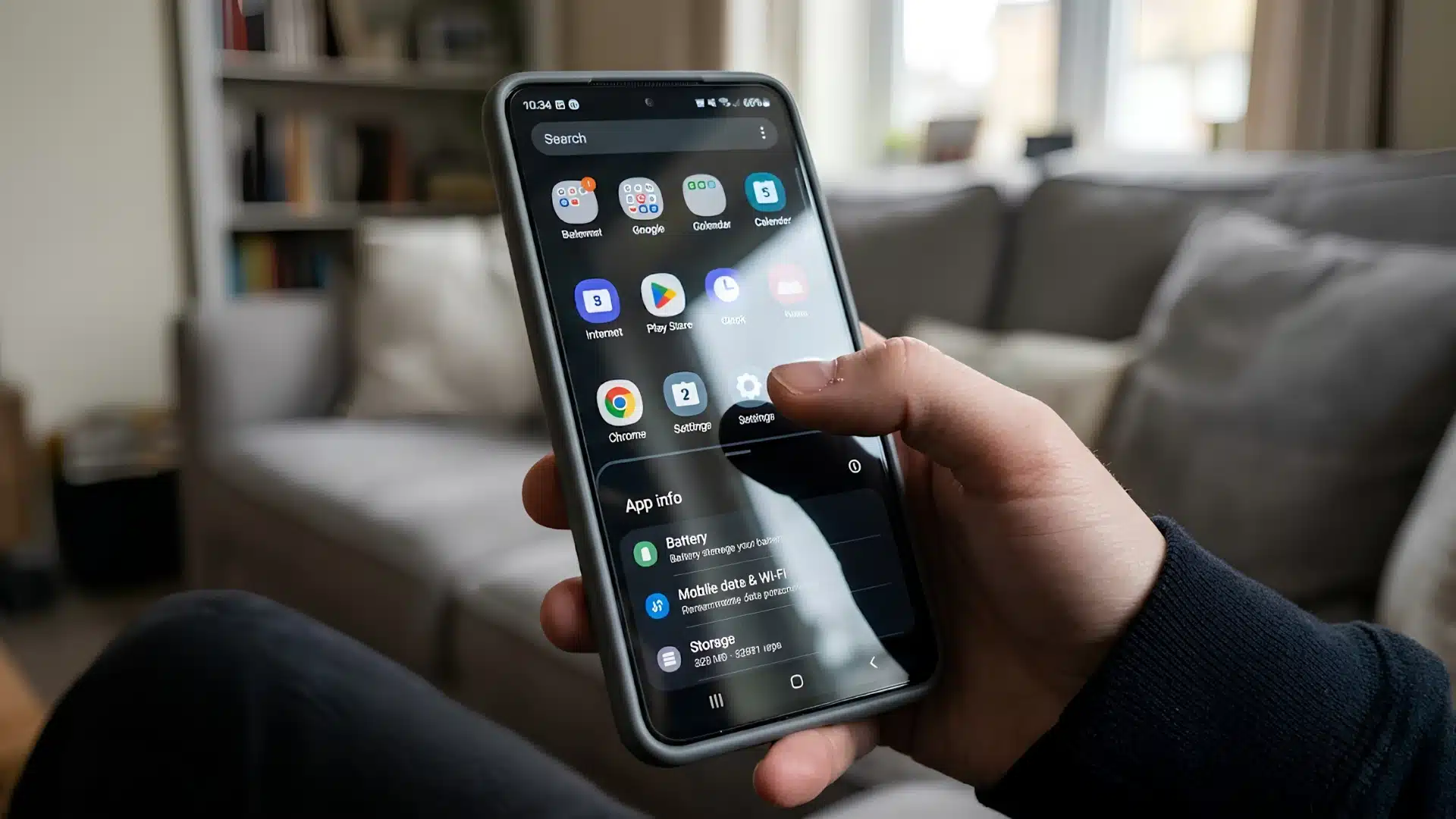
There is a rough order here, from the setting Google actually built for this down to the option most people never touch. Start with the first one below unless you already know which app is the problem.
1. Restrict Background Data and Battery per App
To stop a specific app from using background data and power, adjust its settings directly.
- Open app settings: Go to Settings > Apps, then choose the app you want to control.
- Stop background data: Tap Mobile Data & Wi-Fi, then turn off Background Data.
- Limit battery use: Tap Battery, then set the app to Restricted.
- What it does: This does not delete the app or remove your data. It simply stops Android from waking the app when you are not using it.
- Best apps to restrict: Start with two or three apps you rarely open but that use location, data, or many permissions.
This can improve battery life and reduce unwanted background data sharing.
2. Turn off Auto-Start Apps
Some Android phones add their own background controls on top of regular Android settings.
Samsung, Xiaomi, Oppo, and similar brands may allow apps to auto-start when the phone turns on, even if you restrict them elsewhere.
Check these settings to control them:
- Open Battery settings: Look for Background Usage Limits or a similar option.
- Search for auto-start: In Settings, search Auto-start or Auto-launch.
- Turn it off: Disable it for unimportant apps, such as games, shopping apps, or apps you rarely use.
- Keep key apps active: Leave messaging, alarm, calendar, and security apps enabled.
While checking this, uninstall apps you no longer use. It can reduce background activity and free up storage quickly.
3. Turn on Adaptive Battery and Battery Saver
Adaptive Battery and Battery Saver both reduce background activity, but they work in different ways.
- Use Adaptive Battery: Go to Settings > Battery and check that Adaptive Battery is turned on.
- What it does: It learns which apps you use often, then limits background access for apps you rarely open.
- Check after updates: Some phone updates may reset battery settings, so it is worth checking occasionally.
- Use Battery Saver: Turn it on when you know you won’t be charging for a while.
- What Battery Saver does: It limits background activity for most apps, slightly dims the screen, and may slow animations.
An adaptive battery is better for daily use, while Battery Saver helps when you need extra hours on a single charge.
4. Limit Background Data per App
Background Data is useful when you want to limit one app’s network activity without changing everything else.
- Open app data settings: Go to Settings > Apps > [App Name] > Mobile Data & Wi-Fi.
- Turn off Background Data: This stops the app from using mobile data while it is closed.
- Know the limit: The app may still refresh or sync when connected to Wi-Fi.
- Best use case: Use this setting when saving mobile data matters more than saving battery.
- What it controls: It mainly targets network activity, not every background process the app runs.
This is a simple way to stop data-hungry apps from eating through a limited plan.
5. Handle Aggressive Manufacturer Battery Managers
Stock Android settings do not show the full picture on phones with heavy custom skins. Samsung, Xiaomi, and OnePlus add their own battery managers that can be stricter than the standard Android controls.
- Samsung Device Care: Go to Settings > Battery and Device Care > Battery. Samsung may automatically place apps into sleeping or deep sleep lists, which can limit them even if you only restricted them lightly.
- Xiaomi Battery Saver: MIUI often closes background apps quickly. If an app needs to keep running, add it manually to the autostart allowlist under Settings > Apps > Manage Apps > Autostart.
- OnePlus Battery Optimization: OxygenOS adds another layer of control. A padlock icon beside an app in recent apps usually means it has been protected from being closed.
If a trusted app keeps getting stopped, check the phone’s built-in battery manager. Heat from wireless charging can also worsen battery drain and long-term battery health.
Why Restricting Background Apps Improves Performance and Battery Life
The benefit goes beyond a battery percentage that drops more slowly during the day.
Android restricts apps by usage: Android already sorts apps into battery tiers, from Active to Restricted, based on how often you use them. Lower-tier apps get tighter limits on background jobs, alarms, and wake-ups.
Manual restriction speeds this up: When you restrict an app yourself, you place it in that stricter category sooner rather than waiting for Android to learn your usage pattern.
It supports long-term battery health: If one app drains 15% or 20% overnight, it can mean more charging, more heat, and faster battery wear over time.
Cutting unnecessary background activity helps your phone last longer each day and keeps the battery healthier for longer.
Common Mistakes When Trying to Stop Background Apps
A few common habits can make Android battery drain worse instead of fixing it.
| Common Mistake | Why It Hurts |
|---|---|
| Swiping apps away repeatedly | It closes the visible screen, but background services may still restart. |
| Force-stopping apps daily | The app reloads from scratch later, using more power and processing. |
| Restricting important apps | Messaging, email, calendar, and alarm apps may send late notifications. |
| Ignoring auto-start settings | Manufacturer battery managers may relaunch apps even after stock settings are changed. |
| Using task killer apps | Many repeat force stops, causing the same reload problem again. |
| Lowering developer process limits | Too few processes force constant app reloading, which can drain more battery. |
Be selective. Restrict unused apps, not the ones you depend on.
Final Verdict
Managing background app activities is not a one-time fix. New apps, updates, and default manufacturer settings can quietly bring battery drain back over time.
Once Adaptive Battery is on, the worst apps are restricted, and your phone’s battery manager is checked, the improvement often shows within a day. Your phone should feel quicker, cooler, and less desperate for a charger.
Start with the two or three apps that use the most background battery, and restrict them first. This is the core of how to stop apps running in the background on Android, and it helps reduce unnecessary wake-ups, charging cycles, and heat, which can also support better long-term battery health.
Check your battery usage tomorrow evening. If one app is still draining power after being restricted, share its name in the comments so other readers can compare their results.
Frequently Asked Questions
Does Forcing an App to Stop Delete My Data?
No. It only closes the app process. Your files, settings, accounts, and app data stay safe.
Will Restricting Background Apps Break Notifications?
Sometimes. Messaging, delivery, calendar, and email apps may send alerts late if restricted.
Do These Steps Work on Every Android Phone?
Mostly. The path is similar, but Samsung, Xiaomi, Oppo, and others may use different menu names.
How Many Apps Should I Restrict at once?
Start with three to five unused apps that use a lot of battery. Avoid restricting important apps.