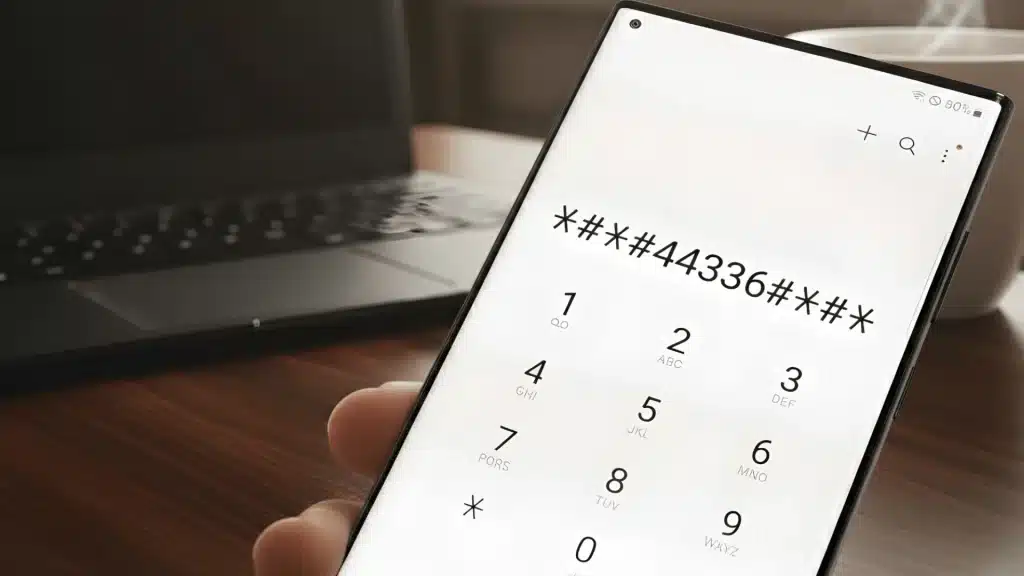
Switching to a new carrier sounds simple until you reach the part where you need a transfer PIN.
I know many people get confused about where to find it, how it works, and why T-Mobile asks for it before you can move your number.
If you are planning to switch carriers, getting the right PIN is one of the most important steps.
In this guide, I will explain how to get the T-Mobile transfer PIN details in a simple way.
You will learn the exact steps to generate your port out PIN, what information you need before starting, and how to avoid common problems during the transfer process.
By the end, you will know exactly what to do and how to complete the process without stress.
What Is a T-Mobile Transfer Pin?
A T-Mobile transfer PIN, also called a port out PIN, is a temporary security code used when transferring a phone number from T-Mobile to another carrier.
It helps protect the account and prevents unauthorized number transfers. The transfer PIN is required along with the T-Mobile account number during the porting process.
This PIN is different from the regular account PIN because it is created specifically for switching carriers.
T-Mobile generates the transfer PIN for a limited time, which means it must be used before it expires. The PIN can usually be created through the T-Mobile app, online account settings, or customer support.
Having the correct transfer PIN helps make the number transfer process smooth and reduces the chances of delays or verification issues during carrier switching.
Why You Need a Port-out PIN to Switch Carriers?
A port-out PIN is needed to verify the account owner before transferring a phone number to another carrier. It adds an extra layer of security and helps prevent unauthorized number transfers.
- Protects Against Fraud: The PIN helps stop unauthorized users from transferring a phone number without permission.
- Verifies Account Ownership: Carriers use the PIN to confirm the transfer request comes from the real account holder.
- Required for Number Porting: Most carriers ask for the port-out PIN before starting the number transfer process.
- Keeps Account Information Secure: The PIN works as a temporary security code during the switching process.
- Reduces Transfer Delays: Providing the correct PIN helps complete the carrier switch more smoothly and quickly.
- Prevents Unauthorized SIM Transfers: The PIN adds security against scams like SIM swapping and number theft.
- Helps Complete Carrier Verification: The new carrier uses the PIN to process and approve the transfer request.
How to Get Your T-Mobile Transfer PIN?

Getting a T-Mobile transfer PIN is an important step before moving a phone number to another carrier. T-Mobile offers different ways to generate the PIN, making the process quick and secure for account holders.
1. Use the T-Mobile App
The T-Mobile app is one of the easiest ways to get a transfer PIN. After signing in, open the account settings and look for the number transfer or port out option.
The app may ask for identity verification before generating the PIN.
Once verified, a temporary transfer PIN appears on the screen. This method is fast and convenient for users who manage their accounts through mobile devices.
The generated PIN can then be shared with the new carrier to begin the number transfer process.
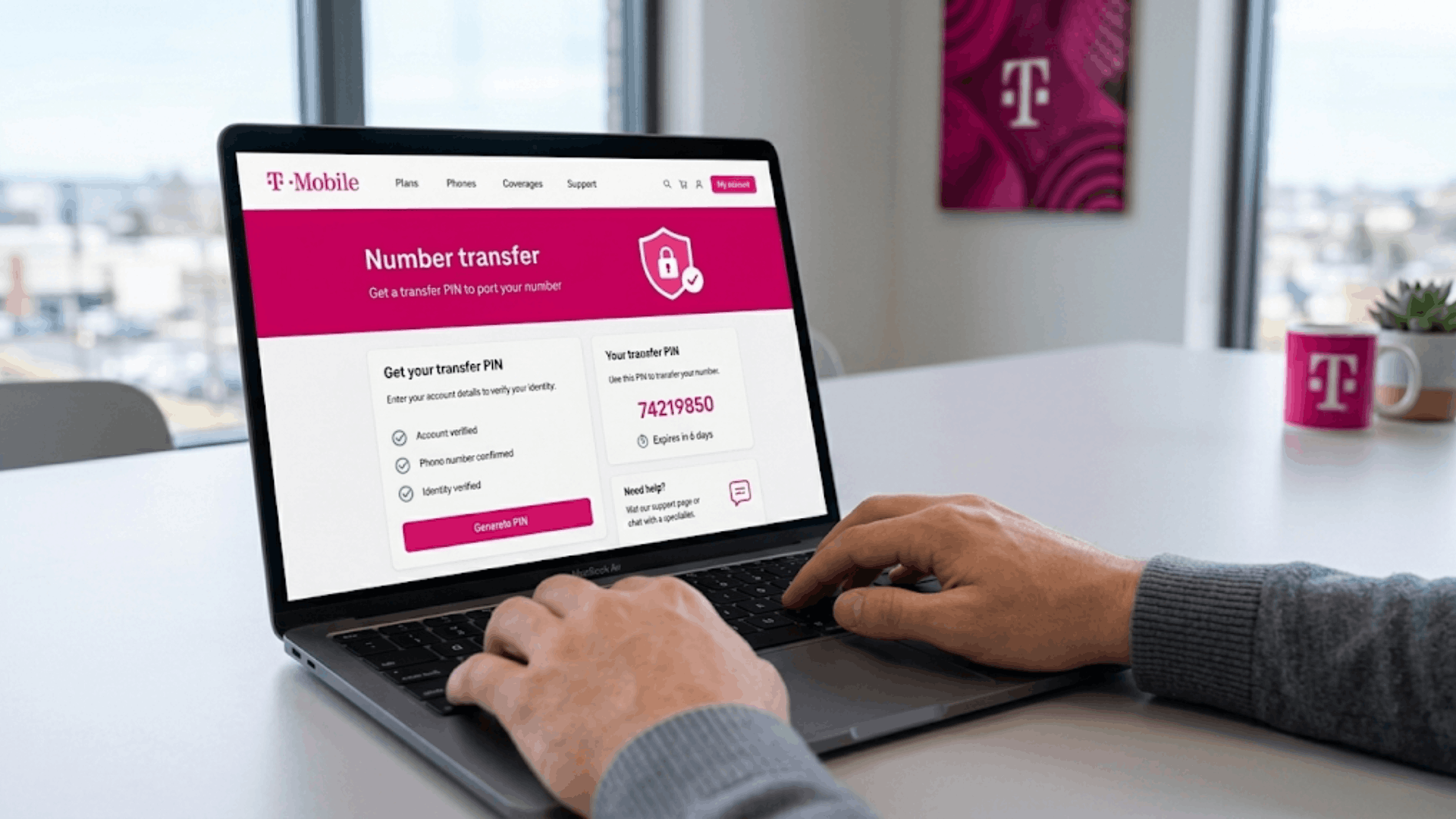
2. Generate the PIN Through the T-Mobile Website
The official T-Mobile website also allows users to create a transfer PIN online. After logging into the account, visit the profile or security settings section and find the number transfer option.
T-Mobile may send a verification code or request account details for security purposes. Once verification is complete, the temporary port out PIN is generated instantly.
This method works well for users who prefer handling account settings on a desktop or laptop while preparing to switch carriers.
3. Contact T-Mobile Customer Support
Customer support can help generate a transfer PIN if there are account access issues. A T-Mobile representative usually asks for account verification details before creating the PIN.
I once read about a discussion where a user could not generate the PIN in the app due to a login error, but customer support helped complete the process within a few minutes.
This option is useful when the app or website is not working properly or when extra support is needed during the transfer process.
After verification, the representative provides the temporary PIN required for number porting.
Customer support also helps answer questions related to transfer delays, account status, or PIN expiration during the switching process.
4. Verify the T-Mobile Account Information
Correct account information is important before requesting a transfer PIN. Details such as the account number, billing information, and the status of the active phone line should be checked in advance.
Incorrect account details can delay the porting process or cause transfer errors with the new carrier.
T-Mobile may also require account authentication before generating the PIN.
Verifying everything beforehand helps make the transfer process smoother and reduces the chances of failed number port requests during carrier switching.
5. Check the PIN Expiration Time
T-Mobile transfer PINs are temporary and usually expire after a limited period. Because of this, the PIN should be used soon after it is generated.
Waiting too long may require you to create a new PIN before completing the transfer request.
Checking the expiration time helps avoid delays during the number porting process.
My friend once delayed the transfer process for a few days and later realized the original PIN had already expired, which meant generating a new one before the request could continue.
It also helps the new carrier process the request smoothly. Keeping track of the active PIN makes switching carriers easier.
T-Mobile Transfer PIN Requirements Checklist
Before requesting a T-Mobile transfer PIN, a few account details and security requirements should be ready. Having the correct information helps avoid delays and makes the number transfer process smoother.
| Requirement | Why It Matters | Details |
|---|---|---|
| Active T-Mobile Account | Needed for transfer approval | The phone number must be linked to an active T-Mobile account before requesting a transfer PIN. |
| T-Mobile Account Number | Required for porting | The account number is needed by the new carrier during the transfer process. |
| Verified Account Owner | Helps prevent fraud | T-Mobile may ask for identity verification to confirm account ownership. |
| Account PIN or Password | Secures account access | The regular account PIN or password may be required to log in to account settings. |
| Active Phone Line | Prevents transfer failure | The mobile number should remain active until the transfer process is completed. |
| Temporary Transfer PIN | Needed for carrier switching | The PIN generated by T-Mobile expires after a limited time. |
| Correct Billing Information | Supports account verification | Matching billing details can reduce verification errors during the transfer process. |
| New Carrier Transfer Request | Starts the porting process | The new carrier uses the account number and transfer PIN to move the phone number. |
How to Disable T-Mobile Port Out Protection?
T-Mobile Port Out Protection adds extra security to prevent unauthorized number transfers. Disabling this feature may be necessary before starting the process of switching to another carrier.
- Open the T-Mobile App or Website: Sign in to the T-Mobile account using the registered login details.
- Go to Account Security Settings: Find the section related to account protection or line security options.
- Locate Port Out Protection: Search for the setting connected to transfer protection or number security.
- Turn Off the Protection Feature: Disable the port-out protection option for the selected phone line.
- Complete Identity Verification: T-Mobile may ask for a password, PIN, or verification code for security purposes.
- Save the Updated Settings: Confirm the changes to ensure the protection feature is successfully disabled.
- Request the Transfer PIN: After disabling protection, generate the temporary transfer PIN required to port the number.
- Enable Protection Again Later: Re-enable port-out protection as soon as the transfer completes. Leaving it off long-term increases exposure to SIM swap fraud.
How to Transfer Your Number After Getting the PIN?
After receiving the T-Mobile transfer PIN, the next step is to start the number transfer process with the new carrier. Using the correct account details and keeping the line active can help complete the switch smoothly.
1. Choose the New Carrier and Plan
The first step is selecting the carrier and mobile plan for the number transfer. Most carriers allow number porting during the signup process. Before starting, it is important to check network coverage, pricing, and plan details.
The new carrier usually asks for the phone number, T-Mobile account number, and transfer PIN to begin the process.
Choosing the right plan in advance helps avoid delays and makes the switch easier. Having all account information ready also helps expedite the transfer request.
2. Submit the Transfer PIN and Account Details
The new carrier requires the T-Mobile transfer PIN and account number to process the port request. These details help verify account ownership and approve the transfer safely.
Entering incorrect information may cause delays or failed transfer attempts. Most carriers provide an online form or in-store process for submitting the details.
During this step, the T-Mobile phone line should remain active until the transfer is completed.
Accurate account information helps make the number-porting process smoother and reduces verification issues during the carrier switch.
3. Wait for the Number Transfer to Complete
After submitting the request, the new carrier starts the number transfer process.
In many cases, the transfer is completed within a few hours, but some requests may take longer depending on account verification or carrier approval.
During this time, the T-Mobile service should remain active to avoid interruptions. Temporary service issues may occur while the transfer is being processed.
Once the porting process finishes, the phone number becomes active on the new carrier’s network.
Checking confirmation messages and activation updates helps confirm that the transfer was completed successfully.
4. Confirm the Number Transfer and Activate Service
Once the transfer process is complete, the phone number becomes active on the new carrier’s network.
Checking for confirmation messages, activation emails, or service updates helps verify that the transfer was successful.
A colleague of mine once thought the transfer had failed because calls were not going through, but restarting the phone activated the new network within minutes
Testing calls, text messages, and mobile data can also confirm that the number is working correctly on the new network.
After successful activation, the old T-Mobile service usually disconnects automatically. Keeping a copy of the transfer details can also help if support or additional verification is needed later.
Important T-Mobile Transfer PIN Guidelines
A T-Mobile transfer PIN comes with certain rules and security guidelines that help protect the account during the number transfer process. Understanding these points can help avoid delays, expired PINs, and transfer issues.
- Temporary PIN Access: The transfer PIN is valid for a limited time and expires shortly thereafter.
- Different From Account PIN: The transfer PIN is separate from the regular T-Mobile account PIN or password.
- Required for Number Porting: The PIN must be shared with the new carrier to complete the transfer request.
- Account Verification Needed: T-Mobile may require identity verification before generating the PIN.
- Keep the Line Active: The phone number should remain active until the porting process finishes completely.
- One PIN Per Request: A new transfer PIN may be required if the previous one expires before it can be used.
- Security Protection Matters: Port out protection settings may need to be disabled before generating the PIN.
- Correct Account Details Are Important: Incorrect account numbers or billing information can delay the transfer process.
Common T-Mobile Transfer PIN Issues and Fixes
Problems with a T-Mobile transfer PIN can delay the number porting process and create verification issues during carrier switching.
| Common Issue | Possible Reason | Fix |
|---|---|---|
| Transfer PIN Not Working | The PIN may have expired or been entered incorrectly. | Generate a new transfer PIN and recheck the details before submitting. |
| Incorrect Account Number | Wrong account information was shared with the new carrier. | Verify the T-Mobile account number in the account settings or on the billing statement. |
| Port Out Protection Enabled | Security settings may block the transfer request. | Disable T-Mobile port-out protection before starting the transfer process. |
| PIN Expired Before Use | Transfer PINs are temporary and expire after a limited time. | Request a new PIN and complete the transfer quickly. |
| Transfer Request Delayed | Account verification or billing issues may cause delays. | Confirm the account details and ensure the account remains active. |
| Unable to Access T-Mobile Account | Login problems may prevent PIN generation. | Reset the password or contact T-Mobile customer support for help. |
| Number Transfer Failed | Incorrect details or inactive service may interrupt the process. | Check all transfer information and keep the phone line active until completion. |
| Verification Code Not Received | Network issues or outdated contact details may block verification. | Confirm the registered email or phone number and try again later. |
Should T-Mobile Port Out Protection Stay Disabled?
No, T-Mobile port-out protection should not stay disabled permanently after switching carriers. Re-enabling security features helps protect the account and phone number from unauthorized transfer attempts.
Port out protection adds an extra layer of account security by preventing unknown users from moving a phone number without permission.
Many users turn this feature off only during the transfer since the new carrier needs access to complete the port request.
Once the number transfer is successful, turning the protection back on can help reduce the risk of fraud, SIM swap scams, and unauthorized account activity.
Strong online account protection can reduce the risk of SIM swap scams and unauthorized account access
Keeping security settings active is especially important for accounts connected to banking apps, personal information, or business communication.
Checking account protection settings also helps keep your account safe after switching carriers and completing the number transfer.
Conclusion
Switching carriers can feel confusing at first, especially when account security steps like transfer PINs are involved.
However, once the process is understood, obtaining a T-Mobile transfer PIN and moving a phone number becomes much easier.
Correct account details, an active line, and a valid PIN can help avoid most transfer problems.
This guide was created to make the process simpler and less stressful for anyone planning to switch carriers.
If the transfer is being completed through the app, website, or customer support, taking the right steps can save time and prevent delays.
A smooth number transfer starts with good preparation and accurate information.
Have questions or switched carriers using a T-Mobile transfer PIN? Share your tips in the comments to help others.
Frequently Asked Questions
How Long Is a T-Mobile Transfer PIN Valid?
A T-Mobile transfer PIN is temporary and usually expires within seven days after generation.
How Do I Change My T-Mobile PIN?
The T-Mobile account PIN can be changed through the account security settings in the app or website.
What Is a 4-Digit Mobile PIN?
A 4-digit mobile PIN is a security code used to verify account access and protect personal account information.
What Does *67 Do on T-Mobile?
Dialing *67 before a number hides the caller ID for that specific outgoing call.
Can a T-Mobile Number Be Transferred Online?
Yes, T-Mobile number transfers can usually be completed online through the new carrier’s website or app