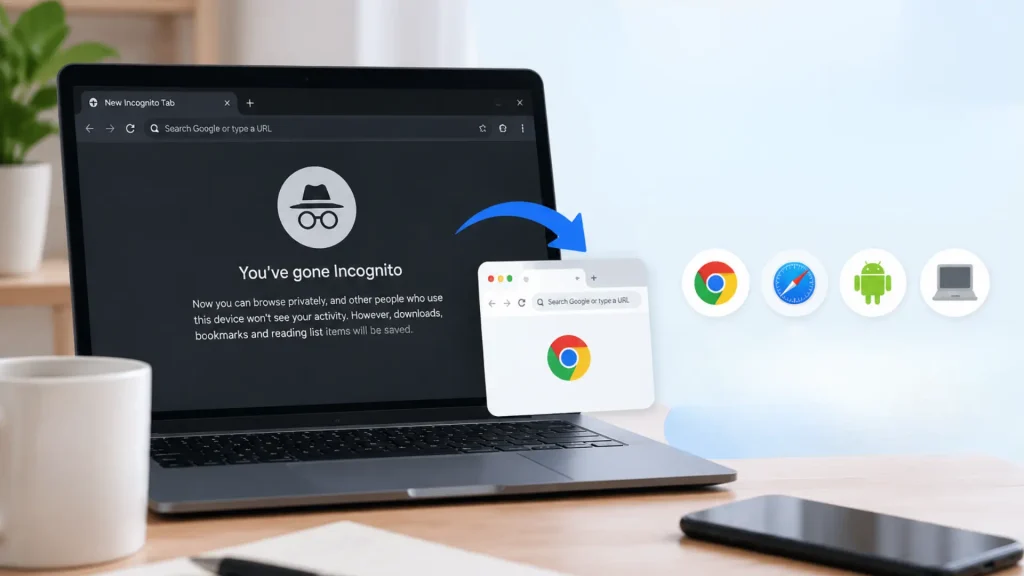
A tab that won’t close. A browser that keeps reopening Incognito every time you tap an icon. If you’ve been stuck trying to figure out how to get out of Incognito mode on your phone, laptop, or shared family Chromebook, the fix is usually smaller than it feels.
I ran into this myself last month when a stubborn Chrome shortcut on my own phone kept dropping me straight into a private window, and the cause turned out to be one overlooked setting, not a broken app.
Below are device-specific steps for Chrome, Safari, and the Google app, plus a full walkthrough on how to disable incognito mode on Android for good, whether it’s for your own device or a child’s.
What is Incognito Mode?
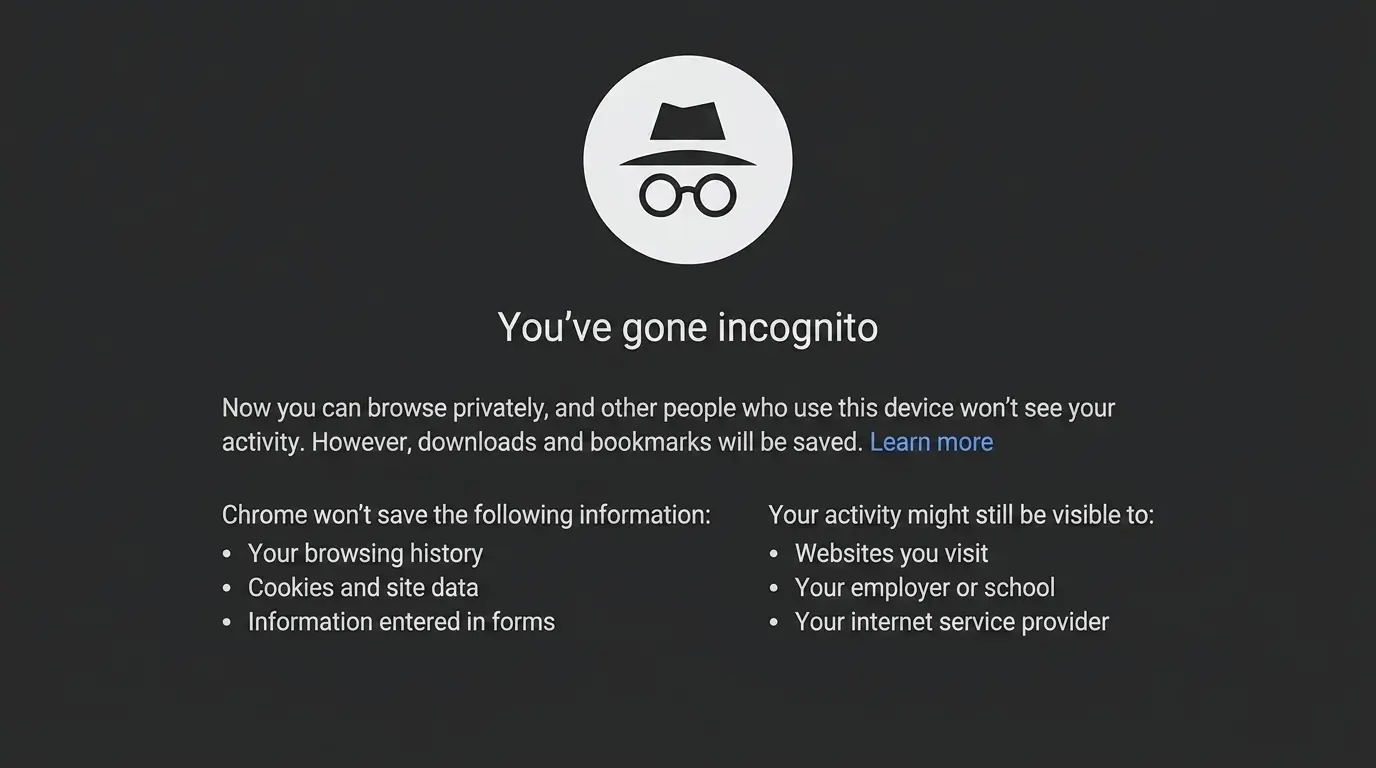
Incognito mode is a private browsing setting that skips saving your history locally, unlike normal mode, which keeps a record of every site you visit.
Cookies last only for the session instead of being stored long-term, and saved passwords work the same way, Incognito won’t remember new logins.
One thing stays the same either way: your network admin, internet provider, or the websites themselves can usually still see your activity, since that visibility never depended on your browser mode in the first place.
Downloaded files and bookmarks also stick around after you close the window, since those save to your device the same way a normal tab would.
Note: Incognito was built to keep your device from remembering things locally, not to make you invisible online. Treat it like a “don’t save this to my history” switch, not a privacy shield.
How to Get Out of Incognito Mode
Every browser handles Incognito a little differently, but the exit is always similar: close the private session, then switch to, or open, a normal window instead.
1. Chrome (Android, iPhone, and Desktop)
Chrome uses the same basic logic everywhere: close the private tabs first, then open, or switch to, a normal browsing window.
- On mobile: Tap the tab switcher, open the Incognito section, and close individual tabs, or use the option to close all of them at once. Then tap the regular tab section or open a new standard tab.
- On desktop: Click the X on the Incognito window, or open a normal Chrome window from your taskbar or dock.
- Keyboard shortcut: Press Ctrl + N on Windows or Command + N on Mac to open a fresh, non-private window instantly.
2. The Google App (Search, Maps, and YouTube)
Incognito in Google’s own apps is separate from Chrome’s Incognito mode, and it works slightly differently depending on the app. Search on iOS, Maps, and YouTube each have their own version, not one universal “Google app” switch.
- Open the app menu: In Google Search (iOS), Maps, or YouTube, tap your profile picture in the top corner.
- Turn it off: Select Turn off Incognito from the menu.
- Confirm: The app switches back to your normal, signed-in browsing or search experience immediately; no need to close individual tabs.
3. Safari on iPhone
Safari keeps Private Browsing in its own separate tab group, so switching back takes only a couple of taps; you don’t need to close every private tab individually first.
- Open tab groups: Tap the tabs button at the bottom of the screen.
- Switch groups: Tap the current tab group name near the top, then choose your regular tab group instead of Private.
- Clear up: Optionally close any leftover Private tabs to end that session completely, the same way you might periodically check your iPhone’s location settings for privacy.
4. Other Android Browsers
Android has no single system-wide Incognito switch, since each browser manages its own private mode.
- Samsung Internet / Firefox: Open the tab switcher, find the “Secret” or “Private” tabs, and close them the same way you would in Chrome.
- Firefox Focus: Built to run in private mode by default, just close the app to erase the session, since there’s no separate mode to exit.
- Still stuck: Check the browser’s own settings menu for a “close all private tabs” option, since exact wording varies by app. If the phone itself seems unresponsive rather than just the browser, try booting into phone’s recovery mode instead.
5. Chromebook
Chromebooks run Chrome’s desktop version, so leaving Incognito works almost the same way as on a computer.
- Close the window: Click the X on the Incognito window.
- Open regular Chrome: Launch Chrome normally instead of an Incognito shortcut.
- Check managed settings: If Incognito keeps reopening on its own, a school or Family Link profile may be involved
Once you’ve closed the right tabs on your device, Incognito should stay gone. If it keeps returning uninvited, a shortcut or managed profile is usually why.
How to Disable Incognito Mode on Android
Closing an Incognito tab only ends that session; it doesn’t stop the option from reappearing next time. If your goal is to remove Incognito from an Android device entirely, here’s what actually works, depending on whose device it is.
- Use a managed profile on your own phone. Google doesn’t offer a personal, one-tap setting that permanently removes Incognito from an unmanaged Android phone. I’ve tested this myself, and the option isn’t tied to any toggle in Chrome’s settings. If your phone is enrolled in a workplace’s Android Enterprise → Google Workspace setup, an IT administrator can push a policy that removes it.
- Switch to a third-party browser. Some Android browsers let you hide or disable the private-tab option directly from their own settings menu, which is the closest thing to a manual toggle on a personal device.
- Set up Family Link for a child’s phone. This is the most reliable fix, and it’s built specifically for this, working on the same COPPA parental consent principle behind most child-focused apps: open the Family Link app → select your child’s profile → Controls → Google Chrome and web → choose a content setting like “Try to block explicit sites” or an approved-sites-only list.
- Let supervision handle the rest automatically. Once your child is signed in to Chrome with a Family Link–supervised account on Android or a Chromebook, Incognito turns off on its own; no separate switch required. Just remember this protection is tied to the account, not the device, so signing out or switching browsers breaks it.
- Check for admin restrictions on work or school phones. On company- or school-issued Android devices, an administrator can block Incognito entirely through Google’s device-management console, using a similar device-management checklist to the ones used for managed Windows and Mac computers.
Whichever route applies to you, the fix always comes from outside Chrome itself, through a managed profile, Family Link, or an IT policy, not a setting hiding inside the browser. If Incognito disappears from a device you didn’t touch, one of these is almost always why.
Why Can’t I Get Out of Incognito Mode?
Incognito can feel stuck for a handful of reasons, and most of them come down to what’s happening in the background rather than a broken browser.
If Incognito keeps opening on its own, a shortcut on your home screen or taskbar is usually launching private mode automatically; removing and recreating that shortcut typically fixes it.
If private tabs are still visible after you’ve tried to leave, they likely weren’t fully closed, so go back and close each one (or use “close all”) to clear it up.
A browser that just feels frozen or unresponsive is often dealing with a temporary glitch, and a force-close and restart usually resolves it.
If Incognito won’t disable at all, device restrictions, like Family Link or workplace admin settings, are almost always the reason, since those controls sit outside the browser itself.
What Happens After You Leave Incognito Mode?
Closing Incognito mode only ends the private browsing session. It does not delete everything from your device, and it does not change files or settings created during that session.
|
Data Type |
What Happens After Closing Incognito |
|---|---|
|
Browsing history |
Not saved locally after the session closes |
|
Cookies |
Removed after the private session ends |
|
Downloads |
Remain saved on your device |
|
Bookmarks |
Stay available if created |
|
Saved files |
Remain unchanged |
Leaving Incognito only affects temporary browsing information. Files, downloads, and saved items remain unless you remove them manually.
More Fixes if Incognito Keeps Opening
If the steps above don’t fully resolve it, a few extra tricks can help you regain full control over private browsing on any device you use.
- Restart: Force-close and reopen the browser if a tab feels stuck.
- Update: Install the latest browser version to fix rare Incognito glitches.
- Check shortcuts: A desktop or home-screen shortcut may be set to open private mode by default.
- Check other apps: Some privacy-focused launcher or browser apps force every new tab into private mode; check their settings, not just Chrome’s.
- Disable at the source: Use Family Link or device management settings to block Incognito entirely, rather than closing it session by session.
These extra methods cover most lingering issues that basic steps miss. Combining a restart with an update usually resolves even stubborn Incognito problems.
Final Thoughts
Most of the time, the issue isn’t privacy settings; it’s finding the private tabs and switching back to a normal window, whether that’s in Chrome, Safari, or the Google app.
If your real goal is to disable incognito mode on Android for good, for your own phone or a child’s- that comes down to Family Link supervision or device management, not a setting you’ll find in Chrome itself.
Test the fix that matches your device, and if Incognito keeps reopening after that, it’s almost always a shortcut or a managed profile working in the background.
Drop a comment if a different device or app keeps pulling you back into private mode; it’s usually a quick fix.
Frequently Asked Questions
Does Incognito Mode Protect Me from Viruses or Malware?
No. Incognito only changes what your browser remembers; it doesn’t scan downloads, block malicious sites, or add any extra security layer. You still need antivirus software or safe browsing habits for that.
Can I Make Incognito Open by Default Instead of a Normal Window?
Not through a standard Chrome setting, Google doesn’t offer a built-in “always open Incognito” toggle for personal accounts. Some third-party browsers or enterprise policies can force this behavior, but it isn’t a regular user setting.
Is There a Shortcut to Close All Incognito Windows at Once?
There’s no dedicated “close all Incognito” shortcut. On desktop, closing the Incognito window (or pressing Alt+F4 on Windows / Command+Q on Mac if it’s the only window open) ends the session immediately.
Why Does My Browser Suggest Incognito when I Log in To Sensitive Accounts?
Some sites and browser extensions recommend private browsing for banking or shared-device logins so your session details and autofill data aren’t saved locally; it’s a suggestion for that device, not a requirement for the login itself.