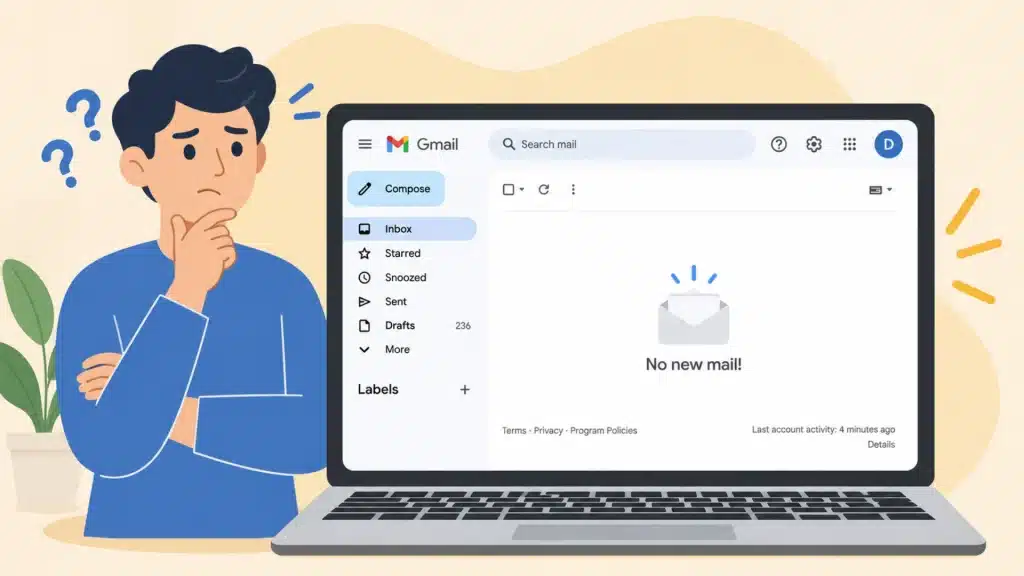
Ever shared a location only to have someone arrive at the wrong entrance, street, or side of the building? A dropped pin can prevent that confusion by marking the exact spot you mean.
Learning how to drop a pin helps you save a parked car, choose a meeting point, mark a trail, or share a place without a clear address. Google Maps and Apple Maps both let you place, save, label, and share pins within seconds.
The steps vary slightly across Android phones, iPhones, and desktop browsers, but the basic process remains simple. Before sending a pin, zoom in and confirm its position so others reach the correct location without unnecessary delays.
What Does it Mean to Drop a Pin?
To drop a pin means marking an exact point on a digital map so you, or anyone you share it with, can find that spot again.
You don’t need a street address for it, just a location you tapped or clicked on. Both Google Maps and Apple Maps let you drop a pin in seconds.
The marker holds the coordinates of that spot, based on the same latitude and longitude reference system NOAA maintains for the entire country, and from there you can save it, get directions to it, or send it to someone in a text or email.
Removed a duplicate copy of this sentence that appeared twice in a row in the original draft, one version without the NOAA link.
In my experience helping teams coordinate meetups and errands, a labeled pin saves far more back-and-forth texting than any typed address ever does.
It’s one of those small features that quietly solves a common problem: how do you point someone to a place Maps hasn’t labeled? It also pairs well with dedicated road trip apps, letting you mark every stop along the way.
How to Drop a Pin on Google Maps
Google Maps works almost the same way whether you’re on a phone or a browser. The gesture just changes slightly between the two.
1. On Android or iPhone (Google Maps App)
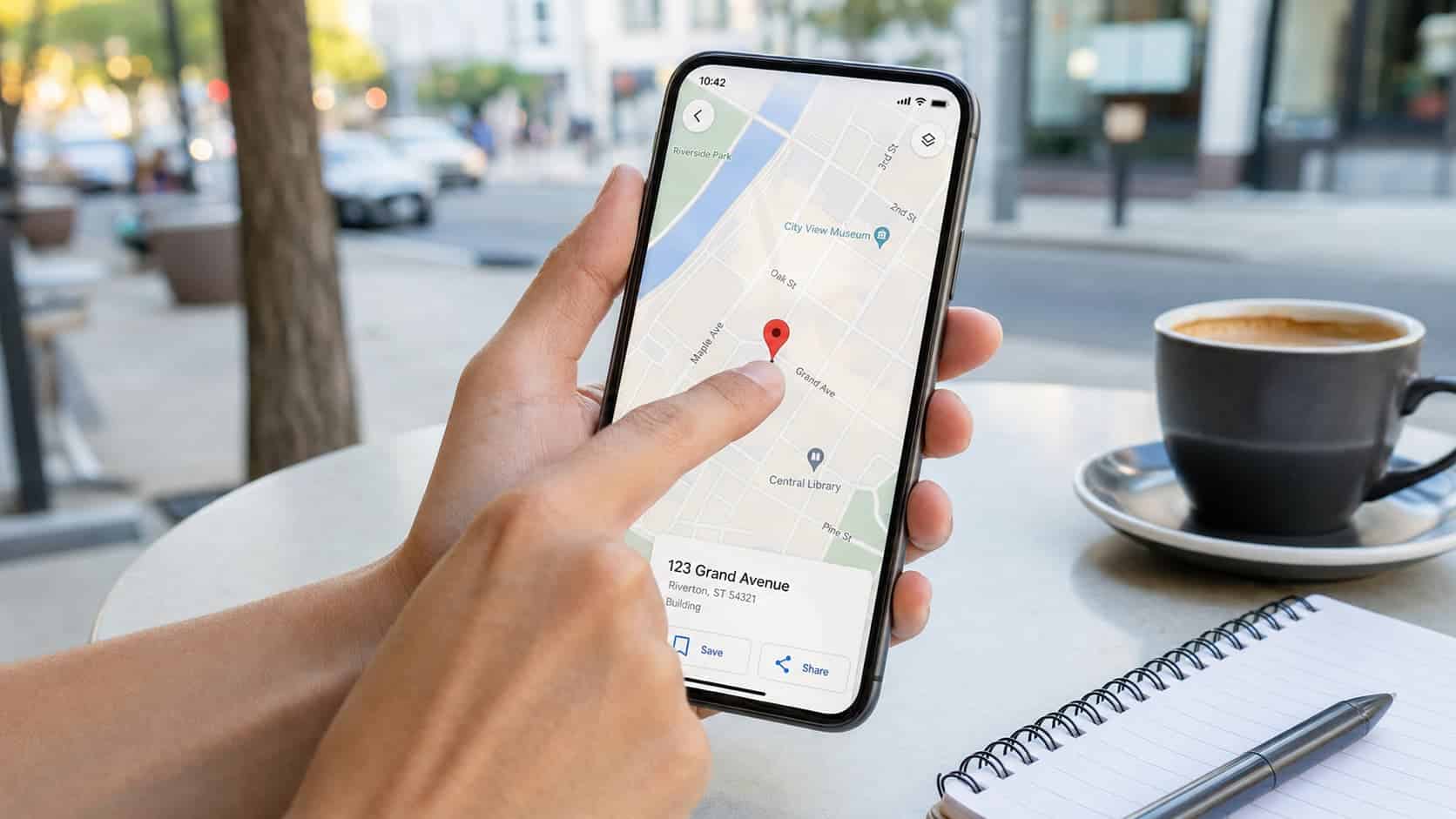
Marking a spot on mobile relies on a simple touch-and-hold gesture, the same across both operating systems. Hikers marking a trailhead sometimes pair this with a dedicated GPS tracker for extra backcountry accuracy.
Follow these steps:
- Open the Google Maps app and find the general area on the map.
- Touch and hold the exact spot until a red pin appears.
- Drag the Pin slightly if you need to fine-tune the placement.
- Tap the information card at the bottom to view the address and coordinates.
- Tap Save to add it to a list, or Share to send it to someone.
This works the same on both operating systems, so it doesn’t matter if you switch from an iPhone to an Android phone or the other way around.
2. On Desktop (Google Maps Website)
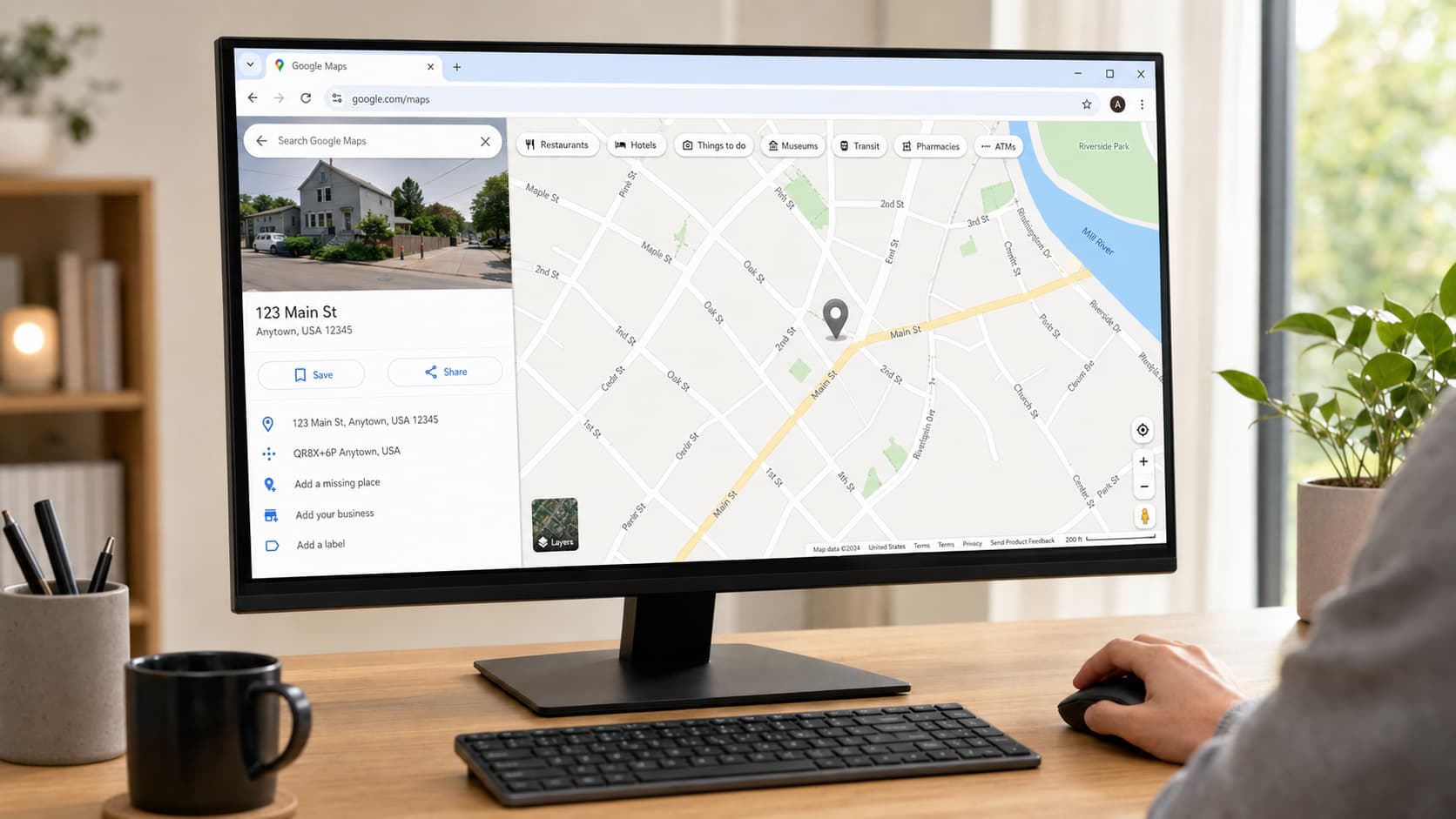
Without a touchscreen, dropping a pin on desktop relies on a right-click menu instead.
Follow these steps:
- Go to Google Maps in your browser and find the location.
- Right-click on the exact spot on the map.
- Choose “What’s here?”, or left-click the location to drop the Pin indirectly.
- A grey pin drops, and a details panel opens on the left or bottom of the screen.
- Click Save or Share from that panel.
A dropped pin on Google Maps is temporary by default. If you close the tab or search for something else, it disappears unless you’ve already saved it to one of your lists.
How to Drop a Pin on Apple Maps
Apple’s version works a little differently, since it uses a “Mark Location” or “Drop Pin” command rather than a simple long-press. The exact method also depends on whether you’re on a touchscreen device or a Mac.
1. On iPhone or iPad
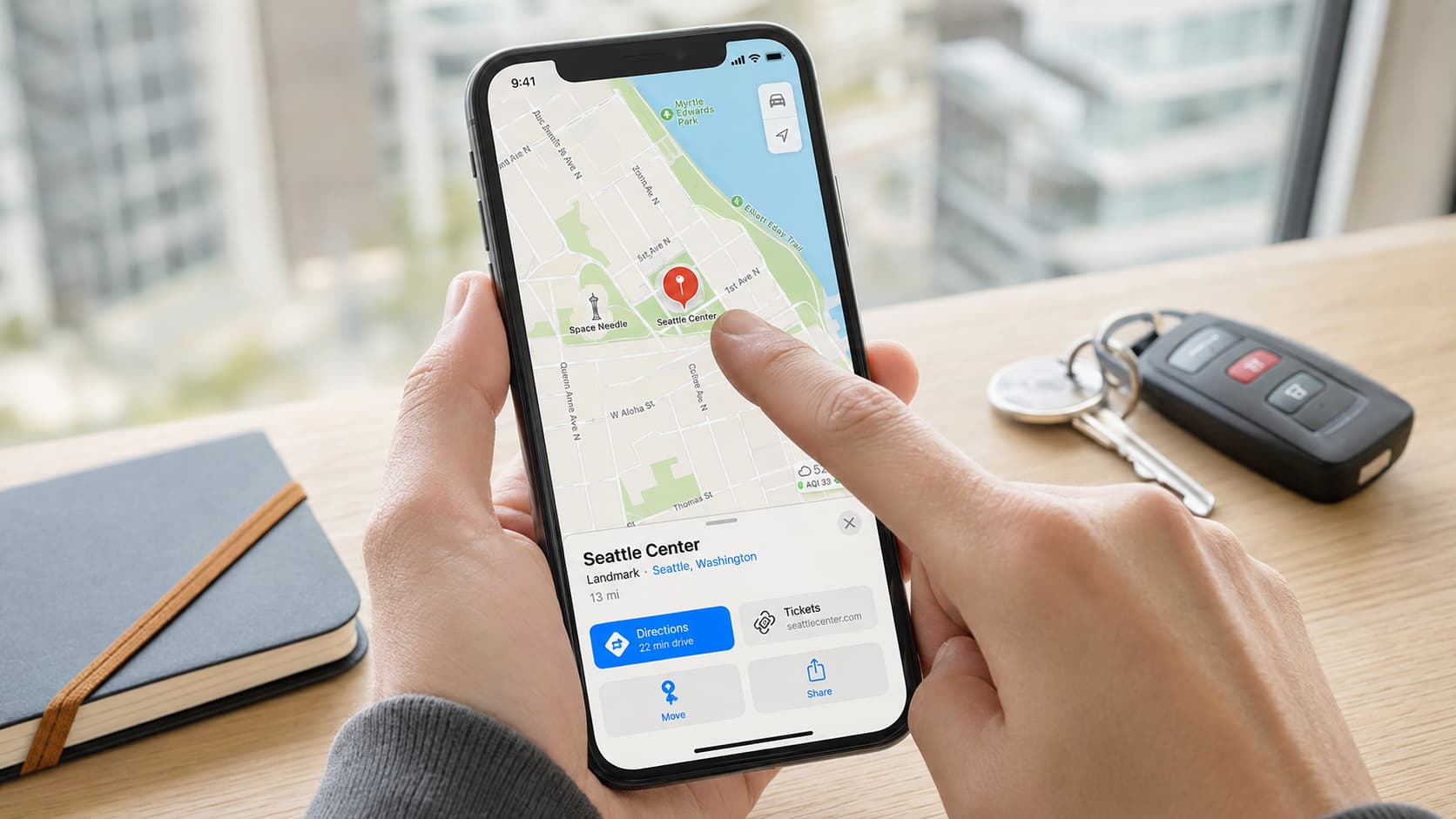
Marking a spot on a touchscreen uses a simple touch-and-hold gesture rather than digging through menus. This same shortcut comes in handy for travelers who pack gadgets frequent flyers use, letting them mark a hotel entrance or terminal ahead of time.
Follow these steps:
- Open the Maps app and go to the area you want to mark.
- Touch and hold the map until a pin marker appears.
- Tap Move, then drag the map beneath the Pin if you need to adjust it.
- Tap Pin to confirm the location.
- Tap the Pin afterward for directions, or the share icon to send it to a contact.
Apple Maps only shows one active Pin at a time unless you save each one, so mark and save as you go if you’re tracking multiple spots.
2. On Mac
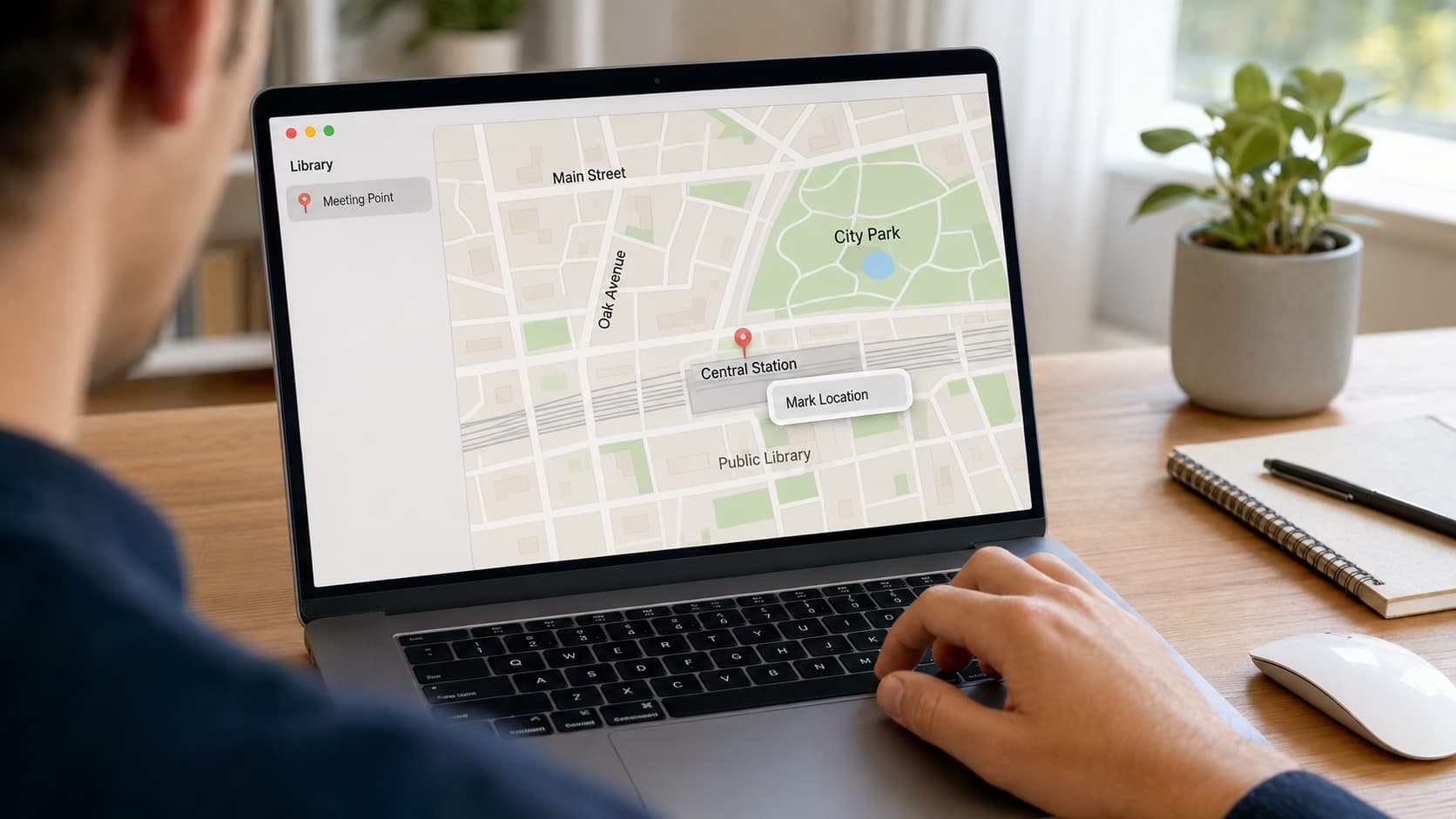
Without a touchscreen, dropping a pin on Mac relies on a right-click-style menu instead.
Follow these steps:
- Open the Maps app on your Mac.
- Control-click the location you want to mark.
- Choose Mark Location (called Drop Pin on some macOS versions) from the menu.
- Scroll down in the place card and click Pin if you want to save it permanently.
- Rename it under Library in the sidebar if you’d like a custom label.
On a trackpad with Force Touch, a firm press on the map does the same thing as the Control-click menu.
How to Share a Dropped Pin
Once you’ve marked the right location, you can send the pin instead of typing an address or explaining where someone needs to go.
On Google Maps:
- Select the dropped pin.
- Open the location information card.
- Tap or click Share.
- Choose a messaging app, email, or another available sharing option.
- You can also copy the location link and paste it wherever you need it.
On Apple Maps:
- Select the pin.
- Open its place card.
- Tap the Share button.
- Choose the person or app you want to send it through.
The recipient can open the shared location and use it to view the exact point or start directions without manually entering an address.
How to Find the Coordinates of a Dropped Pin
A dropped pin can also give you the exact latitude and longitude of a location. Coordinates are useful when the place has no recognizable address, or you need a more precise reference. This is the same coordinate framework behind official GPS mapping guidance used for navigation across the country.
In Google Maps on Android or iPhone, touch and hold an unlabeled point until the red pin appears. Open the location information to find its coordinates.
On Google Maps desktop, right-click the location and select What’s here? The latitude and longitude appear in the information box.
In Apple Maps on iPhone, save the pin, open Places > Pinned, select the location, and scroll to its coordinates. You can then copy them if needed.
Google Maps may also provide a Plus Code, a short digital location reference. It can be useful for entrances, rural locations, trails, and other spots without a standard street address.
Google Maps vs Apple Maps: Quick Comparison
Google Maps and Apple Maps both support pin dropping, location sharing, and directions, but they differ in device access, map details, offline features, and overall integration.
| Feature | Google Maps | Apple Maps |
|---|---|---|
| Mobile gesture | Touch and hold | Touch and hold |
| Desktop gesture | Left-click or right-click | Control-click (Mac only) |
| Pin color | Red or grey | Purple (dropped) / Red (search) |
| Multiple pins at once | Yes, if saved to a list | Only one unsaved Pin at a time |
| Works across platforms | Android, iOS, web browser | iPhone, iPad, Mac only |
| Sharing method | Link, message, email | Link, Messages, email |
If you’re an iPhone user who also uses a Windows PC, keep in mind Apple Maps doesn’t have a desktop browser version the way Google Maps does; you’d need a Mac, or you’d switch to Google Maps on the web instead.
Tips for Dropping an Accurate Pin
An accurately placed pin helps someone find the correct entrance, building, parking area, or meeting point. Before you share one, use these checks:
- Zoom in closely before placing the pin.
- Switch to satellite imagery when buildings, trails, or entrances are difficult to identify.
- Check nearby roads, landmarks, and building outlines.
- Save the pin if you need to use it again.
- Confirm the location before sharing the link.
- Use coordinates or a Plus Code when a normal street address isn’t precise enough.
Much of the satellite and elevation data behind these map views comes from federal geographic data programs that maintain the country’s core mapping standards.
For locations such as apartment complexes, malls, campuses, stadiums, and parks, marking the correct entrance can be more useful than simply marking the center of the property.
Common Pin-Dropping Problems and Fixes
Dropping a pin is usually simple, but location errors, weak GPS signals, or app issues can interrupt the process. These common fixes can restore accurate results.
| Issue | Likely Cause | Fix |
|---|---|---|
| Pin lands in the wrong spot | Map was zoomed out too far | Zoom in fully before you drop a pin |
| Pin disappears after closing the app | Pin wasn’t saved | Tap Save or Pin right after dropping it |
| Can’t drop a second pin (Apple Maps) | Only one unsaved Pin allowed | Save the first Pin, then drop a new one |
| Share link doesn’t open correctly | Recipient’s app is outdated | Ask them to update their Maps app |
| Right-click menu doesn’t show “Drop Pin” | Different macOS version | Look for “Mark Location” instead |
Most pin-dropping problems can be fixed by checking location permissions, improving the GPS signal, or restarting the app. Update the map app if problems continue.
Wrapping Up
Dropping a pin is a simple way to make location sharing more precise and useful. Once you know how to drop a pin, you can mark meeting points, parking spots, entrances, trails, or places without a clear address.
I’d always recommend zooming in first, checking the pin carefully, and saving it if you may need it again. You can also share the location, copy its coordinates, or use it for directions in Google Maps or Apple Maps
These small steps can save you and the person receiving the pin from confusion or wrong turns.
Try the steps the next time you need to share an exact location, and check out our related map and navigation guides for more practical tips.
Frequently Asked Questions
How long does a dropped pin stay on the map?
On both Google Maps and Apple Maps, a pin is temporary unless you save it. Closing the app, searching for something new, or restarting your device can clear it.
Can I drop more than one Pin at the same time?
On Google Maps, yes, as long as you save each PIN to a list. On Apple Maps, only one unsaved PIN shows at a time, so you’ll need to save one before dropping the next.
Can I share a pin with someone who uses a different phone brand?
Yes. Both apps generate a link that opens in a browser or in the recipient’s own Maps app, so that an iPhone user can send a pin to an Android user without issue.