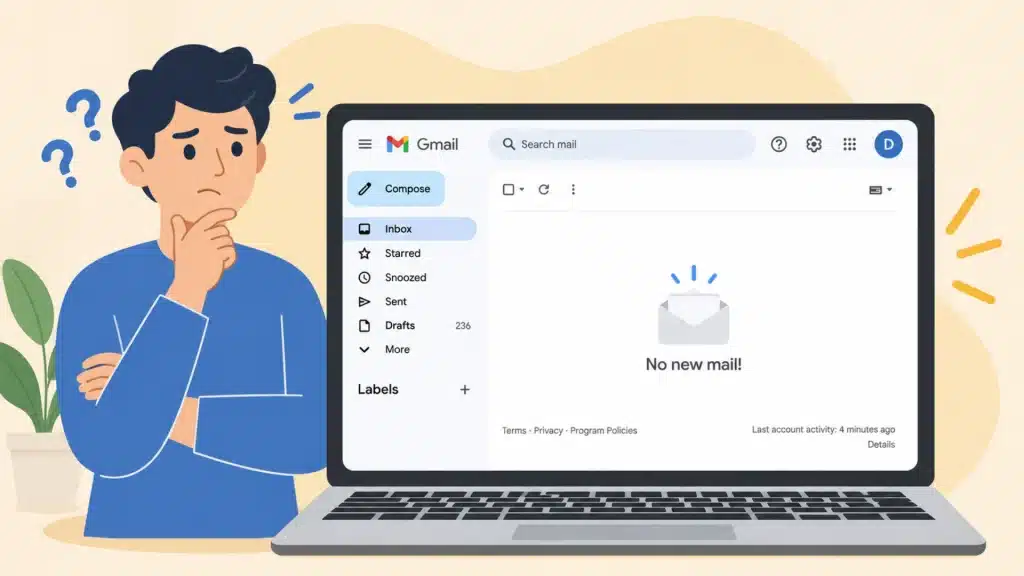
Waking up to a quiet inbox when you expected a receipt, a work reply, or a login code is unsettling, and it happens more often than people realize. If you are asking why you are not receiving emails, the cause is rarely random.
It usually traces back to one specific setting in your inbox, your account, or the device checking for new mail.
After years of untangling sync complaints on family members’ phones and testing Gmail and Outlook not receiving emails across different carriers, I keep seeing the same handful of culprits.
Here are the key points on where to start, how to tell a delivery problem from a notification problem, and the fixes that actually work for Gmail, Outlook, iPhone, and iPad.
Common Reasons Your Emails Aren’t Showing Up
Email can seem to vanish for several different reasons, and most of them are less mysterious than they feel in the moment. A message may already be sitting in Spam, Junk, Promotions, Other, Trash, or another folder instead of the main inbox. If no new mail shows up anywhere at all, storage, account access, forwarding rules, or a provider outage is usually involved.
If messages appear on the provider’s website but not inside an app, the problem almost always sits with that device or app, not the account itself. Missing mail from one specific sender, meanwhile, points more strongly to blocking, filtering, or something on the sender’s side.
There is also an important difference between missing email and a missing alert. If the message is in the inbox but no banner, badge, or sound appears, delivery worked fine, and the notification settings need attention instead. That distinction alone saves a lot of wasted troubleshooting time.
Run These Checks Before Changing Settings
These checks identify where the failure begins before you remove or reset any account. Work through them in order and note what changes between devices.
- Open webmail first. Sign in directly at https://gmail.com, https://outlook.com, or the website provided by the email service. If new messages appear there, the issue lives in the app or device, not the account.
- Search outside the main inbox. Check Spam, Junk, Trash, Gmail category tabs, Outlook’s Other tab, and any custom folders. Search the sender’s address if you expect one message.
- Send an external test message. Use a different email account to send a short message to the affected address. This shows if the problem affects all incoming mail.
- Check account storage. A full Gmail or Outlook account can stop incoming mail. Freeing space may restore delivery, but you may need to resend messages rejected while storage was full.
- Check service status. If the same account fails on several devices and webmail, check the provider’s official status page before changing more settings.
The result should point toward one of three buckets: an account-wide issue, a single-sender issue, or a device sync issue. Most people who ask why they’re not receiving emails are dealing with one of these three, and identifying which one prevents unnecessary resets later.
Match the Symptom to the Right Fix
The fastest fix depends on what is missing and where it disappears. Use the symptom below to choose the next section instead of testing unrelated settings.
|
What Is Happening |
Most Likely Area to Check |
Next Move |
|---|---|---|
|
No new mail appears anywhere |
Storage, account, provider |
Check storage and provider status |
|
Mail appears online but not in the app |
App or device sync |
Refresh, update, and check sync settings |
|
Only one sender is missing |
Spam, blocking, rules |
Search all folders and review blocked senders |
|
New mail appears only after opening the app |
Fetch or background activity |
Check phone fetch and background settings |
|
Messages are present, but alerts are missing |
Notifications |
Check notification settings, not delivery settings |
|
The problem began after a password or security change |
Account sign-in |
Sign in again and approve required verification |
This symptom-first check keeps troubleshooting focused. Once the failure point is clear, use the Gmail, Outlook, or iPhone and iPad steps that match it.
Fix Gmail Not Receiving Emails
Gmail problems are easier to solve after you check webmail. The steps below focus on settings that can hide, redirect, reject, or delay incoming messages.
1. Find Gmail Mail Moved Out of the Inbox
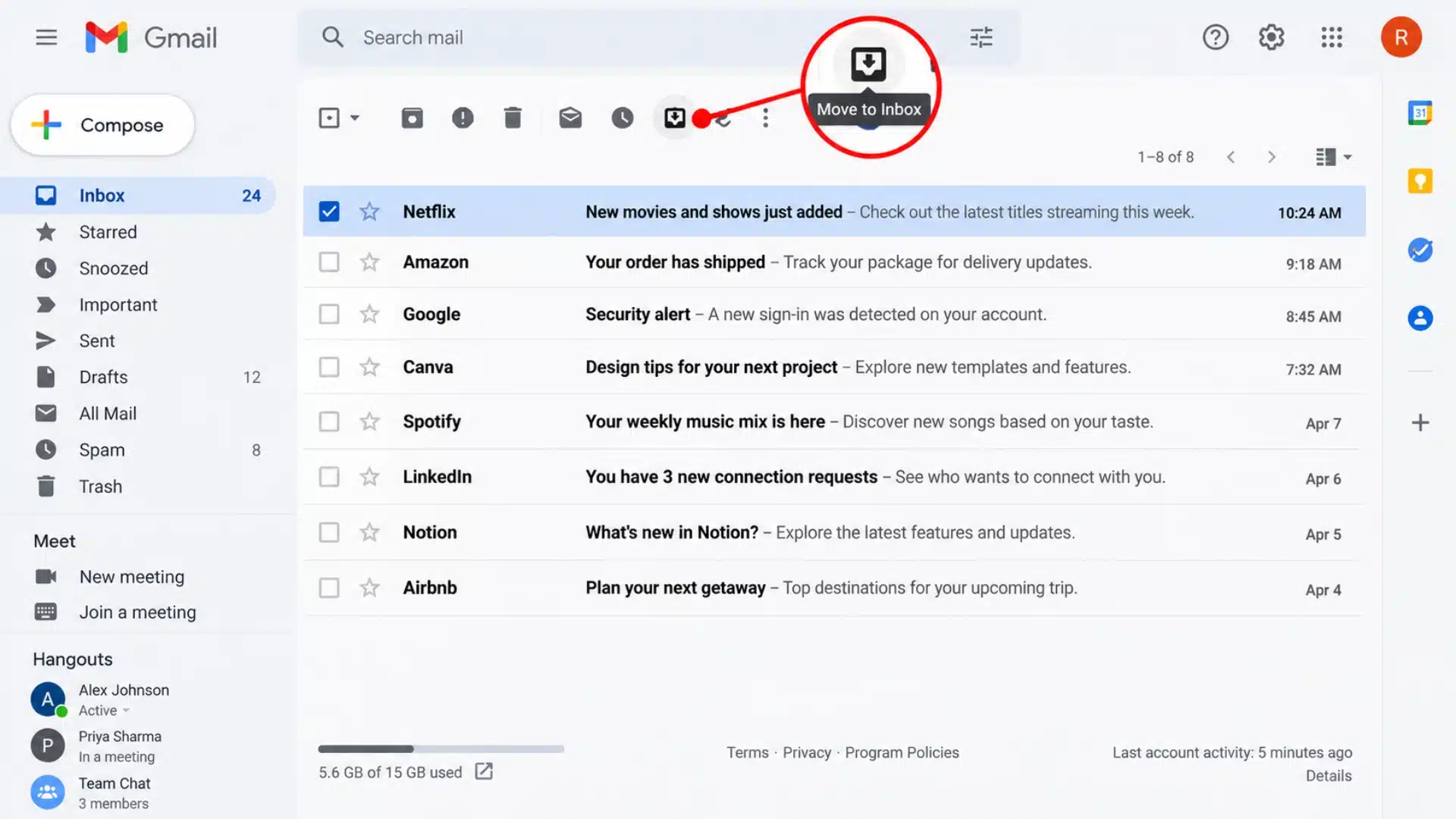
- Check Spam, Trash, Promotions, Updates, Social, and All Mail.
- Search by the sender’s address, subject, or a phrase from the expected email.
- Go to Settings > See all settings > Filters and Blocked Addresses.
- Remove filters that archive, delete, forward, or skip the inbox.
- Unblock any sender whose messages should still arrive. It also helps to get comfortable telling a real sender from a scam before you touch any filter, since blocking the wrong address by mistake causes its own headaches.
2. Check Google Storage Before Resetting the App
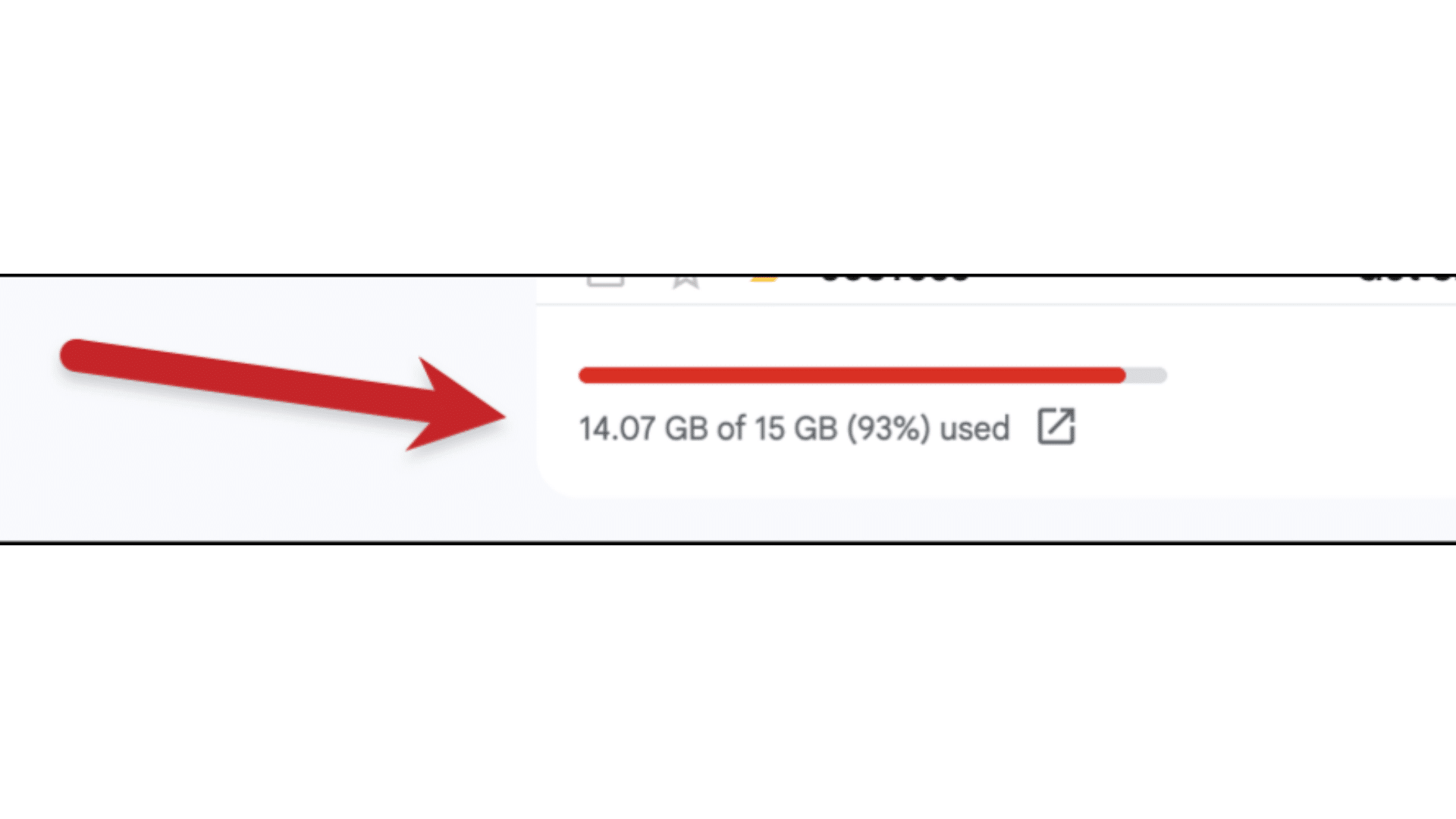
- Check available Google Account storage across Gmail, Drive, and Photos.
- Use Google’s storage help page to review storage usage.
- Delete unnecessary large emails, attachments, Drive files, or Photos.
- Empty Spam and Trash to free additional space.
- Ask important senders to resend messages rejected while storage was full. Freeing up room this way is safer than deleting things at random, and there are more ways to reclaim space than digging through Gmail alone.
3. Fix Gmail Sync After Webmail Starts Working
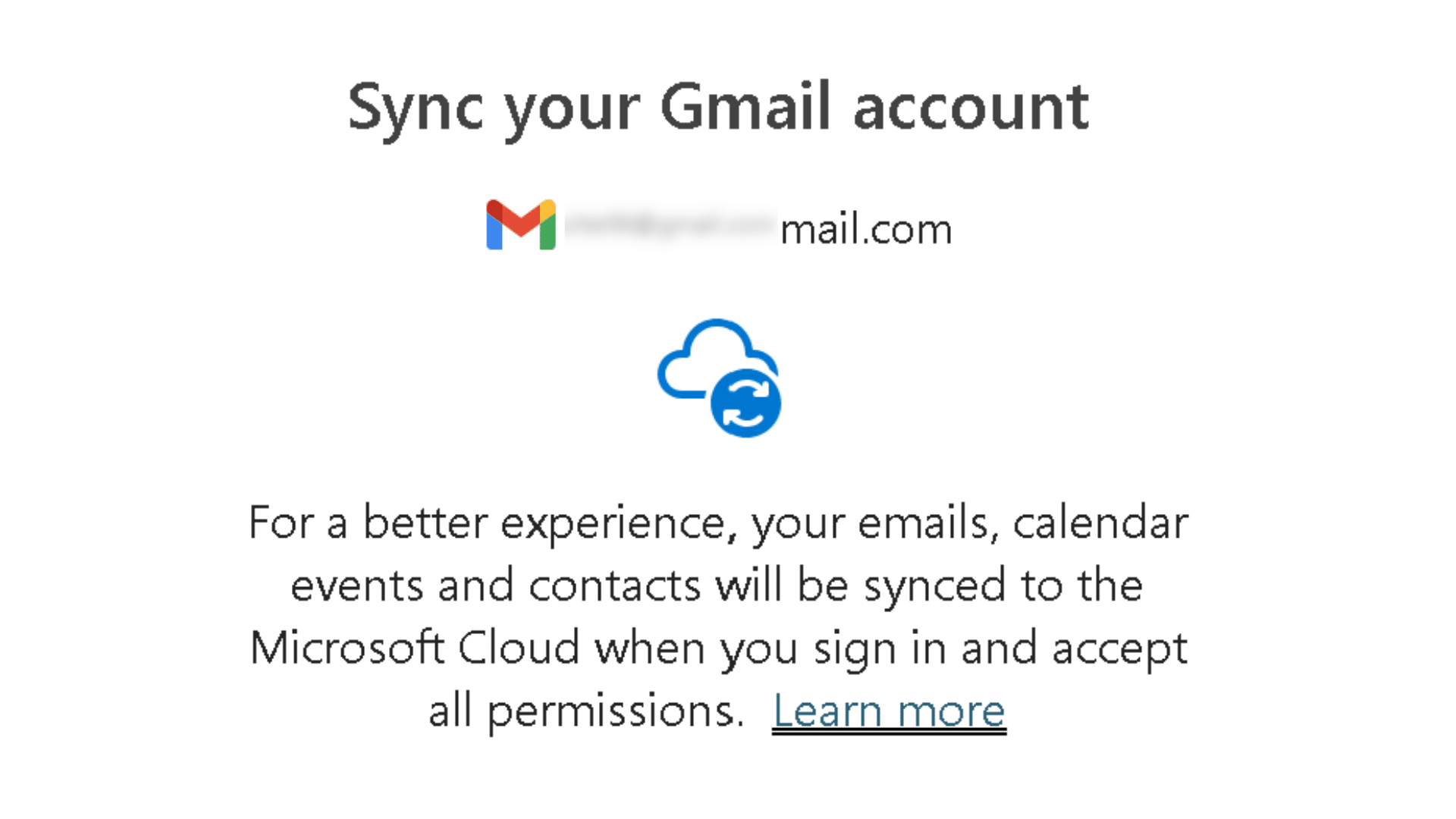
- Pull down on the Gmail inbox to refresh it manually, then restart the iPhone or iPad.
- Update the Gmail app from the App Store to fix possible app-related sync issues.
- Test both Wi-Fi and cellular data to rule out a connection problem.
- Make sure Background App Refresh is enabled so Gmail can update when the app is not open.
- Review Google’s Gmail sync settings and complete any new sign-in or verification request after a password or security change.
- Send one external test email after Gmail starts syncing to confirm new messages are arriving normally.
Once Gmail works in webmail and the app refreshes normally, send another external test message. That confirms the account is receiving mail and the device is syncing it.
Fix Outlook Not Receiving Emails
Outlook can hide or redirect messages without rejecting them. Check these four areas first to identify whether the problem comes from mailbox organization, storage, connection, or account access.
1. Check Junk, Other, and Deleted Items
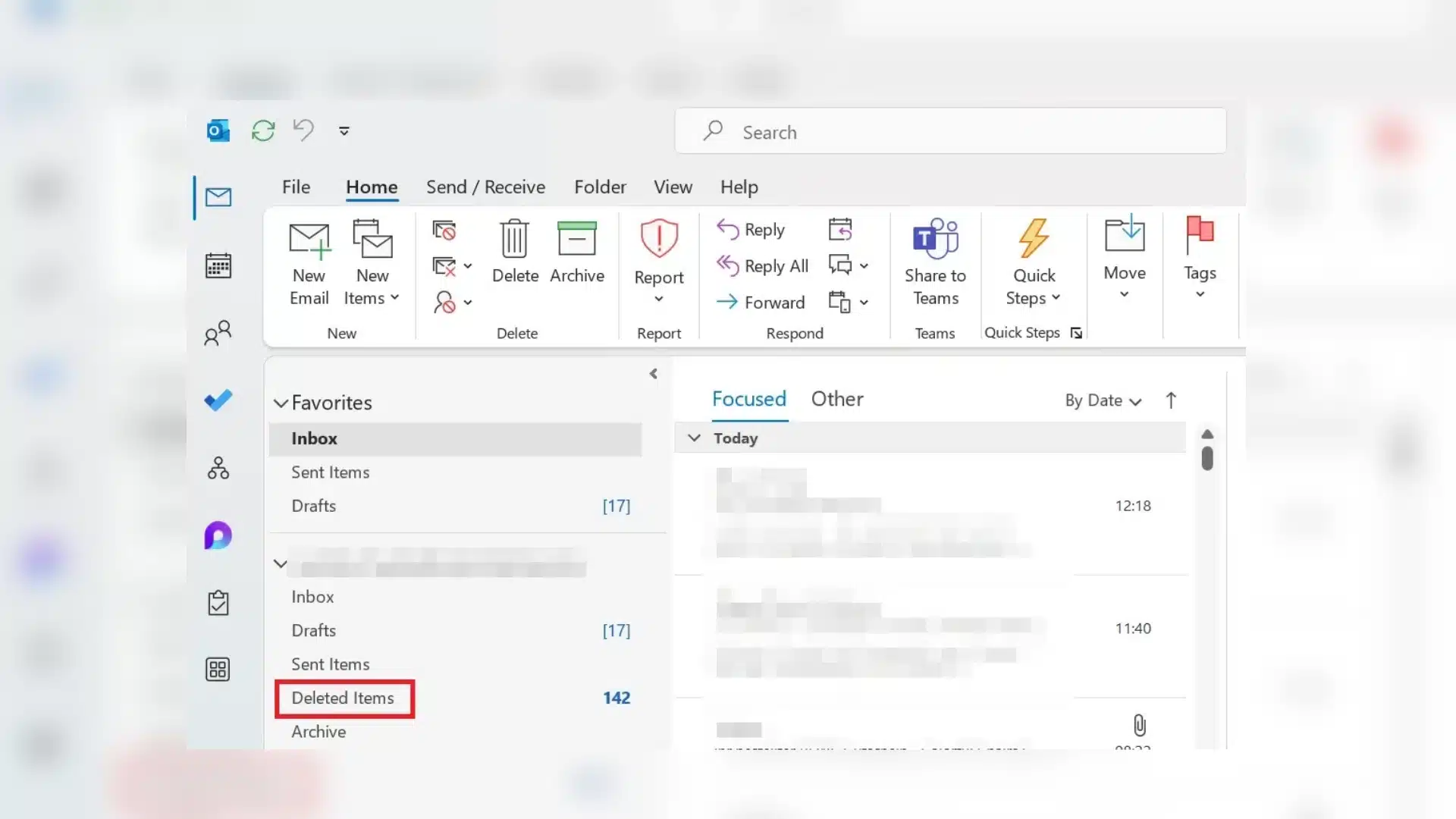
- Open Junk Email and check for expected messages.
- Review the Other tab if Focused Inbox is enabled.
- Set the message filter to All.
- Check Deleted Items for messages moved by mistake.
- Search by sender address or subject if one email is missing.
2. Review Rules and Forwarding
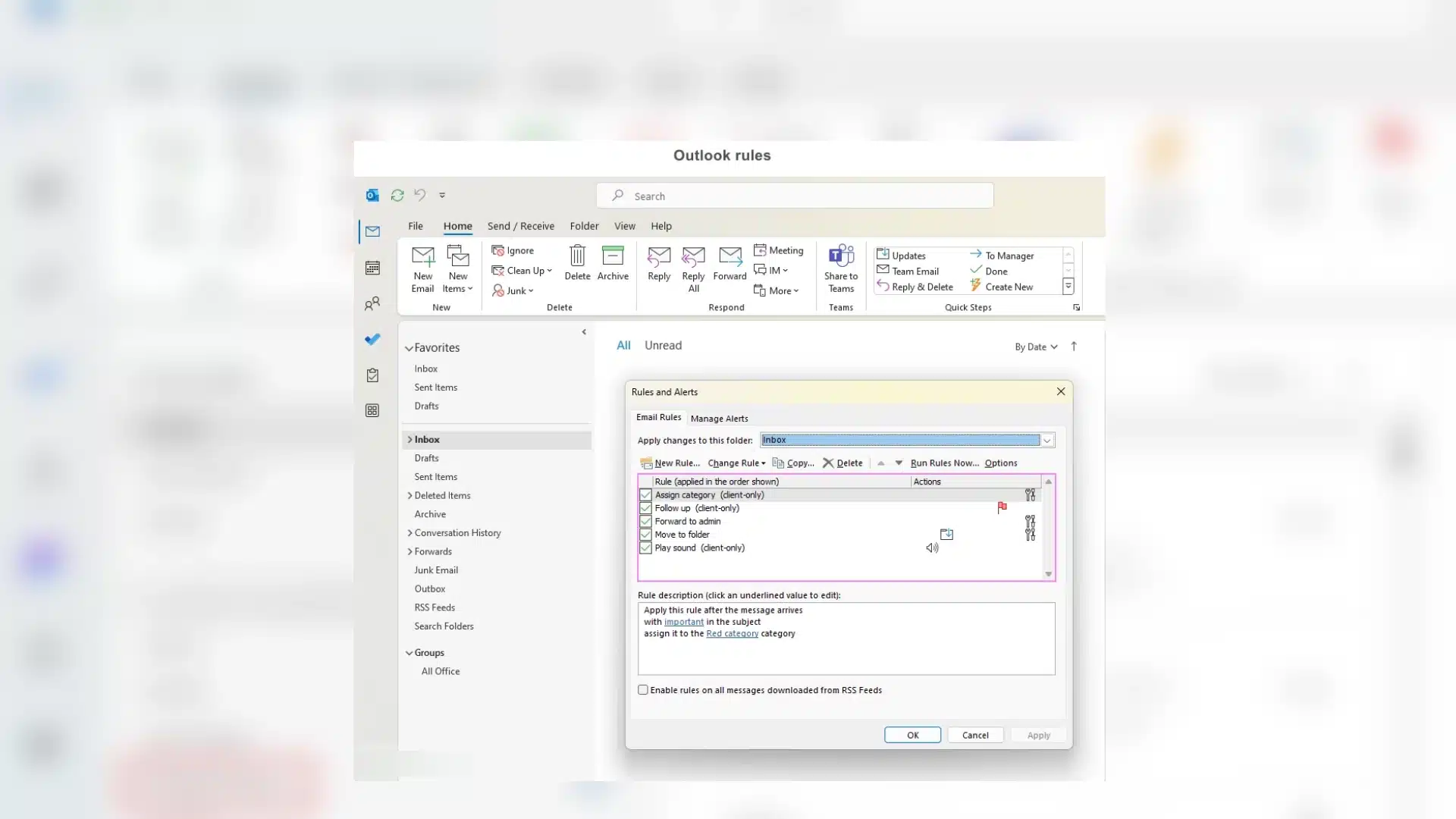
- Check Outlook rules that automatically move, delete, or redirect incoming mail.
- Disable outdated rules that no longer match how the account is used.
- Review forwarding settings for any unexpected destination address.
- Confirm important senders are not affected by mailbox rules or blocked-sender settings. An unfamiliar forwarding rule you never created is also a classic sign that a login was compromised somewhere along the way.
3. Check Outlook Storage and Connection
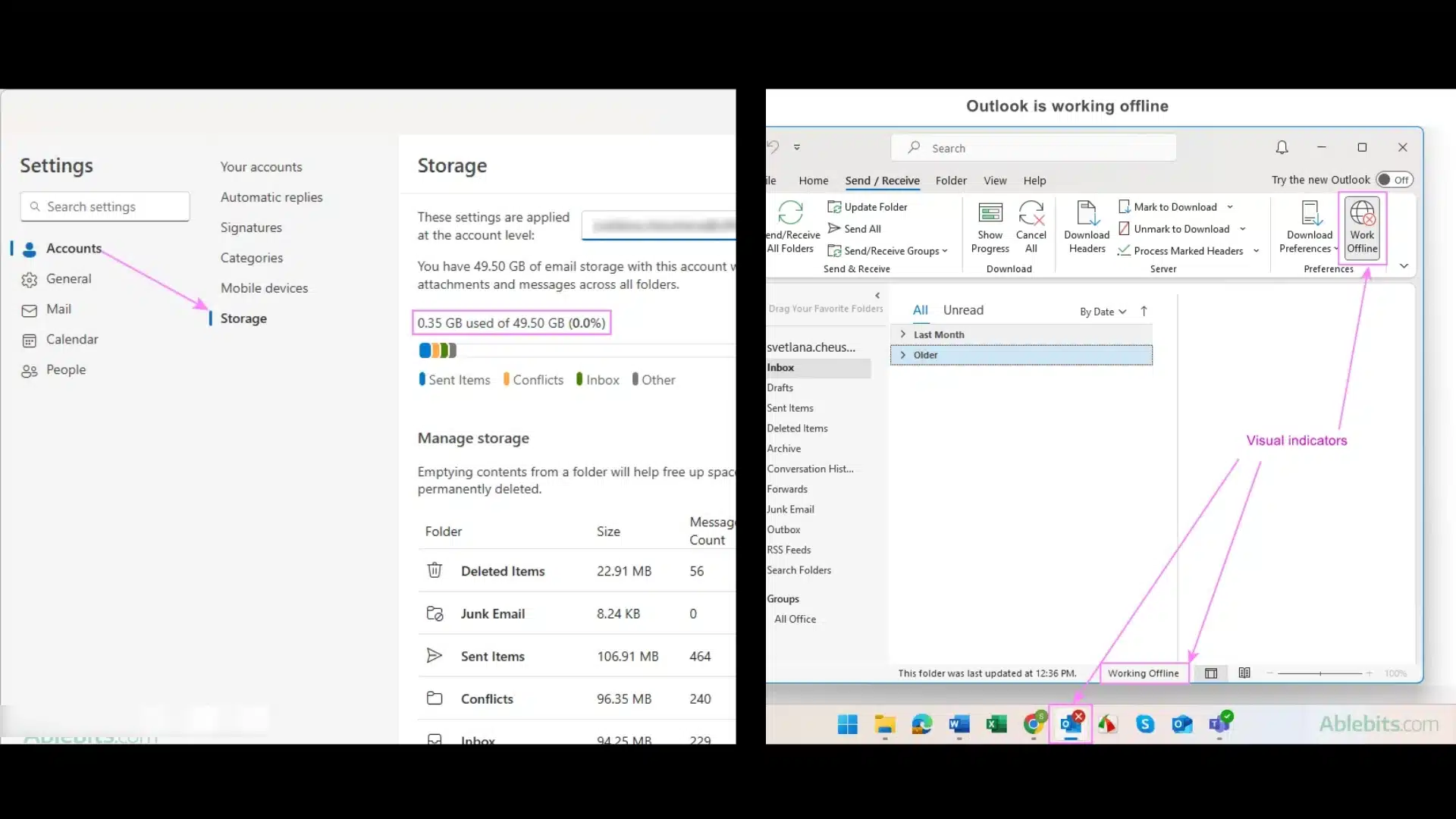
- Check available Outlook storage before changing account settings.
- Free up space if the mailbox has reached its storage limit.
- Ask senders to resend messages rejected while storage was full.
- In Outlook for Windows, check for Disconnected, Working Offline, or Trying to connect.
- Restore the internet or server connection before changing mailbox rules.
4. Sign In Again After Security Changes
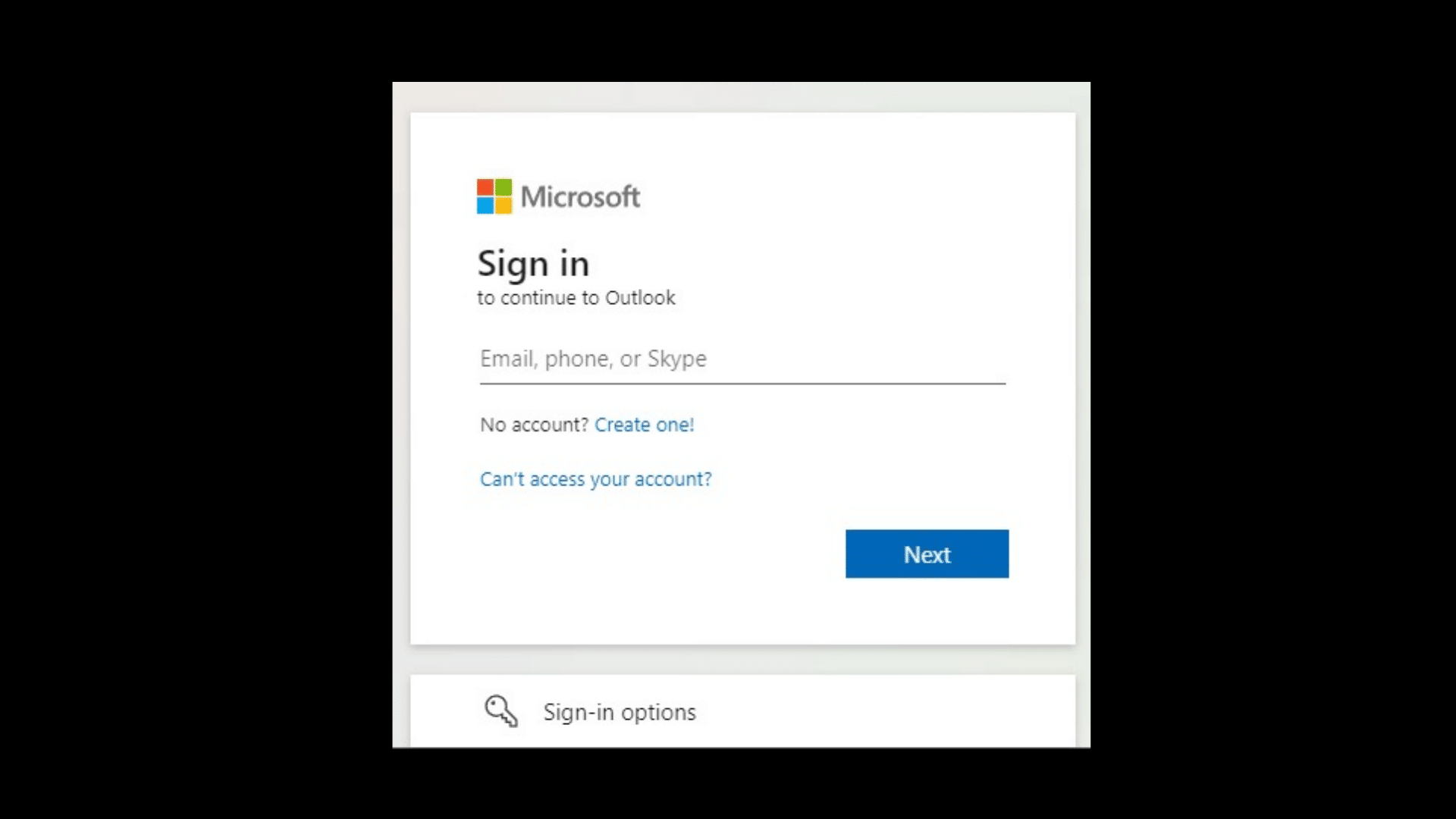
- Sign in again if the password was recently changed.
- Complete any new verification or approval request.
- Check for security prompts that may be blocking the current session.
- Update Outlook if the app is out of date.
- Remove and re-add the account only after normal sign-in and sync checks fail.
Microsoft’s missing Outlook email steps cover Junk, Other, filters, and rules, helping confirm if delivery failed or the message was moved before resetting Outlook.
Fix Email Problems on iPhone or iPad.
Phone and tablet email problems often come from app-specific sync settings. Check the affected app first, then work through these focused steps before removing any account.
Check Apple Mail Fetch and Account Settings
Sign in to the email provider’s website first and confirm the missing messages are there. Then open Settings > Apps > Mail > Mail Accounts > Fetch New Data and review Push or Fetch. If messages arrive without alerts, check Settings > Notifications > Mail. Apple’s Mail troubleshooting steps confirm these settings.
Fix the Gmail App on iPhone or iPad
Pull down on the inbox to refresh Gmail, update the app, restart the device, and confirm internet access. Enable Background App Refresh, then check Gmail > Settings > General > Data usage. Google’s Gmail sync troubleshooting steps provide additional checks.
Fix the Outlook App on iPhone or iPad
First, compare the Outlook app with Outlook.com. If webmail receives new messages, reopen and update the app, verify the correct account, and complete any password or sign-in request. Re-add the account only after regular sign-in and sync checks fail. Microsoft’s Outlook for iOS instructions provide further setup details.
Avoid removing an email account too early. Confirm webmail, sync settings, and account access first because locally downloaded messages may be affected during account removal.
Why Legitimate Email Gets Filtered as Spam
This is worth understanding on its own, since it explains why a perfectly real message sometimes never reaches an inbox at all. Email providers score incoming messages using signals like sender reputation, authentication records (SPF, DKIM, and DMARC), how many recipients marked similar messages as spam before, and whether the message contains patterns common in bulk mail, such as excessive links or urgent subject lines.
A message can fail every one of these checks even when the sender is legitimate, particularly right after a company switches email platforms or a small business sends from a newly registered domain.
In practice, this shows up most with one-off senders like a new landlord, a small clinic, or a local contractor, since their domains often lack the sending history that large companies have built up over years.
If you know a specific sender is legitimate, but their messages keep landing in spam, marking one as Not Spam and adding the address to your contacts does more long-term good than repeatedly searching for the same message.
How to Prevent This from Happening Again
- Set a storage reminder. Check Gmail or Outlook storage every few months, especially if you use the same account for photos or large attachments.
- Review filters and rules twice a year. Old rules created for a past job or project often keep running quietly long after they stop being useful.
- Keep one backup way to reach you. A secondary address or phone number on the account makes account recovery faster if a security lock ever blocks the primary inbox.
- Update mail apps promptly. Sync bugs are frequently fixed within a version or two, and an outdated app is one of the more common quiet causes of missing mail.
I keep a recurring reminder for this myself every quarter, and it has caught a nearly full mailbox on more than one occasion before it became a real problem.
When to Contact the Email Provider or IT Team
Contact the provider once you have checked storage, blocked senders, filters, forwarding, credentials, and service status, and no new messages appear in webmail. At that point, further self-troubleshooting rarely turns up anything new.
For a work or school address, contact the administrator sooner rather than later, especially if several people are affected at once, or the problem began right after an account, security, or company mail migration.
Custom-domain accounts can also depend on server and domain records that ordinary mailbox settings cannot safely repair. Do not change domain records just to test a theory unless the account owner or administrator confirms the correct values first, since a wrong DNS record can take mail down for everyone on that domain, not just one inbox.
Give support the affected address, device, app, the time the problem began, sender examples, and any bounce or error message you received. Those specifics narrow the failure quickly and save real back-and-forth time.
Conclusion
Most inbox scares turn out to be one setting, not a broken account, and narrowing the cause before touching anything is what actually saves time. Start with webmail, then storage, then the app or device, in that order.
That sequence covers Gmail not receiving emails and Outlook not receiving emails equally well on both phone and desktop.
After going through this process with more inboxes than I can count at this point, the accounts that stay trouble-free are the ones where storage and old filters get checked occasionally, not only after something breaks.
If you are still stuck on why am I not receiving emails after working through these steps, send a fresh test message, note exactly where it fails, and drop a comment with what finally fixed it for you.
Frequently Asked Questions
Can a Large Attachment Stop a Message From Arriving?
Yes. A message can fail before it ever reaches the inbox if the attachment exceeds the sender’s or recipient’s size limit. Ask the sender to remove the attachment, compress the file, or share it through a cloud link instead, then have them resend it.
Can an Old Email Alias Stop Receiving New Messages?
Yes. Messages sent to an old alias can stop arriving if the provider or an account administrator removed, disabled, or changed that alias. Check the account’s alias settings and confirm the sender is using the currently active address.
Can Email Delays Happen Even When the Account is Working Normally?
Yes. Email can occasionally arrive late because of temporary server queues, security scanning, or delays between different providers. Wait a short while, check the message timestamp, and ask the sender if they received any delay or delivery-warning notice on their end.
Can Two-Factor Authentication Block Incoming Email?
Not directly, but a pending two-factor or app-specific-password prompt can pause an account’s ability to sync until you approve it. If email stopped right after enabling two-factor authentication, check for an approval request waiting on another signed-in device, and generate a new app password if the account uses one for mail apps.
Can a VPN or Office Firewall Block Incoming Mail?
Yes, on a work or school network. Some firewalls filter incoming mail by sender domain or attachment type before it reaches a mailbox, which can look like a missing email on the user’s side. If this only happens on one network, ask the IT team to check firewall or gateway logs for that sender’s domain specifically.