Getting an Xbox controller to work on a PC should be quick, but choosing the right connection method can sometimes feel confusing.
The good news is that Windows supports several easy ways to get started without complicated setup.
If you are thinking about how to use an Xbox controller on pc, this guide walks through every step in a clear and practical way.
With nine years of experience helping readers make the most of software and apps, I focus on simple solutions that save time and avoid common setup mistakes.
You will learn which connection method suits your controller, what you need before pairing, how to improve performance, and how to fix common issues for a smooth gaming experience on Windows.
What Do You Need Before Connecting an Xbox Controller?
Before connecting the controller, check that the PC, controller, and chosen connection method are ready. This can prevent pairing errors and missing features.
- Compatible Windows PC: Use a computer running Windows 10 or Windows 11.
- Supported Xbox Controllers: Xbox Series, Xbox One, and Xbox Elite controllers work with most Windows PCs.
- USB Data Cable: Use a USB-C or Micro-USB cable that supports both charging and data transfer.
- Bluetooth Connection: The PC needs built-in Bluetooth or a Bluetooth 4.0 or newer adapter.
- Charged Batteries: Install fresh batteries or fully charge the controller before wireless pairing.
- Xbox Wireless Adapter: This optional adapter offers a stable wireless connection and supports the controller headset jack.
- Internet Access: Windows may need an internet connection to download controller drivers.
- Xbox Accessories App: Install this free Microsoft app to update firmware and change controller settings.
How to Connect an Xbox Controller to a PC?
You can connect an Xbox controller to a PC using a USB cable, Bluetooth, or the Xbox Wireless Adapter. Follow the steps below to set it up on Windows 10 or Windows 11.
Step 1: Connect the Xbox Controller Using a USB Cable
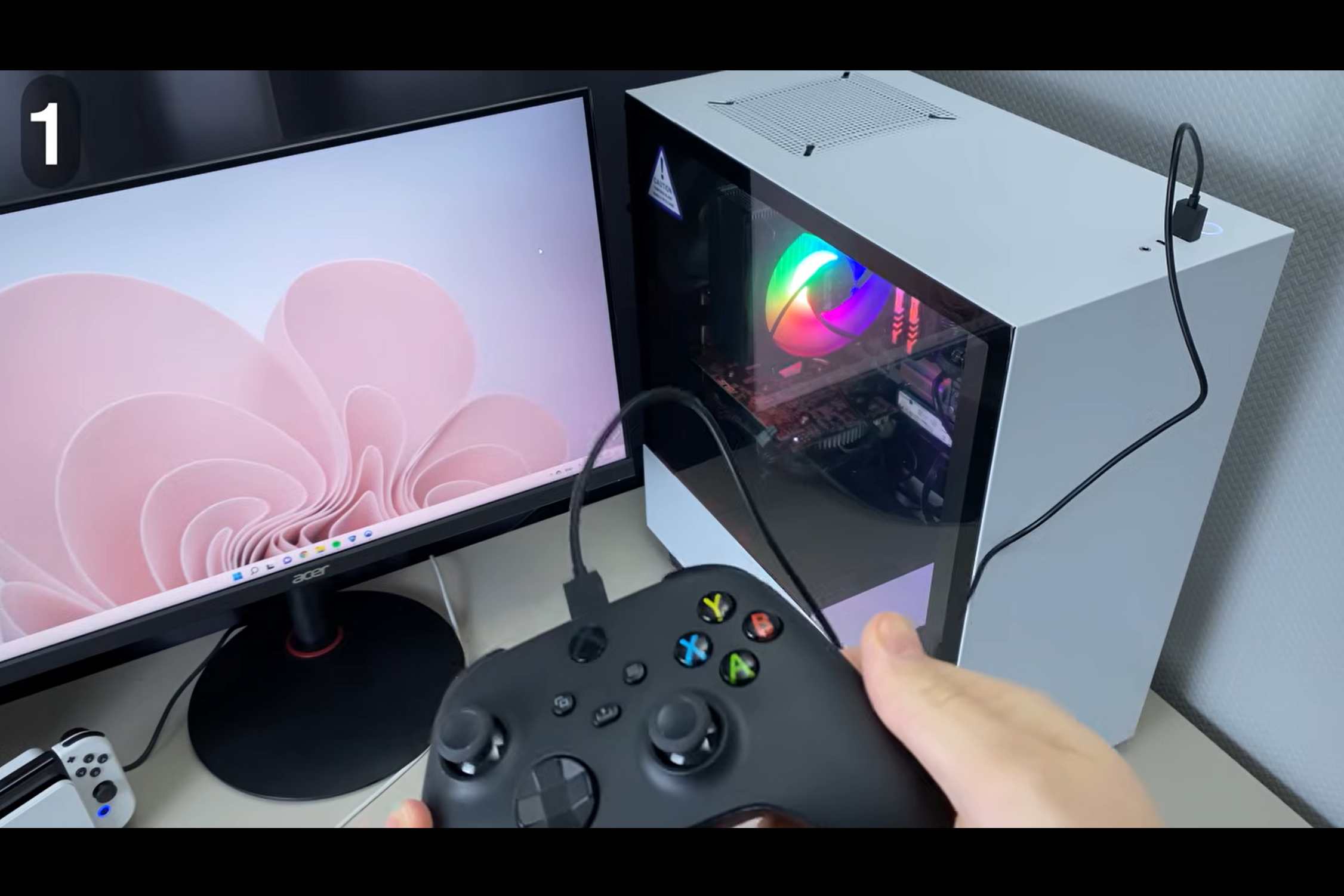
Use a compatible USB cable to connect the Xbox controller to the PC.
Make sure the cable supports data transfer, as some older Micro-USB cables only provide charging and will not allow Windows to detect the controller.
Plug the controller into the computer, and Windows 10 or Windows 11 should automatically install the required drivers.
Once the setup finishes, the controller is ready to use. This method also supports the controller’s headphone jack and microphone while providing a stable connection with minimal input delay.
Step 2: Pair the Xbox Controller Using Bluetooth
Turn on the Xbox controller by pressing the Xbox button. Next, press and hold the pairing button until the Xbox logo starts flashing.
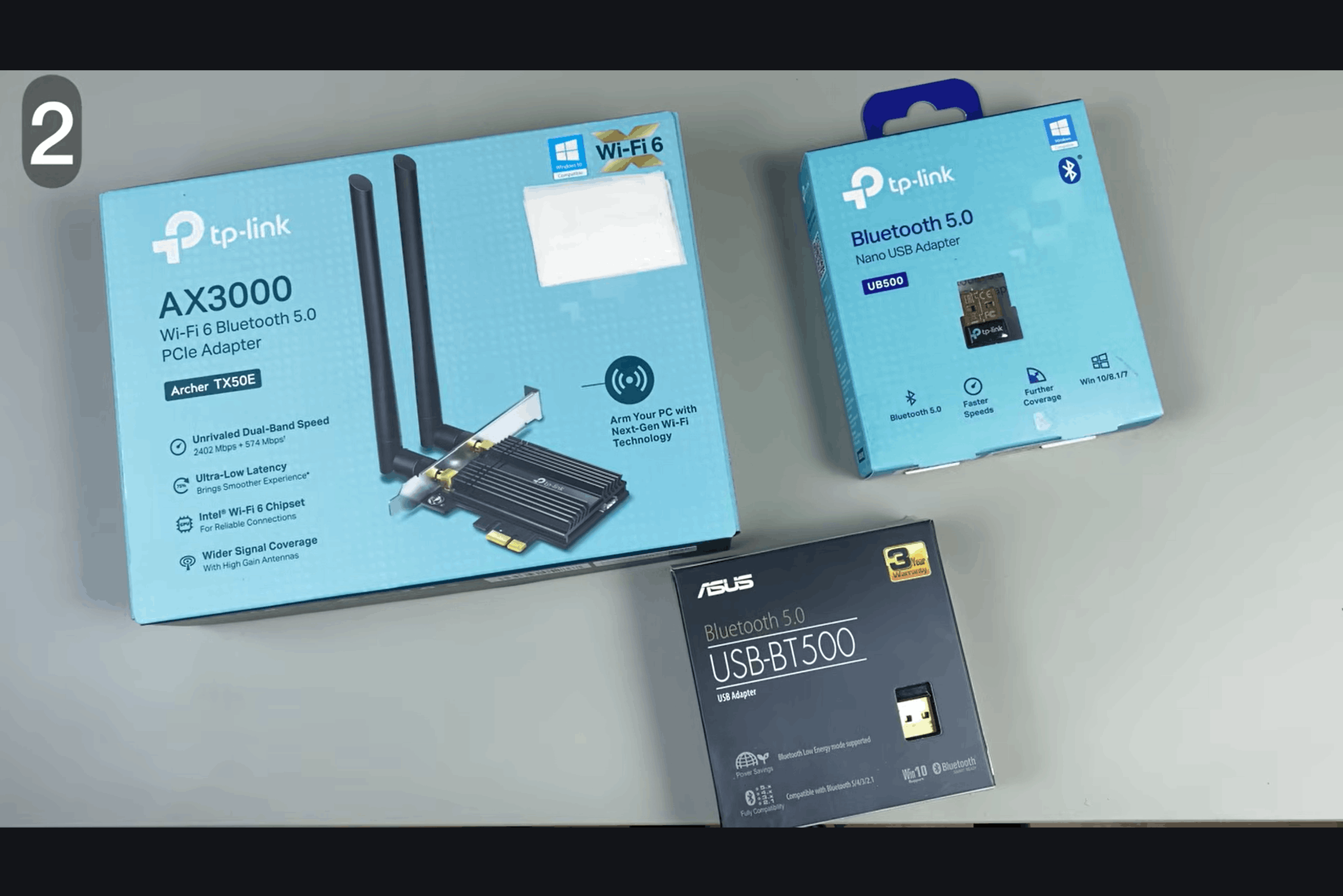
The PC must have built-in Bluetooth or a compatible Bluetooth adapter, preferably Bluetooth 4.0 or newer, for a stable connection.
When the pairing notification appears on the screen, select Connect. After a successful connection, the Xbox logo stops flashing and remains solid, showing that the controller is paired and ready for gaming.
Step 3: Add the Controller Through Bluetooth Settings
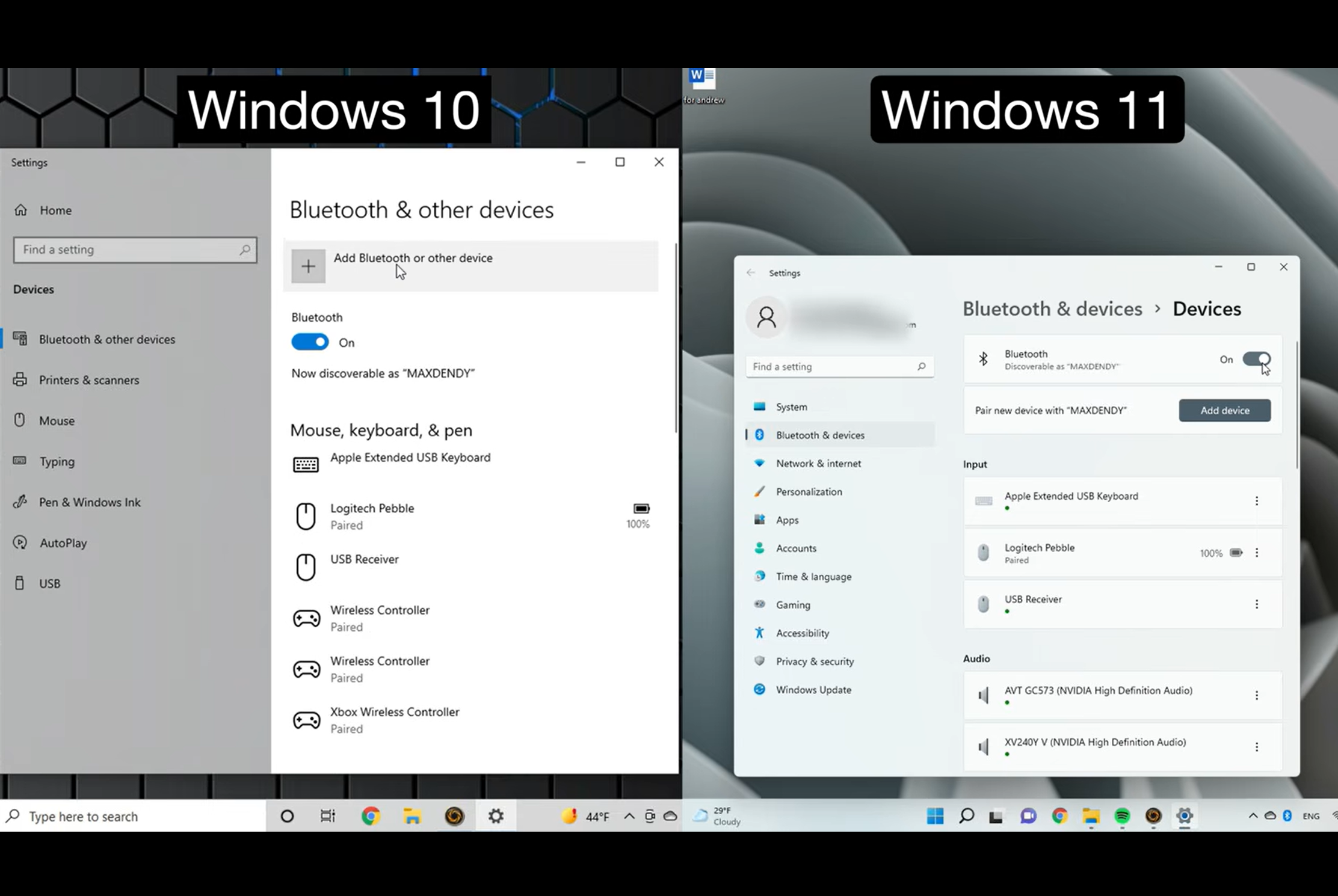
If the pairing notification does not appear automatically, connect the controller through the Windows Bluetooth settings.
On Windows 10, open Add Bluetooth or Other Device. On Windows 11, select Add Device instead.
Choose Bluetooth and wait for nearby devices to load. Select Xbox Wireless Controller from the list to begin pairing.
Windows will complete the connection within a few moments, and the Xbox button will remain solid once the controller is successfully connected.
Step 4: Check the Limits of a Bluetooth Connection
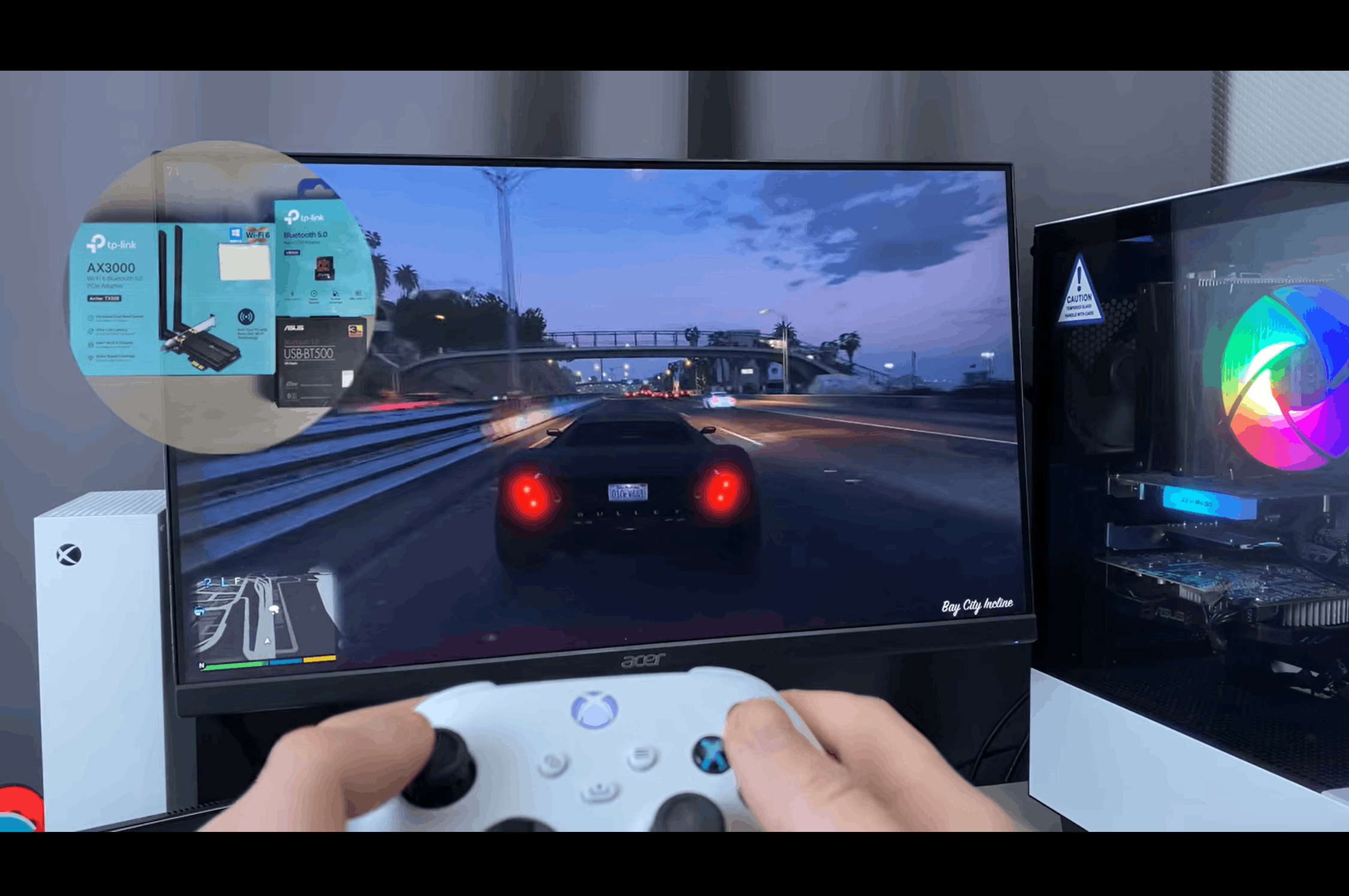
Bluetooth is a convenient wireless option, but it does come with a few limitations. The controller’s headphone jack and microphone are not supported over Bluetooth.
Some players may also experience input lag, connection drops, or occasional frame-rate issues, depending on the PC and Bluetooth hardware.
Microsoft also recommends using the Xbox Wireless Adapter when connecting several Xbox controllers because it offers better compatibility and more reliable wireless performance.
Step 5: Connect Using the Xbox Wireless Adapter
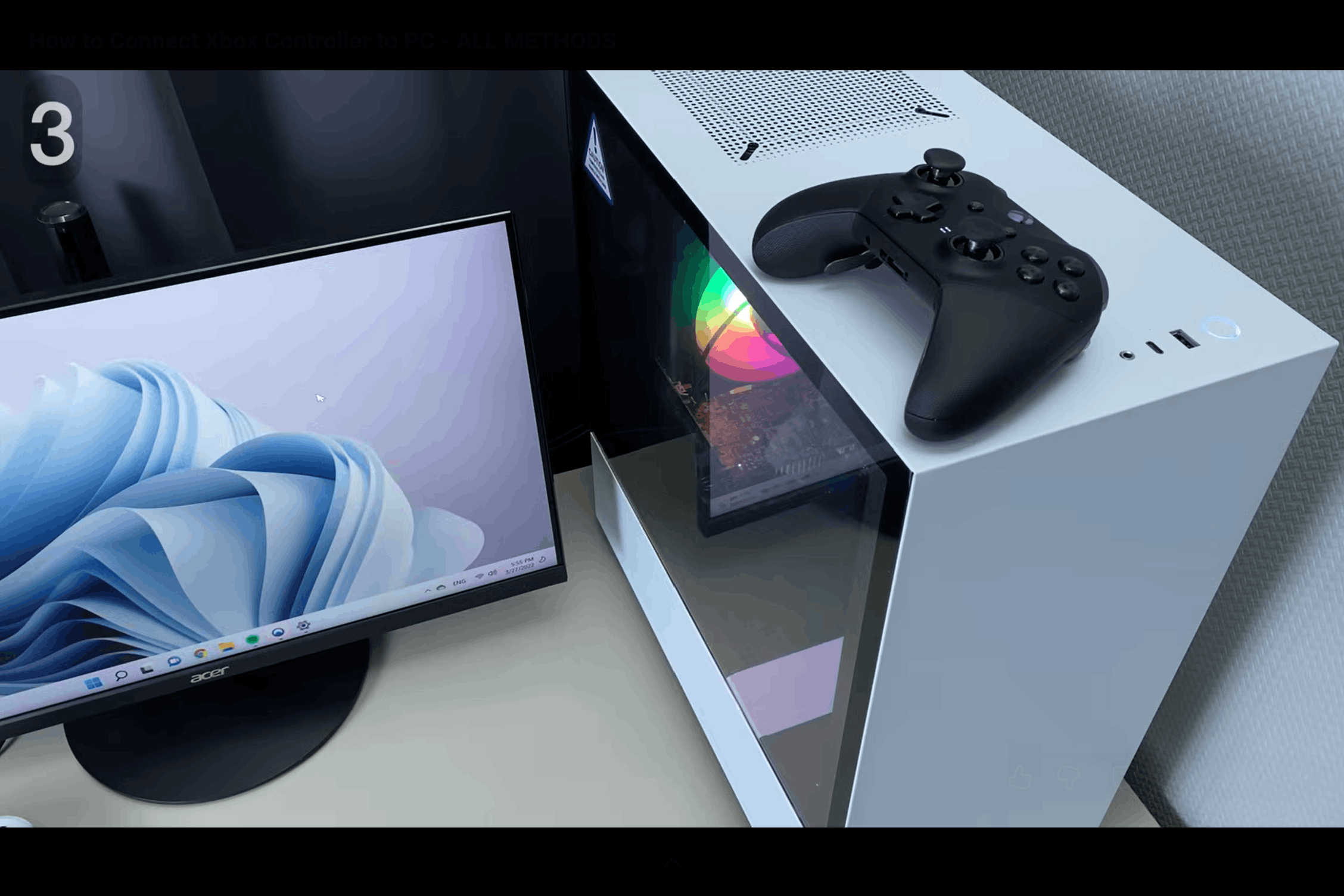
Insert the Microsoft Xbox Wireless Adapter into an available USB port on the PC. Press the pairing button on the adapter, then hold the pairing button on the Xbox controller until the Xbox controller connects.
The process usually takes only a few seconds. This method provides a stable wireless connection with lower latency than Bluetooth.
It also supports the controller’s headphone jack and microphone.
Keep in mind that the adapter is designed only for Xbox wireless controllers and does not support PlayStation or Nintendo controllers.
Step 6: Update the Controller Through Xbox Accessories
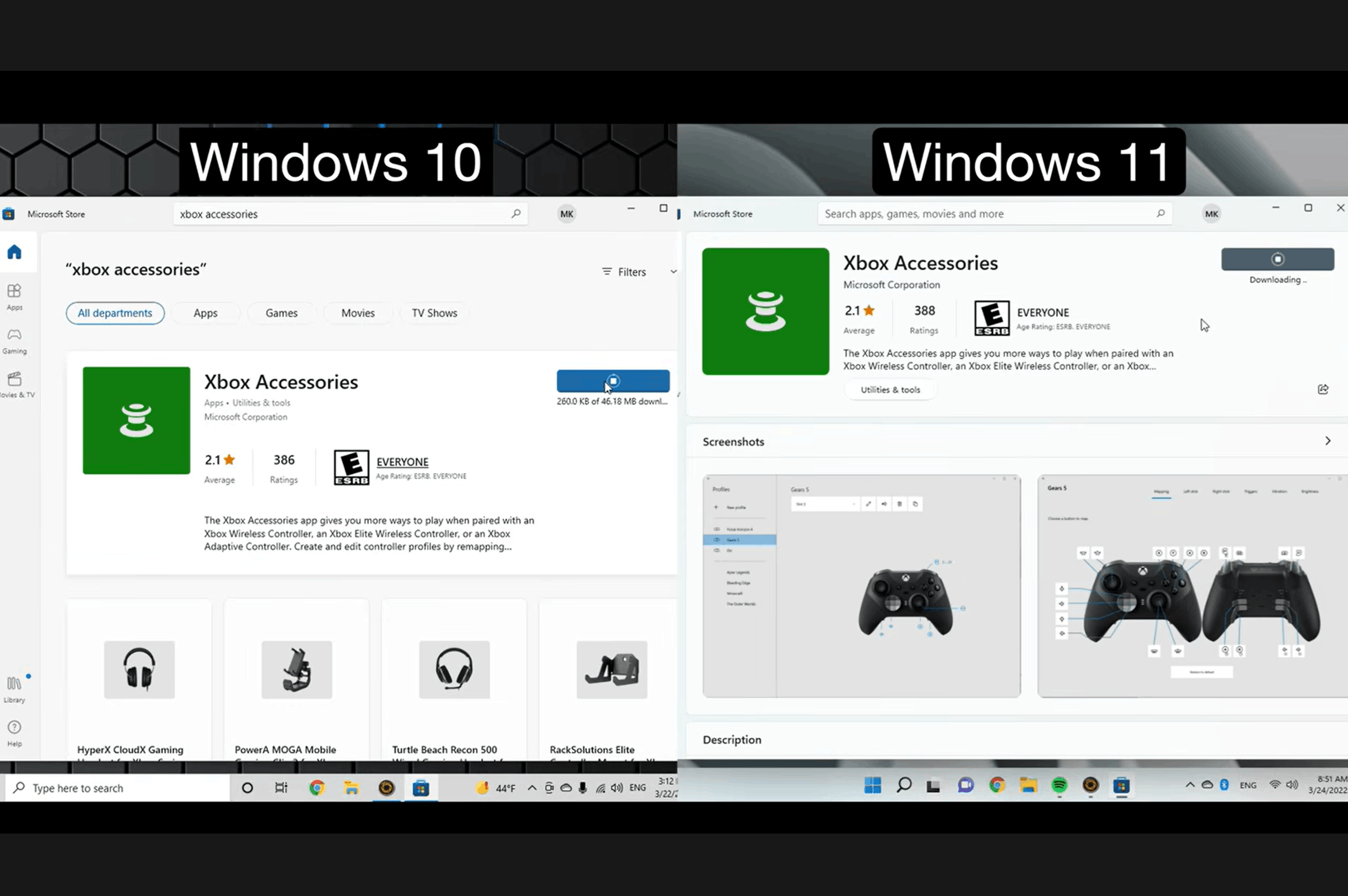
Open the Microsoft Store and search for the Xbox Accessories app. Install the application, launch it, and connect the Xbox controller if it is not already connected.
The app automatically checks for available firmware updates and guides you through the installation process.
Keeping the controller updated can improve compatibility and fix connection issues.
The app also supports controllers, including Xbox Elite models, to create custom profiles, remap buttons, and adjust settings for different games.
Step 7: Customize the Controller Through Steam
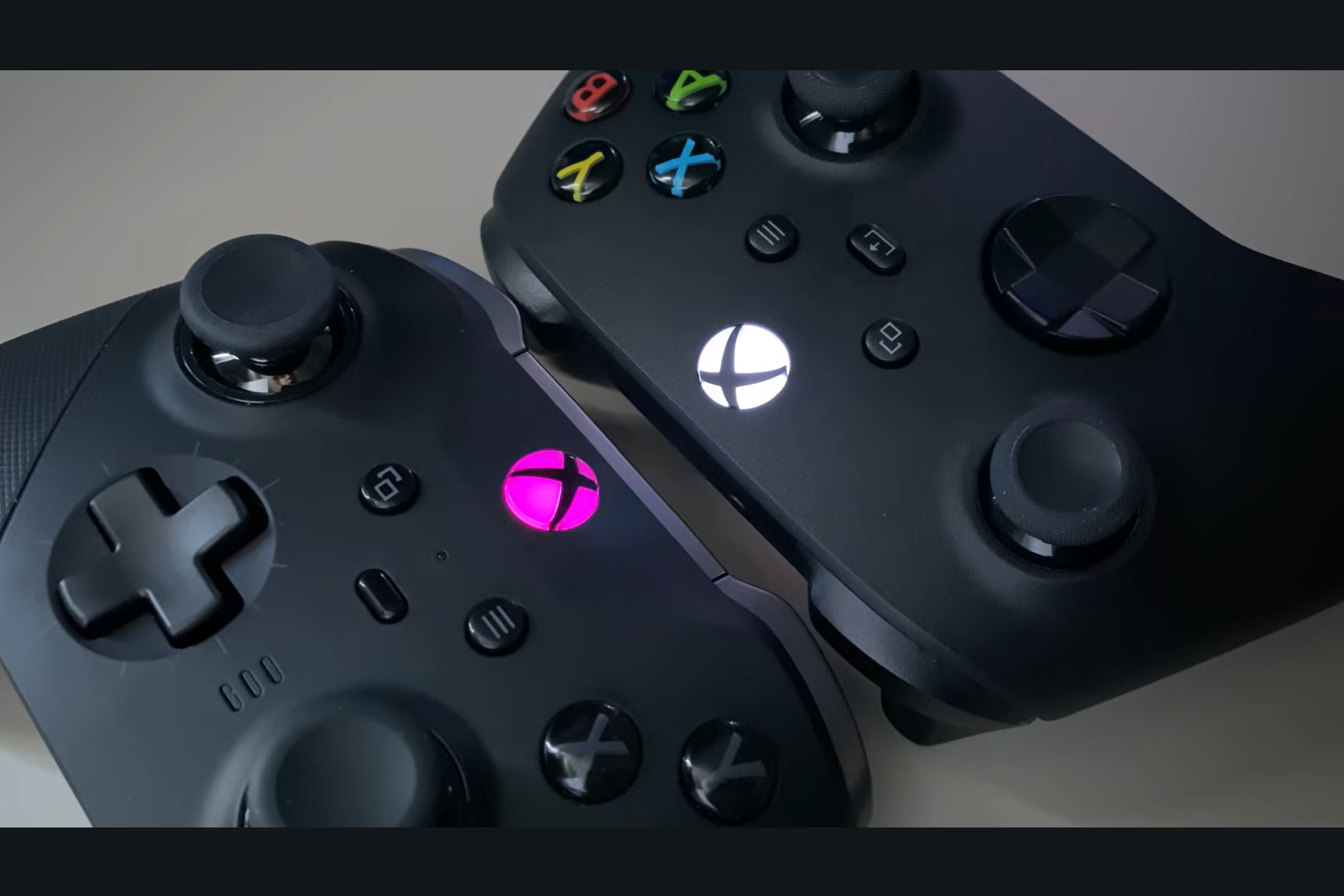
Open Steam and switch to Big Picture Mode. From Settings, open the controller menu and enable Xbox Configuration Support along with Xbox Extended Feature Support.
After enabling these options, open the Xbox controller preferences.
Compatible controllers, including certain Xbox Elite models, allow changes to the Xbox logo light, including its color, brightness, and saturation.
Save the preferred settings before exiting the menu so the customizations are applied the next time the controller is used.
These steps are inspired by a useful video from Max Dendy. You can watch the original tutorial on their YouTube channel here or view it below.
Can You Use an Xbox Controller on Any PC?
Yes, most Xbox controllers work with Windows 10 and Windows 11 PCs.
Xbox Series controllers, newer Xbox One controllers, and Xbox Elite Series 2 models support USB, Bluetooth, and the Xbox Wireless Adapter.
Older Xbox One and original Xbox Elite controllers do not support Bluetooth, but they can still connect through USB or the wireless adapter.
Wired Xbox 360 controllers also work through USB. Wireless Xbox 360 controllers require a separate Xbox 360 Wireless Receiver because they cannot connect directly through Bluetooth.
The PC must also have an available USB port or built-in Bluetooth, depending on the chosen method. Windows usually installs the required drivers automatically after connection.
Checking Whether Your Xbox Controller is Connected Properly
After connecting the controller, it is a good idea to confirm that Windows recognizes it correctly. A quick check can help identify connection or driver issues before starting a game.
- The Xbox Button Stays Lit: A solid Xbox logo means the controller is connected successfully.
- Windows Detects the Controller: Open Settings > Bluetooth & devices, or Devices and Printers, to see if the controller appears.
- Buttons Respond in Testing Tools: Open the Game Controllers window and press the buttons to verify that each input registers correctly.
- Games Detect the Controller: Launch a controller-supported game or Steam Big Picture Mode to confirm the controller works during gameplay.
- No Warning Icons in Device Manager: Open Device Manager and check that the controller appears without a yellow warning symbol.
How to Update an Xbox Controller on a PC?
An Xbox controller often works without an update, but newer firmware can fix connection issues and improve how it works with Windows.
- Check for Updates: Open the Xbox Accessories app from the Microsoft Store and connect the controller.
- Install New Firmware: Follow the on-screen instructions if an update is available.
- Fix Connection Problems: An update may help if the controller disconnects or responds incorrectly.
- Change Controller Settings: Supported models can remap buttons and adjust sticks or triggers.
- Create Custom Profiles: Xbox Elite Series 2 controllers can save different setups for different games.
Playing PC Games with an Xbox Controller
Most modern PC games support Xbox controllers, but not every title is designed for controller play. Before installing or buying a game, check whether it offers full or partial controller support.
| Game or Platform | Xbox Controller Support | Examples |
|---|---|---|
| Steam (Full Controller Support) | Yes | Forza Horizon 5, EA Sports FC 25, Hades, Hollow Knight |
| Steam (Partial Controller Support) | Partial | Civilization VI, Cities: Skylines |
| Xbox Game Pass for PC | Yes | Halo Infinite, Forza Motorsport, Hi-Fi Rush |
| Microsoft Store Games | Yes | Minecraft Dungeons, As Dusk Falls |
| Epic Games Store | Usually | Rocket League, Fall Guys, Alan Wake 2 |
| EA App | Usually | EA Sports FC 25, F1 25, Need for Speed Unbound |
| Keyboard and Mouse Only Games | No or Limited | League of Legends, Valorant, Age of Empires IV |
How to Reduce Input Lag with an Xbox Controller on PC?
Input lag can make aiming, racing, and fast button presses feel delayed. A wired connection usually gives the most consistent response because it avoids wireless interference.
- Use a USB Cable: Connect the controller directly to reduce latency and avoid battery-related interruptions.
- Choose the Wireless Adapter: Use the Xbox Wireless Adapter for a more stable wireless connection than standard Bluetooth.
- Reduce Interference: Keep the controller close to the PC and move nearby wireless devices away from the Bluetooth adapter.
- Update the Controller: Install the latest firmware through the Xbox Accessories app to fix performance and connection issues.
Close unnecessary background apps and disable conflicting controller software before launching the game. These steps can improve responsiveness and provide smoother controller input
Can You Use a Headset with an Xbox Controller on PC?
Yes, but it depends on how the controller is connected. A USB cable or the Xbox Wireless Adapter supports the controller’s headset jack, while Bluetooth does not.
Headset support varies by connection method. A wired USB connection and the Microsoft Xbox Wireless Adapter both allow compatible Xbox controllers to use the built-in 3.5 mm headset jack for game audio and voice chat.
Bluetooth connections do not transmit audio through the controller, so a headset plugged into the controller will not work.
If using Bluetooth, connect the headset directly to the PC instead. Choosing the appropriate connection method helps prevent audio and microphone issues during gameplay.
Common Mistakes when Connecting an Xbox Controller
Small setup errors can prevent Windows from correctly detecting an Xbox controller. Checking the cable, battery, connection mode, and firmware can avoid most problems.
- Using a Charging-Only Cable: Some USB cables provide power but cannot transfer data, so Windows will not detect the controller.
- Pairing an Unsupported Model: Original Xbox One and first-generation Xbox Elite controllers do not support Bluetooth connections.
- Ignoring Low Battery Power: Weak batteries can cause failed pairing, delayed responses, or repeated controller disconnections during gameplay.
- Skipping Firmware Updates: Outdated controller firmware can cause compatibility issues, incorrect input handling, or unstable wireless performance on Windows.
- Connecting to Another Device: A controller already paired with a console or phone may need to be re-paired with the PC.
Conclusion
Connecting an Xbox controller to a Windows PC becomes much easier when the correct setup steps are followed.
After choosing USB, Bluetooth, or the Xbox Wireless Adapter, check that Windows recognizes the controller and install any available firmware updates.
Testing the buttons before launching a game can prevent input problems later. Players should also choose the connection method based on latency, headset support, and the number of controllers being used.
Simple checks such as using a data cable, charging the batteries, and reducing wireless interference can solve many common issues.
Which connection method works best for your gaming setup? Share your experience, troubleshooting tips, or questions in the comment section below.
Frequently Asked Questions
What Controllers are Compatible with a Pc?
Most Windows 10 and Windows 11 PCs support Xbox Series, Xbox One, Xbox Elite, PlayStation DualSense, DualShock 4, Nintendo Switch Pro, and many USB gaming controllers.
Is an Xbox Controller Worth It for a Pc?
Yes. Xbox controllers offer broad game compatibility, native Windows support, comfortable controls, and simple setup, making them a popular choice for many PC gamers.
Do Most Pc Gamers Use a Controller?
It depends on the game. Racing, sports, platformer, and action games are commonly played with a controller, while strategy and many first-person shooters are often played with a keyboard and mouse.