Have you ever wondered whether your iPhone battery is still in good condition? A quick percentage in Settings only tells part of the story.
A proper battery health check on an iPhone looks beyond Maximum Capacity to help measure real battery wear, charging cycles, and overall performance.
This article explains how to check battery health, test performance, spot signs of aging, and know when a replacement makes sense.
You’ll also learn what affects battery lifespan and which habits can help it last longer.
By the end, you will be able to make informed decisions about your iPhone battery and keep your device running reliably for as long as possible.
What Does Battery Health Mean on an iPhone?
Battery health measures how much power an iPhone battery can hold compared to when it was new, helping indicate battery aging and whether a replacement may be needed.
Every iPhone uses a lithium-ion battery that slowly loses capacity with regular use and charging.
Apple measures this using Maximum Capacity, which shows the battery’s current capacity relative to a brand-new battery.
Battery Health also includes Peak Performance Capability, which indicates whether the battery can still supply enough power for demanding tasks without unexpected shutdowns.
Newer iPhone models may also display Cycle Count, offering a clearer picture of battery wear.
These measurements give a clearer view of battery condition than battery percentage alone and help decide when replacement makes sense.
How to Perform a Battery Health Check on iPhone?

Checking battery health means reviewing battery capacity, charging habits, cycle count, and signs of performance degradation to determine whether an iPhone battery is aging normally.
1. Check Battery Health in Settings
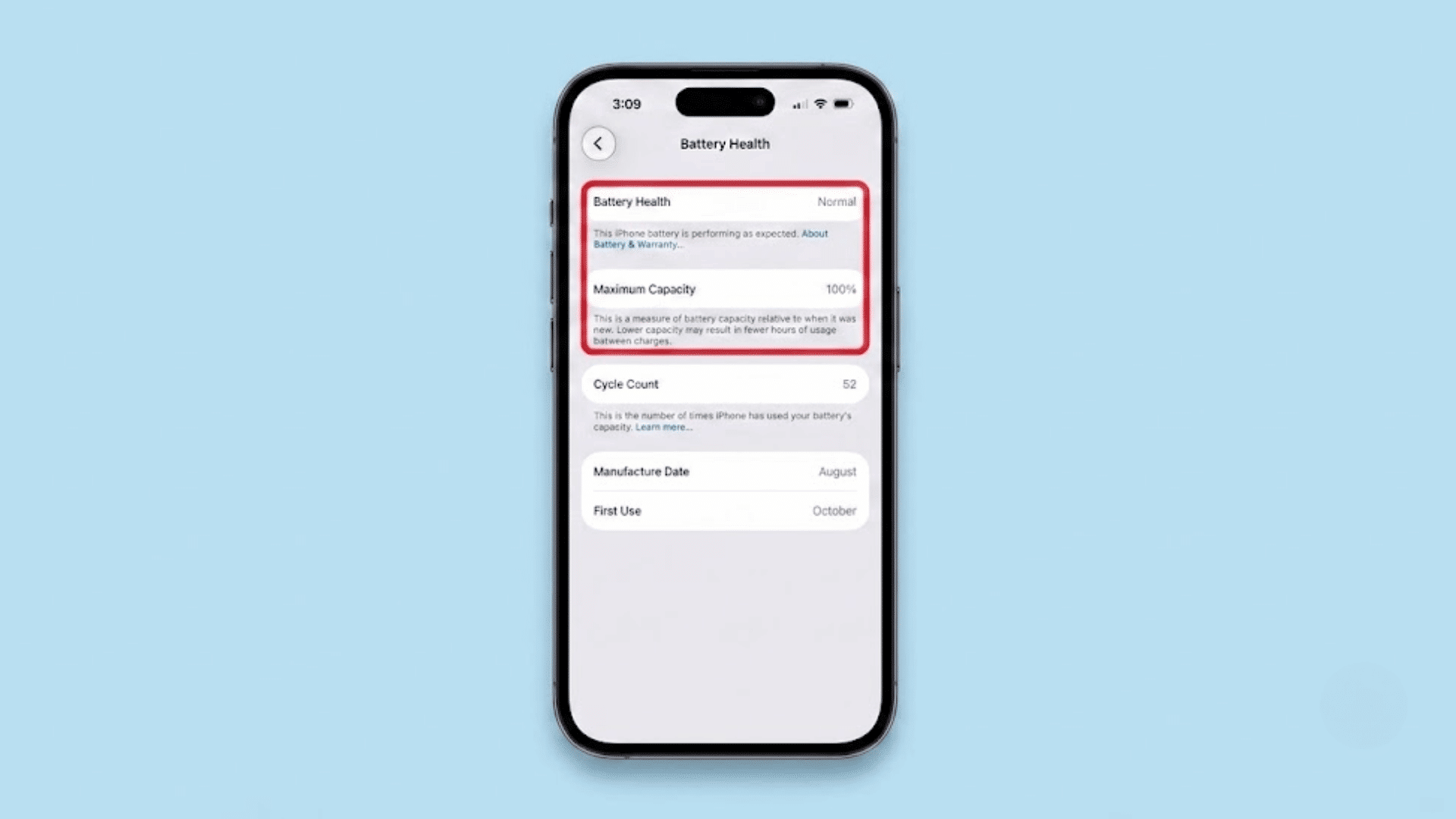
Open Settings > Battery > Battery Health & Charging (or Battery > Battery Health on some iOS versions).
This page displays Maximum Capacity and Peak Performance Capability, which are Apple’s primary battery health indicators.
On supported iPhone models, it may also show a service recommendation if the battery needs attention.
This is the quickest and most reliable starting point because the information comes directly from Apple’s battery management system and updates automatically as the battery ages.
2. Understand Maximum Capacity
Maximum Capacity shows how much charge the battery can currently hold compared to when it was new.
For example, a reading of 90% means the battery stores about 90% of its original capacity.
A lower percentage usually results in shorter battery life between charges but does not always mean immediate replacement is necessary.
Apple considers normal batteries to retain up to 80% of their original capacity under standard conditions before replacement is generally recommended.
3. Review Peak Performance Capability
Peak Performance Capability indicates whether the battery can deliver sufficient power for demanding tasks.
If the battery is healthy, the iPhone reports that it supports normal peak performance.
When the battery becomes worn, iOS may automatically manage performance to prevent unexpected shutdowns.
If this happens, a message explaining performance management appears in Battery Health settings. This helps distinguish normal battery aging from performance issues caused by battery wear.
4. Check Battery Cycle Count (iPhone 15 and Later)
OniPhone 15 and later, Apple allows users to view the battery’s Cycle Count in Settings > General > About.
The same section also shows the Manufacture Date and First Use Date. One cycle is defined as using 100% of the battery’s capacity, even across multiple charges.
Cycle Count provides a clearer picture of long-term battery wear than Maximum Capacity alone, as it reflects how many complete charging cycles the battery has undergone.
5. For iPhone 14 or Earlier
Older iPhone models do not display the battery Cycle Count directly in Settings, but the information is still stored in the device’s analytics logs.
Go to Settings > Privacy & Security > Analytics & Improvements and enable Share iPhone Analytics if it is turned off.
If it was previously disabled, wait 24 to 48 hours for a new analytics log to generate.
Next, open Analytics Data, select the latest file beginning with “Analytics-”, and search for “last_value_cyclecount” to find the current battery cycle count.
What Is Battery Cycle Count and Why Does It Matter?
Battery cycle count is the number of complete charge cycles an iPhone battery has gone through over its lifetime.
It matters because it provides a clearer picture of battery wear than battery percentage alone and helps estimate the battery’s remaining lifespan.
One charge cycle is completed when the battery’s capacity is fully used, even if it occurs over multiple charges.
For example, using 50% of the battery one day and another 50% the next day equals one cycle. A higher cycle count generally means the battery has experienced more natural chemical aging.
Newer iPhone models display the cycle count in Settings > General > About, making it easier to assess battery condition.
Apple states that newer iPhone batteries are designed to retain about 80% of their original capacity after roughly 1,000 charge cycles under normal use.
Signs the iPhone Battery Is Wearing Out
A worn iPhone battery often shows up through daily performance changes, not just a lower battery health percentage.
- Fast Battery Drain: The battery drops quickly during normal use, even when screen brightness, apps, and settings have not changed much.
- Random Shutdowns: The iPhone turns off unexpectedly, especially during heavy tasks, cold weather, or when the battery percentage is still above zero.
- Slower Performance: Apps may open slowly, scrolling may feel less smooth, and the phone may lag during regular daily tasks.
- Battery Percentage Jumps: The battery level suddenly drops, rises, or fluctuates unevenly, which can indicate inaccurate battery reporting.
- Overheating During Light Use: The iPhone gets unusually warm while browsing, texting, or using simple apps, even without gaming or charging.
- Frequent Charging Needed: The phone needs to be charged several times a day because it no longer holds a charge long enough for normal use.
- Service Message Appears: Battery settings may display a service message indicating that iOS has detected reduced battery health or performance issues.
- Charging Feels Inconsistent: The battery charges slowly, stops charging early, or drains soon after reaching a high percentage.
When Should an iPhone Battery Be Replaced?
An iPhone battery should generally be replaced when its health falls to around 80% of its original capacity or when it no longer delivers reliable daily performance.
Frequent shutdowns, rapid battery drain, or a battery service message are also common signs that replacement may be appropriate.
Apple states that iPhone batteries are designed to retain up to 80% of their original capacity after a specified number of complete charge cycles under normal conditions.
However, battery health percentage should not be the only factor.
Replace it if it drains fast, overheats, charges poorly, or slows performance, even above 80% health.
Conversely, an iPhone with battery health below 80% may continue working acceptably for some users with light usage.
The best decision combines Battery Health, cycle count where available, and real-world performance.
Battery Test Methods Beyond the Battery Health Screen
Battery Health is useful, but it does not provide the complete picture. Looking at additional battery data and real-world performance can help identify battery wear more accurately.
1. Review Battery Usage and Activity
The Battery section in Settings includes detailed graphs showing battery usage over the last 24 hours and 10 days. It also identifies which apps consume the most power and whether they run in the background.
Unusually high battery drain from a single app may indicate a software issue rather than battery wear.
Reviewing these graphs helps determine whether poor battery life is caused by the battery itself or by power-hungry apps and usage habits.
2. Check Charging History
Recent versions of iOS display charging activity within the Battery settings, showing when the iPhone was charged and how the battery level changed throughout the day.
Reviewing this history helps identify frequent charging, overnight charging patterns, or rapid battery drain between charges.
If the battery loses power unusually quickly during light use, it may indicate battery aging.
Charging history also helps distinguish normal daily usage from potential battery performance issues.
3. Run Apple Diagnostics During Service
Apple Stores and Apple Authorized Service Providers can perform advanced battery diagnostics using Apple’s internal testing tools.
These diagnostics measure battery condition, charging performance, voltage, temperature, and overall health beyond what users can see in Settings.
The results help determine whether the battery is functioning normally or qualifies for replacement.
This is the most accurate way to evaluate battery condition when the built-in Battery Health information does not fully explain performance problems.
4. Use Trusted Third-Party Battery Testing Tools
On Windows or Mac, trusted utilities such as coconutBattery (Mac) and iMazing (Mac and Windows) can display battery information, including design capacity, current full-charge capacity, cycle count, and battery temperature, for supported devices.
These tools can provide additional insights, especially for older iPhone models that do not show cycle count in Settings.
However, their readings should be viewed as supplementary, while Apple’s built-in battery information remains the primary source for evaluating battery health.
Battery Health Percentage Chart
The battery health percentage offers a general idea of battery condition, but it should be considered alongside battery performance and cycle count.
| Battery Health | Battery Condition | Expected Experience | Recommended Action |
| 100%–95% | Excellent | Like-new battery performance and runtime | No action needed |
| 94%–90% | Very Good | Slightly shorter battery life, normal performance | Continue normal use |
| 89%–85% | Good | Noticeable reduction in runtime for some users | Monitor battery health and usage |
| 84%–80% | Aging | Shorter battery life, possible performance management | Consider battery replacement if issues occur |
| Below 80% | Worn | Faster battery drain and possible reduced performance | Apple generally recommends battery replacement |
What Causes iPhone Battery Health to Decline?
Lithium-ion batteries naturally lose capacity over time, but certain habits and environmental conditions can speed up the aging process.
- Normal Chemical Aging: Lithium-ion batteries gradually lose capacity with each charge cycle, so reduced battery health is an expected part of long-term use.
- High Temperatures: Excessive heat during charging, gaming, or hot weather accelerates battery aging and permanently reduces the battery’s maximum capacity.
- Frequent Fast Charging: Regular fast charging generates additional heat, which may accelerate battery wear during extended heavy use.
- Heavy Gaming and Demanding Apps: Resource-intensive apps increase battery temperature and power consumption, placing greater stress on the battery during prolonged sessions.
- Keeping the Battery at 100% Constantly: Leaving the battery fully charged for long periods may increase chemical aging, especially in warm environments.
- Deep Battery Discharge: Frequently allowing the battery to reach very low levels before charging can place additional stress on lithium-ion cells.
- Background App Activity: Numerous apps running in the background consume extra power, causing more frequent charging cycles and gradual battery wear over time.
- Long-Term Daily Use: Over months and years of regular charging, the cycle count naturally increases, leading to a gradual loss of battery capacity despite proper care.
How to Extend iPhone Battery Life and Slow Battery Wear?
iPhone battery life can be extended by following healthy charging habits, avoiding excessive heat, and keeping the device updated.
While battery aging cannot be prevented, these steps help extend battery life and maintain better long-term performance. Keeping the iPhone away from high temperatures is equally important, as heat accelerates battery aging.
Updating to the latest version of iOS ensures access to Apple’s latest battery management improvements and power optimizations.
Reducing unnecessary background activity and using Low Power Mode when needed can also lower overall power consumption. Instead of regularly draining the battery to 0%, charge it before it becomes very low.
Together, these habits help reduce battery stress, preserve battery capacity, and support more consistent performance over time.
Apple Battery Replacement vs Third-Party Repair
Both repair options can restore battery life, but they differ in parts, warranty, diagnostics, and long-term reliability.
| Feature | Apple Battery Replacement | Third-Party Repair |
| Battery Quality | Genuine Apple battery | Genuine or compatible battery, depending on the provider |
| Parts Calibration | Official Apple calibration | May vary by repair shop |
| Battery Health Reporting | Fully supported in iOS | May be limited to non-genuine parts |
| Warranty | Apple warranty or service guarantee | Depends on the repair provider |
| Diagnostic Testing | Uses Apple’s official diagnostic tools | Varies by repair shop |
| Repair Cost | Usually higher | Often lower |
| Repair Quality | Consistent through Apple or Authorized Service Providers | Depends on the technician’s experience and parts quality |
| Best For | Users wanting genuine parts and full iOS support | Users looking for a lower-cost repair from a trusted technician |
Common Myths About iPhone Battery Health
Many battery tips shared online are outdated or based on older battery technologies rather than modern lithium-ion batteries.
- Charging Overnight Always Damages the Battery: Modern iPhones use Optimized Battery Charging to reduce battery aging during overnight charging under normal conditions.
- Fast Charging Quickly Ruins the Battery: Apple designs iPhones to safely manage fast charging, although excessive heat over time can increase battery wear.
- Closing Apps Saves Battery Life: Repeatedly force-closing apps can use more power because iOS must reload them when reopened.
- Battery Health Can Increase Again: Battery health can only decrease over time because lithium-ion batteries naturally undergo permanent chemical aging with regular use.
- Battery Percentage Tells the Whole Story: Maximum Capacity, cycle count, charging behavior, and overall performance provide a more complete picture of battery condition.
- Low Power Mode Damages the Battery: Low Power Mode simply reduces power consumption and background activity. It does not harm the battery or reduce battery health.
- The Battery Must Reach 0% Before Charging: Lithium-ion batteries perform better with regular partial charges than frequent deep discharges to empty.
- Every Third-Party Charger Damages the Battery: Certified chargers that meet Apple’s safety standards generally charge iPhones safely when used correctly.
Conclusion
Checking your iPhone battery regularly can help you avoid unexpected shutdowns, poor performance, and unnecessary upgrades. As this article has shown, battery health is more than a single percentage.
Looking at cycle count, charging habits, and everyday performance gives a much clearer picture of your battery’s condition.
In many cases, a simple battery replacement can help an older iPhone continue working well for years.
I hope this information has made battery health easier to understand and has helped you feel more confident about deciding when to test or replace your battery.
Have you noticed any changes in your iPhone battery, or have you replaced it recently? Share your experience, tips, or questions in the comments below.
Frequently Asked Questions
Is It Bad to Charge My iPhone Overnight?
No. Modern iPhones use Optimized Battery Charging to reduce battery aging during overnight charging. Excessive heat, not overnight charging itself, is the bigger concern.
What Is the 20-40-80 Rule?
The 20 40 80 rule suggests keeping the battery between 20% and 80% charge to reduce battery stress and slow long-term battery aging.
What Is the iPhone 12 Secret Button?
The iPhone 12 has no physical secret button. Its Apple logo can work as a virtual button using the Back Tap accessibility feature.
What Is the 3 Finger Trick on iPhone?
The three-finger gesture is an iOS accessibility feature that lets users copy, cut, paste, undo, or redo text using touch gestures.