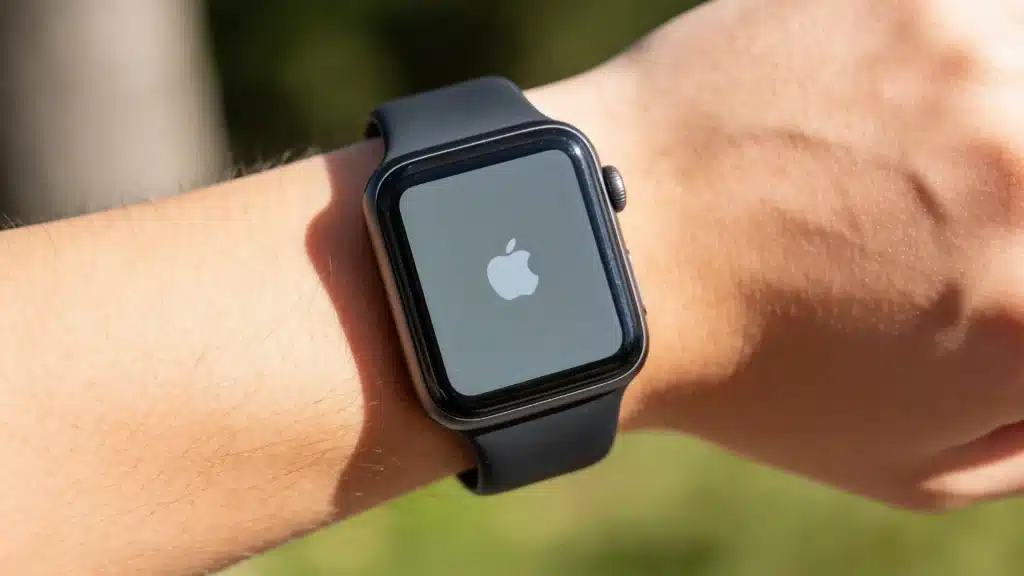
An Apple Watch stuck on the Apple logo usually comes down to one of three things: a stalled software update, a battery too low to finish booting, or a short system freeze.
We have walked enough readers through this exact screen to know which fixes actually clear it and which ones just burn your battery for nothing.
Here, it follows the same order Apple support advisors use, starting with the safest step and moving to more involved ones only if the logo does not budge.
You will also learn how to tell a normal delay apart from an Apple Watch frozen on the logo screen that needs real attention, so you are not stuck guessing halfway through.
What to Try Before Anything Else
Before working through every possible cause, run this short checklist first. It separates situations that clear up within minutes from ones that need a longer troubleshooting sequence, so you already know what to try next instead of guessing.
- Logo appeared during an update: keep it charging and wait.
- Frozen for over 30 minutes: try a force restart now.
- Force restart failed: check the charger, cable, and outlet.
- Nothing worked: unpair the watch, then pair it again.
These checks resolve most cases within a few minutes, much like the quick fixes that clear up many common iPhone issues before deeper troubleshooting is needed. If your watch still shows the logo afterward, the sections below explain each fix in order, and why the order matters.
Is Your Apple Watch Frozen or Stuck in a Boot Loop?
A frozen watch and one that keeps restarting on its own are two different problems, even though both leave you staring at the same logo. Match what you are actually seeing to the row below so you do not waste time on the wrong fix.
|
What You See |
Likely Situation |
What To Do First |
|---|---|---|
|
Screen frozen, logo never moves |
Stuck boot |
Force restart |
|
Logo appears, goes black, comes back |
Boot loop |
Restart, then check the charger |
|
Progress ring or “Installing” text visible |
Mid-update |
Stay on the charger; do not interrupt |
|
Only charges, screen stays dark or logo-only |
Power issue |
Check charger, cable, and outlet |
|
Watch feels warm or hot to the touch |
Possible hardware issue |
Stop and contact Apple |
Once your symptom matches a row, jump straight to that fix below instead of reading every step in order. It can save you real time without changing the outcome.
Why Your Apple Watch Gets Stuck on the Apple Logo
Knowing the exact cause will not change what you do next, but it explains why this sometimes comes back later even after a clean fix. In the cases we have seen, a frozen Apple logo rarely traces back to one single thing, and it is common for two of these to overlap.
- An update that got interrupted partway through installation.
- A software conflict left over from a recent restore.
- A pairing or sync hiccup with your iPhone.
- Rarely, a genuine hardware fault inside the watch itself.
The fixes below work regardless of the cause, so you don’t need to diagnose it before you start.
Does This Happen More on Certain Apple Watches or Watch Os Versions?
It is not random. Older models tend to show up in this situation more often, mainly because they have less headroom to process a large watchOS install.
Series 2 and Series 3 watches running early watchOS 5 through 8 updates are the models most commonly reported as getting stuck on the logo during or right after an update, largely because slower onboard storage struggles to handle the install package.
Newer models aren’t immune, but they recover from a stalled update far more often with a force restart, since they have more processing headroom to finish the job once it restarts.
If you are on an older watch and this isn’t the first time it’s happened, that is a pattern worth noting rather than a coincidence, especially since older hardware tends to have a shorter useful lifespan once these slowdowns become frequent. It is also a reason to update promptly rather than letting several versions stack up before you install one.
Apple Watch Stuck on Apple Logo: Fixes in the Right Order
Work through these steps in the order Apple recommends. Each one is safer and less involved than the one after it, so do not skip ahead unless your symptom already pointed you to a specific step above.
Step 1: Force Restart the Watch
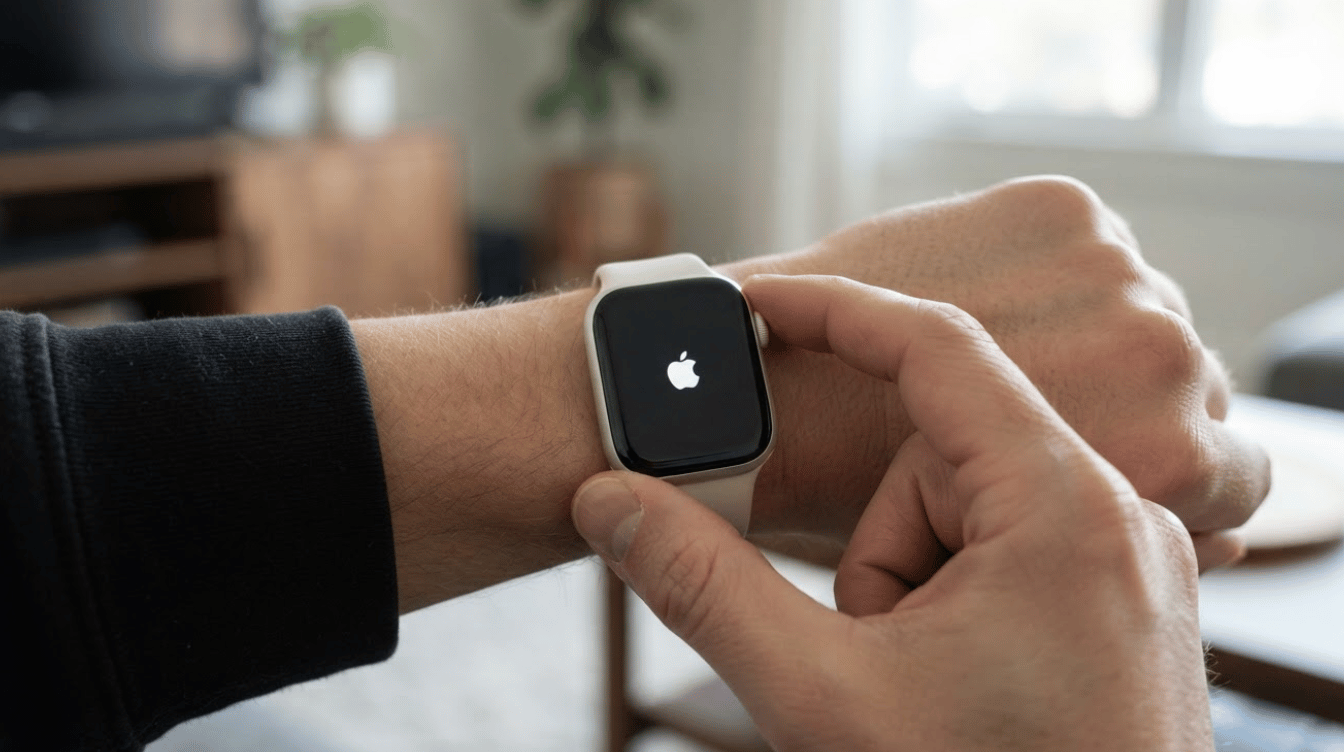
A standard restart will not work once the screen is frozen on the logo, so this is always the first move.
- Press and hold the side button and the Digital Crown at the same time.
- Keep holding until the screen goes black and the Apple logo reappears, then let go.
This is the fix that clears the large majority of cases we hear about, so give it a real chance before assuming something worse is going on.
Step 2: Check the Charger and Battery
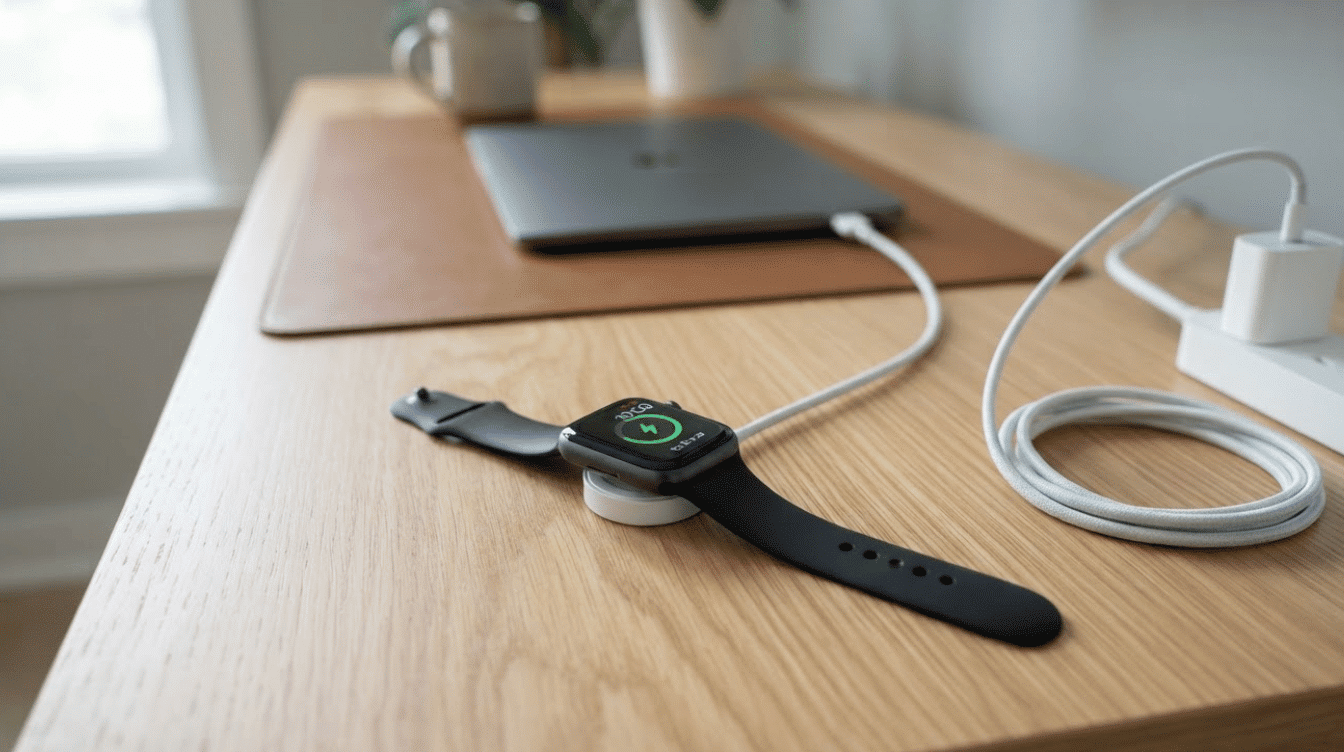
A battery too low to boot, or a charging connection that doesn’t make proper contact, can stop the watch from completing its restart even after a force restart clears the freeze.
A weak charge is common enough it rule out early, and persistent battery drain can make the same boot process even harder to complete.
- Place the watch on its charger until it connects.
- Try a different cable and outlet, then wait 30 minutes.
Step 3: Try Find My as an Optional Fix
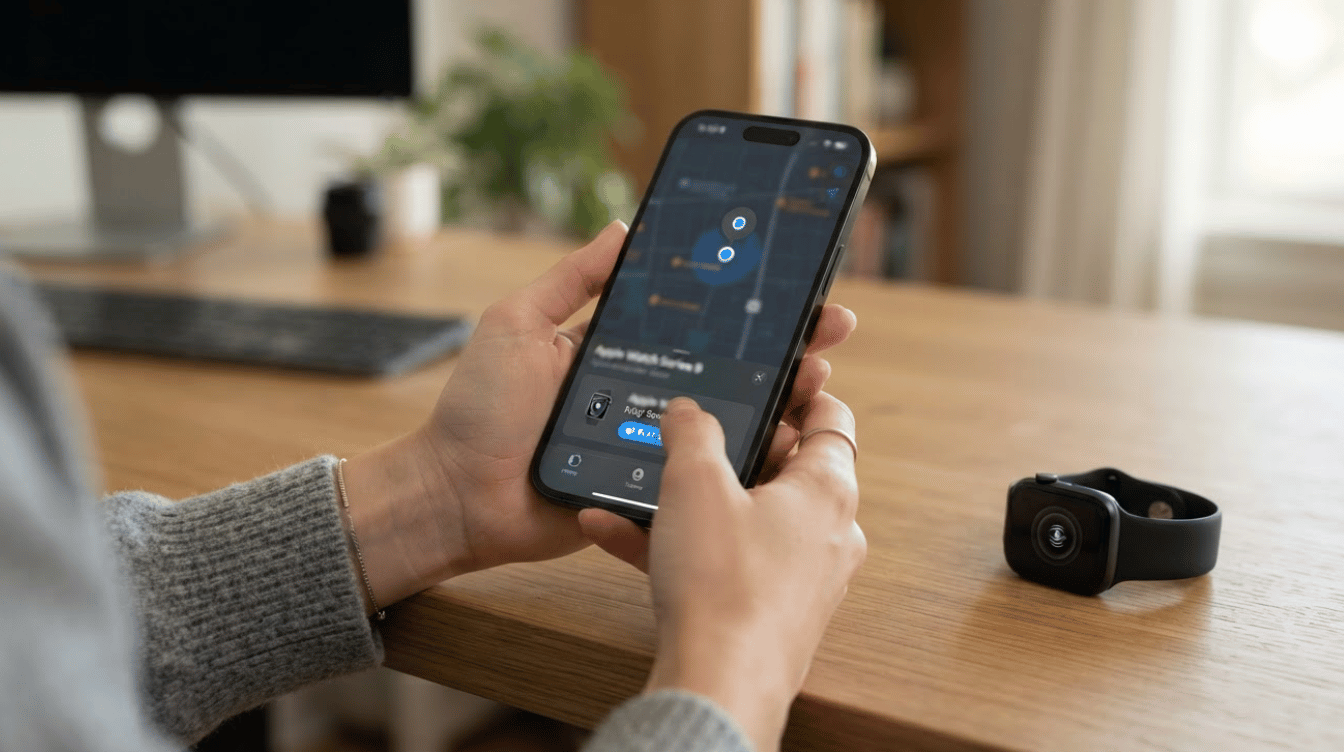
If the logo is still there after a restart and a charging check, this is the next official step, not a last resort.
Your iPhone creates a backup of your Apple Watch automatically before removing anything, and if you have a Cellular model, you will be asked whether you want to keep your plan.
- Open the Watch app, tap the info icon next to your watch, then tap Unpair.
- Once it finishes, pair the watch again and choose Restore from Backup.
Step 4: Unpair and Pair the Watch Again
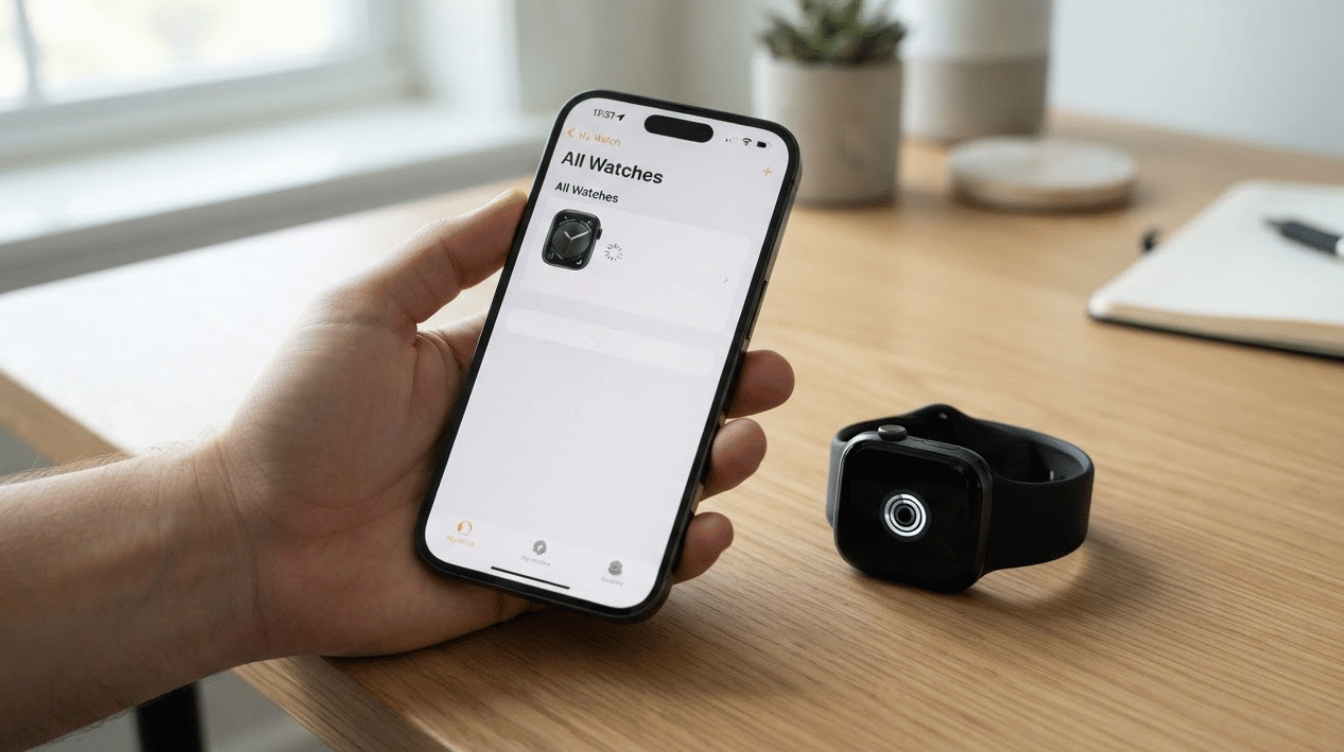
If the logo remains after a restart and a charging check, unpairing and re-pairing the watch is the next fix Apple recommends.
Your iPhone creates a backup before removing anything so that you won’t lose data, and Cellular users can choose to keep their plan.
- In the Watch app, tap the info icon, then Unpair.
- Pair the watch again and restore from the backup.
Step 5: Check for a watchOS Update
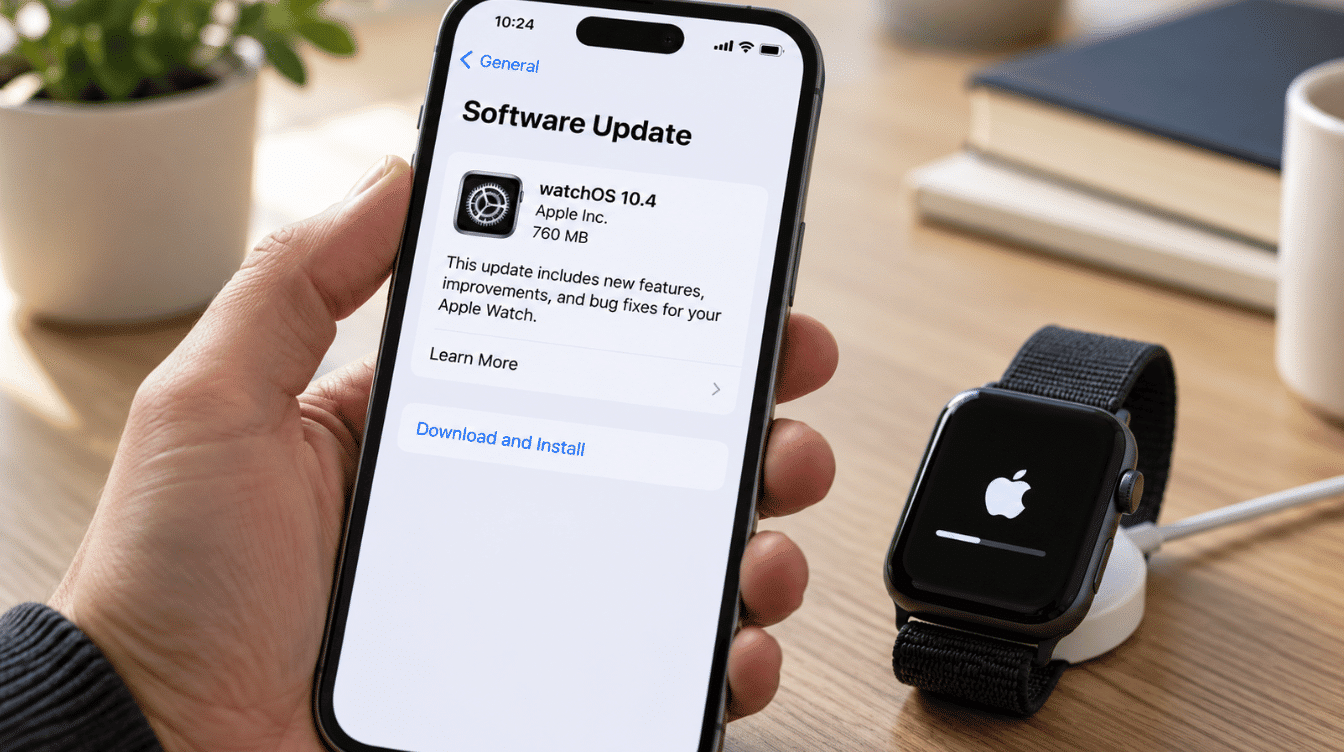
A stalled or incomplete watchOS update is one of the more common reasons a watch gets stuck on the logo, especially right after a new release.
Once the watch starts up again, check for a pending update rather than assuming the problem is fully resolved.
- Open the Watch app, tap My Watch, then General.
- Tap Software Update and install any pending updates.
What if the Watch Shows an iPhone Animation or Red Exclamation Mark?
An iPhone-and-watch animation or a red exclamation mark is not the same as a watch frozen on the Apple logo. Apple provides a separate nearby recovery process for these screens.
Keep a compatible iPhone nearby, unlocked, connected to Wi-Fi, and with Bluetooth turned on. Place the Apple Watch on its charger, then double-click the side button and follow the instructions that appear on the iPhone.
Apple says the iPhone must use iOS 15.4 or later for this recovery method. If the red exclamation mark remains after recovery attempts, you may need service. Keep this branch separate because it has its own official recovery steps.
When to Contact Apple Support
A few signs point toward a hardware problem that no amount of restarting will fix. Catching these early saves you from repeating the same steps for hours with nothing to show for it.
|
Sign |
Meaning |
|---|---|
|
Logo returns each time |
Software or hardware issue |
|
Will not charge |
Charging or battery issue |
|
Feels hot |
Stop, seek service |
|
Water or impact damage |
Possible physical damage |
|
Same result after re-pairing |
Contact Apple |
None of these signs confirms the exact cause on its own, and it’s best to avoid that assumption until a technician looks at it. Together, they are a fair reason to reach out for support.
What Long-Time Apple Watch Users and Support Threads Say
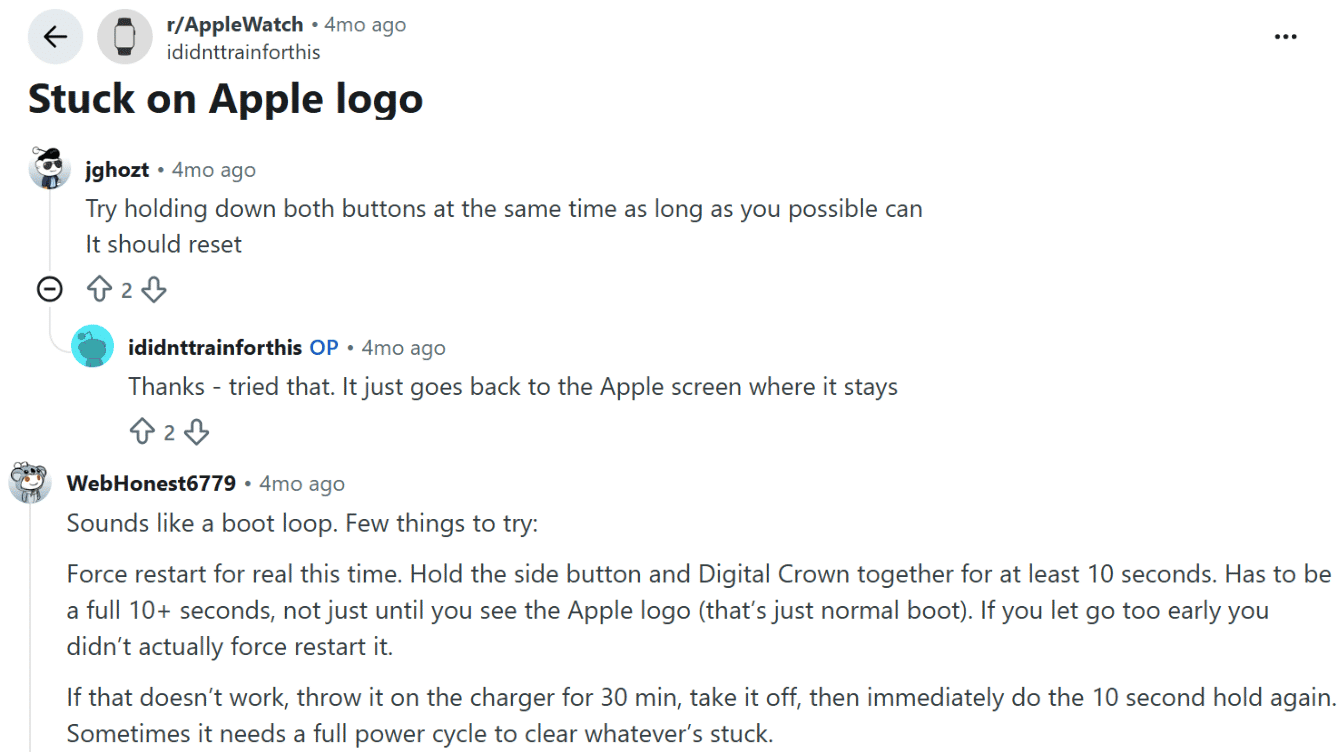
Reddit users dealing with an Apple Watch stuck on the Apple logo often report that a force restart is the first fix they try.
Reddit users discussing the same Apple Watch problem shared similar fixes, with one commenter suggesting holding the side button and Digital Crown together for at least 10 seconds.
The original poster said the watch restarted but returned to the Apple logo and stayed there. Another user described this as a possible boot loop and suggested charging the watch for about 30 minutes before trying the same button combination again.
These comments show that a restart may work in some cases, while repeated returns to the logo can point to a problem that needs further troubleshooting.
How to Prevent This from Happening Again
A handful of small habits lower the odds of landing back on this exact screen once your watch is running again. None of them take more than a minute to build into your routine.
- Install watchOS updates as soon as they are stable rather than letting several stack up.
- Make sure your watch is well charged before starting any update, and don’t let it run low.
- Use the cable that came with the watch, or a certified replacement, not an off-brand one.
- Never restart the watch while an update is actively installing.
- Keep your paired iPhone backed up so a restore, if you ever need one, stays quick.
We have seen the same watch come back with this exact problem twice in the same year purely from skipping the first habit on this list, so it is worth actually doing rather than filing away as advice.
Final Verdict
Getting an Apple Watch stuck on Apple logo back to normal usually comes down to following a short, ordered process rather than random button-mashing.
Check for a running update first, then force restart, confirm the charging setup, and unpair and re-pair if the logo has not cleared. Most watches recover at the restart or charging stage, and your data stays protected since a backup is created before anything is removed.
If an Apple Watch is frozen on the logo screen for hours, feels hot, or shows damage, it means it is time to contact Apple Support instead of repeating the same steps. If this fixed your watch, or something did not match what you saw, tell us in the comments so we can help narrow it down.
Frequently Asked Questions
How Long Is a Normal Wait Before I Should Worry?
A few seconds to about a minute is normal right after a restart or during a small update. If the logo sits there for more than 10 to 15 minutes with no change at all, treat it as stuck rather than waiting it out further.
Will Force Restarting Erase Anything on The Watch?
No. Force restarting does not touch your apps, settings, or health data. It only clears whatever background process caused the watch to stop responding, similar to force restarting a frozen phone.
What if The Watch Will Not Respond to The Force Restart Buttons at All?
Put it on the charger for at least an hour first. A battery that has fully drained can block any button combination from registering, so charging comes before trying the buttons again, not after.
Does Unpairing Remove My Health and Fitness History?
No. Your health and fitness history lives in the Health app on your iPhone, not only on the watch itself, so it stays intact through an unpair as long as you restore from the backup afterward.
Is a Red Exclamation Mark Screen the Same Issue as a Stuck Apple Logo?
Not exactly. A red exclamation point usually means the watch failed to complete a firmware update and needs to be connected to power and paired with the Watch app to finish recovery, which is a more serious version of the same underlying problem rather than a simple freeze.