Picture this: you finish a run, open the Fitbit app, and your stats from an hour ago are nowhere to be found. If you have ever wondered how to sync Fitbit devices without losing data or waiting around, you are not alone.
Syncing problems rank among the most common complaints from Fitbit users, and the fix is usually simpler than it looks.
Phones, tablets, switching to a new device, and what actually happened to syncing Fitbit to a computer all get sorted out below, along with the exact fixes for when automatic syncing stalls.
By the time you finish reading, your data should be updating the way it is supposed to, whether that is your daily step count or your last workout.
How Does Fitbit Syncing Work?
Fitbit syncs over Bluetooth Low Energy, a low-power connection built to update your stats in the background without draining your tracker’s battery, an approach shared by most modern wearables.
Fitbit doesn’t publish an exact interval, but in normal use it usually happens every 15 to 30 minutes once your phone and tracker are paired and nearby.
To let the app handle this on its own: open the Fitbit app, tap the Today tab, select your profile picture, choose your device, and turn on All Day Sync. Bluetooth, location access, and background app refresh all need to stay switched on for this to keep running quietly in the background.
If syncing ever feels sluggish, keep your phone within twenty to thirty feet of the tracker. Walls, other nearby Bluetooth devices, and distance all slow the handoff down. Most of the “slow sync” complaints I have run into trace back to a phone left in another room, not a broken tracker.
How to Sync Fitbit with Android, iPhone, and Other Devices
Contrary to what you might think, the syncing steps stay largely consistent across devices, though small details shift depending on the device you’re using. Here’s how to sync your Fitbit:
1. Syncing on Android
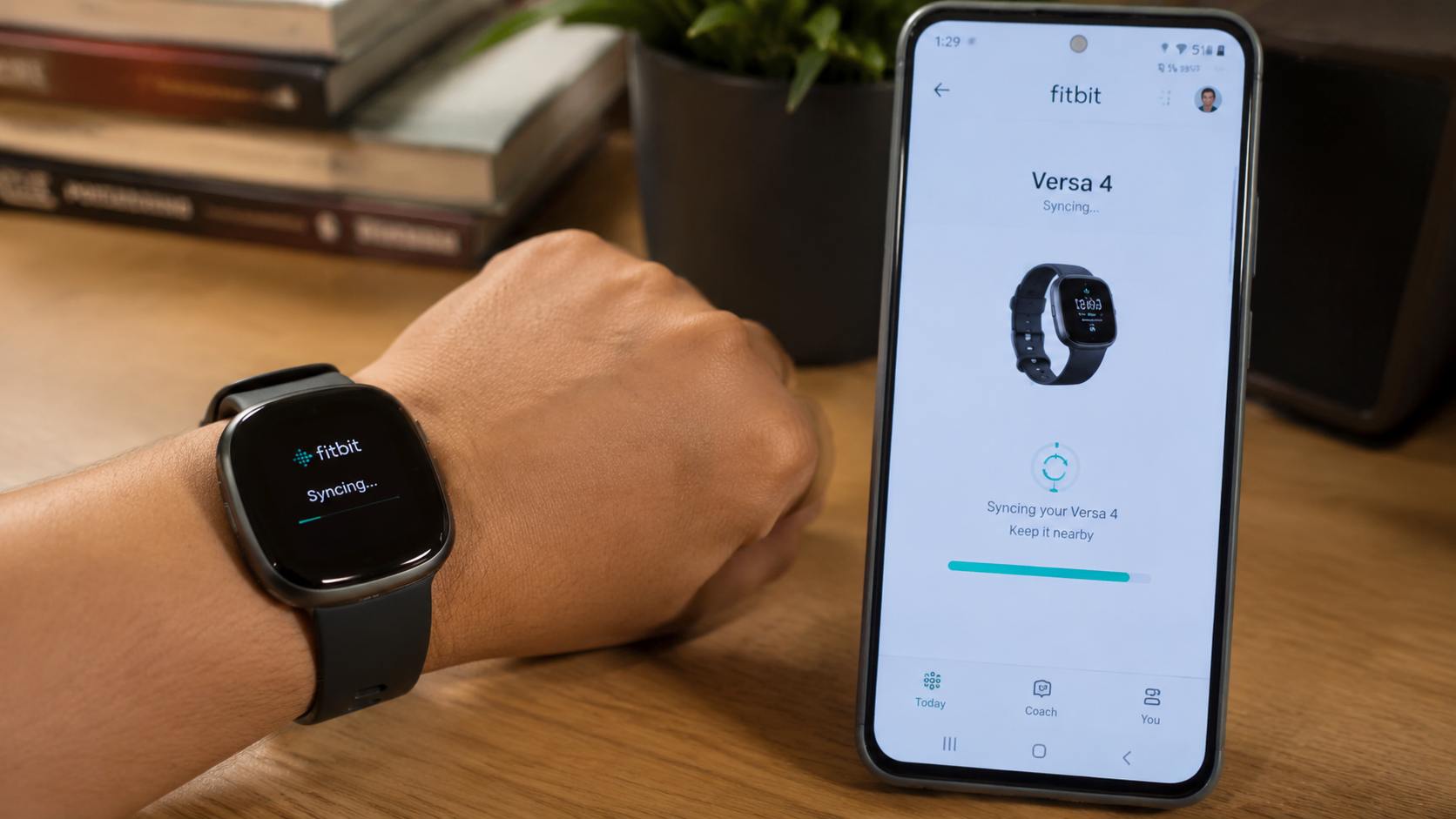
Android handles Fitbit syncing smoothly because the app gets deep, native background access on this platform with little fuss.
- Turn on Bluetooth from Settings > Connected devices > Bluetooth, then open the Fitbit app and sign in.
- Tap the Today tab, tap your profile picture, and select your device from the list.
- Turn on All Day Sync for automatic updates, or tap Sync Now for an instant sync.
- Go to Settings > Apps > Fitbit > Battery and set it to Unrestricted so Android doesn’t throttle the connection in the background; it does that any time you’re trying to stretch your phone’s battery further.
2. Syncing on iPhone
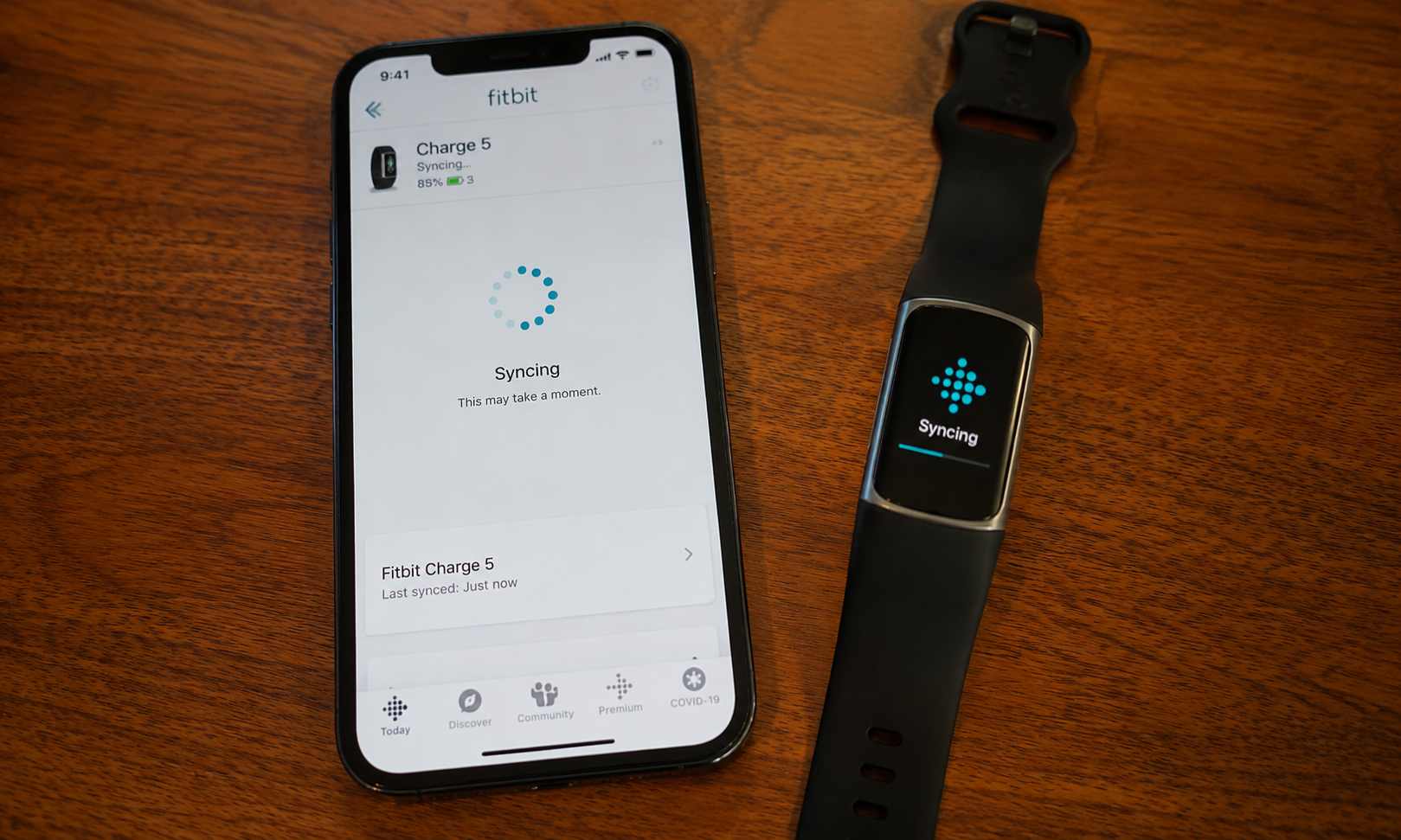
iPhone syncs just as reliably as Android, though Apple enforces stricter background rules, so one extra permission toggle matters here.
- Turn on Bluetooth from Control Center or Settings, then open the Fitbit app and sign in.
- Tap the Today tab, tap your profile picture, and choose your device from the list.
- Turn on All Day Sync for automatic updates.
- Check Settings > Fitbit > Background App Refresh and make sure it is switched on.
iPhones tend to be stricter about this setting than Android, so it is the first place to check if syncing only happens while the app is open.
3. Syncing on Tablets and Smart Displays
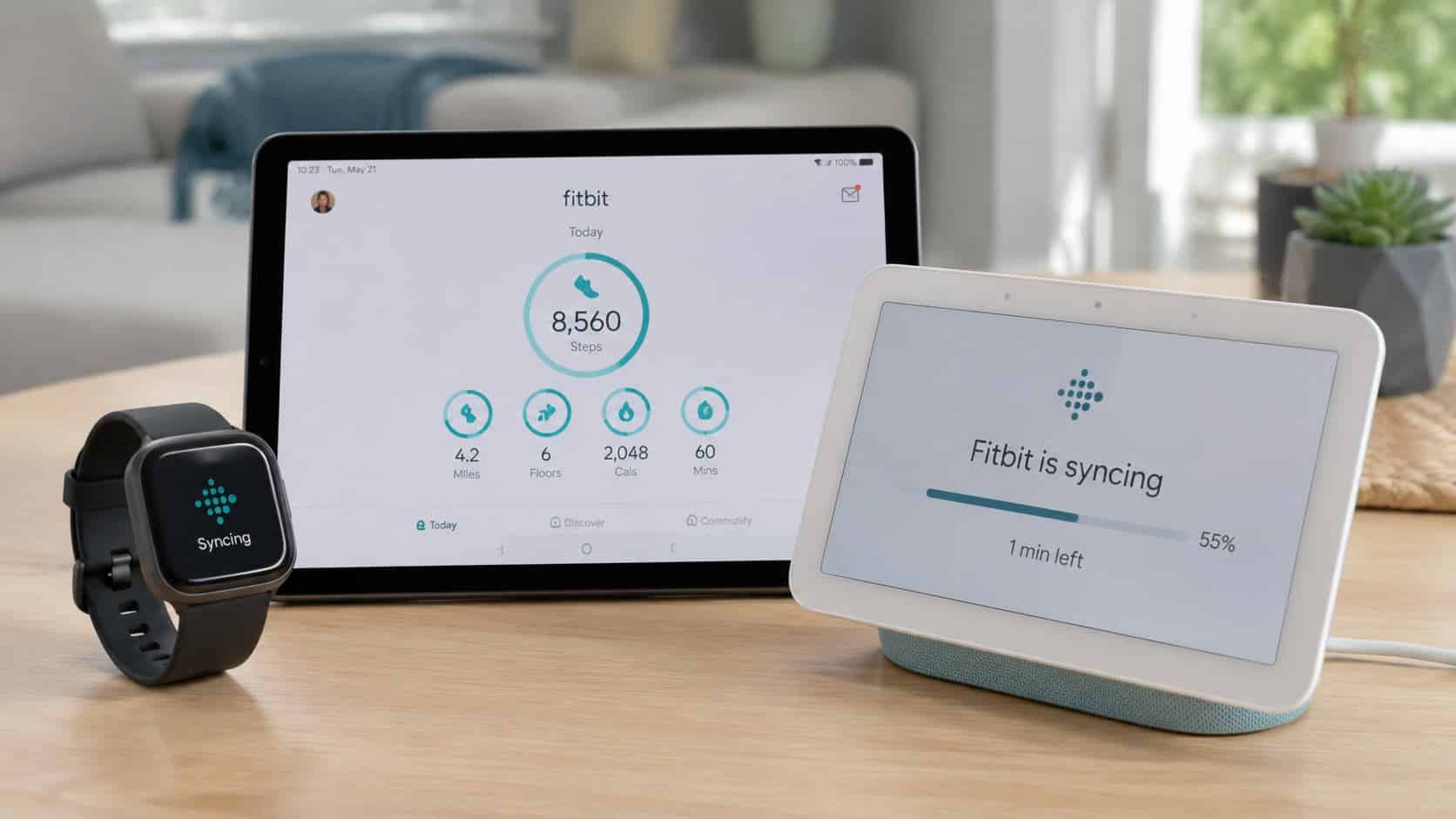
Tablets pair almost exactly like phones since both run the same Fitbit app, whether you’re setting one up on an iPad or Samsung device, while smart displays are far more limited and inconsistent.
- Install the Fitbit app on the tablet just as you would on a phone, then turn on Bluetooth.
- Sign in and pair your Fitbit using the same steps listed under Android or iPhone above, depending on the tablet’s operating system.
- Sync manually with Sync Now, or turn on All Day Sync for automatic updates.
- For smart displays or voice assistants with Fitbit integration, check that specific device’s own settings menu, since support is limited and varies by brand rather than following the phone and tablet process.
Once Bluetooth and background permissions are set correctly on any of these devices, syncing runs quietly on its own, leaving one common question: syncing through a computer.
Can You Still Sync Fitbit to a Computer?
No, not anymore. Fitbit retired Fitbit Connect and PC or Mac syncing entirely in 2022, so plugging in a USB dongle or installing Fitbit Connect software no longer works, even if you find an old installer online.
Older articles still describe that process because it used to be accurate, but it no longer works on any device or operating system in current use.
Your phone or tablet is now the only official way to sync a Fitbit, and where Bluetooth is involved, it’s generally worth keeping Bluetooth off when a device isn’t actively syncing, as a simple safeguard against unwanted connections.
If you still want to see your data on a bigger screen, log into your Fitbit account through a web browser to view your dashboard, or export your activity log from the mobile app and open it on your computer afterward.
None of these options requires the app to run constantly. It only needs to sync once from your phone.
Switching to a New Phone without Losing Fitbit Data
Your Fitbit history lives with your account, not your old phone, so switching phones won’t wipe anything as long as you log in with the same account instead of creating a new one.
Because that account holds personal health and activity metrics, federal health data rules now require the companies behind these apps to safeguard that information properly.
- Download the Fitbit app on your new phone and sign in with your existing account.
- Turn on Bluetooth.
- From the Today tab, tap your profile picture, then your device, or tap Set Up a Device if it is not listed yet.
- Once the new phone confirms pairing, uninstall the Fitbit app from your old phone so the two devices stop competing for the same Bluetooth connection.
A detail worth knowing: a Fitbit tracker can only stay actively paired to one phone at a time. If your old phone still has the app installed nearby, that is usually why a freshly paired tracker refuses to sync properly on the new one.
Why Fitbit Sync Fails in the First Place
Most sync failures trace back to a short, predictable list of causes rather than a hardware fault:
- Bluetooth got switched off during a software update and never got turned back on
- Battery saver mode restricted the Fitbit app from running in the background
- The tracker’s firmware and the app version fell out of step after an update
- Too much distance or physical interference sits between the tracker and the phone
- The app was force closed, and the phone’s operating system decided not to relaunch it in the background
Knowing which of these applies usually points straight to the fix, which is why the troubleshooting table further down is organized by symptom rather than by device.
How to Tell Your Fitbit Actually Synced
A successful sync leaves a clear trail, not a guess. Open the Today tab and check the timestamp listed under your device name; it should read a few minutes old, not hours.
Your dashboard numbers, steps, heart rate, and sleep should also reflect your most recent activity, not a stale snapshot from earlier in the day. If that timestamp hasn’t moved despite normal use, the sync silently failed, even though the app never showed an error message.
This matters because Fitbit rarely flags a failed sync outright, so the timestamp is the most reliable signal available. Checking it after a workout or first thing in the morning takes a few seconds and saves a lot of guesswork later.
Fitbit Sync Troubleshooting: Problems and Fixes
Most sync problems fall into one of a few familiar patterns, and matching the symptom below to its fix usually solves it in under a minute, well before a factory reset ever needs to enter the conversation.
|
Problem |
Solution |
|---|---|
|
Fitbit not syncing at all, or Bluetooth was off |
Turn Bluetooth back on, restart it if needed, then reopen the app and sync manually |
|
Sync stuck or frozen |
Restart your Fitbit device |
|
App shows “device not found” |
Re-pair the Bluetooth connection |
|
Data missing after sync |
Charge the device fully and try again |
|
Sync works, but delayed |
Move your phone closer to the Fitbit |
|
Syncing broke after an app or firmware update |
Update both the Fitbit app and the tracker’s firmware, then sync again |
|
App was force closed, or battery saver restricted it |
Disable battery saver and any background restrictions for the Fitbit app, then reopen it |
None of this needs ongoing effort. A charged tracker, an updated app, and Bluetooth left switched on quietly prevent most of these problems from ever needing this table again.
Final Thoughts
Getting Fitbit sync right usually comes down to a handful of settings rather than a deeper problem: Bluetooth switched on, background permissions allowed, and your phone kept within range.
Once those three things are in place, learning how to sync Fitbit devices across Android, iPhone, and tablets stops being something you think about at all.
The one exception is syncing Fitbit to a computer, which is no longer supported the way it used to be, so your phone or tablet now does that job permanently.
If a sync issue pops up again down the line, the troubleshooting table above is the fastest place to start. Found this useful, or run into an issue not covered here? Drop a comment below.
Frequently Asked Questions
Does Fitbit Sync While It is Charging?
Yes, charging does not block syncing. Bluetooth stays active, and updates keep coming through as long as your paired phone stays nearby, though some trackers pause syncing during the final minute of a charge cycle.
Can Two Phones Stay Paired to The Same Fitbit at Once?
No. A Fitbit tracker can only stay actively connected to one phone at a time. Pairing it to a new phone automatically breaks the sync connection with whichever phone it was previously paired to.
Will Resetting My Fitbit Tracker Delete My Data?
No. Your activity history is tied to your Fitbit account rather than the physical tracker itself, so resetting the device only clears its local settings and does not touch stats already saved to your account.
Does Fitbit Syncing Use Mobile Data?
No. Syncing between your Fitbit and the app runs entirely over Bluetooth, not mobile data or Wi-Fi, so it never counts against your monthly data plan, even while traveling.
Why Does My Fitbit Sync but Still Show Old Stats?
This usually means the sync completed normally, but the app’s display simply hasn’t refreshed yet to reflect it. Closing the app fully and reopening it resolves this in the vast majority of cases.