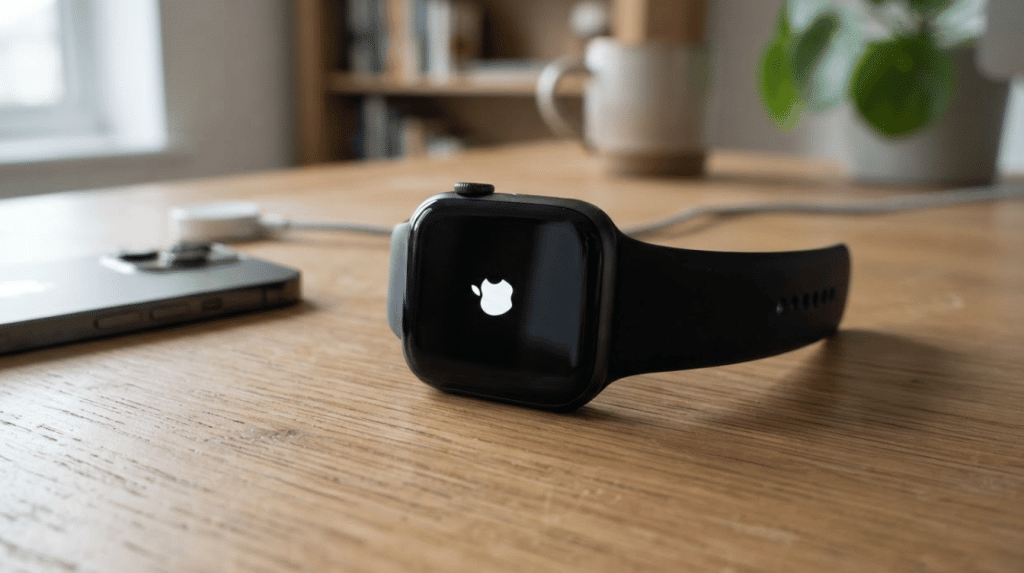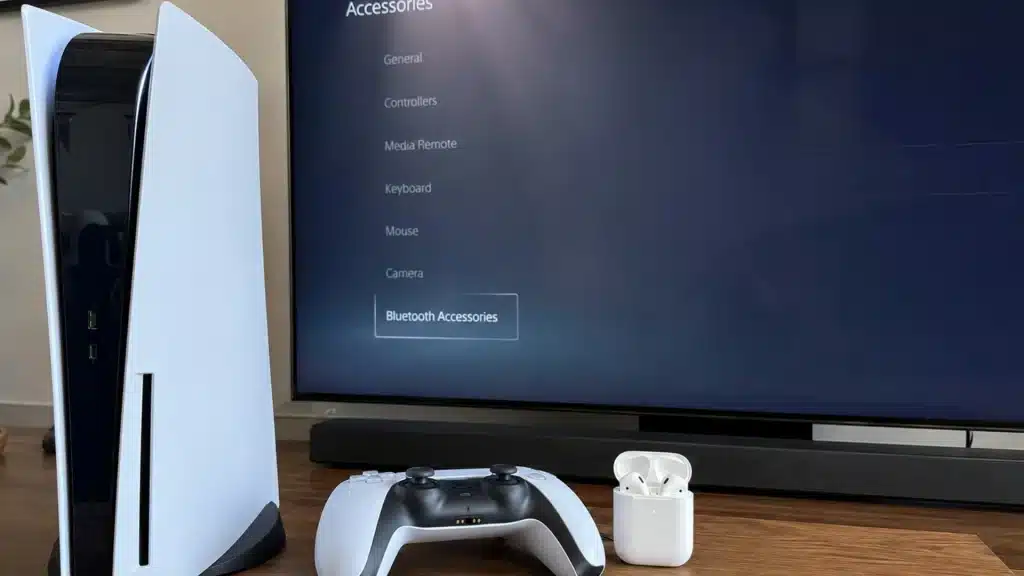
AirPods are popular wireless earbuds known for their compact design, comfort, and easy connection with Apple devices. Many PS5 users wonder: can you connect AirPods to PS5 instead of buying another headset?
The short answer is no, not directly. The PS5 does not support standard Bluetooth audio connections for devices like AirPods, so simple pairing isn’t available through the console settings.
That said, AirPods can still work with a PS5 using methods like Bluetooth adapters, smart TV connections, or Remote Play.
Can You Connect AirPods to PS5?
No, AirPods cannot connect directly to a PS5 through Bluetooth settings.
The PS5 does include Bluetooth support, but it’s mainly designed for approved accessories such as DualSense controllers and compatible devices. When you try pairing AirPods from the PS5 Bluetooth menu, the console won’t recognize them as an audio device.
Sony restricts standard Bluetooth audio because it can cause issues during gaming, especially audio delay and connection instability, since the way Bluetooth signals travel leaves little room for buffering during fast-paced gameplay.
Fast-paced games require sound to match on-screen action, so PlayStation focuses on supported gaming headsets instead.
AirPods are designed mainly for Apple devices and use standard Bluetooth audio profiles that the PS5 doesn’t support for direct connections, which is really the core answer to whether you can connect AirPods to PS5 the way you would with an iPhone.
Why AirPods Won’t Pair Directly With PS5
The PS5’s Bluetooth radio exists, but it isn’t a general-purpose Bluetooth connection the way your phone or laptop has. Sony limits it to a small list of licensed accessories: the DualSense controller, PULSE headsets, and a handful of officially supported earpieces.
The console’s firmware simply doesn’t include the standard audio streaming profile (A2DP) that AirPods and most consumer Bluetooth headphones rely on to send sound.
That’s a deliberate design choice, not an oversight. Standard Bluetooth audio can add anywhere from 100–200 milliseconds of delay between what happens on screen and what you hear.
For a controller input, that’s tolerable. For gunfire in a shooter or a jump-scare cue in a horror game, it’s enough to throw off your timing.
Sony would rather point players toward tested wireless headsets than open the door to inconsistent third-party Bluetooth gear.
How to Connect AirPods to PS5
AirPods can work with a PS5 through a few different methods. The best option depends on whether you want simple game audio, wireless convenience, or multiplayer communication.
1. Bluetooth Adapter Method
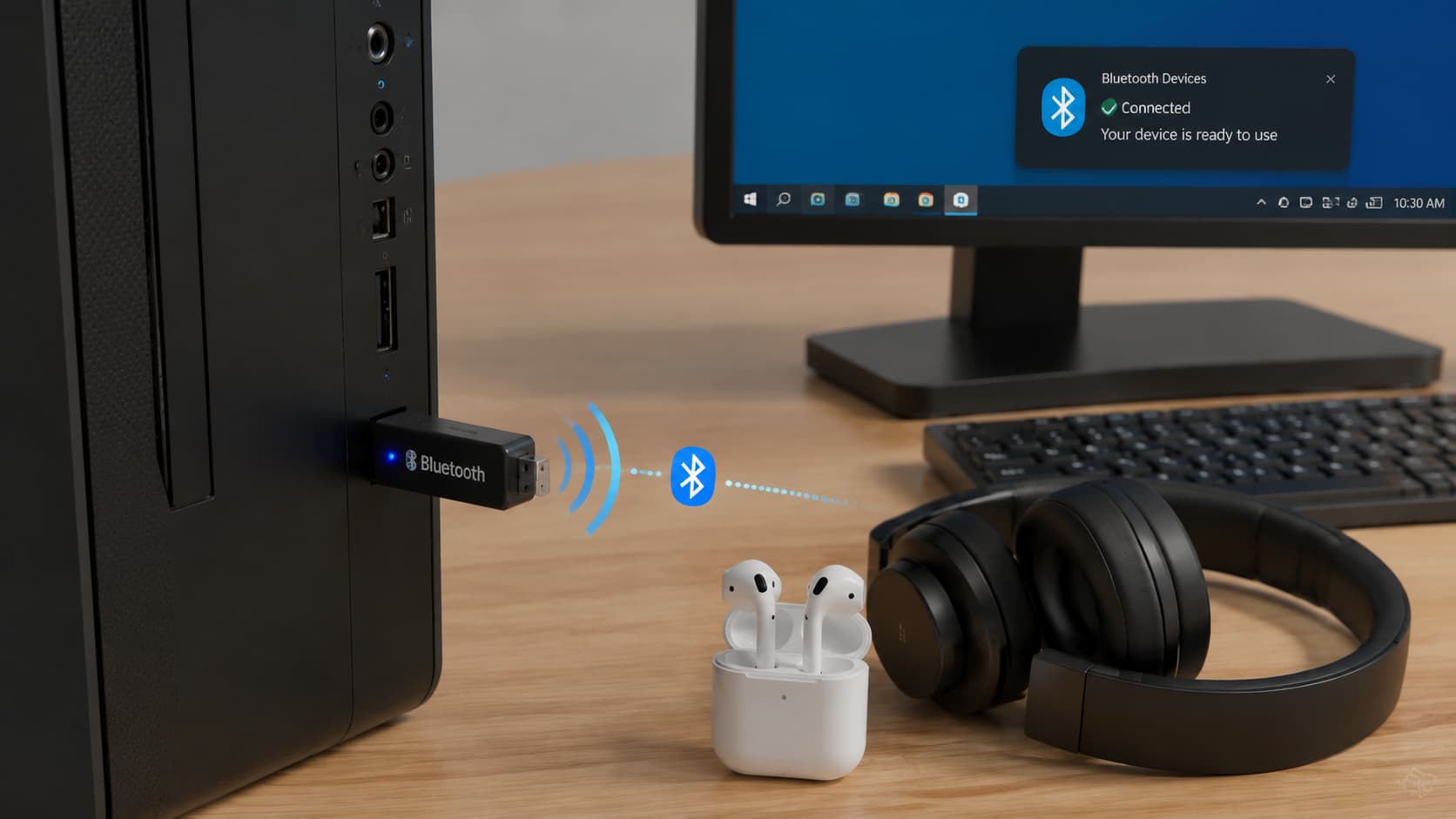
A Bluetooth adapter is the most common way to connect AirPods to a PS5. It acts as a bridge between the console and your earbuds, receiving PS5 audio and transmitting it wirelessly to your AirPods.
Steps to Connect:
- Plug a compatible Bluetooth audio adapter into your PS5 USB port.
- Put the Bluetooth adapter into pairing mode.
- Put your AirPods into pairing mode and wait for them to connect.
- Open the PS5 sound settings and select the Bluetooth adapter as the audio output if needed.
- Start a game and test the audio to make sure the connection works properly.
2. Smart TV Bluetooth Connection
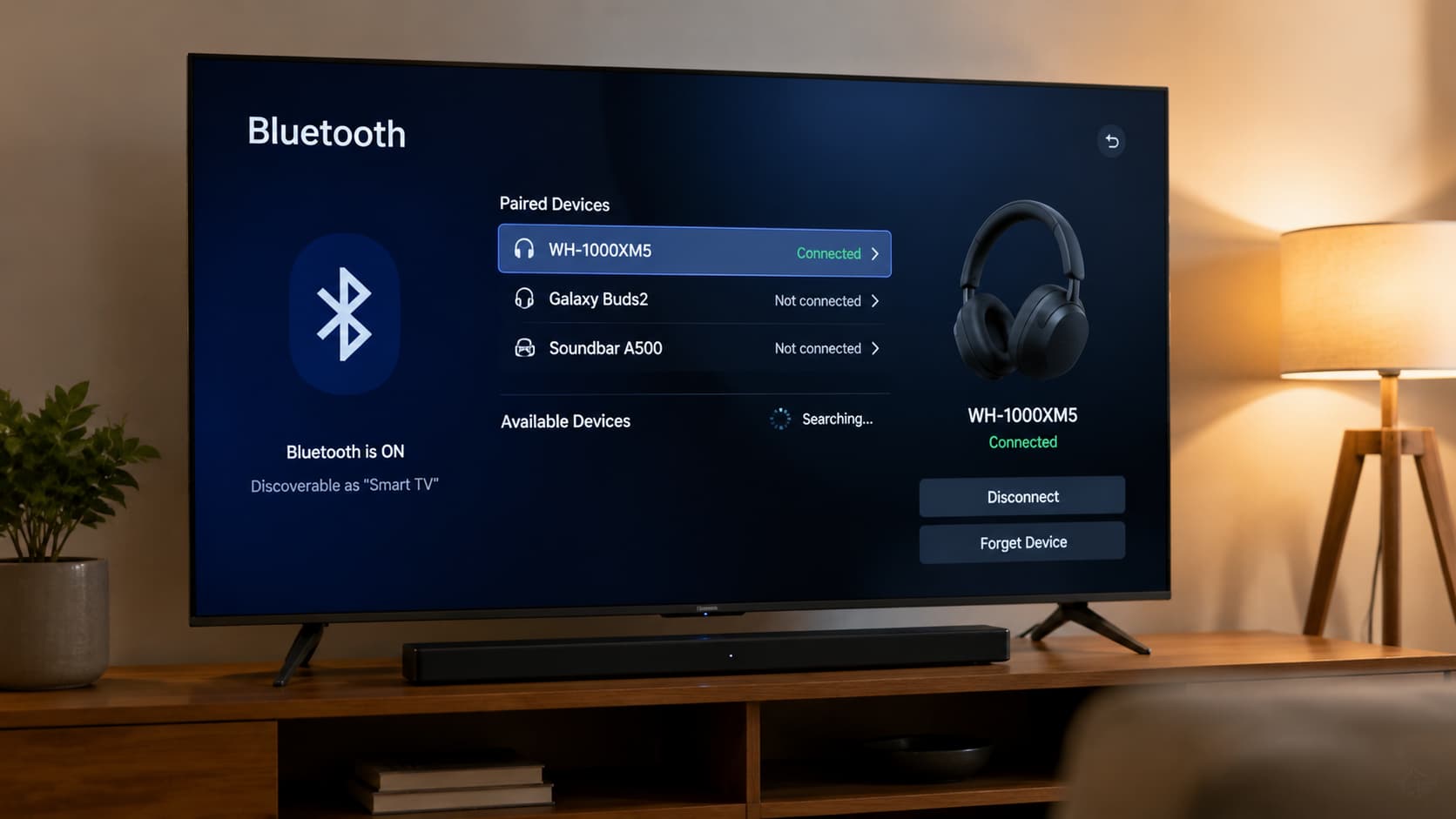
Another way to use AirPods with a PS5 is to connect them to your smart TV instead of the console. The PS5 sends audio to the TV through HDMI, and the TV then sends that sound wirelessly to your AirPods, using the same Bluetooth pairing protocols as most modern devices.
Steps to Connect:
- Open the Bluetooth or audio settings on your smart TV.
- Turn on Bluetooth and search for available audio devices.
- Put your AirPods into pairing mode.
- Select your AirPods from the TV’s available devices and complete the connection.
- Start your PS5 and test the game audio through your AirPods.
3. PS Remote Play Method
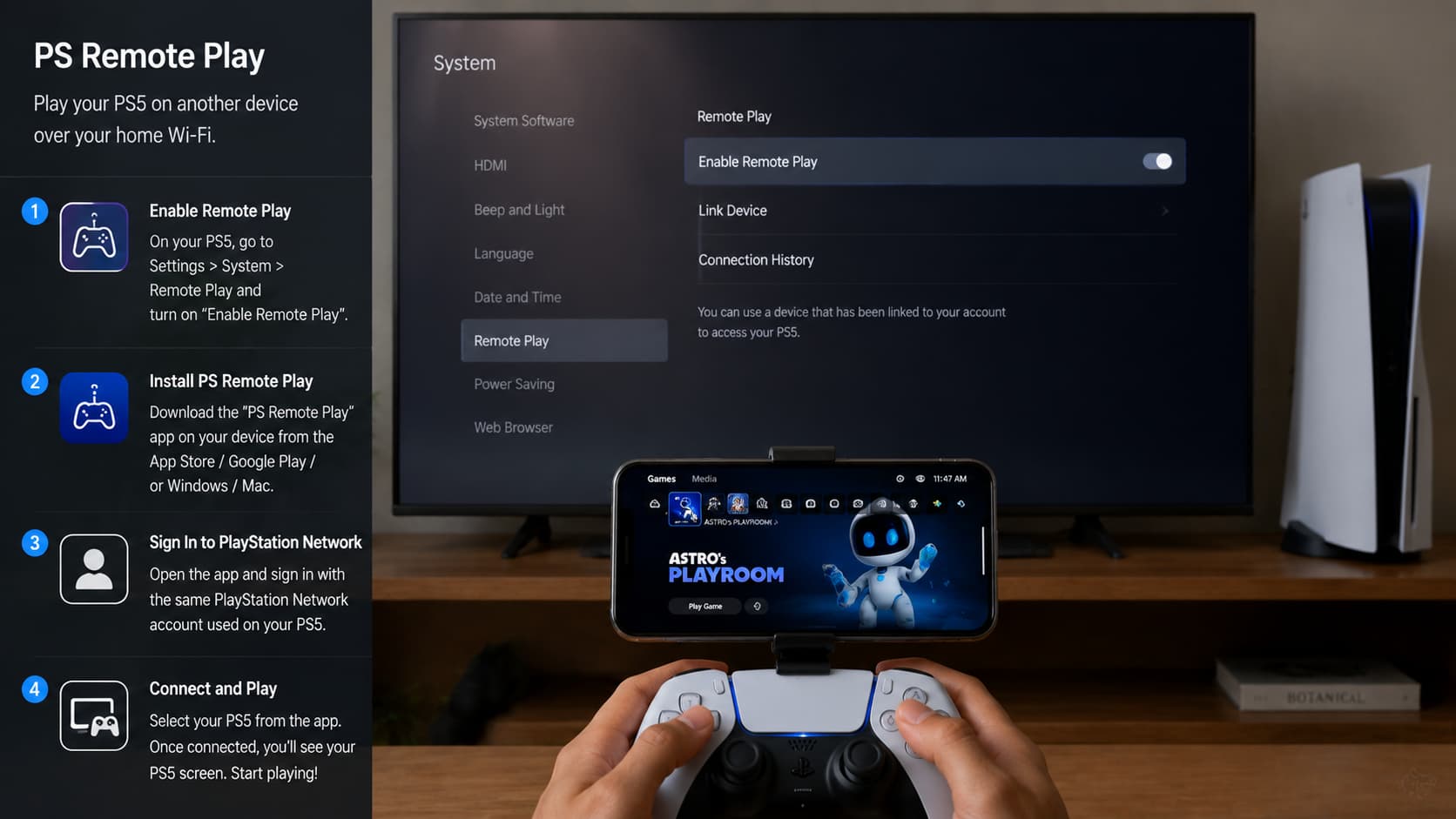
PS Remote Play lets you use AirPods with a PS5 through another device, such as a smartphone, tablet, PC, Mac, or even a dedicated streaming device built for the job. The Remote Play app streams your PS5 screen and audio to that device, where your AirPods handle the sound.
Steps to Connect:
- Install the PS Remote Play app on your phone, tablet, or computer.
- Connect your AirPods to the device through Bluetooth.
- Sign in to PS Remote Play with your PlayStation account.
- Select your PS5 and establish the Remote Play connection.
- Start your game and confirm that the audio is playing through your AirPods.
Each method has its own trade-offs, so choose the setup that best matches your gaming needs, available devices, and tolerance for possible audio delay.
AirPods vs. Dedicated PS5 Headset
AirPods can provide wireless PS5 audio, but gaming headsets are built specifically for console use. That makes the biggest difference when latency, voice chat, and straightforward compatibility matter, especially during long sessions where prolonged listening habits can affect comfort over time.
| Feature | AirPods | PS5 Gaming Headset |
|---|---|---|
| Gaming Compatibility | Requires an adapter, TV Bluetooth, or Remote Play | Usually connects through USB, PlayStation Link, or 3.5 mm |
| Audio Quality | Good for casual gaming and everyday listening | Often designed for directional game audio |
| Latency | Depends on the connection method | Usually lower with dedicated wireless systems |
| Voice Chat | Adapter and setup dependent | Usually designed with game chat in mind |
| Setup | Requires a workaround | Usually plug-and-play |
If you already own AirPods and mainly play single-player or casual games, the workaround is worth it. If competitive timing or party chat is central to how you play, a headset built for the PS5 will save you the tinkering.
Does the AirPods Microphone Work for PS5 Voice Chat?
Sometimes, and this is the part most guides gloss over. Whether your mic works depends entirely on whether your Bluetooth adapter supports what manufacturers call “talk mode” or “conversation mode.”
Without that feature, the adapter only handles outgoing audio (game sound to your ears) and ignores the AirPods’ microphone entirely.
Even when talk mode is supported, there’s a trade-off: most adapters drop the audio to mono and lower the bitrate while the mic is active, since Bluetooth can’t reliably carry two-way audio at full quality on cheaper hardware.
A short list of adapter brands (Avantree is one example we tested) advertise stereo-preserving talk mode, which is worth checking for specifically if voice chat matters to you.
Before buying an adapter for voice chat, check the product listing for these two things specifically:
- Explicit mention of “talk mode,” “chat mode,” or “two-way audio”
- PS5 compatibility listed by name, not just “universal Bluetooth”
Do All AirPods Models Work With PS5?
The PS5 doesn’t natively pair with any AirPods model, but you can use major AirPods versions through a compatible Bluetooth transmitter, a Bluetooth-enabled TV, or Remote Play.
| AirPods Model | Direct PS5 Bluetooth | Compatible Audio Transmitter | TV Bluetooth | Remote Play |
|---|---|---|---|---|
| AirPods 1, 2 and 3 | No | Yes* | Yes* | Yes |
| AirPods 4 | No | Yes* | Yes* | Yes |
| AirPods Pro 1 and 2 | No | Yes* | Yes* | Yes |
| AirPods Pro 3 | No | Yes* | Yes* | Yes |
| AirPods Max | No | Yes* | Yes* | Yes |
The transmitter or TV must support standard Bluetooth headphone audio. The important difference between AirPods generations is therefore less about basic PS5 compatibility and more about how you put the AirPods into pairing mode.
Older AirPods and AirPods Pro cases use the rear setup button, while AirPods 4 and AirPods Pro 3 use the front of the charging case. AirPods Max uses its listening mode button.
Closing Thoughts
Using AirPods with a PS5 takes a workaround, but the setup is still simple once you know your options. If you ask, can you connect AirPods to PS5, the answer depends on how you want to play.
I’d choose a compatible Bluetooth adapter for the most direct setup, while TV Bluetooth works well for casual gaming. Remote Play is another useful option when you already have a phone, tablet, or computer nearby.
You should also check microphone support and possible audio delay before choosing a method, especially for multiplayer games.
These details help you avoid connection problems and choose the setup that fits your gaming habits. Try the method that suits you best, and check out our related PS5 guides for more helpful tips.
Frequently Asked Questions
How do I connect my AirPods to the PS5 using a Bluetooth adapter?
Plug the Bluetooth USB adapter into the PS5’s USB port. Put your AirPods case in pairing mode by holding the button until the light flashes white. Activate pairing mode on the adapter, then set the PS5’s audio output and microphone input to the adapter in the settings.
Can I use the AirPods microphone for online voice chat on PS5?
Yes, if your Bluetooth adapter supports “talk mode” or “conversation mode.” This mode activates the AirPods microphone for voice chat, though it may reduce audio quality to mono.
Can I connect two AirPods to the PS5 at the same time?
Yes, many Bluetooth adapters allow you to connect two headphones simultaneously so a second listener can hear game audio. However, only the microphone on the first connected AirPods will work for voice chat.
Are there any audio quality or latency issues when using AirPods on PS5?
Bluetooth adapters can cause audio latency or quality drops. Talk mode often reduces sound to mono. Some brands, like Avantree, offer adapters and headphones that maintain stereo quality even in talk mode, improving the experience.