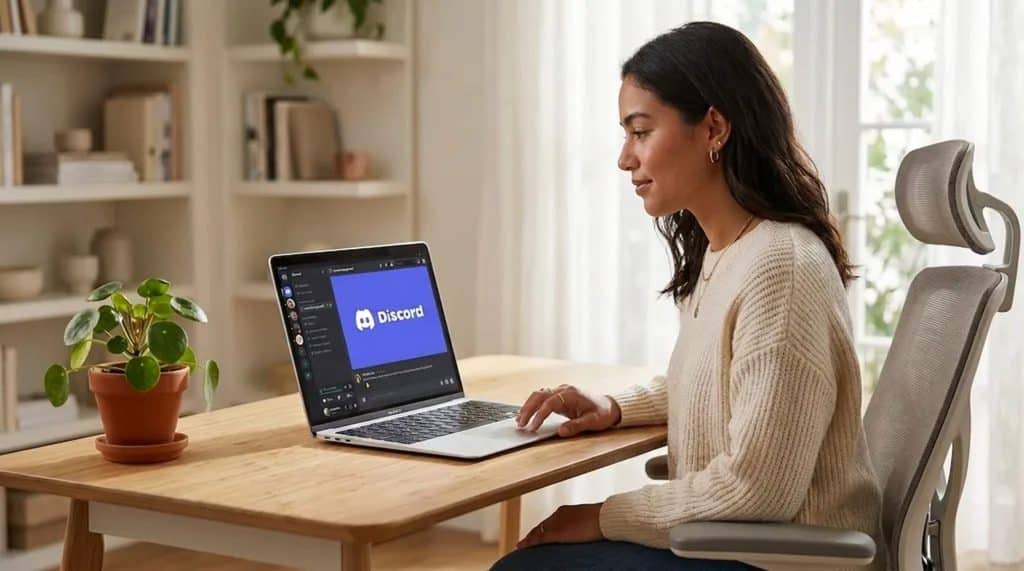
Building a Discord bot sounds like a job for developers; the moment you search for it, you’re staring at API documentation, code snippets, and setup instructions that assume you already know how to program.
That reputation isn’t entirely fair anymore. In 2026, learning how to make a Discord bot can start with much simpler tools that remove most of that complexity.
You don’t need to spend hours building automation from scratch to get something useful running on your server. Once you know which platform to use, which features are worth adding, and what the setup steps actually look like, the process is a lot more approachable than it first appears.
Here’s what we’ll walk through: the basics of Discord bots, how no-code creation works, useful features to consider, how the major platforms compare, and the mistakes worth avoiding along the way.
What is a Discord Bot?
A Discord bot is an automated program that works inside a Discord server to perform tasks without requiring manual actions from administrators or members.
Unlike regular Discord users, bots connect through the Discord API and follow predefined instructions to complete actions such as responding to commands, managing roles, sending messages, or moderating conversations. Discord bots are commonly used for:
- Moderation: Removing spam, managing warnings, and enforcing server rules
- Automation: Sending welcome messages, reminders, and scheduled announcements
- Community engagement: Running polls, games, leveling systems, and interactive commands
- Support: Answering common questions and helping members find information
Bots can be created with programming languages or built through no-code platforms, part of the growing no-code movement that simplifies the setup process for beginners.
Can You Make a Discord Bot without Coding?
Yes, you can make a Discord bot without coding by using no-code Discord bot builders and managed bot platforms. These tools allow beginners, community owners, and businesses to create automated bots using visual interfaces, templates, and ready-made workflows instead of writing programming scripts.
Traditional Discord bot development requires knowledge of programming languages like JavaScript, Python, or other frameworks.
While coding offers complete control, it also involves setting up hosting, managing updates, fixing errors, and maintaining the bot over time.
No-code bot builders simplify the process by handling the technical setup, much like modern workflow automation tools built for small teams. Users can create commands, automate responses, manage members, send notifications, and connect different services through simple configuration options
How to Make a Discord Bot Using a No-Code Builder: Step by Step
Every no-code platform follows roughly the same sequence, since Discord itself requires a registered application and bot token before any builder can connect to your server.
Follow these steps to create, connect, customize, and test your bot:
Step 1: Create the Bot in Discord’s Developer Portal
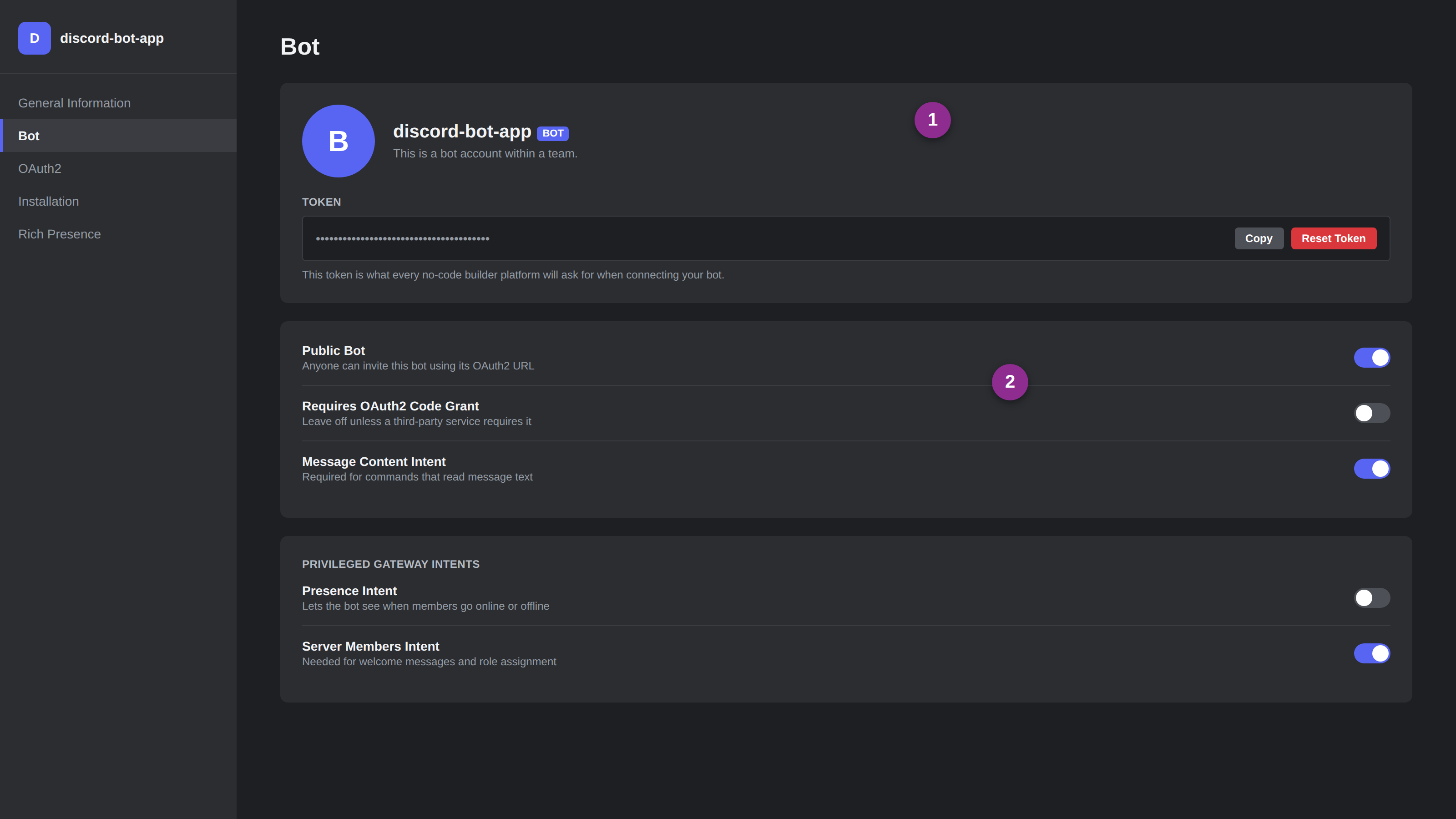
- Go to the Discord Developer Portal and sign in with your Discord account
- Click New Application, give it a name, and confirm
- Open the Bot tab on the left sidebar and click Add Bot
- Copy the bot token that appears, since every no-code platform will ask for this to connect
This step is unavoidable regardless of which platform you use afterward, since Discord requires every bot to be registered this way before it can join a server.
Step 2: Connect Your Bot to a No-Code Builder Platform
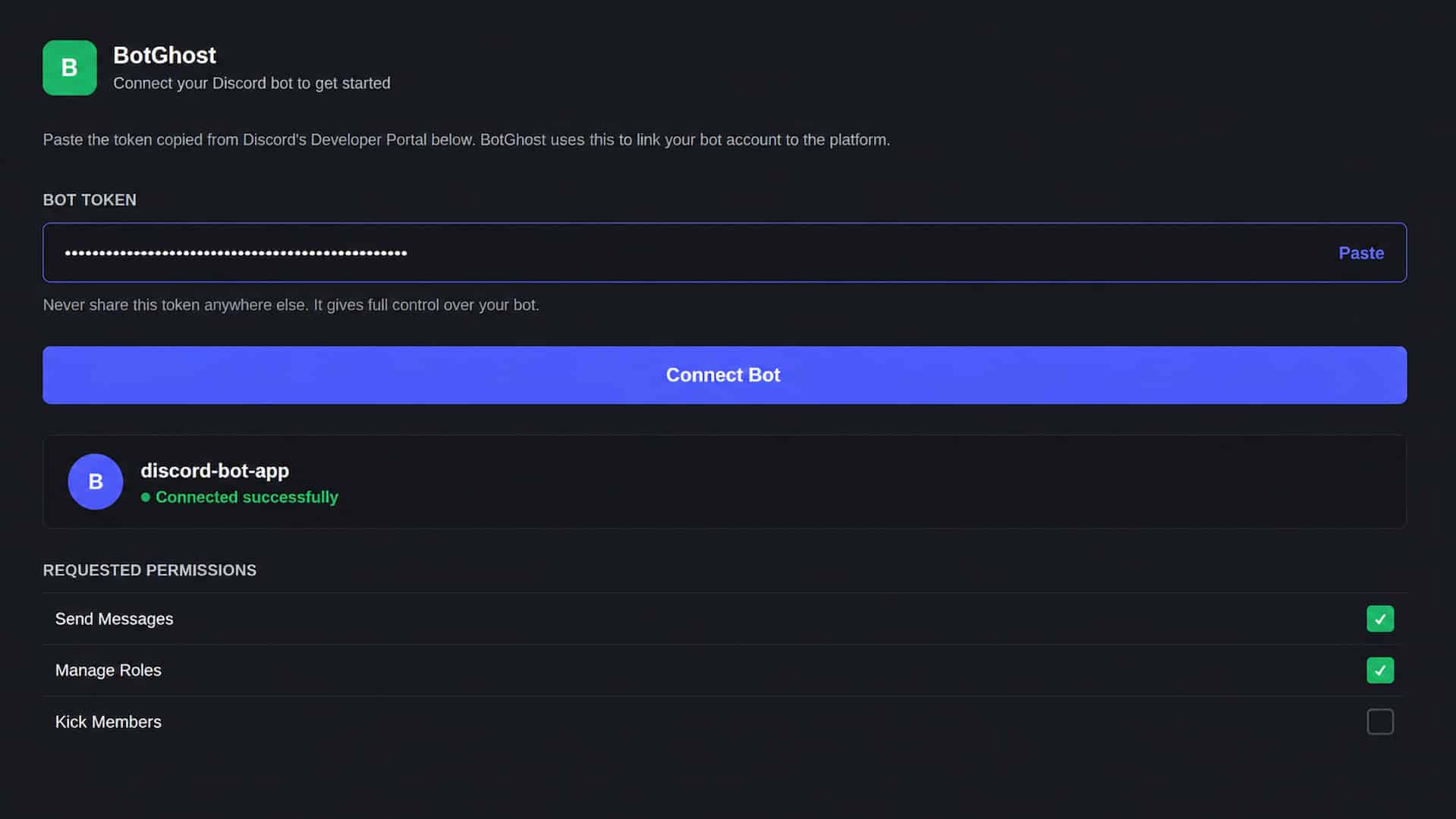
- Create an account on a no-code Discord bot builder such as BotGhost or Kite
- Paste in the bot token copied from the Developer Portal when prompted
- Confirm the connection, which usually shows your bot’s name and avatar once it succeeds
- Grant the requested permission scopes, keeping them limited to what your bot actually needs
Most platforms confirm the connection within seconds, and any error at this stage almost always traces back to a copied or expired token.
Step 3: Build Commands and Behavior with the Visual Editor
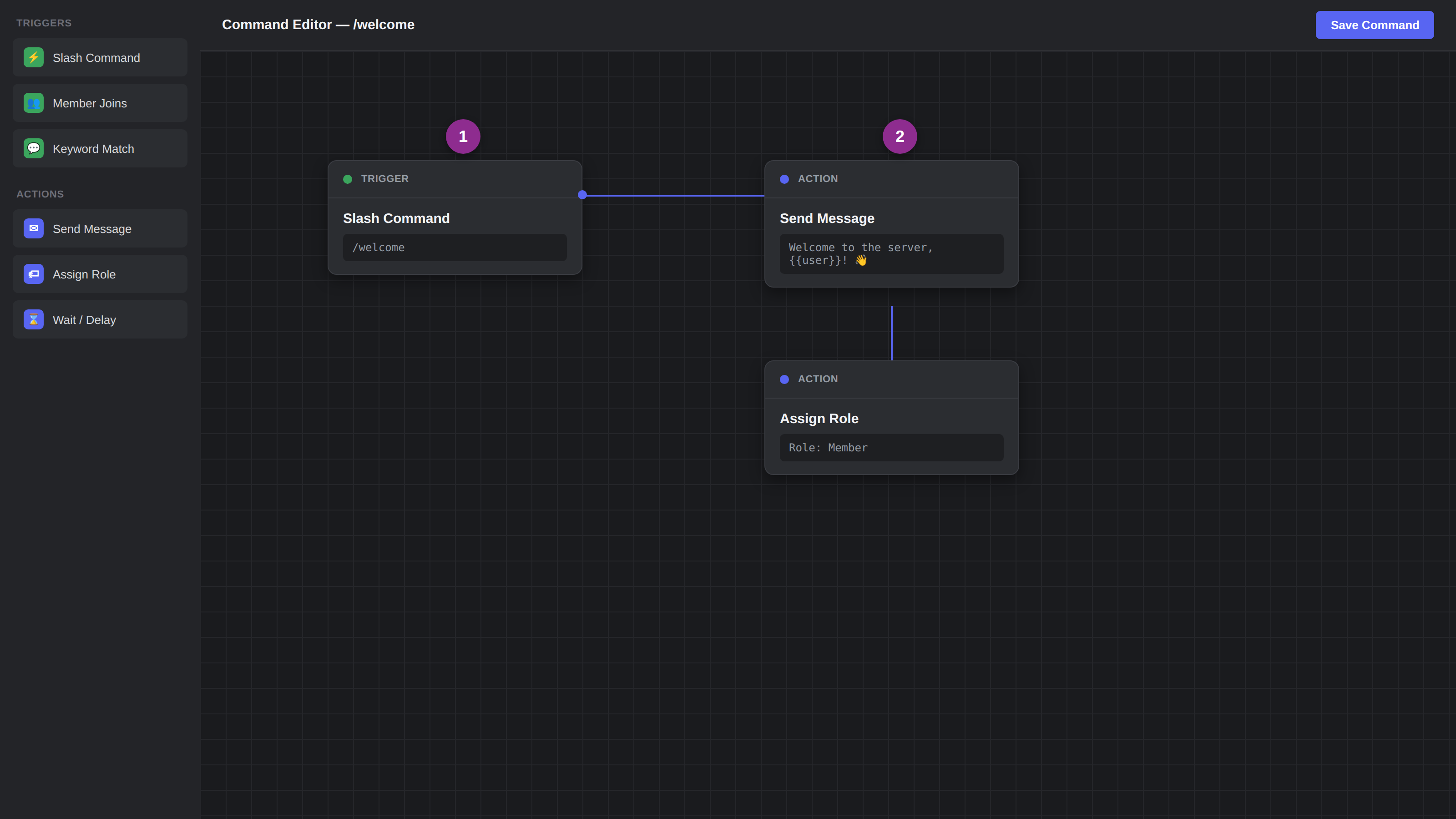
- Open the platform’s visual editor, usually organized around triggers and actions
- Choose a trigger, such as a slash command, a new member joining, or a specific keyword
- Add the action that should follow, like sending a message, assigning a role, or replying with an embed
- Save the command and repeat for any additional behavior your bot needs
This is the step where most of the actual bot design happens, echoing the broader shift toward AI-powered productivity apps that reduce manual work, and it’s also the part that would otherwise require the most code if built from scratch.
Step 4: Invite the Bot to Your Server and Test It
- Generate an invite link from the builder platform or the Developer Portal’s OAuth2 URL generator
- Open the link, select your server, and confirm the requested permissions
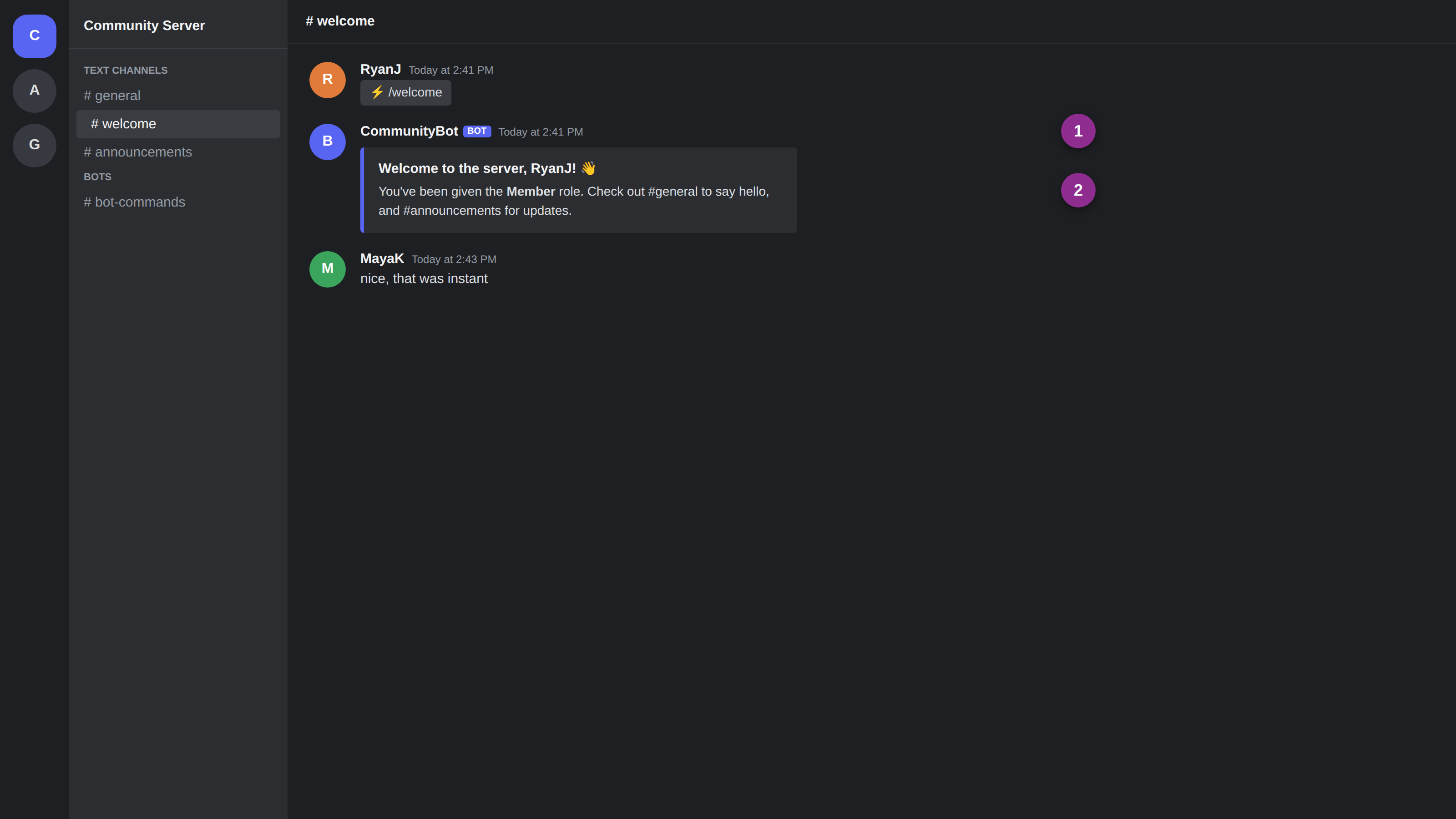
- Send a test message or run a slash command to confirm the bot responds correctly
- Return to the visual editor to adjust anything that didn’t behave as expected
Testing immediately after inviting the bot catches most configuration mistakes before they affect real server members.
Want to follow along visually? This video from Zaki|digitalbabe shows the complete process of setting up a Discord bot using a no-code approach.
What Features Can You Add to a Discord Bot?
Once the basic setup works, most of the fun is in deciding what the bot should actually do. No-code builders make it easy to mix and match features rather than committing to just one.
- Moderation: automatic warnings, timeouts, or bans for spam, banned words, or rule-breaking behavior
- Welcome messages: a custom greeting, an assigned role, or a short server guide sent when someone joins
- Custom commands: simple replies, embeds, or actions triggered by a specific word or slash command
- Reaction roles: letting members assign themselves a role by clicking a reaction on a message
- Leveling or economy systems: points, ranks, or virtual currency that reward activity in the server
- Scheduled announcements: recurring messages for events, reminders, or regular updates
- AI-driven responses: conversational replies or support answers generated from plain-English instructions rather than fixed scripts
Most servers only need a handful of these running at once, so it’s worth starting small and adding more only once the basics are working reliably.
Comparing the Best No-Code Discord Bot Builders
Different Discord bot builders focus on different needs. Some are designed for beginners who want quick setup, while others provide advanced customization options.
| Platform | Best For | Free Plan | Standout Feature |
|---|---|---|---|
| BotGhost | General-purpose bots with moderation | Yes | Over 300 pre-built commands |
| Kite | Fully custom logic without hosting costs | Yes | Open-source visual editor |
| BotWiz | Custom commands and events | Yes | Real-time bot activity logs |
| Discord Bot Engine | Extending bots with plugins | Limited | Plugin marketplace |
| VibeBot | AI-driven custom features | Trial only | Builds features from plain-English descriptions |
The best choice depends on your goals. A simple community bot may only need basic commands, while larger servers may need advanced automation, integrations, and analytics.
What People are Saying Online About Building Discord Bots
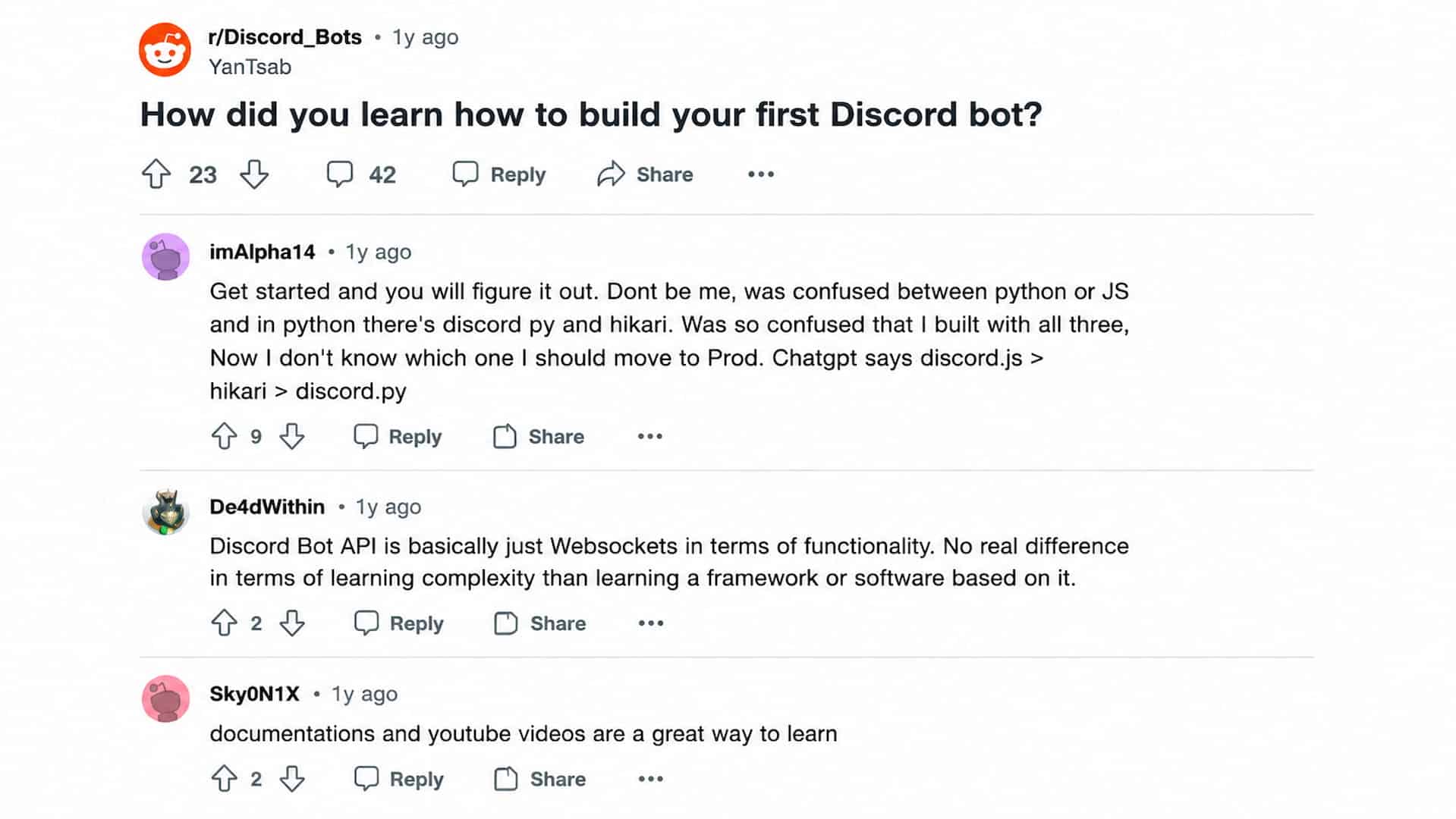
Many beginners starting with Discord bots have similar questions about where to begin, whether coding is necessary, and which tools make the process easier.
In community discussions, users often mention starting with simple projects, learning basic bot concepts, and gradually moving toward more advanced features instead of trying to build a complex bot immediately.
In a Reddit discussion about learning to build a first Discord bot, users shared that experimenting with existing bots, tutorials, and smaller projects helped them understand how commands, permissions, and integrations work.
Many also recommended starting with beginner-friendly tools before moving into custom coding when more control is needed.
Do Discord Bots Need Hosting?
Yes, Discord bots need hosting to stay online, but the requirement depends on how they are created.
No-code bot builders usually include hosting, while custom-coded bots require a separate hosting setup to run continuously. Key points to consider:
- No-code bots: Platforms handle hosting, uptime, and technical maintenance, so users can focus on creating commands and automations.
- Custom-coded bots: Developers need to manage hosting, server resources, updates, security, and maintenance.
- Paid hosting: Not always required, but larger bots with advanced features may need more reliable infrastructure.
For beginners and small communities, managed bot platforms simplify the process by removing the need to handle hosting-related tasks.
When Coding Your Own Discord Bot Still Makes Sense
No-code platforms cover most common use cases, but they’re not built for everything.
Deep integrations with obscure or highly specific APIs, complex logic involving multiple external services, or a bot meant to scale to thousands of servers with custom infrastructure usually outgrow what a visual editor can express.
Developers comfortable with JavaScript or Python retain far more control over hosting, data handling, and long-term flexibility than any no-code platform currently offers.
For most personal servers and small communities, though, that level of control simply isn’t necessary, which is exactly the gap no-code builders were designed to fill.
Common Mistakes When Building a No-Code Discord Bot
Even with no-code tools, small setup errors can affect how your Discord bot works. Identifying these common mistakes early helps prevent security issues, command failures, and server management problems.
| Common Mistake | Why It Causes Problems |
|---|---|
| Giving too many permissions | Excessive permissions create unnecessary security risks if the bot token is exposed. |
| Forgetting required intents | Missing intents, such as message content access, can prevent commands from working correctly. |
| Testing only in a private server | A bot may face permission issues or role conflicts when moved to a larger community. |
| Keeping default command names | Common command names can conflict with other bots using similar commands. |
Avoiding these setup mistakes makes your Discord bot more secure and reliable. Regularly reviewing permissions, testing features, and organizing commands properly helps your bot work smoothly as your server grows.
Tips for Managing a Discord Bot After Setup
Setting up a Discord bot is only the first step. Regular maintenance helps keep the bot useful, secure, and reliable as your server grows. Small changes, such as reviewing permissions and updating commands, can prevent problems later.
- Review Bot Permissions Regularly: Check which permissions your bot has and remove access to features it no longer needs. Limiting permissions reduces unnecessary risks and keeps your server settings controlled.
- Update Commands and Features: As your community changes, update outdated commands, remove unused automations, and add features that members actually use.
- Monitor Bot Activity: Keep an eye on errors, failed commands, and member feedback. This helps identify problems quickly and improves the overall experience.
- Keep Backup Settings: Save important bot configurations or export settings when the platform allows it. This makes it easier to restore your setup if changes are lost.
- Avoid Adding Too Many Features At Once: Start with useful functions and expand gradually. Too many commands or automations can make the bot harder to manage.
A well-managed bot requires occasional adjustments, but keeping settings organized and permissions controlled helps it remain reliable as your Discord community develops.
Final Thoughts
Learning how to make a Discord bot no longer requires learning to code first, and for most personal servers and small communities, a no-code builder genuinely is the faster, more practical path.
The four-step sequence covered here- registering the bot, connecting a platform, building behavior visually, and testing in your server- applies across nearly every no-code tool available today.
Coding still matters for bots with genuinely complex requirements, but that’s a smaller slice of use cases than most tutorials suggest.
Pick one platform from the comparison above, register your bot in the Developer Portal, and have something working on your server within the next twenty minutes.
Frequently Asked Questions
Can a No-Code Discord Bot Do Everything a Coded One Can?
Not quite. No-code tools cover most common features well, but highly custom logic or unusual third-party integrations usually require actual code to implement.
Do No-Code Discord Bot Builders Cost Money?
Most offer a free tier with core features, then charge for higher command limits, priority hosting, or advanced features like AI-generated responses.
Can You Move from a No-Code Bot to Custom Code Later?
Generally yes, though you’ll be rebuilding the bot’s logic in code rather than exporting it directly, since most no-code platforms don’t generate reusable source code.
Can You Make a Discord Bot for Free?
Yes, you can make a Discord bot for free using Discord’s Developer Portal and many no-code bot builders that offer free plans. Free options usually include basic commands and automation, but advanced features, higher limits, or premium tools may require payment.