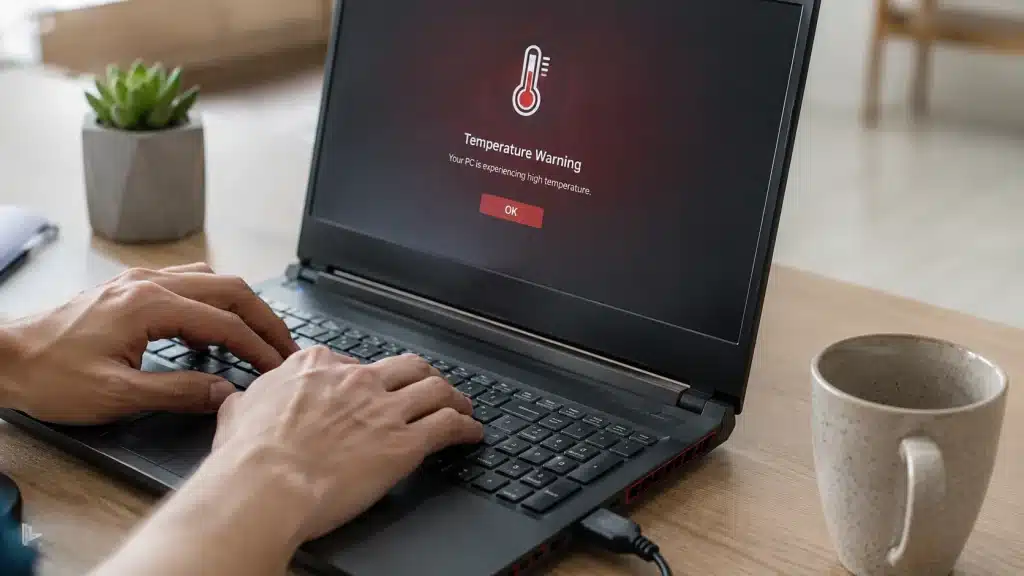
Laptop heat can ruin a simple workday fast. One minute you are browsing, editing, or gaming, and the next your fan sounds stressed, your keyboard feels warm, and every click starts moving slower than it should.
That usually means the CPU or GPU is producing more heat than the cooling system can push out. So, if you keep asking, why is my laptop so hot, the answer is often blocked airflow, dust, too many heavy apps, or old cooling parts struggling inside.
Learning how to fix a laptop overheating starts with a few simple checks, from clearing vents to reducing background load.
Once you know how to properly cool down a laptop, you can protect its performance, battery life, and hardware.
Why is My Laptop So Hot?
Every laptop generates heat as a byproduct of running its processor and graphics chip. Under normal use, that heat gets pulled away by internal fans and vented out through small openings in the chassis.
The problem is that laptops pack all of this into a much smaller space than a desktop tower, so there is less room for airflow and less room for error when something blocks it.
This is also why laptops tend to run warmer than desktops doing the same task. A gaming laptop running a demanding title, for example, will often hit its thermal ceiling and throttle performance to protect the hardware.
When a laptop can’t shed heat fast enough, three things tend to happen in order: performance drops due to thermal throttling, the fan gets louder as it works harder, and if the temperature keeps climbing, the system shuts down to prevent permanent damage.
Common Causes of Laptop Overheating
Most overheating problems come down to a short list of repeat offenders. Knowing which one applies to your laptop makes the fix a lot faster.
- Dust and debris in the vents: Dust pulled in by the fans settles on the heatsink fins and exhaust ports over months of use, trapping hot air inside instead of letting it escape.
- Working on a soft surface: Beds, couches, and blankets block the intake vents at the bottom of most laptops, restricting airflow even when the fans are working properly.
- Too many background processes: Browser tabs, sync services, and startup apps running in the background keep the CPU busier than it needs to be, generating more heat than the task in front of you requires.
- Aging thermal paste: The paste that transfers heat from the CPU to the heatsink dries out over a few years, making the cooling system noticeably less effective even if nothing else has changed.
- High room temperature: A hot room gives the fans less cool air to work with, so the laptop has to work harder just to hold a normal temperature.
If your laptop is showing other symptoms alongside the heat, like random restarts or freezing, general computer troubleshooting covers fixes for those overlapping issues.
When Laptop Overheating Hits Hardest
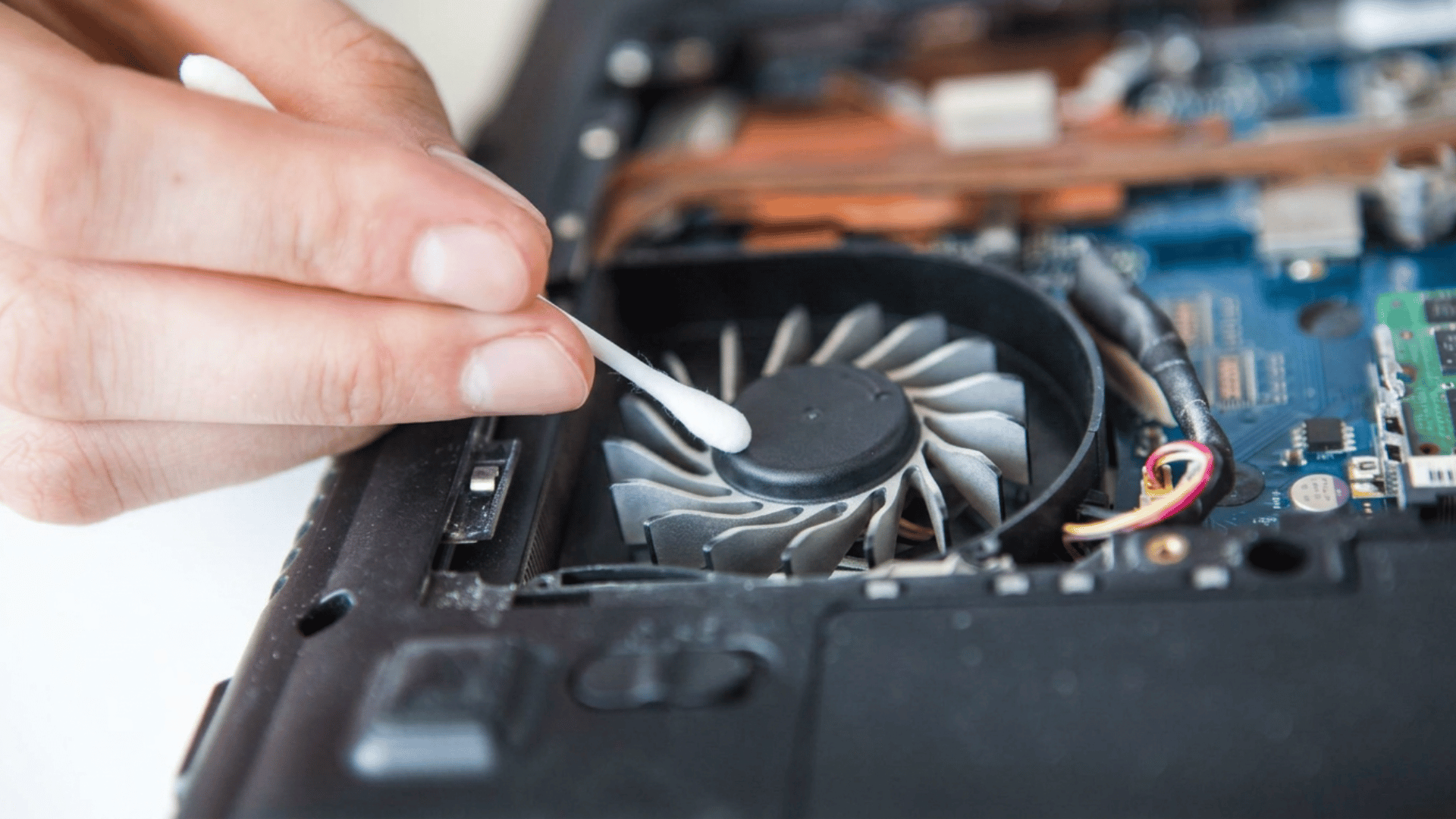
Overheating rarely happens during light browsing. It shows up in the exact moments you can least afford it: mid-video call with your camera and screen share both running, deep into a gaming session after the fortieth match, or juggling a dozen browser tabs while a cloud backup churns in the background.
Each of these pushes the CPU and GPU harder than everyday use, and that extra load is exactly what turns a laptop that runs fine most of the day into one that suddenly feels like a hot plate.
Working from unusual places adds another layer to this.
Using a laptop on your lap on a couch, in a hot car during a road trip, or outdoors in direct sun all raise the ambient temperature the cooling system has to work against, on top of whatever workload is already running.
If you’ve noticed your laptop only overheats during certain activities or in certain spots, that pattern is a strong clue.
It usually points straight back to one of the causes above, whether that’s blocked airflow, background strain, or a room that’s simply too warm for the fans to keep up.
Signs Your Laptop is Overheating Before It Shuts Down
Most laptops display warning signs before shutting down due to overheating. Catching these signs early can help protect your work, performance, and internal parts.
- Loud fan noise: A fan that changes from a quiet hum to a constant, high-pitched whir usually means the cooling system is working too hard.
- Hot laptop body: The area above the keyboard or the bottom panel may feel clearly hot to the touch, not just mildly warm.
- Slow performance: Apps may take longer to open, video calls may stutter, and games may drop frames even on settings that worked fine before.
- Fan noise with lag: According to HP’s guidance on diagnosing overheating on HP laptops, louder fan noise paired with slowdown is a clear early sign of a thermal issue.
- Sudden shutdowns or restarts: If the heat keeps rising, the laptop may shut down or restart on its own to protect the processor from damage.
These signs should not be ignored, especially if they occur frequently or return soon after cleaning, airflow fixes, or setting changes.
How to Fix Laptop Overheating: Step by Step
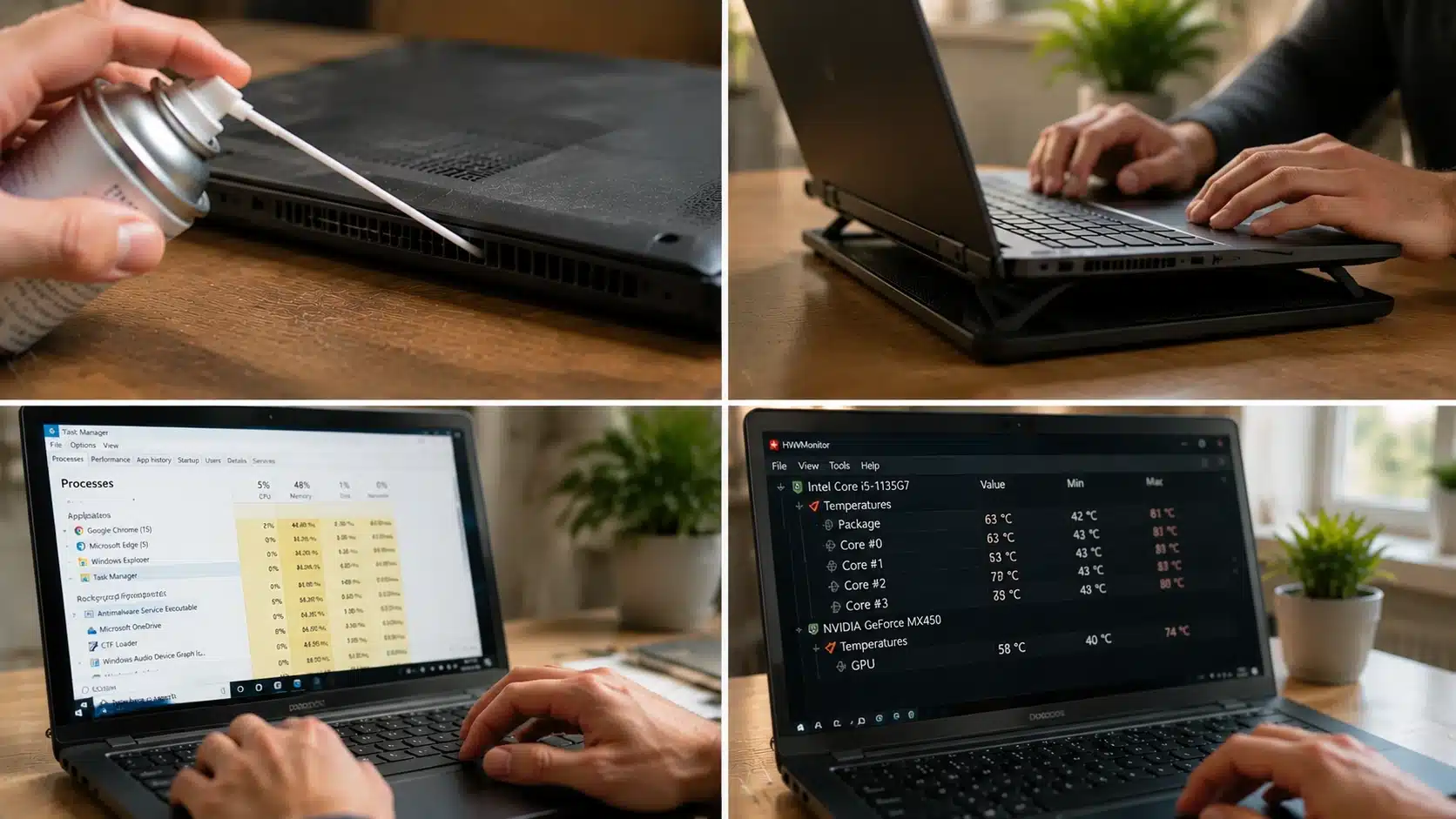
Once you know the cause, the actual fix is usually quick. Work through these steps in order, since the simplest ones solve the majority of overheating cases without needing to open the laptop at all.
1. Clean the Vents and Fans
Power down the laptop completely and unplug it before doing anything else. Use a can of compressed air in short bursts to clear dust from the vents, exhaust ports, and any visible fan blades, holding the fan steady if you can see it spinning from the airflow.
Dell’s own troubleshooting steps for overheating and thermal shutdown issues list this as the first and most effective step for a reason.
Avoid using a vacuum or blowing air with your mouth, since both can introduce static or moisture into sensitive components.
2. Check Fan Function and Airflow
Listen for whether the fan spins up normally when the laptop starts to warm up, or if it stays silent even under load, which usually indicates a failed or jammed fan.
While you’re checking, make sure the laptop is sitting on a hard, flat surface with nothing blocking the intake vents underneath.
Even a laptop with a perfectly healthy fan will overheat quickly if the airflow path itself is blocked.
3. Update Power and Performance Settings
Switching from a high-performance power plan to a balanced one reduces how hard the CPU works for everyday tasks, which directly lowers heat output.
Open Task Manager, close any background apps or browser tabs that are consuming more CPU or memory than they should, and check the Startup tab for programs that don’t need to launch automatically.
Keeping graphics drivers and BIOS up to date also matters here, since manufacturers regularly patch thermal management bugs in these updates.
4. Monitor CPU and GPU Temperature
A temperature monitoring tool gives you an actual number rather than a guess based on how hot the chassis feels.
Most CPUs are designed to handle sustained loads up to around 90°C during gaming or rendering, but consistent readings near 100°C typically trigger throttling or a shutdown.
Normal CPU temperature limits break down what’s safe for different workloads, and Micro Center’s overview of laptop overheating causes and solutions confirms that temps climbing under light use are a strong sign of a bigger thermal issue.
How to Cool Down a Laptop for Good
Fixing the immediate overheating problem is only half the job. These habits keep the laptop running cool long after the initial fix.
- Use a cooling pad: A pad with its own fans adds extra airflow underneath the chassis, which matters most during gaming, video editing, or any sustained heavy workload.
- Get a laptop stand: Elevating the back of the laptop improves airflow to the intake vents and keeps the whole chassis from sitting flush against a desk.
- Clean it on a schedule: Opening the vents with compressed air every three to six months prevents the dust buildup that causes most overheating in the first place.
- Keep it off soft surfaces: Reserve beds, couches, and pillows for anything except active laptop use, since these surfaces block the intake vents almost immediately.
- Close what you’re not using: Fewer open apps and browser tabs mean less background CPU activity and less overall heat.
Some higher-end laptops also rely on vapor chamber cooling technology to spread heat more evenly across the chassis, which is worth checking if you’re shopping for a machine that runs demanding workloads regularly.
When Overheating Means a Deeper Hardware Problem
If basic fixes do not work, the problem may be inside the laptop. Dried thermal paste is a common cause, especially in older laptops, because it can prevent heat from dissipating properly from the CPU to the heatsink.
A weak or failing fan can also cause trouble. Grinding sounds, uneven spinning, or no fan movement during high heat are warning signs. Battery heat should be taken even more seriously.
The National Fire Protection Association’s lithium-ion battery safety warnings note unusual heat, swelling, and odd smells, while the Consumer Product Safety Commission’s recall records show that overheating batteries can pose fire and burn risks.
If you’re still wondering why my laptop is so hot after cleaning and setting changes, get it checked by a technician.
Final Verdict
A cooler laptop usually comes from steady care, not one big fix. Cleaning the vents, closing heavy apps, updating settings, and using better airflow can all help reduce heat before it becomes a bigger problem.
Learning how to fix a laptop overheating also means knowing when to stop pushing the device and look for deeper issues.
If you are still unsure how to safely cool down a laptop or why your laptop is so hot, start with simple habits and watch how it responds during daily use.
Does the fan sound better, or does the heat come back quickly? Share what worked for your laptop in the comments so other readers can learn from your experience.
Frequently Asked Questions
Is It Safe to Keep Using a Laptop that Keeps Overheating?
Occasional overheating that resolves after cleaning or a change in settings is common and not dangerous. Repeated overheating that isn’t fixed by basic maintenance can damage internal components over time and should be checked by a technician.
Does Closing the Laptop Lid Stop Overheating?
No, closing the lid usually puts the laptop to sleep rather than actively cooling it, and some models can still run warm in sleep mode if a background task is running. The better move is to shut it down fully if it’s overheating.
Can Overheating Damage the Battery Permanently?
Yes, repeated exposure to high heat accelerates battery wear and can significantly shorten its usable lifespan. Extreme or prolonged overheating can also cause swelling, which is a sign the battery needs to be replaced.
How Often Should I Clean My Laptop’s Internal Fans?
Most laptops benefit from a compressed air cleaning every three to six months, depending on the environment. Dusty or pet-heavy households may need it more often to keep the vents clear.