Bluetooth audio problems can be frustrating, especially when a simple setting change creates new issues instead of fixing them.
Android disable absolute Bluetooth volume is a common solution people try when an equalizer, music app, Bluetooth DAC, or car stereo does not behave as expected, but it doesn’t always solve the problem.
In some cases, it can even introduce low-volume, distorted audio or app compatibility issues.
I have researched the most effective fixes and practical workarounds to help make troubleshooting easier.
Keep reading to learn why these problems happen, how to fix them, and when disabling Absolute Bluetooth Volume is actually the right choice.
Why Does Disabling the Absolute Bluetooth Volume Cause Problems?
Disabling Absolute Bluetooth Volume separates your phone’s volume controls from those of the connected Bluetooth device.
Instead of sharing one synchronized volume level, each device manages its own audio output.
While this can fix compatibility issues with some headphones, speakers, or DACs, it may also cause problems.
Certain equalizer and audio enhancement apps rely on Android’s default synchronized volume behavior and may not work correctly when the controls are separated.
Bluetooth manufacturers also implement volume management differently, so the same setting can produce different results across devices.
In addition, Android versions and custom software from phone brands may handle this feature differently, leading to low volume, inconsistent audio levels, or unexpected changes in sound performance.
Common Problems After Disabling Absolute Bluetooth Volume
Disabling this setting can resolve one issue but may create others, depending on the Bluetooth device, Android version, and audio app used.
- Equalizer Stops Working: Some equalizer apps depend on Android’s synchronized volume control and may stop applying audio effects after the setting is disabled.
- Bluetooth Volume Is Extremely Low: Separate volume controls can keep the phone or Bluetooth device at a lower level, reducing overall output.
- Audio Becomes Distorted: Volume mismatches between the phone and the connected device can cause clipping, crackling, or distortion during playback.
- Left and Right Earbuds Have Different Volume: Independent volume synchronization issues can cause one earbud to be louder than the other until they are reset or re-paired.
- Car Bluetooth Volume Changes Unexpectedly: Some vehicle infotainment systems do not handle separate volume streams properly, causing inconsistent audio levels between sessions.
- Bluetooth Speaker Gets Too Loud or Too Quiet: Speakers may ignore the phone’s volume level and rely only on their own controls, making adjustments less predictable.
- External DAC or USB Bluetooth Adapter Stops Responding: Certain DACs and adapters expect synchronized volume control and may not process audio correctly after the setting is disabled.
How to Fix Android Disable Absolute Bluetooth Volume Issues?
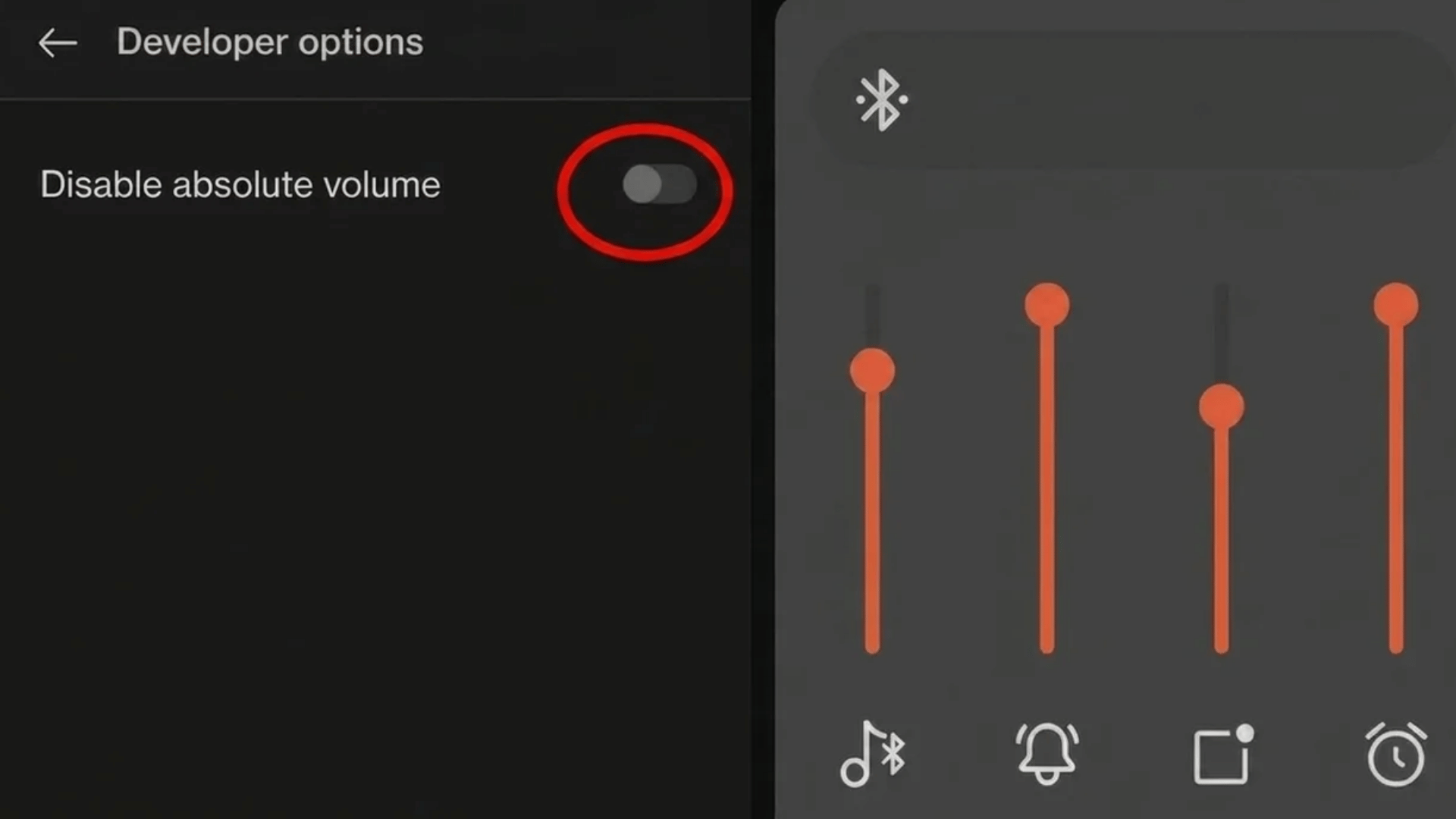
Most problems caused by disabling Absolute Bluetooth Volume can be resolved with a few troubleshooting steps. Start with the simplest fixes first, then move to the advanced solutions if the issue continues.
1. Restart Bluetooth Services
Bluetooth services can occasionally become unstable after changing Developer Options. Turn Bluetooth off, wait a few seconds, and then turn it back on.
If the issue continues, restart the phone to reload Bluetooth services and reconnect the device.
This simple step often resolves temporary communication problems that affect volume synchronization, equalizer performance, or audio playback without requiring additional settings changes.
2. Forget and Pair the Device Again
Removing the Bluetooth device and pairing it again creates a fresh connection using the current system settings. Open Settings > Bluetooth, forget the affected device, then pair it again.
This process can fix incorrect volume synchronization, pairing errors, or audio glitches that appeared after disabling Absolute Bluetooth Volume.
It is especially helpful for wireless earbuds, speakers, car stereos, and Bluetooth headphones.
If the problem persists after the repair, you may also need to learn how to reset Bluetooth headphones, as some models require a complete reset to restore normal operation.
3. Re-enable Absolute Bluetooth Volume
If audio problems started immediately after disabling the setting, turning Absolute Bluetooth Volume back on is worth trying.
Some Bluetooth accessories and equalizer apps are designed to work with Android’s default synchronized volume control.
Re-enable the option in Developer Options, reconnect the Bluetooth device, and test the audio again. This can restore normal volume behavior and improve compatibility with certain devices.
4. Disable Audio Effects
Multiple audio enhancement apps running together can interfere with Bluetooth playback.
Temporarily disable built-in sound effects, such as Dolby Atmos and Adaptive Sound, and any third-party audio processing apps to identify possible conflicts.
After turning them off, reconnect the Bluetooth device and test the audio. If the problem disappears, enable each feature one at a time to find the setting causing the issue.
5. Update the Equalizer App
An outdated equalizer app may not fully support newer Android versions or changes made to Bluetooth audio settings.
Visit the Google Play Store and install the latest update for the app. Developers often release fixes that improve compatibility with Android updates and Bluetooth devices.
After updating, restart the app and reconnect the Bluetooth accessory before testing the sound again.
6. Update Bluetooth Device Firmware
Many Bluetooth headphones, speakers, and earbuds receive firmware updates that improve performance and fix compatibility issues.
Open the manufacturer’s companion app, if available, and check for firmware updates. Installing the latest version may resolve issues with volume control, audio distortion, or unstable connections.
Restart both the Bluetooth device and the phone after the update to ensure the changes take effect.
7. Change Bluetooth Codec
Some Bluetooth codecs work better with specific headphones or speakers than others.
In Developer Options, try switching between available codecs such as SBC, AAC, aptX, or LDAC, depending on device support.
After selecting a different codec, reconnect the Bluetooth device and test the audio quality. If one codec produces fewer issues, keep it selected for more stable playback.
8. Reset Network Settings
If Bluetooth problems continue despite other fixes, resetting network settings can remove corrupted Bluetooth configurations.
This process clears saved Wi-Fi, mobile network, and Bluetooth settings, so devices must be paired again afterward. Once the reset is complete, reconnect the Bluetooth accessory and test the audio.
This often resolves persistent connection, pairing, and volume synchronization issues caused by incorrect system settings.
9. Test Another Music App
Sometimes the problem is limited to a specific music or streaming app rather than Bluetooth itself.
Play audio using another application such as YouTube Music, Spotify, Apple Music, or a local media player.
If the issue disappears, the original app may have its own audio processing or compatibility problem. Updating or reinstalling that app can often restore normal Bluetooth performance.
10. Check Battery Optimization
Android’s battery optimization feature can restrict background activity for equalizer and audio enhancement apps.
Open Settings > Apps > Battery and exclude the affected app from battery optimization if possible. This allows the app to continue processing audio while Bluetooth is connected.
After changing the setting, reconnect the Bluetooth device and verify whether the equalizer or audio effects work consistently.
Best Workarounds when an Equalizer Doesn’t Work
If changing Bluetooth settings causes your equalizer to stop working, these alternatives can help restore audio enhancements without affecting playback stability.
| Problem | Workaround | Works Best For |
|---|---|---|
| Equalizer effects are not applied | Wavelet with AutoEQ profiles | Most Bluetooth headphones and earbuds |
| The built-in equalizer has stopped working | Poweramp Equalizer | Music apps that support external equalizers |
| Sound becomes flat or lacks depth | Dolby Atmos (if supported) | Phones with built-in Dolby audio processing |
| Samsung equalizer issues | Samsung Sound Assistant | Samsung Galaxy phones running One UI |
| Audio tuning features stop working | Manufacturer audio app (Sony Headphones, JBL Headphones, Nothing X, etc.) | Brand-specific Bluetooth headphones and earbuds |
| Audio bypasses the equalizer | USB DAC companion app | External USB DACs and high-resolution audio setups |
Does Disabling Absolute Bluetooth Volume Improve Sound?
Not usually. Disabling Absolute Bluetooth Volume does not increase the actual sound quality, dynamic range, or audio resolution of a Bluetooth connection.
Those factors are primarily determined by the Bluetooth codec, the source audio, and the capabilities of the connected device.
However, some users feel the sound is better because separate volume controls allow them to adjust the phone and Bluetooth device independently, which can improve loudness or reduce distortion in certain situations.
It may also help equalizer apps work more effectively with compatible devices.
If the audio seems clearer after disabling the setting, the improvement is usually due to better volume control or device compatibility rather than higher-quality sound.
Best Bluetooth Audio Settings for Equalizer Apps
Choosing the right Bluetooth audio settings can improve compatibility with equalizer apps and help prevent playback or sound quality issues.
- AAC: It offers good sound quality and stable performance on many Android devices and works well with most modern Bluetooth headphones.
- SBC: The default Bluetooth codec with broad compatibility, making it a reliable choice if other codecs cause connection or audio problems.
- aptX: Delivers lower latency and improved audio quality on supported devices, making it suitable for music and video playback.
- LDAC: It supports high-resolution audio with compatible devices but may require a stable Bluetooth connection for the best results.
- AVRCP: Use the latest supported AVRCP version to improve media controls and communication between the phone and Bluetooth device.
- Sample Rate: A sample rate of 44.1 kHz or 48 kHz provides good compatibility for most Bluetooth devices and equalizer apps.
- Bits Per Sample: 16-bit or 24-bit settings generally offer the best balance between audio quality and compatibility with Bluetooth devices.
Does Bluetooth Distance Affect Audio Stability or Volume?
Bluetooth distance can affect audio stability, but it does not directly reduce the actual volume. As the distance between your phone and Bluetooth device increases, the wireless signal becomes weaker.
A weak signal can cause packet loss, meaning some audio data does not reach the receiving device.
This often results in stuttering, brief audio dropouts, or interrupted playback rather than lower volume.
Walls, metal objects, and wireless interference can make these problems worse even within the normal Bluetooth range.
If audio becomes unstable, moving the devices closer together usually improves the connection.
In most cases, inconsistent playback caused by Bluetooth distance is a signal-strength issue, not a change in loudness or sound-quality settings.
Absolute Bluetooth Volume vs Independent Volume Controls
Both settings control Bluetooth audio differently. The right option depends on whether you prefer convenience or greater control over individual device volume.
| Feature | Absolute Bluetooth Volume | Independent Volume Controls |
|---|---|---|
| Volume control | The phone and Bluetooth device share one volume level | The phone and Bluetooth device have separate volume levels |
| Ease of use | Simpler with one volume slider | Requires adjusting two volume controls |
| Equalizer compatibility | May not work well with some apps or devices | Can improve compatibility with certain equalizers |
| Bluetooth DAC support | Not ideal for some external DACs | Often works better with dedicated audio hardware |
| Older Bluetooth devices | May cause compatibility issues | Better for some older speakers and receivers |
| Car stereo compatibility | Works well on most modern systems | Can help resolve volume synchronization issues on some vehicles |
| Audio troubleshooting | Fewer settings to manage | More flexibility when resolving audio problems |
| Best for | Everyday Bluetooth listening | Advanced users and compatibility troubleshooting |
Conclusion
Disabling Absolute Bluetooth Volume can fix compatibility issues with some equalizer apps, Bluetooth DACs, car stereos, and older Bluetooth devices, but it is not always the best solution.
It will not automatically improve sound quality, increase dynamic range, or make Bluetooth audio louder.
In many cases, the real fix may be to adjust Bluetooth settings, switch to a different audio codec, or turn the feature back on.
The key is to identify the cause of the problem before making changes.
With the troubleshooting steps covered in this article, it becomes much easier to find the right solution and decide whether disabling Absolute Bluetooth Volume is the best option for a particular setup.
Frequently Asked Questions
How to Turn Off the Bluetooth Volume Limit on Android?
Open Developer Options, find Disable Absolute Volume, enable the toggle, then reconnect the Bluetooth device. Some Android phones may use different menu names or hide this option.
How to Stop Bluetooth from Automatically Changing Volume?
Keep Bluetooth firmware and apps updated, reconnect the device, and check Absolute Bluetooth Volume settings. Some accessories automatically synchronize volume when this feature is enabled.
Can Bluetooth Cause Tinnitus?
No. Bluetooth itself does not cause tinnitus. However, listening at excessively high volumes through Bluetooth headphones or earbuds may increase the risk of hearing damage over time.
How to Disable Absolute Volume on Android 15?
Enable Developer Options, open Developer Options, locate Disable Absolute Volume, turn it on, and reconnect the Bluetooth device. Availability may vary by phone manufacturer.