Network issues can stop work by blocking access to websites, apps, cloud services, and shared resources.
Problems such as slow internet speeds, intermittent connectivity, DNS failures, and packet loss often occur without warning and can be challenging to diagnose without a clear process in place.
I’ve fixed many network issues over the years, and some of the most frustrating ones came down to simple setup or connection errors.
Network troubleshooting is the process of finding and fixing network issues before they cause major downtime.
By following the right troubleshooting steps, you can quickly determine the source of the problem and restore normal network performance.
Keep reading to learn proven methods, essential tools, and practical solutions for fixing common network problems.
What Is Network Troubleshooting?
Network troubleshooting is the process of identifying, diagnosing, and resolving issues that affect network connectivity, performance, or communication between devices.
It involves checking routers, switches, cables, servers, and settings to find and fix the cause of a problem.
Network issues can happen due to hardware failures, wrong settings, IP conflicts, DNS errors, network congestion, outdated firmware, or ISP outages.
A 2022 IDC survey found that network performance issues and downtime cost businesses about $5.6 million per year on average, showing the importance of quick problem diagnosis.
Common signs of network problems include no internet, slow speeds, frequent disconnections, websites not loading, DNS errors, and high latency.
A structured troubleshooting process helps fix issues faster, reduce downtime, and improve network reliability.
It also helps organizations maintain productivity, enhance user experience, and prevent recurring network disruptions.
The 7-Step Network Troubleshooting Process
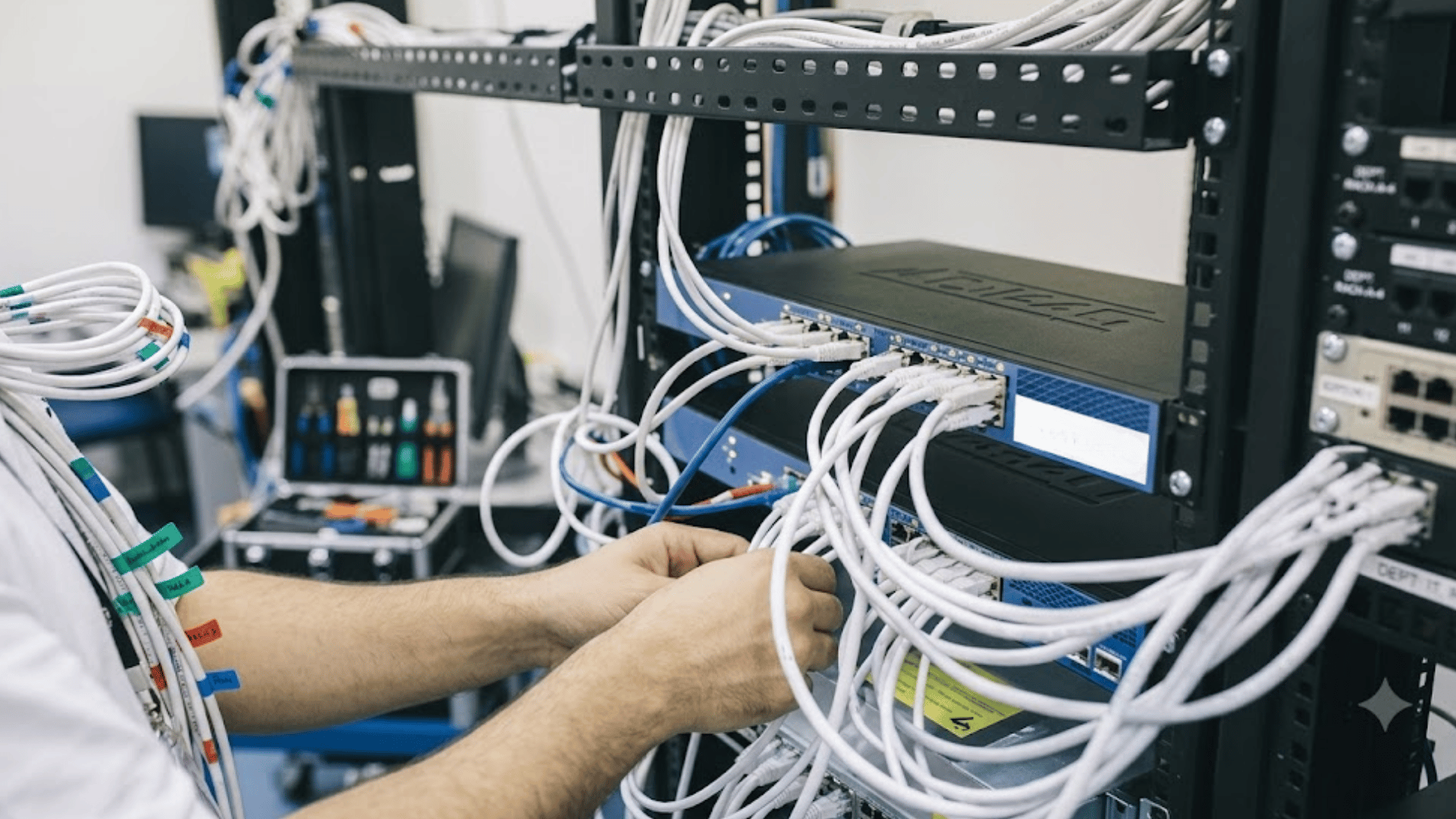
Network troubleshooting is a structured process used to identify, diagnose, and resolve connectivity issues efficiently. It helps IT teams reduce downtime, improve network reliability, and restore normal operations as quickly as possible.
Step 1: Identify the Problem
The first step in the network troubleshooting process is to identify the problem accurately.
This involves understanding the symptoms being experienced by users, such as slow internet speeds, intermittent connectivity, inability to access websites, or complete network outages.
IT professionals should determine whether the issue affects a single device, a group of users, or the entire network.
Gathering initial details about when the problem started and any recent changes to the network environment helps narrow down possible causes and establishes a clear starting point for troubleshooting.
Step 2: Gather Information
After identifying the issue, the next step is to gather relevant information about the network and affected systems.
This includes reviewing IP configurations, checking device settings, collecting error messages, and analyzing system or network logs.
User feedback can also provide valuable insights into when and how the issue occurs. Network administrators often use diagnostic tools such as Ping, Traceroute, and monitoring software to collect data.
Document everything before making changes; this record becomes essential if the issue returns or escalates
Step 3: Check Physical Connections
Before investigating complex network configurations, it is important to verify all physical connections.
Many network problems result from loose cables, damaged connectors, faulty ports, or power issues affecting networking equipment.
Technicians should inspect Ethernet cables, switches, routers, wireless access points, and network interface cards to ensure everything is connected and operating correctly.
Indicator lights on devices can also provide clues about connectivity status.
In my experience, many network failures come from simple issues like a loose cable or a switch that rebooted overnight.
Step 4: Test Network Connectivity
Once physical connections have been verified, network connectivity should be tested to determine where communication is failing.
Common tools such as Ping can confirm whether devices can reach each other, while Traceroute helps identify interruptions along the network path.
DNS testing can reveal whether domain name resolution is functioning properly.
These tests allow administrators to determine whether the issue lies within the local network, external connections, or specific services.
Connectivity testing provides valuable data that guides the next stages of the troubleshooting process.
Step 5: Identify the Root Cause
After collecting sufficient information and performing connectivity tests, the next objective is to identify the root cause of the problem.
This involves analyzing all findings to determine the actual source of the issue rather than focusing only on symptoms.
Root causes may include incorrect IP configurations, routing failures, DNS errors, firewall restrictions, hardware malfunctions, software bugs, or ISP-related disruptions.
Treating symptoms without confirming the root cause is one of the most common reasons the same issue reappears within days
Step 6: Apply the Fix
Once the root cause has been identified, the appropriate corrective action can be implemented.
Depending on the nature of the issue, this may involve replacing damaged hardware, updating firmware, adjusting network settings, restarting devices, modifying firewall rules, or correcting DNS configurations.
Changes should be made carefully and documented whenever possible to maintain accurate records of troubleshooting activities.
Applying the correct fix not only restores network functionality but also helps maintain system stability and ensures that the problem is resolved efficiently.
Step 7: Verify the Solution
The final step in network troubleshooting is verifying that the solution has successfully resolved the issue.
Technicians should repeat connectivity tests, review network performance, and confirm that users can access the resources they need without interruptions.
Monitor the network for at least 30 minutes after applying the fix; some issues only reappear under load or after a few minutes of normal traffic.
Create a brief post-incident report noting what failed, what caused it, and what was done to resolve it.
This record pays dividends the next time a similar problem surfaces
How to Diagnose a Network Problem: Quick Troubleshooting Checklist
Before applying advanced fixes, perform these basic checks to identify the source of the problem. A systematic approach helps narrow down potential causes and reduces troubleshooting time.
- Check Physical Connections: Ensure all Ethernet, power, and network cables are securely connected and free from visible damage.
- Determine if the Issue Is Device-Specific: Test another device on the same network. If only one device is affected, inspect its network settings, drivers, or adapter.
- Inspect Your Router and Modem: Restart the equipment and check status lights for signs of connectivity, hardware, or configuration issues.
- Evaluate Wi-Fi Performance: Move closer to the router and look for interference from walls, electronics, or neighboring wireless networks.
- Verify Device Network Settings: Confirm that IP address, DNS, Wi-Fi, and network adapter configurations are correctly assigned.
- Check for ISP Outages: Review your internet provider’s outage page or contact support to determine whether a service disruption is affecting connectivity.
- Identify Possible DNS Issues: If websites fail to load despite having internet access, try changing DNS servers or testing access through an IP address.
- Run Network Diagnostic Commands: Use tools such as Ping, Tracert, Ipconfig, and Nslookup to identify connectivity, routing, and DNS-related problems.
- Check for Malware or Unauthorized Devices: Unusual slowdowns or traffic spikes can indicate a compromised device on the network. Run a malware scan and review the connected device list in your router’s admin panel
Common Network Problems and How to Fix Them
Network issues can disrupt communication, reduce productivity, and affect business operations. Understanding the most common network problems and their solutions helps minimize downtime and maintain reliable connectivity.
1. No Internet Connection
A complete loss of internet access prevents users from accessing websites, emails, and online applications.
This issue commonly occurs because of router malfunctions, disconnected cables, ISP outages, incorrect network settings, or device configuration errors.
Identifying whether the problem affects one device or the entire network can help narrow down the source and restore connectivity faster.
Start with the router and modem before touching device settings, the majority of full outages resolve with a simple power cycle
Fixes:
- Restart the modem and router.
- Check all cable connections.
- Verify Wi-Fi credentials.
- Check for ISP outages.
- Run network diagnostics.
2. Slow Network Performance
Slow network performance can affect browsing, streaming, file transfers, and video conferencing.
This issue often results from network congestion, limited bandwidth, outdated hardware, weak Wi-Fi signals, or excessive background applications consuming resources.
Understanding whether the slowdown impacts specific devices or the entire network can help identify the root cause and improve performance.
A useful first test: run a speed test on a wired device. If wired speeds match your plan but wireless is slow, the issue is localized to Wi-Fi rather than the connection itself
Fixes:
- Restart networking equipment.
- Limit bandwidth-heavy applications.
- Move closer to the router.
- Upgrade outdated hardware.
- Use a wired connection.
3. Intermittent Connectivity Issues
Intermittent connectivity causes devices to randomly disconnect and reconnect to the network.
This problem is often linked to wireless interference, weak signal coverage, outdated drivers, router firmware issues, or temporary hardware failures.
Frequent disruptions can impact productivity and communication, making it important to identify patterns and eliminate potential sources of instability.
Fixes:
- Reposition the router.
- Change the Wi-Fi channel.
- Update network drivers.
- Remove interference sources.
- Install firmware updates.
4. Network Connection Keeps Dropping
A network connection that repeatedly disconnects can interrupt work, online meetings, and other critical activities.
Common reasons include damaged cables, weak wireless signals, overheating network equipment, outdated firmware, or incorrect power management settings.
Monitoring when the disconnections occur can help determine whether the issue is related to hardware, software, or environmental factors.
Fixes:
- Inspect and replace faulty cables.
- Disable network power-saving options.
- Update device drivers.
- Improve router ventilation.
- Reconnect the network profile.
5. High Latency and Lag
High latency creates noticeable delays between user actions and network responses, affecting gaming, video calls, and cloud-based applications.
This issue can occur because of network congestion, overloaded devices, inefficient routing, insufficient bandwidth, or long distances to servers.
Reducing latency is essential for maintaining smooth communication and responsive application performance.
Fixes:
- Reduce unnecessary network traffic.
- Restart networking devices.
- Use a wired connection.
- Connect to closer servers.
- Monitor bandwidth usage.
6. Packet Loss Problems
Packet loss occurs when data packets fail to reach their intended destination across a network.
This issue can lead to buffering, poor call quality, slow application performance, and interrupted online experiences.
Common contributing factors include network congestion, faulty hardware, damaged cables, wireless interference, and configuration errors that disrupt reliable data transmission.
Fixes:
- Replace damaged cables.
- Restart network equipment.
- Reduce network congestion.
- Improve Wi-Fi signal strength.
- Update router firmware.
How to Fix DNS Server Problems?
DNS (Domain Name System) converts website names into IP addresses so your device can locate and connect to web servers.
When DNS stops working correctly, websites may fail to load even though your internet connection appears active.
Common indicators include “DNS server not responding” messages, slow website loading, or the inability to access websites using domain names.
Restart your router and modem, clear the DNS cache, and use the nslookup command to check domain name resolution.
If the issue continues, switch to a public DNS service like Google DNS (8.8.8.8, 8.8.4.4) or Cloudflare DNS (1.1.1.1, 1.0.0.1). After updating the DNS settings, reconnect to the network and verify that websites load normally.
To clear the DNS cache on Windows, open Command Prompt as an administrator and run the ipconfig /flushdns command.
On macOS, open Terminal and run sudo dscacheutil -flushcache; sudo killall -HUP mDNSResponder.
Once the DNS cache has been cleared and the DNS settings have been updated, reconnect to the network and check that websites are loading correctly.
Network Troubleshooting Commands Every User Should Know
Network troubleshooting commands help identify connectivity, DNS, routing, and performance issues. These built-in tools provide valuable insights that can speed up diagnosis and help pinpoint the source of network problems.
- Ping: Tests whether your device can communicate with another device, server, or website. It is commonly used to verify network connectivity and measure response times.
- Ipconfig: Displays your device’s network configuration, including the IP address, subnet mask, default gateway, and DNS settings. It is useful for identifying IP assignment and DHCP issues.
- Tracert (Traceroute): Shows the path that network traffic takes from your device to a destination. It helps identify where delays, routing problems, or connection failures occur.
- Nslookup: Queries DNS servers to determine whether a domain name can be successfully resolved into an IP address. It is commonly used to diagnose DNS-related issues.
- Netstat: Displays active network connections, listening ports, and network statistics. It helps identify connection problems and monitor network activity.
- Nmap (Network Mapper): Scans the network to identify connected devices, open ports, and running services. It is useful for spotting unauthorized devices or confirming that only expected hosts are active on the network
How to Troubleshoot IP Address Problems?

IP address problems can prevent a device from joining the network or accessing online resources.
One of the most common issues is an IP address conflict, where two devices are assigned the same address, causing connection failures and network interruptions.
Devices may also show an invalid IP configuration error if they can’t get the correct network settings from the router.
In many cases, the root cause is a DHCP issue that prevents automatic IP assignment, resulting in limited or no connectivity.
Start by restarting the router and affected device, then verify that DHCP is enabled on the network.
If the issue persists, release and renew the IP address using the ipconfig /release and ipconfig /renew commands.
This forces the device to request a new address and often restores normal network communication. If IP conflicts happen often, assign static IPs or DHCP reservations to important devices like printers and servers.
Network Troubleshooting Using the OSI Model
The OSI model gives you a systematic framework for isolating where a problem lives. Starting from Layer 1 and working up prevents you from spending time on application-layer issues when the real problem is a bad cable
| OSI Layer | Common Issues | What to Check |
|---|---|---|
| Layer 1 (Physical) | Damaged cables, weak Wi-Fi signals, and power failures | Cables, ports, devices, signal strength |
| Layer 2 (Data Link) | Switch failures, VLAN misconfigurations | Switches, MAC communication, VLAN settings |
| Layer 3 (Network) | IP conflicts, routing issues, gateway errors | IP addresses, subnet masks, and routing |
| Layers 4–7 (Transport to Application) | DNS failures, blocked ports, application errors | DNS settings, firewall rules, applications |
How to Prevent Network Problems in the Future?
Taking preventive measures can reduce downtime, improve network reliability, and minimize recurring connectivity issues. The following best practices help maintain a stable and secure network environment:
- Keep Firmware Updated: Install router, modem, and network device updates to fix bugs and security vulnerabilities.
- Monitor Network Performance: Regularly track bandwidth usage, latency, and device activity to identify issues early.
- Secure Your Network: Use strong passwords, WPA3 encryption, and multi-factor authentication where available.
- Replace Aging Hardware: Upgrade outdated routers, switches, and network adapters before they become performance bottlenecks.
- Optimize Wi-Fi Placement: Position the router centrally and away from walls, metal objects, and electronic interference.
- Limit Network Congestion: Schedule large downloads during off-peak hours and manage bandwidth-intensive applications.
- Perform Regular Network Audits: Review device configurations, permissions, and connected devices periodically.
- Back Up Network Configurations: Save router and switch settings to simplify recovery after failures or resets.
- Use Reliable DNS Services: Configure trusted DNS providers to improve stability and resolution speed.
- Monitor Hardware Health: Watch for overheating, unusual performance drops, or hardware warning indicators.
When Should You Call an IT Professional?
While many network issues can be resolved through basic troubleshooting, some situations require professional assistance.
Consider contacting an IT professional if you notice warning signs such as frequent network outages, unexplained performance degradation, persistent security concerns, or devices repeatedly losing connectivity.
Business networks often have complex setups, multiple users, servers, and critical applications that need expert troubleshooting.
For hardware failures like faulty routers or switches, professional support is recommended.
Unexplained traffic spikes, unknown devices, or repeated login failures may indicate a security threat, not just a network issue.
An IT professional can perform a proper security audit in these cases rather than a standard connectivity review
Conclusion
Network problems can be as simple as a loose cable or as complex as a configuration issue across multiple systems. The good news is that a step-by-step approach makes troubleshooting much easier.
Follow the seven-step process, use tools to gather facts, and fix the root cause, not just the symptoms.
In remote and hybrid work environments, network issues may be more challenging, but the same logical process still works.
I’ve found that regular maintenance, like updating firmware and reviewing settings, helps prevent problems and saves troubleshooting time.
If problems continue after you’ve tried the proper troubleshooting steps, it’s best to consult a network professional rather than relying on temporary fixes that may hide the real issue.
Frequently Asked Questions
How to Know if a Router Is Causing Network Problems?
Frequent disconnections, slow speeds across multiple devices, overheating, flashing warning lights, or failed IP assignments often indicate router-related issues affecting overall network performance.
Why Does Wi-Fi Work but Websites Fail to Load?
A functioning Wi-Fi connection with inaccessible websites usually points to DNS errors, browser issues, firewall restrictions, or temporary website server outages.
Can a VPN Cause Network Connectivity Issues?
Yes. VPNs can reduce connection speeds, create DNS conflicts, trigger routing problems, or block access to certain websites due to server or configuration issues.
What Is the Difference Between Network Latency and Packet Loss?
Network latency measures data transmission delay, while packet loss occurs when data packets fail to reach their destination, causing interruptions, buffering, and performance issues.