Windows 11 has been available for several years, but many users are still unsure if upgrading from Windows 10 is the right choice.
Searches like “Is Windows 11 good?” and “Should I update to Windows 11?” show that people want to understand the real benefits and possible drawbacks before making a change.
Windows 11 brings a refreshed interface, improved security, better multitasking features, and updated system requirements. However, compatibility limits and changes from Windows 10 can make some users hesitate.
This article covers the key improvements, limitations, and factors to help you decide if Windows 11 is a good upgrade.
Should You Upgrade to Windows 11: Quick Verdict
Windows 11 is a worthwhile upgrade for many users, especially those with compatible hardware who want improved security, a cleaner interface, and better multitasking features.
However, users with older PCs or those comfortable with Windows 10 may not feel an urgent need to switch. The right choice depends on your device, daily usage, and the features you value most.
| Category | Rating |
|---|---|
| User Interface | 4.5/5 |
| Performance | 4.3/5 |
| Security Features | 4.7/5 |
| Gaming Support | 4.4/5 |
| Multitasking Features | 4.5/5 |
| Compatibility | 4/5 |
| Overall Value | 4.3/5 |
Best For
- Users with newer laptops and desktops that meet Windows 11 requirements
- People who want improved security and updated system features
- Users who regularly multitask with multiple apps and windows
May Not Be Ideal For
- Older PCs that do not officially support Windows 11
- Users who prefer the Windows 10 interface and workflow
- Systems with limited hardware that may not perform well after upgrading
What’s New in Windows 11?
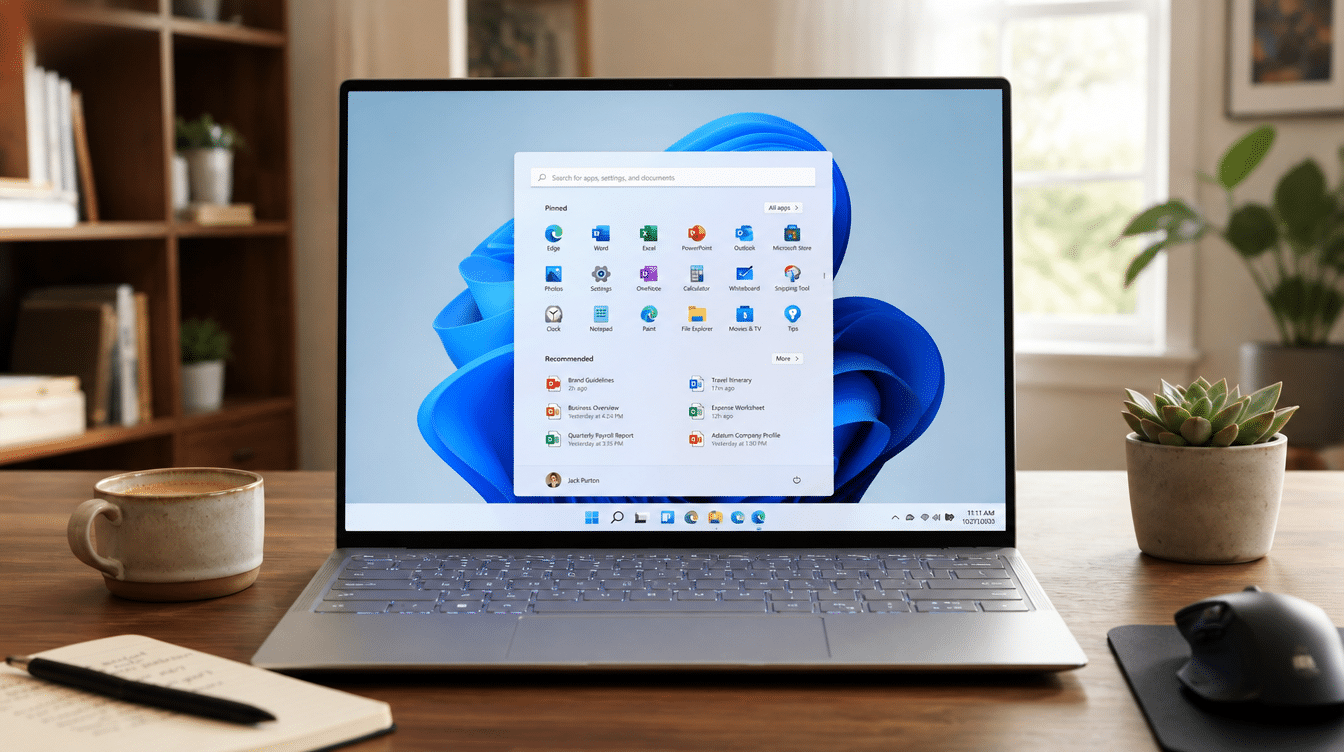
Windows 11 is the latest desktop operating system from Microsoft, designed as a successor to Windows 10, with changes focused on design, security, productivity, and support for modern hardware.
While it keeps many familiar Windows features, it introduces a refreshed interface, updated tools, and new ways to manage everyday tasks.
A Redesigned Desktop Experience
Windows 11 introduces a cleaner interface with a centered Start menu, updated icons, rounded window corners, and a more organized taskbar.
The overall design feels more modern, but some users may need time to adjust to the changes, as certain Windows 10 settings and shortcuts have moved.
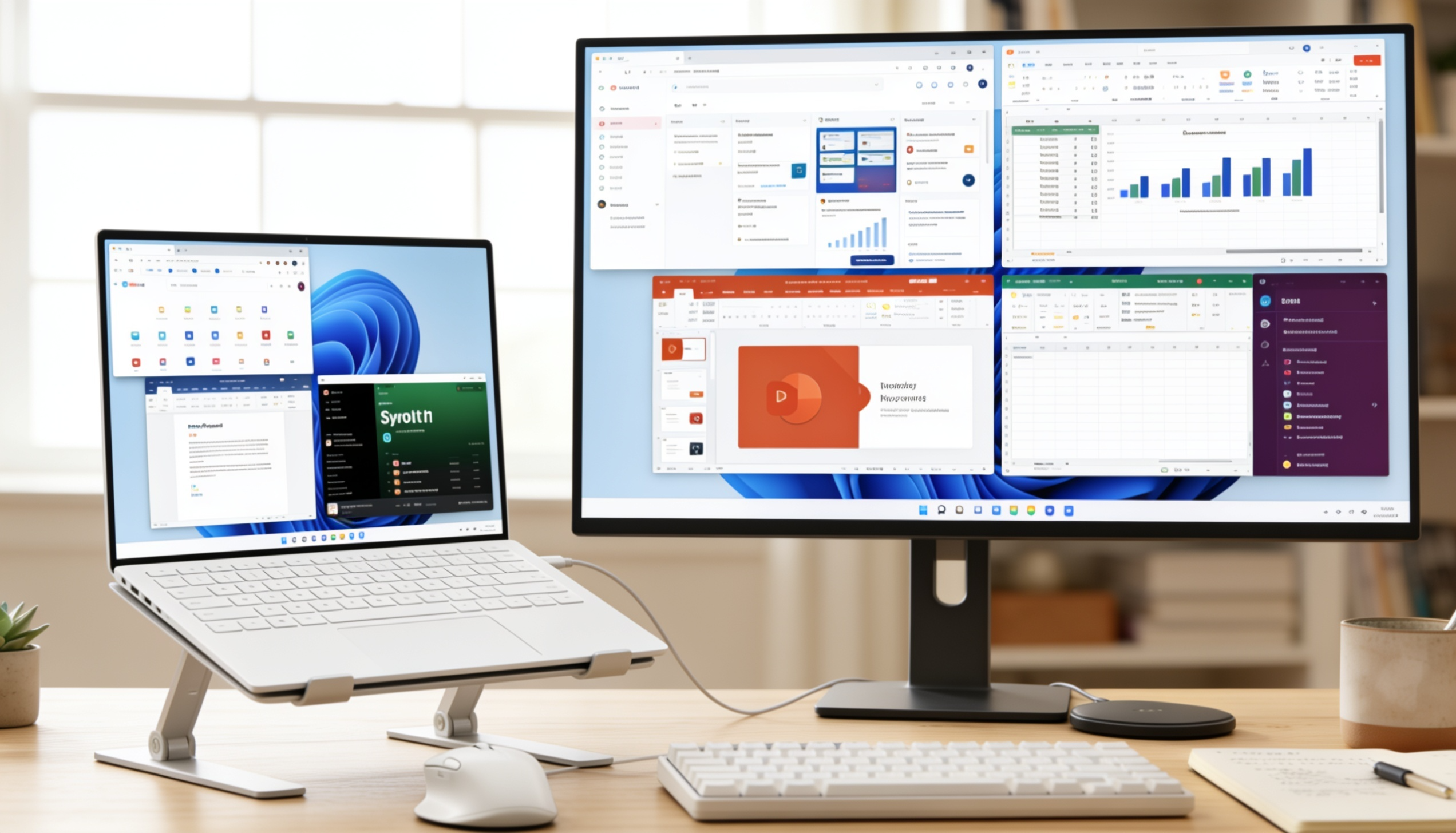
Better Multitasking with Snap Layouts
Snap Layouts make it easier to arrange multiple windows on the screen. Users can quickly organize apps into different layouts, which is useful for work, studying, and managing several tasks at once.
The feature works especially well on larger monitors and laptops with higher screen resolutions.
Stronger Security Requirements
Windows 11 introduced stricter hardware requirements, including TPM 2.0 and Secure Boot support. These requirements allow Microsoft to provide stronger security features compared with older Windows versions.
However, some older computers cannot be officially upgraded because their hardware does not meet these requirements.
Improved Support for Newer Hardware
Windows 11 is designed to work better with modern processors, faster storage, and newer device features. Systems with recent hardware can benefit from improved efficiency and better support for current technologies.
Older PCs may not notice major improvements after upgrading, especially if they already run Windows 10 smoothly.
Windows 11 Performance and Everyday Use
Windows 11 performance depends on your hardware, but supported systems generally deliver a smooth, responsive experience for everyday tasks, multitasking, and modern applications.
Performance on Newer PCs
On newer laptops and desktops, Windows 11 performs smoothly with faster startup times, better support for modern processors, and improved system management. Devices with SSD storage and recent CPUs are more likely to benefit from the operating system’s updated design and features.
Performance on Older Hardware
Older computers may not see major improvements after upgrading. Some systems can run Windows 11 if they meet the requirements, but limited RAM, older processors, or traditional hard drives may affect responsiveness during everyday use.
Battery Life and Resource Usage
Windows 11 includes power management improvements that can help newer laptops manage energy more efficiently. However, battery results vary based on hardware, screen type, applications running in the background, and device settings.
Gaming Performance
Windows 11 works well for gaming on compatible hardware, especially with newer graphics cards and processors. Features like DirectStorage and Auto HDR can improve performance in supported games, although the actual difference depends on the game, hardware, and system configuration.
Windows 10 vs Windows 11: Key Differences
Windows 11 builds on Windows 10 with changes to the interface, security, performance, and overall user experience. While both operating systems can handle everyday tasks, Windows 11 introduces updates aimed at modern hardware and newer workflows.
| Category | Windows 10 | Windows 11 |
|---|---|---|
| Interface | Traditional Start menu and taskbar layout | Redesigned interface with centered Start menu and updated visuals |
| Multitasking | Basic window management features | Improved window organization with Snap Layouts |
| Security | Supports older hardware and security features | Requires TPM 2.0 and Secure Boot for stronger protection |
| Performance | Works well on a wide range of devices | Better optimized for newer processors and hardware |
| Gaming | Supports modern gaming features | Adds features like Auto HDR and DirectStorage support |
| Updates | Regular security and feature updates | More streamlined updates with newer update policies |
| Touch Support | Available but designed mainly for desktops | Improved experience on touch-enabled devices |
| Hardware Support | Supports many older PCs | Requires compatible newer hardware |
Which One Should You Choose?
- Stay with Windows 10 if your PC works well, Windows 11 is not supported, or you prefer the current interface and workflow.
- Move to Windows 11 if your device supports it and you want newer features, improved security, and better compatibility with current hardware.
- For new computers, Windows 11 is usually the better choice because it is designed around newer processors and devices.
Windows 11 Problems Users Should Know Before Updating
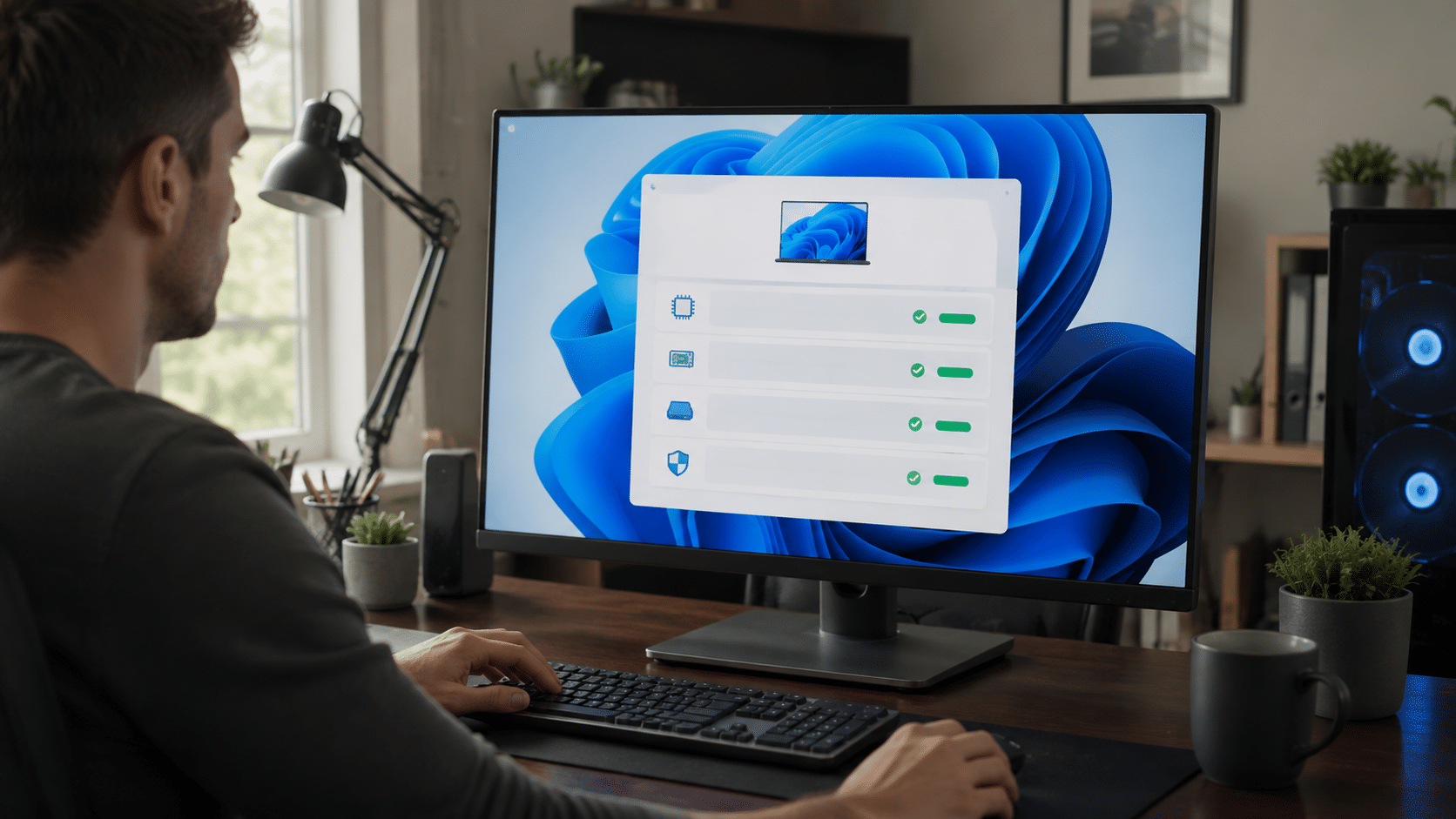
Windows 11 offers several improvements, but some users may face compatibility limits, interface changes, or issues with older software and hardware. Understanding these drawbacks can help you decide if updating is the right choice for your PC.
Hardware Compatibility Limits
- Windows 11 has stricter requirements, including TPM 2.0, Secure Boot, and support for specific processors.
- Some older PCs may not receive an official upgrade option even if they still run Windows 10 smoothly.
- Checking hardware compatibility before updating can help avoid installation problems.
Interface Changes May Take Time to Adjust
- The redesigned Start menu, taskbar, and settings layout may feel unfamiliar to Windows 10 users.
- Some options have moved compared with older versions, which can take time to get used to.
- Users who prefer the traditional Windows 10 workflow may not immediately enjoy the changes.
Older Software and Driver Concerns
- Some older applications, printers, or accessories may not work properly after the upgrade. In some cases, incompatible software may become slow or stop responding, requiring you to force-quit an unresponsive app on Windows before troubleshooting further.
- Businesses and users relying on specific tools should check compatibility before switching.
- Keeping drivers and software up to date can reduce potential issues.
Upgrade Timing and Support
- Users do not need to upgrade immediately if their current Windows 10 setup works well.
- Newer devices usually benefit more from Windows 11 because they are built around current hardware.
- The right time to upgrade depends on device compatibility and personal needs.
Is Windows 11 Worth It?
Windows 11 can be a good upgrade for users with compatible hardware who want newer features and improved security. However, some users may prefer staying with Windows 10 if their current setup already works well.
| Pros of Windows 11 | Cons of Windows 11 |
|---|---|
| Modern interface with a cleaner design and updated layout | Higher hardware requirements may prevent older PCs from upgrading |
| Better multitasking with improved window management tools | Some Windows 10 users may need time to adjust to interface changes |
| Stronger security features with TPM 2.0 and Secure Boot support | Older software, drivers, or accessories may have compatibility issues |
| Better support for newer processors, storage, and hardware features | Some systems may not notice major improvements after upgrading |
| Gaming improvements with features like Auto HDR and DirectStorage | Certain settings and options are placed differently compared with Windows 10 |
Final Verdict
Windows 11 is a solid choice for users with compatible devices who want a newer operating system experience and continued support for current hardware.
It may not feel necessary for everyone, especially those who are satisfied with their existing Windows 10 setup.
The upgrade decision should come down to how well your current system meets your needs and whether the newer environment offers useful improvements for your daily tasks.
For most modern PCs, Windows 11 is a reasonable move, while older systems may be better left unchanged until an upgrade is needed.
Frequently Asked Questions
Can I Go Back to Windows 10 After Upgrading to Windows 11?
Yes, Microsoft allows users to return to Windows 10 within a limited period after upgrading. After that period, switching back usually requires a clean Windows 10 installation. If important files or pictures are accidentally lost during the process, there are ways to retrieve deleted photos from a Windows PC.
Will My Files and Apps Be Deleted when I Upgrade to Windows 11?
In most cases, upgrading keeps personal files, installed apps, and settings. However, creating a backup before any major system update is recommended to prevent the loss of important data.
Is Windows 11 Free for Windows 10 Users?
Eligible Windows 10 devices can upgrade to Windows 11 for free if they meet Microsoft’s hardware requirements. The availability depends on device compatibility and update eligibility.
How Often Does Windows 11 Receive Updates?
Windows 11 receives regular security and feature updates from Microsoft. Update timing can vary depending on the version, device compatibility, and Microsoft’s release schedule.