Rocket League reacts to every small input. This is especially important when we’re talking about the gadgets you play with: your controller, monitor, and the whole setup define your experience in the first place.
Equipment also deserves attention when watching tournaments and following the competitive scene, including Rocket League betting. Even if you have never bet on Rocket League before, your experience in gaming can influence your future choices. Even if you have never bet on Rocket League before, your experience in gaming can influence your future choices. This guide covers essential gadgets for beginners and useful upgrades from expensive extras.
What Makes a Good Rocket League Setup?
Four factors have the greatest effect on how Rocket League feels during a match:
- Responsive controls. Players constantly adjust their steering, aerial direction, and boost use. Most professionals choose a controller for the 360-degree movement of an analog stick, though some players perform well with a keyboard and mouse. A Red Bull beginner’s guide recommends choosing one control method and sticking with it to build muscle memory.
- Stable performance. Frame drops can disrupt ball tracking and challenge timing, particularly when several cars collide near the goal. The system needs to maintain a consistent frame rate throughout the match.
- Low input lag. The controller, display, and game settings determine the time between pressing a button and seeing the action on screen. Extra delay can cause a late flip, mistimed aerial touch, or missed save.
- Long-term comfort. Once you’re done setting up, think about long sessions you are going to have. Is your chair comfortable enough? Is your grip on the controller comfortable? The devil in the details.
An expensive monitor cannot fix an unstable connection, while a professional controller offers little value if its shape feels uncomfortable. Every part of the setup needs to suit the player, starting with the device they use for every movement: the controller.
Controller: The Core of Every Rocket League Setup
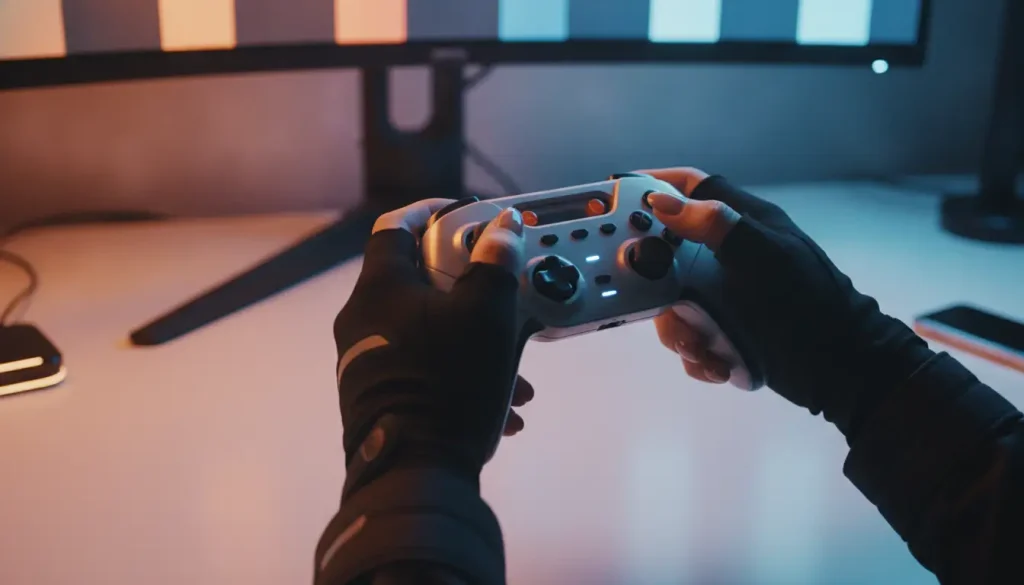
During an aerial, a small movement of the analog stick changes the car’s angle, while a full tilt produces a sharper adjustment. This range makes a controller well suited to steering, recoveries, and mid-air control. The choice between PlayStation and Xbox layouts comes down to hand size, stick position, and access to boost, jump, and air roll.
Players often move these actions away from the default buttons to reach them simultaneously. PC users who launch the game through Steam can manage inputs through Steam Controller Configuration.
Wired vs Wireless Controllers
A wired controller removes battery management and Bluetooth interruptions from the equation. It suits tournaments, long ranked sessions, and desks where the cable stays out of the way. A low-latency wireless model offers a cleaner setup, though it requires regular charging and a stable connection.
Standard and Pro Controllers
Standard PlayStation and Xbox controllers provide every input required for Rocket League. Pro models add rear paddles, trigger stops, replaceable sticks, and extended mapping options. Assigning boost or air roll to a rear paddle keeps both thumbs on the sticks during aerials and recoveries.
Common Rocket League Setup Mistakes
There is an opinion that a good setup must always be expensive and professional. But the real issues can hide in smaller mistakes. Let’s take a look at some of them:
- Buying a 240 Hz monitor for a game running at 120 FPS. Your monitor cannot show 240 new frames each second if the PC only produces half that number. Open the FPS counter and watch it during several matches. If the frame rate stays near 144 FPS, choose a 144 Hz display and enjoy steadier motion.
- Playing over unstable Wi-Fi. One ping spike is enough to make another car jump across the field or turn a clean touch into a miss. Try an Ethernet cable before replacing the router or blaming the controller.
- Trusting the logo on the controller. A familiar brand tells you little about how your hands will feel after two hours. Pay attention to the stick position, body shape, bumpers, and button mapping. You should reach boost and air roll without twisting your fingers into an awkward position.
- Keeping V-Sync on without testing it. The setting removes screen tearing, but your jump or dodge may appear slightly later after you press the button. If the controls feel heavy, turn V-Sync off and compare the response in Free Play.
How to Upgrade Your Setup in the Right Order
Do not start with the most exciting gadget. Start with the issue that you actually notice during a match and move through the setup in this order:
- Sort out ping and FPS. If cars teleport across the field, test an Ethernet connection. If the picture stutters, display the FPS and adjust the graphics settings. Move on once both figures remain steady during a full match.
- Choose your controller. Your fingers should reach jump, boost, and air roll without an awkward grip. Play for at least an hour before deciding whether the shape and stick placement suit your hands.
- Buy a faster monitor. Consider 144 Hz after the PC holds around 144 FPS in real matches. A higher refresh rate has little to show when the system produces far fewer frames.
- Work on team communication. Look for headphones that stay comfortable during long sessions and a microphone that keeps your voice clear. Rocket League needs understandable callouts, not an elaborate surround-sound system.
- Try pro features. Rear paddles help when your current button layout forces you to move a thumb away from the stick. Replaceable sticks and trigger stops also work best when they address a problem you have already noticed.
- Polish the desk. Set the monitor near eye level, support your forearms, and clear space around the controller. After that, add cable management, lighting, and other visual details.
Test one thing at a time: display the FPS, watch your ping, adjust the settings, and inspect the controller. Once you find the exact problem, you will know whether you need new equipment or a free five-minute fix.