A missing column in an Excel worksheet can quickly become frustrating, especially when important information seems to disappear without warning.
In most cases, the data has not been deleted. The column is still present but has been hidden, resized, grouped, or affected by worksheet settings.
Learning how to unhide columns in Excel helps you restore missing information without changing formulas, values, or the overall spreadsheet structure.
Learn why columns disappear, how to restore them using different methods, and what to do when common fixes such as shortcuts or the Unhide option do not work.
Why Columns Become Hidden in Excel
Excel columns can become hidden for several reasons, and identifying the cause is the first step toward fixing the issue.
A hidden column is usually a formatting or display setting rather than a data problem. The information stored inside the column remains available, but Excel removes it from the visible worksheet layout.
A column may disappear because someone intentionally hid it to simplify a report, accidentally selected the Hide option while working on a spreadsheet, or changed the column width until it became impossible to see.
In business reports, users often hide calculation columns while showing only the final results. Shared Excel files may also contain hidden sections created by another person, a habit that overlaps with how people organize notes and reference material across different apps to keep only the essentials visible.
Another common situation is confusing hidden columns with other Excel features. A column with zero width, a collapsed group, or a protected worksheet can look similar to a hidden column but requires a different solution.
Understanding the reason behind the missing column helps you avoid changing settings that do not solve the actual problem.
How Excel Handles Hidden Columns
Excel does not remove information when a column is hidden. The column visibility changes, but the worksheet keeps the original data, formulas, formatting, and references.
When a column is hidden:
- The data inside the column remains stored.
- Formulas connected to the column continue working.
- Formatting and cell references stay unchanged.
- Unhiding the column restores the original content.
For example, a project tracking spreadsheet may contain extra columns for internal calculations. A user can hide these columns to create a cleaner presentation view.
When the columns are restored, all original information appears again, the same kind of behind-the-scenes data handling that connecting different business tools together depends on working correctly.
Hidden columns usually indicate a visibility change, not data loss. Restoring the column is generally enough to bring the missing information back.
How to Unhide Columns in Excel and Fix Missing Columns
A hidden Excel column can make important data seem missing. Learn how to unhide columns in Excel, restore visibility, and fix common issues when shortcuts or normal methods fail.
1. Restore a Hidden Column Using the Standard Unhide Option
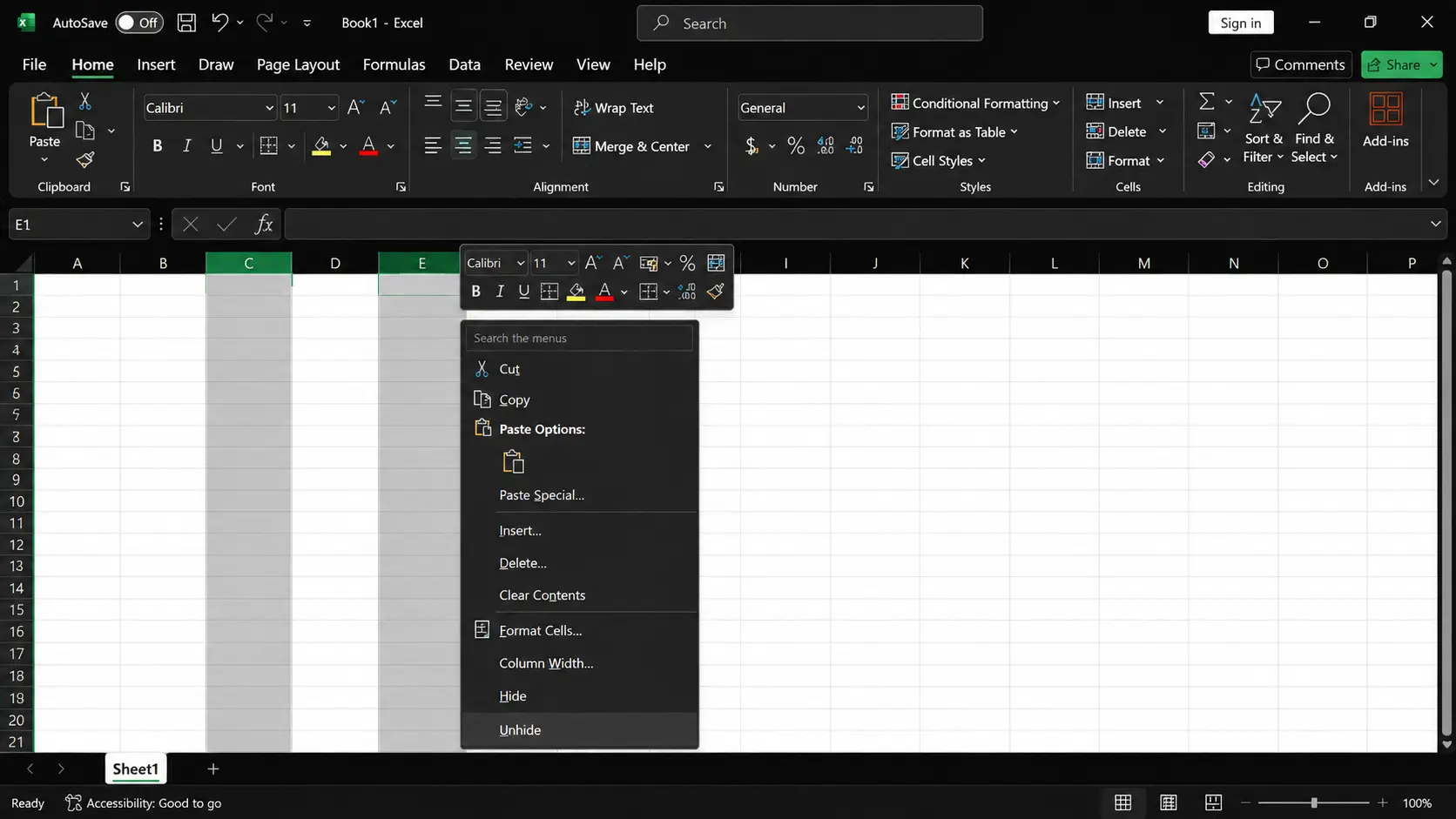
The built-in Unhide option is the simplest way to restore columns hidden through Excel’s normal formatting settings. This method works best when the missing column is located between two visible columns because Excel can detect the hidden area using the surrounding headers.
To restore a hidden column:
- Select the column headers on both sides of the missing column.
- Right-click the selected area.
- Choose Unhide from the menu.
- Confirm that the hidden column appears again.
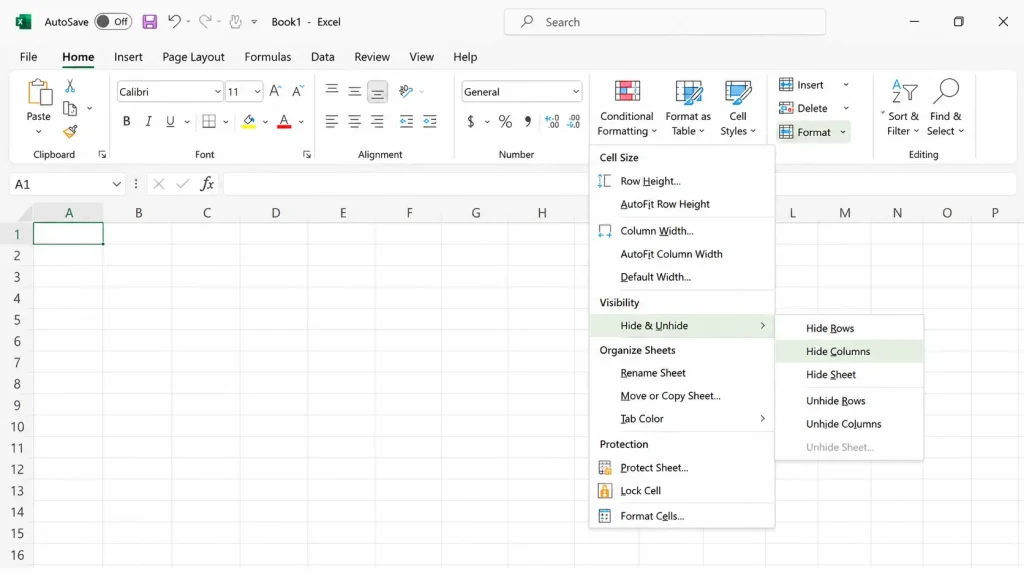
If the right-click option is unavailable, select the columns around the hidden section, open the Home tab, choose Format > Hide & Unhide, and select Unhide Columns.
This method works for most cases where a column was hidden accidentally or through Excel’s standard formatting options.
2. Check Whether a Single Missing Column is Hidden or has Zero Width
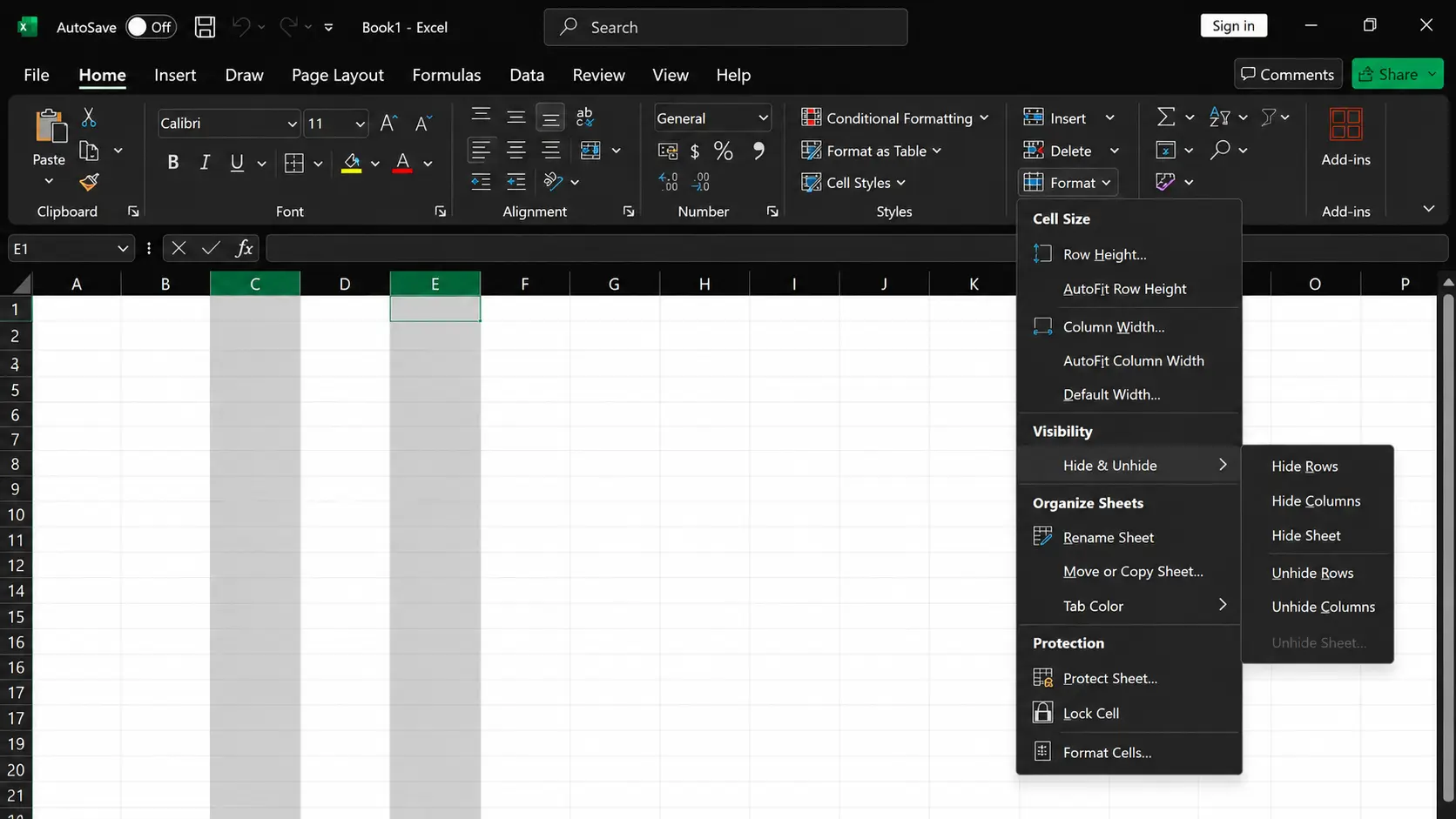
A single hidden column is a common Excel issue that usually occurs when a column is accidentally hidden while organizing data or adjusting the worksheet layout. Before using the Unhide command, check whether the column is actually hidden or simply reduced to a very small width.
A zero-width column behaves differently from a hidden column. Excel still recognizes it as an existing column, but there is no visible space to display its contents.
To restore a column with reduced width:
- Select the columns around the missing area.
- Right-click the column headers.
- Choose Column Width.
- Enter a larger width value.
- Confirm the change.
If the column is hidden normally, using the Unhide option will restore its visibility.
3. Restore a Missing Column Through Surrounding Headers
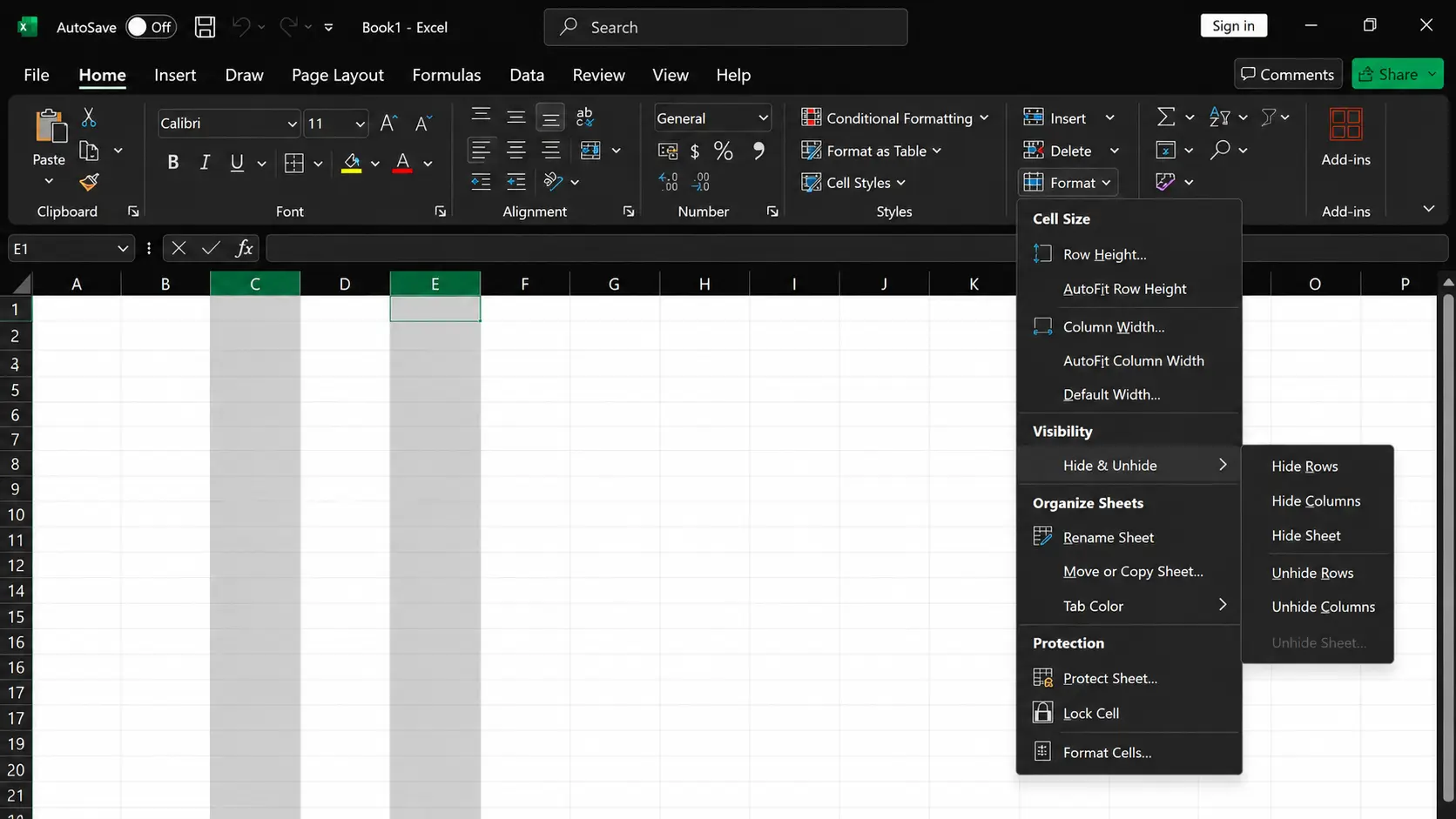
When a column is hidden through Excel’s normal Hide option, selecting the visible columns around the missing section allows Excel to identify and restore it.
To unhide the column:
- Select the column before and after the missing column.
- Right-click the selected column headers.
- Choose Unhide .
- Confirm that the missing column appears again.
For example, if Column F is hidden, select Columns E and G, then apply the Unhide command. Excel will restore Column F while keeping the existing data and formatting unchanged.
4. Fix a Hidden First Column in Excel
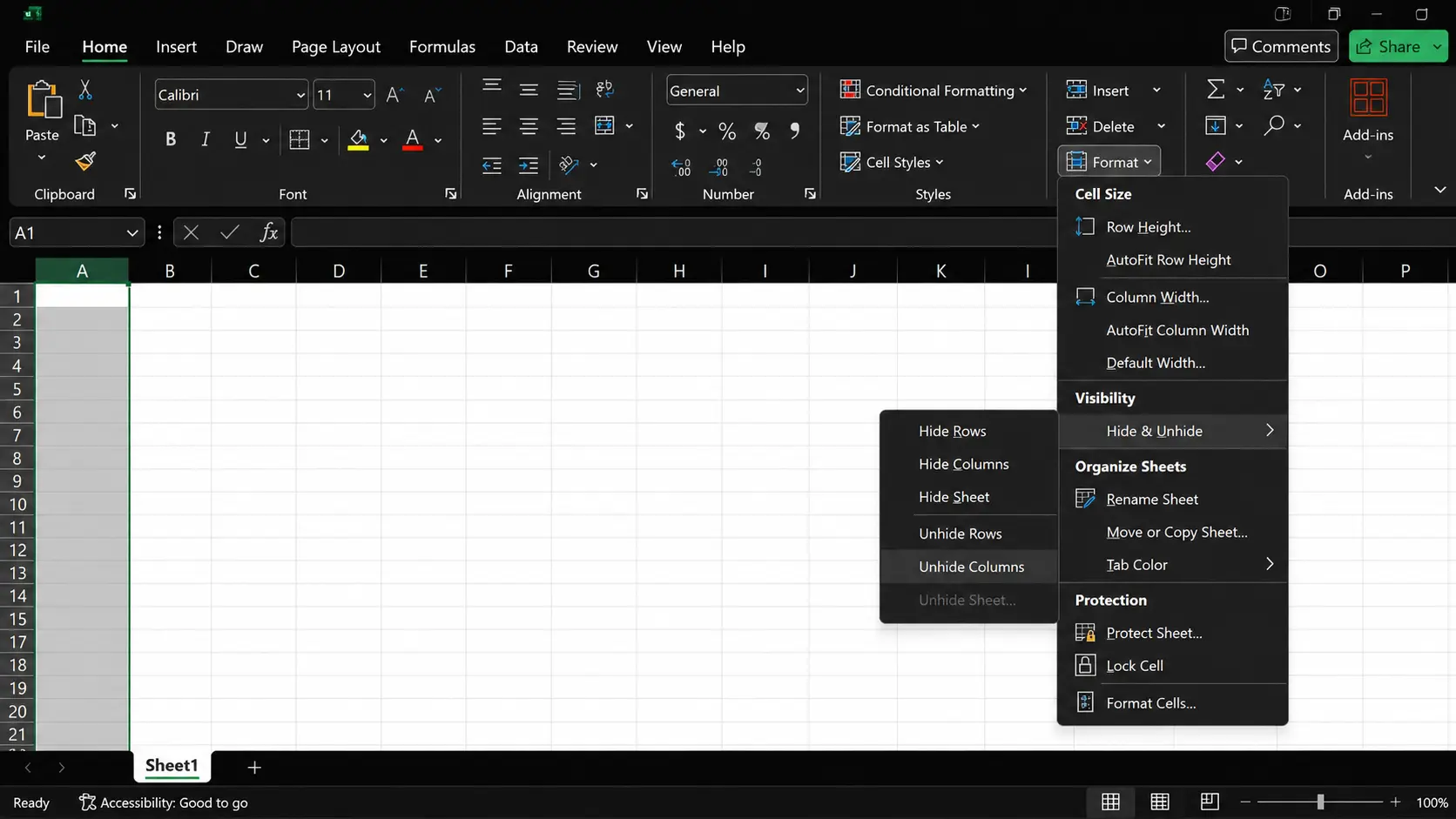
Column A is different from other hidden columns because there is no visible column before it. The usual method of selecting columns on both sides cannot be used because the missing column is located at the edge of the worksheet.
To restore Column A, Excel allows you to select the hidden area using other methods.
Using the Name Box:
- Click the Name Box beside the formula bar.
- Type A1.
- Press Enter.
- Open Home > Format > Hide & Unhide.
- Select Unhide Columns.
You can also restore Column A by selecting the entire worksheet. Click the triangle in the top-left corner where the row and column headers meet, right-click any column header, and choose Unhide
5. Restore Multiple Hidden Columns in Excel
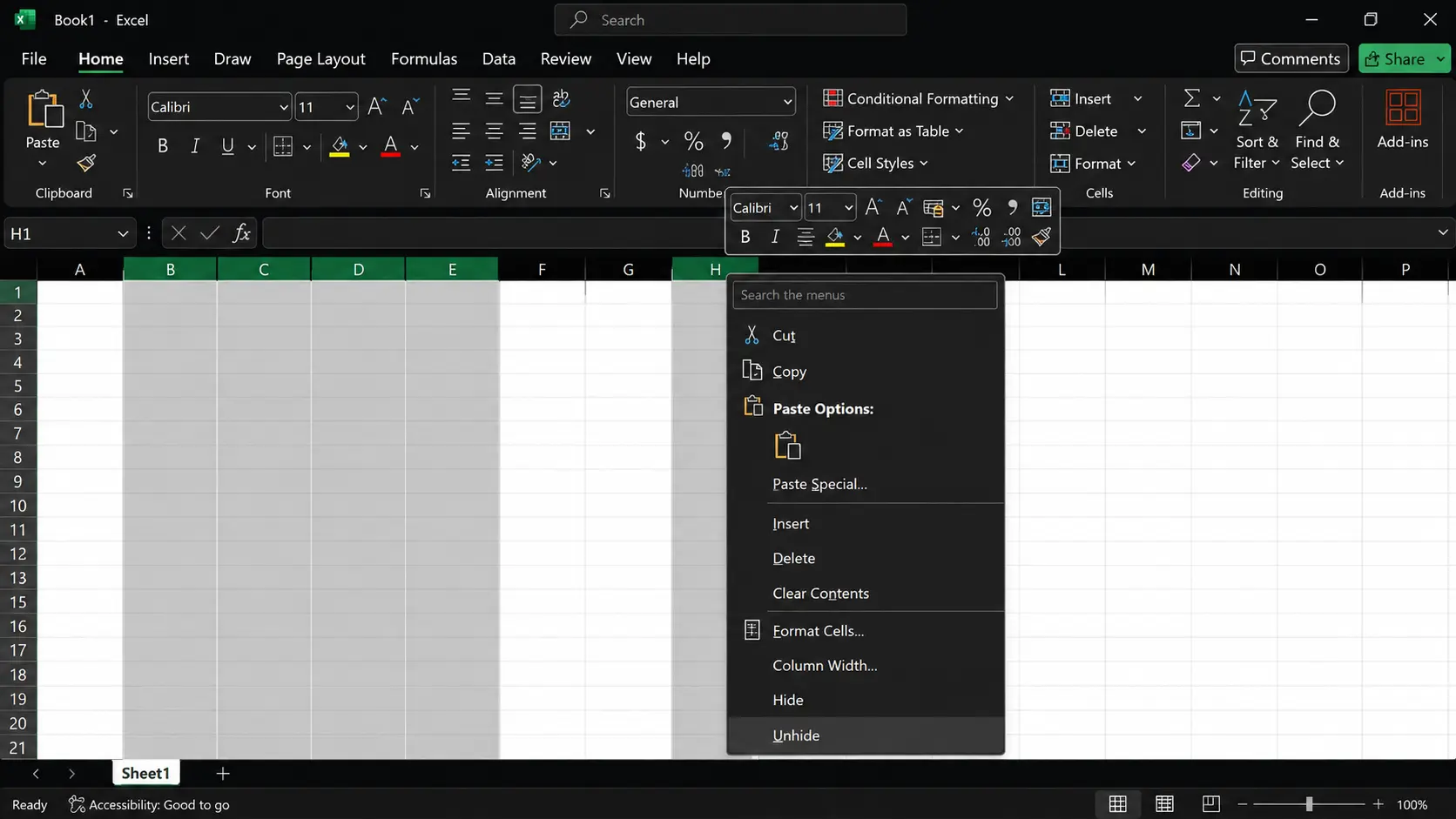
Multiple hidden columns often appear in larger worksheets where users hide supporting information to make reports easier to read, and once a spreadsheet grows large enough, choosing hardware that can keep up with heavy data work starts to matter more too.
When several columns disappear together, you do not need to restore each column separately. Excel allows you to reveal multiple hidden columns at the same time while keeping the existing worksheet structure unchanged.
To restore multiple hidden columns:
- Select the column headers on both sides of the hidden section.
- Right-click the selected area.
- Choose Unhide from the menu.
- Confirm that all hidden columns appear again.
If a large section of the worksheet contains hidden columns, select the entire worksheet before choosing Unhide Columns. This helps restore hidden columns when you are unsure about their exact location.
For example, if Columns D, E, and F are hidden in a sales report, selecting Columns C and G and choosing Unhide will restore the missing section without affecting the data, formulas, or formatting.
Why the Excel Unhide Column Shortcut Is Not Working
Excel shortcuts can save time, but the column unhide shortcut Ctrl + Shift + 0 may not work in some situations. The issue can happen because of Windows settings, keyboard conflicts, worksheet protection, or grouped columns.
If the shortcut does not respond, you can restore hidden columns using Excel’s built-in menu option instead:
| Select columns around the hidden section → Home → Format → Hide & Unhide → Unhide Columns |
This method works without depending on keyboard shortcuts and can help restore missing columns quickly. Checking the reason behind the shortcut failure also helps prevent repeated issues while working with Excel worksheets.
How to Unhide Columns in Different Excel Versions
Excel provides similar column visibility controls across different platforms, but the location of certain options may vary. Knowing how the process works in each version helps you restore hidden columns without searching through menus unnecessarily.
1. Unhiding Columns in Excel for Windows: Restoring hidden columns is usually straightforward. You can select the columns around the hidden section, right-click the column headers, and choose Unhide.
Another option is to access the command through Home > Format > Hide & Unhide > Unhide Columns. The Windows desktop version provides the widest range of formatting controls, making it easier to handle more complex worksheet visibility issues.
2. Unhiding Columns in Excel for Mac: It follows the same basic process, although some menu locations may look different compared with Windows. Selecting the columns around the hidden area and using the available formatting options can restore visibility.
If the missing column is Column A or cannot be selected normally, selecting the entire worksheet and applying the Unhide option can help restore the hidden column.
3. Unhiding Columns in Excel Online: It also supports restoring hidden columns directly from the worksheet. The process is similar: select the visible columns around the missing section, right-click the column headers, and choose Unhide.
While Excel Online may not include every advanced desktop feature, it provides the essential options needed to restore normally hidden columns.
Hidden vs Zero Width vs Grouped Columns
A missing column is not always hidden. Excel has multiple visibility settings, and each issue requires a different solution. Understanding these differences helps you choose the correct fix.
| Issue | How It Appears | Solution |
|---|---|---|
| Hidden column | The column letter is missing from the worksheet | Use the Unhide command |
| Zero-width column | The column exists but has no visible space | Increase the column width |
| Grouped column | Columns are collapsed using outline controls | Expand the grouped section |
The correct solution depends on how Excel is hiding the information. Checking the column behavior first can prevent unnecessary formatting changes.
Why Columns Stay Hidden After Using Unhide
Sometimes a column remains hidden even after selecting the Unhide option. This usually happens because another Excel setting is affecting the worksheet, not because the Unhide command has failed.
Common reasons include:
- Wrong column selection: The hidden column may not be included in the selected range. Select the columns around the missing area and try Unhide again.
- Worksheet protection: A protected sheet can restrict formatting changes. Remove protection if you have permission.
- Collapsed groups: Grouped columns may appear hidden because they are collapsed. Expand the group using the outline controls above the worksheet.
- Incorrect width settings: A column may still be invisible because its width is too small. Increase the column width to restore visibility.
- Filters hiding data: Filters do not hide columns, but they can make it appear that information is missing by hiding certain rows. If the column is visible but data seems incomplete, check whether a filter has been applied to the worksheet.
Checking these settings helps identify the real cause and restores missing columns without changing other worksheet data.
Common Problems When Trying to Unhide Columns in Excel
Hidden column issues can happen for different reasons, and the correct solution depends on what is preventing the column from appearing. Checking the exact cause helps you restore missing columns without changing other worksheet settings.
| Problem | Possible Cause | Solution |
|---|---|---|
| Unhide option does not appear | The wrong columns are selected | Select the columns on both sides of the hidden area and try Unhide again |
| Shortcut does not respond | Windows settings or keyboard conflicts | Use the Excel menu option instead of the shortcut |
| Column A remains hidden | There is no visible column before the first column | Use the Name Box or select the entire worksheet |
| Column appears missing | The column width is set to zero | Increase the column width from the formatting options |
| Worksheet does not allow changes | Sheet protection is enabled | Remove protection if you have permission |
Identifying the reason behind the missing column makes it easier to apply the right fix and restore visibility without affecting your Excel data or formatting.
Key Takeaways
Hidden columns in Excel are usually a visibility issue rather than a data loss problem. The correct solution depends on why the column disappeared.
You can often restore a normally hidden column using the Unhide option, while issues like shortcut failures, missing Column A, grouped sections, or zero-width columns require different fixes.
Understanding how to unhide columns in Excel helps you restore missing information without changing formulas, formatting, or worksheet structure.
By identifying the cause first and applying the right method, you can quickly bring back hidden columns and keep working with your spreadsheet without unnecessary changes.
Frequently Asked Questions
Why is my Excel column not showing after clicking Unhide?
Your column may still remain invisible because it has zero width, the worksheet is protected, or the column is grouped rather than hidden through the standard Hide option.
Does Ctrl+Shift+0 work in all Excel versions?
No, Ctrl+Shift+0 may not work in every Excel setup. Windows keyboard settings, shortcut conflicts, or Excel configuration differences can prevent the command from responding.
Can hidden columns be restored automatically?
No, Excel does not automatically restore hidden columns unless a macro, script, or custom automation has been created to manage column visibility.