Bought a new AirTag but aren’t sure how to get it working? I know the feeling. You unbox it, expect it to pair right away, and then nothing happens.
Setting up an AirTag usually takes only a couple of minutes, but a Bluetooth setting left off, an outdated iPhone, or a battery tab still in place can stop things before they even start.
In this article, I’ll show you how to set up an AirTag step by step, from pairing it with your iPhone to naming it and fixing it if it doesn’t show up in Find My.
By the end, you’ll know exactly what to check to get your AirTag tracking properly.
What is an AirTag?
An AirTag is a small tracking device made by Apple that helps you find items like keys, bags, or luggage through the Find My app.
It uses Bluetooth to connect with nearby Apple devices in the Find My network, showing the last known location of whatever it’s attached to.
Unlike a phone or a smartwatch, an AirTag has no screen or buttons of its own, just a single replaceable battery inside. Setting one up links it to your Apple ID so it appears alongside your other devices in Find My.
AirTags also include an NFC chip that helps someone identify a lost AirTag by tapping it with a compatible smartphone. This works in much the same way as website NFC tags on your phone, which open a webpage when scanned.
Before You Set Up Your AirTag
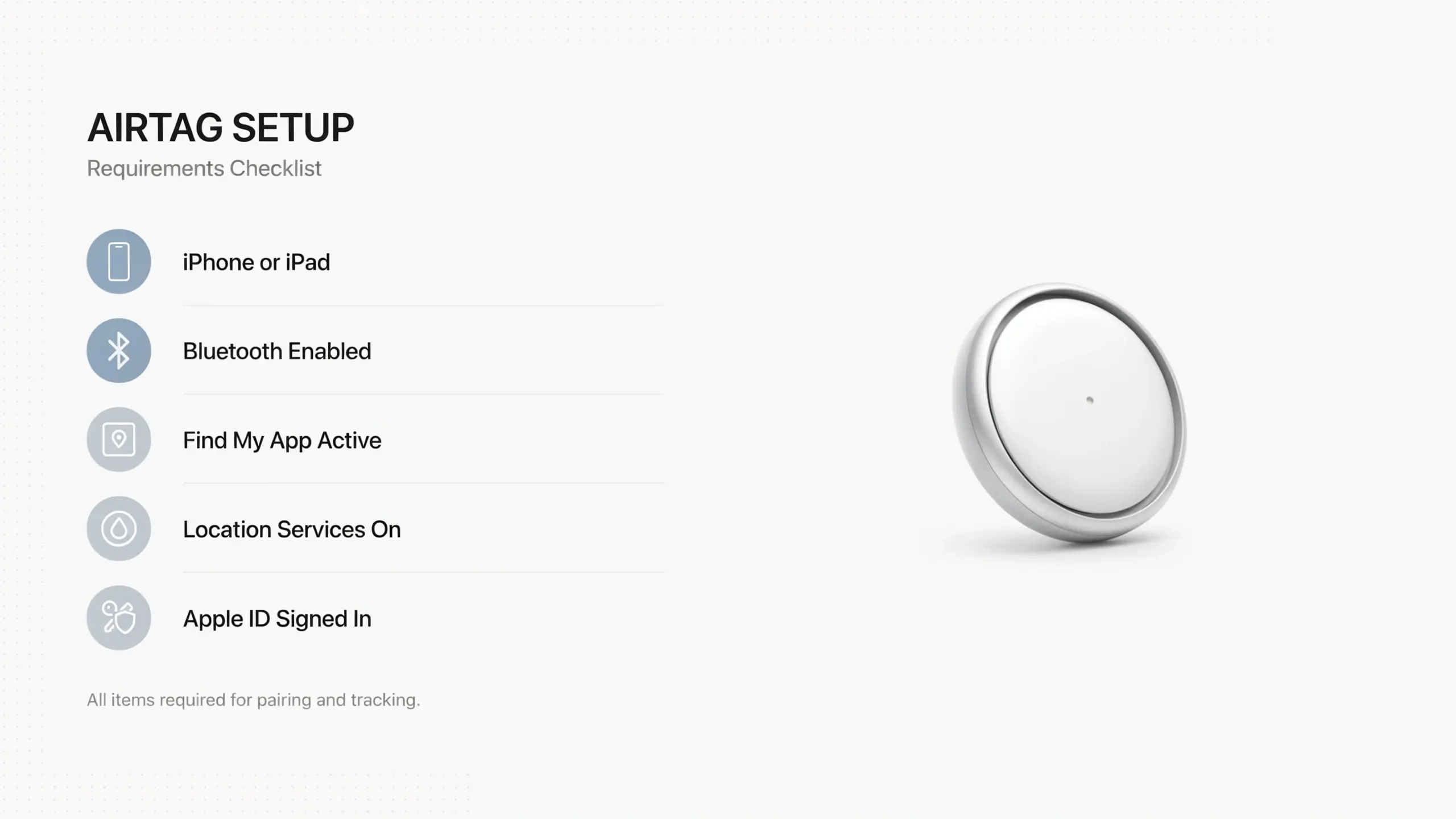
A few quick checks before you start save you from getting stuck halfway through, since a missed setting is the most common reason an AirTag won’t pair on the first try.
- iPhone or iPad: Running iOS or iPadOS 14.5 or later
- Bluetooth: Turned on in Settings
- Find My: Enabled under your Apple ID settings
- Location Services: Turned on for Find My
- Apple ID: Signed in on the device you’re using
Once every setting above is turned on and your Apple ID is signed in, your iPhone is ready to detect and pair with the AirTag in the next step.
How to Set Up a New AirTag
This part covers the full setup process from start to finish. You’ll remove the battery tab, pair the AirTag with your iPhone, and confirm it appears correctly in Find My.
1. Remove the Battery Protection Tab
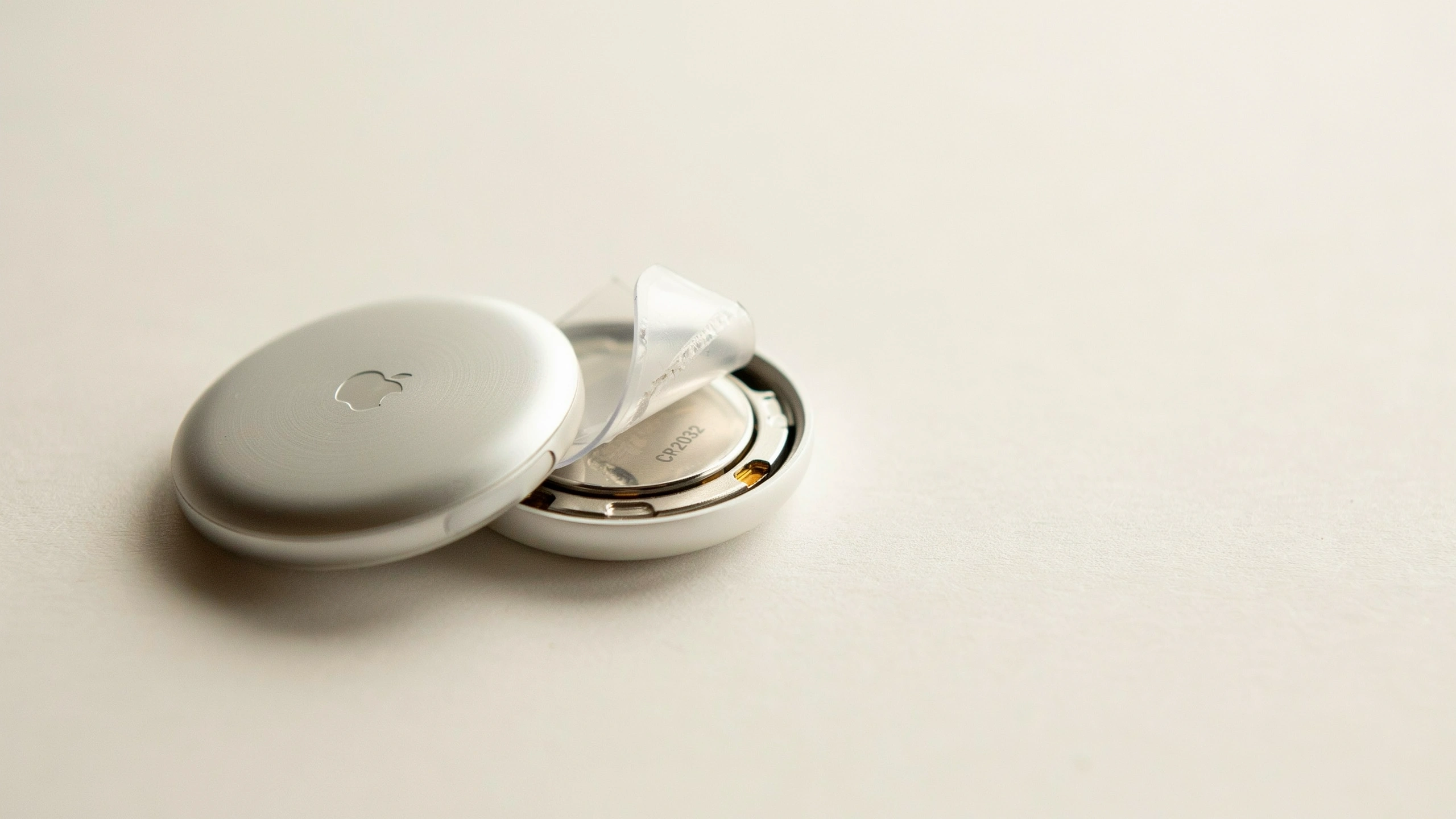
Pull the clear plastic tab out from the back of the AirTag to power it on for the first time. This small step wakes up the device before pairing.
- To locate the tab, find the clear plastic strip on the back of the AirTag
- Pull it out; this breaks the seal between the battery and its contact points
- Listen for the chime; a short chime means the AirTag has powered on and is ready to pair
No chime? Remove the cover, take the battery out, and check that it’s seated correctly with the plus side facing up, then try pairing again.
2. Connect the AirTag to Your iPhone
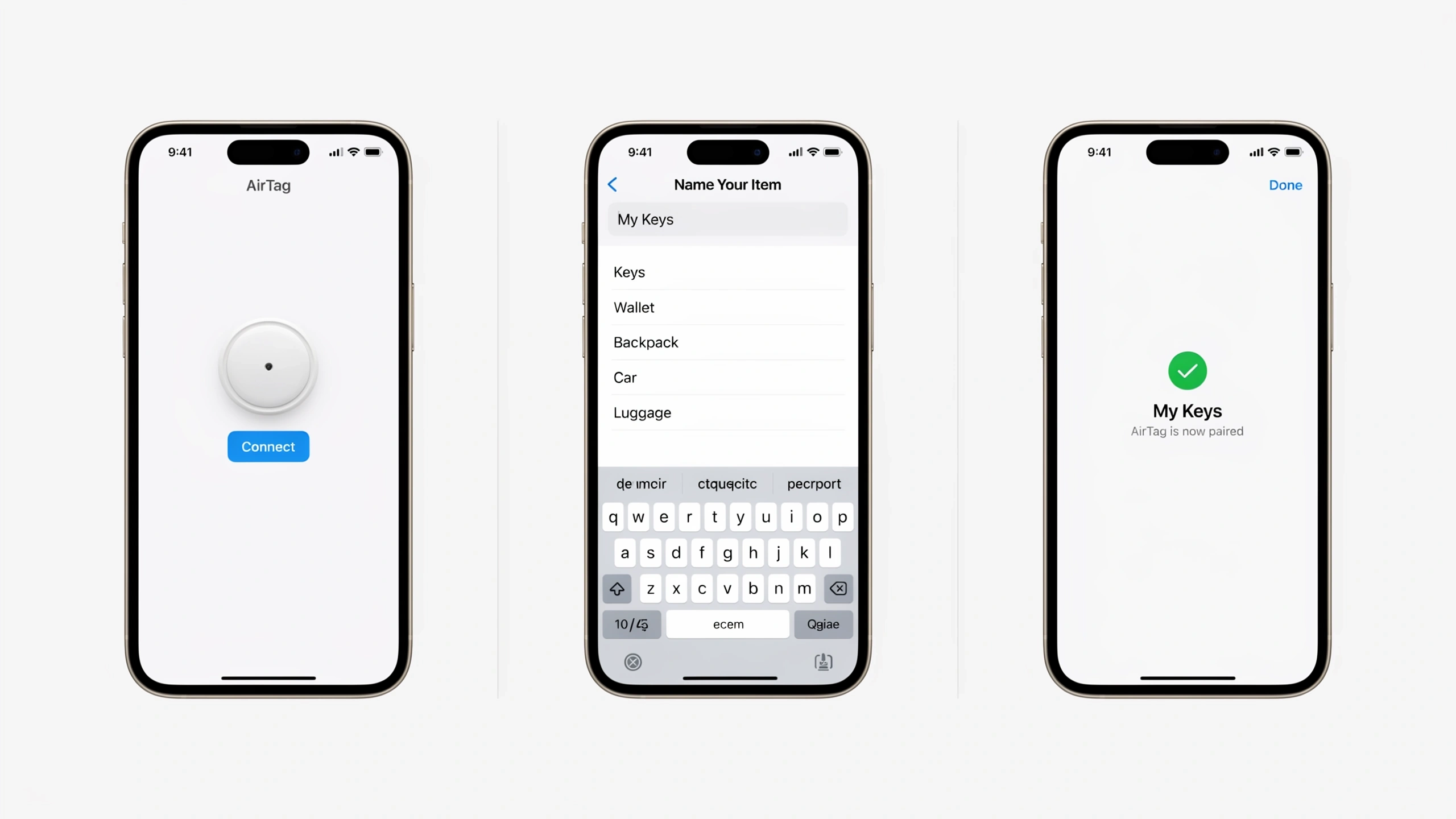
Once the AirTag has powered on, bring it close to your iPhone so both devices detect each other over Bluetooth. Setup only takes a few taps.
- Hold the AirTag close to your iPhone
- Wait for the setup pop-up to appear on screen
- Tap Connect
- Choose a name for the item, or create a custom one
- Confirm the pairing with your Apple ID
Your iPhone handles most of this on its own, so extra menus aren’t needed. If the pop-up doesn’t appear, move the AirTag closer and check Bluetooth.
3. Finish Setup in Find My
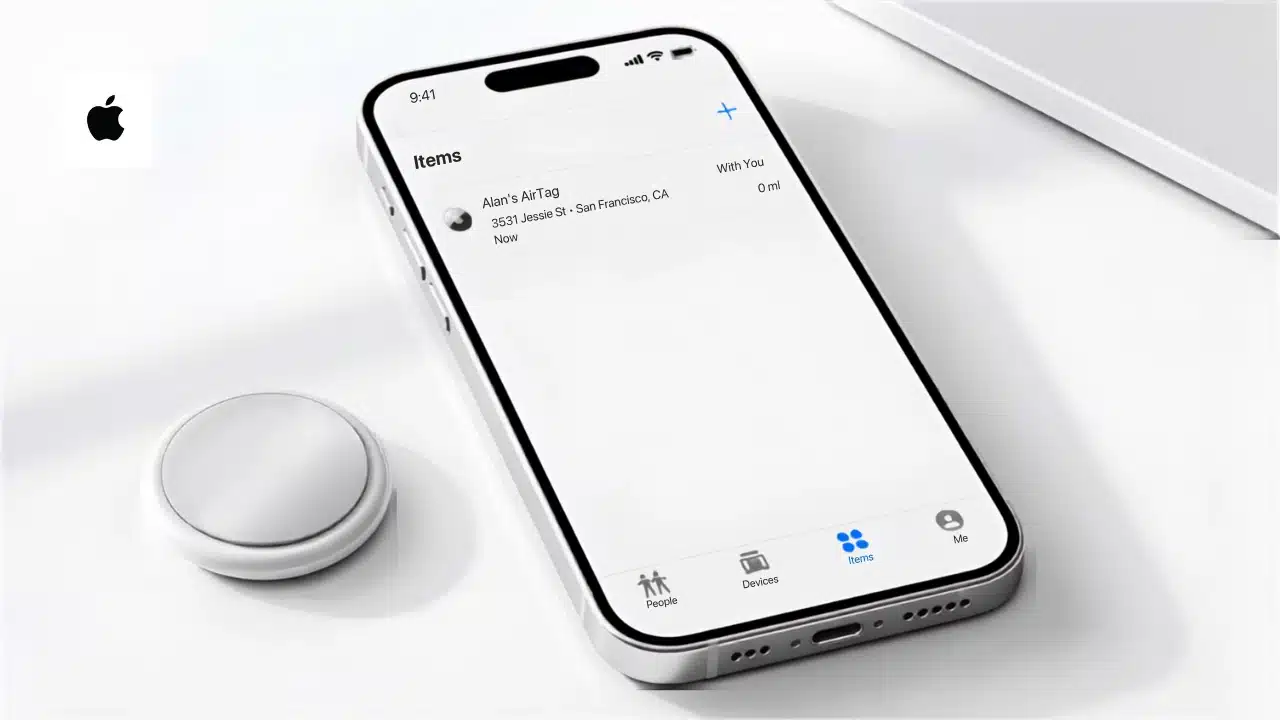
Once pairing is complete, one last check confirms everything worked. Open the Find My app to see your AirTag listed alongside your other devices and items.
- Open Find My: check the Items tab for your AirTag
- Confirm it appears: with its current location listed
- Check the details: tap the entry to see its last known location and distance from your iPhone
From this same screen, you can rename the AirTag, turn on Lost Mode if it’s missing, or remove it from your account at any time.
How to Rename Your AirTag
You can change the name of an AirTag at any point after setup, which is useful if you want something more specific than the default option Apple suggests.
Open the Find My app, select the AirTag from the Items tab, and choose a new name from the list, or type your own custom one instead.
Many people pick something practical, like Keys, Backpack, Wallet, or Luggage, so it stays easy to spot at a glance in a longer list of items. Renaming updates right away across every device signed in to your Apple ID.
Fix Common Setup Problems
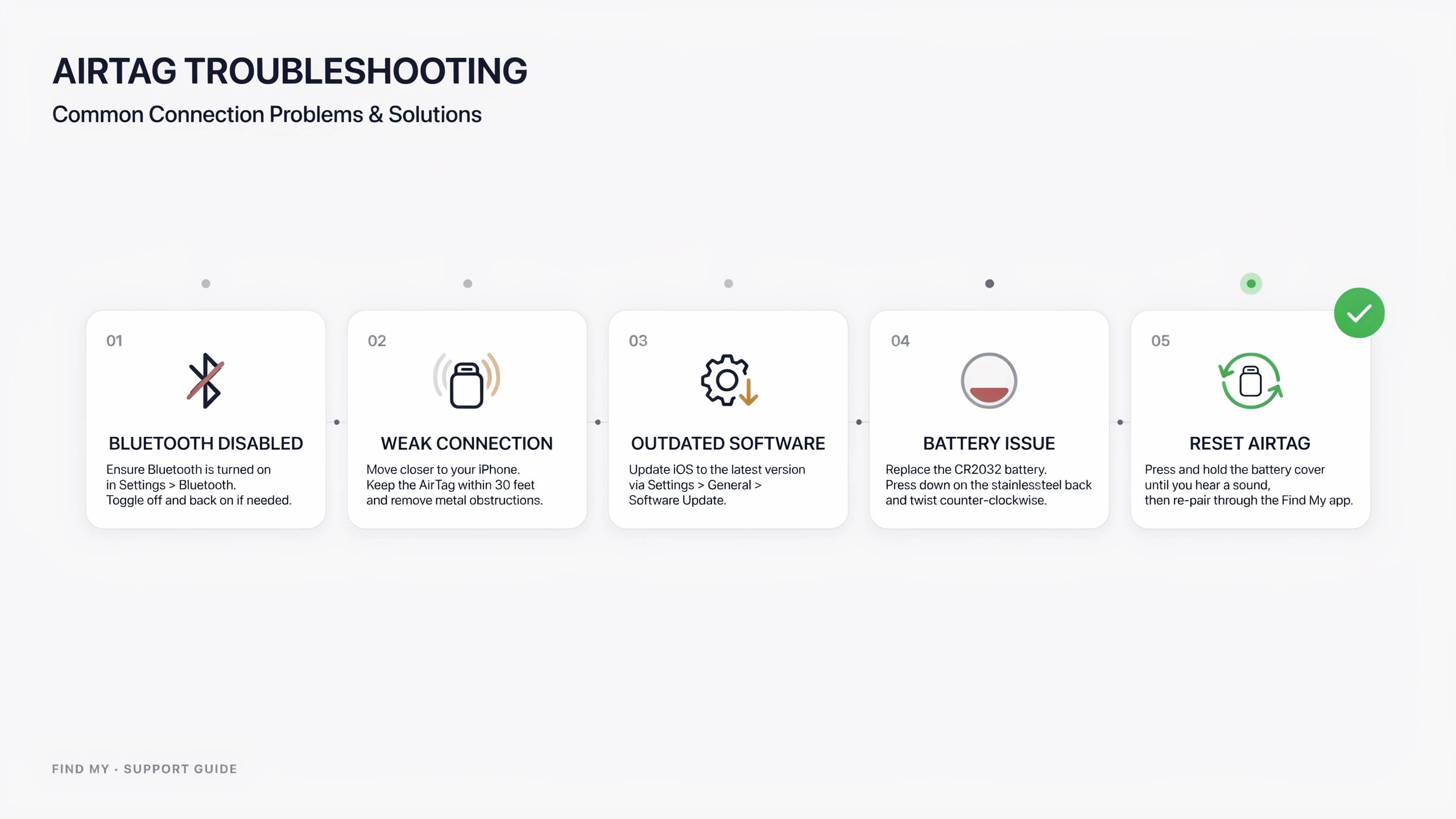
Sometimes an AirTag just won’t pair, or it goes quiet after working fine before. Here’s a quick reference for spotting common causes and fixing them fast.
| Problem | Likely Cause | Fix |
|---|---|---|
| AirTag not appearing | Too far from iPhone or Bluetooth off | Move closer and check Bluetooth |
| Setup pop-up not showing | iPhone software outdated | Update to the latest iOS version |
| AirTag already paired | Previously linked to another owner | Reset the AirTag before pairing |
| Pairing fails repeatedly | Apple ID not signed in properly | Sign out and back into Apple ID |
| No chime on activation | Battery not seated correctly | Remove and reinsert the battery |
If none of these steps work, a reset usually clears things up, since it wipes the old pairing data. A quick iPhone restart can help too.
Still Having Trouble Pairing?
A few issues don’t show up in the table above but come up often in AirTag support threads. If you’ve tried the basics and it still won’t pair, one of these could be the reason.
- Generic pop-up: Your iPhone shows a plain Bluetooth accessory alert instead of the AirTag setup screen
- Blocked signal: A case, keychain, or metal object is sitting too close to the AirTag
- Stuck “connected”: The AirTag still shows as linked to a previous owner even after a battery reset
Still stuck after trying every fix above? Contact Apple Support, visit a Genius Bar in person, or search Apple’s support community, where many similar pairing issues already have solutions.
Reset a Used AirTag Before Pairing
If an AirTag belonged to someone else, or you bought one secondhand, it needs a reset before it will pair with your Apple ID.
- Remove the battery cover by pressing and turning it
- Take the battery out
- Insert the battery again
- Press it down until you hear a sound
- Repeat the press-and-sound step five times
- Set it up again as a new AirTag
Once reset, the AirTag no longer remembers its old owner, so you can set it up as new under your own Apple ID.
Keep Your AirTag Working Well
A little upkeep keeps your AirTag reliable long after setup. These habits help ensure it keeps tracking accurately and doesn’t leave you guessing when something goes wrong.
- Battery: Replace it once the Find My app shows a low battery alert. If you’re not sure how to do it, follow this step-by-step guide to replacing an AirTag battery.
- Software: Keep your iPhone updated to avoid pairing issues later
- Location: Check the Find My app occasionally to confirm the last known spot
- Testing: Test tracking after any reset or software update
Sticking to these habits means fewer surprises down the road, and your AirTag stays ready to help you find whatever you’ve attached it to, whenever you need it.
Wrapping Up
Setting up an AirTag is quick once your iPhone settings are ready and the battery tab has been pulled out. The main steps are pairing it through Find My, giving it a name, and confirming it links to your Apple ID.
If your AirTag doesn’t show up, checking Bluetooth, updating your software, and resetting the device fix most common issues. A secondhand AirTag just needs a reset before it will pair with your account.
Try the steps above, then open Find My to confirm your AirTag is connected and ready to track. Read on if you run into a specific problem along the way.
Frequently Asked Question’s
Can You Set Up an AirTag Without Wi-Fi?
Yes, setup mainly relies on Bluetooth and Find My rather than Wi-Fi, though your iPhone still needs an internet connection at some point to link everything to your Apple ID.
Does an AirTag Work Without a SIM Card?
Yes, an iPhone without a SIM card can still set up and use an AirTag, since Bluetooth handles the pairing and Wi-Fi covers the internet connection instead.
Can You Track Several AirTags on One Apple ID?
Yes, one Apple ID can manage several AirTags at once, and each one appears separately under the Items tab in the Find My app.
Does Setting Up an AirTag Need a Passcode?
Your iPhone needs to be active and signed in during setup, but the AirTag itself doesn’t need a passcode, since it relies on your Apple ID for tracking.
Can Two People Track the Same AirTag?
No, an AirTag links to one Apple ID at a time, so only one person can actively track it unless family sharing has been turned on.
Can I Set Up an AirTag Using an Android Phone?
No, AirTag setup requires an iPhone or iPad with Find My enabled. Android users can only view its rough location using Apple’s Tracker Detect app.