Buying used AirPods feels exciting until your iPhone says they’re still someone else’s. You may hear audio just fine, but warnings like “Not Your AirPods” can make the setup feel unfinished and sketchy.
This usually happens because the previous owner removed Bluetooth pairing but never properly removed the AirPods from Find My.
I will explain how to remove AirPods from Apple ID, what Pairing Lock means, and what to do when the seller disappears.
The fix is simpler than it looks once you know where Apple actually stores the lock.
You will also learn why a factory reset does not clear the account link, even when the AirPods pair again. Before trying another reset, let us first understand what is actually locking the AirPods to the old account.
What Pairing Lock Means for Your AirPods
Before fixing anything, it helps to know what is actually going on under the hood. Apple’s Find My Lock system ties your AirPods to one Apple Account at a time, sort of like a digital leash.
This is not the same as Activation Lock on an iPhone, but it works on a similar idea. It is meant to prevent someone from grabbing a lost or stolen pair and using it freely.
The catch is that this lock does not care who is physically holding the AirPods. It only cares which Apple Account they are tied to on Apple’s servers.
That is exactly why a used or gifted pair can look totally fine on the outside, yet still throw up a wall the second you try to pair them for real.
How to Remove AirPods From Apple ID?
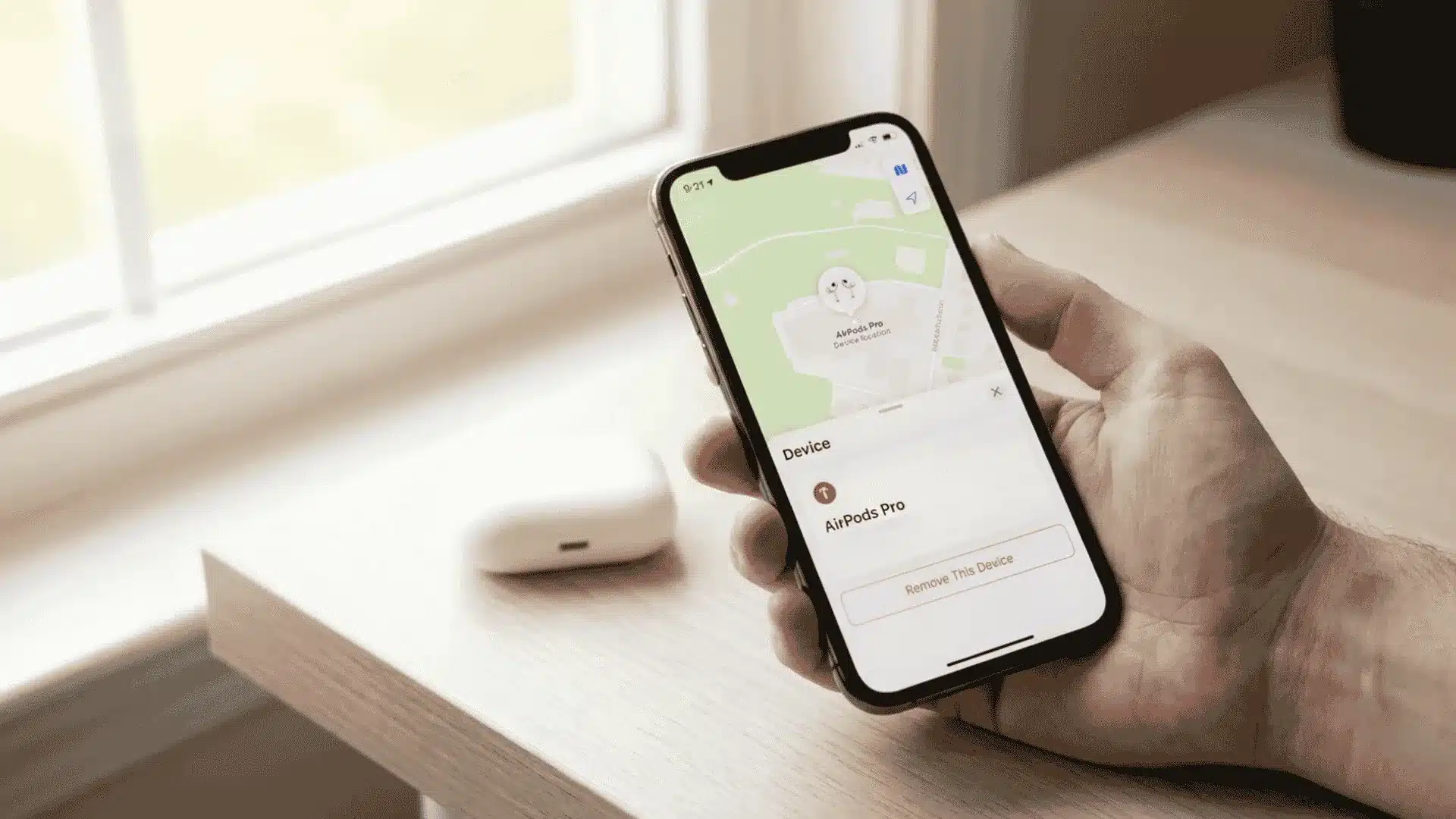
This is the main fix, and it only works when the original owner is willing to help. They are the only ones who can break the link, since Apple requires action from inside their own account.
Below are the official ways to do it, depending on which device they have handy.
1. Remove AirPods from Apple ID Using Find My on iPhone or iPad
This is the fastest option if the previous owner has their phone or tablet nearby.
Open the Find My app on a device signed into the Apple ID the AirPods are linked to. Tap the Devices tab, find the AirPods in the list, then tap on them to open the details.
Swipe up to reveal more options, tap Remove This Device, then tap Remove again to confirm. The AirPods are now free to pair with a new account.
2. Remove AirPods from Apple ID on a Mac
If the previous owner is on a Mac instead, the process looks almost the same. Open the Find My app and click Devices in the sidebar, then select the AirPods from the list.
Click the more info button near the map, then click Remove This Device to confirm.
This step also automatically clears the AirPods from the local Bluetooth list.
3. Remove AirPods from Apple ID through iCloud.com
No Apple device on hand? No problem at all. The previous owner can sign in to iCloud.com using their Apple ID and password from any browser.
Once inside, they open Find My, select All Devices, then find the AirPods on the list.
Tapping the name and choosing ” Remove This Device ” finishes the job, and the AirPods are unlinked right away.
What to Do if the Previous Owner is Not Around?
This is the part most people skip, and it is usually the actual reason someone is searching right now.
If you bought your AirPods through a reseller, a marketplace app, or a friend of a friend, tracking down the original owner can feel impossible.
The honest truth is that only the account holder can remove the “Pairing Lock” from their end. There is no secret backdoor for anyone else to use, no matter how much digging you do online.
If you have any way to message the seller, even a quick text or email, it is worth one more try before giving up. Apple lets the previous owner do this remotely from any device, so they do not need to meet you in person.
If that route is truly dead, you still have a couple of paths left, including reaching out to Apple Support directly with proof of purchase.
Clear the Old Pairing from Your Own Device
Even after the previous owner removes the AirPods from Find My, your iPhone or iPad may still hold onto the old Bluetooth connection in the background.
Go to Settings, tap Bluetooth, tap the small “i” next to the AirPods, then tap Forget This Device.
Reopen the charging case lid near your phone afterward, and the AirPods should appear as a new device ready to pair.
Why Won’t a Factory Reset Remove the Apple ID?
A lot of people assume a hard reset wipes the slate clean, but that is not how it works here. A factory reset only clears local Bluetooth pairing history stored on the AirPods themselves.
It does nothing to the server-side record that ties the serial number to the previous owner’s account.
That is exactly why “Not Your AirPods” can show up again even after a clean reset.
Signs Your AirPods Are Still Linked to Someone Else
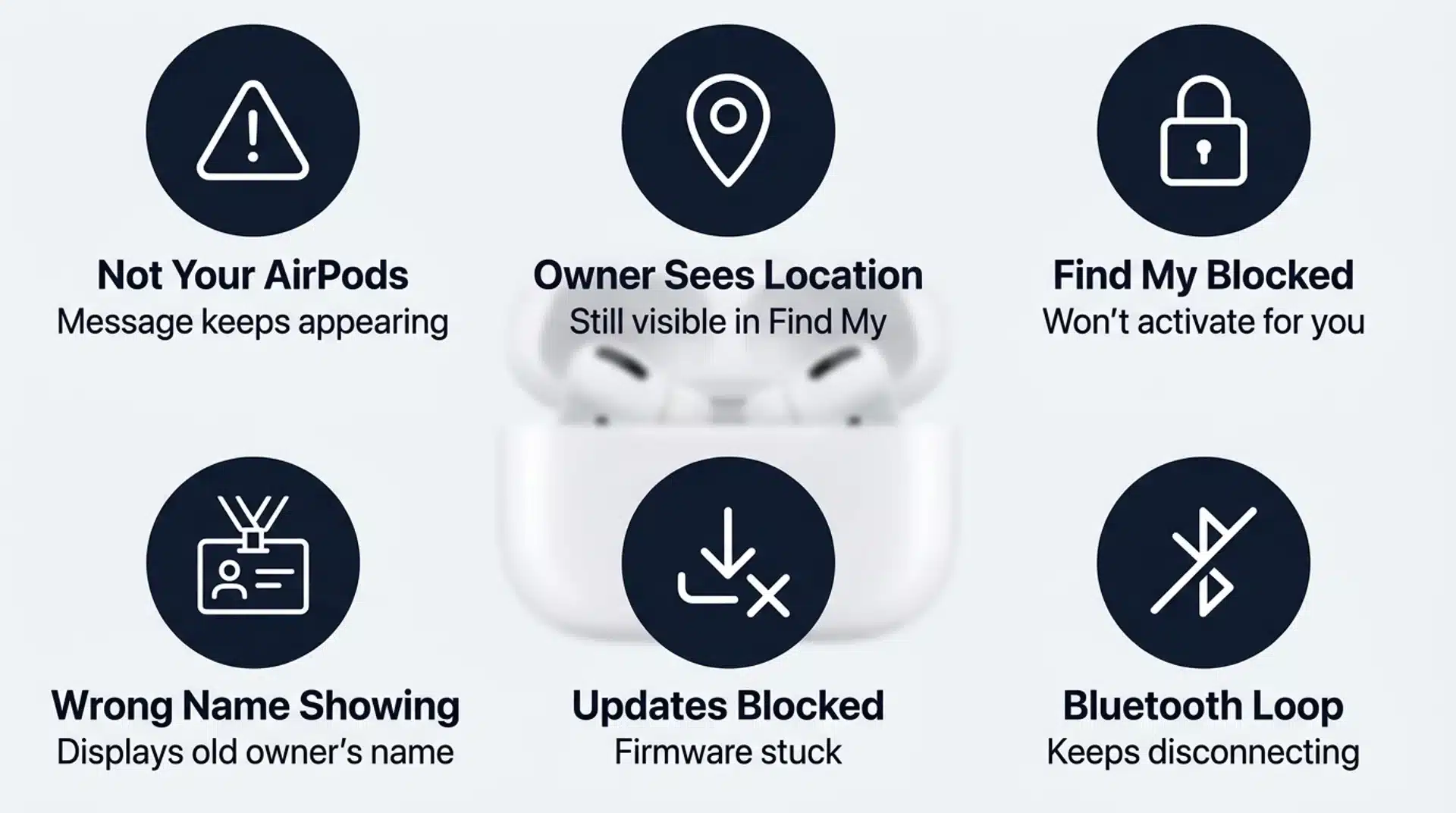
Sometimes you think the job is done, but a few warning signs say otherwise.
These pop up constantly in Apple Community threads, and they usually mean one small step was missed somewhere along the way.
- “Not Your AirPods” keeps appearing: This message during setup means the Pairing Lock was never actually cleared on Apple’s side.
- The previous owner can still see your location: If their Find My app still shows the AirPods moving, the account link is still active.
- Find My will not turn on for you: A locked pair cannot fully activate Find My under your own Apple Account.
- The AirPods still show the old owner’s name: Settings will display whatever name was set by the account they are still tied to.
- Firmware updates stay stuck: Apple blocks automatic firmware updates for AirPods still linked to another account.
How to Reset AirPods to Factory Settings?
Once the Apple ID is cleared, a factory reset can help with lingering glitches or odd Bluetooth behavior. The steps are slightly different depending on which model you own, so check the right section below.
1. Resetting AirPods or AirPods Pro
Place both AirPods in their case and close the lid for about 30 seconds.
Open the lid, then find the small setup button on the back of the case. Press and hold that button for around fifteen seconds until the status light flashes amber, then white.
Once it flashes white, the reset is finished, and the AirPods are ready to pair fresh.
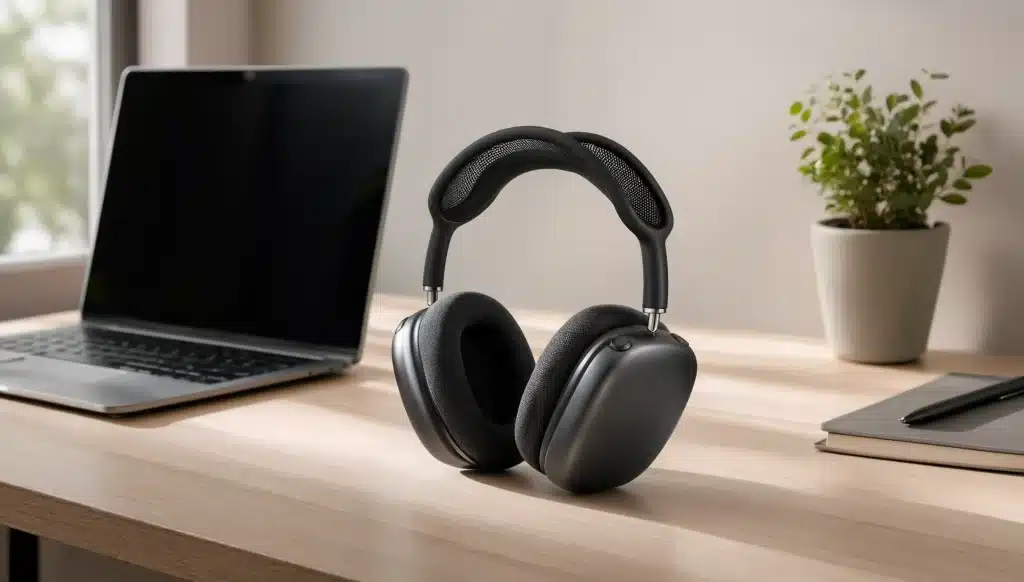
2. Resetting AirPods Max
Make sure the AirPods Max have at least a little charge before starting this process. Press and hold both the Digital Crown and the noise control button at the same time.
Keep holding for around 15 seconds, until the status light flashes amber, then white. Once you see steady white flashing, the reset is complete, and the device is ready for pairing.
3. Setting Up Your AirPods on a New Apple ID
Once the old link is gone for good, setting up the AirPods on your own account feels just like opening a brand new pair.
Open the charging case lid near your iPhone or iPad and wait for the setup prompt to appear. Tap Connect, follow the on-screen steps, and the AirPods will pair to your Apple Account right away.
From there, you can dig into the settings for double-tap controls and other small customizations that make daily use feel smoother.
What Does Reddit Say About Getting AirPods Unstuck From an Old Apple ID?
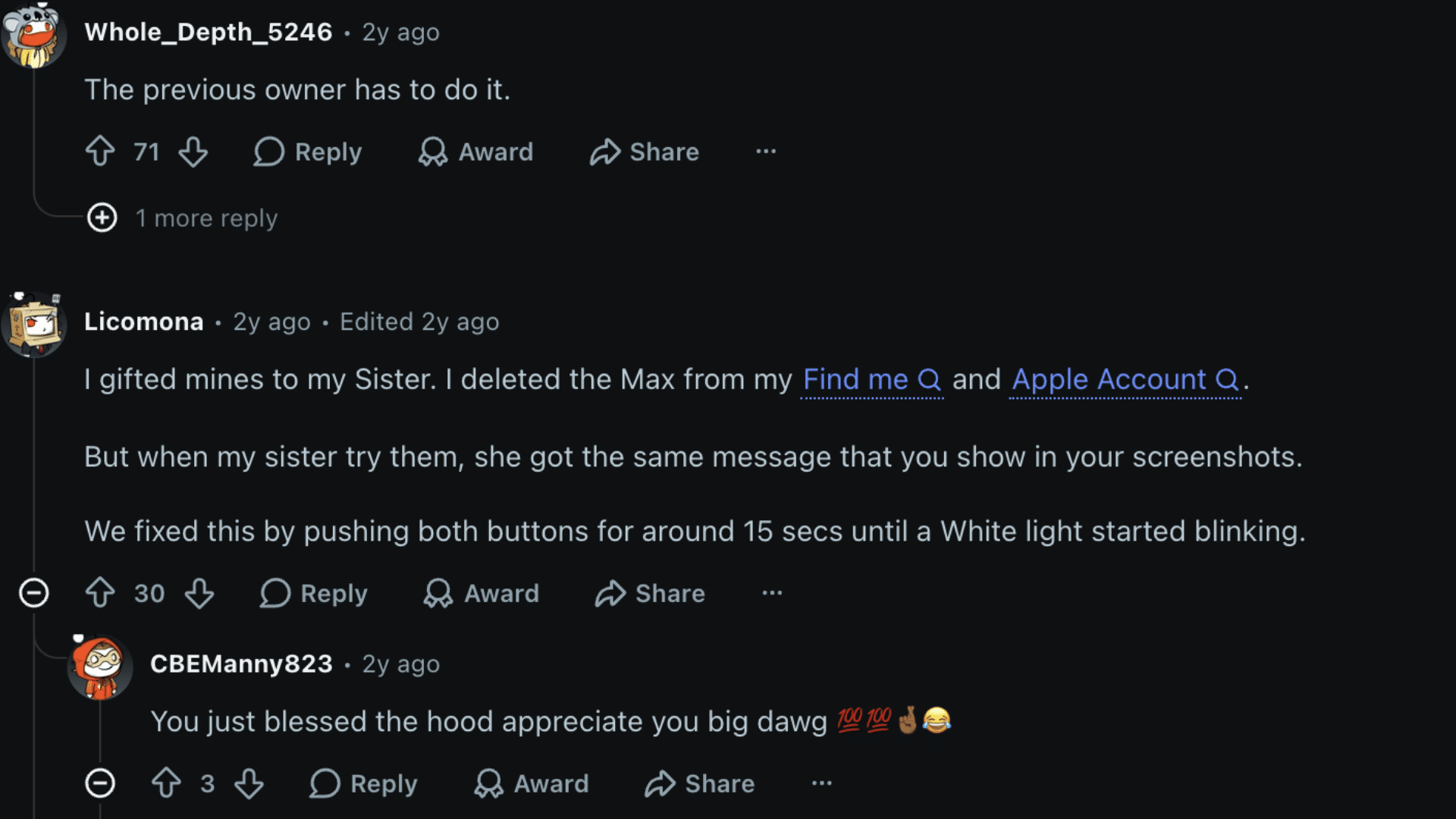
People who bought used AirPods and ran into this exact problem have shared their experiences on Reddit, and the threads paint a pretty honest picture.
Most users say the biggest mistake is thinking Bluetooth Forget removes the Apple ID link. It does not.
The previous owner must open Find My and tap Remove This Device, or the new owner may still see warnings like “Not Your AirPods.”
Several buyers described cases in which AirPods reset normally and even displayed the new owner’s name, yet the old owner could still track them.
Users said this usually happens when the seller rushed the removal, skipped Find My, or removed them while the AirPods were out of range.
The community takeaway is simple. A factory reset can fix pairing glitches, but it cannot remove Pairing Lock on its own.
If the seller refuses to remove the AirPods from Find My, returning them is usually the smarter move.
Conclusion
Learning how to remove AirPods from Apple ID mostly comes down to getting the old owner to finish the Find My step properly.
You can reset the AirPods, pair them again, and even change their name, but that will not clear the Pairing Lock.
I would always ask the seller to remove them from Find My before keeping any used pair for daily use. You should also check setup warnings, Find My access, and location alerts before assuming the AirPods are fully yours.
If the previous owner cannot help and Apple needs proof, returning them may save you more stress later.
Did your AirPods unlock after “Find My removal”, or are they still showing the old owner’s name? Tell us, share with us in the comments below.
Frequently Asked Questions
Can Apple Support Remove an Apple ID From AirPods for Me?
Apple can remove the Activation Lock on your behalf, but only with proof of purchase. This needs to be a receipt from Apple or an authorized reseller that clearly shows the device’s serial number.
Without that proof, Apple support generally cannot unlink the account for you.
Will I Lose Audio Functionality if AirPods Stay Linked to Someone Else’s Apple ID?
No, you can still use locked AirPods for basic audio playback without any issues. What you lose access to is Find My tracking, automatic device switching, and firmware updates.
Those features stay locked to whichever Apple Account the AirPods are still tied to.
Do I Need to Remove AirPods from My Apple ID Before Selling Them?
Yes, this step matters a lot if you want a smooth sale with no complaints later. Buyers expect AirPods to pair cleanly, and a locked pair will frustrate them right at setup.
Removing the link beforehand also protects your own location privacy once the AirPods change hands.
Can I Still Use AirPods with a Mac if They are Linked to Another Apple ID?
Yes, basic Bluetooth pairing for audio still works even with a locked Apple ID. You will not get automatic switching between your own Apple devices in that situation, though.
Full integration only kicks in once the AirPods are properly tied to your own account.