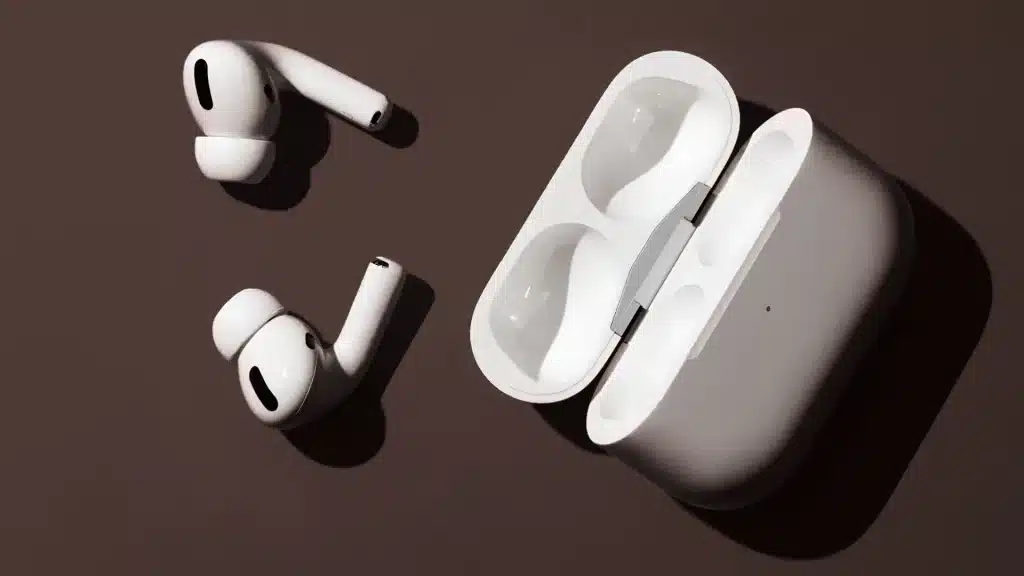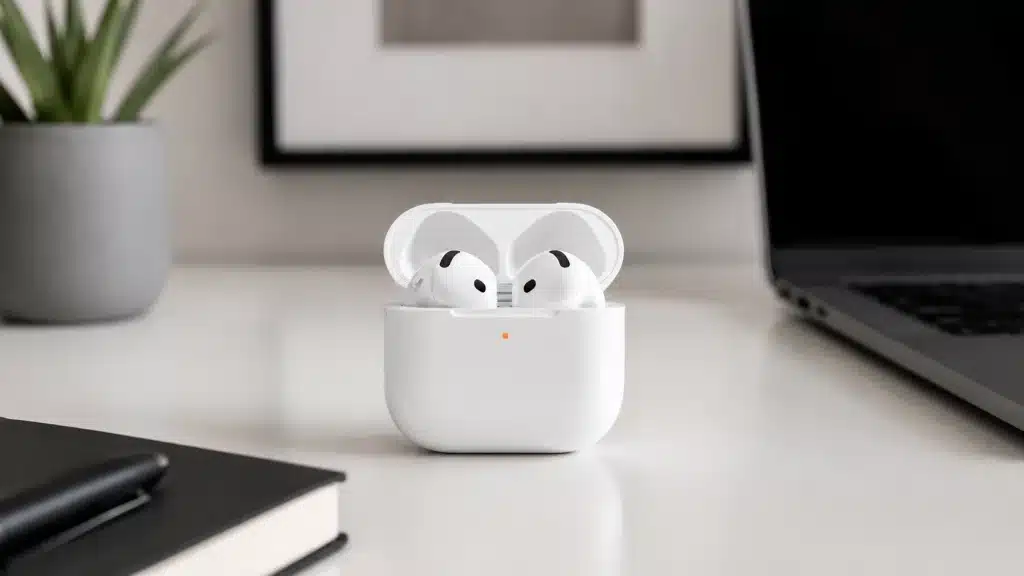
Seeing your AirPods case flash orange can feel confusing, especially when they worked fine the last time you used them.
You may open the lid, wait for the pairing popup, and still get stuck with the same blinking light.
The AirPods blinking orange light usually indicates a pairing problem, low case charge, a reset issue, or a firmware mix-up.
I will explain why your AirPods case is flashing orange, how to fix it, and when to contact Apple support. You will also learn about different versions of “orange” that do not mean the same thing on an AirPods case.
Before trying random resets, let us first understand what the light is trying to tell you.
Common Reasons Your AirPods Case is Flashing Orange
Before you start pressing buttons and forgetting devices, it helps to know what is actually going on. The orange light is the case’s way of telling you something is off. Here are the four most common causes.
- Pairing failure with your device: This is the most common cause. Your AirPods are trying to connect to your iPhone, Android device, or laptop but cannot complete the handshake. It can happen after a software update or when switching between devices too fast.
- Low or dead case battery: If the case does not have enough charge, it can blink orange. The case cannot power the connection process if it is nearly empty.
- Mismatched firmware between left and right AirPods: This one catches a lot of people off guard. If your two earbuds are running different firmware versions, they cannot pair together properly. The orange light keeps flashing no matter how many times you reset.
- Interrupted or looping factory reset: If you started a reset but it did not complete, the case can get stuck in a reset loop. It keeps flashing orange because it never reached the white light that signals a clean reset.
What Does the Orange Light on Your AirPods Case Actually Mean?
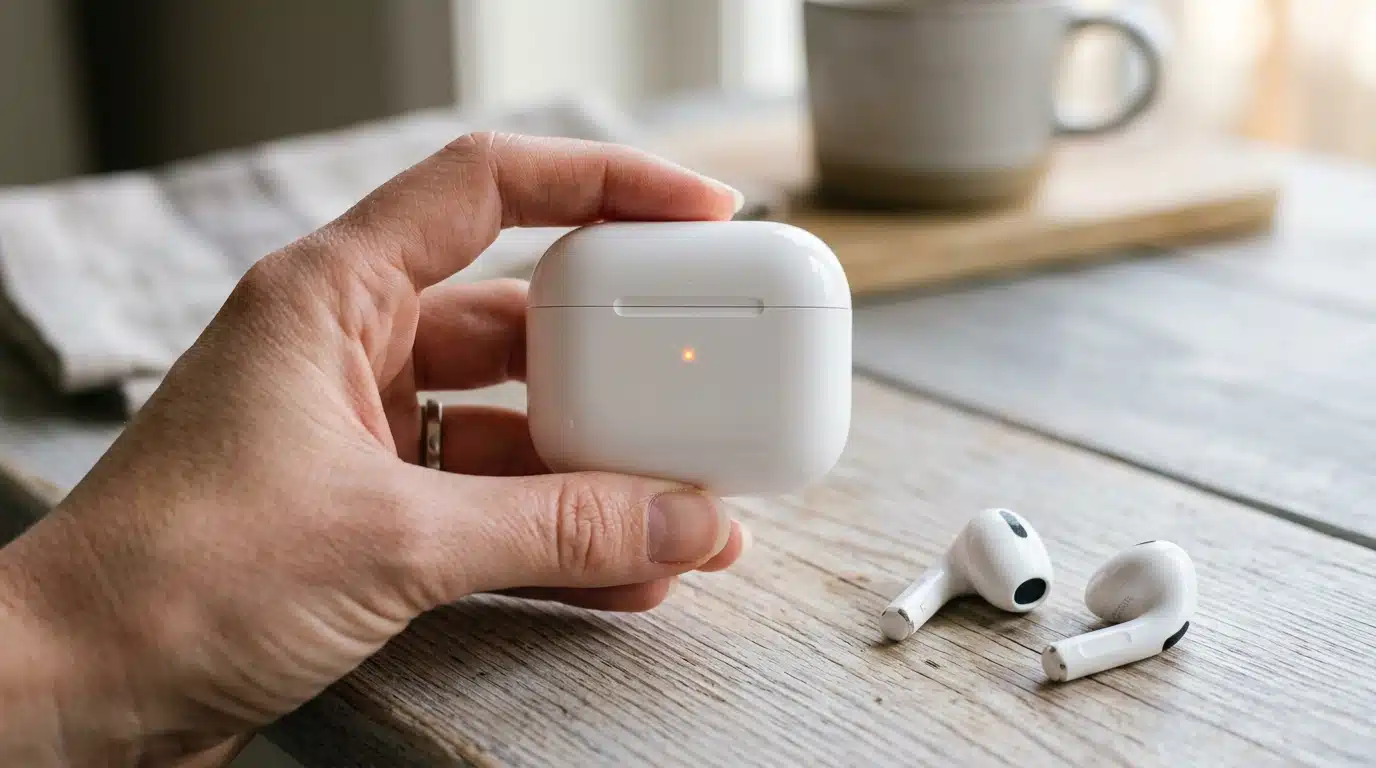
A lot of people confuse a blinking orange light with a solid orange light. They look similar but mean completely different things.
Getting this wrong wastes time, so it is worth clearing up first.
Blinking Orange vs. Solid Orange: They are Not the Same
A solid orange light means your AirPods are actively charging inside the case. That is normal and expected.
If there are no AirPods inside and you see a solid orange light, it means the case battery is too low to fully charge them. A blinking or flashing orange light is a different story.
That signals a pairing or firmware problem that needs fixing. Same color, different message.
Where the Light Appears Depends on Your AirPods Model
Not all AirPods show the status light in the same place. On first- and second-generation AirPods, the LED light sits inside the case, so you have to open the lid to see it.
On AirPods 3rd gen, AirPods 4, AirPods Pro, and AirPods Pro 2 and 3, the light is on the front of the case and is visible without opening it.
Knowing this matters because if you are checking for a light and not seeing one, you may just be looking in the wrong spot.
How to Fix AirPods Blinking Orange: Step-by-Step
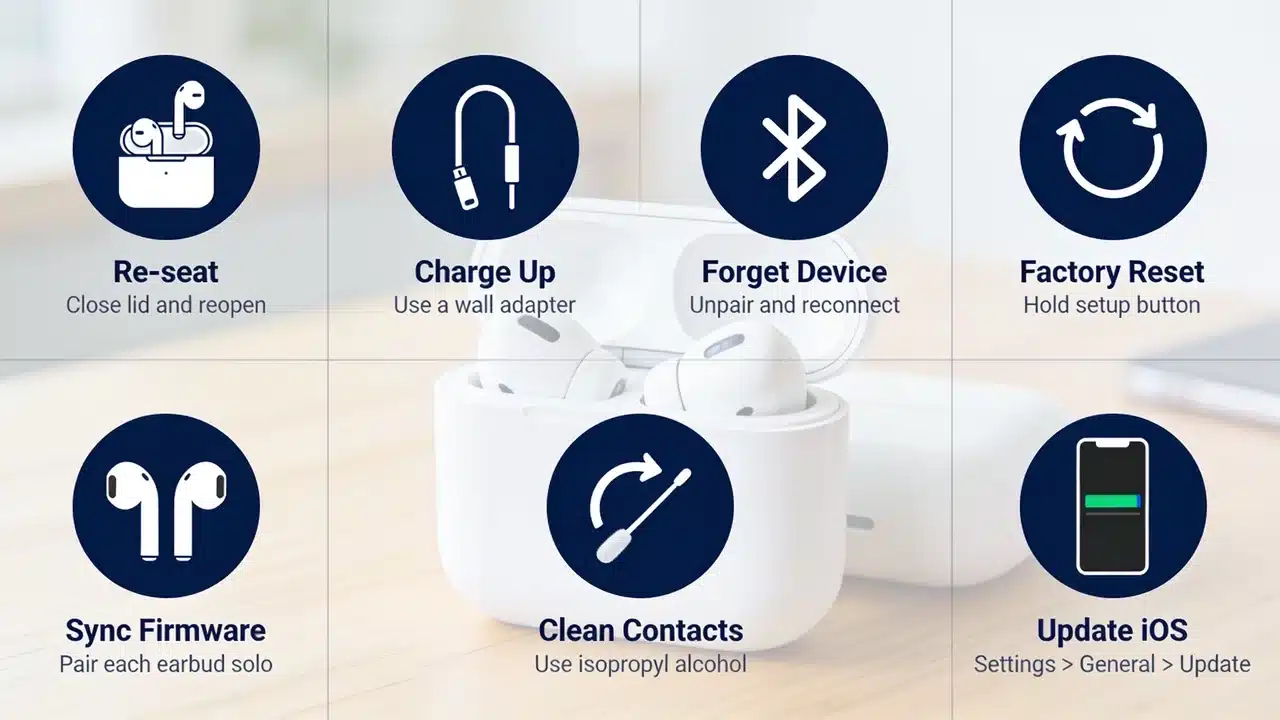
Work through these fixes in order. Most people are done with Fix 3 or Fix 4. If you have a firmware mismatch, go straight to Fix 5.
1. Put AirPods Back in the Case and Reopen
Put both AirPods into the case, close the lid, wait about 15 seconds, then open it again. This forces the case to restart the connection process from scratch.
It sounds too simple, but it works a surprising amount of the time, especially when the orange light just popped up out of nowhere.
2. Charge the AirPods and Case Fully
Plug the case into power using a wall adapter, not a laptop port or battery pack. Let it charge for at least 30 minutes before trying again.
A low-battery case can cause the blinking orange light on its own, and ruling this out early saves a lot of back-and-forth.
Check out how long AirPods Pro last on a single charge to set realistic expectations going forward.
3. Forget the Device and Reconnect
On your iPhone, go to Settings, then Bluetooth. Tap the “i” next to your AirPods name.
Hit “Forget This Device” and confirm. Once done, open the case lid near your phone and pair it fresh as if it were a new device.
This clears any corrupted pairing data that might be causing the orange light.
4. Reset Your AirPods: Model-Specific Steps
A full reset wipes the AirPods back to the factory state. The steps differ depending on which model you have, so find yours below.
AirPods 1, 2, 3, Pro 1, and Pro 2:
- Place both AirPods in the case and close the lid for 30 seconds.
- Open the lid.
- Go to Settings > Bluetooth on your iPhone and forget the device if it still appears.
- Press and hold the setup button on the back of the case for about 15 seconds.
- Watch for the light to flash orange, then flash white. White means the reset is complete.
- Reconnect by holding the open case near your phone and following the on-screen prompt.
AirPods 4 (both models) and AirPods Pro 3:
- Place both AirPods in the case and close the lid for 30 seconds.
- Open the lid.
- Forget the device in Bluetooth settings if it shows up.
- Double-tap the front of the case while the status light is on.
- Double-tap again when the light flashes white.
- Double-tap a third time when the light flashes faster.
- Wait for the light to flash orange, then white. That is your clean reset.
- Reconnect by holding the open case near your device.
AirPods 4 and Pro 3 no longer use the back button. They switched to a double-tap system on the front of the case. If you are pressing the back of the case and nothing happens, this is why.
5. Fix Mismatched Firmware: the Hidden Cause
This is the fix most guides skip, but in my experience, it is the one that solves the stubborn cases where nothing else works.
If your left and right AirPods are running different firmware versions, they cannot sync up properly. The orange light keeps coming back after every reset.
Here is how to fix it:
- Take one AirPod out of the case. Leave the other inside.
- Connect the single earbud to your phone via Bluetooth as a standalone device.
- Listen to music or audio on that one earbud for at least 10 to 15 minutes.
- Put it back in the case. Take the other AirPods out.
- Repeat the same step with the second earbud, connect it solo, and listen for 10 to 15 minutes.
- Put both back in the case. Leave the case open and plug it into power, with your phone nearby.
- Leave it like that for at least one hour. Do not close the lid.
- After an hour, close the lid and leave it plugged in overnight without opening it.
- In the morning, open the case. The light should be white or green. Do a full reset now, then reconnect both.
This process lets the firmware update push to each earbud individually, then sync them back up as a matched pair.
There is no way to manually force a firmware update on AirPods, so this method is the next best thing.
6. Clean the AirPods and Charging Contacts
Dirt and earwax on the charging contacts inside the case can block the connection, causing the orange light to blink.
Use a dry, lint-free cloth for the outside. For the contacts and the AirPods stems, use a cotton swab lightly dampened with 70% isopropyl alcohol.
Do not get liquid inside any ports. A clean contact point helps the case communicate properly with each earbud.
7. Update Your iPhone or Device Software
AirPods firmware updates happen automatically when your connected iPhone is running the latest iOS.
If your phone is behind on updates, the AirPods firmware may not sync correctly either. Go to Settings > General > Software Update and install any pending updates.
You cannot push the firmware update manually, but keeping iOS up to date will trigger it on its own.
When DIY Fixes Will Not Work: Signs You Need Apple Support
Most orange light issues get solved by Fix 3 or Fix 4. But there are situations where no amount of resetting will help, and continuing to try just wastes time.
- If the status light never flashes white during a reset, the case itself may have a hardware problem.
- If one AirPod is not detected by the case at all, even after cleaning the contacts, that earbud likely has a physical issue.
- If the orange light returns within minutes of every reset and Fix 5 did not resolve it, the firmware mismatch is severe enough that Apple’s own diagnostic tools are the only real option.
In these situations, contact Apple Support directly. You can book a Genius Bar visit, start an online support chat, or call 1-800-275-2273 if you are in the US.
If your AirPods are still under the one-year warranty or covered by AppleCare+, the repair or replacement often costs nothing when the issue is not caused by physical damage.
What Real AirPods Users are Saying on Reddit?
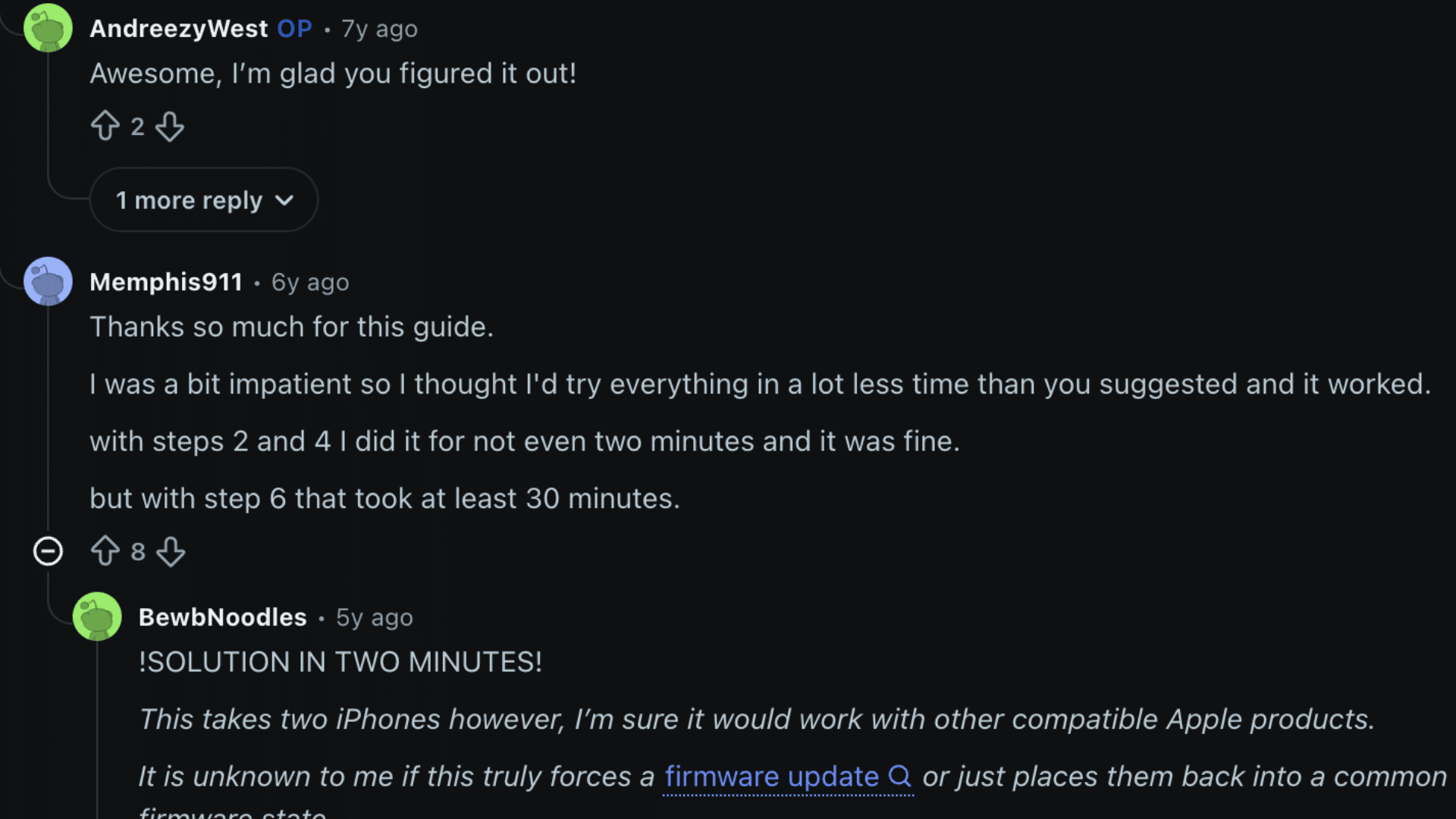
People who ran into the blinking orange light issue shared their experiences on Reddit, and a few fixes came up repeatedly that are worth knowing about.
The most upvoted thread issue is a firmware mismatch, especially after one AirPod was replaced by Apple.
The most repeated fix was to use each AirPod separately for 10 to 15 minutes, then leave the case open, plugged in, and near the iPhone for about an hour.
After that, users closed the case overnight and let the earbuds sync properly. Several people said this worked when a normal reset did nothing.
A Genius Bar technician also confirmed that both earbuds can show the same firmware number but still be out of sync internally. Apple can fix this with a diagnostic tool that pushes the update to each earbud.
Some users fixed simpler cases by using Forget This Device and pairing again. The main takeaway is that firmware syncing should be tried before replacing the AirPods.
How to Stop the Orange Light on AirPods from Coming Back?
Once you fix it, a couple of simple habits will keep the orange light from appearing again. None of these takes extra time once they become routine.
- Keep iOS updated: AirPods firmware updates push automatically when your iPhone is on the latest iOS. Staying current is the simplest way to avoid firmware mix-ups between the two earbuds.
- Always store AirPods as a matched pair: Never mix an earbud from one set into a different case. If you get a replacement earbud from Apple, complete the firmware sync before pairing it.
- Charge both earbuds together: Avoid charging only one AirPod for long stretches. When the battery levels drift far apart between the two earbuds, it can slow down firmware syncing.
- Clean the charging contacts monthly: A quick wipe with a dry cloth once a month keeps dirt from building up on the contact points. It takes 30 seconds and prevents many random connection issues. If you are weighing a switch anyway, check our best AirPods alternatives to see what else is out there.
Conclusion
An AirPods blinking orange light usually means your case needs attention, not that your earbuds are instantly broken forever today.
Start by charging, checking the case, and reconnecting, as these simple steps often fix many pairing problems without wasting your time.
I would move to a full reset only when the orange light keeps flashing after those basic checks are done properly.
The firmware sync method is worth trying before repair, especially when one AirPod was replaced or keeps connecting on its own.
You should contact Apple Support if the light never turns white, as that usually indicates a hardware problem.
Which fix stopped the orange light on your AirPods, and how long did it take? Tell us, share with us in the comments below.
Frequently Asked Questions
Can an AirPod Case Blink Orange When It Is Not Plugged In?
Yes, it can. The blinking orange light is a status signal from the case itself, not a charging indicator.
It can show up whenever the AirPods have trouble pairing, whether the case is plugged in or not. If you see it unplugged, start with the reset process.
Does the Orange Light Mean My AirPods Are Broken?
Not usually. A blinking orange light is most often a software or pairing issue, not a hardware failure.
Physical damage is only suspected when the light never turns white during a reset, or one AirPod stops showing up in the case entirely. Most orange light situations get resolved with a reset or firmware fix.
Why Do My Left AirPods Connect but Not the Right When the Case Blinks Orange?
This is a classic sign of a firmware mismatch. When the two earbuds are on different firmware versions, one can connect while the other cannot.
The fix is to pair each earbud individually for 10 to 15 minutes, then leave both in the open case, plugged in, for an hour before performing a clean reset.
Will Resetting My AirPods Delete My Settings?
Yes, a factory reset resets your AirPods to their default settings. That means you will need to re-pair them with your devices and set up any customizations again, like ear tip fit tests or listening modes.
Your music and app data are not stored on the AirPods, so nothing else is affected.