Sharing a saved number should be quick, but the right option isn’t always obvious when several iPhone sharing tools appear at once.
If you’re wondering how to share contacts on iPhone, the simplest route usually starts with the Contacts app, then moves to Messages, AirDrop, Mail, or another supported option to share contact details.
Small device settings can often create more confusion than the task itself. Choosing the right sharing method first can save extra steps and help avoid sending unnecessary information.
The sections ahead cover single-contact sharing, NameDrop, multiple-contact sharing, vCard delivery, and common fixes when a contact doesn’t send, giving you a clear way to complete the process.
Which Contact-Sharing Method Should You Use?
The best option depends on whose contact you are sending, how many people are involved, and whether the recipient is standing next to you right now.
|
Method |
Best For |
Recipient Nearby? |
|---|---|---|
|
Contacts + Messages |
Sending a saved contact in a text conversation |
No |
|
Contacts + AirDrop |
Sending a saved contact to a nearby Apple device |
Yes |
|
Contacts + Mail |
Sending a contact card by email |
No |
|
NameDrop |
Exchanging your own new contact details |
Yes |
|
Lists + Export |
Sending several contacts together |
No |
|
iCloud or vCard file |
Moving a large address book to a new device or a computer |
No |
For most saved contacts, start in Contacts, then choose the sending app. Use NameDrop to exchange your own information in person, and use an iCloud export when you have more than a handful of names.
How to Share Contacts on iPhone
Messages, AirDrop, and Mail all begin with the same basic action: open Contacts, choose the person, tap Share Contact, select the fields, tap Done, then choose how to send the card. Apple’s contact sharing instructions confirm that you can select individual fields before sending.
1. Share a Contact Through Messages
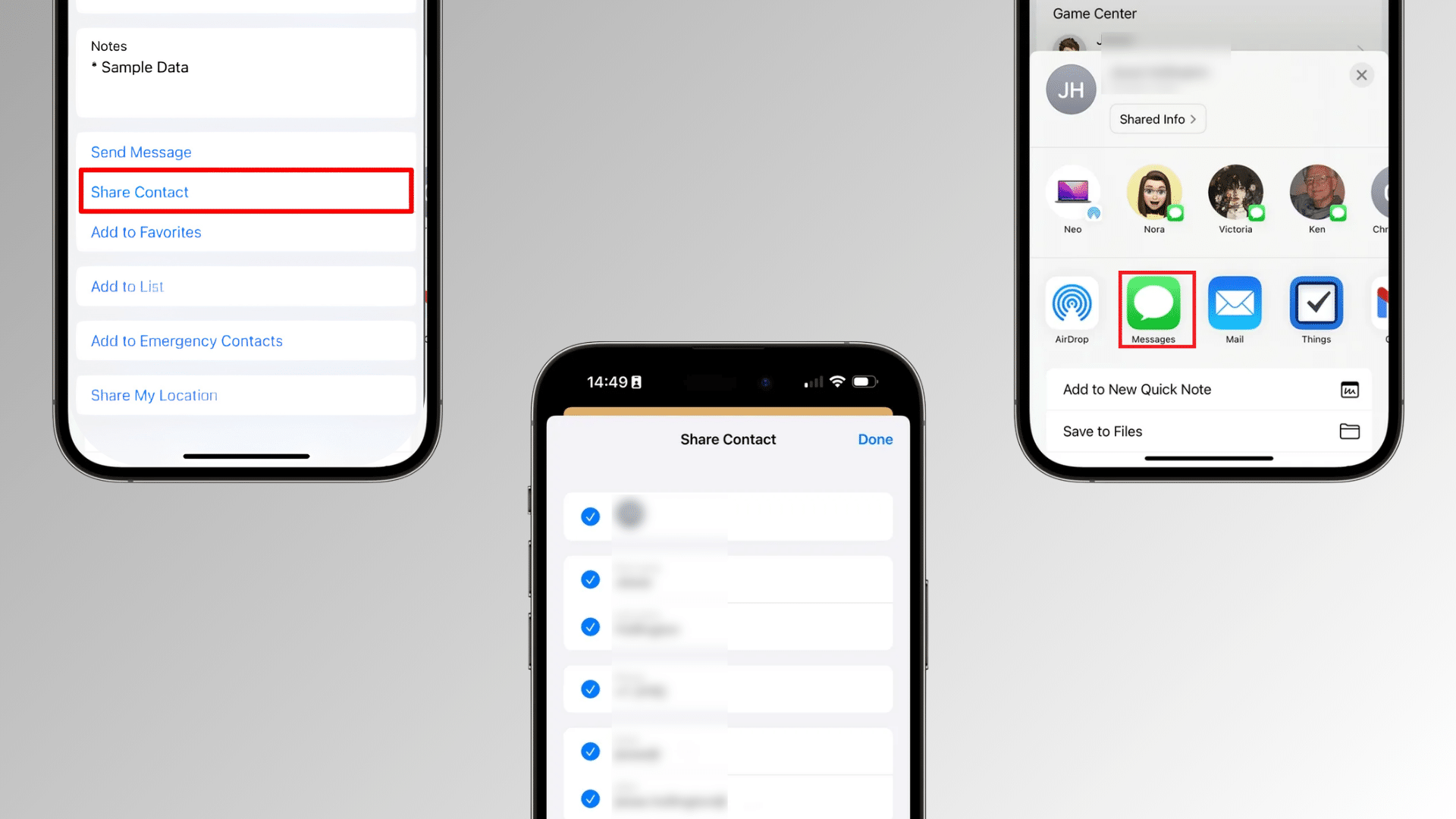
- Open Contacts and tap the person you want to share.
- Scroll down and tap Share Contact.
- Choose which fields to include, then tap Done.
- Select Messages from the share sheet, then pick an existing conversation or type a new recipient.
I use this method almost every time I introduce two coworkers over text, since the card lands directly in the same thread instead of forcing anyone to open a separate app.
iPhone can also import a .vcf attachment sent through a message or email, using the same Contacts app you already have open. That kind of file handling looks the same whether you’re on a standard SMS thread or the newer RCS-based messaging Apple rolled out, which changed how attachments display between iPhone and Android users.
2. Share a Contact with AirDrop
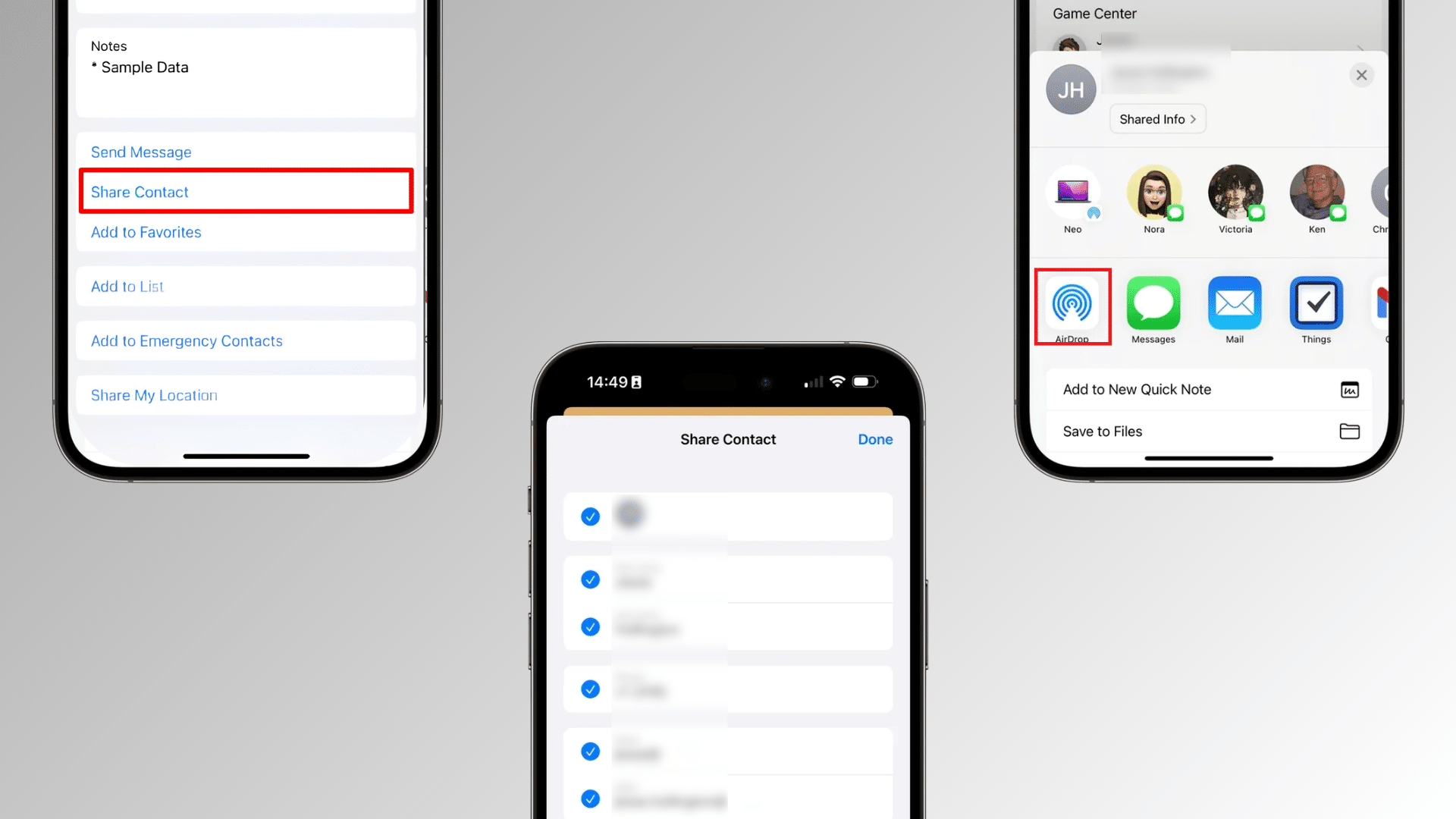
- Open Contacts, tap the person, then tap Share Contact.
- Choose the fields to include and tap Done.
- Select AirDrop from the share sheet.
- Tap the recipient’s device once it appears nearby.
Since iOS 26.2, AirDrop adds one extra step if the recipient is not already saved in your contacts. A short code appears on their screen, and you enter it on yours before the transfer goes through. Once you confirm that code, both devices can AirDrop to each other without a code for the next 30 days.
Enable Wi-Fi and Bluetooth on both devices, and make sure the receiving iPhone allows AirDrop transfers.
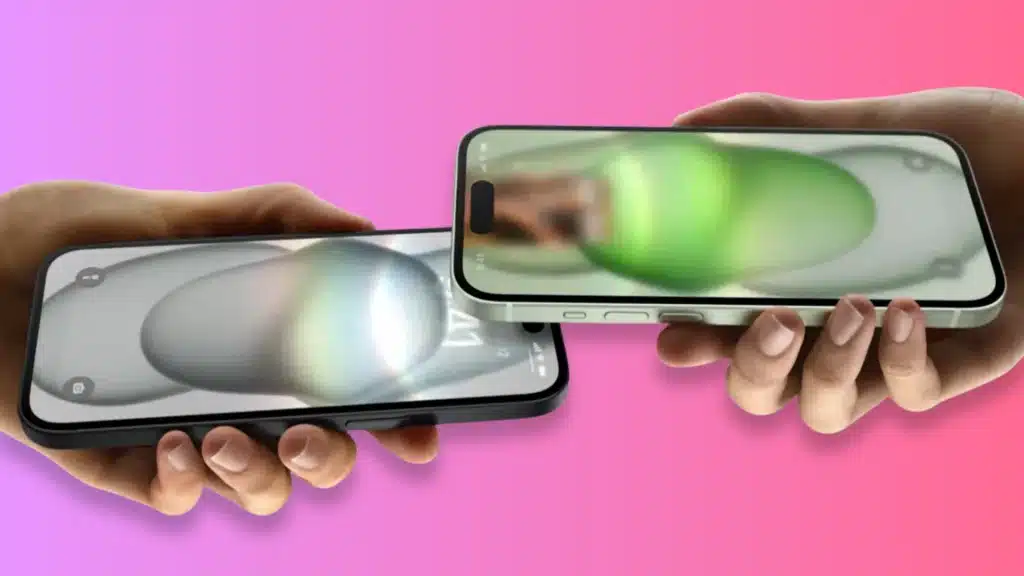
3. Share Your Contact with NameDrop
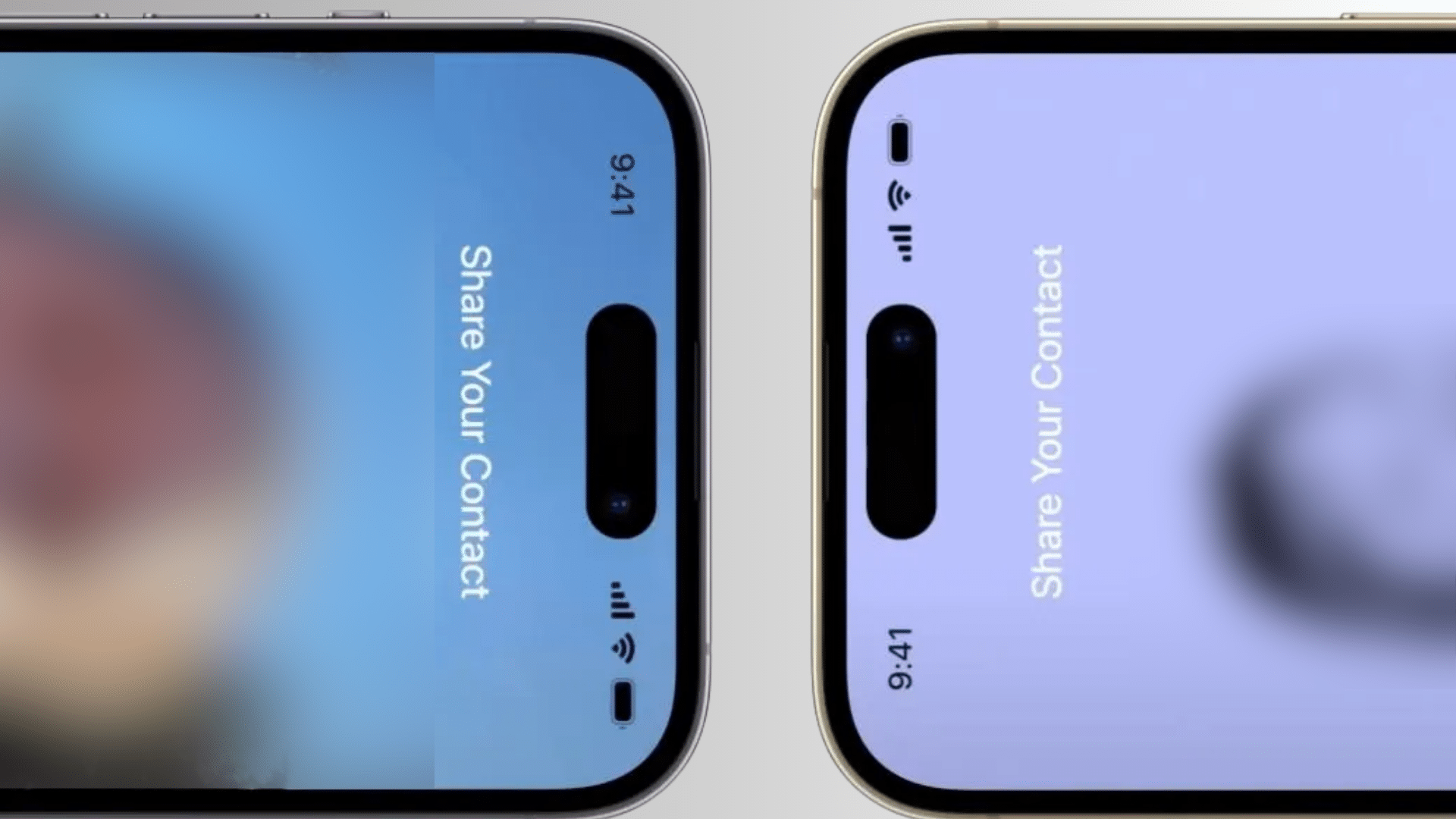
- Hold the top of your iPhone close to the other person’s compatible iPhone or Apple Watch.
- Keep the devices close until the NameDrop screen appears on both.
- Choose which fields to share.
- Tap Share or Receive Only.
NameDrop is the one I reach for at conferences, since it skips typing a phone number into a stranger’s keyboard entirely. Since NameDrop also works across Apple Watch, it helps to know how notifications and other iOS features behave across your devices before you rely on it in a hurry.
Apple’s NameDrop instructions note that NameDrop sends new contact information and does not update a contact already saved on the recipient’s device. If you no longer want the exchange, move the devices apart or lock the iPhone before it finishes.
4. Send a Contact by Mail
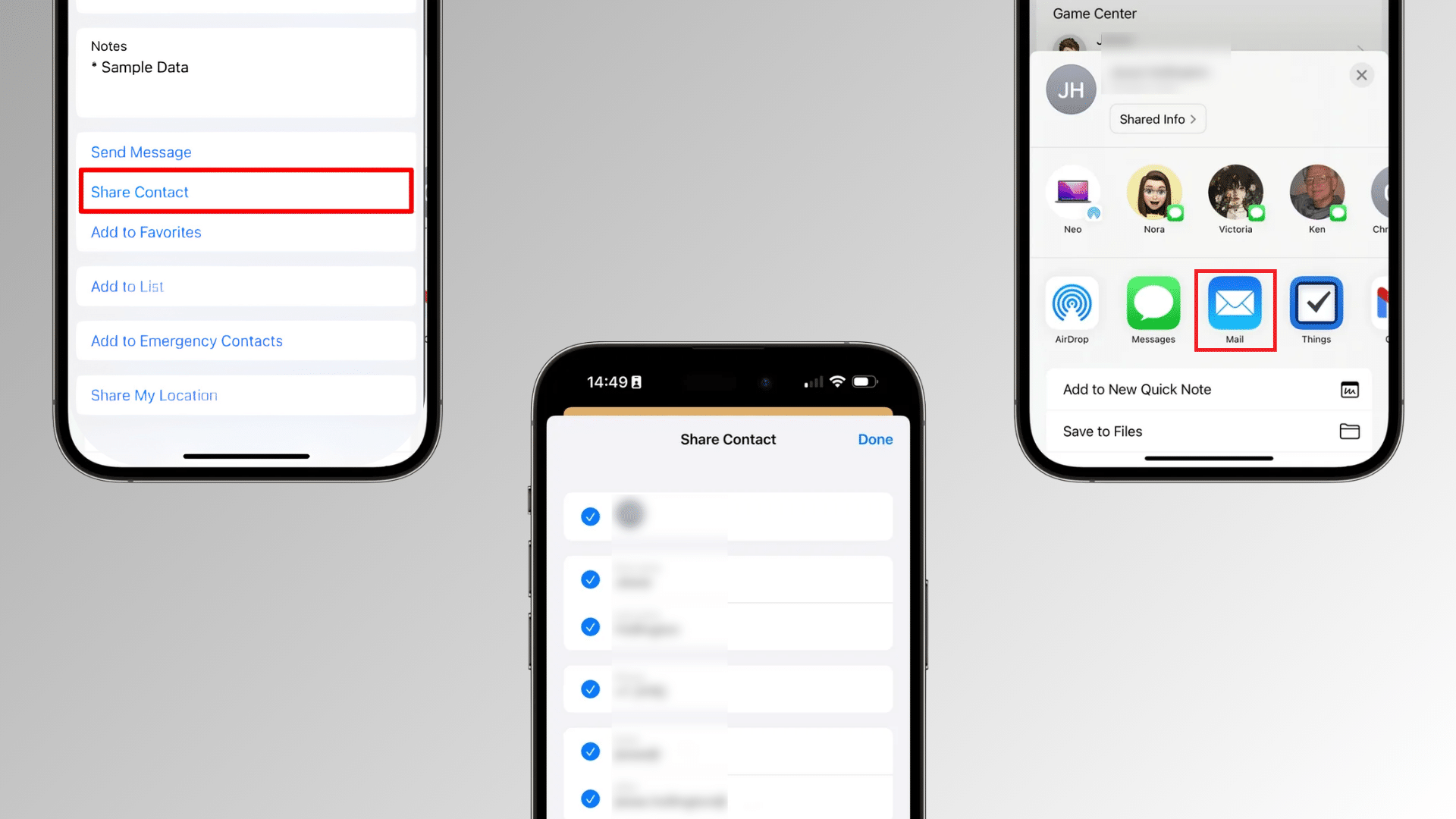
- Open Contacts, tap the person, then tap Share Contact.
- Choose the fields to include and tap Done.
- Select Mail from the share sheet.
- Enter the recipient’s email address and tap Send.
Mail is the option I use for anything that needs a paper trail, like sending a vendor’s contact to a client who will look it up again in six months rather than today.
The attached vCard can be opened by a compatible contacts app and saved without typing each detail by hand.
5. Share Several Contacts at Once
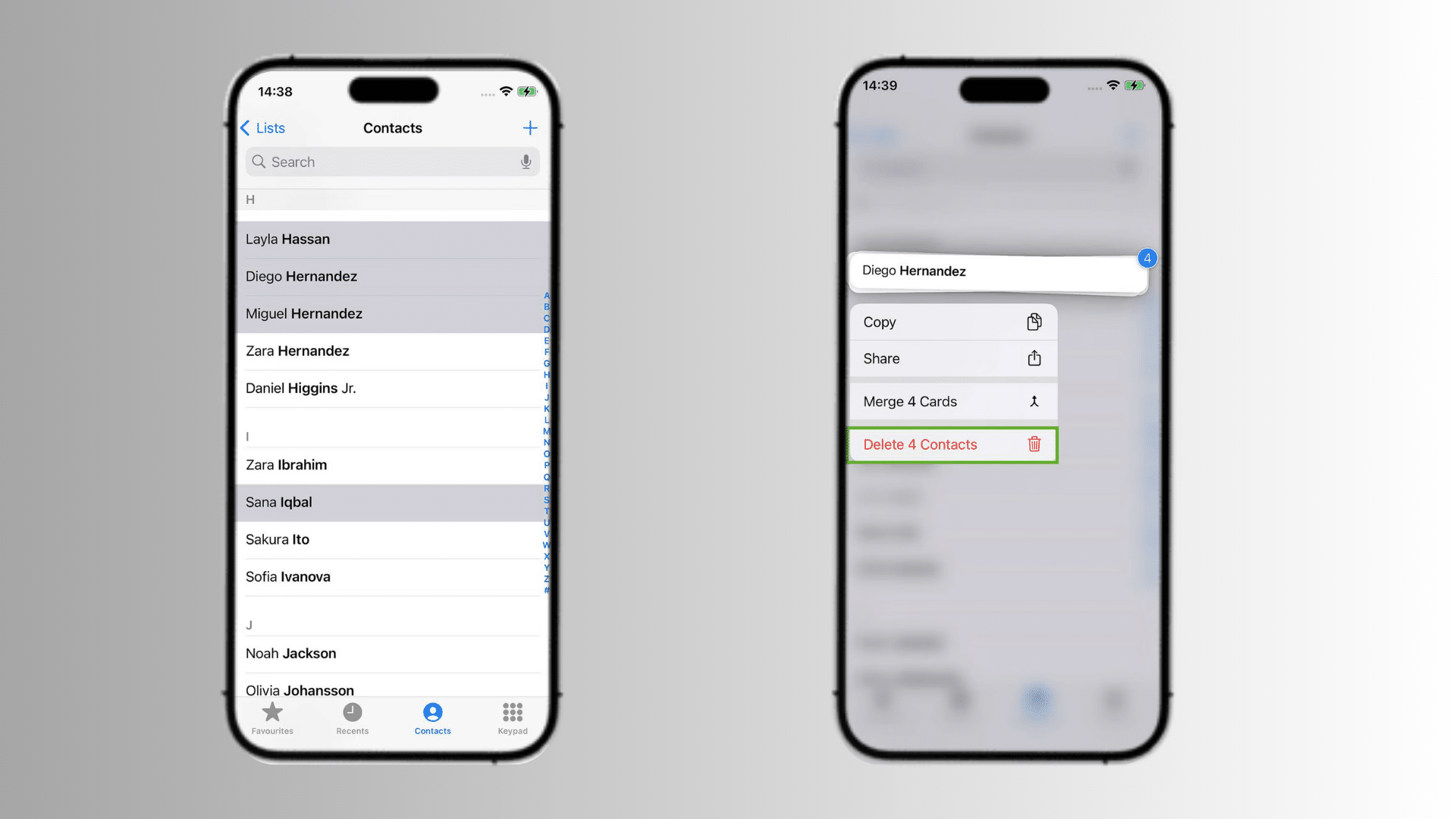
For multiple contacts, open the Contacts app and place two fingers on a contact, then drag up or down to select several people. Continue the same gesture after scrolling until all required contacts are highlighted.
Touch and hold one of the selected contacts, tap Share, choose the details you want to include, and select AirDrop, Messages, Mail, or another available option.
This method lets you send several contact cards at once without sharing each person separately. Selecting dozens of names at once can also slow the Contacts app if your phone is already low on space, so freeing up a bit of extra storage beforehand helps everything run faster.
Share Contacts Using iCloud, a vCard File, or a Computer
The methods above work well for a handful of contacts, but moving dozens or hundreds is a different job. This is usually the point where someone who already knows how to share contacts on iPhone one at a time starts looking for a faster bulk option.
- From iCloud.com: Sign in to iCloud.com on any computer, open Contacts, select the people you want, then choose Export vCard from the options menu. This downloads a single .vcf file containing every contact you selected.
- From a Mac: Contacts synced through iCloud also appear in the Contacts app on a Mac, where you can select multiple names and use File > Export > Export vCard.
- Sharing the file itself: You can attach the exported .vcf file to an email, upload it to a shared drive, or AirDrop it from a Mac the same way you would from an iPhone.
Share Contacts From iPhone to Android
AirDrop and NameDrop work only between Apple devices, so neither can send a contact card to an Android phone.
To share a contact with Android, open Contacts, select the person, tap Share Contact, choose the details you want to include, and send it through Messages, Mail, or another compatible app.
I tested this by sending a card from an iPhone to a Pixel via Mail, and the .vcf attachment opened directly in the Android Contacts app with no extra steps.
The recipient can open the shared contact card and save the information in their Android Contacts app. The shared card is commonly sent as a vCard (.vcf) file, which most contacts apps support. For the reverse direction, see our guide on moving from Android to iPhone.
For a few contacts, this method works well. If you are moving an entire address book to a new Android phone, use the iCloud export method above instead.
What Contact Details Should You Share?
A saved contact usually includes more information than the recipient needs, and I have caught myself accidentally sending a home address more than once before I started double-checking the selected fields.
- Phone numbers: Include the number the recipient actually needs, especially if you have both a personal and a work number saved.
- Email addresses: Select the relevant address instead of sending every stored email.
- Addresses: Include a home or work address only when you genuinely need it.
- Extra fields: Leave out anything that doesn’t help the recipient reach the person.
Apple’s Contacts documentation confirms that you choose the fields included before selecting a delivery method.
Is It Safe to Share a Contact From Your iPhone?
Sharing a contact card is generally safe, but a few habits make it safer.
- Review the selected fields every time, since Share Contact can carry over a field you meant to leave out from your last share.
- Turn off AirDrop’s Everyone setting once you are done sharing in a public place, since leaving it open longer than needed is the main way strangers can request a transfer.
- Treat NameDrop like a handshake; only bring devices together with someone you actually want to exchange details with, since the prompt appears within a second of two iPhones getting close.
- If you shared the wrong version of a card by message, delete it from the thread, though this will not recall a copy the recipient already saved to their own device.
The one habit I picked up after sharing contacts on stage at events for years is glancing at the selected fields box every single time, since it is the fastest thing to get wrong and the easiest thing to fix before it happens.
Why Contact Sharing May Not Work
Most contact sharing problems come from the delivery method itself. Match the symptom below before changing unrelated settings on the iPhone.
|
Problem |
What to Check |
|---|---|
|
Share Contact is hard to find |
Open the full contact card and scroll down to the saved details. |
|
AirDrop recipient does not appear |
Turn on Wi-Fi and Bluetooth, check AirDrop receiving settings, and keep both devices nearby. |
|
NameDrop does not appear |
Check Settings > General > AirDrop > Bring Devices Together, then try again. |
|
Wrong details are included |
Return to Share Contact and review the selected fields before tapping Done. |
|
AirDrop asks for a code |
On iOS 26.2 or later, you need a code for someone who isn’t already in your contacts. Enter the code shown on their screen to continue. |
Start with the feature that failed instead of changing several settings at once. If AirDrop still doesn’t work, try restarting both devices next. For more on managing who can send you things, see our AirDrop settings guide
Final Takeaway
Sending a contact card only takes a few taps once you know which option fits your situation. In my years working with home technology, I have seen that small settings often cause the biggest delays, and contact sharing is no different.
If you know how to share contacts on iPhone, you can use Messages, AirDrop, Mail, NameDrop, or a contact list with less confusion.
I recommend checking the fields before sending so only the needed details go through. If something fails, check the sharing method first instead of changing unrelated settings.
Try the option that fits your situation, and if you have a useful tip or question, share it in the comments or check out our related iPhone blogs.
Frequently Asked Questions
Does Sharing a Contact Remove It From Your iPhone?
No. Sharing sends a copy of the contact information. The saved contact stays on your iPhone unless you choose to delete it separately.
Does a Recipient Need an Apple Account to Save a Shared Contact?
No. A standard contact card can be opened and saved by a compatible contacts app without the recipient needing an Apple Account.
Can You Share a Contact Without Unlocking Your iPhone?
No. Share Contact opens in the Contacts app, so the iPhone must be unlocked first. NameDrop is the closest exception, since it can trigger from the Lock Screen on some setups, but you still need to confirm the fields on an unlocked device before anything is sent.
Can You Share a Contact’s Photo Along with Their Other Details?
Yes. If the contact has a saved photo, it is included automatically as long as you haven’t deselected it in the Share Contact field list, and it will show up on the recipient’s device as part of the same card.
Can You Undo Sending a Shared Contact by Mistake?
Not reliably. Deleting the message on your side before the recipient opens it can work in Messages, but once a contact card has been AirDropped, emailed, or opened, there is no true recall. The simplest fix is letting the recipient know right away so they can delete the card instead of saving it.