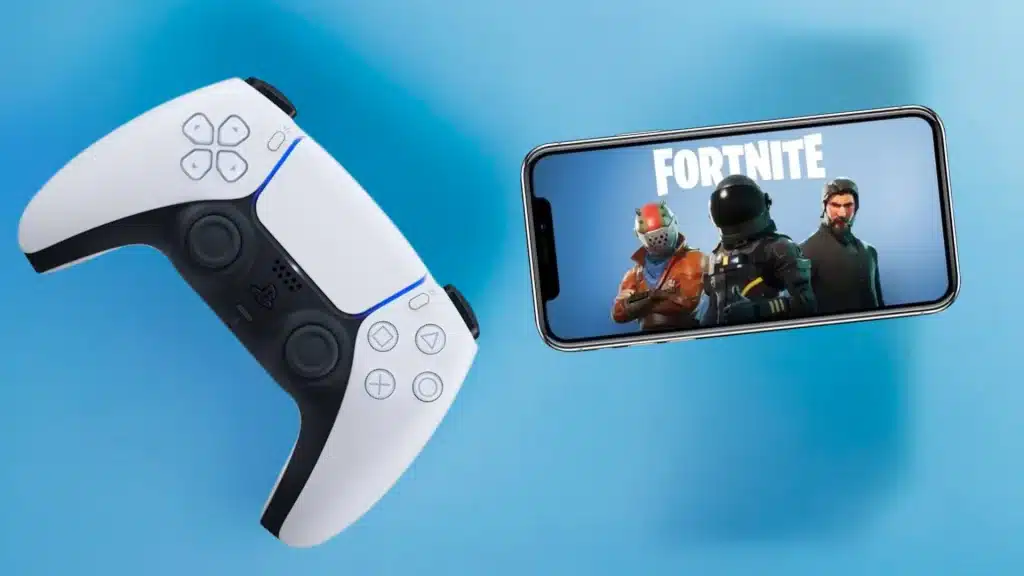
My thumbs cramped up mid-boss fight because the on-screen buttons on my iPhone kept sliding under my fingers at the worst possible moment.
That frustration is what finally pushed me to learn how to connect a PS5 controller to an iPhone, and the process turned out to be far simpler than expected.
Getting it right involves more than one Bluetooth toggle, though. The light bar sends specific signals, only certain apps recognize the controller once paired, and a couple of small settings decide whether the connection holds.
The steps ahead cover Bluetooth pairing, the wired option, what to expect afterward, and how to pair a PS5 controller with your iPhone without the usual hiccups.
What You Need Before You Start
A few quick checks before pairing save time later. Confirm your iPhone software and controller battery are ready so the connection works on the first attempt.
- iPhone or iPad running iOS 13 or later (most models released after 2019 qualify), per Apple’s official guide to connecting a game controller
- PS5 DualSense or DualSense Edge controller, charged enough to survive a few minutes of pairing attempts (the exact percentage is not published by Sony, so treat “reasonably charged” as the real bar rather than a specific number)
- Bluetooth turned on under Settings > Bluetooth
- Controller turned off before you begin pairing, since this step matters more than it sounds
The first time I skipped charging mine past a sliver, the light bar did not react at all to the pairing button combo, so this step is worth checking twice before assuming something is broken.
How to Connect a PS5 Controller to iPhone: Bluetooth and Wired
Both methods get the controller talking to your iPhone in under a minute. Bluetooth works for most situations, while a cable is worth using when charging matters or Bluetooth misbehaves.
Bluetooth Pairing (Step by Step)
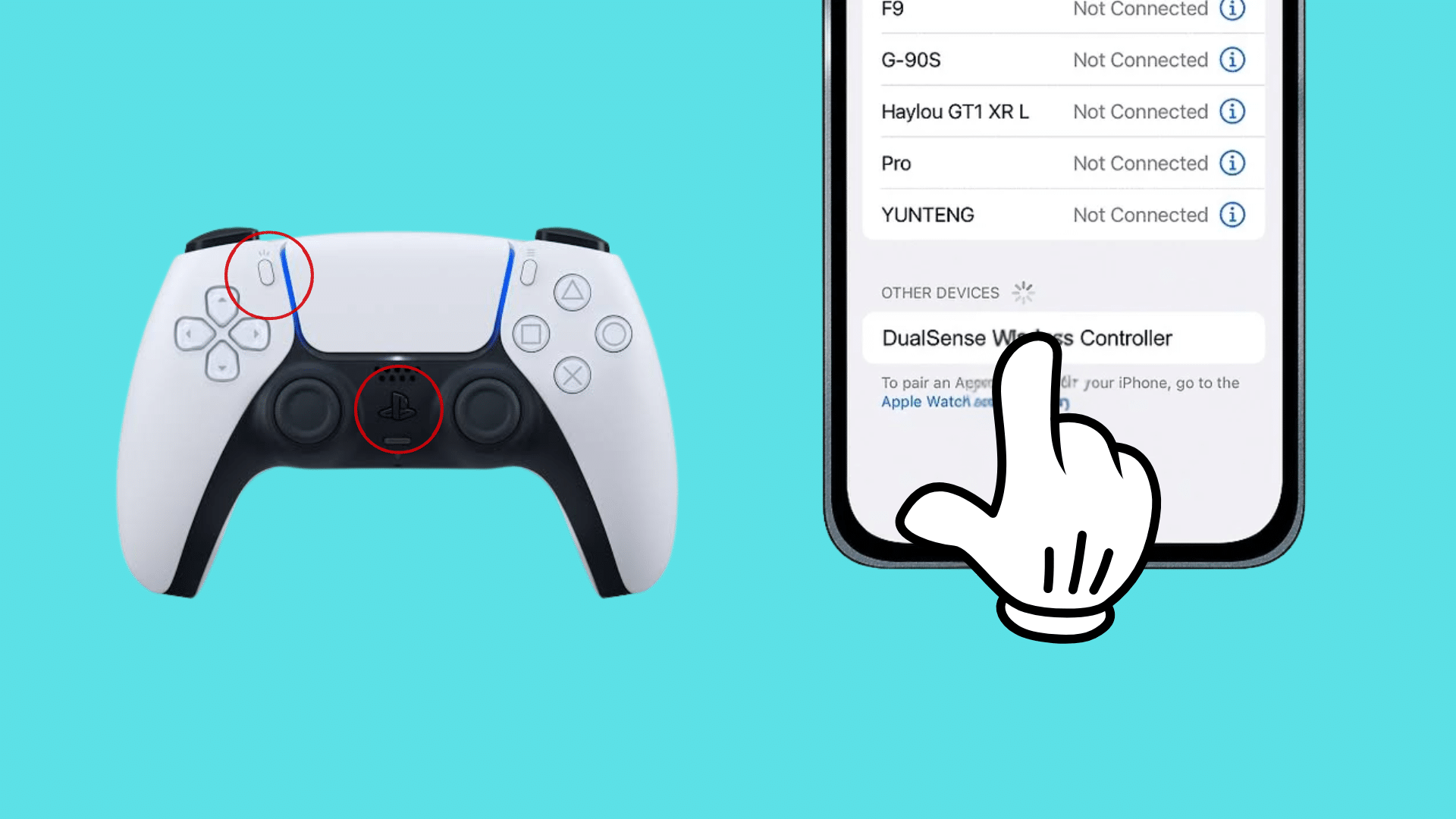
Bluetooth pairing is the fastest and most common method. Follow these five steps to get the controller talking to your iPhone.
- Open Settings on your iPhone and tap Bluetooth, then turn the toggle on.
- Make sure the controller is off, then press and hold the PS button and the Create button (the small button to the left of the touchpad) together.
- Hold both buttons until the light bar starts flashing rapidly. That flashing signals pairing mode.
- Under “Other Devices,” tap DualSense Wireless Controller when it appears.
- Wait a few seconds; a steady light bar confirms the controller is connected.
That’s the entire That’s the entire pairing process. If the controller doesn’t show up in the list, a quick Bluetooth restart on the iPhone usually solves it. process. If the controller doesn’t show up in the list, a quick Bluetooth restart on the iPhone usually solves it.
USB-C or Lightning Cable
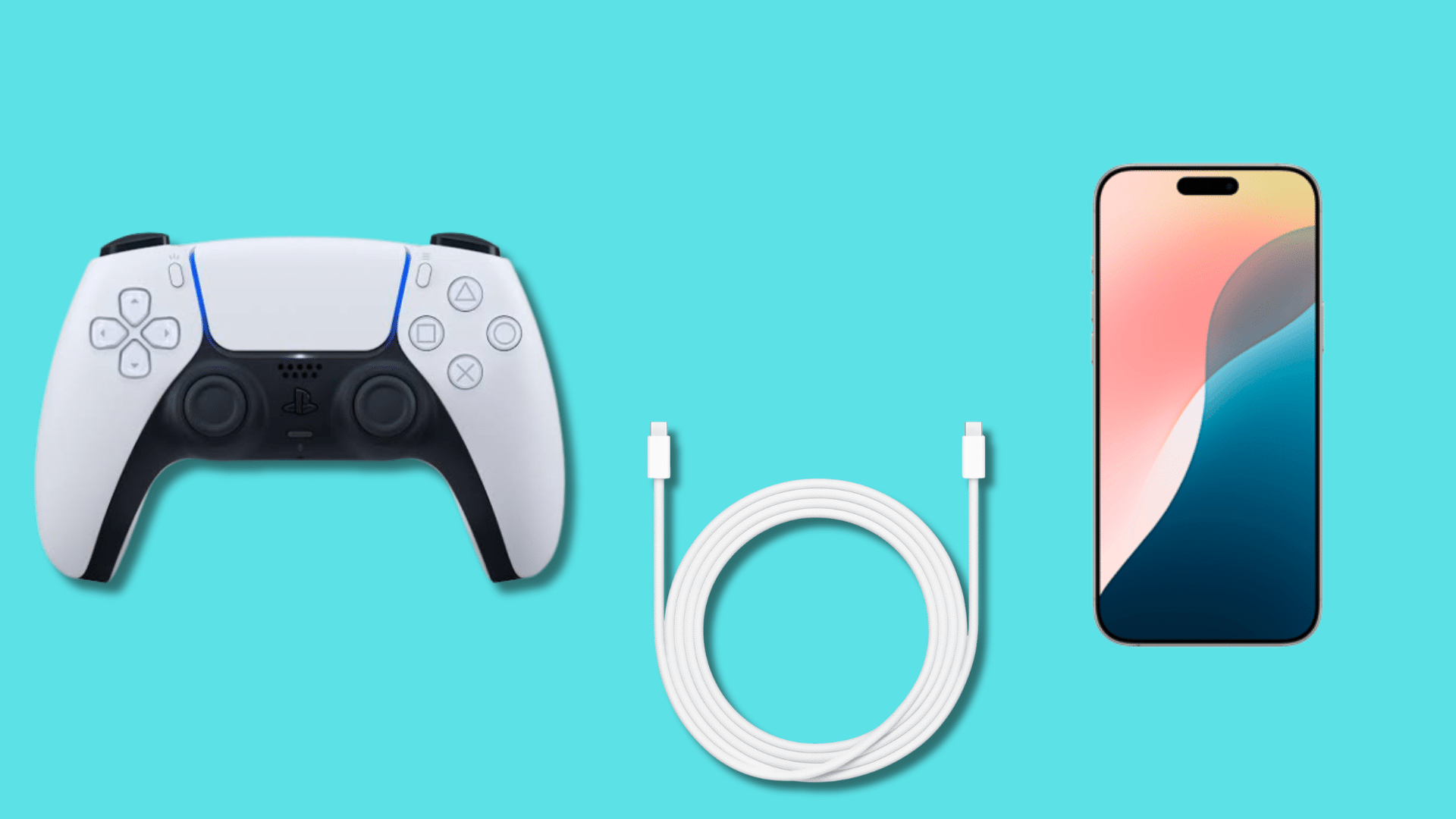
A wired connection works when Bluetooth isn’t an option or when you want to charge the controller while playing. Here’s what you need for each iPhone type.
- iPhone 15 or newer (USB-C port): use a USB-C to USB-C cable
- iPhone 14 or older (Lightning port): use a Lightning to USB-C adapter or cable
- Plug the cable into both devices, and the controller pairs automatically, with no Bluetooth steps needed
- Note: audio may reroute through the controller instead of the iPhone speaker; connecting a Bluetooth speaker separately fixes this
Wired pairing skips Bluetooth entirely and works well for shorter sessions, though older iPhone models can behave less consistently over USB.
What the Light Bar Actually Signals
The light bar around the touchpad tells you what stage the controller is at, but the color range is smaller on iPhone than on a PS5 console.
|
Light Bar Behavior |
What It Means |
|---|---|
|
Off |
Controller is powered off |
|
Fast flashing white |
In pairing mode, searching for a device |
|
Steady solid white |
Successfully paired and connected |
|
Slow pulsing white |
Idle or running low on charge |
On a PS5 console, the bar can also glow blue, red, green, or pink to mark which player slot a controller is assigned to. That player color system doesn’t carry over to iPhone use; the light stays white throughout, so don’t expect those console colors once the controller is paired to a phone.
DualSense vs DualSense Edge: Does Pairing Change?
Both controllers use the same Bluetooth hardware, so the pairing steps above are identical for either one, and iOS makes no distinction between them once connected.
The Edge adds extras like remappable back paddles, adjustable trigger stops, and swappable stick modules, but every one of those settings lives in the PS5’s own control panel or the Edge companion app, not anywhere inside iPhone’s Bluetooth menu. Pairing an Edge to a phone gives you the same button layout as a standard DualSense, nothing more.
I don’t own an Edge myself, so before writing this section I checked Sony’s accessory documentation rather than assuming the two controllers would behave identically over Bluetooth, and that documentation confirms the hardware pairing method doesn’t change between models.
What You Can Actually Do After Pairing
Pairing is only half the story, since the controller works only in apps built to support it.
- Apple Arcade games with controller support (most titles list this under app details)
- PS Remote Play, for streaming games from a PS5 console onto the iPhone screen
- Cloud gaming apps such as Xbox Cloud Gaming and GeForce Now
- Select emulator apps available outside the App Store
Standard buttons, sticks, and triggers work across nearly all of these. The DualSense’s adaptive trigger resistance and haptic feedback, the features that make it feel different from a generic Bluetooth pad, are usually left unused, since only a small number of iOS titles are built to call on those PS5-specific features at all.
Checking an app’s listing for a controller icon before downloading saves time, since not every game on the App Store supports external controllers.
Fixing Common Pairing Problems
Most pairing problems trace back to a handful of repeat causes. This table matches each symptom to a fix, so troubleshooting takes less guesswork.
|
Problem |
Likely Cause |
Fix |
|---|---|---|
|
Controller paired but shows “Not Connected” |
Controller went to sleep |
Press the PS button to wake it, or forget and re-pair |
|
No lights when holding PS + Create |
Battery too low |
Charge the controller for 30 to 60 minutes before retrying |
|
Controller won’t appear in the Bluetooth list |
Too many devices connected, or outdated iOS |
Remove unused Bluetooth devices; update iPhone software |
|
Controller keeps turning on the PS5 |
Console still remembers the controller |
On the PS5, go to Settings > Accessories > Bluetooth Accessories and delete the controller |
|
No sound during USB connection |
iPhone treats the controller as an audio device |
Connect a Bluetooth speaker or headphones separately |
Working through this table before assuming the controller is faulty resolves nearly every common pairing issue without needing a factory reset or replacement.
Beyond iPhone: Mac and Apple TV
The same Bluetooth pairing steps work on a Mac and on Apple TV, since both run on Apple’s shared controller framework across devices. The main practical difference isn’t the pairing process itself, but which apps actually list controller support.
Games built for an iPhone screen do not always carry that same support over to Apple TV or Mac, so a title that works perfectly on a phone can show up with no controller option at all once opened on a bigger screen.
When I paired the same controller to an Apple TV, it connected almost instantly, since it was already trusted through the same Apple ID as my iPhone. Checking an app’s listing before assuming compatibility saves a wasted attempt.
Disconnecting or Switching Back to Your PS5
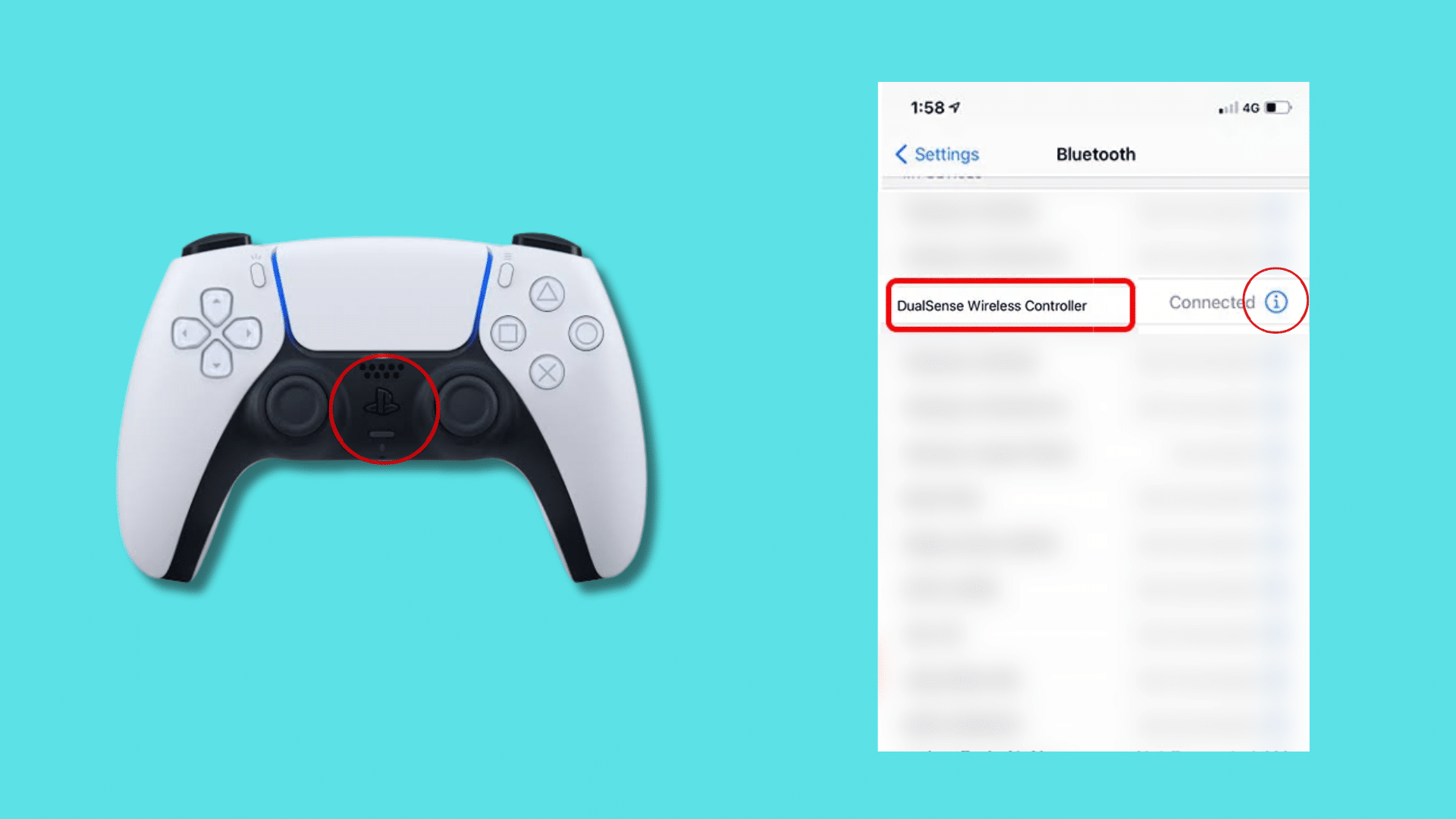
Switching the controller back to console use only takes a moment once you know where to look. To disconnect, open iPhone Settings > Bluetooth, tap the (i) icon next to DualSense Wireless Controller, and select Forget This Device.
On the PS5, press the PS button while the console is on, and the controller reconnects to it automatically, since pairing it to an iPhone does not erase its original console pairing.
If you switch between phone and console often, you don’t need to forget the device every time, since it defaults back to whichever one you last woke it on.
I only forget mine on iPhone once I am done using it there for good. That small shortcut saves a few taps if you swap devices daily.
Final Thoughts
Pairing a PS5 controller with an iPhone comes down to a short trip through Bluetooth settings and one confirmation tap, and the wired route works just as well when a cable is closer at hand than a stable connection.
Once the light bar sits solid and steady, the controller is ready for Apple Arcade, Remote Play, cloud gaming, and more, even if a few PS5-specific features stay out of reach on a phone screen.
Knowing how to connect a PS5 controller to iPhone means touchscreen controls no longer decide whether a game is worth playing on the go.
If you pair a PS5 controller with your iPhone and run into something this did not cover, drop a note in the comments below.
Frequently Asked Questions
Can I Connect a PS4 Controller to an iPhone the Same Way?
Yes, DualShock 4 controllers use the identical Bluetooth pairing steps, though the button pressed alongside PS is Share instead of Create.
Does This Process Work on an iPad Too?
Yes, iPadOS pairs a DualSense the same way iOS does, since both run on the same controller framework.
Can I Use Two PS5 Controllers with One iPhone at The Same Time?
iOS can pair more than one DualSense at once, but whether both actually work depends on the game. Most single-player Apple Arcade titles only read input from the first controller connected; local co op or split-screen titles are the ones built to recognize a second one.
Do I Need Wi-Fi for The Controller to Work, or is Bluetooth Enough?
Bluetooth alone handles the controller connection itself. Wi-Fi only matters if the game needs an internet connection to run, such as PS Remote Play or a cloud gaming app.
Can I Remap the Controller’s Buttons While It is Connected to an iPhone?
No. Button remapping lives in the PS5 console’s settings, or, for Edge owners, in the controller’s own saved profiles. iOS does not expose any remapping options for a paired DualSense.