A speaker that won’t respond to a wake word rarely explains why, and Google’s smart speakers are no exception.
I’ve spent over a decade wiring homes with everything from basic Bluetooth pucks to full multi-room audio setups, and most connectivity complaints still trace back to one overlooked fix: a proper factory reset.
Google Home Mini owners often assume a stuck or unresponsive speaker needs replacing, but the fix usually sits right on the device itself.
Below, you’ll find how to factory reset a Google Home Mini across both generations, what separates the reset button from the mic switch, and what to try when the reset refuses to start. By the end, you’ll know exactly which method fits your speaker.
What Does a Factory Reset Actually Do to a Google Home Mini?
A factory reset wipes every setting, linked account, and paired device stored on a Google Home Mini, putting it back to the exact state it was in when it left the box.
Think of it as the last resort for stubborn glitches, not the first thing to try when something feels off.
Google Nest still commands a real share of the smart speaker market, around 11% of US adult ownership, according to Statista, which fits a wider pattern of everyday reliance on voice assistants across millions of households.
So if your speaker needs this fix, you’re far from alone, and it’s not a sign that your unit is defective.
Google Home Mini or Nest Mini: Which One Do You Own?
The two speakers look almost the same, but the reset method is not, so check the base and the switch before you start.
|
Feature |
Google Home Mini (1st Gen) |
Google Nest Mini (2nd Gen) |
|---|---|---|
|
Base |
Solid, flat bottom |
Small hole for wall mounting |
|
Reset control |
Physical button below the power cord |
Mic switch on the side, no button |
|
Reset trigger |
Press and hold the button |
Flip the mic switch, then press the top |
If you’ve had the speaker for a few years and can’t remember buying a “Nest”-branded one, it’s almost always the 1st-gen Home Mini; Google rebranded the whole Home line to Nest in 2019. Either generation still works fine as the starting point for expanding into a connected home setup.
Reset or Reboot: Which Fix Does Your Speaker Actually Need?
A factory reset clears personal data and settings stored on the speaker, so you’ll need to set it up again afterward.
If your speaker is only misbehaving occasionally, such as reacting slowly to “Hey Google” or dropping off Wi-Fi now and then, a reboot usually solves it without wiping your settings.
Unplug the speaker for about 60 seconds, plug it back in, and give it a minute to reconnect. You can also reboot it from the Google Home app by tapping the device, then Settings, then More, then Reboot.
Save the full reset for problems a reboot doesn’t fix: an unresponsive speaker, a device you’re handing off to someone else, or a Wi-Fi network the speaker refuses to forget.
How to Factory Reset a Google Home Mini and Nest Mini
Both generations reset the same way in spirit: press and hold, wait for the chime, but the exact controls differ, so choose the section that matches your device.
Google Home Mini (1st Generation)
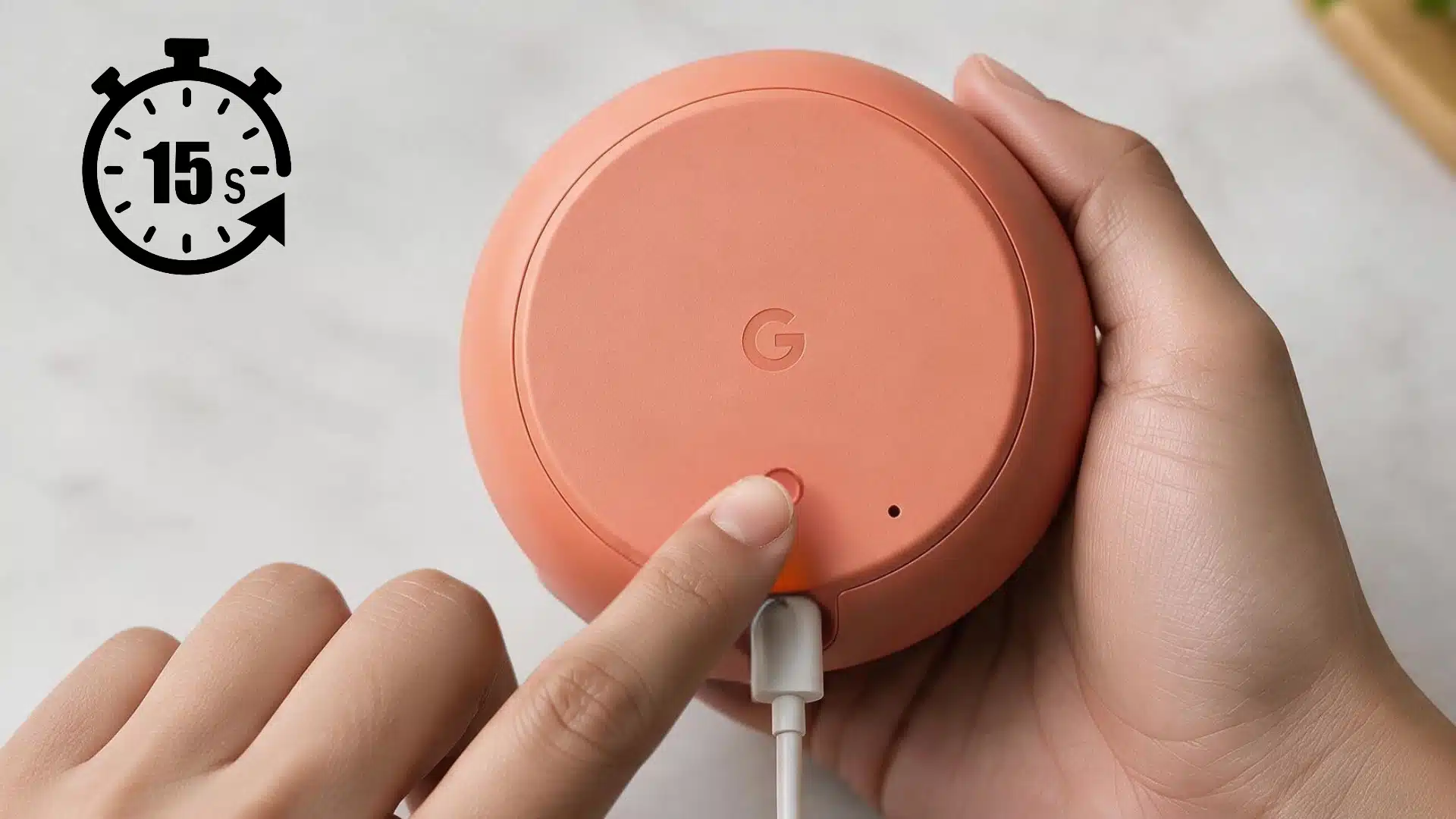
The first-generation Home Mini has a dedicated reset button, which makes this the more straightforward of the two methods. It was also one of Google’s earliest budget picks for anyone building a broader home automation setup, which is part of why so many units are still in daily use.
- Keep the speaker plugged into power throughout the process.
- Turn it over and find the small round button on the bottom, just below the power cord.
- Press and hold that button for about 15 seconds.
- Listen for Google Assistant confirming the device is resetting, then release the button.
- Wait for the speaker to restart on its own, which signals the reset is complete.
Google Nest Mini (2nd Generation)
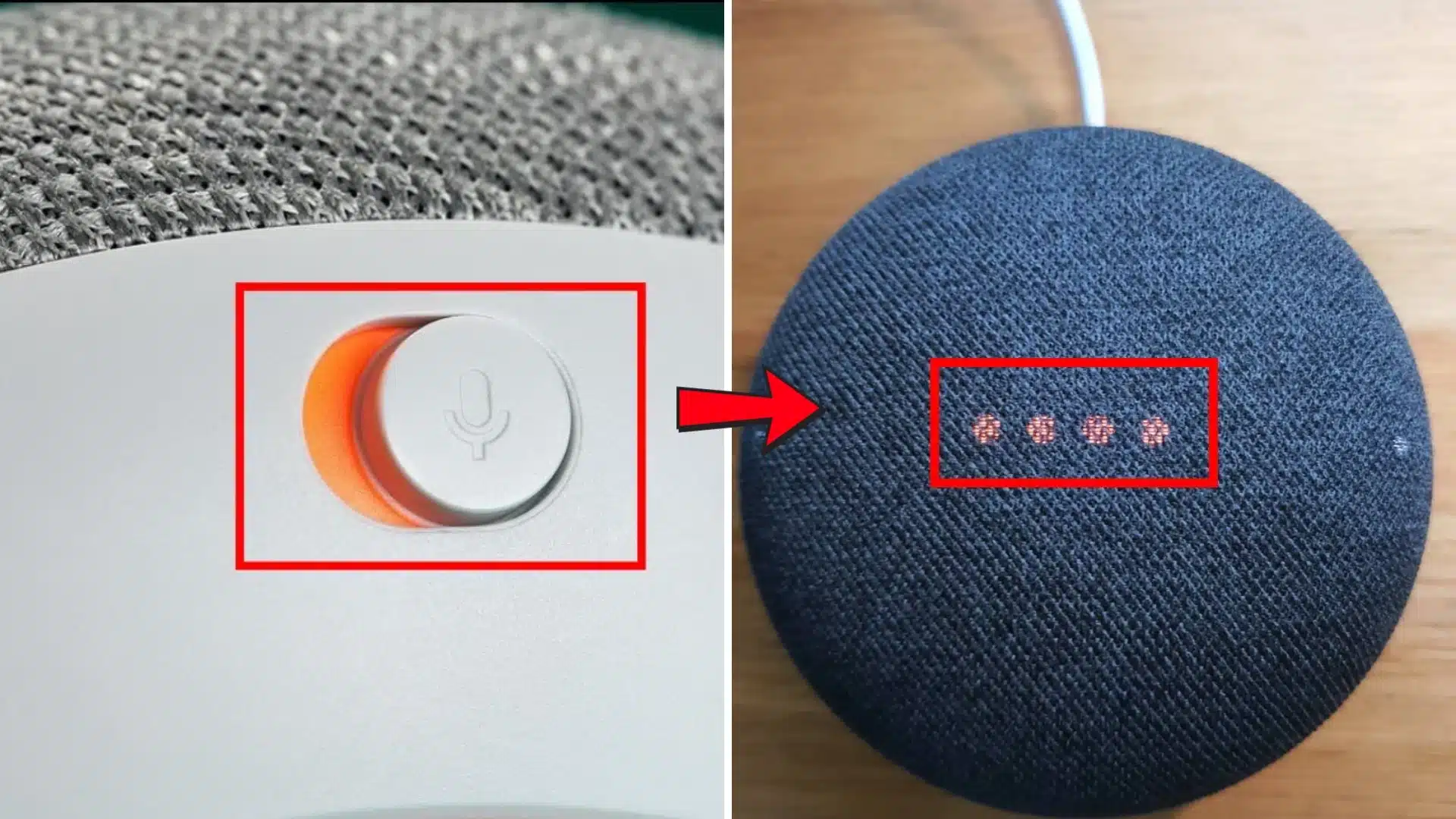
Because the Nest Mini dropped the physical reset button, Google moved the same function to the mic switch and the touch panel on top.
- Slide the mic switch on the side of the speaker to off; the lights will turn orange.
- Press and hold your finger on the center of the top panel, where the lights sit.
- After about 5 seconds, Assistant will warn you that the device is about to reset.
- Keep holding for another 10 seconds until you hear the confirmation chime.
- Release your finger and let the speaker restart on its own.
For the exact wording Google uses in its own walkthrough, see the official Nest Mini reset instructions.
Either device tells you plainly, with a chime and a restart, once the reset finishes, so there is no guesswork about whether it worked.
Reset Didn’t Start? Check These Before You Try Again
If holding the button or panel does nothing, the cause is almost always one of three things: the mic switch isn’t fully flipped, the power adapter is failing, or the speaker is stuck in a boot loop. Work through these before repeating the same steps.
- Confirm the mic switch is fully engaged on a Nest Mini; the lights must be solid orange, not white, before you touch the panel.
- Test the power adapter on a different outlet, or swap it with another Google speaker’s adapter if you have one; a failing 15W supply is a more common culprit than people expect.
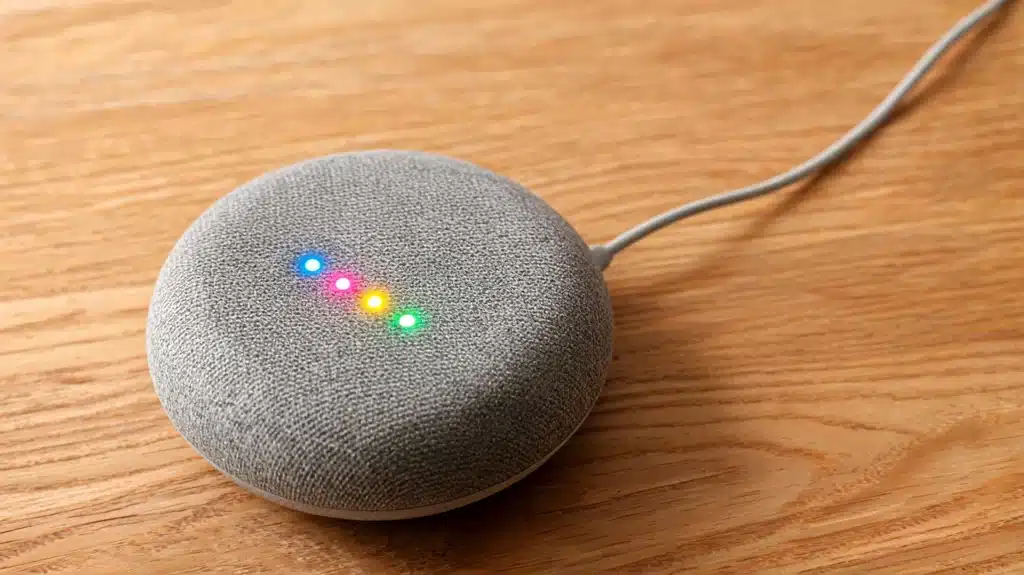
- Rule out a boot loop. If the four lights flash briefly and vanish on their own, the speaker is likely crashing on startup rather than waiting for your input.
Fixing a Reset that Won’t Start
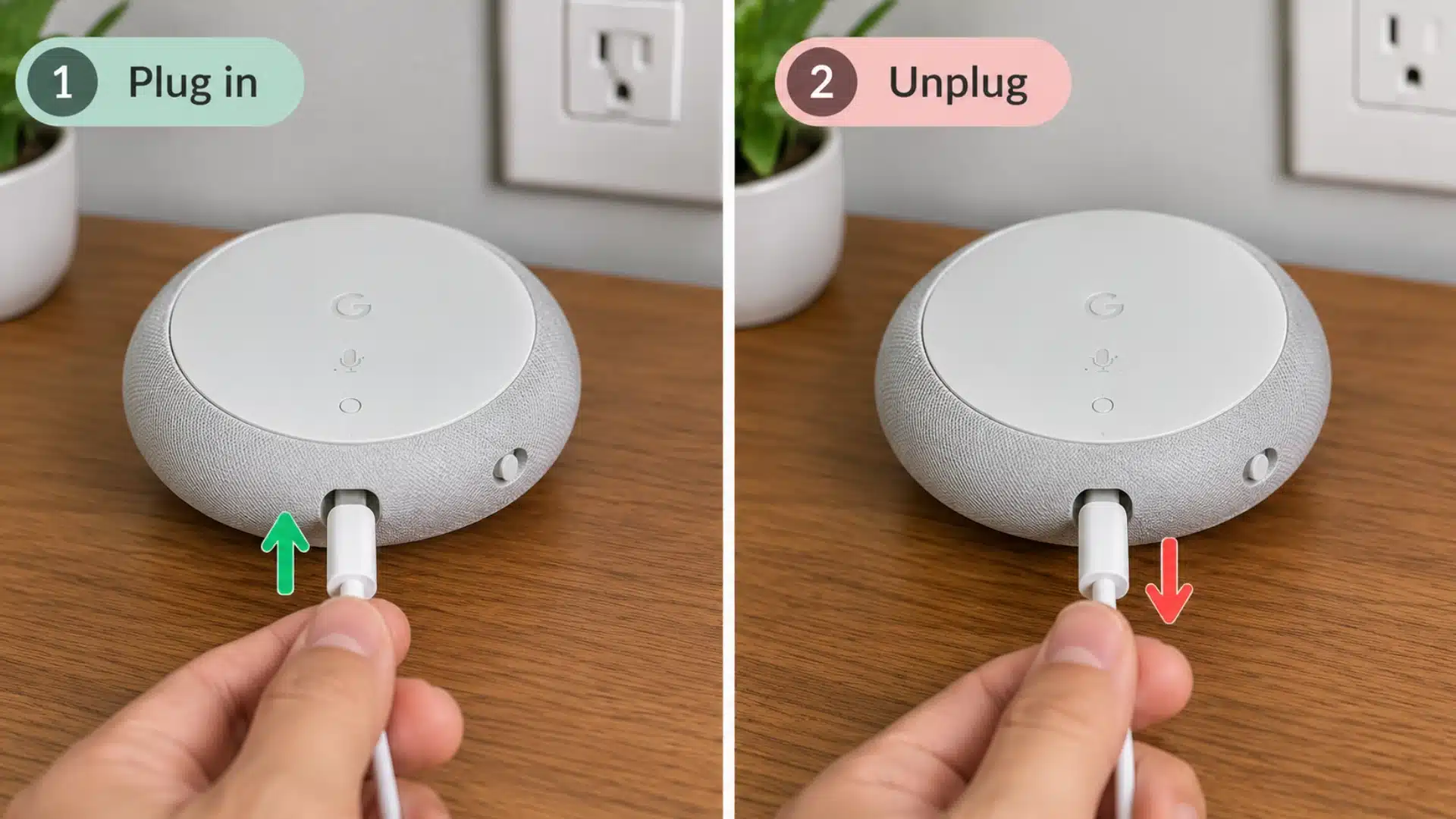
Sometimes the speaker stays silent no matter how long you hold the button, and a small workaround usually gets it moving again.
- Unplug the power cord completely and wait 10 seconds.
- Plug it back in and wait until all four lights on top turn on.
- Repeat the unplug-and-replug cycle 10 times in a row without skipping a step.
- On the final plug-in, the speaker should reset on its own and greet you with a welcome message.
- If nothing happens after 10 tries, contact Google Nest support directly instead of repeating the cycle.
This trick doesn’t work every time; it’s a recovery cycle Google support itself recommends for stuck units, not a guaranteed fix. If nothing happens after 10 tries, contact Google Nest support directly instead of repeating the cycle further.
Setting Up Your Speaker After a Reset
Video source: How to tech
A reset speaker behaves like a brand-new one, so it needs to go through setup again before it will respond to commands.
- Connect your phone or tablet to the Wi-Fi network you plan to use for the speaker.
- Open the Google Home app and tap Devices → Add → Google Nest or partner device.
- Tap the notification and choose the home you want to add the speaker to.
- Select your Wi-Fi network and enter the password when asked.
- Sign in with your Google account and set preferences such as voice match and the assistant’s voice.
- Reconnect any smart-home services, media services, or other settings that need to be configured again after the speaker reset.
When a Reset Isn’t the Right Move
Not every issue calls for wiping the speaker, and knowing the difference saves time while keeping your settings intact.
If you just want to rename the device, switch Google or streaming accounts, or move it to a different Wi-Fi network, all of that can be done directly inside the Google Home app under the device settings, without touching the reset button at all.
Changing Wi-Fi networks is the most common reason people reach for a factory reset, and it rarely needs one; the app’s “change network” option, found under device settings, handles the switch in under a minute and leaves everything else on the speaker exactly as it was.
Final Thoughts
Whichever generation you own, a Google Home Mini factory reset comes down to one of two controls: the physical button on the 1st-gen model, or the mic switch and top panel on the Nest Mini.
Most of the reset problems I run into on client visits trace back to a missed step, not a broken speaker. None of this needs special tools or a service call.
Match the steps to your device, keep the Google Home app handy for setup afterward, and Assistant will be back online within minutes. If your generation gave you extra trouble, drop a comment below; it helps other readers spot the same fix.
Frequently Asked Questions
Does Resetting a Google Home Mini Remove Connected Smart Home Devices?
Yes. A factory reset clears every linked device, routine, and account from the speaker, so you’ll need to re-add any lights, plugs, or thermostats you had connected through the Google Home app afterward.
Can a Google Home Mini Be Reset from The App Alone?
No. The app offers no full factory reset option; it only lets you “remove device,” which unlinks the speaker from your account. The physical button or top-panel method described above is the only way to completely wipe the speaker.
What Color Are the Lights While the Speaker Is Resetting?
The lights typically show orange or red once the mic switch is off or the button is pressed, then cycle through white or blue during the reset itself before settling once the process finishes and the speaker restarts.
How Long Should I Wait Before Setting up The Speaker Again After a Reset?
The reset itself finishes within a minute or two, and the speaker will announce it is ready. You can start setup in the Google Home app immediately after that announcement; there’s no additional waiting period needed.