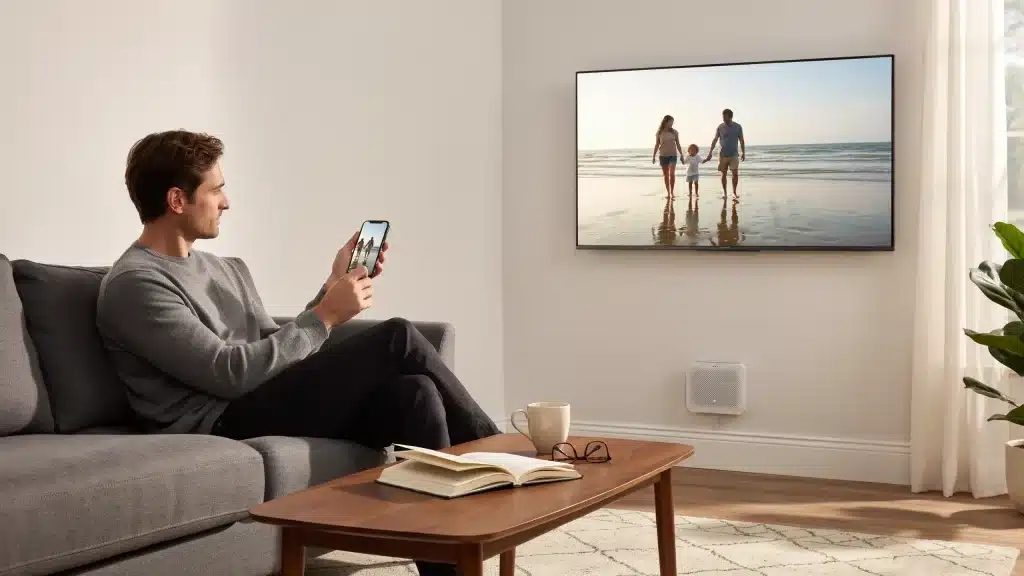
Ever tried to show a vacation video from your iPhone on the living room TV, only to end up passing the phone around the room instead? AirPlay to TV solves that.
It sends video, photos, music, or your entire screen from an iPhone, iPad, or Mac to a compatible display, no cables needed.
Even if you want the screen mirroring iPhone owners rely on for presentations, or just a song playing through better speakers, I’ve set this up on more TVs than I can count, and the connection rarely takes longer than a minute once both devices share a network.
Below are exact steps for every Apple device, which TVs support AirPlay, options without an Apple TV, and fixes for common connection problems.
What AirPlay Actually Does
AirPlay covers two different jobs, and knowing which one you need makes setup faster. Media streaming sends a single video, photo, or song to the television while you keep using your phone for anything else, like replying to a message.
Screen Mirroring works differently: it copies your entire display in real time, including apps, menus, and websites, so the TV shows exactly what’s on your device rather than one selected file.
Reach for media streaming when you only want the television to play a specific song, home video, or podcast episode. Reach for Screen Mirroring when the TV needs to match your screen exactly, such as walking through vacation photos, running smoother video calls during a group chat, or stepping through an app together.
In my experience, media streaming is also the gentler option on battery, since your phone isn’t rendering and transmitting a full video feed of its display the entire time.’
AirPlay vs. AirPlay 2: Why the Version Matters
Most devices sold since 2018 support AirPlay 2, and the distinction matters more than the marketing suggests. The original AirPlay streamed to only one device at a time and offered no way to control playback from another Apple device on the network.
AirPlay 2 added multi-room audio, so you can send the same song to speakers in different rooms in sync, and it lets other people on the same network control what’s playing from their own device, not just yours.
If you’ve ever wondered why a friend’s older Samsung TV won’t hold an AirPlay connection while everything else works fine, this is usually why: it may only support the original AirPlay, or no AirPlay at all, despite otherwise looking “smart.”
Checking your TV’s exact spec sheet for “AirPlay 2” rather than just “AirPlay” is worth the extra minute before you troubleshoot anything else, particularly if you’re still comparing display technologies while shopping for a new set.
How to AirPlay to a TV From iPhone, iPad, or Mac
Setup is slightly different depending on the Apple device you’re using, but the basic requirements stay the same. Your device and TV must both support AirPlay, both should be on the same Wi-Fi network, and the receiving screen should have AirPlay turned on. Apple’s own device compatibility list is the fastest way to confirm your specific model qualifies before you start.
1. From an iPhone to a TV
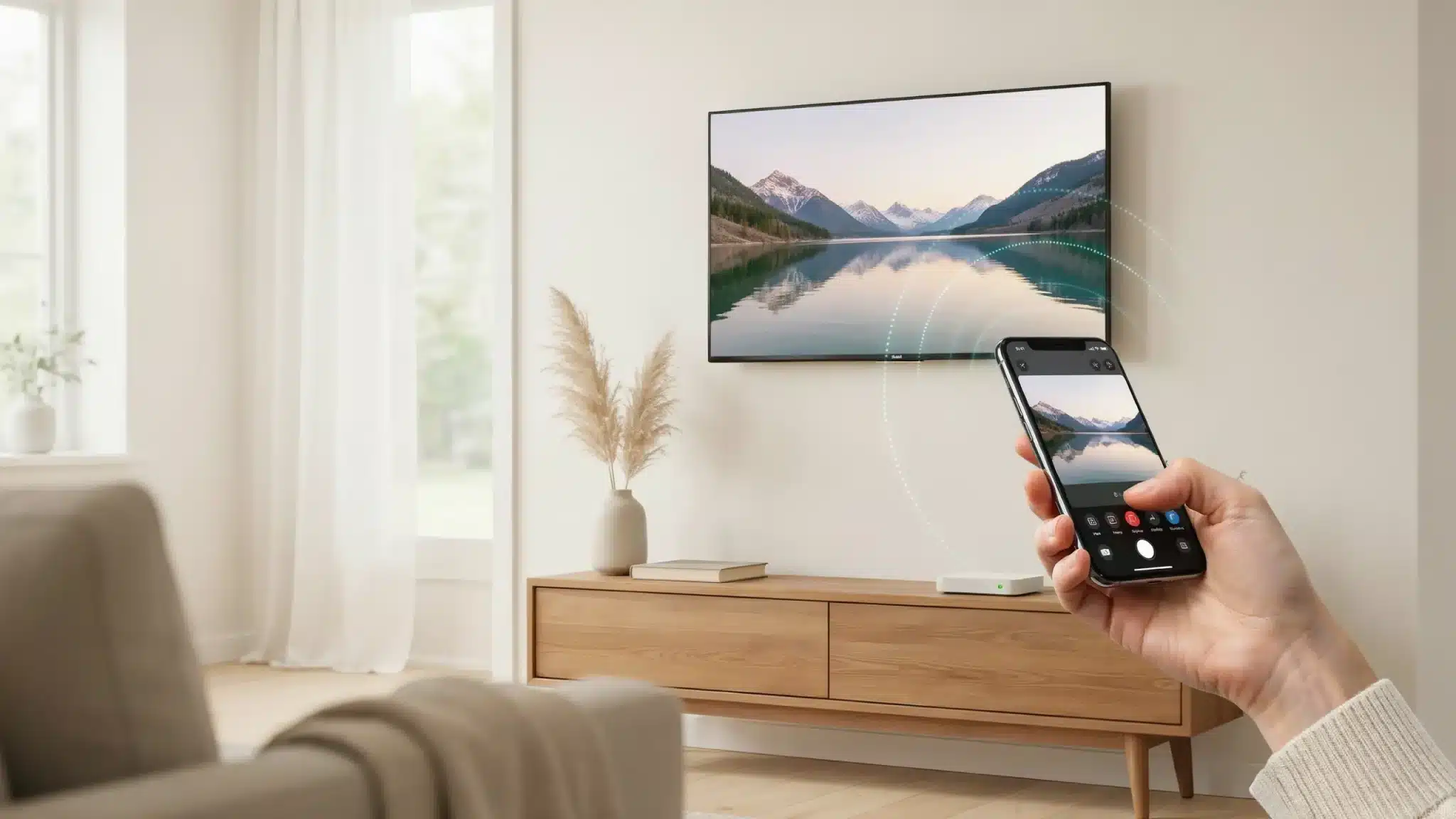
You can use an iPhone to send videos, photos, music, or your entire screen to an AirPlay-compatible TV. The process only takes a few taps once your devices are connected properly.
- Connect your iPhone and AirPlay-enabled TV or Apple TV to the same Wi-Fi network.
- Open the video, photo, or app you want to share, then tap the AirPlay icon if available.
- For full-screen sharing, open Control Center and tap Screen Mirroring.
- Select your TV from the available devices list.
- Enter the passcode shown on your TV if prompted.
- To stop, open Control Center and tap Stop Mirroring.
2. From an iPad to a TV
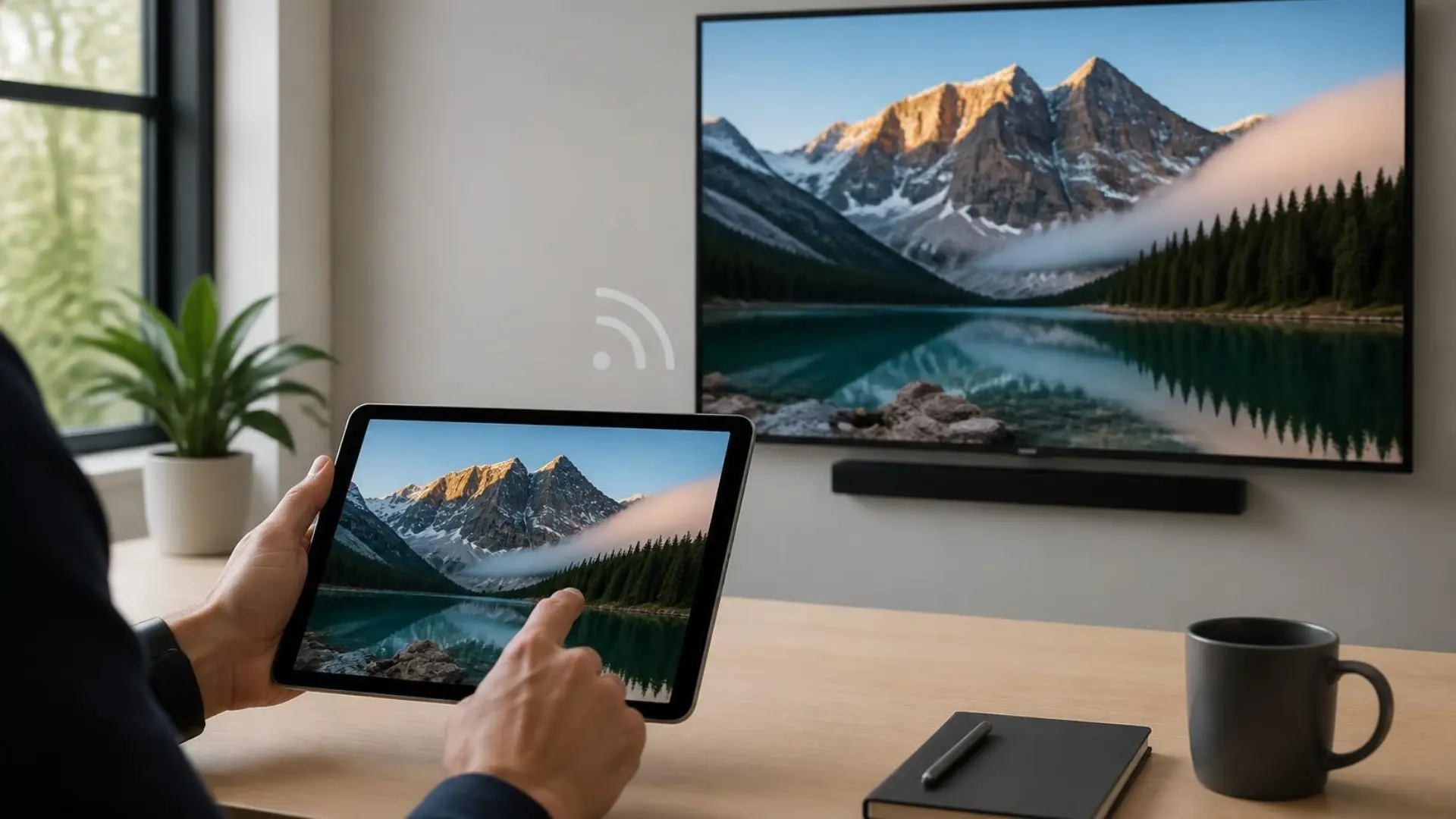
An iPad works almost the same way as an iPhone, making it useful for presentations, videos, and app demonstrations on a larger display. You can either stream specific content or mirror everything shown on your tablet.
- Connect your iPad and TV to the same Wi-Fi network.
- Open the media app and select the AirPlay button when available.
- Swipe down from the top-right corner to open Control Center.
- Tap Screen Mirroring to display your full iPad screen.
- Choose your Apple TV or compatible smart TV from the list.
- Enter the TV passcode if required, then disconnect from Control Center when finished.
3. From a Mac to a TV
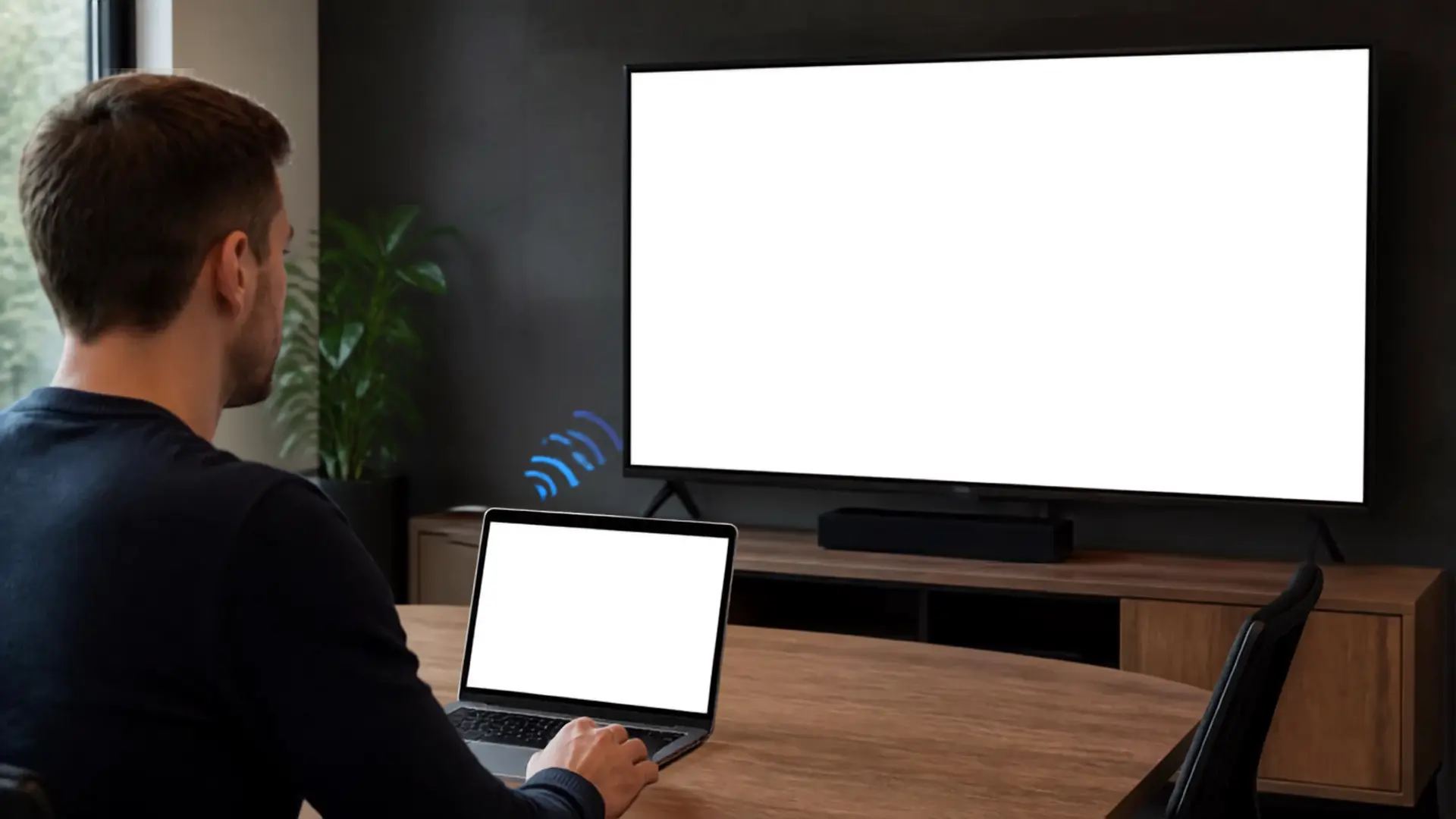
Mac computers offer more flexible AirPlay options, including screen mirroring, extending your workspace across a second screen, or sharing selected content. This makes AirPlay useful for meetings, presentations, and entertainment.
- Connect your Mac and AirPlay-compatible TV to the same Wi-Fi network.
- Click the Control Center icon in the menu bar.
- Select Screen Mirroring and choose your TV.
- Confirm the connection by entering the displayed passcode if needed.
- Adjust display settings to mirror or extend your Mac screen.
- Turn off AirPlay from Control Center when you no longer need the connection.
After you connect your iPhone, iPad, or Mac, AirPlay makes it easy to enjoy content on a larger display without extra cables. The same setup works for entertainment, presentations, and sharing content with others on a compatible TV.
Which TVs and Devices Support AirPlay
AirPlay support varies across TVs and streaming devices, so checking compatibility before connecting saves time. The table below covers popular options and what you need for each.
|
TV or Device |
AirPlay Support |
|---|---|
|
Apple TV |
Built to receive AirPlay from Apple devices |
|
Samsung smart TV |
Built-in on most models from 2018 onward |
|
LG smart TV |
Available on select AirPlay 2-enabled sets |
|
Sony smart TV |
Included on supported Android TV and Google TV models |
|
Vizio smart TV |
Available on SmartCast models |
|
Roku TV or player |
Many current Roku TVs and players include AirPlay 2 |
|
Fire TV Omni and 4-Series |
Native AirPlay 2 support. Most Fire TV Stick models do not support AirPlay natively and need a receiver app instead. |
|
Older TV |
Usually needs a receiver device, app, or cable |
That Fire TV distinction is worth repeating on its own: if you own a Fire TV Stick rather than an Omni or 4-Series TV, it will not show up when you tap Screen Mirroring, and that’s expected, not a bug.
Note: Before connecting anything, confirm your exact model, software version, and any default device settings that could affect the connection. Supported devices give you a native, one-tap connection, while older screens may need an additional receiver or wired hookup.
Before You Connect: A Quick Pre-Flight Check
Most AirPlay hiccups trace back to something simple that got skipped early on. Running through this short checklist before opening Control Center saves time and helps you avoid chasing a problem that was there from the beginning.
- Both devices are on the same encrypted wireless connection.
- The TV, Apple TV, or receiver actually supports AirPlay.
- AirPlay is enabled in the television’s settings, if your model requires it.
- Your Apple device and TV software are reasonably up to date.
- You’re ready to type in a passcode if the TV displays one.
With that checklist confirmed, most of the setup work is already done. The steps below should go smoothly from here, and you can move straight into connecting instead of second-guessing basic settings later.
Connecting without an Apple TV Box
You don’t need an Apple TV if another device on hand can receive the signal. If your smart TV has AirPlay built in, turn it on in the settings menu (the exact path varies by brand; Samsung, for instance, tends to bury it under Connections) and select the TV from your Apple device as usual.
On a Roku, open Settings, choose Apple AirPlay and HomeKit, and switch the toggle on before connecting. If your TV or streaming box has no built-in AirPlay at all, a third-party receiver app is the usual workaround; apps like AirScreen and Replica are commonly used on Fire TV Stick devices for exactly this reason.
Check any such app’s privacy terms and device compatibility before installing, since your mirrored screen could show messages or account details.
When wireless isn’t an option at all, a USB-C or Lightning video adapter with an HDMI cable connects the device directly. That’s a wired workaround, not AirPlay itself, but it’s useful when nothing wireless is cooperating.
AirPlay vs. Other Casting Standards
Wireless casting standards serve different purposes. Some support full-screen mirroring, while others focus more on streaming media or sharing stored files between compatible devices.
|
Standard |
Best For |
Common Devices |
Main Limitation |
|---|---|---|---|
|
AirPlay |
Streaming and mirroring |
iPhone, iPad, Mac, Apple TV |
Best within Apple ecosystem |
|
Google Cast |
App and media casting |
Android, Chromecast, Google TV |
Support varies by app |
|
Miracast |
Screen mirroring |
Windows, some Android devices |
No native iPhone support |
|
DLNA |
Sharing stored media |
TVs, PCs, media servers |
Not designed for full-screen mirroring |
Many smart TVs support multiple casting standards. Check your exact TV model first, since support for streaming, file sharing, and full-screen mirroring can vary between devices.
Fixing Common AirPlay Problems
AirPlay problems often come from network settings, device compatibility, or permissions. Identify the issue first, then apply the right fix instead of changing multiple settings at once. Restarting devices, checking Wi-Fi, and updating software can restore the connection.
- TV missing from the list: Move the devices closer together, restart both, then check the router for guest-network or client-isolation settings that may block device discovery.
- Passcode keeps reappearing: This usually comes from the receiver’s security settings. Review the AirPlay access options on your TV or Apple TV and adjust them if needed.
- Mirroring lags or drops: Improve Wi-Fi strength, reduce network activity, and install available updates on both devices.
- One app won’t AirPlay: The issue may be app-specific. Try using the app’s built-in AirPlay button instead of mirroring the entire screen.
The fix that solves this most often when I’ve helped people troubleshoot: forget the network on both devices and rejoin it fresh, rather than just restarting the devices. A stale network profile causes more silent AirPlay failures than a weak Wi-Fi signal.
Is AirPlay Private and Safe to Use?
AirPlay sends content over your local Wi-Fi network rather than the public internet, so it only works between devices already on the same network. On a home network, that’s effectively just you and anyone else you’ve given your Wi-Fi password to.
On a shared or public network, such as a hotel or office, other AirPlay-enabled devices on that same network can sometimes appear in your list, and in rarer cases someone could attempt to connect to your device if AirPlay permissions are left open.
My own rule of thumb on unfamiliar networks: check your device’s AirPlay setting under Settings, then AirPlay and Handoff, and set “Allow AirPlay for” to “Current User” or “Everyone” only if you actually need strangers on that network to be able to send to your screen, which is almost never.
On Apple TV, the same setting controls who can connect to it, and tightening it is worth doing once rather than leaving the default wide open.
Final Thoughts
Getting AirPlay to TV working comes down to a few fundamentals: same Wi-Fi network, AirPlay 2 support confirmed rather than assumed, and the right feature, streaming or mirroring, picked for what you’re showing.
Once that’s dialed in, whether you’re screen-mirroring iPhone-style for a client walkthrough or presenting from your Mac, the connection holds and stays out of your way.
Non-Apple TV owners aren’t left out either; built-in support on Roku and select Fire TV models, plus receiver apps for everything else, covers most setups.
If a connection still won’t hold, try rejoining the network before anything else. Have a setup question we didn’t cover? Drop it in the comments.
Frequently Asked Questions
Can AirPlay Send Just Audio, without Mirroring the Screen?
Yes. You can send audio from supported apps to an AirPlay-compatible speaker, Apple TV, or smart TV without showing your device’s screen at all.
Does AirPlay Drain My iPhone’s Battery Faster than Normal?
Screen Mirroring uses more battery than media streaming because your phone continuously renders and transmits its full display rather than handing off a single file for the TV to play on its own. A movie sent through media streaming barely touches your battery beyond keeping Wi-Fi active; an hour of mirrored gameplay or a slideshow will drain it noticeably faster.
Can I Use AirPlay without Wi-Fi, or Does It Work Over Bluetooth?
No to both. AirPlay needs a shared Wi-Fi network to work; it doesn’t run over a cellular connection or Bluetooth. Bluetooth can pair some accessories, but it isn’t the technology carrying an AirPlay video or mirroring stream.
Why Does AirPlay Disconnect when I Lock My Phone or Switch Apps?
Media streaming should keep playing after you lock your phone or switch apps, since the TV is handling playback on its own. Screen Mirroring is different: locking your phone stops the mirror, because there’s no screen left to copy. If you only want the song or video to keep going, use the app’s AirPlay button instead of full Screen Mirroring.
My TV isn’t on the compatibility list. Is there any way to still use AirPlay?
Yes, through a receiver device or app rather than native support. A streaming device with built-in AirPlay (like a compatible Roku), a third-party receiver app on your existing streaming box, or a wired USB-C/Lightning-to-HDMI adapter will all get content from your Apple device onto an otherwise unsupported TV.