Your webcam freezes mid-call, your Wi-Fi drops for no reason, or your screen starts flickering right after a Windows update rolls through. After years of fielding exactly these tickets for readers here at PCFixesDaily.
I have learned the hard part is never the fix itself; it is figuring out whether a driver is actually the culprit. Knowing how to update drivers in Windows means picking the right tool for the job, whether that is a built-in scan or a manufacturer download.
Here you will learn how to update graphics drivers correctly through Windows Update and Device Manager for NVIDIA, AMD, and Intel, plus what to do if a fresh driver makes things worse instead of better.
Why Driver Updates Matter on Windows
Think of a driver as the translator sitting between your hardware and Windows. Like any translator, it can fall out of practice over time. A webcam stops showing up, wireless earbuds disconnect for no reason, or a printer suddenly refuses to cooperate after an update rolls through.
I have watched all three happen on my own machines, and the printer one cost me an entire afternoon before I realized the driver, not the printer, was the problem. Manufacturers push out fixes for exactly this kind of thing. Security patches and compatibility tweaks for newer software are common reasons, and Microsoft’s own guide to updating drivers through Device Manager covers the built-in process in more depth. Gamers feel this more than anyone, since new titles often expect a fresher graphics driver just to run smoothly.
Still, a driver that works right now doesn’t need swapping out just because a newer build exists somewhere.
Check Which Drivers Need Updating
Before touching anything, figure out whether an update is actually the fix:
- Graphics glitches, tearing, or flickering
- Wi-Fi that won’t hold a stable connection
- Bluetooth devices that disconnect or won’t pair
- Missing or crackling audio
- A printer or peripheral that stopped responding
- Error codes inside Device Manager
- A game asking for a newer graphics driver
- A manufacturer fix relevant to your device
Common categories include graphics, audio, network, Bluetooth, printers, and chipset. If none of these match what you are seeing, your hardware is behaving, and the smartest move is to leave it alone.
How to Check Your Current Driver Version First
Before you install anything, it helps to know what you already have. This takes thirty seconds and saves you from downloading a driver you do not need.
- Right-click the Start button and open Device Manager.
- Expand the category for your device, such as Display adapters or Network adapters.
- Right-click the device and select Properties.
- Open the Driver tab to see the version number, provider, and install date.
- For a graphics card specifically, you can also press Windows + R, type dxdiag, and check the Display tab for the driver version and date in one place.
I make this the first step with anyone who messages me confused about which download to grab. Comparing the date on your current driver against the date on the manufacturer’s newest release tells you in seconds whether an update is even worth doing.
How to Update Drivers in Windows Through Windows Update
This is the one I reach for first almost every time, and it is the natural starting point for anyone asking how to update drivers in Windows. It has two parts: automatic updates that install on their own, and an optional list you choose from manually.
1. Update Drivers Automatically
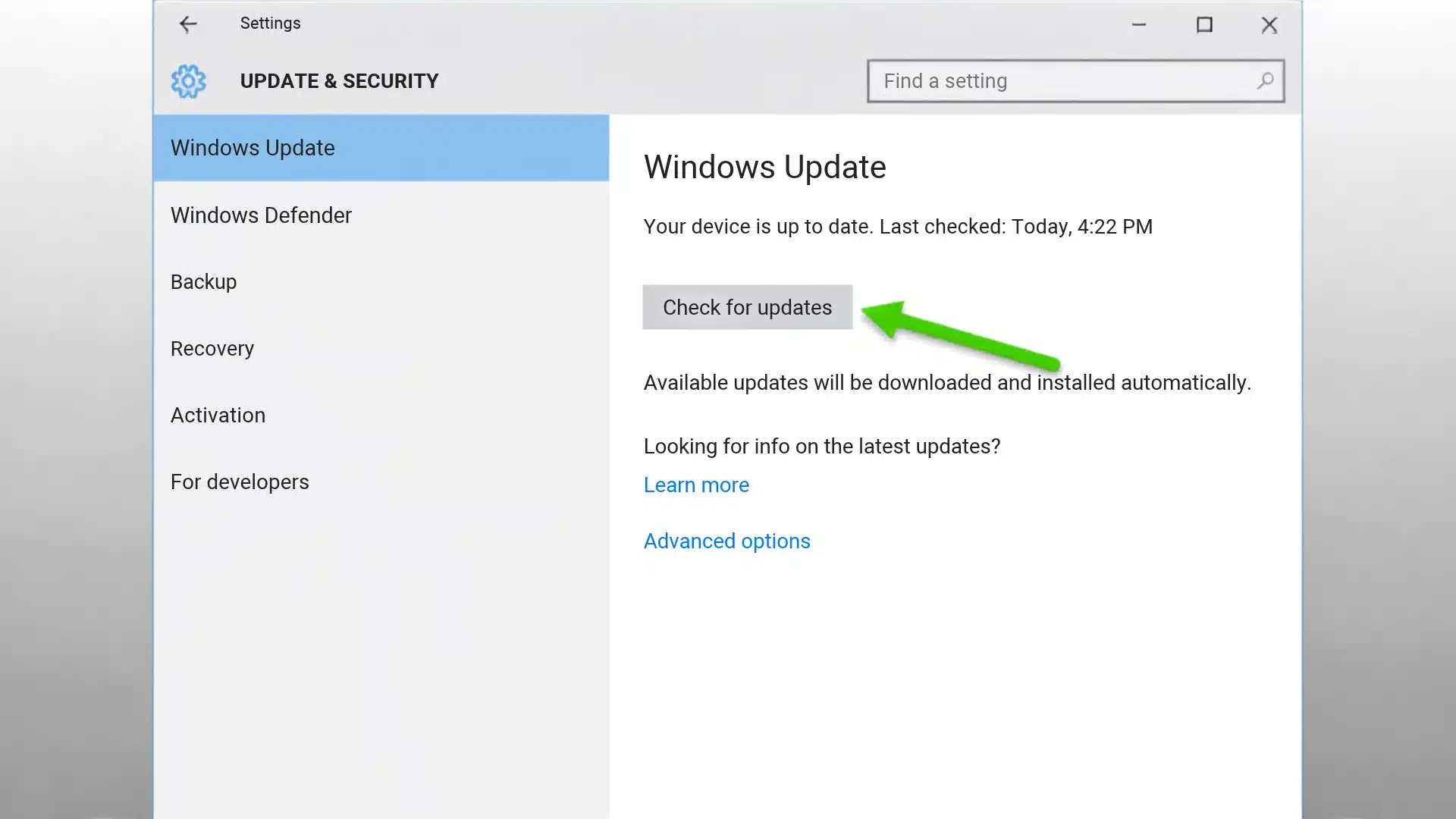
Here’s the quickest path: just a few clicks, and Windows does the rest:
- Press Windows + I to open Settings.
- Select Windows Update from the left sidebar.
- Click Check for updates.
- Let Windows scan for and download anything available.
- Install any updates marked as recommended.
- Restart the PC if it asks you to.
- Test the device that was giving you trouble.
Windows handles the matching quietly and only offers drivers it trusts for your machine. If the device is still acting up afterward, check Settings > Windows Update > Advanced options > Optional updates, since it holds drivers Microsoft has approved but doesn’t push by default.
2. Update Drivers Using Device Manager
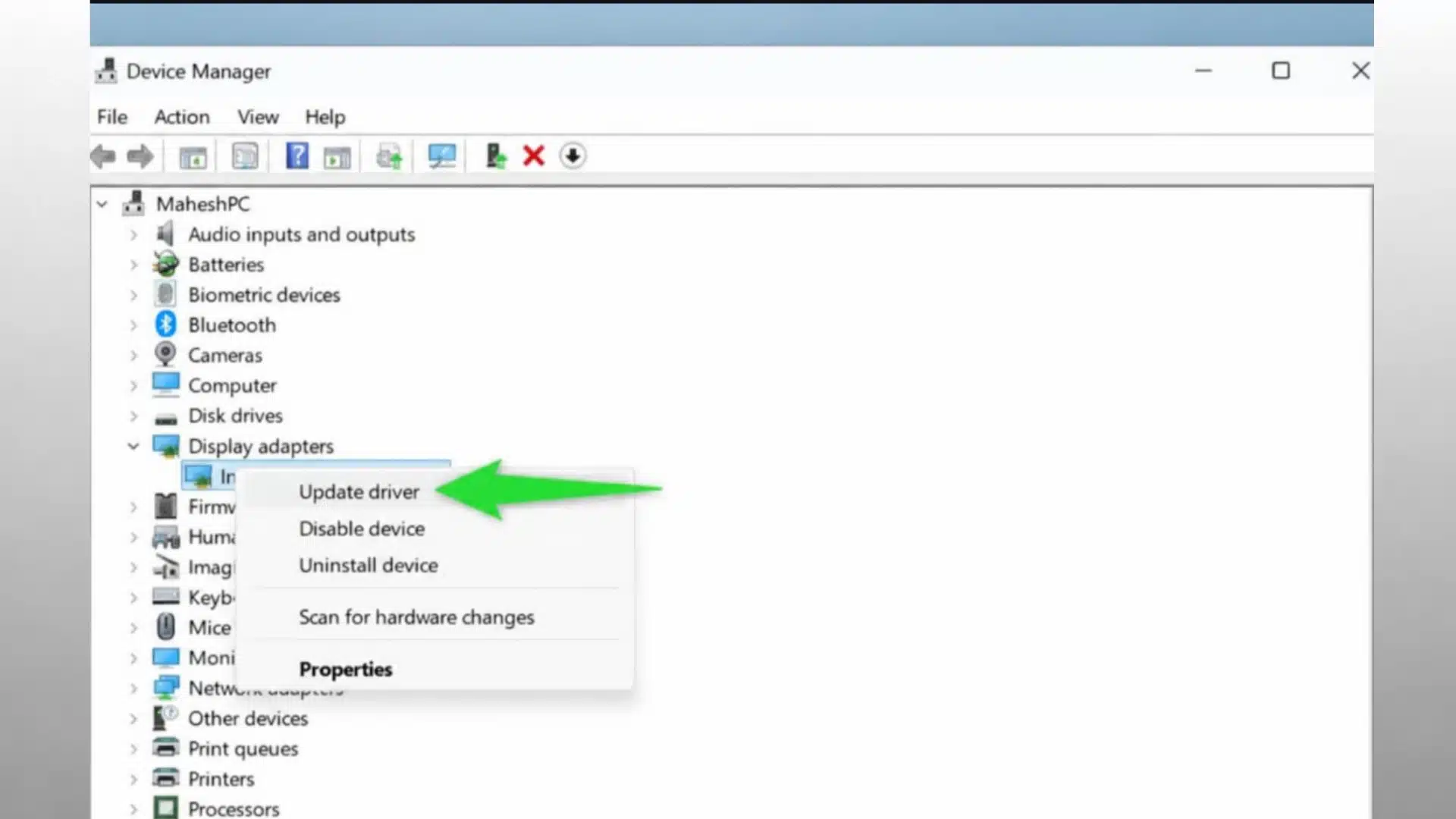
Use this when you already know exactly which piece of hardware is causing trouble. It can hunt down a replacement without you needing the exact model number.
- Right-click the Start button and select Device Manager.
- Find and expand the category your device falls under.
- Right-click the specific device that’s giving you trouble.
- Select Update driver.
- Choose Search automatically for drivers.
- Let Windows search for and install a match if it finds one.
- Restart the computer if it asks you to.
Sometimes it’ll say “The best drivers for your device are already installed.” If it does, try Windows Update’s optional list or the manufacturer’s page.
How to Update Graphics Driver Correctly
Graphics gets its own section because updating your graphics driver is one of the most common versions of this question, and NVIDIA, AMD, and Intel each handle it a little differently.
1. Update NVIDIA Graphics Drivers
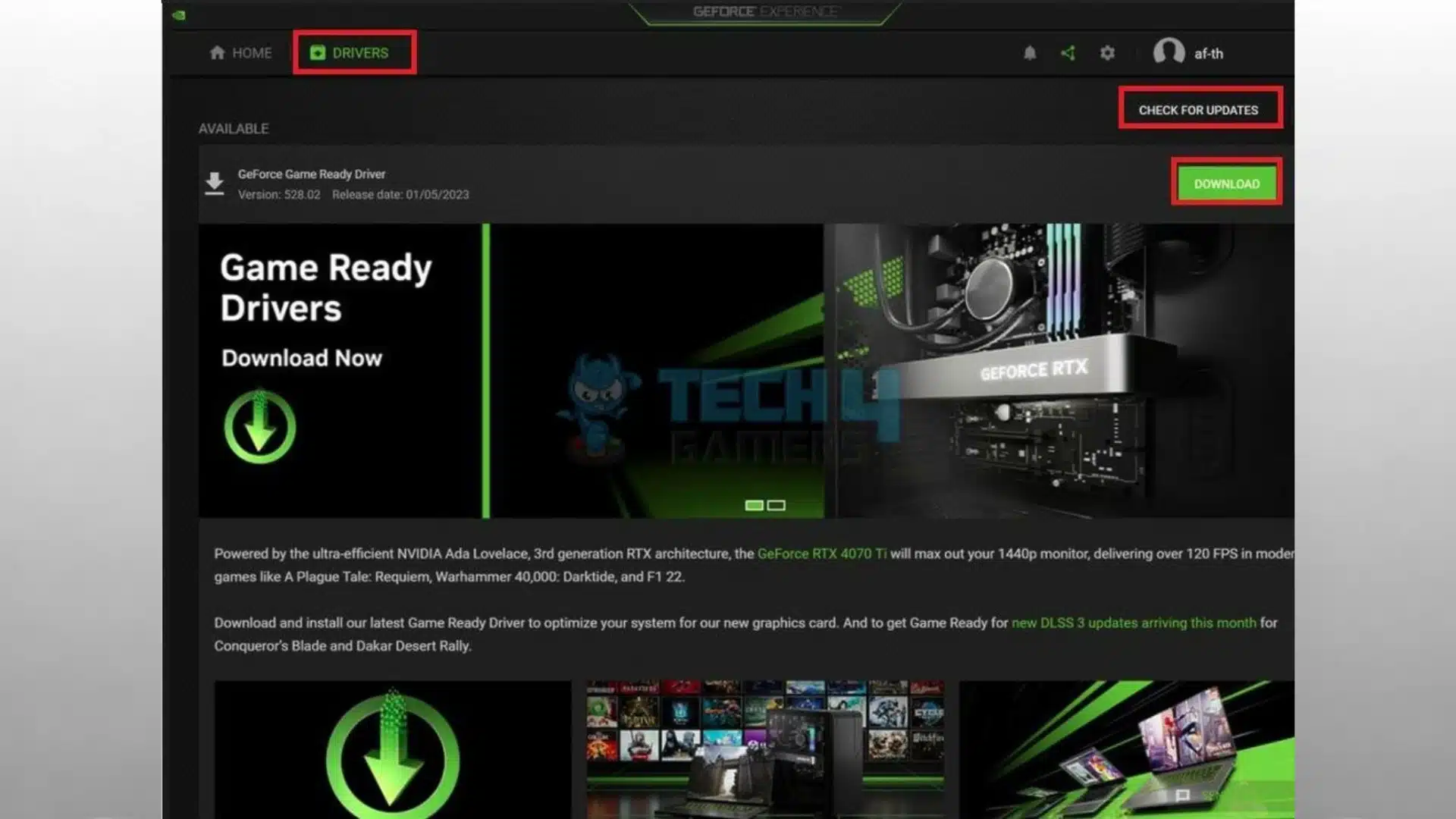
Here’s how to grab the right driver straight from NVIDIA:
- Identify your exact NVIDIA GPU model.
- Use NVIDIA’s official driver page or its companion app.
- Search for the driver matching your card.
- Download the correct version for your system.
- Run the installer file.
- Complete the setup process.
- Restart your PC once it finishes.
NVIDIA offers two branches: Game Ready drivers for day-one support in new titles, and Studio drivers built for stability in creative apps. I lean toward Studio unless something new just launched, since I would rather have a stable render than shave a few frames off a game I am not playing yet.
2. Update AMD or Intel Graphics
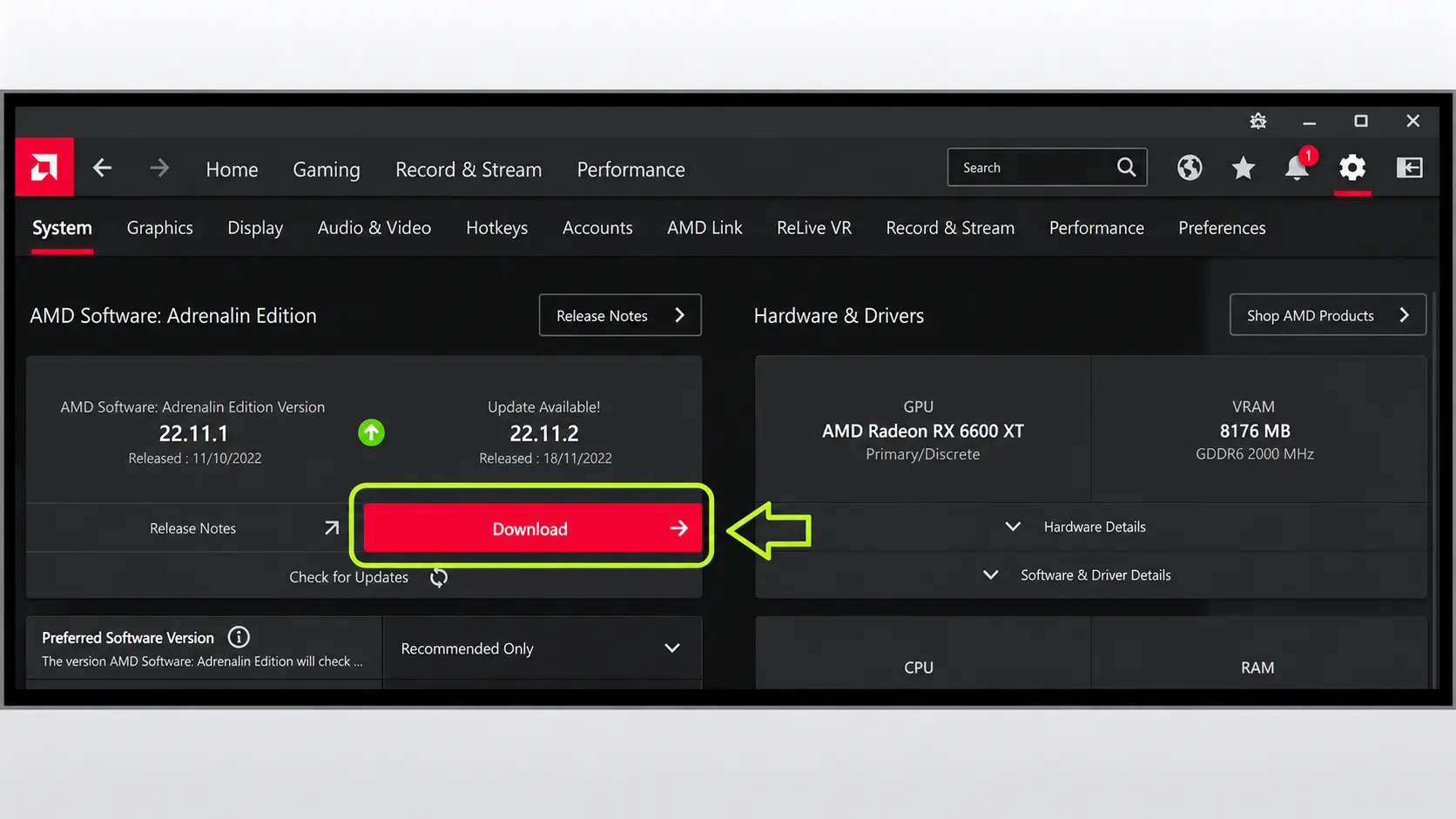
The steps are nearly identical for both; just start with your own brand’s support page.
For AMD:
- Identify your Radeon graphics model.
- Visit AMD’s official support page.
- Find the matching graphics driver.
- Download and run the installer.
- Restart if the installer asks you to.
Do this when a game lists a minimum driver version, or when you see screen tearing tied to the GPU. Otherwise, I do not chase every release the moment it drops.
For Intel integrated graphics, the same logic applies. Identify your chip generation, then use Intel’s own driver download center to find the matching graphics driver rather than a third-party tool.
One thing that trips up a lot of laptop owners: if your machine is a Dell, HP, Lenovo, or similar prebuilt, the GPU maker’s generic driver sometimes will not install cleanly, because the laptop manufacturer ships a customized version tied to its own power and thermal management
Which Driver Update Method Should You Use
Picking between them comes down to matching the tool to your problem. Windows Update covers routine maintenance. One device acting up? Device Manager. Windows drawing a blank? The manufacturer’s page. Gaming or graphics work? GPU tools. Start with whatever’s simplest first.
|
Situation |
Best Starting Method |
|---|---|
|
Routine PC maintenance |
Windows Update |
|
One specific device needs attention |
Device Manager |
|
A newer GPU driver is required |
GPU manufacturer’s own tools |
|
Laptop GPU driver will not install |
Laptop manufacturer’s support page |
|
A recent driver caused new problems |
Roll back the driver |
What to Do When a Driver Update Breaks Something
An update can sometimes make things worse. Start simple; a plain restart fixes more than you would expect.
- Restart the PC and test the affected device again.
- Open Device Manager and find the device.
- Open its Properties, then the Driver tab.
- Choose Roll Back Driver if the option is available.
- If rollback isn’t offered, manually reinstall the previous version using the manufacturer’s stable release.
- Test the hardware once more.
I will pick rolling back over installing yet another new driver almost every time. It returns your system to a version you already know worked, rather than gambling on a second unknown.
Common Driver Update Mistakes to Avoid
Not everything that claims to fix drivers deserves your trust. Many sites bundle software you never wanted with drivers you don’t need.
|
Do |
Don’t |
|---|---|
|
Use Windows Update as your first stop |
Download drivers from unknown or unofficial sites |
|
Use Device Manager for single device issues |
Rely on random driver updater utilities |
|
Go to your PC or laptop manufacturer’s official support page |
Install a driver made for a different hardware model |
|
Check optional drivers before installing them |
Install every optional driver without checking it first |
|
Get GPU drivers straight from NVIDIA, AMD, or Intel |
Grab GPU drivers from unofficial mirrors |
Wrapping Up
Driver updates are most useful when they solve a real problem, not when you install them out of habit. I recommend starting with Windows Update, then using Device Manager when one device needs attention.
For graphics issues, you can go straight to NVIDIA, AMD, Intel, or your laptop maker for the correct driver. Before making changes, check your current version so you know what you already have. If an update causes trouble, rolling back is often the safest next move.
Knowing how to update drivers in Windows helps you fix hardware issues without relying on risky third-party tools. Use the method that matches your problem, test the device afterward, and share your driver questions or fixes in the comments.
Frequently Asked Questions
Should You Update Drivers on a Work or Managed Laptop Yourself?
If your laptop is managed by an IT department, they often push driver updates centrally and block user installation. Installing them yourself can conflict with security policies or void support agreements, so check with IT before updating drivers on a company-owned machine.
What Happens if You Never Update Your Drivers?
Older drivers can keep working for a long time. Over time, though, they can cause compatibility issues with newer software, accessories, or operating system changes.
Do Driver Updates Delete Personal Files?
No. Driver updates only replace the software that helps Windows talk to your hardware. Documents, photos, apps, and personal files stay untouched.
Why Does Windows Sometimes Hide an Available Driver Update?
Microsoft holds back certain drivers from automatic installation if they are still being tested for stability on a wide range of hardware, or if a manufacturer flags a known conflict. That is why the optional updates list can show a driver that automatic scanning skipped entirely.