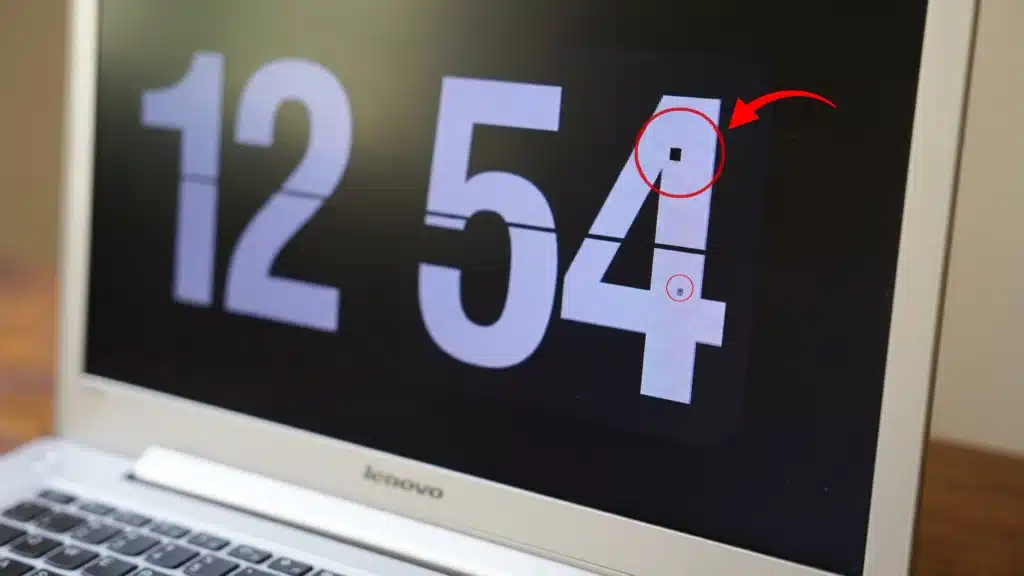
A small black dot shows up on your screen and never changes, no matter what’s playing underneath it. That’s usually a dead pixel, one of the most common display defects across phones, laptops, monitors, and TVs.
On its own, the dot won’t damage anything else on the screen, but figuring out exactly which kind of defect you’re looking at changes what you should try next.
A dead pixel isn’t the same as a stuck pixel, and mixing the two up can lead people to try the wrong fix or give up on one that could have worked.
Here’s what separates a dead pixel from every other pixel problem, why it happens, and what your realistic options are.
What Is a Dead Pixel?
Before comparing it to other display defects, it helps to know exactly what’s happening inside the screen at that one tiny point.
A dead pixel is a single point on a digital display made up of three subpixels, red, green, and blue, that has lost power or stopped receiving a signal entirely.
Because none of its subpixels are lighting up, it appears as a small, constant black dot no matter what color or image is on screen around it.
This is different from a scratch, a piece of dust, or a smudge, since those sit on top of the glass and can be wiped away, while a dead pixel is a failure inside the panel itself, the same underlying layer that separates how LCD and LED screens actually produce an image in the first place.
Dead Pixel vs. Stuck, Bright, and Hot Pixel
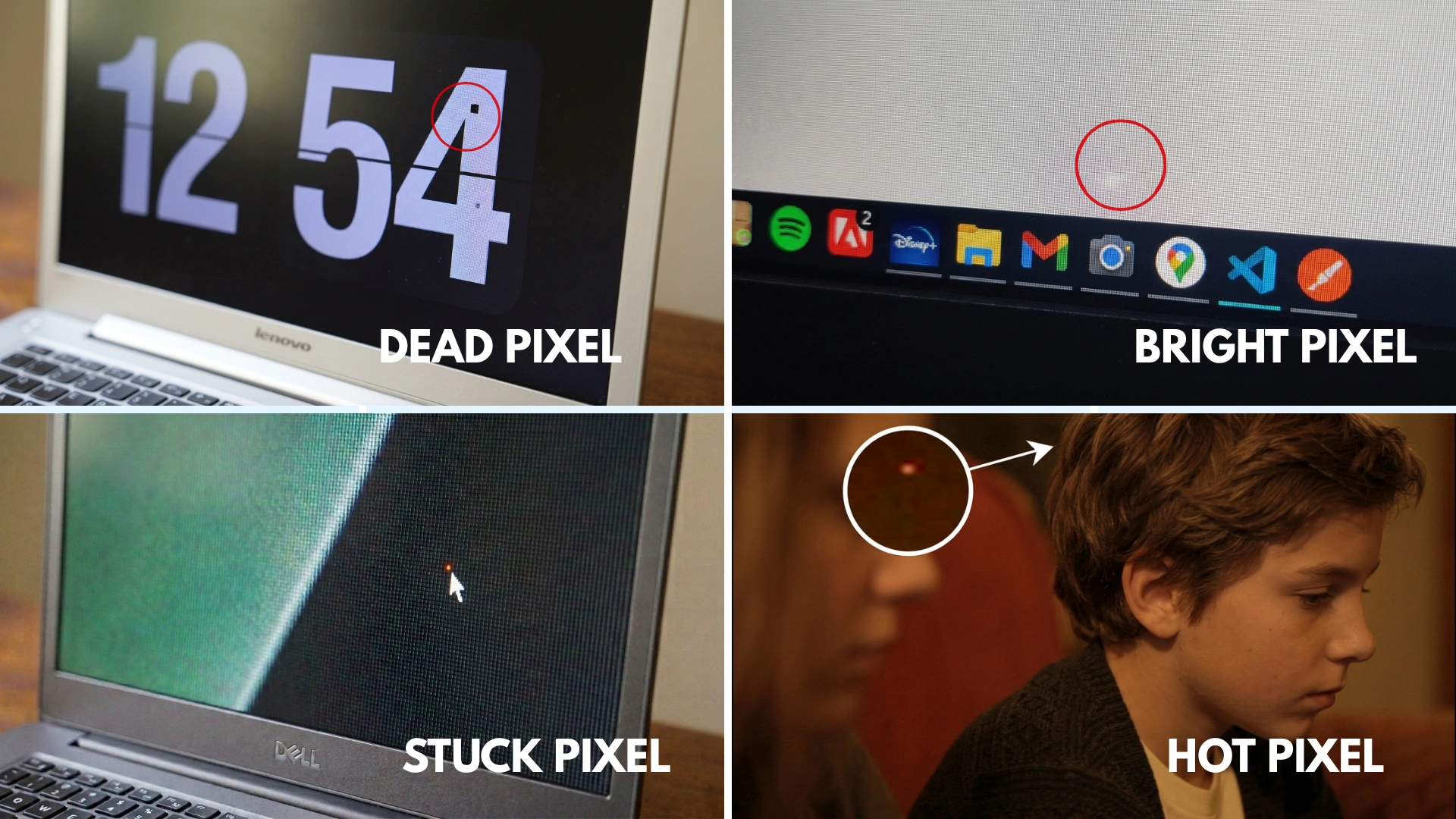
These terms get used interchangeably online, but each one describes a different failure, and knowing which one you have changes what’s worth trying.
| Type | Appearance | What’s Happening | Can It Be Fixed? |
|---|---|---|---|
| Dead pixel | Permanently black | A subpixel or transistor loses power entirely | Rarely, at home |
| Stuck pixel | Frozen on one color (red, green, or blue) | A subpixel is stuck in the “on” position | Sometimes, with color cycling |
| Bright pixel | Fully white | All three subpixels are stuck on at once | Sometimes, same method as stuck pixels |
| Hot pixel | Small bright dot, camera sensors only | An overheated photosite on a camera sensor, not a screen | Managed through in-camera pixel mapping, not a true repair |
Notice that a “hot pixel” isn’t a screen problem at all; it’s a camera term, and confusing it with a dead pixel on a display sends people looking in the wrong place entirely, much like shoppers sometimes mix up panel type with resolution when comparing sharper display options.
Why Do Dead Pixels Happen?
Knowing the cause won’t undo the defect, but it does explain why some screens develop one and others never do.
- Manufacturing flaws: Packing millions of subpixels onto a single sheet of glass makes a handful of factory-stage failures statistically normal, even on well-built displays.
- Physical pressure or impact: A drop, a tight bag, or a hard press on the glass can damage the circuitry beneath the surface.
- Heat: Prolonged high temperatures put ongoing stress on the transistors that control each subpixel.
- Simple age: Those same transistors can weaken slowly over years of regular use, with no single incident to point to.
Most dead pixels trace back to one of these four causes, and none of them mean the owner did anything wrong.
Does a Dead Pixel Spread to the Rest of the Screen?
This is one of the first worries people have once they spot one, and the honest answer is reassuring.
A single dead pixel is a localized, isolated failure, and it will not spread to neighboring pixels the way a crack in glass might travel.
That said, a completely different defect can appear elsewhere on the same panel over time as it ages or takes physical stress, which is why people sometimes think a dead pixel “grew.”
An expanding line, a block of color, or a widening dark patch is a different and more serious sign, one that usually points to a deeper connection or panel failure rather than an ordinary dead pixel.
How to Check for a Dead Pixel
Before assuming the worst, a few minutes of testing will confirm exactly what type of defect is on the screen. Working through all three in order rules out the most common false alarms before anyone starts trying repairs.
1. Clean the screen first

Dust, fingerprints, and fiber strands can look identical to a pixel defect from a normal viewing distance, especially under certain lighting or when the screen is off.
Wipe the display with a dry microfiber cloth before doing anything else, checking from a few different angles as you go. If the mark moves, smears, or disappears entirely during cleaning, it was never a pixel defect to begin with, just surface debris sitting on the glass.
2. Run a full-screen solid color test

Display pure white, black, red, green, and blue across the entire screen, one at a time, and watch closely for any dot that doesn’t match. White exposes dead (black) pixels, while black exposes stuck or bright pixels, and this is also where understanding real brightness standards helps you judge whether what you’re seeing is a defect or just how the panel renders color.
A free option built for exactly this is the EIZO Monitor Test, which runs directly in a browser, or KTC’s dead pixel detection tool if you want something narrower and built specifically around pixel checking rather than general monitor calibration.
3. Zoom in to confirm
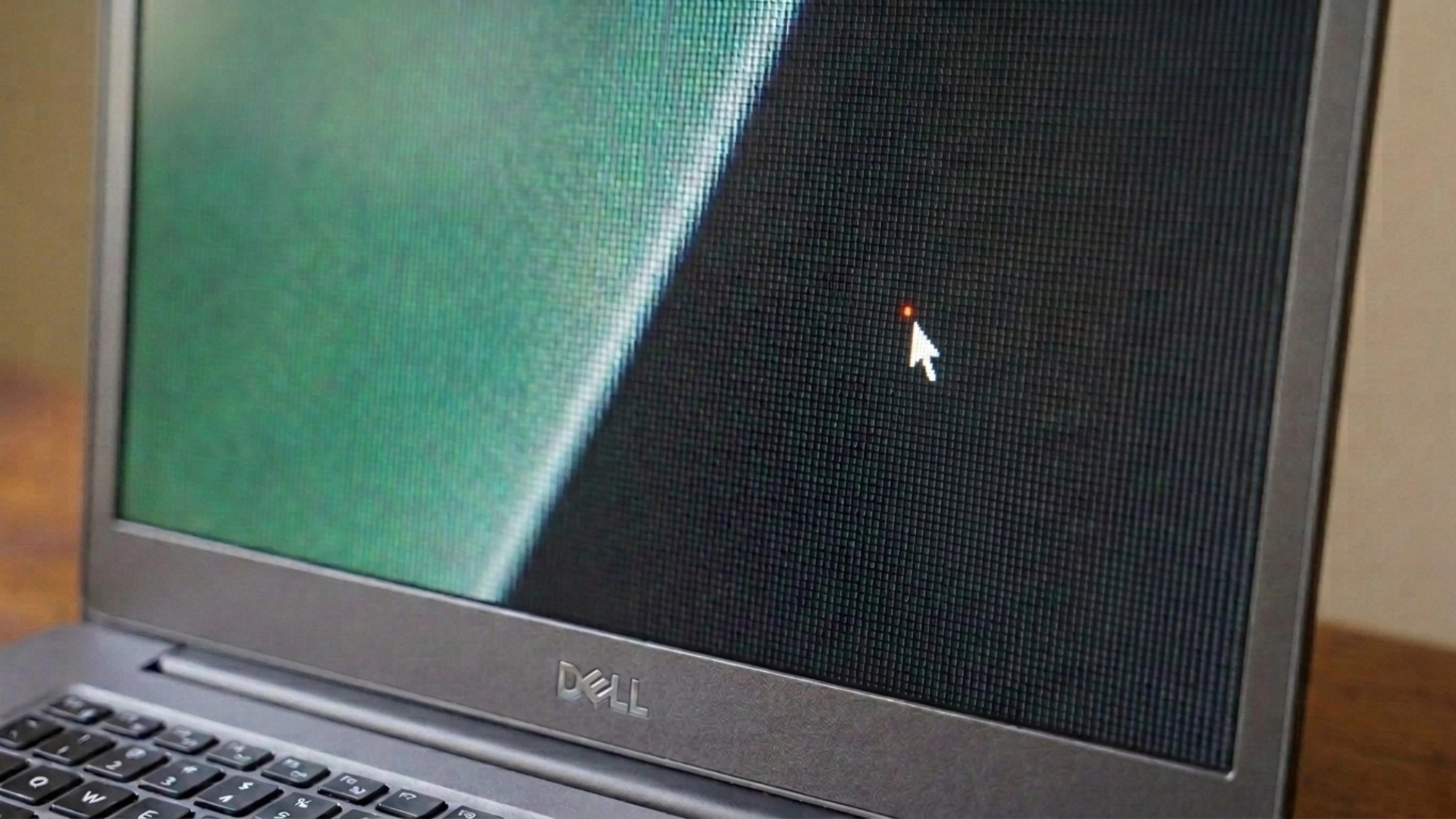
If a spot is hard to classify even after the color test, a phone’s macro camera or a magnifying loupe held close to the screen settles the question.
A real pixel defect aligns precisely with the display’s pixel grid, sitting exactly where a subpixel should be. Something that floats slightly off that grid, or seems to shift position at different angles, is almost always dust trapped between the screen’s layers rather than an actual hardware failure.
Can You Actually Fix a Dead Pixel?
This is where outdated advice can cause more harm than good, so it’s worth separating methods that may help from those that are unlikely to work.
A genuinely dead pixel, one that stays completely black across every color test, is a hardware failure and usually cannot be repaired at home because no electrical signal is reaching that point on the display.
A stuck or bright pixel is different because the subpixel is still receiving power but remains frozen in one state. A rapid color-cycling tool can sometimes reset this behavior and restore normal operation within a few minutes.
Older advice about pressing or “massaging” the screen with a stylus comes from thicker, older display panels. Modern LCD and OLED screens are much thinner, so pressure-based methods are more likely to cause additional damage than fix the original pixel issue.
Does the Pixel’s Location or Pattern Change How Serious It Is?
Not every dead pixel carries the same weight, and where it sits matters just as much as how many there are.
- A single edge pixel on a large, high-resolution screen often goes unnoticed during normal use, since it disappears into the overall pixel density.
- A tight cluster of several dead pixels reads as one larger mark instead of several tiny ones, because the eye groups failures that sit close together.
- A central pixel or cluster sits where your eyes naturally rest, making it a stronger case for a warranty claim than the same defect tucked into a corner, even at an identical total count.
Count matters less than most people assume; pattern and position are usually what decide whether a defect is worth pursuing.
Is One Dead Pixel Normal? Understanding Warranty Policies
Manufacturers rarely treat a single dead pixel as an automatic defect, and knowing why helps set realistic expectations before contacting support.
| Device Type | Typically Acceptable Count | What This Means |
|---|---|---|
| Phone or tablet | 0 to 1 | Many brands replace a unit for even one visible defect within the return window |
| Laptop screen | 1 to 3 | Varies by the manufacturer’s own published pixel policy |
| Standard monitor | 3 to 5 | Usually follows general industry defect-tolerance classes |
| Premium or color-critical monitor | 0 | Often backed by a stricter “zero bright pixel” guarantee |
These numbers follow industry standards like ISO 9241-307, which defines acceptable display defects. Manufacturers then create their own policies, such as Dell’s published pixel guidelines, based on these standards.
How to Prevent Dead Pixels From Happening
None of these habits guarantee a defect-free screen, but together they meaningfully lower the odds over the life of a device.
- Handle physical stress carefully: avoid pressing on the screen, stacking heavy objects on a closed laptop, or packing the device tightly against hard edges in a bag
- Manage heat exposure: avoid leaving a device in direct sun or a hot car, and give it airflow during heavy, sustained use like gaming or video editing
- Follow OLED-specific care: let built-in pixel-refresh or pixel-care cycles run when the device prompts for them, since skipping these repeatedly can shorten subpixel lifespan
- Inspect immediately after purchase: run a solid color test the day a new screen arrives, while a manufacturing flaw is still covered by a simple return or exchange
- Watch charging and storage habits: avoid leaving a laptop plugged in and fully closed in a hot bag for extended periods, since heat and pressure combine in that specific scenario
Sticking to these basics won’t stop a manufacturing flaw that was already baked in before purchase, but it does rule out the damage that’s actually within your control.
Conclusion
A dead pixel is simply a subpixel that has stopped receiving power, and knowing that distinction from a stuck or bright pixel changes everything about how to respond.
A quick solid-color test tells you within minutes which type you’re actually dealing with, since dead, stuck, and bright pixels each show up differently across white, black, and colored screens.
That single piece of information decides whether a color-cycling tool is worth trying or whether a warranty claim is the more realistic next step, especially once you factor in where the pixel sits and how your specific device’s tolerance policy is written.
Run a solid-color test on your screen today, and check your device’s specific pixel policy before assuming a single dot means the worst.
Frequently Asked Questions
Can a screen protector look like a dead pixel?
Yes. Dust, air bubbles, or damage under a screen protector can appear like pixel defects but sit above the display layer.
Do dead pixels appear more often on certain screens?
They can occur on LCD and OLED displays, but the chance depends more on manufacturing quality, usage, and physical stress.
Can turning the screen off for a while fix a dead pixel?
No. A true dead pixel is a hardware failure, although temporary display issues may disappear after restarting the device.