You click once, and the file opens twice. You try to select one word, and the whole line gets highlighted instead.
A mouse double clicks issue is one of the most annoying problems a computer user can run into, especially in the middle of work or a game.
The good news is that this is a common problem with a small set of real causes, and most of them can be fixed within minutes without buying new hardware.
In most cases, the culprit is either a worn switch, a stray piece of dust, outdated drivers, or a connection problem, and each one has its own straightforward fix.
The steps below start with the simplest checks and move toward the solutions that can fix more stubborn cases.
What Mouse Double-Clicking Means
Before fixing anything, it helps to understand what mouse double clicks actually means and how to tell it apart from a normal settings issue.
Mouse double-clicking happens when a single physical button press sends two click signals to the computer instead of one. This can cause unexpected actions like opening files twice, selecting extra text, or moving items incorrectly.
It is different from the double-click speed setting in Windows, which only controls how quickly two separate clicks must happen to register as one action. Adjusting this setting may change how fast you need to click, but it will not fix a failing mouse switch that is sending duplicate signals.
If your mouse opens folders unexpectedly or selects items you did not intend to choose, the issue is usually related to hardware, software, or connection problems rather than your clicking speed.
Why a Mouse Clicks Twice Instead of Once
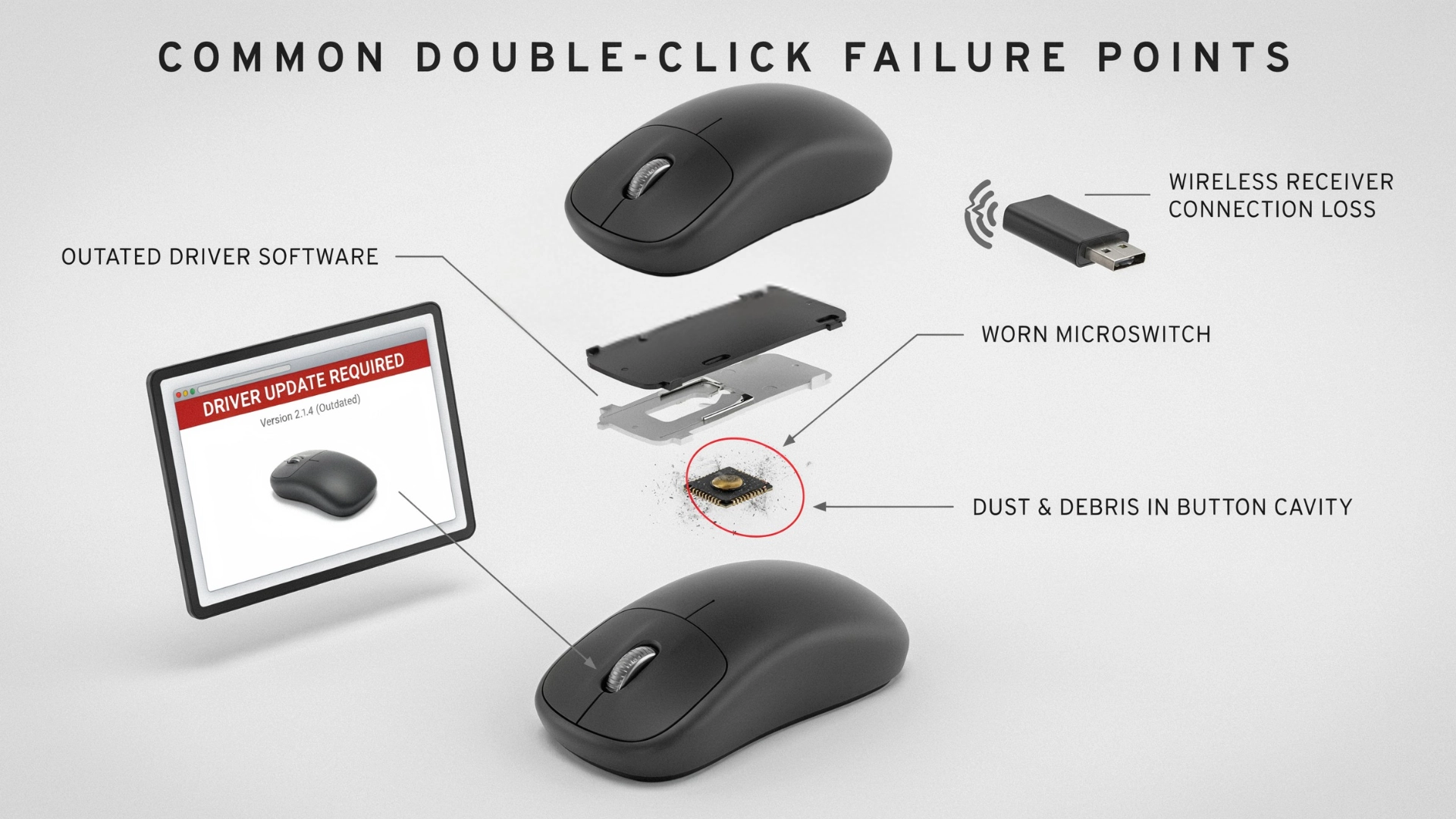
A mouse that double-clicks unexpectedly usually has a problem with either the hardware, software, or connection. Identifying the cause helps you choose the right fix instead of replacing the mouse unnecessarily.
- Worn Microswitch: The most common cause is a damaged internal switch. Over time, the spring inside the switch can weaken and create extra signals, making one press register as two clicks, a pattern similar to internal components wearing down elsewhere inside a computer.
- Dust and Debris Inside the Switch: Small particles like dust, crumbs, or hair can interfere with the contact points inside the button. Cleaning around the button area may fix temporary double-click issues.
- Driver or Software Conflicts: Outdated drivers, mouse software, or recent system updates can sometimes cause incorrect click detection. This issue often affects multiple buttons, not just one.
- Wireless Connection Problems: A low battery, weak signal, or distance from the receiver can interrupt communication between the mouse and computer. Replacing the battery, moving the receiver closer, or testing with a cable can help identify the cause.
Once you know whether the issue comes from the mouse hardware, software, or connection, you can apply the right solution without wasting time on unnecessary fixes.
Quick Checks Before Trying Any Fix
Before trying any repair, a few quick checks can point straight to the real cause without wasting time on the wrong fix.
Testing the mouse on a different computer, trying another USB port, or plugging in a spare mouse on the same machine usually shows whether the click problem follows the mouse or stays behind on the original computer.
Checking the battery level on a wireless mouse and noticing whether the issue shows up in every app or only one takes just a few extra minutes to confirm.
If the double-clicking follows the mouse to another device, the problem is almost always hardware. If it disappears on another computer, the cause is more likely a driver or setting on the original machine, since refreshing outdated drivers often resolves this kind of erratic input behavior.
A simple way to narrow it down is:
- Problem follows the mouse → likely a hardware issue such as a worn microswitch
- Problem stays with the computer → likely a driver, setting, or software issue
Step-by-Step Fixes for Mouse Double Clicking
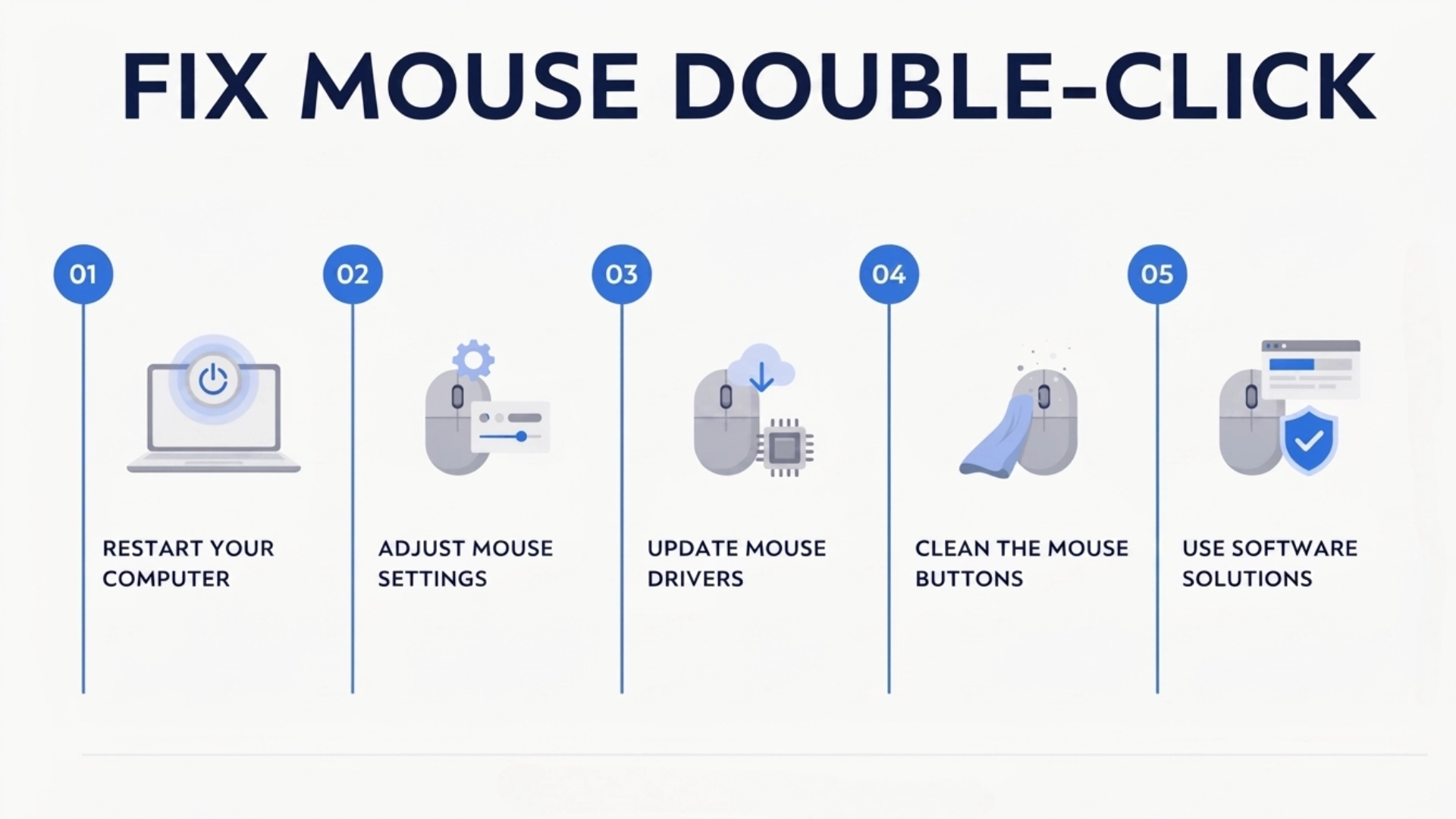
Once you’ve narrowed down the likely cause, these steps move from the quickest fix to the ones that take a bit more time and effort.
Step 1: Restart the computer
Restarting the computer can clear temporary software glitches, stuck processes, or background apps that may interfere with mouse input. In some cases, manually closing frozen programs can offer a quicker fix than a full restart.
It only takes a minute to try and helps rule out system-related issues before moving to hardware fixes. It will not solve problems caused by a worn microswitch or physical damage.
Step 2: Adjust the double-click speed setting
Open Mouse Properties in Windows Settings and check the double-click speed.
This setting only changes how quickly two intentional clicks are recognized as a double-click. It can help if your clicking speed is being interpreted incorrectly, but it will not fix a damaged microswitch that sends duplicate signals.
Step 3: Update or reinstall the mouse driver
Open Device Manager, find the mouse entry under “Mice and other pointing devices,” and choose to update the driver. If the issue began right after an update, rolling back the driver can also help.
For official Windows instructions, users can check Microsoft’s Device Manager support documentation when updating or reinstalling hardware drivers.
Step 4: Clean the mouse exterior and buttons
Turn the mouse off, wipe the surface with a slightly damp microfiber cloth, and use a can of compressed air around the button edges to clear out dust.
Cleaning can solve debris-related clicking problems, while driver changes solve software conflicts. Both are quick fixes to try before opening the mouse.
Step 5: Try debounce software as a temporary workaround
Programs like these filter out rapid repeated signals within a set time window. They can hide the problem for a while but do not fix the switch itself, and they may add a small amount of input delay.
This option is mainly useful for extending the life of a mouse that is already showing switch wear, especially if replacing it immediately is inconvenient.
Working through these steps in order usually clears up the problem well before you need the open the mouse.
Repairing the Microswitch: How Difficult Is It Really?
Not every double-clicking mouse needs to be replaced, and repair difficulty varies a lot depending on how far the fix needs to go.
| Repair Step | Difficulty Level | Tools Needed | Time Needed |
|---|---|---|---|
| Opening the mouse casing | Medium | Small screwdriver | 15 to 20 minutes |
| Retensioning the microswitch spring | Hard | Screwdriver, tweezers | 30 to 45 minutes |
| Desoldering and replacing the switch | Advanced | Soldering iron, replacement switch | 45 to 60 minutes |
These repairs involve opening the mouse and working with internal components, so they require more care than basic cleaning or software troubleshooting.
Opening the mouse may also affect warranty coverage, so checking the manufacturer’s support policy first is recommended.
How to Stop It From Happening Again
A little regular maintenance goes a long way toward keeping a mouse’s switches working properly, and most of these habits take only a few seconds.
- Keep food and drinks away from the desk area where the mouse sits
- Wipe down the mouse every few weeks with a dry or slightly damp cloth
- Avoid pressing buttons with excessive force
- Consider a mouse with optical switches, which tend to resist wear better than mechanical ones.
- Replace worn mouse pads that shed material near the buttons
None of these habits take more than a few minutes on their own, but together they can add years to a mouse’s working life.
Should You Repair or Replace the Mouse?
The right choice usually comes down to the mouse’s value, its age, and whether it’s still covered by the manufacturer’s warranty.
| Situation | Better Choice | Why |
|---|---|---|
| Still under warranty | Contact the manufacturer | A free replacement may already be available |
| Expensive or favorite model | Repair the microswitch | Worth the extra time for a mouse you rely on |
| Basic, low-cost model | Replace it | A new budget mouse often costs less than repair tools |
| No experience with electronics | Replace it | Opening the case risks further damage without the right skills |
| Comfortable with small repairs | Repair the switch yourself | Cheaper long-term and keeps a familiar mouse in use |
Check the warranty status before opening the mouse, since a repair attempt can void coverage that would have paid for a free replacement.
Coverage details are usually easy to look up directly, such as Logitech’s warranty policy, Razer’s warranty policy, or Microsoft’s PC accessory warranty page.
Conclusion
A mouse double-click issue is usually easier to solve once you identify whether the cause is a worn microswitch, trapped debris, outdated software, or a connection problem. Starting with simple checks like adjusting settings, updating drivers, cleaning the mouse, and testing the connection can often fix the problem without replacing the device.
If those steps do not work, hardware repair or replacement may be the next option. Following the troubleshooting steps in order saves time and helps avoid unnecessary costs.
If your mouse is still double-clicking after trying these fixes, share your experience in the comments and let others know which solution helped you solve the issue.
Frequently Asked Questions
Can a Wireless Mouse Have This Same Problem?
Yes. Wireless mice can double-click due to a worn switch, just like wired ones, but they can also show the issue from a weak battery or signal interference, which wired mice don’t experience.
How Many Clicks Does a Mouse Switch Usually Last?
Most mouse switches are rated somewhere between 10 million and 50 million clicks, with some premium optical switches rated even higher. However, heavy daily use can wear one out sooner than the rating suggests.
Does Cleaning the Mouse Always Fix Double Clicking?
Not always. Cleaning solves the problem when dust or debris is the cause, but if the internal spring has lost tension, cleaning alone won’t stop the double-clicking.
Can Debounce Software Fix the Problem Permanently?
No. Debounce software only filters out the extra click signal after it happens. It works as a short-term workaround but does not repair or replace the worn component causing the issue.