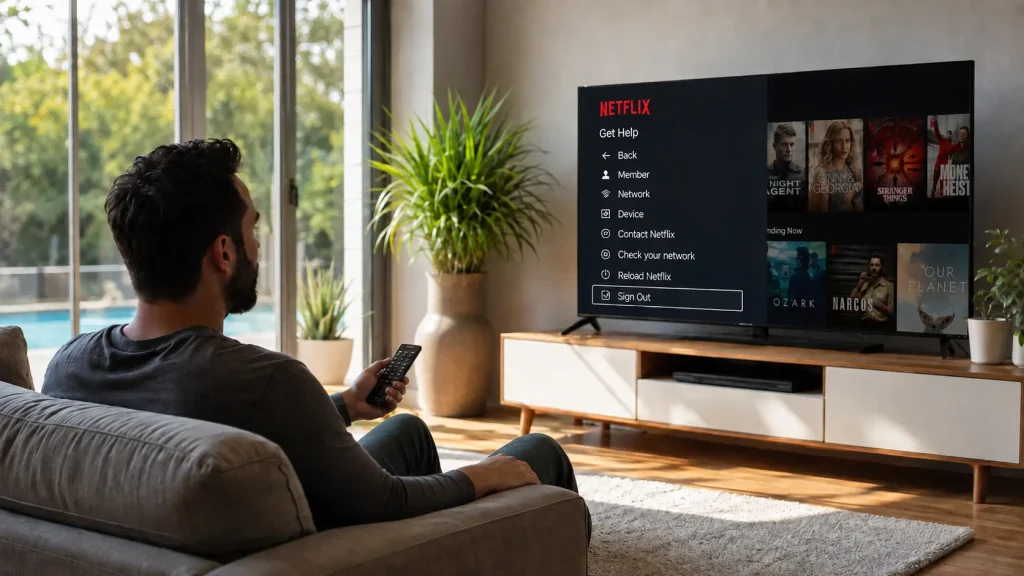
Someone else’s Netflix profile staring back at you on a TV you now own, rented, or borrowed is more common than it should be.
Netflix buries the sign-out button inside a help menu instead of putting it next to the profile icon, so most people just close the app and assume the account left with it. It didn’t.
Knowing how to log out of Netflix on TV means picking the right method for the situation: the app’s own menu for a TV in front of you, a remote shortcut when that menu refuses to show up.
Netflix manages device tools for a hotel room, a rental, or a television that already changed hands. None of these methods touch the membership, delete profiles, or erase anyone’s watch history.
What Does Signing Out Change on a TV?
Signing out removes the current Netflix account credentials from that television or connected streaming device. The app returns to the sign-in or activation screen, and the next person who opens Netflix has to enter their own email and password.
Signing out differs from closing the app, switching profiles, or canceling a membership. Exiting Netflix only closes the app and usually leaves the account signed in.
Switching profiles changes whose viewing history and recommendations appear, but the account stays connected to the TV.
None of these actions cancel the subscription, delete the account or any profile, erase watch history, or sign out other devices automatically.
The Netflix app might be built directly into the television, or run through a Roku, Fire TV, Apple TV, cable box, or game console attached to that screen.
The same streaming devices are also commonly used for casting YouTube to a TV, so the exact menus and navigation can vary depending on which device you’re using.
How to Log Out of Netflix on TV Through the App?
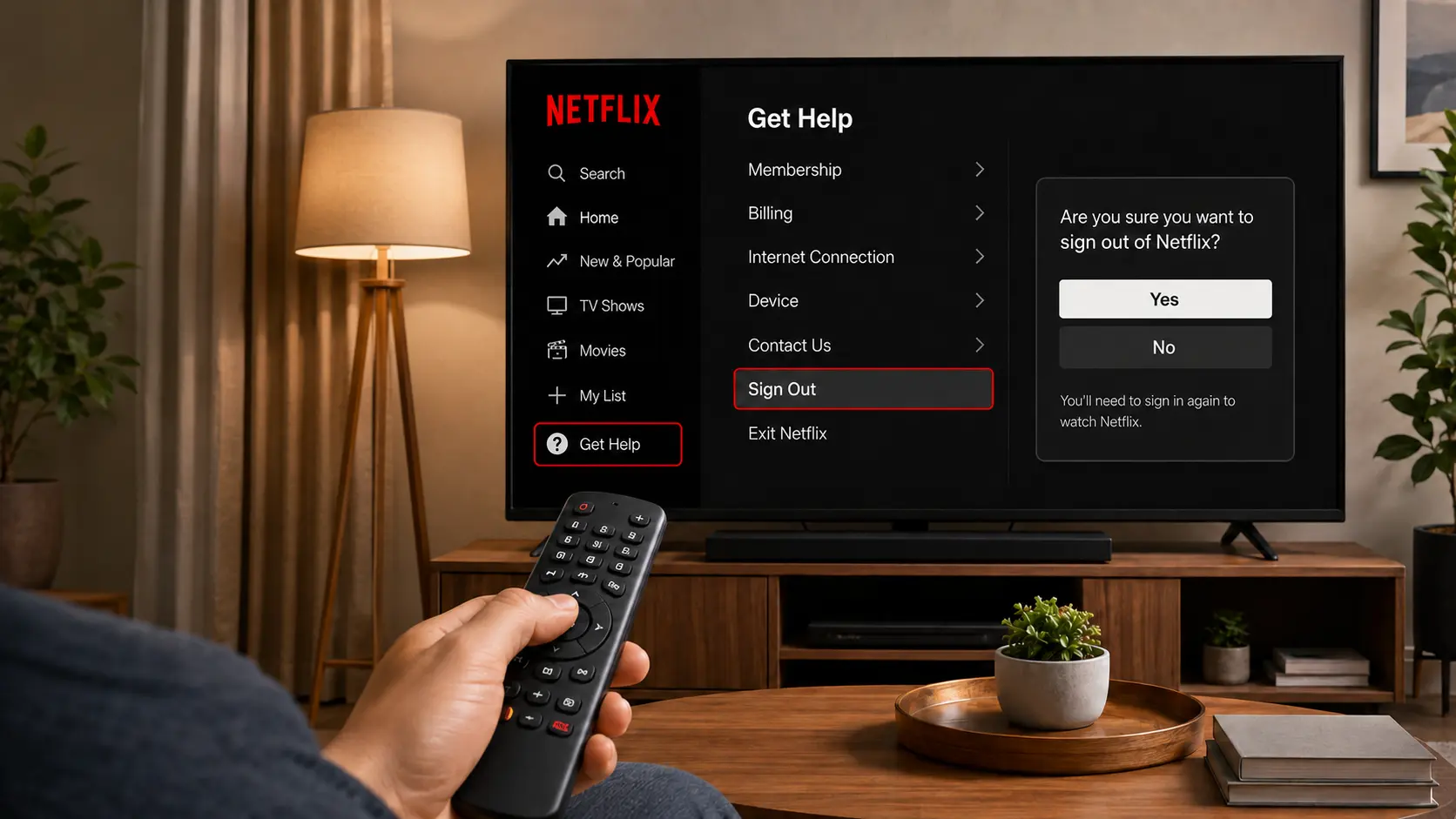
Most Netflix TV apps follow the same sign-out path, though the menu sits at the top on newer layouts and along the left side on older ones. The steps below work regardless of which layout appears.
- Open Netflix: Launch the Netflix app on the TV or connected streaming device.
- Open the Netflix menu: Press Back or Left from the Netflix home screen.
- Select Get Help: Depending on the layout, it may appear under the profile icon or at the bottom of the left menu.
- Choose Sign Out: Click on the sign-out option
- Select Yes: Wait until the Netflix sign-in screen appears.
That completes the process on most TVs. If the account still looks connected afterward, the next section covers what to check before trying a different method.
If you watch Netflix with friends remotely instead of on a shared TV, features like screen sharing Netflix on FaceTime provide a different viewing experience.
How to Confirm That Netflix is Signed Out:
The sign-out worked when Netflix displays its Sign In, Get Started, or device-activation screen instead of the profile-selection page. Reopen the app once to confirm that the previous profiles do not return automatically. If they do, repeat the steps on the streaming device actually running Netflix.
Sign Out of One TV From Your Phone or Computer
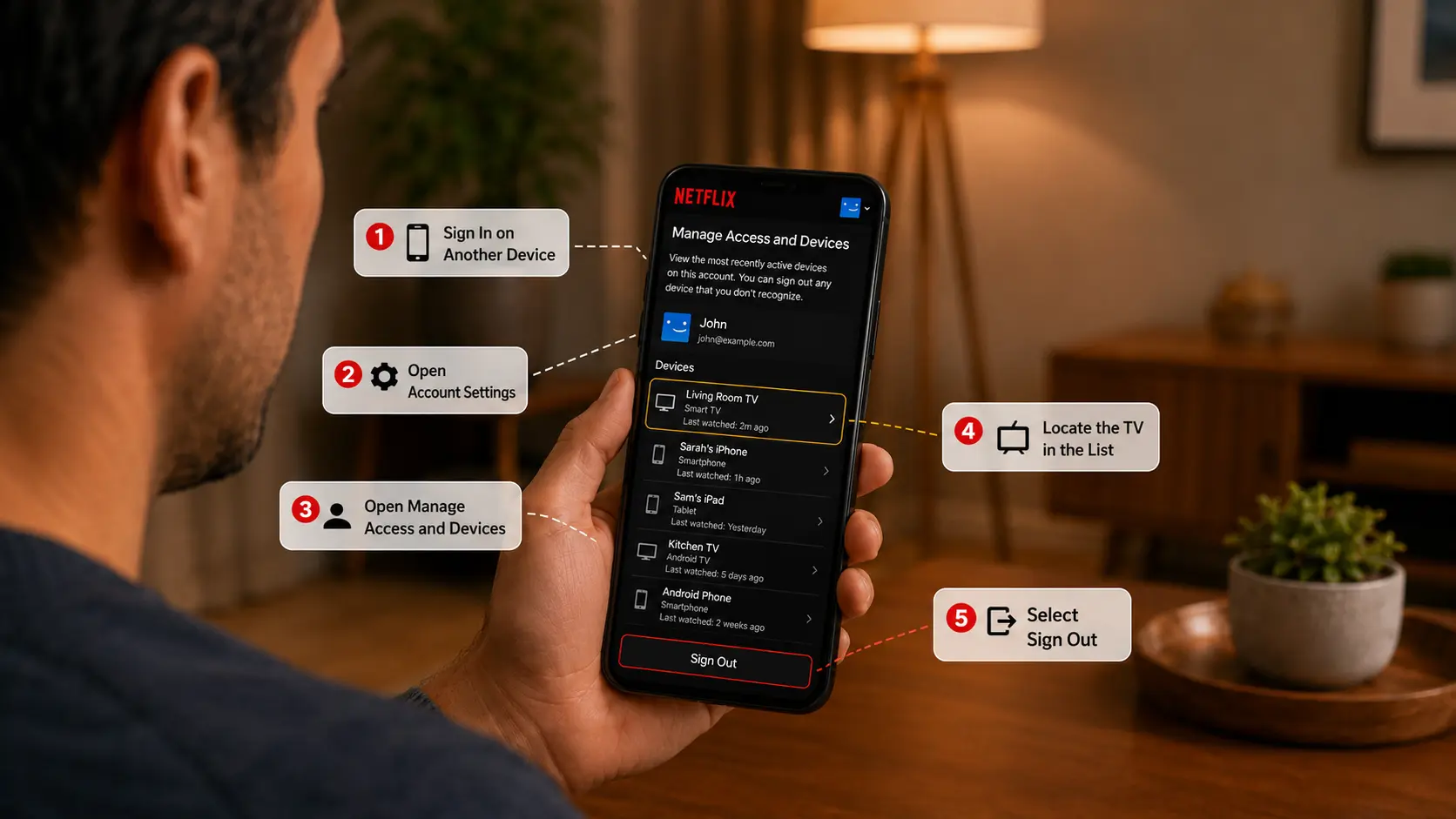
This is the targeted option when only one device needs to go, while everything else signed into the account still belongs there. It works from any phone, tablet, or computer, no matter where the TV itself is.
- Sign in on another device: Use a phone, computer, or tablet to sign in to Netflix through the app or a web browser.
- Open Account settings: Select the profile menu, then choose Account from the options that appear.
- Open Manage Access and Devices: Find this section under Account. It lists devices that have recently used the account.
- Locate the TV in the list: Look for it by device type, recently used profile, and last watched date or time. Expand its details if the page requires that extra step.
- Select Sign Out: Only that device disconnects, leaving the rest of the account untouched.
Refresh the page later if the entry does not update immediately. Netflix notes that device information may take up to 48 hours to appear. This targeted method suits situations where every other signed-in device still belongs to the account holder.
Sign Out of a TV Remotely with Manage Access and Devices
Remote sign-out is the right move for a hotel TV, a vacation rental, an old apartment, or a TV that has already been sold. The Netflix Manage Devices page, officially called Manage Access and Devices, shows recently active devices, but updates are not always immediate.
A device may take up to 48 hours to appear, and devices that have not been active during the last 90 days may be excluded.
Each available entry may show the device type, the profile most recently used on it, and its latest viewing date and time. Complete information may not be available for every device.
Netflix’s Manage Access and Devices page lets an account holder sign out of one device or all of them, and review which devices have been active recently.
Sign Out of Every Device Connected to Netflix
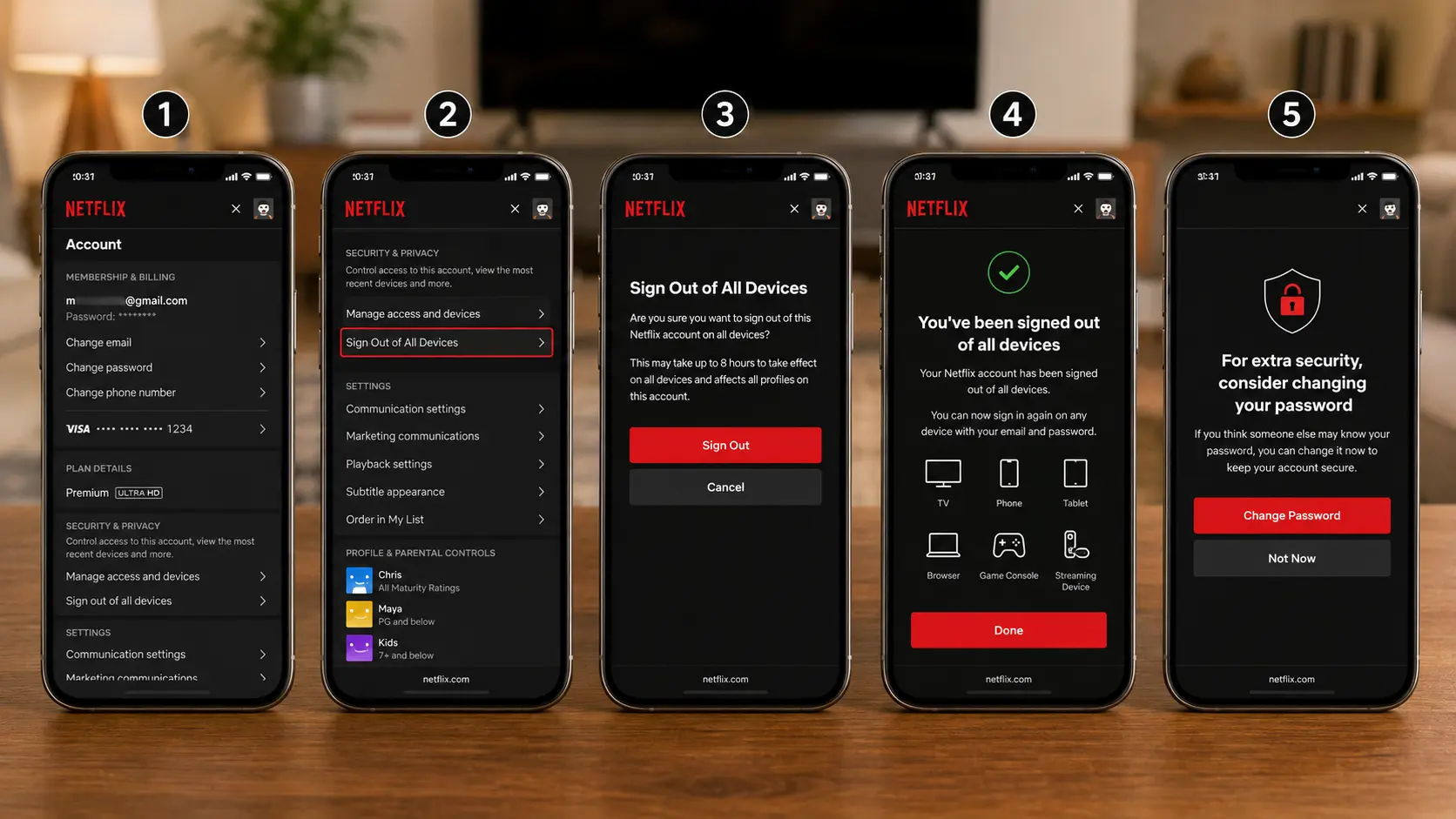
This broader option fits situations where the unwanted television cannot be identified, several unfamiliar devices show up, or account credentials may have been shared without permission.
- Choose Sign Out of All Devices: Go to Account and select the option to sign out of every device at once.
- Confirm the action: A confirmation prompt appears since this affects the entire account.
- Expect every device to disconnect: Every TV, phone, tablet, browser, console, and streaming device signed into the account will need to sign back in.
- Change the password if needed: If unauthorized access seems likely, update the password right after signing out so the same login cannot be reused.
Netflix’s guidance for securing account access recommends signing out of any device that looks unfamiliar and changing the password, so the same login can no longer be used elsewhere.
Already Left the Hotel or Rental: Do not contact the property unless help identifying the television is needed. Sign in to Netflix from a phone or computer, open Manage Access and Devices, and remove the hotel or rental device. If it cannot be identified, sign out of all devices and change the password before signing back in on trusted devices.
Sign Out Using the Netflix Remote Shortcut
With Netflix open on the home screen, enter this sequence using the arrow keys: Up, Up, Down, Down, Left, Right, Left, Right, Up, Up, Up, Up. A diagnostic or service menu should appear within a few seconds.
From there, select Sign Out, Deactivate, or whichever label matches removing the account, then confirm when prompted to return to the sign-in screen.
If nothing shows up, go back to the home screen and enter the sequence again more slowly, making sure the remote is actually controlling the Netflix app.
This shortcut disconnects the account from that television without touching the membership itself.
Where the Sign-Out Menu Appears on Different TV Devices
The Netflix app looks broadly similar across brands, but the first remote button and menu label can differ from one device to the next.
| Device or setup | Where to begin | What to look for |
| Most smart TVs | Open Netflix and press Back or Left | Get Help, then Sign Out |
| Newer Netflix TV layout | Move to the profile icon in the top menu | Get Help, then Sign Out |
| Older left-side layout | Scroll to the bottom of the sidebar | Get Help, then Sign Out |
| TV showing an error screen | Select More Details | Sign Out or Reset |
| Roku, Fire TV, console, or cable box | Open Netflix on that connected device | Use the Netflix menu, not the television’s built-in app |
| Apple TV | Follow Netflix’s Apple TV-specific instructions | Menu location varies by Apple TV generation |
| TV that cannot be accessed | Use a phone or computer | Manage Access and Devices |
If a television or streaming player uses a different interface, search the Netflix Help Center for the exact device model rather than changing system settings or resetting the whole TV.
Protect Your Netflix Account After Using a Shared TV
A quick check afterward closes gaps left on a hotel room, rental property, shared household, or television that changed hands.
- Confirm the shared TV actually returned to the Netflix sign-in screen
- Review recently active devices through Manage Access and Devices in account settings
- Sign out of anything unfamiliar or no longer in use
- Change the password if someone else may know it
- Use a unique password not reused on other accounts
- Sign back in only on devices the account holder recognizes
A factory reset may remove apps and stored account information, but it is unnecessary for a normal Netflix sign-out. Use Netflix’s in-app or remote device controls first, especially before selling or giving away a television.
What to Do When the Sign-Out Option is Missing?
Older app versions, basic remotes, and certain device interfaces sometimes hide the usual sidebar menu. Start from the home screen rather than mid-playback, since the sidebar behaves differently there.
If Get Help or Sign Out does not appear, keep the Netflix app open and enter the following sequence with the remote, drawn from Netflix’s TV troubleshooting instructions.
The shortcut may not work while the TV’s system menu or another app is open. Apple TV users should follow the Apple TV-specific sign-out method instead.
Sign Out From a Netflix Error Screen: If Netflix opens to an error message instead of the home screen, select More Details when that option appears. Choose Sign Out or Reset, confirm the action, and wait for the sign-in screen.
Why Netflix May Still Appear Signed In?
Sometimes the account still looks connected after signing out, and it usually comes down to a few common slip-ups.
Selecting Exit Netflix instead of Sign Out is the most frequent cause, since exiting only closes the app.
If the app closed before the confirmation finished, repeat the steps and wait for the sign-in screen to fully load. A remote sign-out can also take a few minutes to reach the TV, so give it time or restart the app.
Double-check that the right device was selected too, since similar device names are easy to mix up. If another Roku, Fire TV, or console shares the same screen, it needs its own sign-out.
When nothing else explains it, closing and reopening Netflix, or restarting the device, usually clears it up.
Common Sign-Out Mistakes to Avoid
A few small missteps account for most failed sign-out attempts, and most of them are easy to avoid once you know what to watch for.
- Selecting Exit Netflix and assuming the account left with it
- Switching profiles instead of actually signing out of the account
- Deleting a profile, which changes the account but does not remove it from a TV
- Uninstalling the app before trying the built-in sign-out option first
- Factory-resetting an entire television over a simple sign-in issue
- Choosing sign out of all devices when only one TV needed removal
- Forgetting to change the password after spotting unauthorized activity
- Leaving a hotel or rental TV without checking that the sign-in screen appears
- Mixing up a TV’s built-in Netflix app with Netflix running through a connected streaming stick
Skipping these habits saves a repeat trip through the same menus and gets the TV to the sign-in screen on the first try.
Conclusion
Every TV eventually ends up signed into an account that is not yours, and the fix no longer has to be a mystery.
Knowing how to log out of Netflix on TV means having options ready instead of guessing at menus, whether the television sits in front of you or three states away.
Netflix manages device settings quietly; handle the rest for anyone dealing with rentals, hand-me-down electronics, or shared logins.
The bigger win is control: an account that only shows what you choose to share, and a screen that reflects your own viewing habits again. Bookmark this for the next TV, the next rental, or the next surprise profile.
Ran into a menu this didn’t cover? Drop it in the comments below.
Frequently Asked Questions
Does Signing Out and Back In Cost Anything Extra?
No. Signing out and back in doesn’t affect billing in any way. The subscription price is tied to the plan itself, not to how often an account signs in or out on a TV.
Does Signing Out Delete My Ratings or My List?
No. Ratings, My List, and viewing preferences are tied to the profile and account, not to the device. They stay exactly as they were once the same profile signs back in anywhere.
Is There a Limit to How Many Times You Can Sign Out and Back In?
No. Netflix doesn’t cap how often an account signs out and back in on a TV. The only real limit is how many devices can stream at once under the current plan.