Getting a new pair of earbuds connected should take a few moments, but small pairing issues can quickly become frustrating. If you are searching for how to pair Beats earbuds, the first connection step is usually simple once the right settings are in place.
I know how confusing it can feel when earbuds do not appear, connect briefly, or fail to play sound after pairing. You will find clear steps covering setup, device connections, and common fixes that help solve these problems.
The focus is on making the process easier, so you can get back to listening without wasting time trying random solutions or repeating the same steps. Small details often make the difference, and the right approach prevents problems.
What You Need Before Pairing Beats Earbuds
Before pairing Beats earbuds, checking a few basic settings can prevent common connection problems and speed up the setup process.
Start by ensuring the earbuds and charging case have enough battery, as low power can stop the pairing mode from activating properly. Keep Bluetooth enabled on the device you want to connect, and make sure it is within close range of the earbuds.
If the earbuds were previously connected to another phone, tablet, or computer, removing that saved connection can help avoid pairing conflicts.
Having the earbuds ready and knowing how to activate pairing mode creates a smoother experience when connecting Beats earbuds with smartphones, laptops, or other Bluetooth devices.
How to Pair Beats Earbuds: Studio Buds Steps
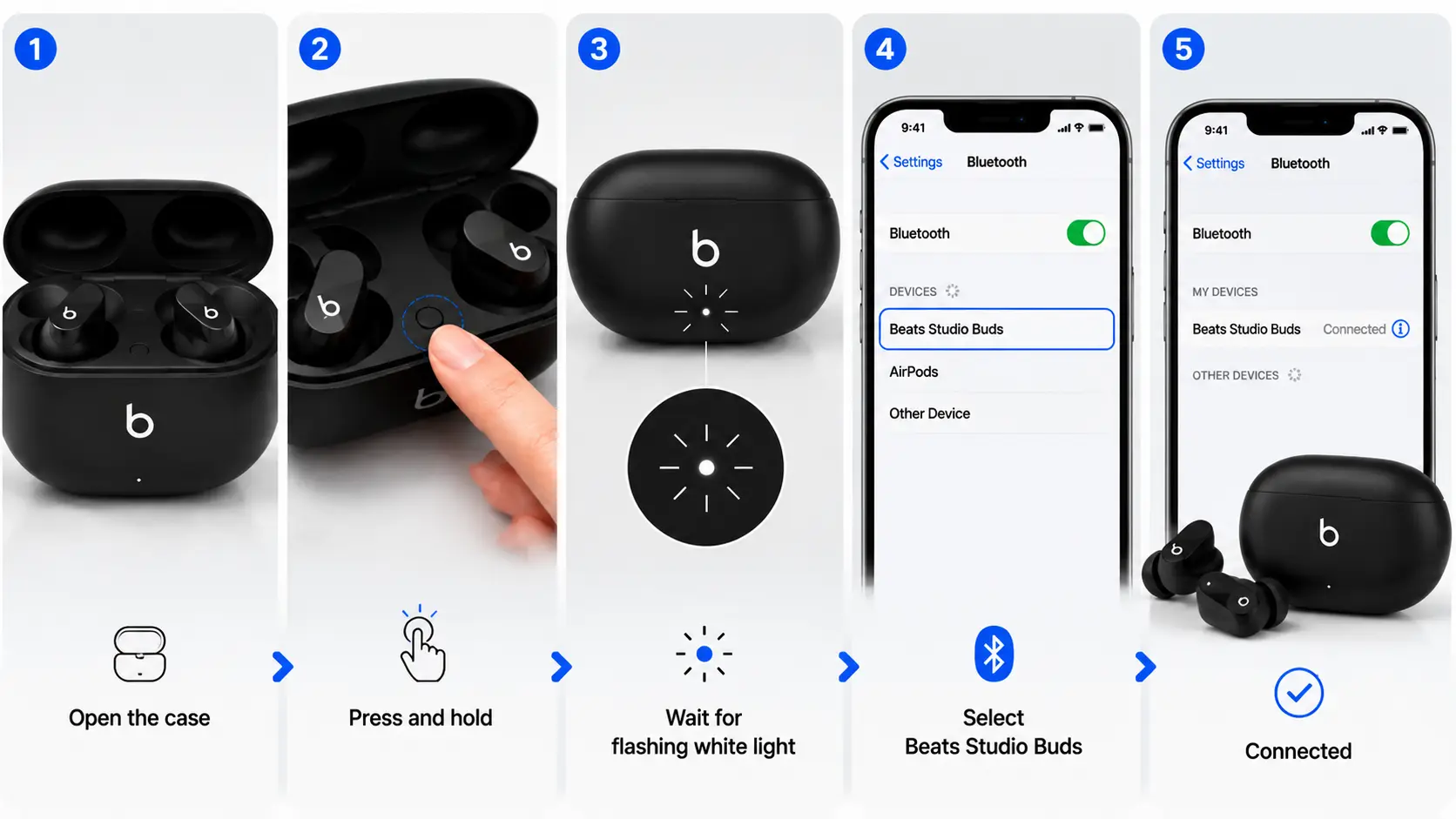
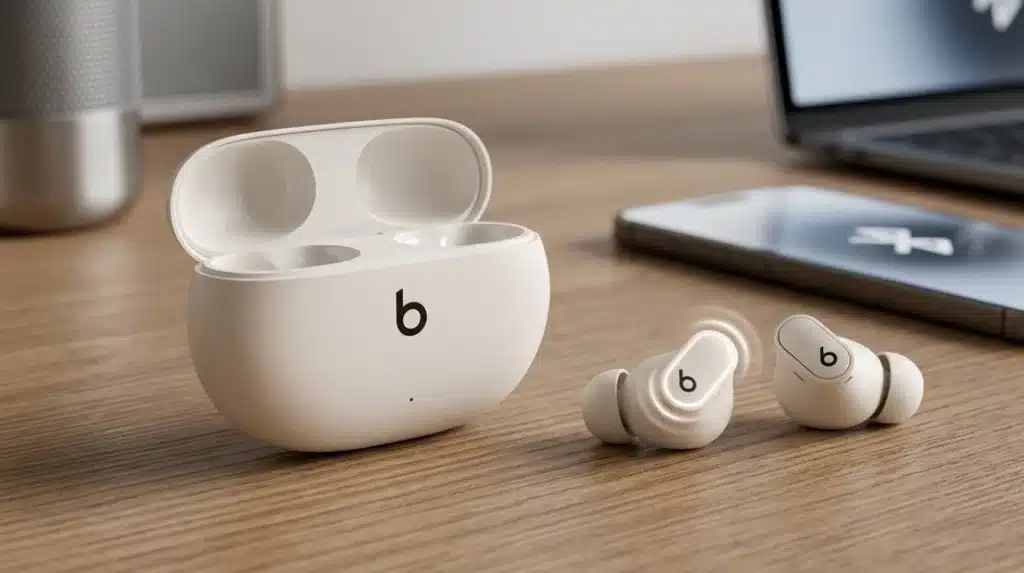
Studio Buds are among the most searched Beats models, since the pairing button sits inside the case instead of on the earbuds. Here is the exact sequence to get them into pairing mode.
Step 1: Place Earbuds in the Case: Put both Studio Buds inside the charging case and keep the lid open during the pairing process.
Step 2: Press the System Button: Find the small system button between the earbud slots and press and hold it for about five seconds.
Step 3: Confirm Pairing Mode: Wait for the LED light on the front of the case to flash white. This indicates that the Studio Buds are ready to connect.
Step 4: Select Beats Studio Buds From Bluetooth Settings: Open Bluetooth settings on your device, find “Beats Studio Buds” in the available devices list, and tap to connect.
Step 5: Confirm the Connection: Wait for the connection tone or on-screen confirmation. The same pairing process can be repeated later when connecting Studio Buds with another device.
According to Beats’ own support documentation, this same button sequence is used again later to connect the Studio Buds with a second or third device.
Pairing Steps for Other Beats Models
Not every Beats product uses the same button or timing, so here is a side-by-side look at the models people search for most often.
| Beats Model | Button Location | Pairing Method |
|---|---|---|
| Beats Studio Buds+ | Inside the case | Hold the system button until the LED blinks white |
| Beats Fit Pro | Inside the case | Hold the system button with the lid open |
| Powerbeats Pro | Inside the case | Hold the system button until the light flashes |
| Beats Flex | Power button on the neckband | Hold for about 5 seconds |
| Beats Solo Wireless | Power button on the earcup | Hold until the indicator light flashes |
| Beats Studio Wireless | Power button on the earcup | Hold until the LED flashes steadily |
Once the correct button has been located and held, the connection process on the phone or computer side stays nearly identical across every model listed above.
How to Connect Beats to Your Device
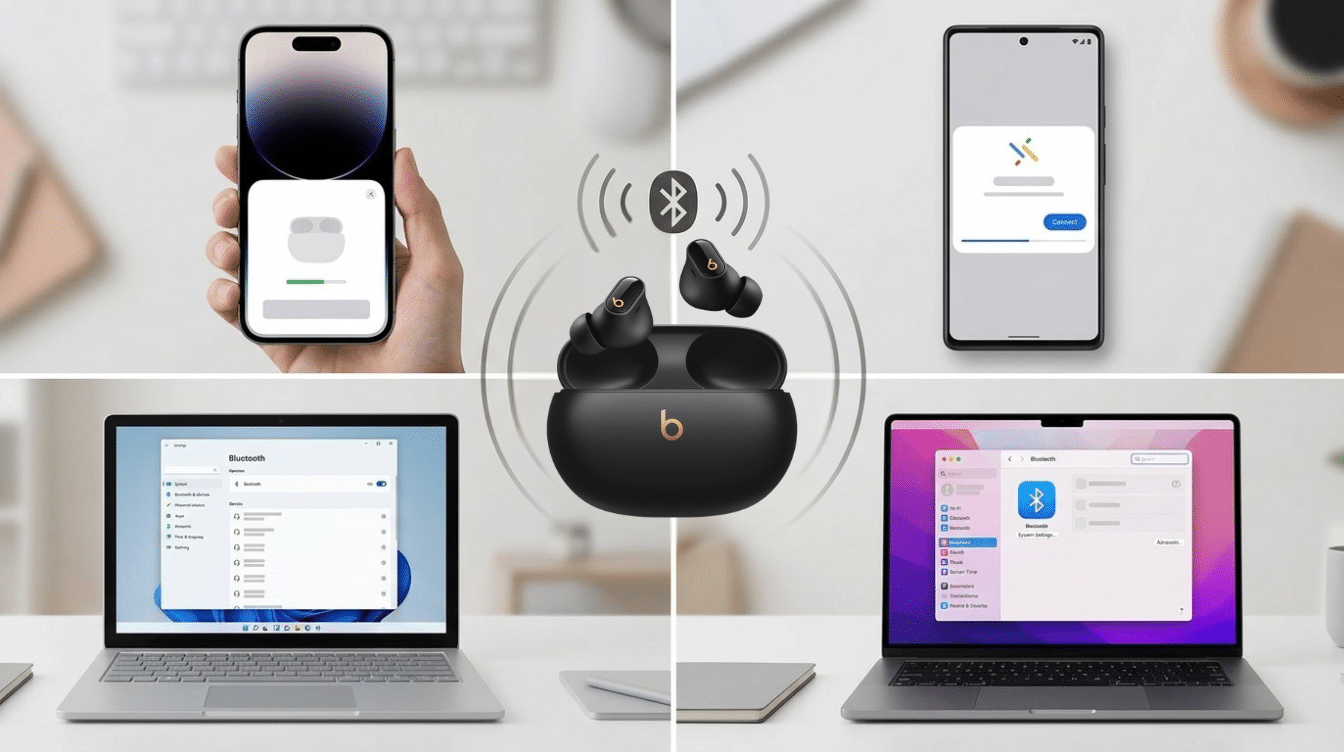
Pairing mode gets Beats earbuds discoverable, but the last step still depends on which phone, tablet, or computer is doing the connecting.
1. Connecting to an iPhone or iPad
With Bluetooth turned on in Settings, bringing Beats close to an unlocked iPhone or iPad usually triggers an automatic setup animation on screen, and tapping Connect finishes the process in seconds.
When that animation does not appear, the same result comes from opening Settings, then Bluetooth, and tapping the Beats name under “My Devices” or “Other Devices.”
Apple’s own pairing walkthrough covers this same automatic flow in more detail for every current Beats model, including headphones and older earbuds.
2. Connecting to an Android Phone
Android relies on Google Fast Pair for a similar one-tap experience, so a small notification typically appears the moment Beats enter pairing mode near the phone.
Tapping that notification, or opening Settings, then Connected Devices, then Pair New Device, and selecting Beats from the list, both lead to the same result.
Google’s Fast Pair support page walks through this same notification-based setup step by step, along with what to do if the notification never shows up.
3. Connecting to a Windows Laptop
On a Windows laptop, open Settings, then Bluetooth & Devices, then Add Device, and choose Bluetooth from the options; it should scan and list the Beats name within a few seconds.
Selecting it and following any on-screen prompts finishes the pairing right away, and the laptop remembers the connection for next time.
Microsoft’s own Bluetooth pairing instructions apply the same way to Beats as they do to any other Bluetooth accessory, including keyboards and speakers.
4. Connecting to a Mac
On a Mac, clicking the Apple menu, then System Settings, then Bluetooth, brings up a list of nearby devices once Bluetooth is switched on.
Clicking Connect next to the Beats name completes the setup within a few seconds, and a short confirmation tone usually follows.
Apple’s Mac Bluetooth guide covers the same steps for any wireless accessory, Beats included, along with what to check if the name never appears in the list.
Pairing Steps for Other Beats Models
Beats models use different button placements, but the overall Bluetooth setup remains almost the same. Finding the correct pairing button helps activate connection mode quickly.
| Beats Model | Pairing Button Location | Pairing Method |
|---|---|---|
| Beats Studio Buds+ | Inside the case | Hold the system button until the LED flashes white |
| Beats Fit Pro | Inside the case | Hold the case button until the LED starts flashing |
| Powerbeats Pro | Inside the case | Hold the system button until the LED flashes |
| Beats Flex | Neckband power button | Hold the button for around 5 seconds |
| Beats Solo Wireless | Ear cup power button | Hold until the indicator light flashes |
| Beats Studio Wireless | Ear cup power button | Hold until the LED flashes |
After the LED indicates pairing mode, open Bluetooth settings on your device and select the Beats model name to complete the connection.
Switching Beats Earbuds Between Devices
Beats earbuds remember their last few connections, which makes moving between a phone and a laptop simpler than starting the pairing process over from scratch.
Turning off Bluetooth on the current Device, or placing the earbuds back in the case for a moment, usually prompts them to reconnect automatically to whichever Device paired with them most recently.
For a device that has never connected before, the earbuds still need to go back into pairing mode using the steps for that model above, since a device already holding an active connection will not show up as available for a fresh pairing attempt.
Beats Earbuds Pairing Tips for Better Connection
Small adjustments can improve Bluetooth stability and help your Beats earbuds connect smoothly without repeated pairing attempts.
- Keep earbuds close to your device during setup for faster detection.
- Update your phone or computer software for better Bluetooth compatibility.
- Turn on Bluetooth before pairing and keep it active during setup.
- Remove unused Bluetooth devices to avoid connection conflicts.
- Install Beats firmware updates for improved performance and stability.
These simple steps can prevent common connection issues and help your Beats earbuds maintain a reliable Bluetooth connection during daily use.
Quick Fixes When Beats Earbuds Won’t Connect
Connection issues with Beats earbuds are common, but most problems have simple solutions. These quick fixes help restore pairing, sound, and stable Bluetooth performance in minutes
| Problem | Likely Fix |
|---|---|
| No flashing light appears | Charge the earbuds, then retry the pairing button |
| Device cannot find the Beats name | Forget the old connection first, then restart Bluetooth |
| Only one earbud connects or plays sound | Return both earbuds to the case for 15 seconds, then remove them together |
| Beats connect, but there is no sound | Check that audio output is set to Beats, not the built-in speaker |
| Beats keep disconnecting mid-song | Move closer to the paired Device and disconnect any other nearby Bluetooth accessories. |
If none of these steps resolve the issue, a full factory reset clears out any stored pairing data. Holding the system button for 10 to 15 seconds triggers this, and the LED flashing red and white is the confirmation that the reset is underway, not a separate problem.
Final Verdict
Getting Beats earbuds connected becomes much easier when the right pairing steps and fixes are clear. I understand that connection issues can waste time, especially when earbuds fail to appear or stop working after setup.
The how to pair Beats earbuds process mainly depends on activating pairing mode correctly and selecting the device from Bluetooth settings.
You can avoid repeated attempts by checking battery levels, removing old connections, and following model-specific steps.
These simple actions help maintain a smoother listening experience across phones, laptops, and tablets. I hope these tips make future connections faster and easier.
Share your pairing experience in the comments and check out more helpful tech solutions.
Frequently Asked Questions
Can Beats Earbuds Connect to Multiple Devices at the Same Time?
Yes, Beats Earbuds Can Remember Multiple Previously Paired Devices, Making Switching Easier. However, Most Models Play Audio from Only One Active Device at a Time Unless Specific Multi-Device Features Are Supported.
Do Beats Earbuds Work without the Beats App?
Yes, Beats Earbuds Can Connect Through Standard Bluetooth without Installing the Beats App. the App Mainly Helps Android Users with Pairing, Customization Options, Firmware Updates, and Additional Device Controls.
Why Do My Beats Earbuds Keep Flashing Red and White?
A Red and White Flashing LED Confirms that a Reset is in Progress, Triggered by Holding the System Button for About 15 Seconds. It is a Status Signal, Not a Sign of a Separate Problem, and It Clears once the Reset Finishes.
How Do I Remove Beats Earbuds from My Apple ID?
Open Settings on an iPhone or iPad, tap the Beats Name near the Top of The Screen, Then Choose Forget This Device. This removes the Beats from every device signed in to the same Apple Account at once, so The Process Does Not Need to Be Repeated on Each Device Separately.