An app disappearing from a phone screen can be confusing, especially when it was there moments ago, and nothing seems wrong with the device.
If you are searching for how to unhide an app, the first step is understanding why it is missing instead of assuming it was deleted.
I will cover the common ways to bring back hidden apps on Android phones, Samsung Galaxy devices, and iPhone models while explaining settings that can affect app visibility.
You will also find solutions for apps hidden in private folders, disabled apps, and missing icons.
These steps can help locate the app quickly and restore access without unnecessary changes to the phone. A few simple checks often reveal where the app is.
Why Did an App Disappear from Your Phone?
An app disappearing from your phone does not always mean it was deleted. In many cases, the app is still installed but no longer appears because of a hidden app setting
A launcher change, a private folder, or a device restriction. This can happen on Android phones, Samsung Galaxy devices, and iPhones, where app visibility settings work differently.
Before trying to restore the app, it helps to identify what happened first. An app may be hidden from the app drawer, removed from the home screen, disabled through settings, or placed inside a protected area.
Knowing the reason behind the missing app makes it easier to find the right solution and bring it back without unnecessary steps.
How to Unhide an App on Any Android Phone
The method to restore a hidden app depends on where it was hidden in the first place. Most apps can be brought back through the app drawer, phone settings, Samsung options, or launcher settings. Try the method that matches your device and how the app disappeared.
1. Unhide an App from the Android App Drawer
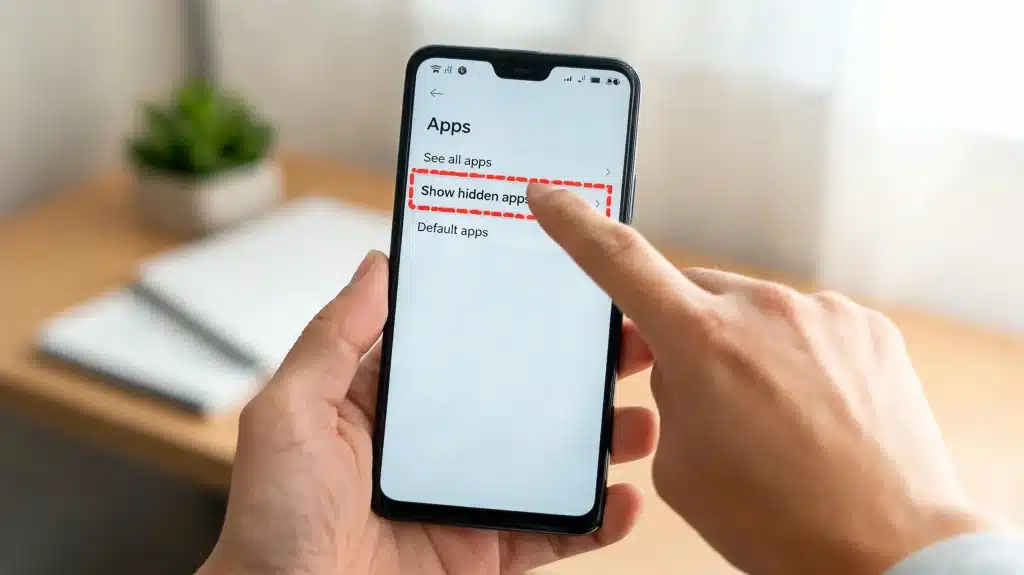
Many Android phones have a built-in hidden apps option inside the app drawer settings. If an app was hidden this way, it is still installed but removed from the visible app list.
Most of these menus assume you have been installing apps from trusted sources, which is part of why the drawer trusts a quick toggle to bring one back. The menu name may differ depending on the phone brand. After restoring the app, it should appear in the app drawer again.
Steps:
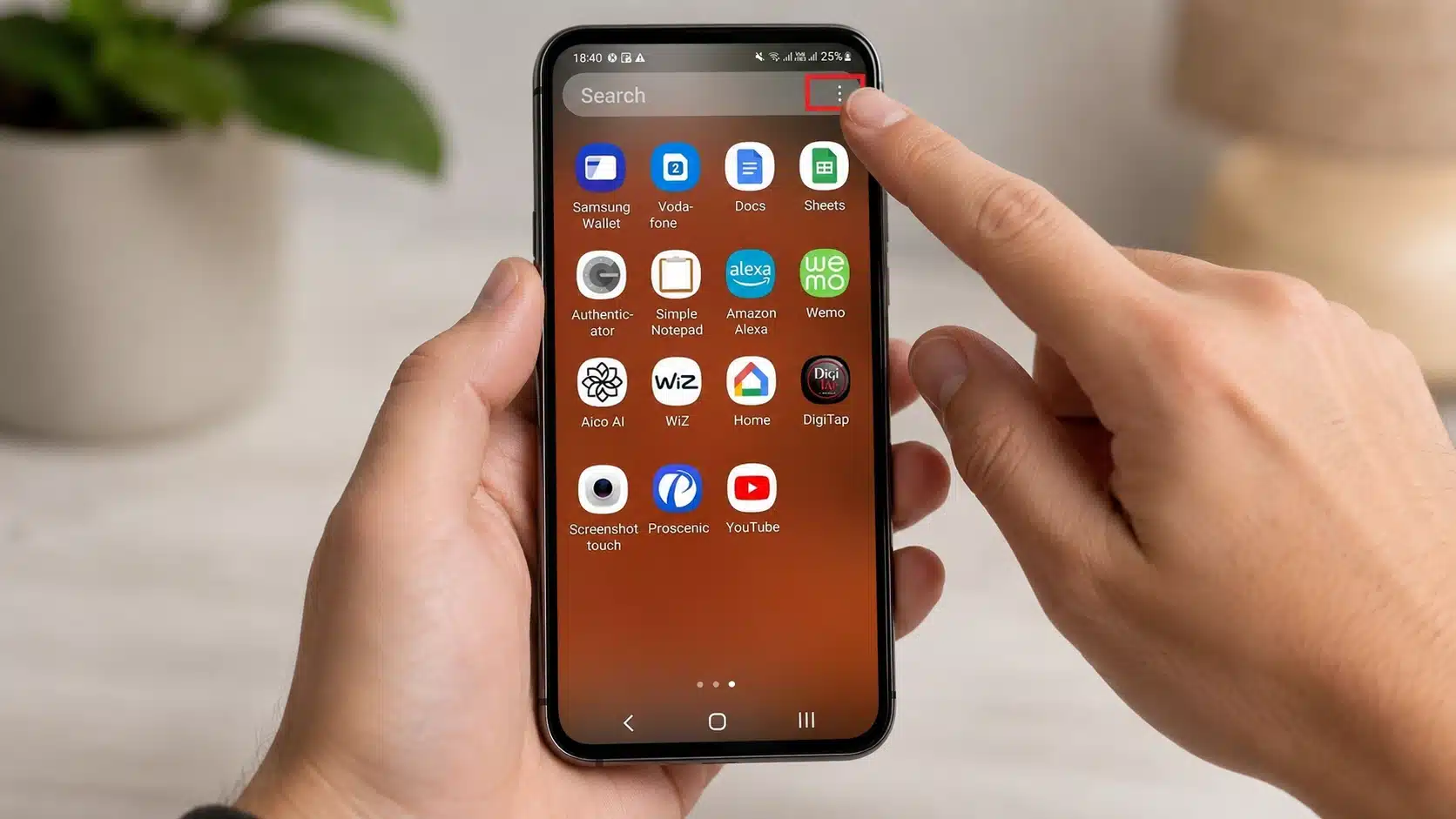
- Open the App Drawer by swiping up from the home screen.
- Tap the three-dot menu or settings icon.
- Select Hide Apps, Hidden Apps, or a similar option.
- Find the app you want to restore.
- Remove the app from the hidden list.
- Tap Done, Save, or Apply.
2. Unhiding Apps on Samsung Phones
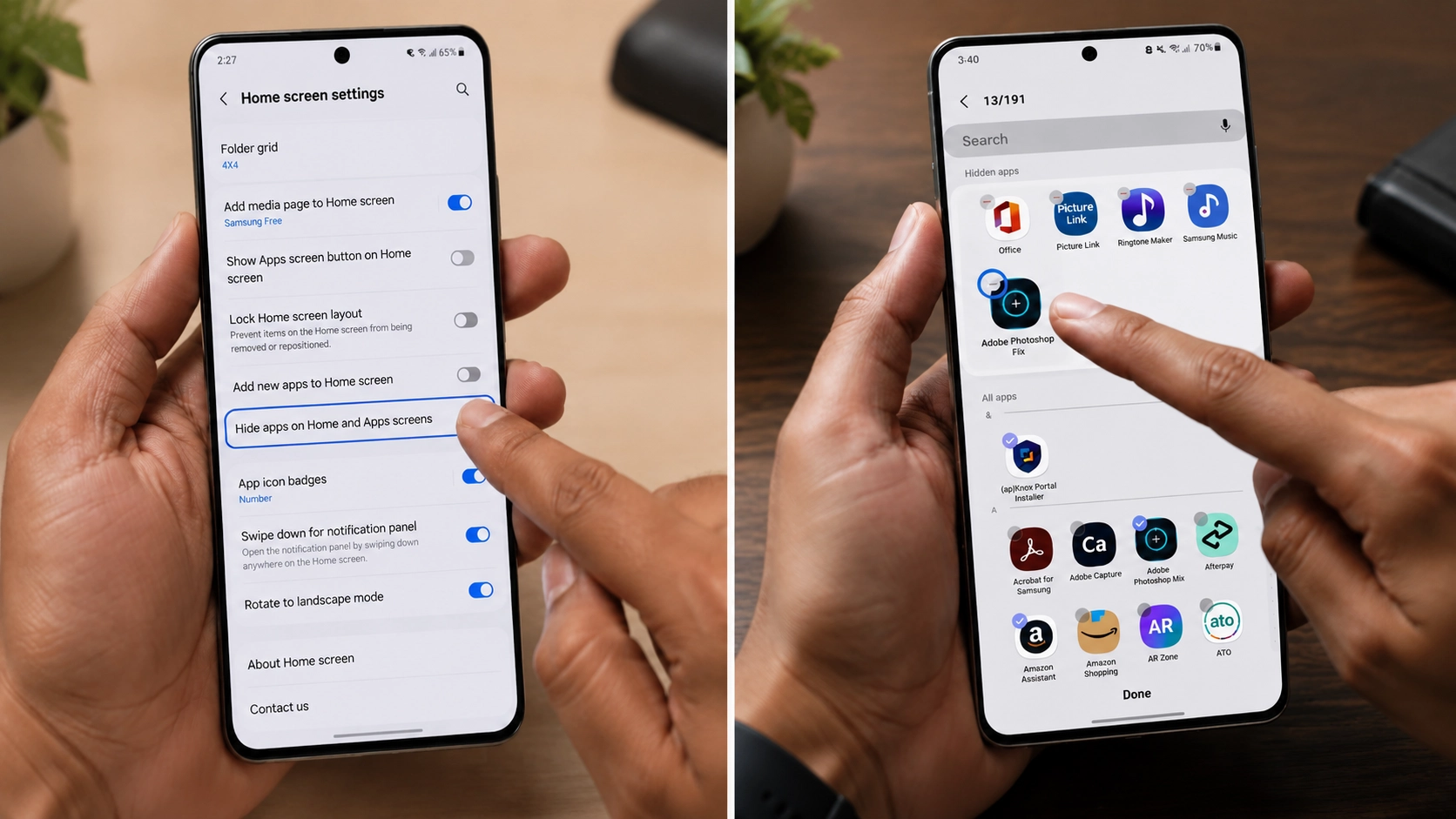
Samsung Galaxy phones use One UI, which has a separate option for hiding and showing apps. The setting is available through the Home Screen menu, tucked away much like other tricks built into phones that most owners never stumble across.
These steps work on most Galaxy S, A, M, and Z series phones. The exact wording may vary depending on the One UI version.
Steps:
- Press and hold an empty area on the home screen.
- Tap Settings.
- Select Hide apps on Home and Apps screens.
- Remove the app from the hidden list.
- Tap Done.
3. Finding Hidden Apps through Android Settings
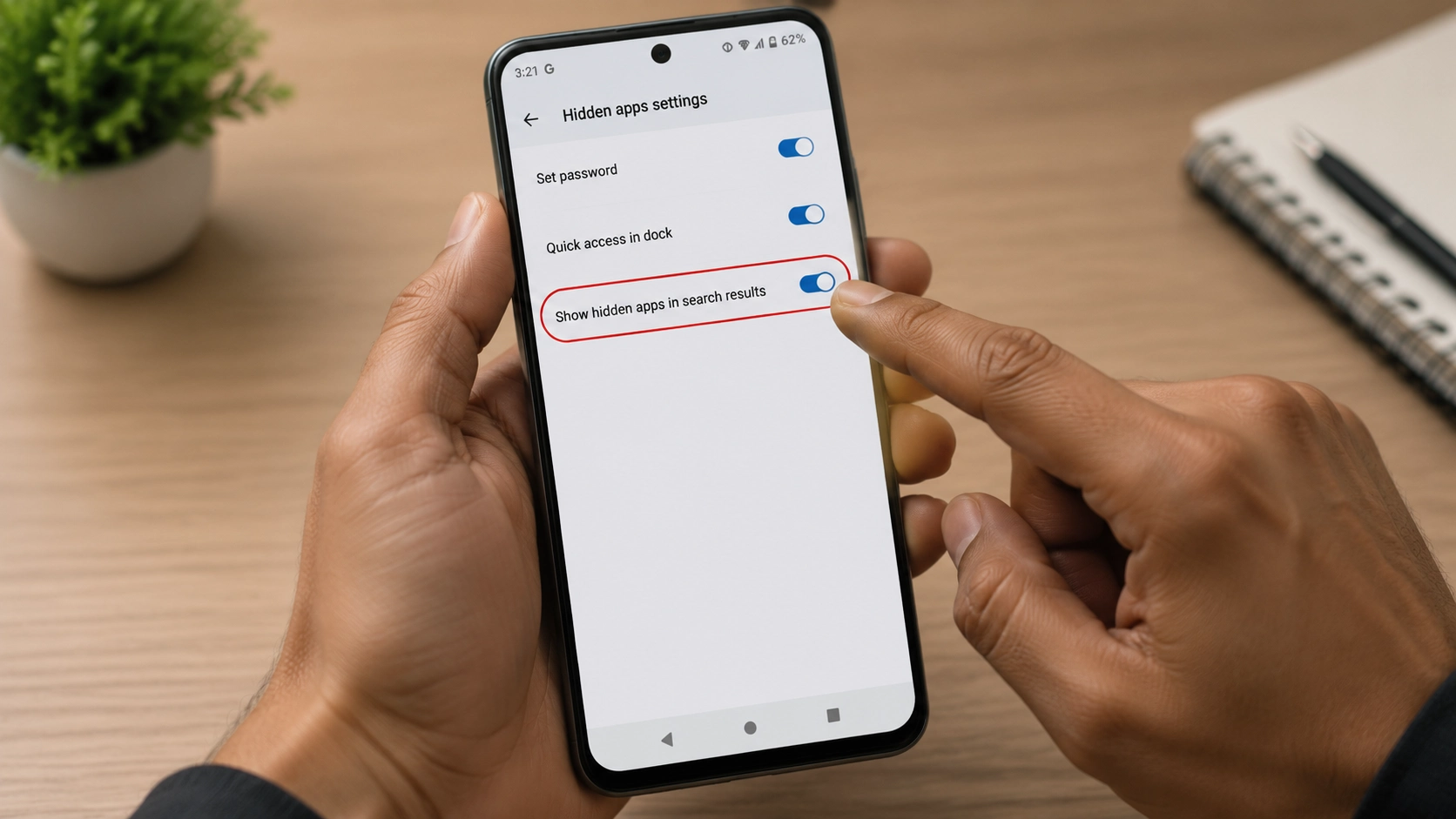
If the app does not appear in the hidden apps list, check Android Settings. The app may be disabled instead of hidden. A disabled app will not appear normally until it is enabled.
If the app is missing from the Apps list completely, it may have been uninstalled. While you are in there, reviewing app permissions regularly can save you from digging through these menus again later.
Steps:
- Open Settings.
- Tap Apps or Applications.
- Select See All Apps or Manage Apps.
- Search for the missing app.
- Open the app information page.
- Tap Enable if the option appears.
4. Unhiding Apps from Third-Party Launchers
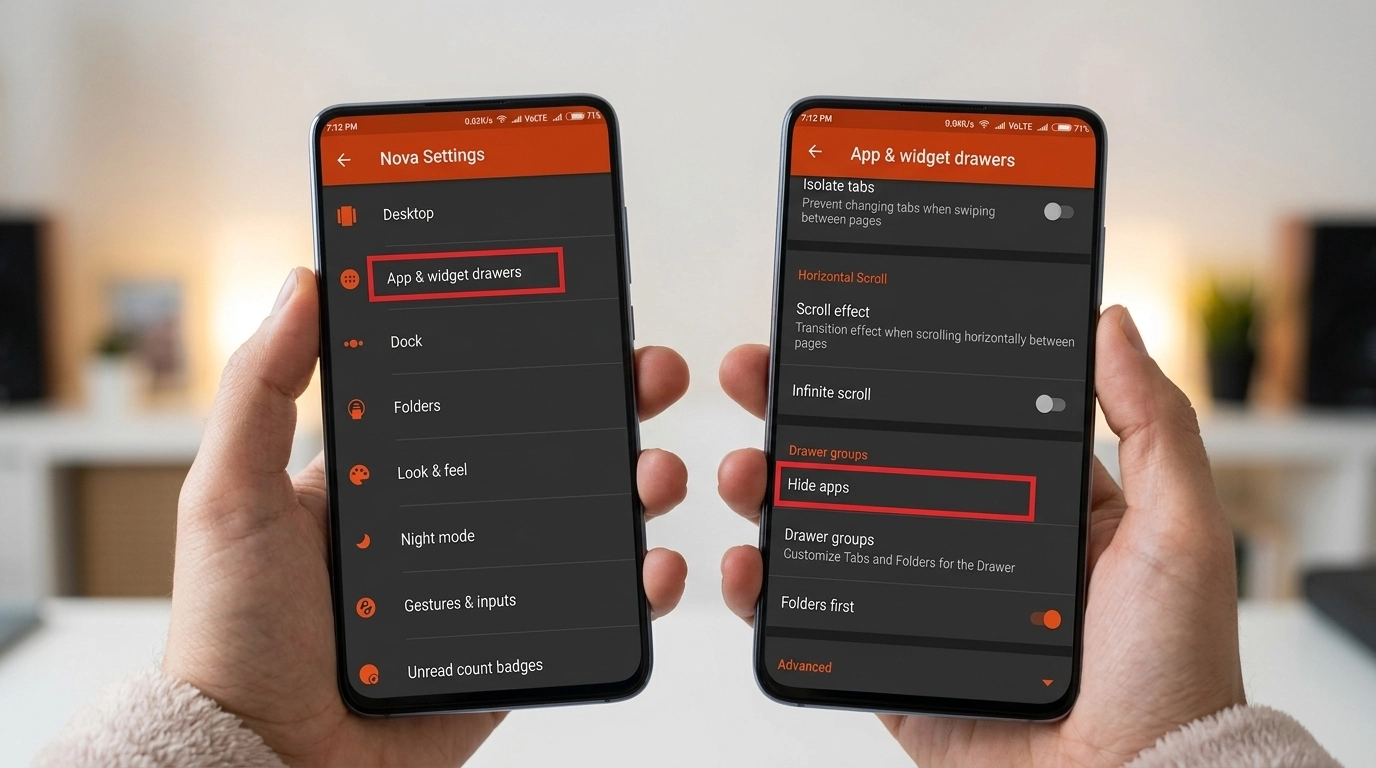
Some Android users install custom launchers that have separate hidden app settings. Apps hidden through these launchers cannot be restored from regular Android settings.
If the launcher was recently changed, switch back to the previous launcher to access its hidden apps list. It is a good reminder that protecting your phone overall means keeping track of every layer sitting on top of the operating system, launchers included.
Common steps:
- Open the launcher settings.
- Go to App Drawer, Hidden Apps, or similar settings.
- Find the hidden app.
- Remove it from the hidden list.
Once you check these common hiding locations, most missing apps can be restored quickly. If the app is still unavailable, the next step is checking other device settings.
Why is My Hidden App Still Not Showing
An app can stay missing even after you change the hidden apps settings. This usually happens because the app was disabled, moved to a protected space, removed entirely, or the launcher itself is misbehaving. Match your situation with the fixes below.
| Problem | Solution |
|---|---|
| App is disabled | Go to Settings → Apps, open the app, and tap Enable |
| App drawer is customized | Open the launcher’s own settings and check its hidden apps list |
| App was moved to Secure Folder | Open Secure Folder and find the app inside it |
| Launcher glitch | Restart the phone, or clear the launcher’s Cache from Settings → Apps |
| App was deleted | Reinstall it from the Google Play Store |
Work through the table from top to bottom. In most cases, the app was either disabled or placed inside a privacy feature like Secure Folder, and both situations take less than a minute to fix.
If nothing on the list works, check with your workplace or school if the phone is managed, since device administrators can restrict certain apps remotely.
How to Access Hidden Apps without Unhiding Them
Sometimes you only need to open a hidden app once without restoring it permanently. You can access it using these methods:
- Android Search: Swipe down on the home screen or open the app drawer search bar, type the app name, and tap the result to open it directly. Some launchers, including Samsung One UI, may hide apps from search results.
- Open Through Settings: Go to Settings → Apps, select the application from the full app list, and tap Open from the App Info page if the option is available.
- Use Google Play Store: Open the Play Store, search for the app, open its store page, and tap Open to launch it without first unhiding the app.
These methods are useful when you cannot find the launcher settings or want to keep certain apps hidden while still accessing them when needed.
Hidden Apps vs Disabled Apps on Android
Hidden and disabled apps may look similar because both can disappear from the app drawer, but they work differently. Knowing the difference helps you choose the right way to restore access.
| Feature | Hidden App | Disabled App |
|---|---|---|
| Still installed | Yes | Yes |
| App data remains | Yes | Yes |
| Appears in app drawer | No | No |
| Can open normally | Usually yes | No |
| Fix required | Remove from hidden list | Enable app |
A hidden app is usually removed from view through launcher or phone settings, while a disabled app is turned off and cannot run until it is enabled again. Identifying the difference prevents unnecessary reinstallations and helps restore the app faster.
How to Prevent Apps from Disappearing Again
After restoring a missing app, a few simple changes can help prevent the same issue from happening again. Managing apps carefully keeps them easier to find and reduces accidental hiding.
- Avoid changing launcher settings accidentally. Adjusting home screen or app drawer options can sometimes hide apps without notice.
- Use folders instead of hiding frequently used apps. Folders keep the home screen organized while allowing quick access whenever needed.
- Keep track of apps stored in Secure Folder or Private Space. Apps placed in these areas will not appear with regular applications.
- Avoid disabling apps unless necessary. Disabled apps may disappear from normal menus and require extra steps to restore.
Follow even a couple of these habits, and hidden apps stop being something you have to think about; they simply stay organized and easy to find whenever you need them.
Final Thoughts
A missing app does not always mean it is gone forever. I found that checking the right settings is often enough to bring it back. If you need to know how to unhide an app, the process usually starts with hidden app settings, launcher options, or device folders.
I covered the main ways to restore apps on Android phones, Samsung Galaxy devices, and iPhone models while explaining the difference between hidden and disabled apps.
These steps matter because you can fix missing apps without wasting time reinstalling them. Try these methods on your device and share your experience or any questions in the comments. You can also check related tips for managing apps and phone settings.
Frequently Asked Questions
Why Can’t I Find the Unhide Option After Selecting Hide Apps?
Some phones separate hide and unhide controls into different menus. Open the app drawer settings and look for options like Show hidden apps or a hidden apps list to remove the app from the hidden section.
Why is My App Enabled But Still Missing from the Home Screen?
If an app shows as enabled in Settings but is missing, it is likely hidden through the launcher. Check the launcher’s hidden apps settings, as enabling it in Android Settings only restores disabled apps.
How Do I Restore a Hidden App in Nova Launcher?
If the app is missing from Nova Launcher’s hidden apps list, open Nova settings, check app drawer options, and enable hidden app visibility if available. You can then search for the app and remove its hidden status.
Why is the Unhide Option Greyed Out on My Phone?
A greyed-out unhide option may happen because of launcher settings, custom themes, or icon packs. Switch to the default launcher theme or check other hidden apps sections within the launcher settings to restore access.