Printing should be simple. Yet the moment you hit print, your document lands on the wrong device, a shared office machine, or a printer you retired months ago.
This usually comes down to one setting: your default printer.
If you have searched for how to change default printer settings, you already know that picking the right device manually every time gets old fast.
The good news is that the fix takes about a minute. Today I’ll show you how to change default printer settings in Windows 11, Windows 10, and macOS, and how to stop your computer from switching it back on you.
What is a Default Printer?
A default printer is the printer your computer selects automatically whenever you send a document, image, or webpage to print. Instead of choosing a device by hand each time, your system treats the default printer as the first option.
This small setting quietly shapes your whole printing routine, since every job heads to that one device until you decide to change it.
For example, if you have a home printer and a work printer connected, setting the home printer as your default sends documents there automatically unless you pick something else. That simple choice removes a step you would otherwise repeat all day long.
Choosing the right default saves time, reduces wasted paper, and keeps sensitive files from printing on a shared device by mistake. A little setup now prevents plenty of small, avoidable headaches later on.
Why Your Computer Keeps Selecting the Wrong Printer
Before changing the setting, it helps to understand why the wrong printer keeps winning.
- Automatic management is on: Windows can set your default to whichever printer you used most recently, so it changes as you move between devices.
- Old printers are still installed: A printer you no longer use can stay in the list and get picked by default.
- Network printers drop off: A shared or Wi-Fi printer may show as unavailable, so jobs route elsewhere.
- Multiple drivers overlap: Some printers install more than one entry, and the wrong one becomes the default.
Turning off automatic management and cleaning up the list solves most of these cases, which the steps below walk through. When a network printer keeps dropping off, it also helps to know the difference between your Wi-Fi and your internet connection, since a printer can lose the local network even while your internet still works fine.
How to Change the Default Printer on Any Device

The process is quick on every major system. Find your device below and follow the numbered steps. Each method ends with the same result: your chosen printer becomes the one your computer uses automatically.
1. Change Default Printer on Windows 11
Windows 11 gives you a clean way to set your preferred printer through the Settings app.
- Open Settings: Launch Settings from the Start menu.
- Go to Devices: Select Bluetooth & devices from the left menu.
- Open printer settings: Click Printers & scanners.
- Turn off auto-management: Scroll down and switch off Let Windows manage my default printer.
- Pick your printer: Select the printer you want to use.
- Set the default: Click Set as default.
Once you finish, Windows uses your selected printer automatically every time you print. If you prefer to follow along visually, this Windows 11 video walkthrough covers the same steps.
2. Change Default Printer on Windows 10
Windows 10 follows a similar path, though the menu names differ slightly.
- Open Settings: From the Start menu, select Settings.
- Open Devices: Click Devices.
- Find your printers: Choose Printers & scanners.
- Turn off auto-management: Switch off Let Windows manage my default printer.
- Select your printer: Choose your preferred device from the list.
- Manage it: Click Manage.
- Set the default: Choose Set as default.
Your selected printer now becomes the primary printing device. For a visual guide, this Windows 10 video walkthrough shows each step.
3. Change the Default Printer Using Control Panel
Some users prefer Control Panel, especially when managing older printers or advanced settings.
- Open Run: Press Windows + R.
- Launch Control Panel: Type control panel and press Enter.
- Find your hardware: Select Hardware and Sound.
- Open the device list: Click Devices and Printers.
- Choose your printer: Right-click your preferred printer.
- Set the default: Select Set as default printer.
A green check mark appears next to the selected printer, confirming it is now the default device.
4. Change Default Printer on Mac
Mac users can change the default printer just as easily, whether on a current or older version of macOS.
On current macOS versions:
- Open System Settings: Launch System Settings.
- Find your printers: Select Printers & Scanners.
- Choose your printer: Pick your preferred device.
- Set the default: Set it as the default printer.
On older macOS versions:
- Open System Preferences: Launch System Preferences.
- Open printer settings: Click Printers & Scanners.
- Set the default: Select the printer from the Default Printer menu.
Once set, macOS uses your preferred printer for future tasks automatically.
How to Choose the Right Default Printer
When several printers are connected, matching your default to your daily use prevents unnecessary errors. Consider these factors before you decide:
- Location: Set the printer you use most often as the default, such as a home printer for personal files or an office printer for work documents.
- Print quality: For photos or detailed documents, choose a printer with better resolution and color output.
- Speed: For heavy document printing, a faster printer cuts down waiting time.
- Connection type: A reliable Wi-Fi or wired connection helps you avoid failed print jobs.
- Paper options: If you print different sizes, pick a printer that supports the paper types you use most.
Matching your default printer to how you actually work saves you from choosing the wrong device every time.
Default Printer vs Regular Printer: What’s the Difference?
A regular printer is any printer linked to your computer, while a default printer is the one your system picks automatically each time you print, without asking you first.
| Factor | Default Printer | Regular Printer |
|---|---|---|
| Selection | Selected automatically by your system | Must be chosen manually |
| Everyday use | Used for everyday printing | Used only when selected |
| Time saved | Saves time on repeat jobs | Useful for occasional tasks |
| Settings | Stays set until you change it | Changes with each print choice |
| Best fit | Ideal for a main home or office printer | Handy for a second or backup printer |
Setting your most-used printer as the default makes daily printing quicker, cuts out repeated selections, and helps every routine job reach the right device without extra clicks.
Keep Your Default Printer From Changing
Setting a default is only half the job. These two steps stop your computer from quietly switching it back.
Turn Off Automatic Printer Management
Windows changes your default on its own when automatic management is enabled. Switching it off keeps your choice in place.
- Open Settings: Launch Settings.
- Go to Devices: Select Bluetooth & devices.
- Open printer settings: Open Printers & scanners.
- Turn it off: Switch off Let Windows manage my default printer.
After you disable this option, Windows keeps your selected printer until you change it manually.
Remove an Old or Unused Printer
Old printers create confusion, especially when your computer keeps selecting a device that is no longer connected. Clearing them out keeps your list easy to manage.
- Open Settings: Launch Settings.
- Go to Devices: Select Bluetooth & devices.
- Open printer settings: Click Printers & scanners.
- Select the old printer: Choose the device you no longer use.
- Remove it: Click Remove.
Removing outdated printers helps prevent the wrong device from being selected when you print.
What Reddit Users Say About Default Printer Issues
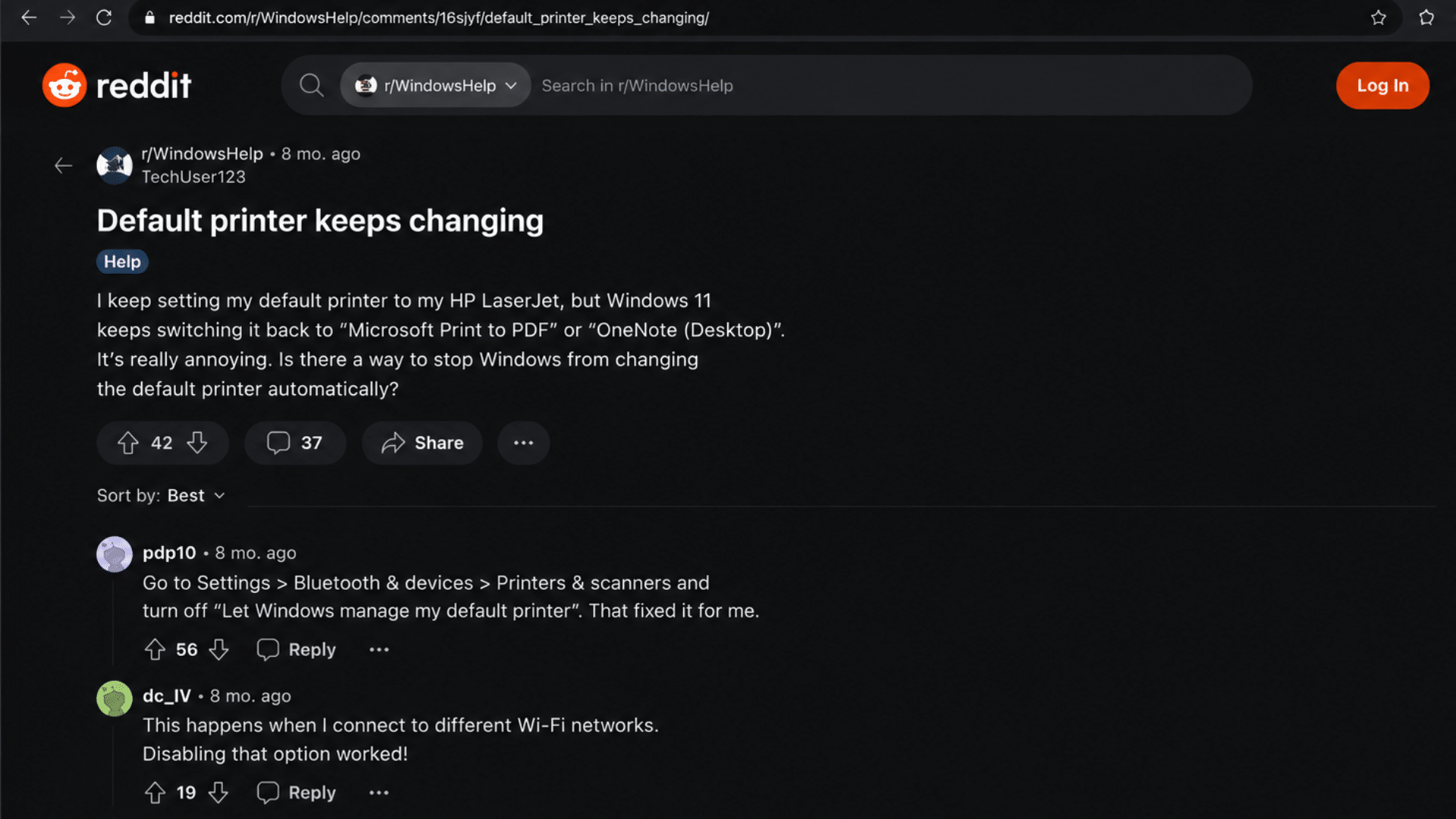
Many users on Reddit discuss the same frustrations that come up again and again around default printer settings.
The most common one is Windows switching to a recently used printer instead of the preferred one, which quietly sends jobs to the wrong place. Others mention old printers still appearing in the list even after they have been replaced, which adds to the confusion when picking a device.
Network printers showing as unavailable is another frequent complaint, along with print jobs simply landing on the wrong device without warning. Reading through these threads, a clear pattern shows up in how people fix it.
The advice that comes up most often is refreshingly simple: turn off automatic printer management so Windows stops reassigning your default, and keep your printer drivers updated so connections stay reliable.
Those two small habits solve the majority of everyday default printer problems people run into.
Common Default Printer Problems and Fixes
Even with the right default printer set, issues can still occur. The fixes below cover common setup, connection, and settings problems. If they don’t help, see our guide to common computer issues and their fixes for more troubleshooting.
| Problem | Possible Fix |
|---|---|
| Printer does not appear | Check the USB or Wi-Fi connection and restart the printer |
| Default printer keeps changing | Turn off Windows automatic printer management |
| Printer shows offline | Restart the printer and check the network connection |
| Printing goes to the wrong device | Confirm the correct default printer is selected |
| Printer settings are unavailable | Update or reinstall printer drivers |
Most default printer issues clear up with these simple checks before you move on to driver updates or advanced settings.
Final Print
Knowing how to change default printer settings saves time and keeps documents from landing on the wrong device.
If you use Windows 11, Windows 10, or macOS, the process takes only a few minutes through Settings or Control Panel. Turning off automatic printer management gives you steadier control, especially when several printers are connected.
Keeping your drivers updated and checking your connection regularly help you avoid future printing problems. With the right default printer selected, everyday printing becomes faster and more convenient.
Have you run into issues while changing your default printer? Share your experience or any helpful tips in the comments below.
Frequently Asked Questions
Why Does Windows Keep Changing My Default Printer?
Windows may keep changing your default printer because the “Let Windows manage my default printer” option is turned on. Switching it off lets you choose and keep one default printer.
Can I Set Different Default Printers for Different Locations?
Windows does not create separate default printers for different locations automatically, but you can change the default manually whenever you switch between home, office, or other networks.
How Do I Know Which Printer is My Default Printer?
Open Settings → Printers & scanners. The printer labeled Default is the one Windows uses automatically.
Can I Change the Default Printer Without Administrator Access?
Most users can change the default printer without administrator permissions, though some workplace computers have restrictions set by an organization.