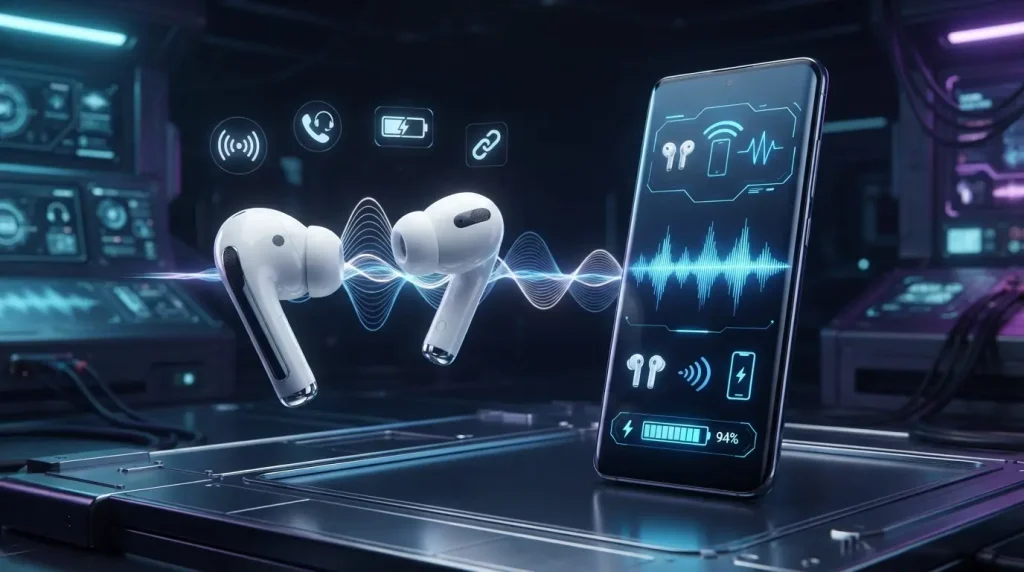
Open your AirPods case near an Android phone and wait for the smooth Apple-style connection pop-up to appear. Nothing happens. For a moment, it feels like your expensive earbuds have picked a side.
So, do AirPods work with Android? Yes. You can connect AirPods to Samsung, Google Pixel, OnePlus, Motorola, Xiaomi, and most other Android phones through Bluetooth.
Music, calls, microphone access, noise cancellation, and transparency mode can still work. However, you lose several Apple-only features, including Siri, automatic switching, native battery pop-ups, and full Find My support.
Here is what using AirPods with Android actually feels like and how to improve the experience.
Quick Answer: Do AirPods Work with Android?
Yes, AirPods work with Android as Bluetooth earbuds. You can use them for music, calls, streaming apps, voice messages, playback controls, and noise features on supported models.
The main limitations are missing Apple features like Siri, battery pop-ups, and automatic switching.
They are a good choice if you already own AirPods, but Android-focused earbuds may offer better app support and customization.
Do AirPods Sound Good on Android?
AirPods do not automatically produce poor sound when connected to Android.
Most people listening to music, podcasts, YouTube, or streaming apps may not notice a serious drop in quality. The experience can still be clear, balanced, and enjoyable.
However, AirPods are designed primarily for Apple hardware. Android users may miss certain software-based audio settings and Apple-specific processing features.
People who want detailed equalizer controls, high-resolution codec options, or a complete earbuds app may prefer a model designed around Android.
For casual listening, AirPods are usually fine. For advanced audio customization, they feel more restricted.
What Works with AirPods on Android?
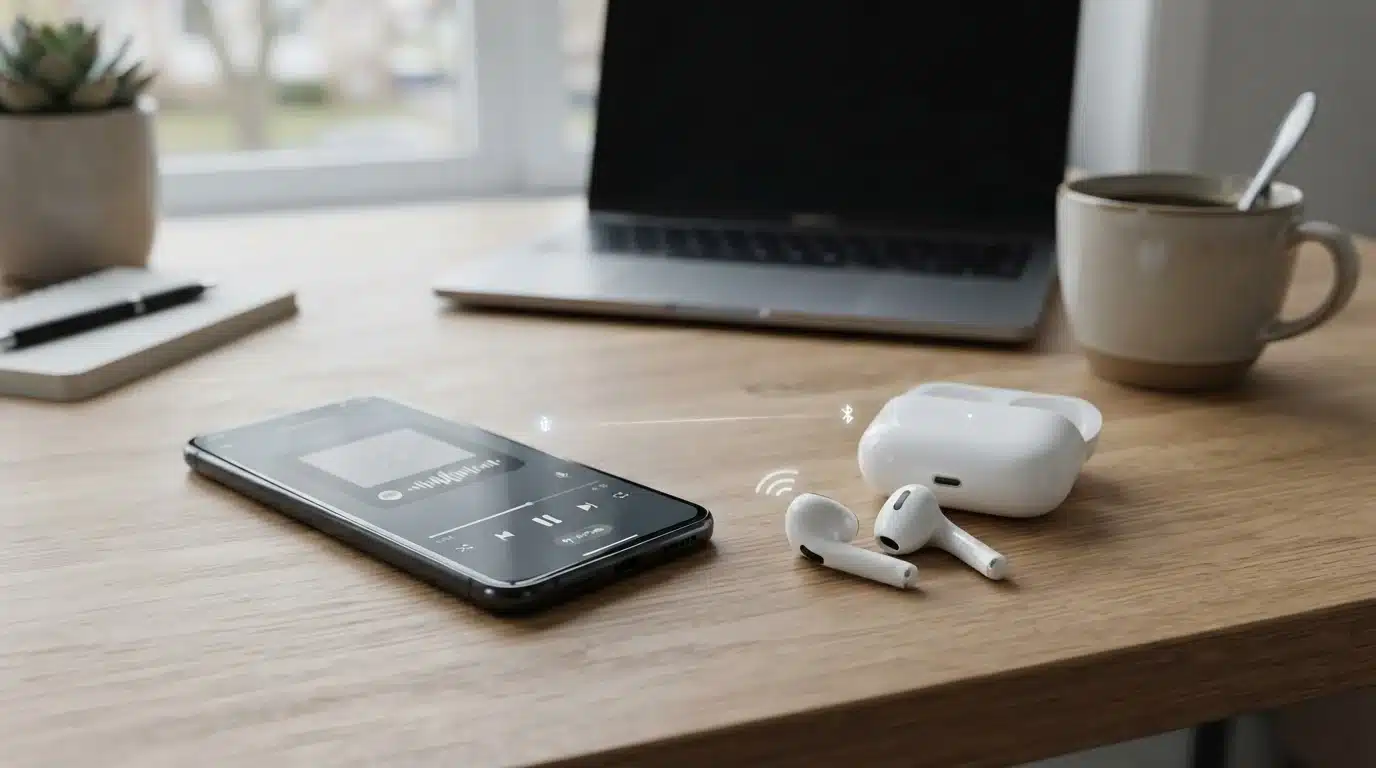
AirPods retain most functions needed for everyday listening. Since they use Bluetooth, they can communicate with Android phones without requiring Apple software.
1. Music and Video Playback
You can use AirPods with Spotify, YouTube, Netflix, Instagram, games, podcasts, and nearly any Android app that plays audio.
Once connected, they behave like normal Bluetooth earbuds. Audio is sent from the phone to the AirPods without requiring a separate Apple account or app.
You can control the volume from your phone. Certain newer AirPods models also support volume adjustments directly through their touch controls.
Sound quality depends on factors such as:
- Your Android phone
- Bluetooth signal strength
- Streaming quality
- App settings
- Audio compression
- Nearby wireless interference
For everyday music, social media, and video playback, AirPods generally provide a solid listening experience.
2. Calls and Microphone Use
The built-in AirPods microphone works with Android for phone calls, voice notes, and online meetings.
You can use it with apps such as:
- Google Meet
- Zoom
- Discord
- Telegram
- Microsoft Teams
Call quality may vary between Android phones and apps. Some phones process Bluetooth microphone audio better than others.
You may also notice that microphone quality becomes weaker in noisy outdoor areas. This issue can happen with many wireless earbuds and is not limited to AirPods. For normal calls, classes, meetings, and voice messages, AirPods remain practical.
3. Noise Cancellation
Active noise cancellation works with Android on supported AirPods models, including AirPods Pro and AirPods Max.
The feature is processed by the headphones rather than the phone. This means it does not need an iPhone to reduce outside noise during regular use.
On AirPods Pro, you can usually press and hold the stem to switch between noise control modes.
Noise cancellation can help during:
- Flights
- Bus and train rides
- Gym sessions
- Study hours
- Office work
- Time spent in busy cafes
You may lose access to some advanced Apple settings, but the core noise-cancellation feature remains available.
4. Transparency Mode
Transparency mode also works with Android on compatible AirPods.
It uses the external microphones to let nearby sound pass through. This allows you to hear traffic, announcements, or conversations without removing the earbuds.
You can normally switch between transparency mode and noise cancellation using the AirPods controls. The standard mode works, but some newer intelligent audio adjustments may require a compatible Apple device.
AirPods Controls You Can Use on Android
Most physical controls work independently of the phone’s operating system.
Depending on your AirPods model, you may be able to:
- Play or pause audio
- Skip tracks
- Return to the previous track
- Answer calls
- End calls
- Change noise control modes
- Adjust volume
The exact gestures differ across AirPods generations. Controls previously configured through an Apple device may remain saved when you connect the earbuds to Android.
How to Connect AirPods to Android
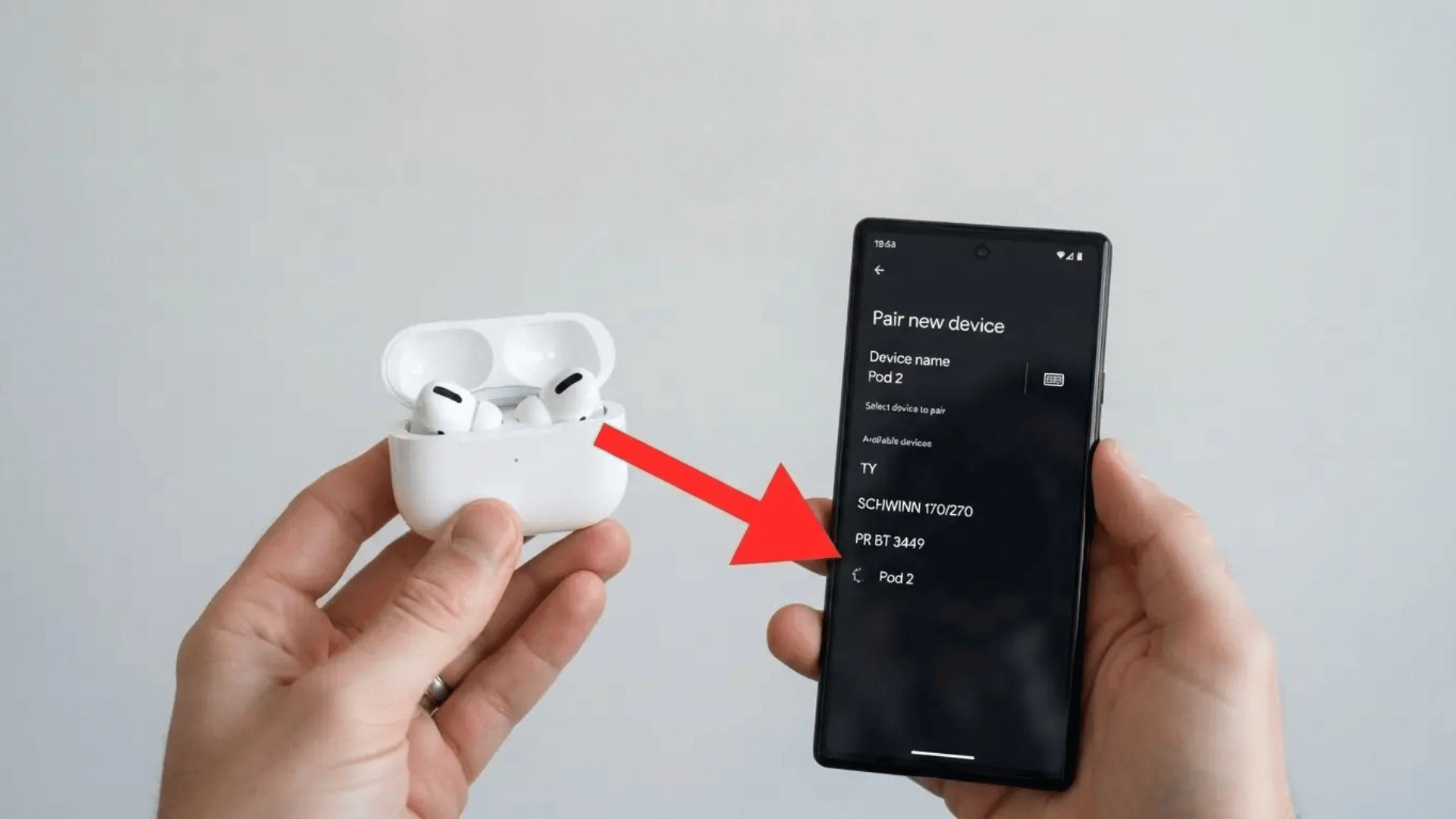
Pairing AirPods with an Android phone is usually simple.
- Place both AirPods inside their charging case.
- Open the case lid.
- Press and hold the setup button on the case.
- Wait until the status light flashes white.
- Open Settings on your Android phone.
- Select Bluetooth or Connected Devices.
- Tap Pair New Device.
- Choose your AirPods from the device list.
- Confirm the connection request.
After the first pairing, AirPods should reconnect when Bluetooth is active and the earbuds are not connected to another device.
The menu names may differ slightly across Samsung, Pixel, OnePlus, Xiaomi, and Motorola phones.
AirPods Features That Don’t Work on Android
The main compromise is not basic audio. It is the loss of Apple’s connected software features.
| AirPods Feature | Android Support | What to Expect |
|---|---|---|
| Music playback | Yes | Works through Bluetooth |
| Calls and microphone | Yes | Quality varies by phone and app |
| Noise cancellation | Yes | Available on supported models |
| Transparency mode | Yes | Controlled through the AirPods |
| Playback controls | Yes | Options vary by model |
| Siri | No | Siri requires an Apple device |
| Native battery pop-up | No | A third-party app may help |
| Automatic switching | No | Devices usually need manual selection |
| iCloud pairing | No | Each device must be paired separately |
| Full Find My support | No | Tracking options are limited |
| Audio sharing | No | Apple’s shared audio feature is unavailable |
| Personalized Spatial Audio | No | Requires supported Apple hardware |
| Control customization | Limited | An Apple device may be required |
| Ear detection | Limited | May need a companion app |
| Firmware management | Limited | Android has no official AirPods app |
These missing features will not prevent you from listening to music. However, they can make daily use less convenient.
The difference becomes noticeable when you want to check the case battery, change a control, find a missing earbud, or switch quickly between your phone and laptop.
Make AirPods Work Better on Android
A few simple settings and habits can improve AirPods performance on Android, helping reduce connection issues and making everyday use more reliable.
1. Keep Your Phone Updated
Install available Android and security updates. Manufacturers often include Bluetooth stability fixes to improve pairing, audio dropouts, and microphone performance.
2. Allow Battery Apps to Run
Android may close companion apps to save power. If battery information stops updating, open the app’s battery settings and allow background activity.
Only provide this access to an app you trust.
3. Configure Controls on Apple Hardware
Some AirPods settings can only be changed through an iPhone, iPad, or Mac.
When you have temporary access to one, you can adjust options such as:
- Press-and-hold actions
- Noise control modes
- Microphone preference
- Automatic ear detection
- AirPods name
Certain choices may remain saved when you return to Android.
4. Prevent Random Device Switching
AirPods may connect to a nearby iPhone, iPad, or laptop instead of your Android phone.
Turn off Bluetooth on the unwanted device, or disconnect the AirPods from it, before connecting in Android settings.
Fix Common Connection Problems
Most AirPods connection problems on Android have simple solutions. Use the table below to identify the issue and apply the recommended fix.
| Problem | Likely Reason | Fix |
|---|---|---|
| AirPods do not appear | Pairing mode is inactive | Hold the setup button until the light flashes white |
| Only one AirPods works | One earbud has no charge | Charge both earbuds and clean the case contacts |
| Audio cuts out | Wireless interference | Move away from crowded Bluetooth or Wi-Fi areas |
| Microphone sounds weak | Phone or app issue | Reconnect and test another calling app |
| The battery app stops working | Android closed the app | Allow background activity |
| AirPods connect elsewhere | Another device has priority | Disable Bluetooth on that device |
| Audio feels delayed | Bluetooth latency | Reconnect and use low-latency app settings |
| Volume is too low | Dirt or media settings | Clean the speaker mesh and check the phone volume |
If basic fixes do not work, remove the AirPods from the Bluetooth list, restart the phone, and pair them again.
Do AirPods Work with Samsung?
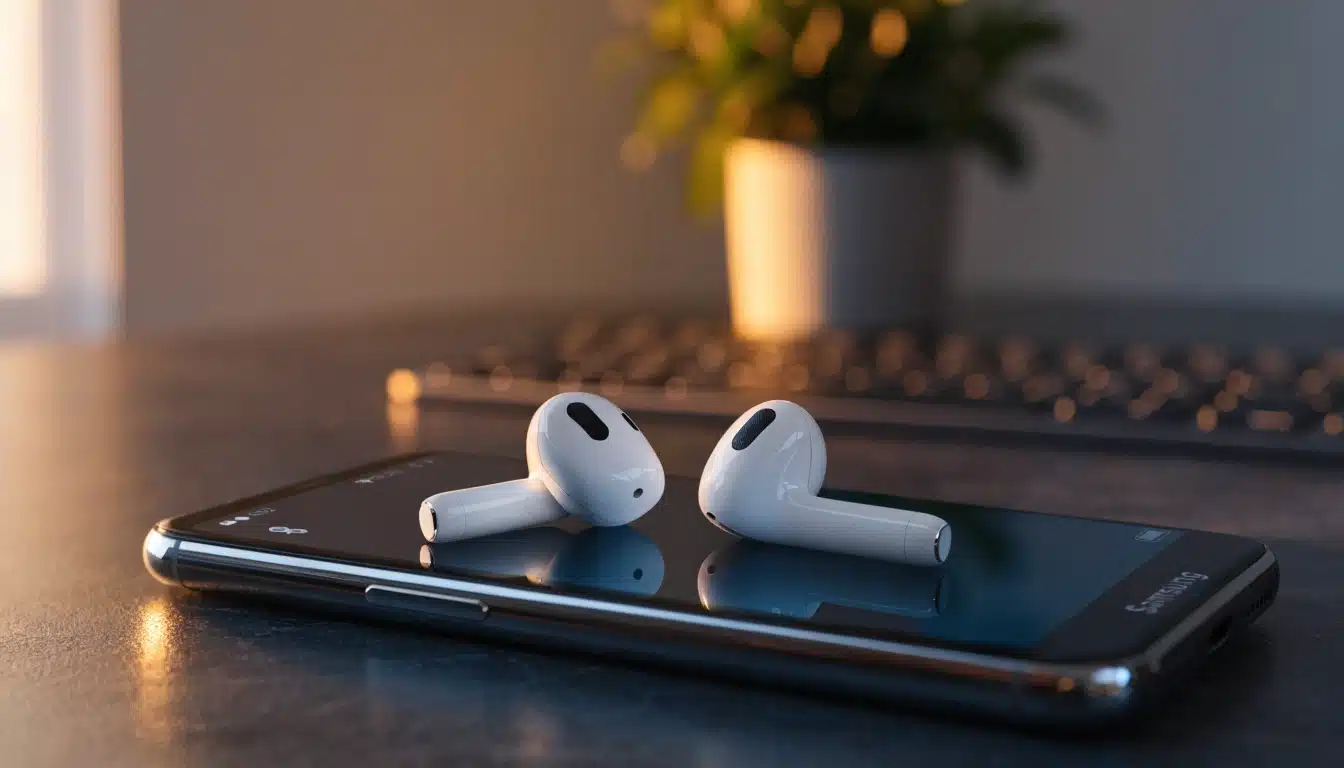
AirPods work with Samsung Galaxy phones through Bluetooth.
You can use them for music, videos, calls, microphone access, playback controls, noise cancellation, and transparency mode on supported models.
However, AirPods do not receive the Samsung features available to Galaxy Buds. You will not get the same companion app, Samsung device switching, battery widgets, equalizer controls, or Galaxy ecosystem tools.
AirPods remain a reasonable option for Samsung owners who already have them. Someone purchasing new earbuds may get greater control and easier management from Galaxy Buds or another Android-focused model.
AirPods Models Compatible with Android
Every current AirPods model supports Android through Bluetooth, but the available features vary depending on the model and Apple’s software limitations.
| AirPods Model | Works With Android? | Main Available Features |
|---|---|---|
| AirPods 2 | Yes | Audio, calls, microphone, basic controls |
| AirPods 3 | Yes | Audio, calls, stem controls |
| AirPods 4 | Yes | Audio, calls, supported controls |
| AirPods 4 with ANC | Yes | Audio, calls, ANC, transparency |
| AirPods Pro | Yes | Audio, calls, ANC, transparency |
| AirPods Max | Yes | Audio, calls, ANC, transparency |
AirPods Pro may provide the strongest Android experience because their most valuable features, active noise cancellation and transparency mode, work without continuous iPhone support.
Even so, Android users do not receive the complete Apple software package.
What Users Say
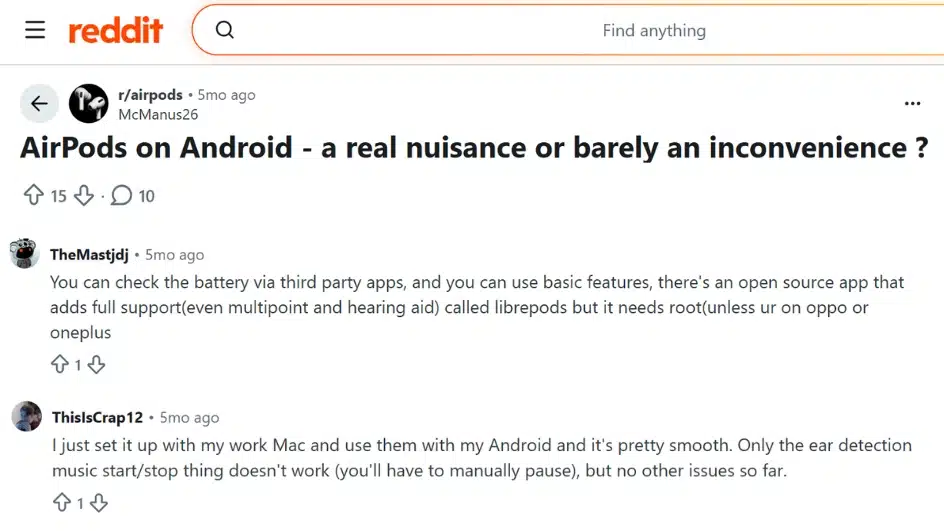
Reddit discussions suggest that AirPods work surprisingly well on Android for everyday listening.
Most users report that music playback, calls, active noise cancellation, and Transparency mode perform reliably, with several saying they have “zero complaints” using them on Samsung, Nothing, and other Android phones.
The biggest frustrations involve Apple-exclusive features, such as automatic ear detection, firmware updates, battery pop-ups, and quick settings access.
Many users also mention that third-party apps can restore some convenience, although they do not fully match the Apple experience.
Overall, Reddit users agree that AirPods remain a solid choice on Android if you mainly care about sound quality and core features rather than deep ecosystem integration.
Common Complaints About Using AirPods on Android
While AirPods work well for listening, Android users often miss the extra convenience that comes with Apple’s ecosystem. Most complaints are not about sound quality but about features that are unavailable or require additional apps.
Common concerns include:
- No official AirPods app: Android has no Apple app for managing AirPods settings.
- Limited battery information: The battery level is not shown natively and often requires a third-party app.
- Manual device switching: AirPods do not automatically switch between Android devices and other Bluetooth devices.
- Fewer customization options: Changing touch or press controls usually requires access to an Apple device.
- No Siri support: Voice commands through Siri are unavailable on Android.
- Limited Find My features: Lost AirPods cannot use the full Apple Find My network.
- Firmware updates: Firmware can only be updated when the AirPods connect to a compatible Apple device.
- Extra app permissions: Many companion apps need Bluetooth or notification permissions to provide additional features.
These limitations do not affect basic audio playback, calls, or active noise cancellation. Instead, they reduce the seamless experience that AirPods provide when paired with an iPhone, making them feel more like standard Bluetooth earbuds than a fully integrated accessory.
Should You Buy AirPods for Android, and Why?
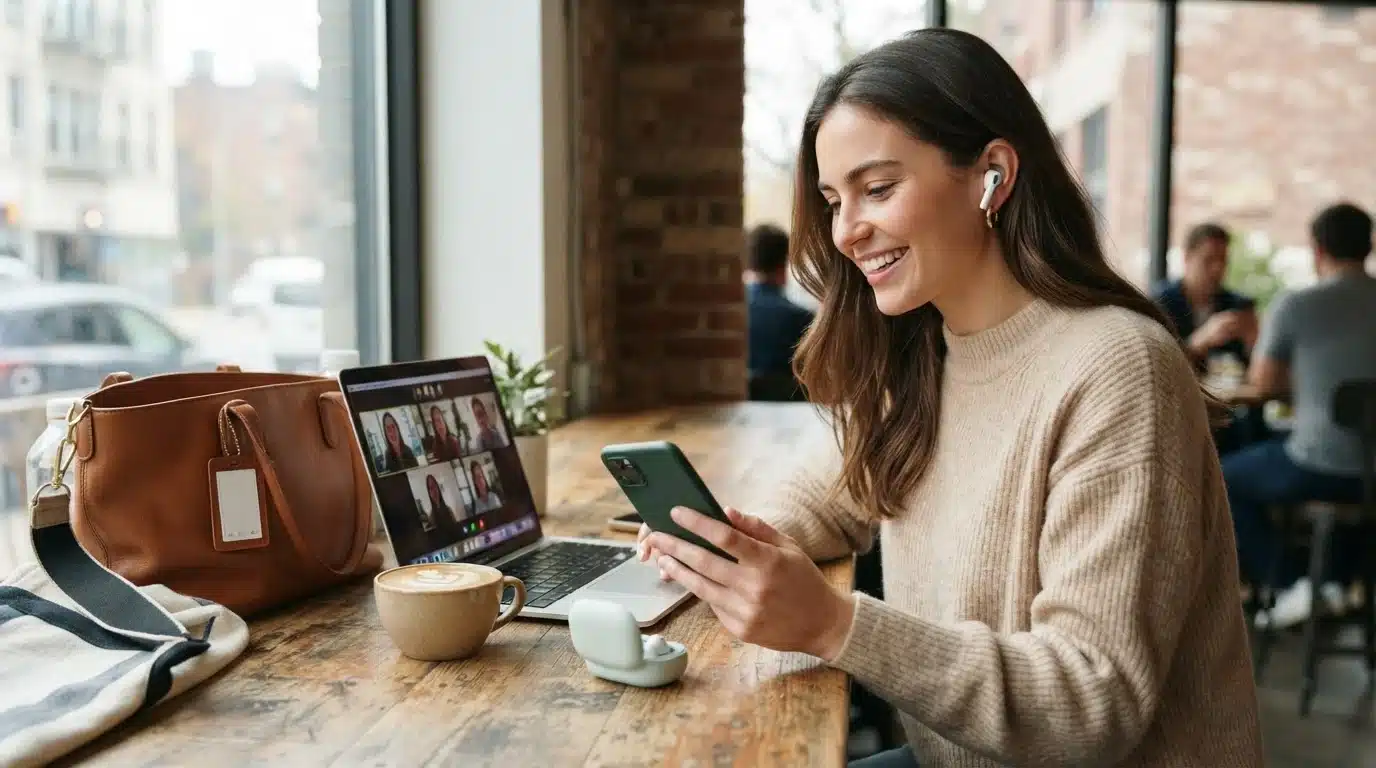
The answer depends on whether you already own them. Keep them if you own them
Existing AirPods owners can continue using them for:
- Music
- Podcasts
- Calls
- Meetings
- Travel
- Exercise
- Noise cancellation
- Video streaming
The missing Apple features may be inconvenient, but the core listening experience remains useful. Replacing working AirPods only because you changed phones may not be necessary.
Final Verdict
AirPods work with Android and retain the features needed for everyday listening. Music, calls, microphones, playback controls, active noise cancellation, and transparency mode work on supported models.
The main losses involve software. Android users don’t get Siri, the native battery card, automatic Apple device switching, full Find My support, or easy control customization.
Keeping AirPods is sensible when you already own them and enjoy their fit or sound. When buying a new pair specifically for Android, compare models with official Android apps and better phone integration first.
Have you used AirPods with a Samsung, Pixel, or another Android phone? Share your experience in the comments.
Frequently Asked Questions
Can AirPods Use Google Assistant?
AirPods do not offer built-in Google Assistant support. Some companion apps can assign an AirPods gesture to launch the assistant, but performance varies by phone, Android version, AirPods model, and app permissions.
Do AirPods Pause Automatically on Android?
Automatic ear detection may not work by default on Android. Some third-party apps add automatic pause-and-resume controls, but reliability varies, and the app may require Bluetooth and background activity permissions.
Can Android Update AirPods Firmware?
Android does not provide an official tool for installing AirPods firmware. Updates are normally handled while the AirPods are charging and connected near a compatible iPhone, iPad, or Mac with internet access.
Can AirPods Pair with Multiple Phones?
AirPods can remember several paired devices, including Android phones and Apple products. However, they do not provide full automatic switching on Android, so you may need to select them manually in Bluetooth settings.