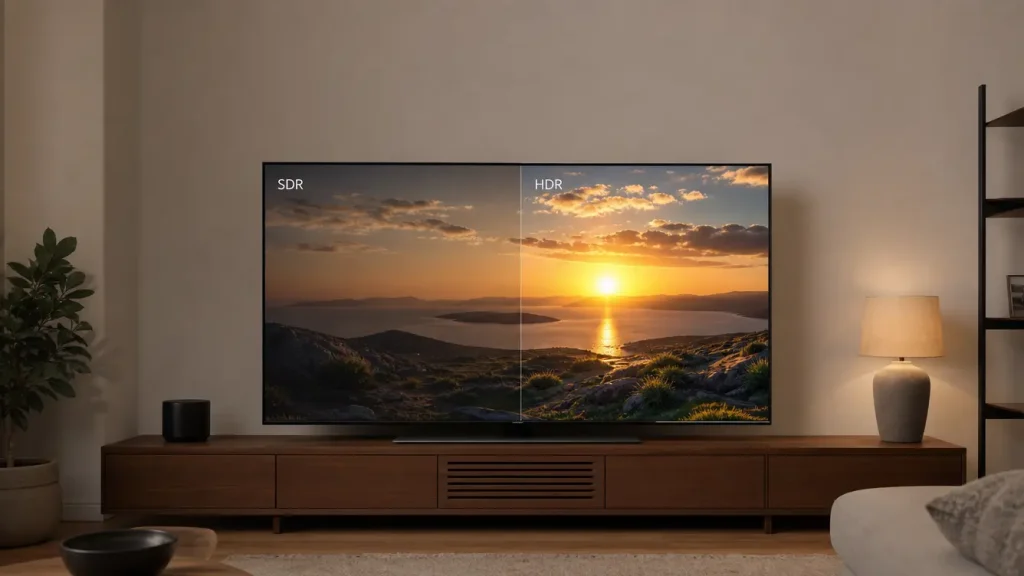
Turning on HDR can be confusing when the screen suddenly looks darker instead of clearer. That moment raises a fair question: is HDR truly an upgrade, or does SDR provide a more reliable image?
The SDR vs HDR comparison depends on more than a label in the settings menu. Content format, panel capability, settings, and room lighting all shape what you see, so two devices can handle the same source in very different ways.
SDR remains consistent across older televisions, budget monitors, projectors, and everyday computer use.
The sections below explain how both formats work, where their differences become visible, and which option fits each screen and activity.
What is SDR?
SDR stands for Standard Dynamic Range. It is the traditional format used for television broadcasts, DVDs, web videos, older games, and most computer applications. SDR television production commonly follows the ITU-R BT.709 standard, which defines image parameters for HDTV production and exchange.
SDR content commonly uses Rec. 709 color and 8-bit color depth, allowing about 16.7 million color combinations. It is often mastered near a 100-nit reference level, although modern screens can display it at higher brightness.
Because SDR carries a narrower range of light, very bright areas may lose texture, while dark portions may contain less visible detail. Gradual color changes can also show visible bands in some scenes.
Its main strength is consistency. SDR works across almost every television, monitor, phone, laptop, and projector without requiring advanced hardware. It remains a reliable choice for everyday computer work, older media, broadcasts, and any screen that struggles to display HDR correctly.
What is HDR?
HDR stands for High Dynamic Range. It carries a broader range of light, contrast, and color information than SDR. This allows bright highlights, such as sunlight, flames, or reflections, to appear intense without removing nearby detail.
Dark areas can retain objects and textures that may appear compressed in SDR. The ITU-R BT.2100 standard defines image parameters for HDR television production and international program exchange.
HDR commonly uses 10-bit color, supporting more than one billion color combinations and smoother changes between shades.
Many productions are mastered within P3-D65 and delivered using BT.2020 signaling. Some formats also provide scene-based metadata that helps the screen adjust brightness through tone mapping.
Strong results require suitable hardware. The panel needs enough brightness, accurate color support, and effective contrast control.
OLED and Mini-LED screens generally handle these requirements well, while entry-level HDR televisions or monitors may produce a dim or faded image despite accepting the signal.
SDR vs HDR: Key Differences and Which is Better
SDR and HDR differ in light range, color depth, contrast, hardware needs, and content support. This table compares their technical capabilities while showing which format suits each activity.
| Area | SDR | HDR | Better Choice |
|---|---|---|---|
| Mastering reference | Often around 100 nits | Commonly 1,000 or 4,000 nits | HDR for stronger highlights |
| Color depth | Commonly 8-bit | Commonly 10-bit, with some 12-bit workflows | HDR for smoother color changes |
| Color standard | Usually Rec. 709 | Often P3-D65 with BT.2020 signaling | HDR for broader color |
| Bright-area detail | More limited | Better highlight preservation | HDR on a capable screen |
| Dark-area detail | May appear compressed | Retains more visible detail | HDR with good contrast control |
| Metadata | Usually not required | May use static or scene-based metadata | HDR for content-specific processing |
| Hardware needs | Works on most screens | Needs suitable brightness and contrast | SDR for entry-level screens |
| Movies and streaming | Suitable for standard titles | Better for supported titles | Match the source format |
| Gaming | Reliable across older games | Better lighting in supported games | HDR when implemented correctly |
| Office work | Stable brightness | May affect standard applications | SDR |
| Photo and video editing | Suitable for SDR delivery | Suitable for HDR delivery | Match the final output |
| Older content | Preserves the original format | Conversion may look inaccurate | SDR |
HDR offers greater light, contrast, and color capacity, making it the stronger choice for supported entertainment on a capable screen. SDR remains more consistent for office work, older content, broadcasts, and displays with limited HDR performance.
Resolution is a separate specification. 4K describes pixel count, usually 3840 × 2160, while HDR controls light, contrast, and color range.
A video can therefore be 4K SDR or 4K HDR. Understanding that distinction makes it easier to compare display specifications and select the correct viewing mode.
The Main Difference Between HDR and SDR
The visible difference comes from several connected factors rather than a single specification. Light output, contrast, color depth, and signal processing must work together.
1. Brightness and Highlights
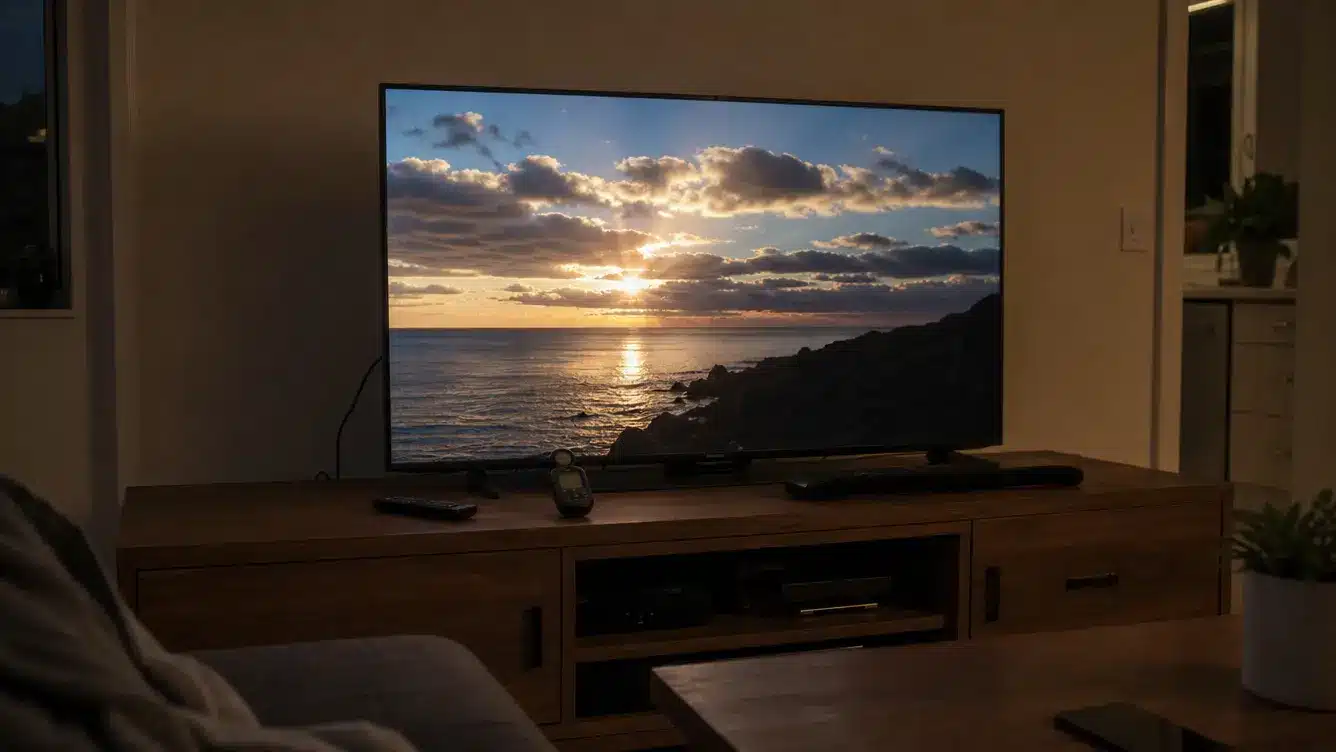
SDR content is often mastered around 100 nits, although consumer screens can show it at higher brightness levels.
HDR content is commonly mastered at 1,000 or 4,000 nits. The PQ system can encode values up to 10,000 nits, but current consumer screens cannot reproduce that full level.
HDR uses its added range mainly for highlights such as sunlight, flames, lamps, reflections, and headlights. It is not intended to make every part of the image extremely bright.
2. Contrast and Dark Detail
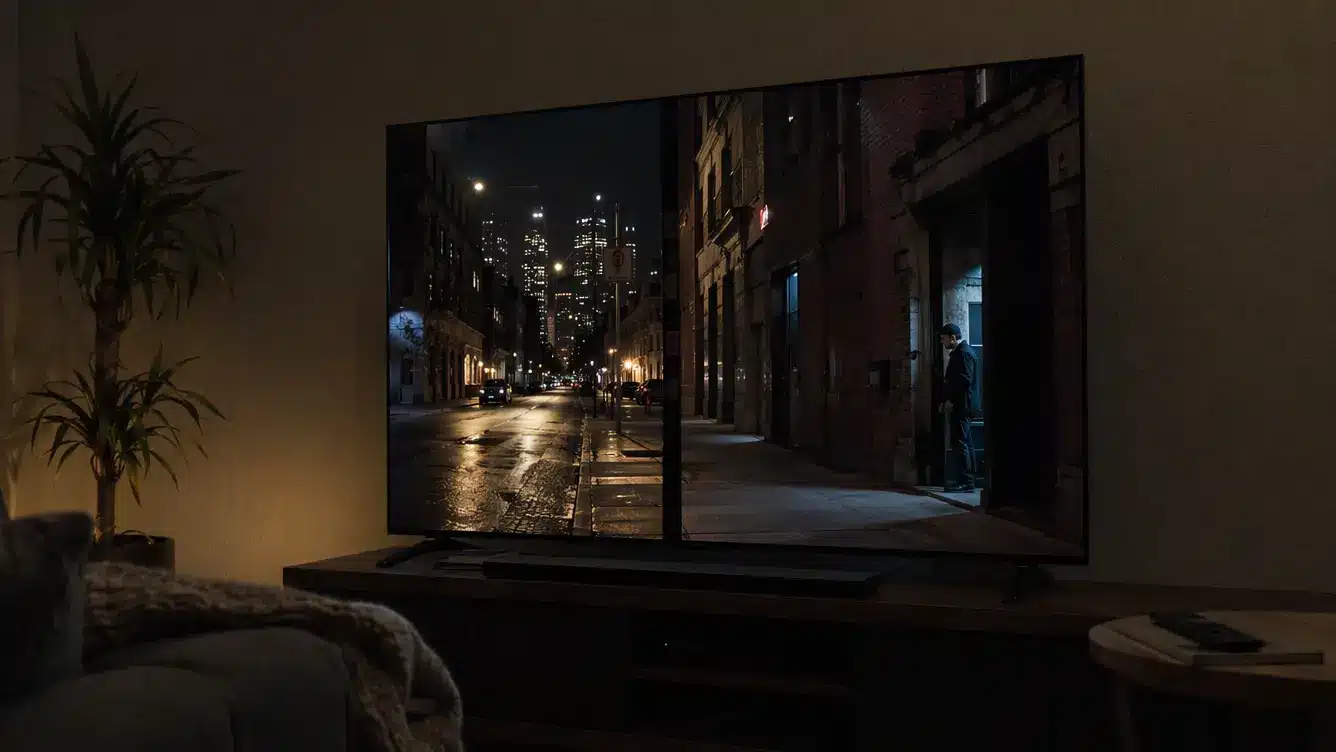
Contrast describes the separation between the lightest and darkest parts of an image. HDR can preserve more information at both ends, but the panel must reproduce that range correctly.
OLED controls individual pixels, allowing a bright object to sit beside a fully dark pixel.
LCD and Mini-LED screens use backlights, so their results depend on the number and quality of local dimming zones. Weak dimming can create glowing areas around subtitles, stars, or lamps.
3. Color Range and Depth
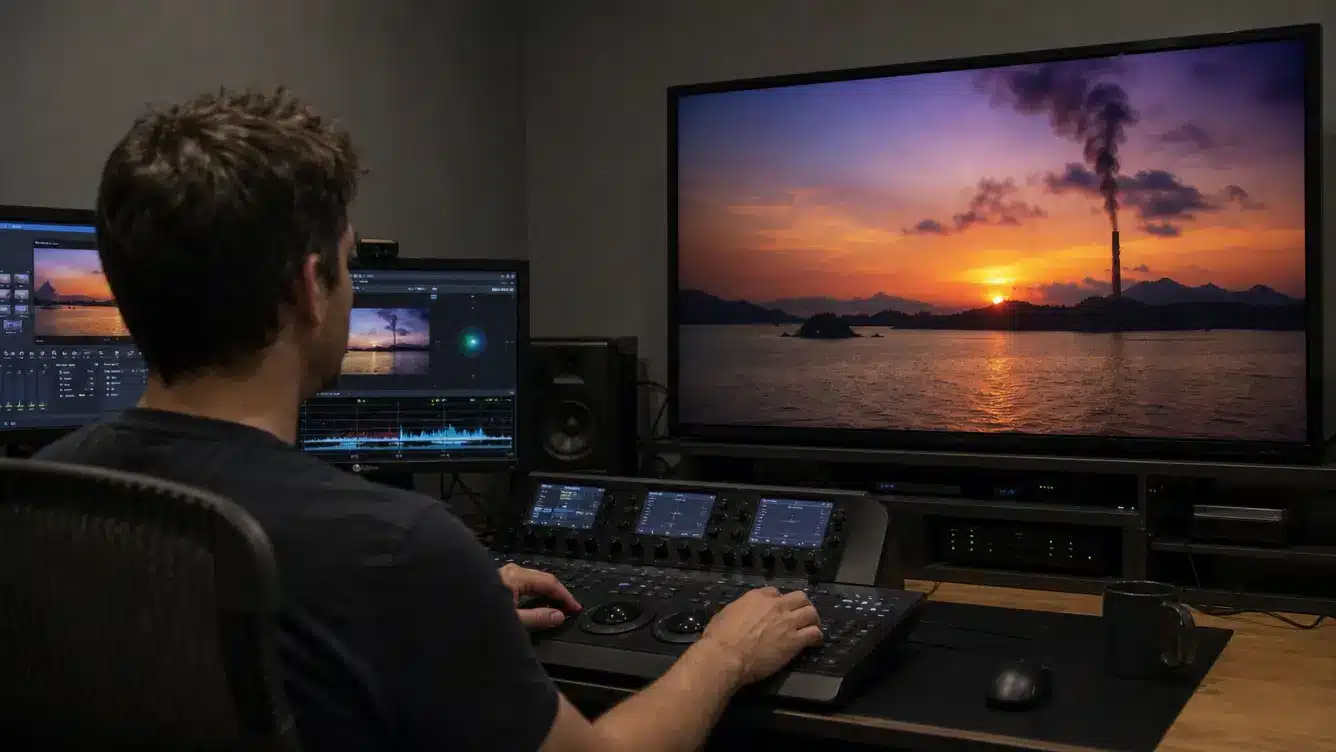
SDR commonly uses Rec. 709 and 8-bit color, supporting about 16.7 million color combinations. HDR commonly uses 10-bit color, which supports more than one billion combinations.
The extra color depth produces smoother changes between neighboring shades. Skies, smoke, shadows, and sunsets are less likely to show visible bands.
Many HDR productions are mastered within P3-D65 and delivered using BT.2020 signaling, allowing compatible screens to reproduce a broader selection of colors.
4. Metadata and Tone Mapping
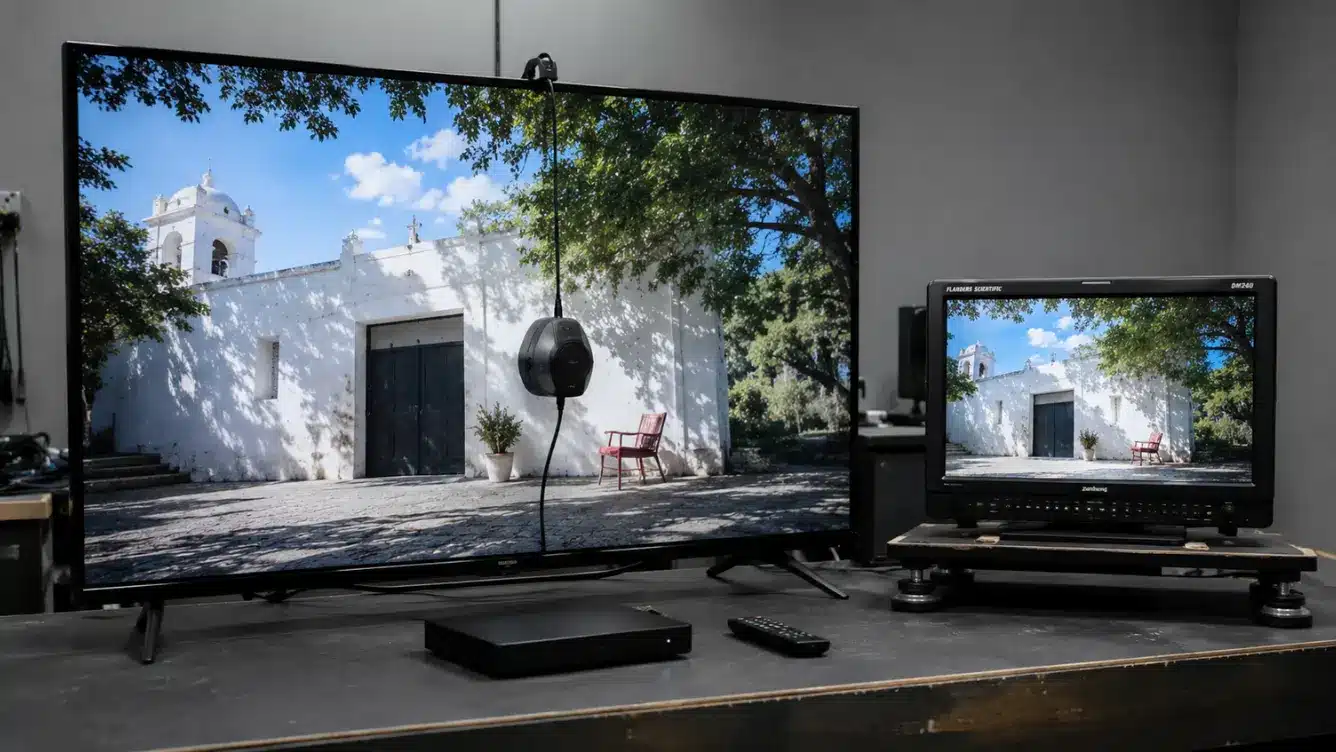
Some HDR signals carry information about the brightness range used during production. That information may remain fixed for the full program or change by scene or frame.
Tone mapping adjusts the source to match what the receiving screen can produce. Poor tone mapping may remove highlight detail, hide objects in dark areas, or make the full image appear dim. Good processing preserves important detail without making brightness look unnatural.
These four factors explain why two HDR screens can produce different results. They also explain many cases where HDR appears darker or less accurate than SDR.
Why HDR Sometimes Looks Worse than SDR
A dim or faded HDR image usually points to a setup or hardware problem. The symptom often gives a clue about what needs checking.
- The full image looks too dark: The panel may lack enough light output, or the selected viewing mode may be reducing brightness. Try the dedicated HDR mode and compare it with another supported title.
- Desktop applications look too bright or dark: Some SDR applications may not respond evenly to HDR brightness controls. Microsoft’s Windows HDR settings.
- Dark areas look gray: Weak local dimming or mismatched black-level settings may raise black areas. Check the source device and screen to confirm that both use matching output ranges.
- Bright objects lose detail: Poor tone mapping may turn clouds, lamps, or reflections into flat white areas. Lowering contrast or using a more accurate HDR mode may help.
- Colors look pale or incorrect: The source, application, or output setting may be sending the wrong color range. Confirm that the file and playback app support HDR.
- HDR does not activate: The selected input, cable, receiver, or media player may lack the required bandwidth or format support. Check the correct HDMI port and enable its high-bandwidth setting.
These symptoms can identify where the playback chain is failing. If the settings appear correct, the panel technology may be the limiting factor.
Five Steps to Choose the Right Setting
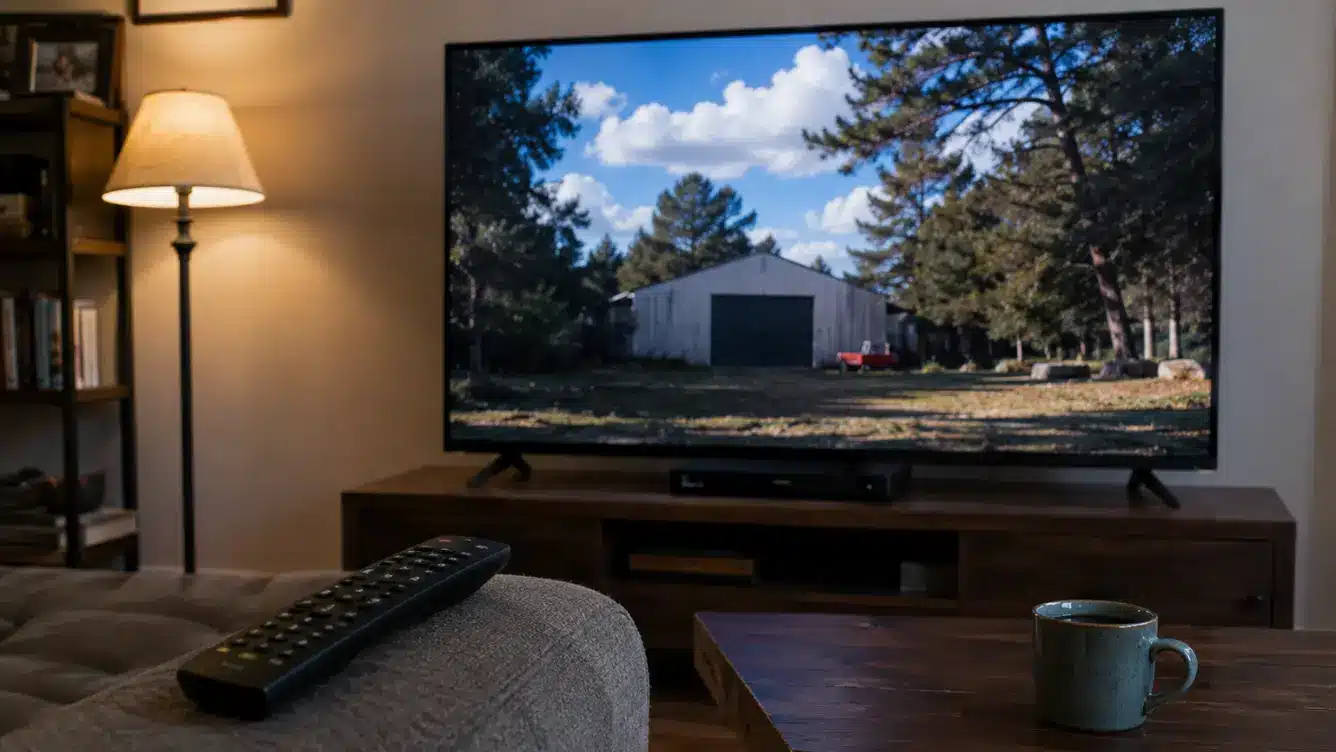
Specification labels can suggest what a screen supports, but a short test shows how well it performs. Use the same familiar scene so changes are easier to judge.
- Confirm the source format: Check that the movie, episode, or game was produced in HDR. Standard content cannot supply information that was never recorded.
- Enable the matching mode: Turn on the correct HDR setting on the screen and source device. Some televisions switch automatically when supported content begins.
- Compare light and dark scenes: Choose one scene with strong highlights and another with dark areas. Look for detail rather than brightness alone.
- Check color and black levels: Skin tones should look natural, dark areas should remain visible, and black portions should not appear gray.
- Choose the comfortable result: Keep HDR if it shows clearer detail and controlled highlights. Return to SDR if HDR remains dim, faded, or inconsistent after checking the settings.
This short comparison should reveal which mode your setup handles correctly. The remaining questions cover factors that can affect playback beyond the selected setting.
How Display Type Changes HDR Results
Panel technology has a major effect on HDR performance. Two devices supporting the same format can produce different results because their brightness and contrast capabilities are not equal.
Much of that difference comes down to the display technology itself, so comparing QLED and OLED TVs can help explain why HDR performance varies between screens.
| Display type | Typical HDR result | Main limitation |
|---|---|---|
| OLED | Strong black levels and precise control around small highlights | Many models have lower full-screen brightness than high-output Mini-LED screens |
| Mini-LED | High light output and strong performance in brighter rooms | Blooming may appear around subtitles or small bright objects |
| Standard LED | Results vary widely by backlight and dimming system | Edge-lit models may have weak contrast control |
| Entry-level HDR monitor | May provide limited improvement over SDR | Lower certification tiers have less light output and black-level control |
| OLED phone | Often shows strong contrast and bright highlights | Higher brightness during playback may use more battery |
| HDR laptop | Can work well for video and supported games | Models vary greatly in brightness, color range, and black-level performance |
| Projector | Can provide good results with careful tone mapping | Lower light output makes room darkness and screen size important |
Panel technology sets the physical limits, while format support determines which signals the device can accept. The next section explains the HDR formats commonly listed in product specifications.
Common HDR Formats Explained
HDR is a broad category containing several formats. Support must match across the source, playback device, application, and screen.
- HDR10: The most widely supported format. It uses static mastering metadata that remains unchanged throughout the program.
- HDR10+: It can change metadata by scene or frame, helping the screen adjust tone mapping as brightness levels change.
- Dolby Vision: It also uses scene-based or frame-based metadata and supports 12-bit production workflows. Native bit depth and processing capability vary between playback devices and panels.
- HLG: Hybrid Log-Gamma is mainly used for live television and broadcasting. It offers some compatibility with older broadcast systems and does not rely on the same metadata approach as HDR10.
- DisplayHDR: This is a monitor-performance certification from the Video Electronics Standards Association, not a video format. VESA’s DisplayHDR performance criteria measure luminance, black levels, dimming, color gamut, and bit depth.
Format support and panel quality affect separate parts of the result. Resolution is also separate, which explains the common confusion between HDR and 4K.
If you’re comparing monitor specifications, understanding the difference between HDR10 and DisplayHDR 400 standards can make those labels much easier to interpret.
Conclusion
The difference between HDR and SDR matters most in the result your screen can produce. HDR is the stronger choice for supported movies and games when the panel has enough brightness, contrast control, and accurate tone mapping.
SDR remains dependable for standard video, everyday work, older equipment, and displays with limited HDR performance.
Do not let the format label make the decision alone. Play a familiar scene, compare both modes, and look for clear highlights, visible dark detail, natural color, and comfortable brightness.
If HDR appears dim or faded after the settings are checked, SDR is the sensible choice for that setup. Try both on your television or monitor, then share which format looks better to you in the comments.
Frequently Asked Questions
Can Color Calibration Improve Screen Accuracy?
Yes. Calibration can correct inaccurate brightness, black levels, white balance, and color output. It cannot increase the panel’s physical limits, but it can help the screen reproduce supported content more consistently within those limits during viewing.
Can Higher-Range Gaming Increase Input Lag?
Not by itself. Input lag depends mainly on the television’s processing and selected gaming mode. Some screens add delay when extra processing is active, so enable Game Mode and compare responsiveness with the same console settings.
Does Streaming Compression Reduce Visual Quality?
Yes. Streaming services compress video to reduce bandwidth, which may soften fine detail or create banding in dark scenes. A higher-quality stream, stable internet connection, and suitable subscription tier can retain more source information during playback.
Can Screenshots Preserve the Full Result?
A screenshot can retain higher-range information when the operating system, capture tool, file format, application, and receiving screen all support it. Otherwise, conversion or tone mapping may change the brightness, contrast, and color of the result.