The first time I opened a computer’s firmware screen, the unfamiliar controls made me worry that one wrong key could stop the PC from starting.
Yet that screen belongs to a system that works quietly before Windows appears.
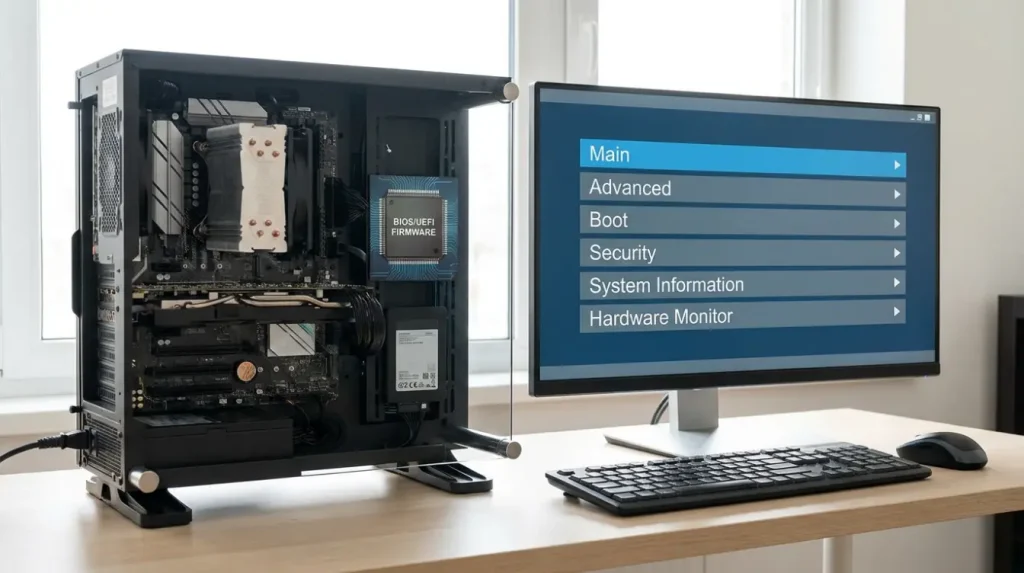
If you have asked “what is BIOS in computer,” BIOS stands for Basic Input/Output System. It is the motherboard firmware that prepares the machine for startup.
Most people never notice it unless they change a hardware setting or face a boot problem.
Knowing its role makes those situations easier to understand. The sections below explain where BIOS is stored, what happens after you press the power button, how to open its settings, and when an update or repair may be necessary.
What Does BIOS Do?
Windows is not the first software involved when a computer starts. Before the login screen appears, the motherboard firmware prepares the machine and confirms that startup can continue.
BIOS is specialized software built into the motherboard. It starts working when the computer receives power, before Windows, Linux, or another operating system becomes available.
A workplace comparison helps explain its role. Before employees arrive, someone opens the building, switches on essential equipment, and confirms that everything needed for the day is available. BIOS performs similar preparation for the computer.
The National Institute of Standards and Technology explains in its official BIOS guidance that computers rely on BIOS for fundamental system functions when powered on. This early position places it between the physical hardware and the software that follows.
BIOS is not an application that can be opened through the Start menu. Most of its visible work occurs before the operating system loads, though UEFI firmware can continue providing limited runtime services afterward.
How BIOS Starts Your Computer
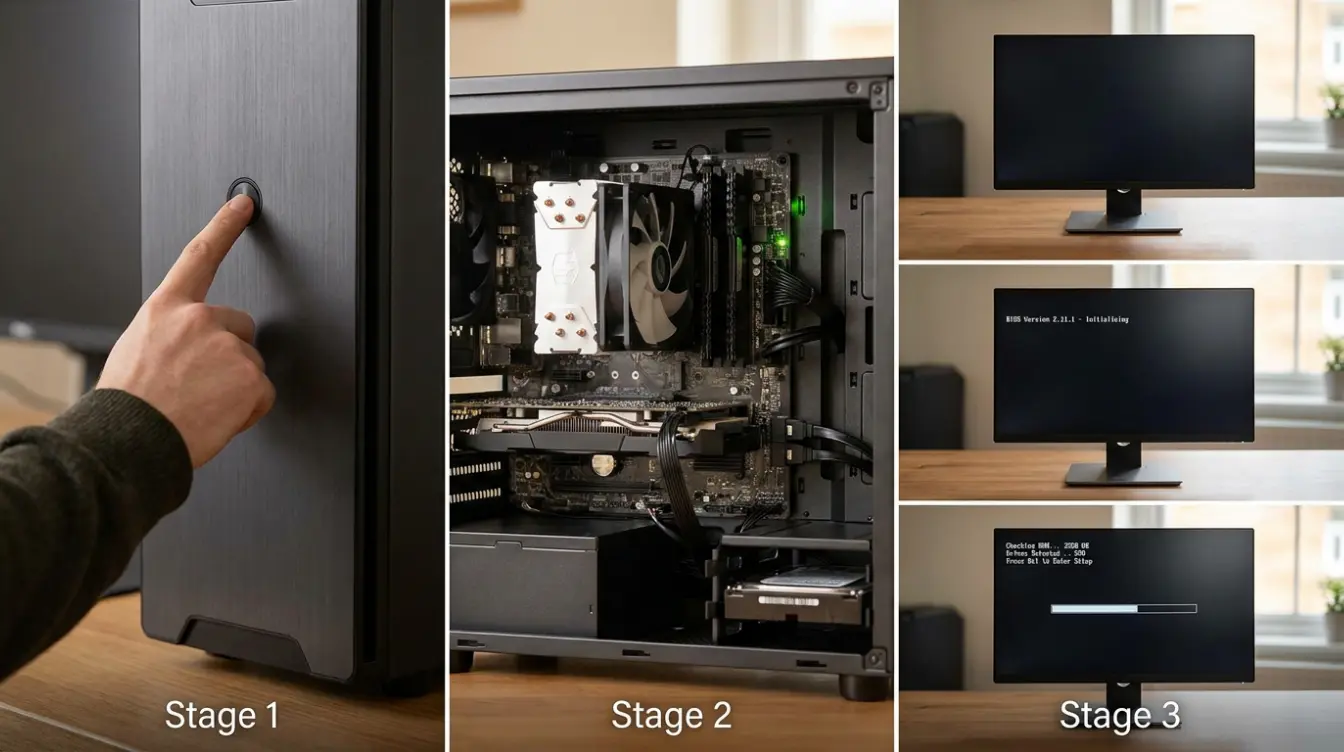
Pressing the power button begins a short sequence that prepares the machine for use. The exact process differs between legacy BIOS and UEFI, but both perform the same general startup role.
- Power reaches the motherboard: The power supply begins sending electricity to the motherboard and connected components.
- The processor reads the firmware: The processor starts following the firmware instructions assigned to the startup process. If you’re planning a hardware upgrade, understanding the differences between Intel Core i7 and i9 processors can help you choose a CPU that’s compatible with your performance needs.
- POST checks essential hardware: The Power-On Self-Test performs model-specific checks on essential components, often including memory, graphics, and storage initialization. The exact tests and diagnostic signals vary by manufacturer.
- Hardware is initialized: The firmware establishes basic communication with the components required to continue startup. This can include memory, display hardware, input equipment, and storage devices. If you’ve recently replaced your computer’s RAM, HDD, or SSD, this is the stage where the firmware checks whether the new hardware is detected correctly before startup continues.
- The boot order is checked: The saved priority list determines which startup option is examined first. Possible choices include an internal SSD, hard drive, USB drive, optical disc, or network source.
- A bootable option is found: The firmware searches the selected device or entry for valid startup information. If nothing suitable is available, the screen may report that an operating system or boot device cannot be found.
- The next-stage program loads: After hardware initialization, the firmware loads the next startup program. On UEFI systems, the built-in UEFI Boot Manager can load an EFI application such as Windows Boot Manager.
The manufacturer’s logo often hides these actions, so most users never see them. This sequence also explains why a missing drive or hardware fault can stop startup before Windows appears.
Where BIOS Is Stored
BIOS is stored on the motherboard rather than the computer’s storage drive. This allows it to start the system even when no operating system has loaded.
| Component | Where BIOS Is Stored or Used | Purpose |
|---|---|---|
| BIOS firmware | Non-volatile flash memory chip on the motherboard | Remains available even when the computer is powered off. |
| Operating system | SSD or HDD | Separate from BIOS, so reinstalling Windows does not remove the firmware. |
| BIOS settings | Non-volatile motherboard memory | Stores firmware configuration independently of the operating system. |
| CMOS battery | Coin-cell battery on the motherboard | Primarily keeps the real-time clock running and may preserve settings on systems that use battery-backed memory. |
| Access method | Startup firmware interface | BIOS must be opened during startup using a manufacturer-specific key, not from the Windows desktop. |
How to Open BIOS Settings
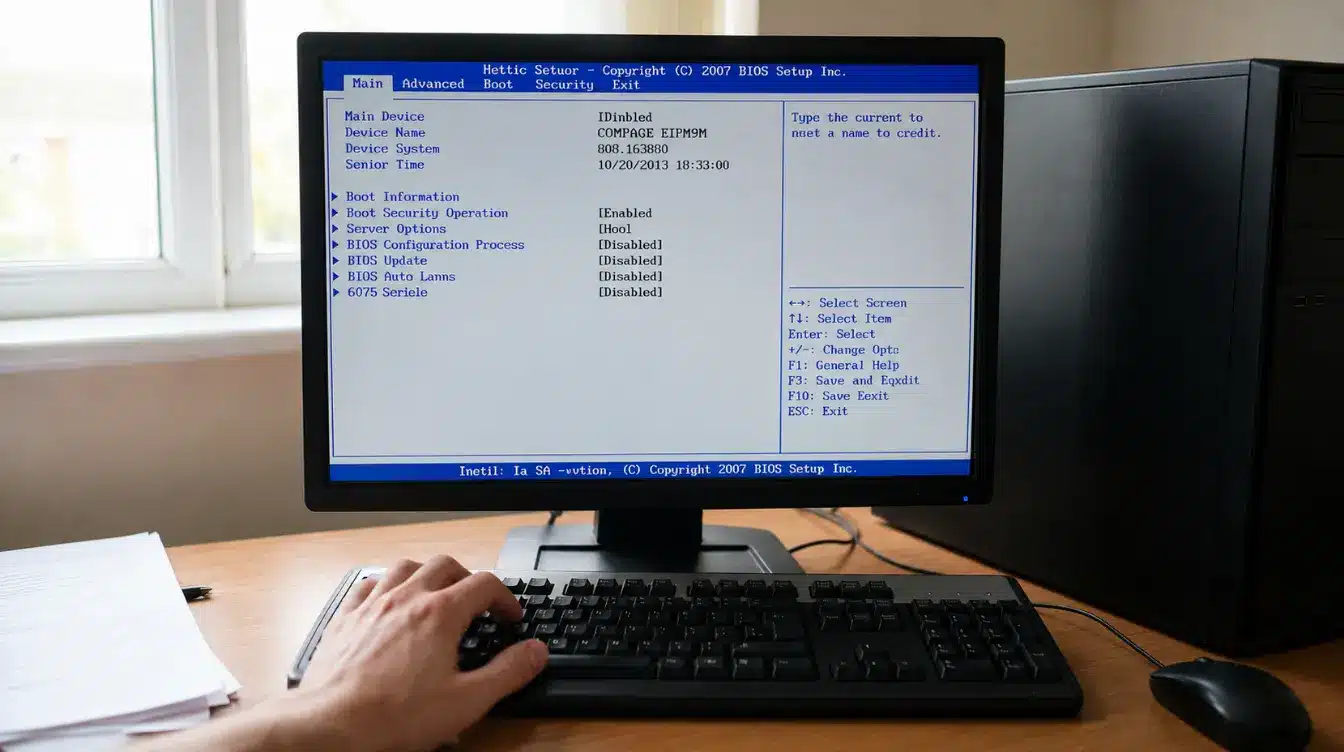
Firmware settings are usually opened when someone needs to inspect hardware or adjust a low-level option. The command must be entered before the operating system completes its startup process. To access the setup screen during startup:
- Shut down the computer completely.
- Turn it on again.
- Press the assigned setup key repeatedly when the manufacturer’s logo appears.
- Stop pressing when the BIOS or UEFI menu opens.
Common setup keys include:
| Manufacturer | Common Setup Key |
|---|---|
| Acer | F2 or Delete |
| ASUS | F2 or Delete |
| Dell | F2 |
| HP | Esc or F10 |
| Lenovo | F1, F2, or Novo button |
| MSI | Delete |
| Samsung | F2 |
| Toshiba | F2 |
The correct key can differ between models. The startup screen, device manual, or manufacturer’s support page should identify the required command. These Dell access instructions provide one example of a brand-specific method.
Windows 11 also provides another route: Settings → System → Recovery → Advanced startup → Restart now → Troubleshoot → Advanced options → UEFI Firmware Settings → Restart
Microsoft confirms that Windows Recovery Environment can restart a supported device directly into its firmware screen. If UEFI Firmware Settings is missing, use the correct startup key for your model.
Settings You Can Change in BIOS
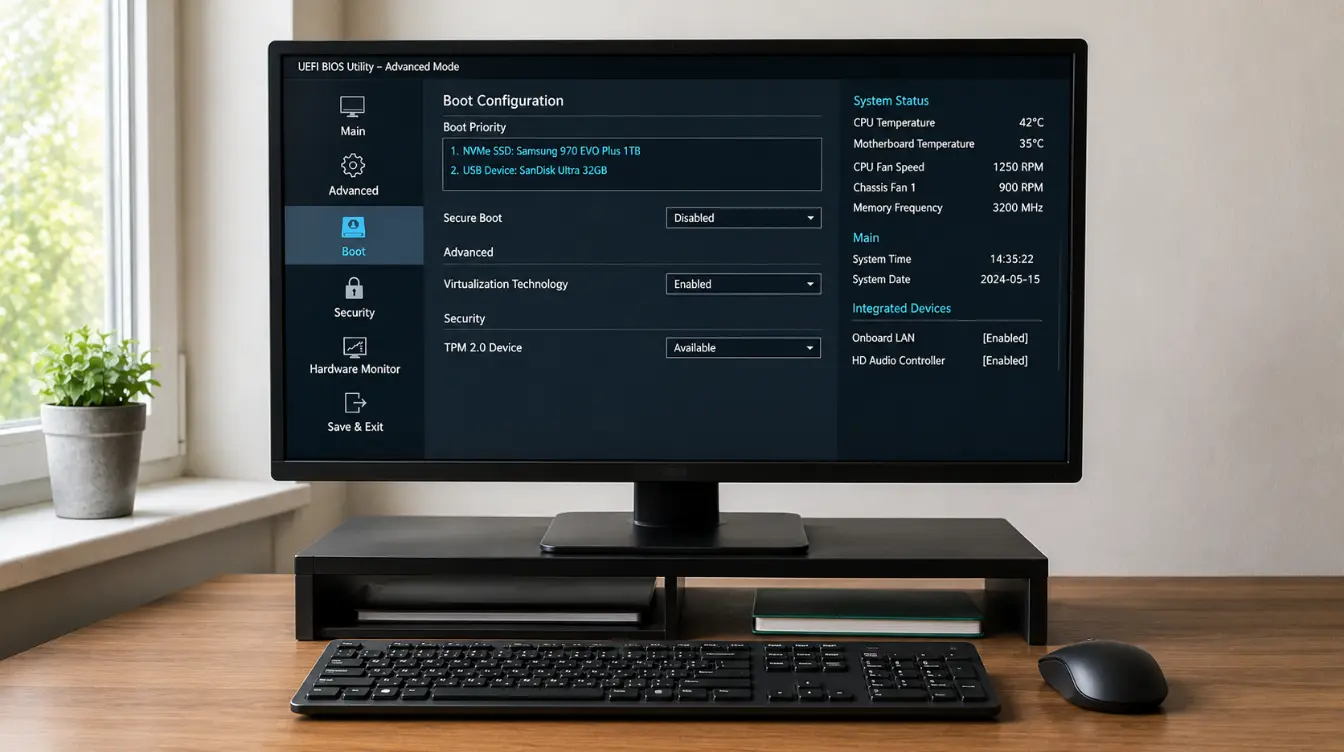
Firmware menus provide low-level control over selected hardware and startup behavior. Custom desktop motherboards often expose more settings than prebuilt laptops, though the available controls depend on the product. Common options include:
- Boot priority: Choose which device or startup entry the computer checks first.
- System date and time: Correct the motherboard clock when it becomes inaccurate.
- Virtualization: Enable processor functions required by virtual machines and some Android emulators.
- Secure Boot: Verify trusted pre-startup software and block components that fail the firmware’s signature checks.
- TPM controls: Manage security hardware or firmware required by some operating systems.
- Fan monitoring: View supported temperatures and fan speeds.
- Integrated devices: Enable or disable built-in audio, network adapters, ports, or controllers.
- Memory settings: Check installed RAM and adjust supported memory profiles.
- Firmware password: Restrict access to the setup menu or startup process.
Record an option’s original value before changing it. The range and appearance of these controls also depend on which firmware standard the computer uses.
BIOS and UEFI Compared
Most current computers use UEFI, though manufacturers and users still commonly call the firmware screen BIOS. UEFI stands for Unified Extensible Firmware Interface and has replaced the older BIOS standard on current PCs.
| Feature | Legacy BIOS | UEFI |
|---|---|---|
| Standard | Older motherboard firmware | Current motherboard firmware |
| Interface | Usually text-based | May support graphics and a mouse |
| Partition system | Commonly uses MBR | Commonly uses GPT |
| Large boot drives | Limited to about 2.2 TB with MBR | Supports larger boot drives with GPT |
| Secure Boot | Not supported | Secure Boot is supported |
For Windows installed in UEFI mode, Microsoft requires the system drive to use the GPT partition format. Secondary drives can still use GPT or MBR.
A setup menu may display “BIOS” even when the computer uses UEFI. The older name remains common because many computer owners recognize it more easily.
BIOS, CMOS, Bootloader, and Windows
Several components take part in the computer startup process, but each has a separate purpose. Understanding their roles prevents motherboard firmware from being confused with Windows or saved configuration data.
- BIOS: Traditional motherboard firmware that prepares hardware and begins the boot process.
- CMOS: A term traditionally associated with the memory used to retain firmware settings on older systems.
- Bootloader: Startup software that loads the operating system after the firmware completes its main checks.
- Operating system: Software such as Windows or Linux that manages applications, files, users, and hardware during regular use.
These components work at different stages of startup. Reinstalling Windows does not replace BIOS because the operating system and motherboard firmware are stored and updated separately.
When a BIOS Update is Needed
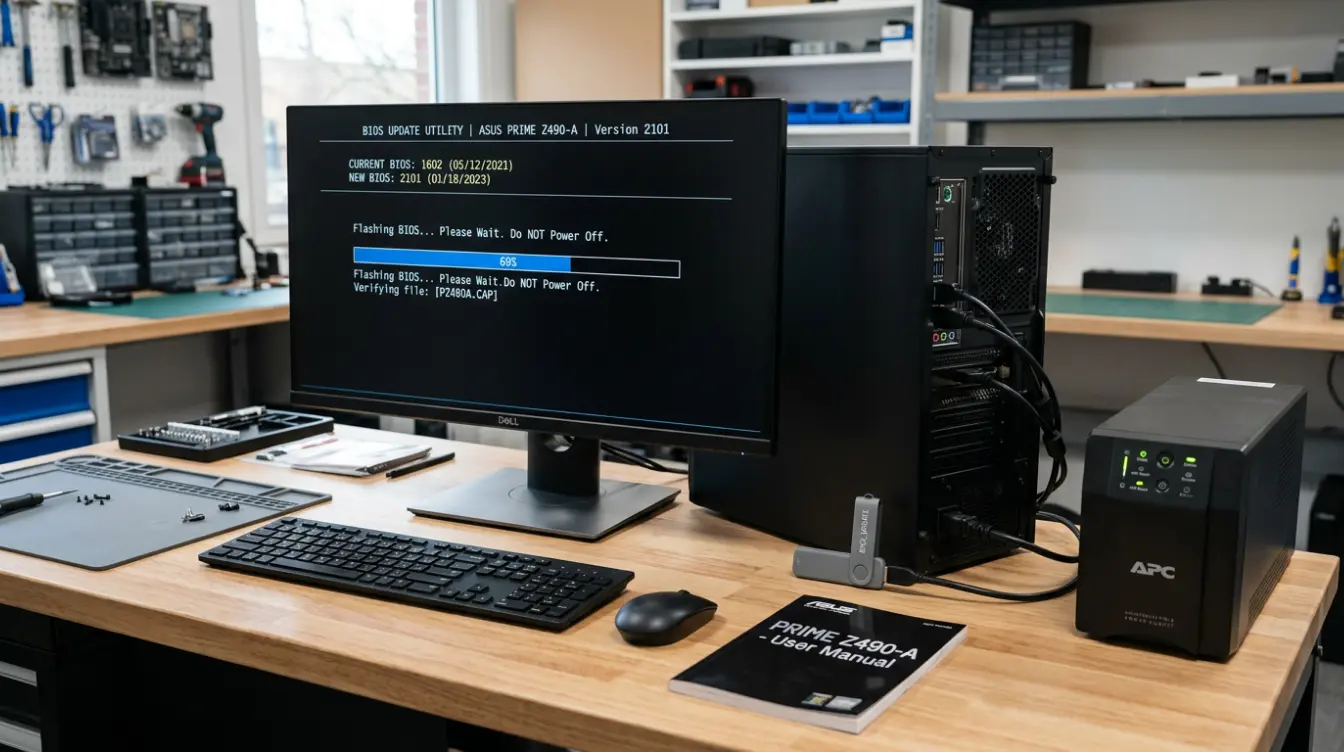
A BIOS update replaces the existing motherboard firmware with a version supplied by the computer or motherboard manufacturer. It should be handled separately from ordinary application maintenance. An update may be appropriate when it:
- Adds support for a newer processor
- Fixes a documented firmware error
- Corrects hardware compatibility problems
- Provides an important security correction
- Addresses stability or startup failures
- Is specifically recommended by the manufacturer
Before installing an update, confirm the exact computer or motherboard model. Read the release notes, download the file only from the manufacturer, connect the computer to reliable power, and follow the provided instructions carefully.
The Dell update instructions show how model checks, downloads, installation, and recovery work on supported Dell computers. Other manufacturers may use a Windows utility, USB drive, firmware menu, or automatic system update.
Review the release notes and manufacturer instructions before updating. Give priority to security corrections, required hardware support, and fixes that apply to your computer model.
Common BIOS Problems and Responses
Firmware-related symptoms usually appear before the operating system loads. The timing and wording of an error can help separate a motherboard setting problem from a Windows failure.
| Symptom | Possible Cause | Suitable First Step |
|---|---|---|
| No boot device found | Incorrect boot order or undetected storage drive | Check drive detection and boot priority |
| Beeps or lights during startup | Firmware reported a diagnostic code | Check the model-specific code reference |
| Date and time reset | Weak coin-cell battery or clock problem | Correct the time and inspect the battery |
| New component is missing | Connection or compatibility problem | Reseat the component and check firmware support |
| Startup fails after a setting change | Incorrect configuration | Load the default firmware settings |
| Update does not complete | Wrong file or interrupted installation | Use the recovery method for the exact model |
| Setup screen will not open | Incorrect key or startup timing | Press the assigned key immediately after powering on |
Diagnostic beeps and lights are not available on every computer, and their meanings differ by model. Avoid changing several unrelated options at once, since that makes the original cause harder to identify.
Record any error messages and contact authorized support if the computer shows no display or cannot complete firmware recovery. Manufacturer documentation should be used for model-specific repairs.
Final Thoughts on Computer BIOS
BIOS may look technical, but its purpose is straightforward once each part has a clear role. It prepares a computer for the operating system every time the machine starts.
Current PCs usually handle this work through UEFI, though BIOS remains the familiar name used by manufacturers and computer owners.
When someone asks what BIOS is in a computer, I describe it as the firmware that gets the hardware ready before Windows takes control. Most people only need its settings for boot changes, virtualization, security controls, or startup repairs.
Check the manual for your exact device before changing unfamiliar options. If you still cannot find the correct setup key, share your computer model in the comments for more specific help.
Frequently Asked Questions
Does Restoring Default Settings Delete Personal Files?
Restoring default firmware settings does not erase documents or applications. However, changed storage, TPM, or Secure Boot settings can stop Windows from starting normally or prompt BitLocker to request its recovery key on an encrypted computer.
Can a Firmware Password Differ From a Windows Password?
Yes. A firmware password protects the setup menu or startup process before Windows loads, while a Windows password protects a user account. Changing one usually does not change the other, and recovery methods depend on the manufacturer.
Can Malware Infect Motherboard Firmware?
Firmware malware can target motherboard firmware and may persist outside normal operating-system files. Signed manufacturer updates and enabled firmware protections reduce the risk. Suspected firmware compromise usually requires model-specific recovery tools or help from the device manufacturer.
Can a Computer Start with a Dead CMOS Battery?
Often, yes, but the clock may reset and saved settings may be lost on systems that depend on the battery. Some computers may also show startup warnings or require the firmware configuration to be restored before continuing.