A sudden split or horizontal line appearing while gaming or watching videos can make even the smoothest visuals feel broken and frustrating. Learning how to fix screen tearing helps you understand why frames don’t align properly on the monitor.
The problem usually occurs when the graphics card produces frames at a rate that doesn’t match the display’s refresh timing, creating visible breaks.
Adjusting settings, enabling sync technologies, or checking hardware connections can often resolve the issue without replacing equipment.
You can spot the exact cause by observing how your system handles fast-moving scenes and performance-heavy games. The solutions below offer practical ways to achieve smoother visuals and reduce tearing-related distractions.
What is Screen Tearing?
Screen tearing is a visual issue where a display shows parts of multiple frames at once, creating horizontal lines or splits that disrupt smooth imagery. It can appear during fast-moving scenes in games, video playback, or while scrolling through content, making the visuals look disjointed or broken
This phenomenon is most noticeable on displays with high motion, where continuous frame transitions are expected to appear seamless. Even high-quality monitors can exhibit tearing if frames are not displayed cohesively, affecting the overall viewing experience.
The irregularities in the image can distract attention and reduce immersion, particularly during intense gaming or action sequences.
Recognizingscreen tearing early helps identify when adjustments or settings may be needed to maintain fluid, visually consistent output across the display.
Why Does Screen Tearing Happen?
Screen tearing usually occurs when the graphics card and monitor are not operating at the same refresh rate. Identifying the cause makes it easier to apply the correct fix. Common reasons include:
- FPS and refresh rate mismatch: A graphics card producing more frames than the monitor can display may cause visible frame breaks.
- Disabled synchronization settings: Turning off features such as V-Sync, G-SYNC, or FreeSync can remove frame control and cause tearing.
- Unstable frame rates: Sudden FPS changes caused by demanding games, background apps, or performance limits can affect smooth playback.
- Graphics driver issues: Outdated or faulty drivers may create problems with frame delivery and display communication.
- Cable or hardware limitations: Older cables, adapters, or monitors may not properly support higher refresh rates or advanced sync features, which is often where the connection you use makes a difference.
Understanding why screen tearing happens is the first step toward solving it. Identifying the exact cause allows targeted adjustments, ensuring smoother visuals and a more consistent, enjoyable display experience.
How to Fix Screen Tearing on Windows and While Gaming
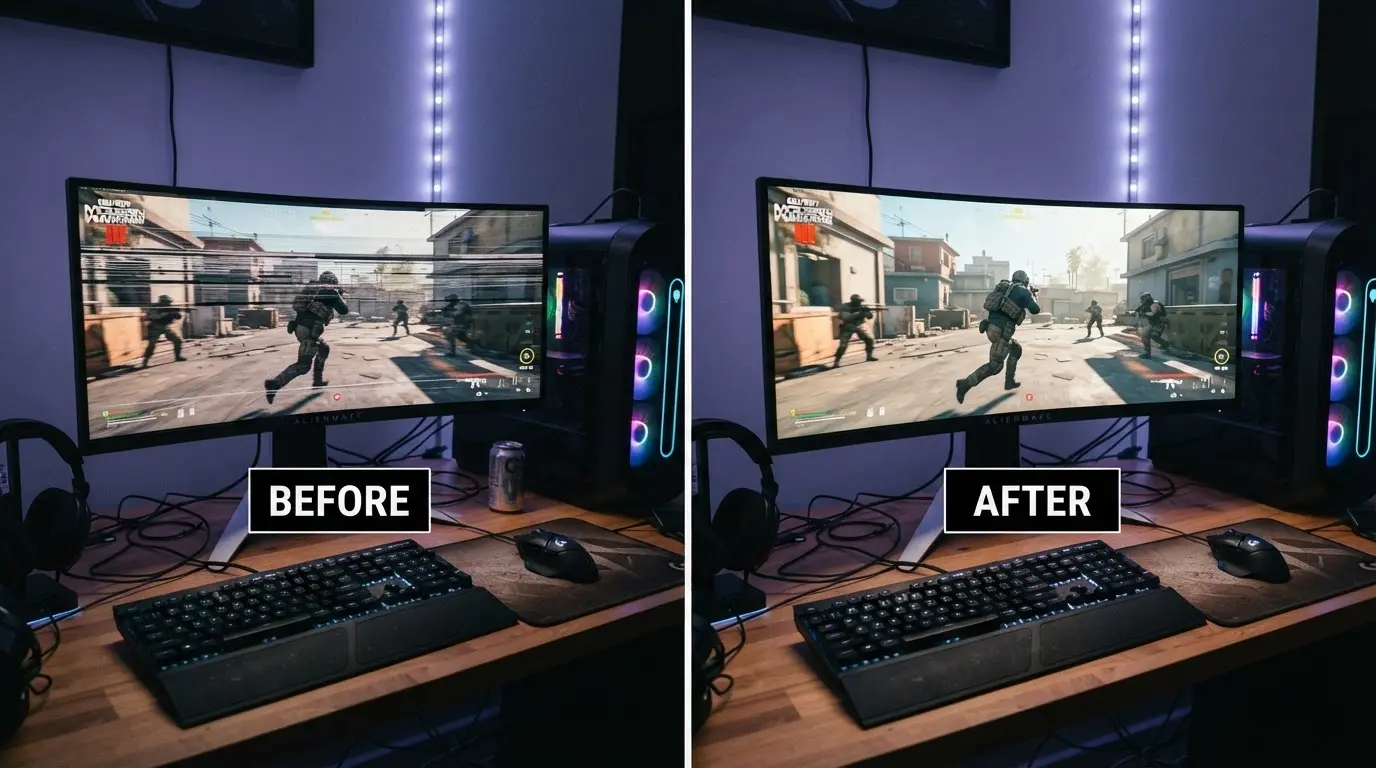
Screen tearing can disrupt smooth visuals in both Windows applications and gaming sessions. Adjusting key display and graphics settings helps ensure frames are delivered consistently, providing a seamless experience.
1. Enable V-Sync in Games
V-Sync synchronizes the GPU’s frame output with the monitor’s refresh rate, preventing partial frames from appearing on the screen.
By enabling V-Sync in the game’s graphics settings, tearing can be reduced effectively. This is particularly useful for standard monitors where frames might otherwise overlap. While it may introduce a small input delay.
Adaptive sync technologies are a good alternative for competitive gaming, maintaining responsiveness while reducing visual breaks and improving overall visual smoothness during high-motion scenes.
2. Turn On G-SYNC or FreeSync
G-SYNC and FreeSync are adaptive sync technologies that match the monitor’s refresh rate to the GPU’s frame output, minimizing tearing without creating input lag.
These features require compatible hardware, including supported monitors and graphics cards. Once enabled, check the GPU control panel to confirm functionality.
Using adaptive sync ensures frames are displayed cohesively, providing smoother gameplay, reducing the chance of horizontal splits, and enhancing the visual experience. Proper setup can effectively eliminate tearing in both fast-paced and standard applications.
3. Change Your Monitor Refresh Rate
Selecting the correct monitor refresh rate is essential for smooth frame display. Running a high-performance monitor at a lower refresh rate can exaggerate tearing and reduce visual quality.
In Windows Display Settings, access Advanced Display options to select the highest supported refresh rate. A correct refresh rate allows the display to handle frames efficiently, improving motion fluidity.
Ensuring your monitor refresh rate matches its capabilities optimizes performance, reduces visual disruptions, and creates a seamless experience in both games and video playback on Windows systems.
4. Update Graphics Drivers
Keeping graphics drivers up to date ensures proper communication between the GPU, operating system, and monitor. Outdated drivers can cause tearing, glitches, and frame-timing issues, affecting smooth display.
Visit the official NVIDIA, AMD, or Intel software pages to install the latest drivers. Updated drivers also improve performance in new games and applications, address bugs, and ensure that adaptive sync and V-Sync settings function correctly.
Regular updates are essential to maintain consistent visual quality and prevent tearing across multiple applications.
5. Limit Your FPS
Excessive frames per second (FPS) above the monitor’s refresh rate can increase the likelihood of tearing. Limiting FPS stabilizes frame delivery, creating smoother visuals and reducing stress on the GPU.
Many games offer built-in FPS limiters, and GPU software also provides options to control frame output. Matching FPS to the monitor’s refresh rate ensures synchronization and prevents horizontal breaks.
Proper FPS control improves motion fluidity, maintains consistent performance, and allows adaptive sync technologies to work more effectively for seamless gameplay.
6. Optimize In-Game Graphics Settings
High-demand graphics settings can push the GPU beyond its ability to maintain a consistent frame rate, creating tearing. Lowering resolution, texture quality, shadows, ray tracing, and managing background processes helps stabilize FPS, though it’s worth weighing how much detail the display truly needs.
Optimized settings prevent sudden frame drops and maintain smooth visuals. Balancing quality and performance ensures that high-motion scenes remain cohesive and reduces tearing.
Adjusting individual game settings helps the GPU render frames more efficiently, ensuring consistent synchronization between the graphics card and monitor for a smoother gaming experience.
7. Use the Right Display Mode
Display mode impacts how frames are delivered and displayed during gaming. Fullscreen mode often provides direct control of display resources, while borderless mode may be preferred on multitasking setups.
Testing both options helps identify which mode produces the smoothest visuals. Selecting the optimal display mode ensures proper communication between the GPU and monitor, reduces tearing, and maintains a stable refresh rate.
Choosing the right mode enhances visual consistency, improves performance in high-action scenarios, and helps maintain frame synchronization for better overall gameplay.
8. Check GPU Performance
Monitoring GPU performance can reveal issues causing inconsistent frame delivery. High temperatures, constant 100% usage, sudden FPS drops, or CPU bottlenecks may lead to tearing.
Keeping the GPU stable allows the monitor to display frames consistently, reducing visual splits. Tools for monitoring usage and temperature can help identify stress points.
Addressing GPU limitations ensures frames are delivered smoothly, supporting adaptive sync technologies and V-Sync, while maintaining a stable, tear-free gaming and application experience across Windows and high-performance setups.
Screen Tearing vs Screen Stuttering
Screen tearing and stuttering can appear similar because both affect smooth visuals, but they happen for different reasons. Knowing the difference helps you choose the correct solution.
| Feature | Screen Tearing | Screen Stuttering |
|---|---|---|
| Main issue | Multiple frames appear together | Frames pause or appear uneven |
| Visual effect | Horizontal image breaks | Sudden freezes or jumps |
| Main cause | Frame timing mismatch | Performance inconsistency |
| Common solution | Sync technologies | Performance optimization |
Screen tearing is mainly related to synchronization, while stuttering usually points toward unstable frame delivery or hardware limitations.
Experiences from Users on Reducing Screen Tearing
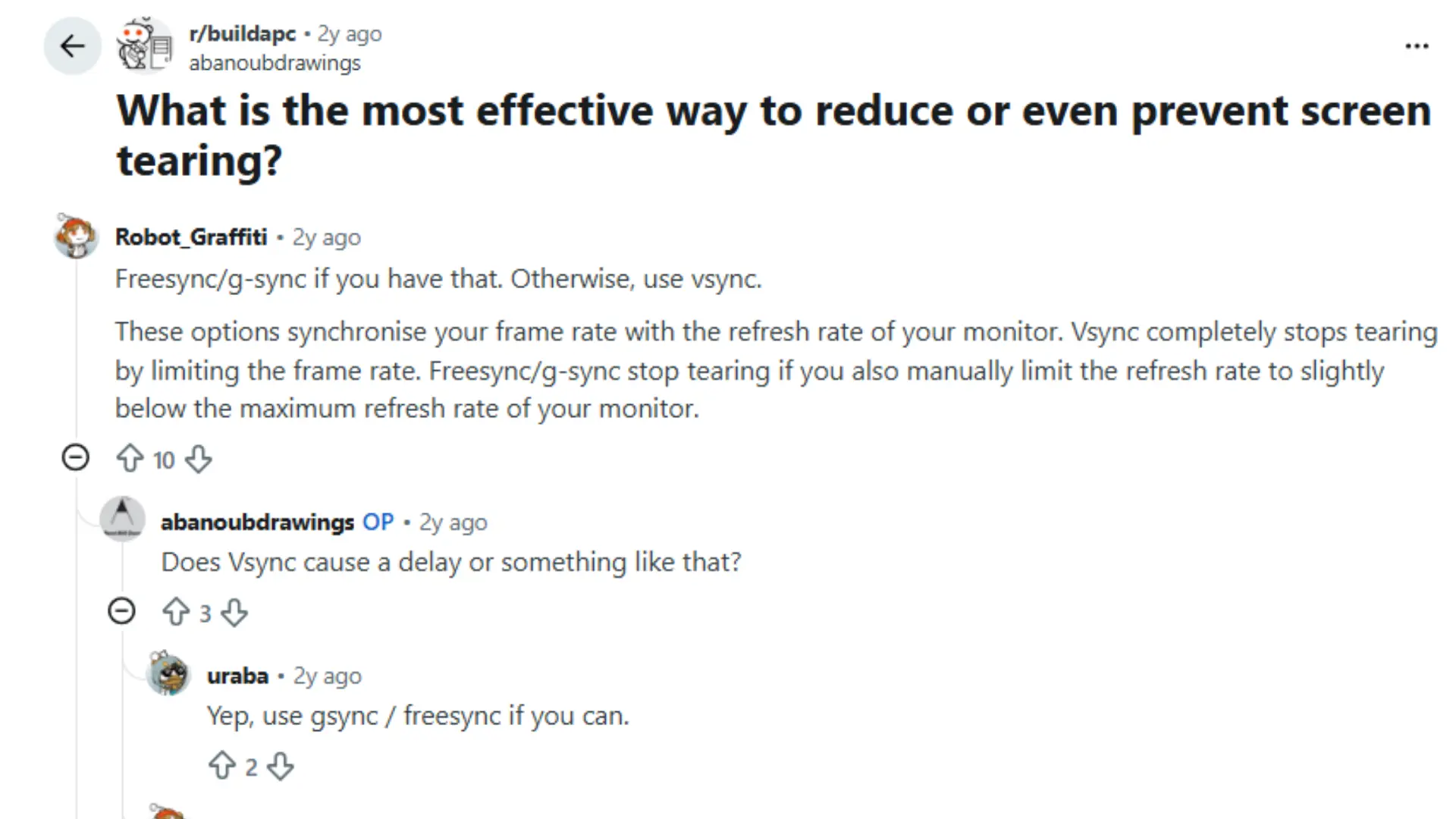
Reddit users shared practical ways to reduce or prevent screen tearing in response to the question “What is the most effective way to reduce or even prevent screen tearing?”
The top answers recommend enabling FreeSync or G‑SYNC if the hardware supports it, as these technologies dynamically match the GPU’s frame output to the monitor’s refresh rate to keep frames aligned.
For systems without adaptive sync, users suggest enabling V‑Sync, even though it may introduce a tiny delay, because it limits the frame rate to the monitor’s refresh rate and helps eliminate tearing.
Commenters noted that enabling sync options usually stops tearing and that the pauses V‑Sync adds are very small and generally unnoticeable unless ultra‑low input lag is critical for competitive play.
Best Ways to Prevent Screen Tearing
Preventing screen tearing is easier when the display, graphics card, and system settings work together properly. Small adjustments and habits can maintain smooth visuals and consistent frame delivery.
- Enable Variable Refresh Rate and Match FPS: Turn on G-SYNC, FreeSync, or HDMI VRR if supported by the monitor and GPU. Keep FPS close to the monitor’s refresh rate to ensure frames are displayed cohesively.
- Use High-Quality Cables and Update Drivers: Ensure HDMI or DisplayPort cables support the required resolution and refresh rate. Regularly update graphics drivers to improve synchronization, fix bugs, and maintain stable frame delivery.
- Avoid Excessive Overclocking and Monitor System Performance: Keep GPU and monitor clocks within stable ranges. Close unnecessary background apps and prevent hardware overloading to reduce sudden FPS drops that can cause tearing.
- Select the Optimal Display Mode: Choose fullscreen or borderless mode depending on which provides more consistent frame timing for the specific setup.
These combined practices help the monitor and GPU work cohesively, reducing tearing and creating smoother visuals during gaming or video playback.
Tips to Reduce Screen Tearing
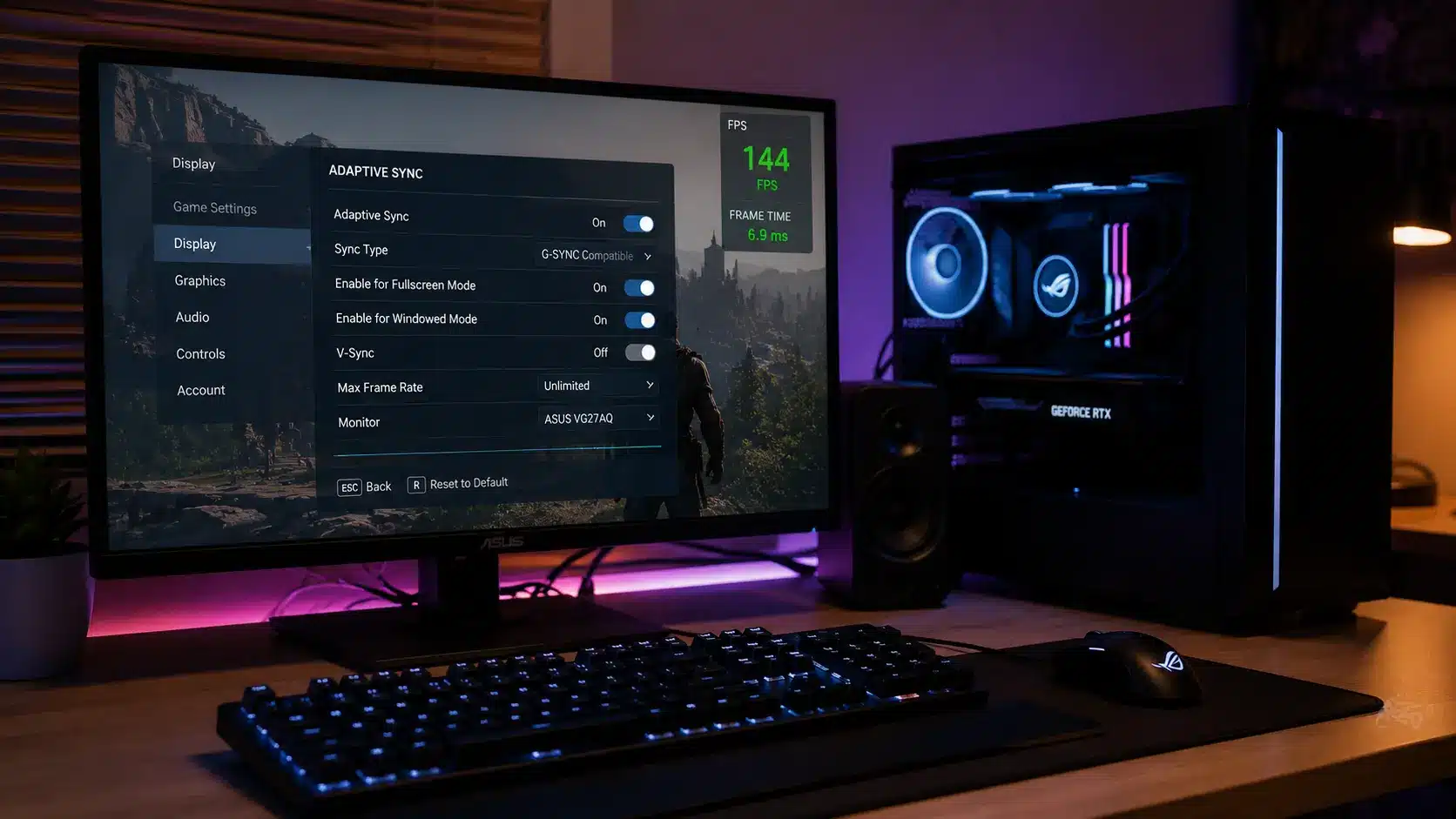
Small adjustments can make a noticeable difference in maintaining smoother visuals. These habits help keep the monitor and graphics card working together properly.
Before diving into these tips, it’s important to understand that combining multiple adjustments often provides the best results.
- Check refresh rate: Ensure Windows uses the monitor’s highest supported refresh rate.
- Update drivers: Install official GPU updates to maintain compatibility and performance.
- Use adaptive sync: Enable G-SYNC, FreeSync, or VRR if supported.
- Monitor FPS: Track sudden spikes or drops to identify potential issues.
- Use reliable cables: Ensure cables support the monitor’s resolution and refresh rate.
- Close background apps: Extra programs can affect frame stability.
Consistently applying these habits helps maintain smooth, tear-free visuals and improves overall display performance for gaming and high-motion content.
Common Mistakes While Fixing Screen Tearing
Many users make simple mistakes that prevent screen tearing from being fixed effectively. Identifying and avoiding these errors can save time, reduce frustration, and prevent unnecessary hardware changes.
| Common Mistake | Why It Causes Problems |
|---|---|
| Ignoring monitor settings | Adjusting GPU settings without checking the monitor’s refresh rate can leave tearing unresolved. |
| Using incompatible cables | Low-quality or outdated cables may not support the required resolution or refresh rates, limiting performance. |
| Enabling multiple sync options incorrectly | Combining V-Sync, G-SYNC, or FreeSync settings without understanding them can create inconsistent results. |
| Skipping driver updates | Outdated graphics drivers may cause compatibility issues and prevent synchronization features from working properly. |
Avoiding these mistakes ensures smoother frame delivery, reduces tearing, and helps the monitor and GPU work cohesively for a better overall display experience.
Final Thoughts
Screen tearing is mainly a timing problem between the graphics card and monitor, but it can often be solved with the right settings. I found that checking refresh rate, enabling sync features, and keeping FPS stable are the most practical steps for most setups.
You can learn how to fix screen tearing without immediately replacing hardware by testing these adjustments first. Small changes in drivers, cables, and graphics settings can improve visual smoothness.
Try the fixes that match your setup, and share your experience or other helpful solutions in the comments. You can also check out related display troubleshooting topics for more tips.
Frequently Asked Questions
Can Screen Tearing Affect Eye Comfort?
Screen tearing does not damage eyesight, but uneven visuals can feel distracting during long sessions. Sensitive users may notice discomfort, especially during fast movements. Adjusting display settings can make viewing more comfortable.
Does Screen Tearing Increase Input Lag?
Screen tearing itself does not increase input lag. However, some methods used to reduce tearing, such as certain synchronization settings, can introduce delays between input actions and on-screen responses, depending on the configuration.
Why Does Screen Tearing Appear Suddenly?
Screen tearing can appear suddenly after changing graphics settings, updating drivers, installing software, or switching displays. These changes may affect how frames are processed and displayed, creating timing problems that were not present before.
Can Screen Tearing Happen On Multiple Monitors?
Yes, screen tearing can occur in multi-monitor setups when displays use different refresh rates or synchronization settings. Managing monitor configurations and ensuring compatible settings can help maintain consistent frame delivery across connected screens.
Does Screen Tearing Affect Video Recording?
Screen tearing can appear in recordings if capture software records frames during an incomplete refresh cycle. Proper capture settings, matching frame rates, and synchronization options can help create cleaner recorded footage.