Getting your wireless headphones connected shouldn’t take more than a few minutes. If you’re looking for how to connect Bose headphones to an iPhone or Sony Bluetooth headphones, you’ve come to the right place.
The setup is straightforward once you know how to enable pairing mode and use your iPhone’s Bluetooth settings correctly.
In this blog, you’ll learn the exact steps to pair Bose and Sony headphones, what you’ll need before getting started, and how long the process typically takes.
You’ll also learn which iPhone models are compatible and find practical solutions for common Bluetooth connection issues.
By the end, you’ll be able to connect your headphones quickly and enjoy a reliable wireless listening experience.
Quick Answer: How Do You Connect Bose Headphones to an iPhone?
Turn on your Bose headphones, enable pairing mode, then select them in Settings > Bluetooth on your iPhone. Hold the Bluetooth or Power button until you hear “Pairing mode” or “Ready to pair.”
On your iPhone, open Settings > Bluetooth, make sure Bluetooth is on, and tap your Bose headphones.
When they appear under Other Devices. Once connected, the headphones will reconnect automatically whenever Bluetooth is enabled and the headphones are powered on.
How Does Bluetooth Pairing Work on an iPhone?
Bluetooth pairing allows your iPhone to create a secure wireless connection with compatible headphones. To begin, open Settings > Bluetooth, turn Bluetooth on, and wait for nearby devices to appear.
During the first connection, your Bose or Sony headphones must be placed in pairing mode so the iPhone can detect them and save the connection.
Once paired, the headphones are remembered by your iPhone.
In the future, they usually reconnect automatically whenever Bluetooth is enabled and the headphones are powered on.
Pairing mode is only required for the initial setup, connecting to a new iPhone, or after resetting the headphones or removing them from your list of saved Bluetooth devices.
What Do You Need Before Pairing Your Headphones?
Before pairing your headphones, gather a few essentials to ensure the Bluetooth connection is quick, stable, and hassle-free.
- iPhone With Bluetooth Enabled: Make sure Bluetooth is turned on before you begin pairing. Go to Settings > Bluetooth and keep the screen open while searching for your headphones.
- Charge Bose or Sony headphones: Your headphones should have enough battery before pairing. A low battery can interrupt the connection or stop pairing mode from working.
- Headphones Within Bluetooth Range: Keep your headphones close to your iPhone, ideally within a few feet. This helps your phone detect the device quickly.
- Latest iOS Version Recommended: Updating your iPhone can reduce Bluetooth issues. Go to Settings > General > Software Update to check for updates.
How Long Does It Take to Connect Bluetooth Headphones?
Connecting Bluetooth headphones to an iPhone usually takes 30 seconds to 2 minutes.
If your Bose or Sony headphones have already been paired with the iPhone, they often reconnect automatically within a few seconds of turning on.
The first-time setup may take a little longer because you need to enable Bluetooth, place the headphones in pairing mode, and select them from the list of available devices.
The process can also slow down if the headphones have a low battery, are too far from the iPhone, or are connected to another device.
Keeping both devices nearby and fully charged helps ensure a quick, smooth connection without unnecessary delays.
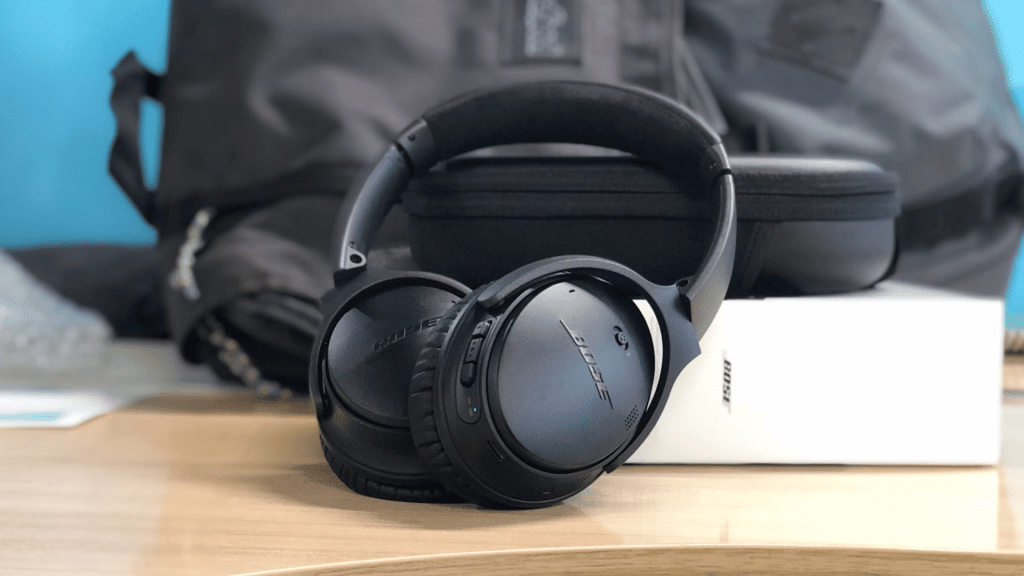
How to Connect Bose QuietComfort Headphones to Your Phone?
Connecting Bose QuietComfort headphones to your phone takes only a few minutes. Follow these simple steps to pair them successfully using Bluetooth.
Step 1: Turn on Your Bose QuietComfort Headphones
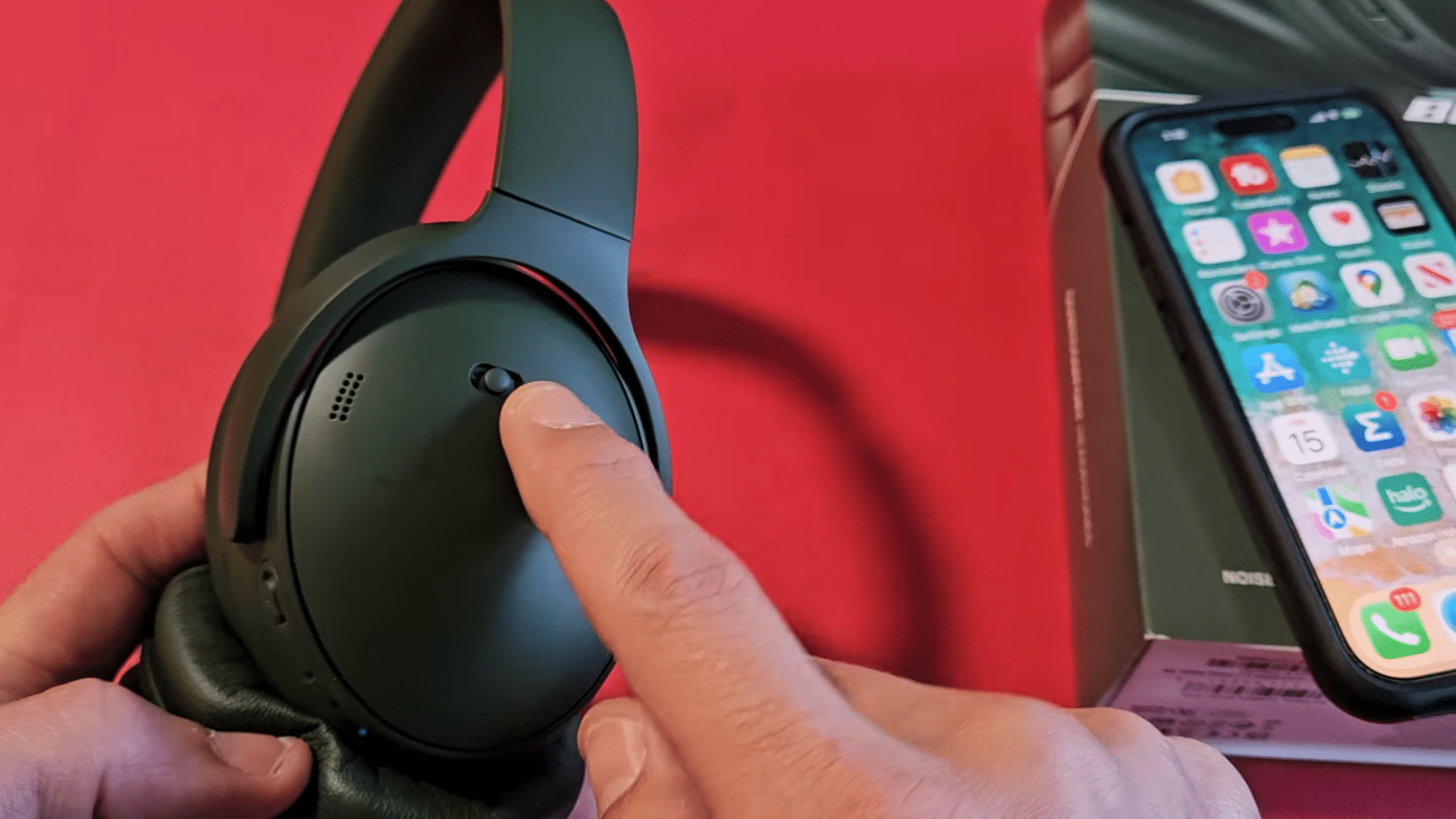
Begin by turning on your Bose QuietComfort headphones using the power switch on the side. If they are already on, switch them off first and then turn them back on to refresh the connection.
Wait a few seconds for the startup process to finish before continuing. Starting with a fully powered-on device helps the Bluetooth pairing process run more smoothly.
Keep the headphones close to your iPhone to improve connection speed and stability.
Step 2: Put the Headphones in Bluetooth Pairing Mode
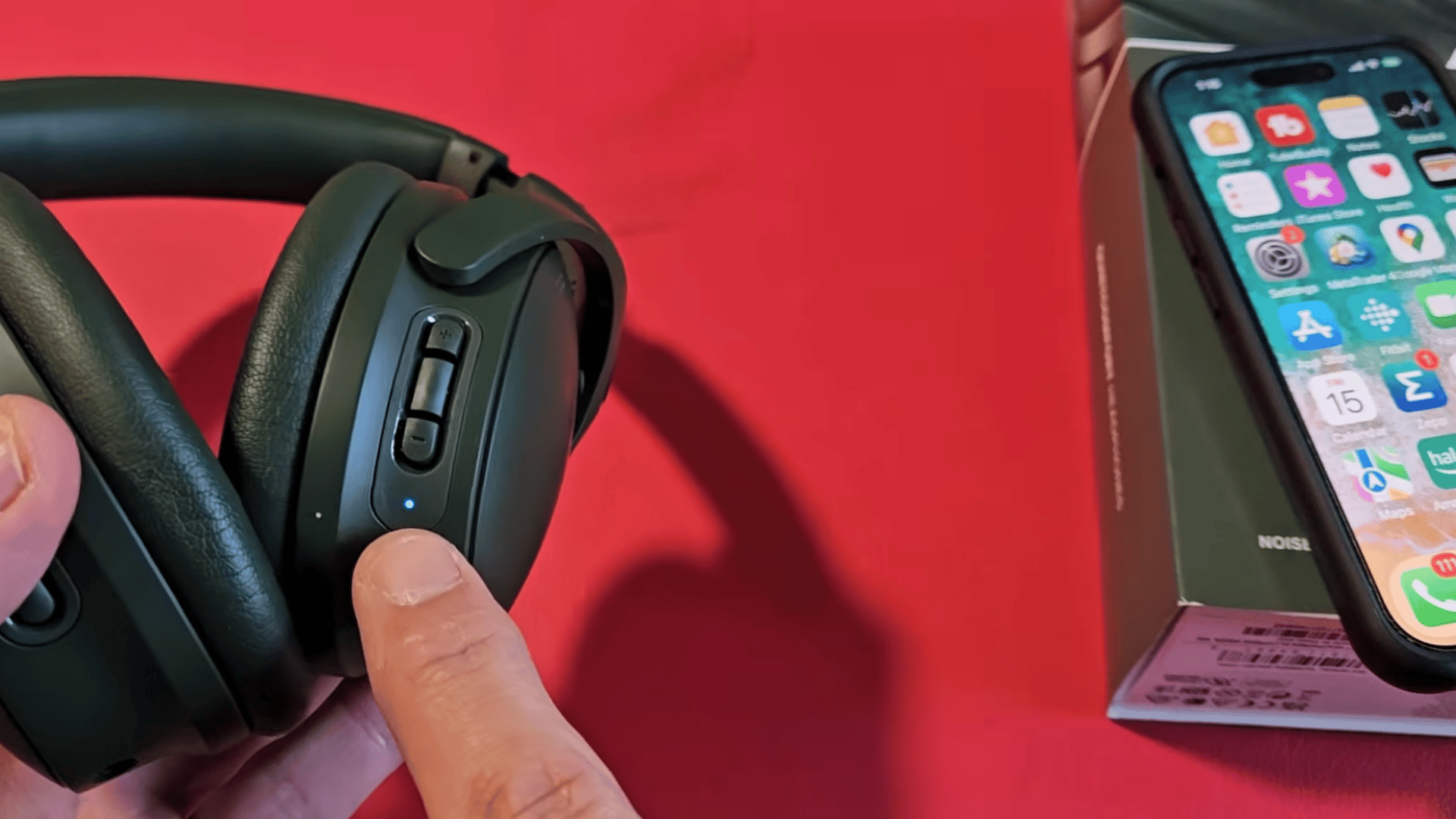
After the headphones are powered on, push and hold the power switch toward the Bluetooth symbol. Keep holding it until the LED indicator begins flashing blue.
This flashing blue light confirms that the headphones are now in pairing mode and visible to nearby Bluetooth devices.
Do not release the switch too early, as the headphones may remain powered on without becoming discoverable for pairing with your iPhone.
Step 3: Open Bluetooth Settings on Your iPhone
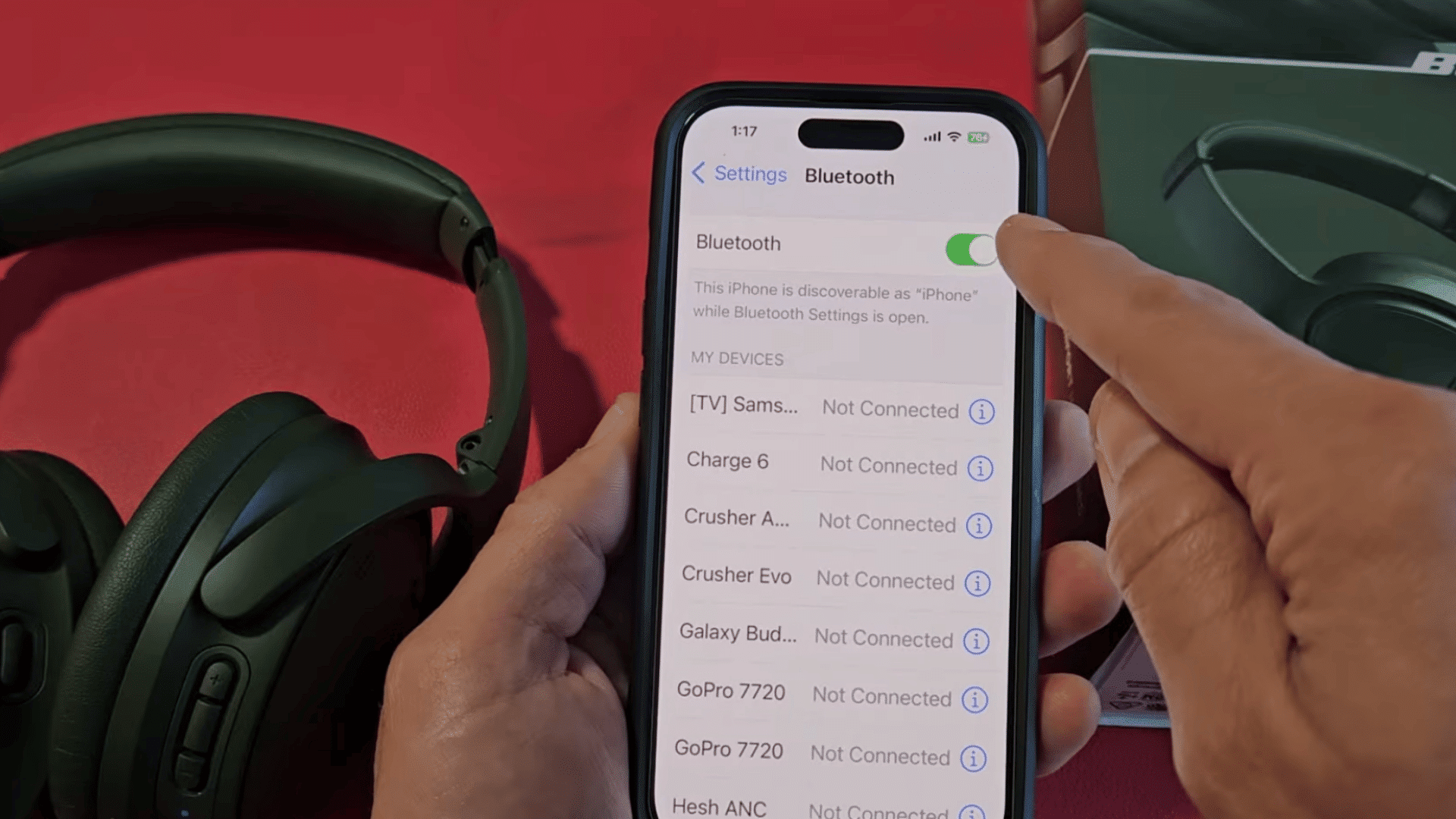
Unlock your iPhone and open the Settings app. Tap Bluetooth, then confirm that Bluetooth is turned on. Your iPhone will immediately begin searching for nearby devices that are ready to pair.
Stay on the Bluetooth screen while the search continues.
When your Bose QuietComfort headphones are in pairing mode, they should appear under the Other Devices section after a few moments, ready for you to select.
Step 4: Connect Your Bose QuietComfort Headphones
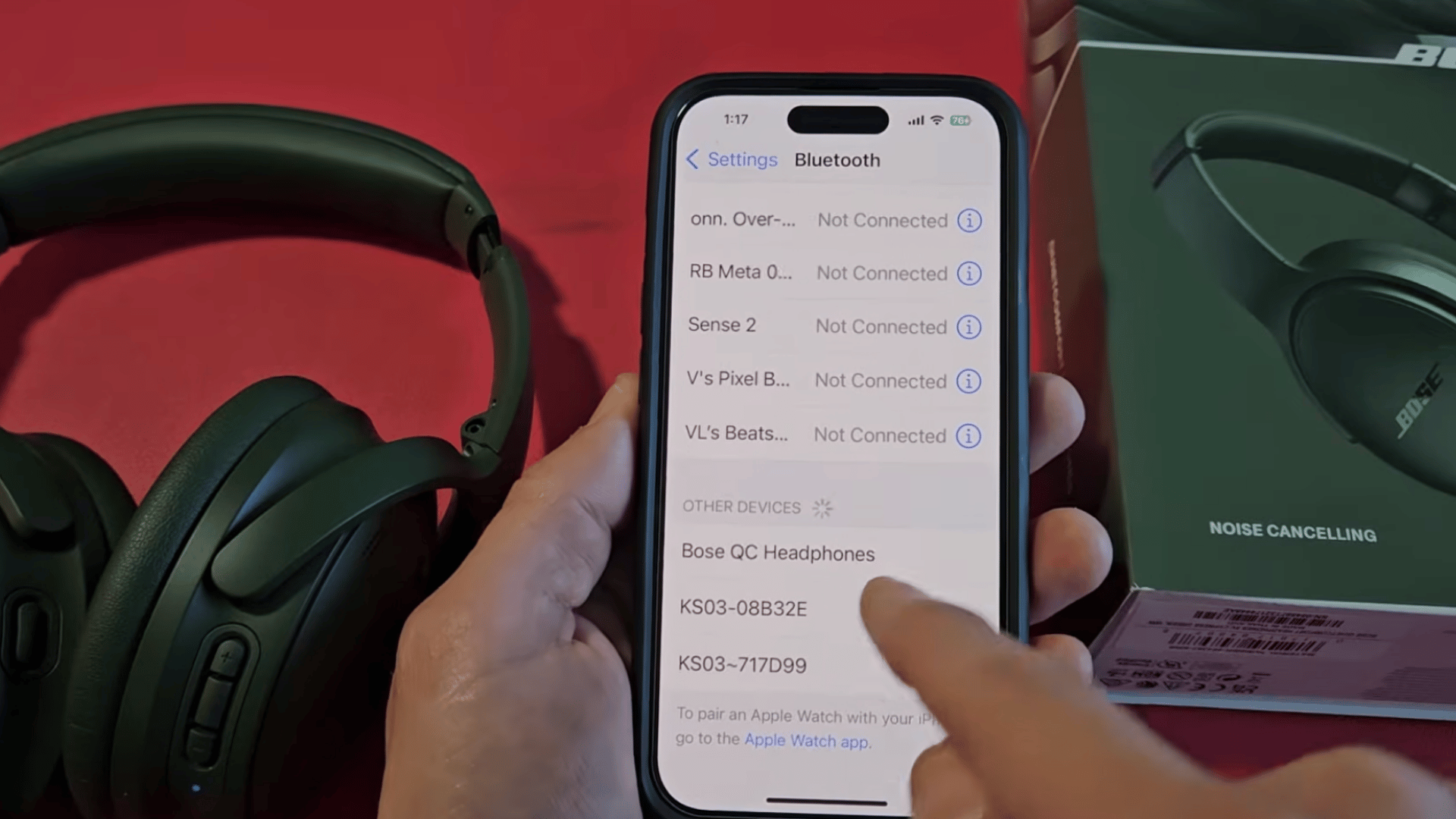
Tap the name of your Bose QuietComfort headphones from the list of available Bluetooth devices. The pairing process usually takes only a few seconds to complete.
Once the connection is successful, the headphones will move to the My Devices section and display a Connected status.
You can now use them to listen to music, watch videos, join video calls, or make phone calls directly from your iPhone.
Step 5: Fix Pairing Issues if the Headphones Don’t Connect
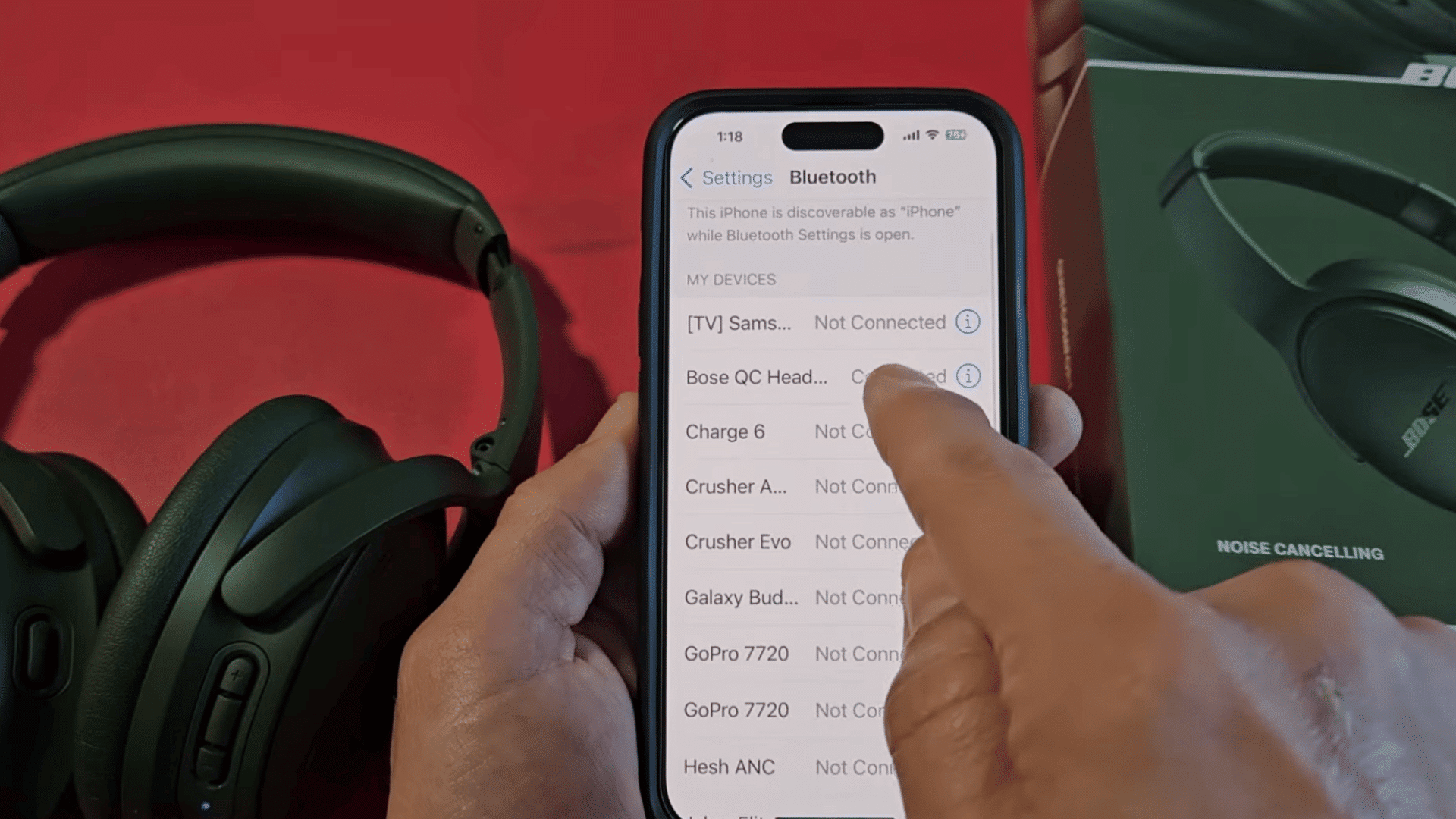
If your headphones do not appear on the Bluetooth screen or fail to connect, check that the blue pairing light is still flashing. If it has stopped, repeat the pairing mode steps and search again.
You can also switch Bluetooth off and back on on your iPhone before trying again.
If the issue continues, resetting your Bose QuietComfort headphones may restore normal Bluetooth connectivity and pairing.
This tutorial is based on a helpful video by World of Tech. You can check out the original video on their YouTube channel here or watch it below.
Common Bluetooth Pairing Problems and How to Fix Them
Bluetooth pairing issues are common but usually easy to fix. These quick troubleshooting steps can restore a stable connection in just minutes.
- Device Not Appearing: Ensure Bluetooth is enabled, activate pairing mode, keep headphones nearby, and wait a few seconds for the iPhone to detect them.
- Pairing Unsuccessful: Forget the device in Bluetooth settings, restart your headphones, then repeat the pairing process from the beginning.
- Bluetooth Keeps Disconnecting: Charge the headphones, stay within Bluetooth range, reduce wireless interference, and update your iPhone if needed.
- Headphones Connected but No Sound: Select the headphones as the audio output and check that the volume is turned up on both devices.
- Remove and Reconnect the Device: Delete the saved Bluetooth connection from your iPhone, then pair the headphones again to refresh the connection.
- Restart Bluetooth or iPhone: Turn Bluetooth off and back on, or restart your iPhone to resolve temporary connection issues and restore normal pairing.
When to Forget the Device on iPhone First?
Before resetting your Bose or Sony headphones, try forgetting the saved Bluetooth connection on your iPhone.
This removes the existing pairing information, allowing your iPhone to create a fresh connection.
It is a useful first step if the headphones fail to connect, disconnect repeatedly, or appear connected but play no audio.
To do this, open Settings > Bluetooth, tap the i icon next to your headphones, and select Forget This Device. Then place the headphones into pairing mode and reconnect them.
If the problem continues after reconnecting, a full factory reset of the headphones may be necessary.
How to Connect Sony Headphones to Bluetooth?
Put your Sony WH-CH520 headphones into Bluetooth pairing mode, then connect them to your phone, tablet, or computer by following these steps.
Step 1: Turn Off Your Sony WH-CH520 Headphones
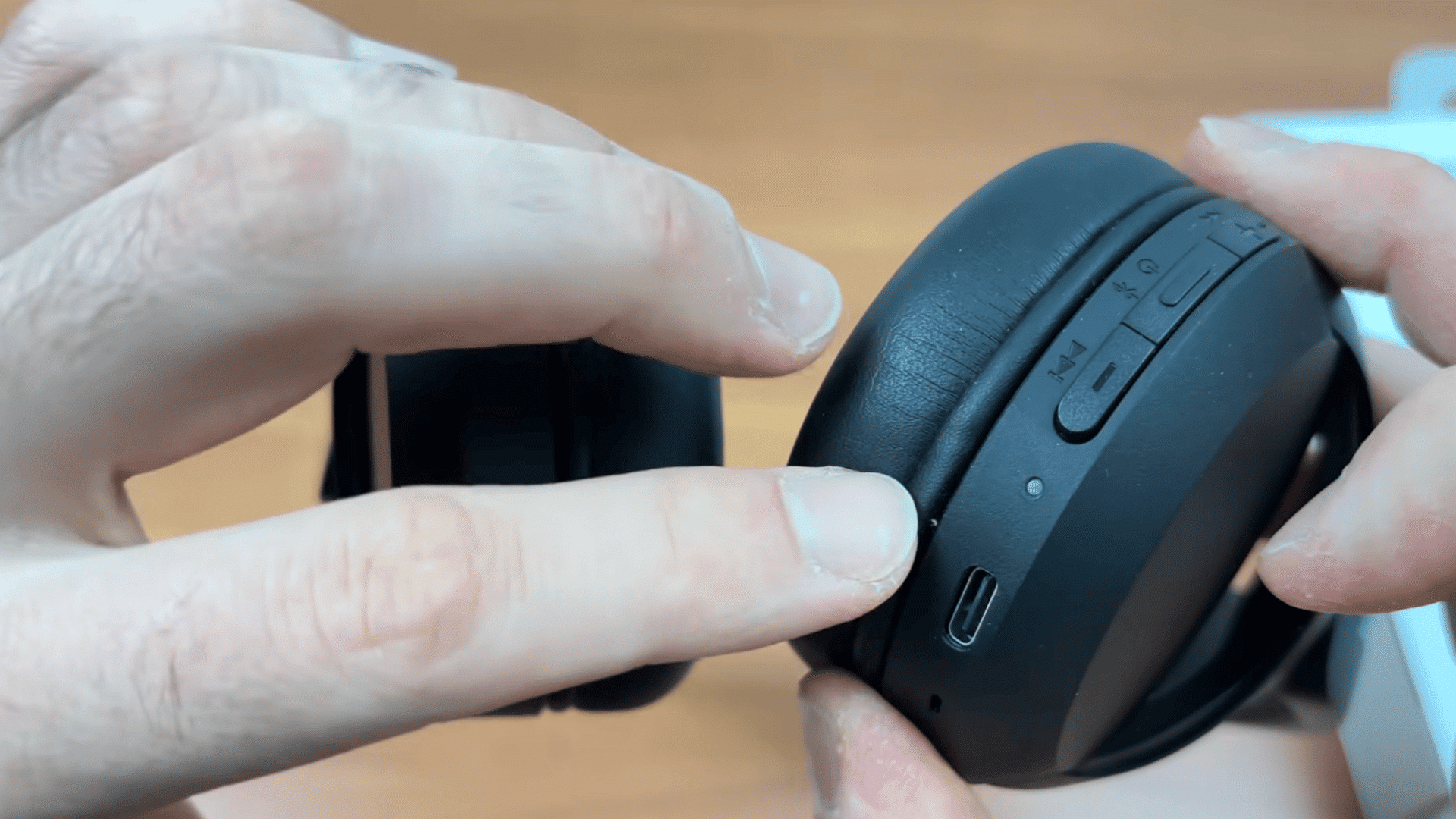
Before putting your Sony WH-CH520 headphones into pairing mode, make sure they are completely turned off. Check the indicator light near the power button.
If the light is off, the headphones are powered down and ready to pair.
Starting with the headphones switched off is important because this model enters pairing mode only when powered on in a specific way.
If they are connected to another device, disconnect them and turn them off before continuing.
Step 2: Press and Hold the Power Button
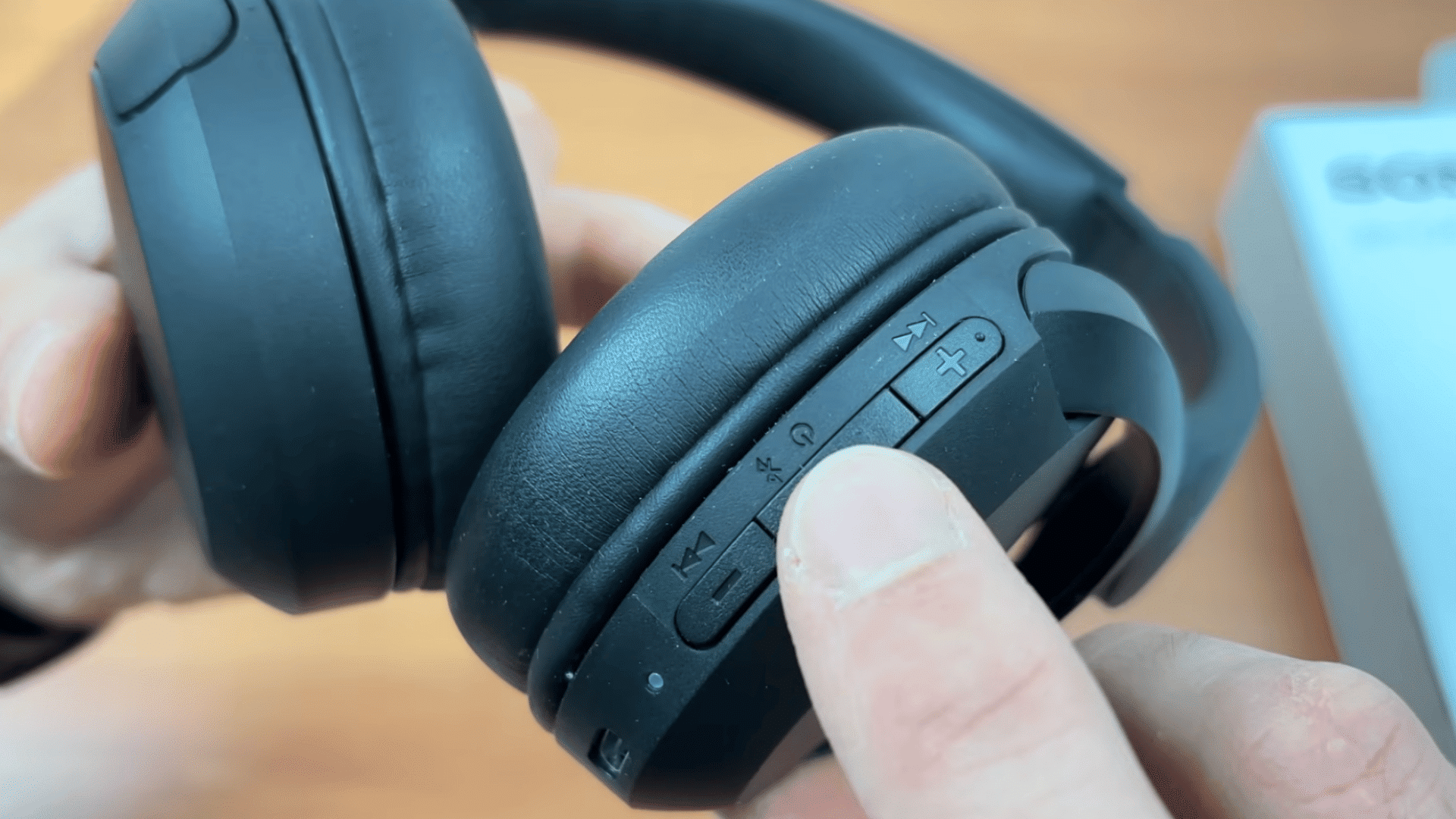
Locate the Power button on your Sony WH-CH520 headphones and press and hold it for about six seconds. Keep holding the button even after the headphones power on.
Do not release it until you hear the voice prompt saying “Pairing.” This confirms the headphones have entered Bluetooth pairing mode.
Releasing the button too early will simply turn on the headphones without making them discoverable, so hold the button until you hear the pairing announcement.
Step 3: Confirm the Headphones Are in Pairing Mode
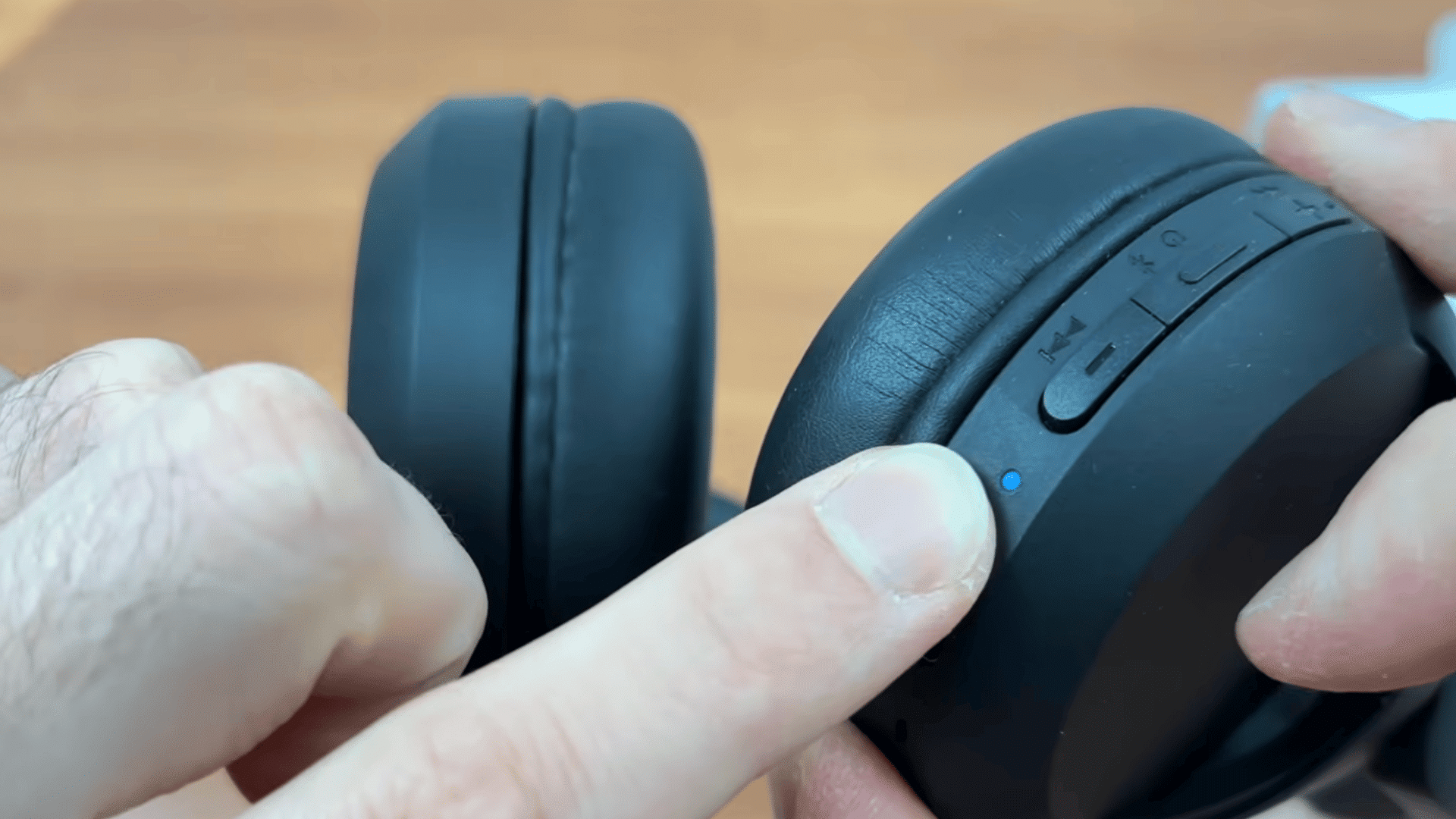
After hearing the pairing voice prompt, look at the LED indicator near the power button.
A flashing blue light indicates that the Sony WH-CH520 headphones are now in Bluetooth pairing mode and ready to connect with another device.
This flashing light confirms they are discoverable by nearby phones, tablets, and computers.
If the blue light does not flash, repeat the previous step by turning the headphones off and holding the power button again.
Step 4: Open Bluetooth Settings on Your Device
Take the device you want to connect, whether it is an iPhone, Android phone, Windows PC, Mac, or tablet. Open the Bluetooth settings and make sure Bluetooth is turned on.
Your device will automatically begin searching for nearby Bluetooth accessories that are ready to pair. Keep the Sony WH-CH520 headphones close to the device throughout the process.
Staying within a short distance helps the headphones appear faster and reduces the chance of connection issues.
Step 5: Pair the Sony WH-CH520 Headphones
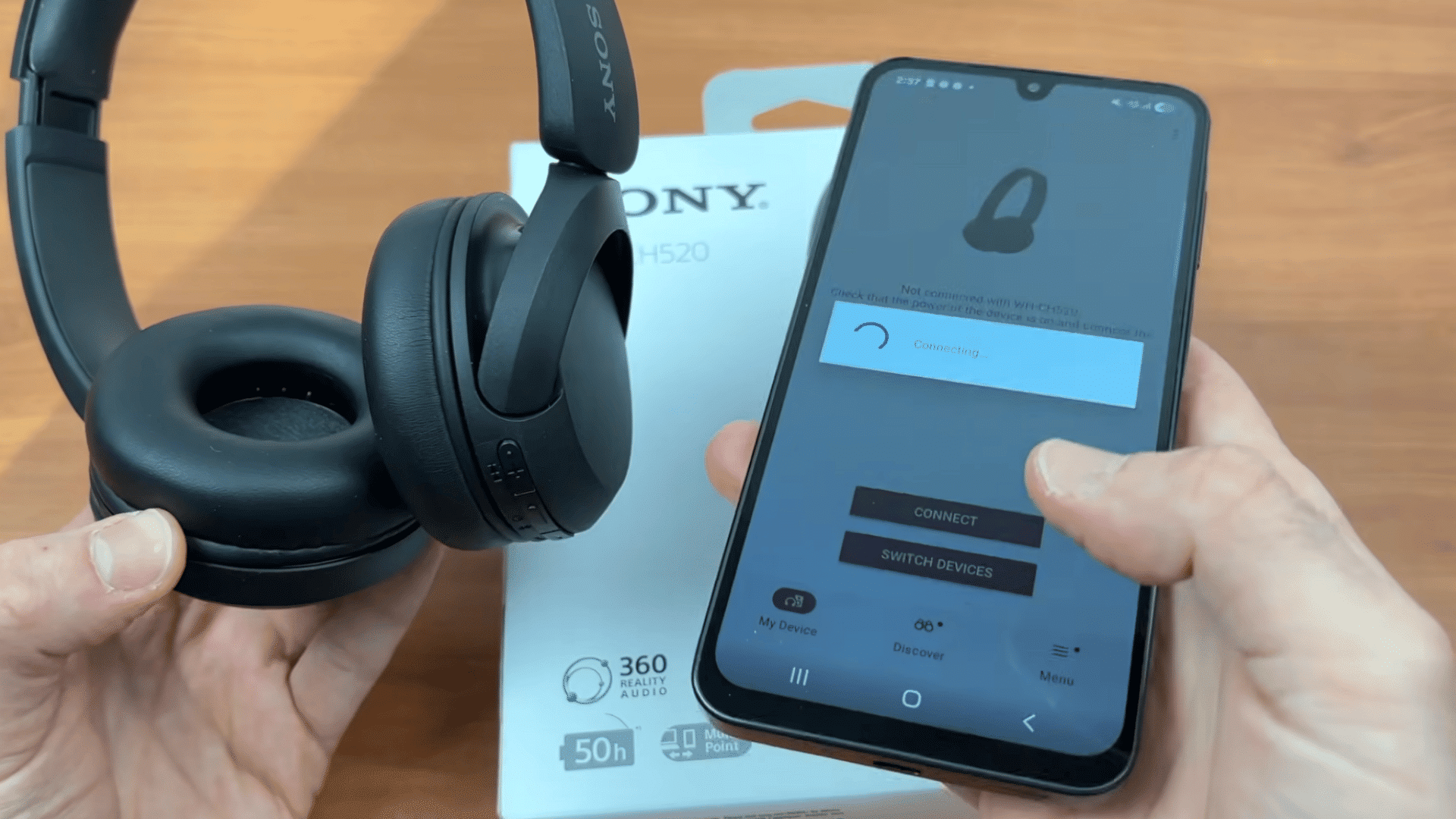
When the Sony WH-CH520 appears in the list of available Bluetooth devices, tap or click the device name to begin pairing.
Wait a few moments while your device establishes the Bluetooth connection.
Once the process is complete, the headphones will be listed as Connected, allowing you to listen to music, watch videos, or make calls wirelessly.
If the pairing does not succeed, repeat the previous steps and make sure the headphones remain in pairing mode.
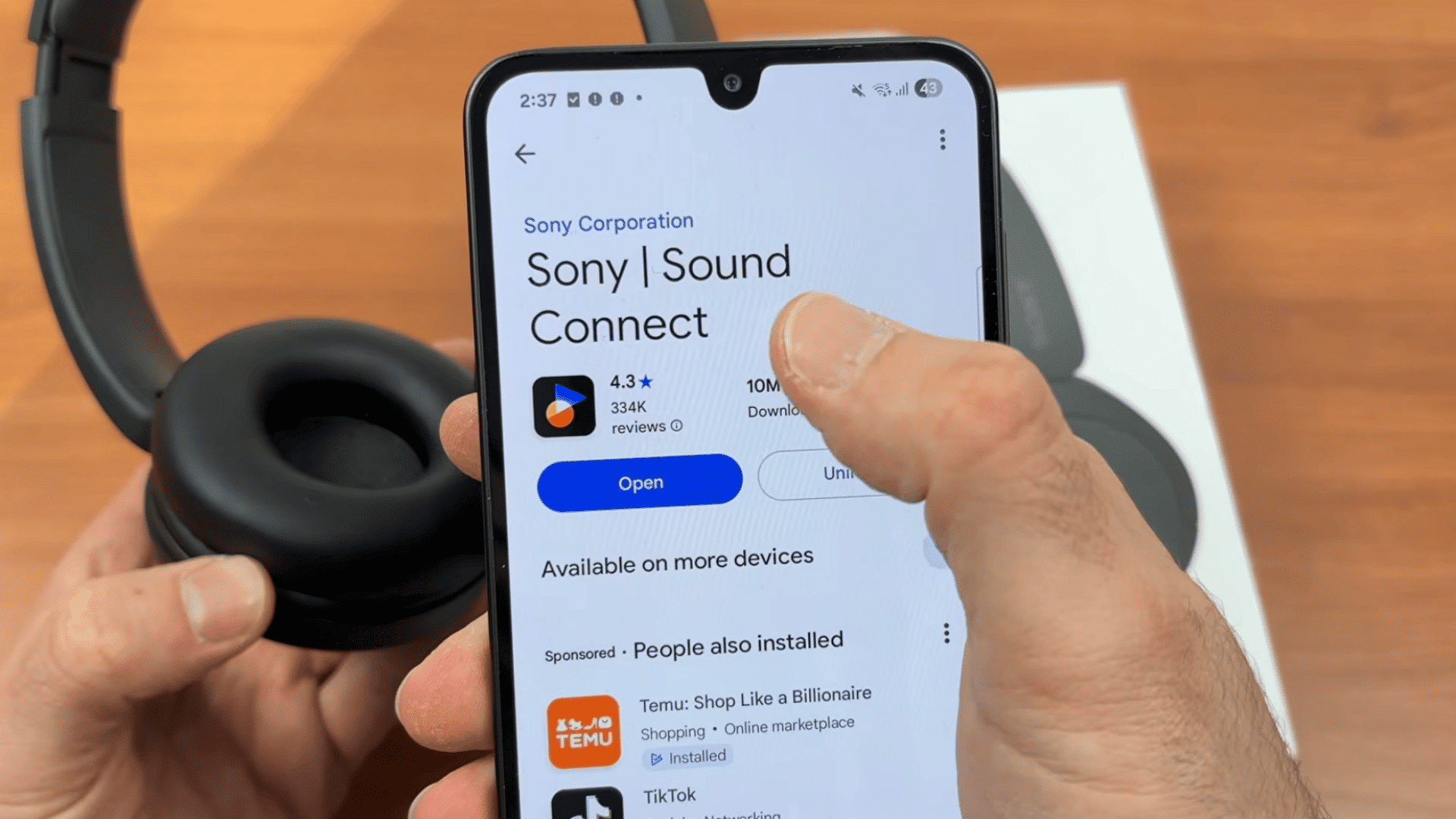
Step 6: Download the Sony Sound Connect App
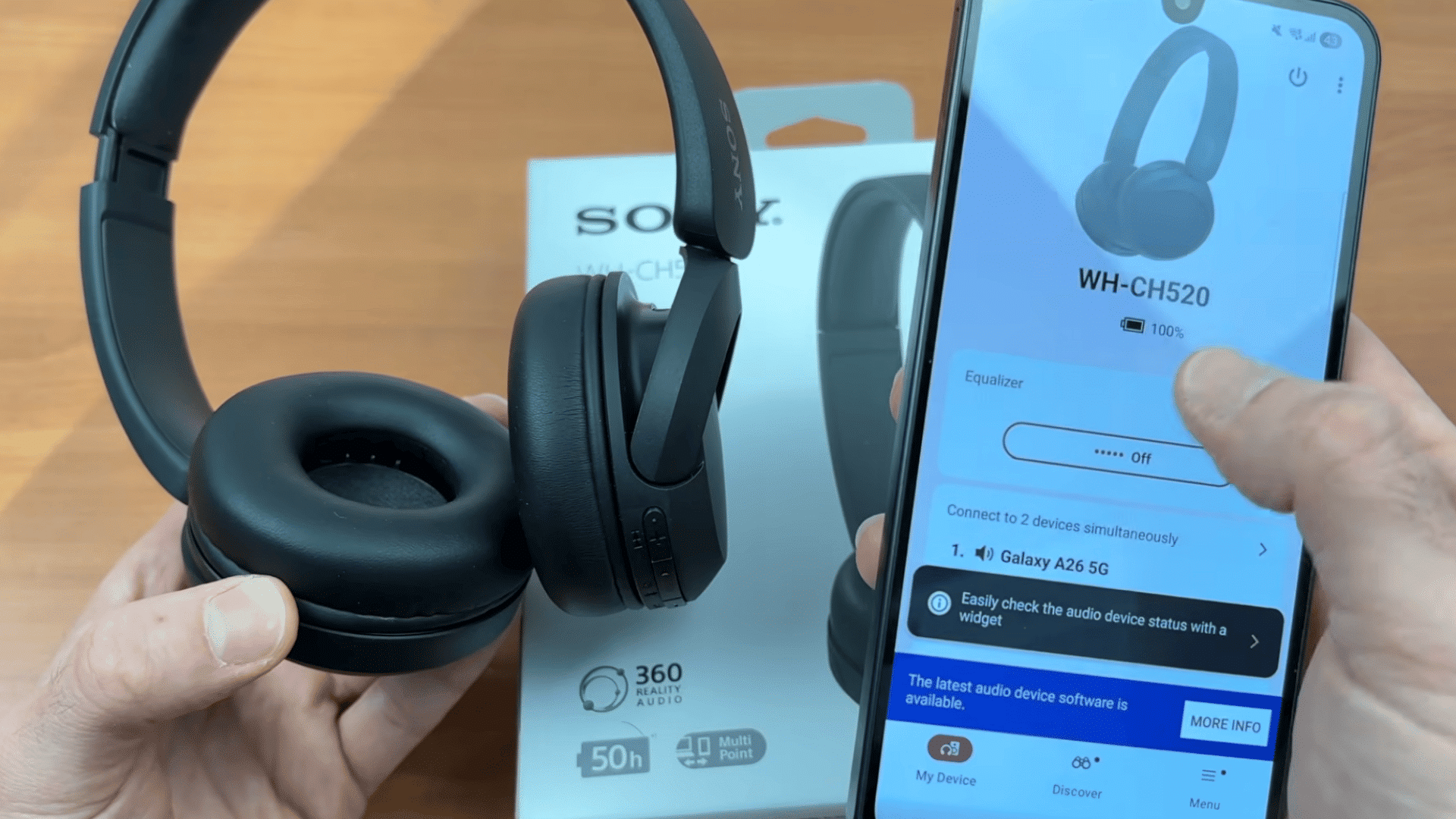
Once your Sony WH-CH520 headphones are connected, consider downloading the Sony Sound Connect app on your smartphone.
The app provides access to useful features such as firmware updates, sound customization, equalizer settings, and additional headphone controls.
Installing the app is optional, but it lets you personalize your listening experience and keep your headphones up to date with the latest software.
After setup, your headphones will also reconnect automatically to previously paired devices when available.
These steps are inspired by a useful video from Tricks Tips Fix. You can watch the original tutorial on their YouTube channel here or view it below.
Signs a Reset Is Needed
If basic troubleshooting has not solved the problem, resetting your headphones may help restore normal Bluetooth performance. Common signs that a reset is needed include:
- Frequent Connection Failures: Your headphones repeatedly fail to pair with your iPhone even after entering pairing mode correctly.
- Random Bluetooth Disconnections: The connection drops often despite staying within Bluetooth range and having sufficient battery.
- No Audio After Connecting: Your iPhone shows the headphones as connected, but the sound continues to play through the phone speakers.
- Pairing Mode Does Not Activate: The headphones do not enter pairing mode or are not discoverable by nearby Bluetooth devices.
- Switching to a New Device: Resetting clears old Bluetooth connections, making it easier to pair with a different iPhone or another device.
- Troubleshooting Has Not Worked: Restarting your iPhone, reconnecting the device, and updating software have not resolved the connection issue.
Resetting vs Reconnecting Bluetooth Headphones
Knowing the difference between resetting and reconnecting helps you choose the right solution and avoid unnecessary Bluetooth pairing or setup steps.
| Feature | Resetting Headphones | Reconnecting Headphones |
|---|---|---|
| Purpose | Restores the headphones to factory settings and clears saved Bluetooth connections. | Re-establishes the Bluetooth connection with a previously paired iPhone. |
| When to Use | Use when persistent pairing or performance issues continue after basic troubleshooting. | Use when the headphones disconnect or fail to reconnect automatically. |
| Bluetooth Data | Removes all saved paired devices from the headphones. | Keeps the existing pairing information intact. |
| Setup Required | Requires pairing the headphones with the iPhone again from the beginning. | Usually reconnects automatically or with a single tap in Bluetooth settings. |
| Time Needed | About 2–5 minutes, depending on the headphone model. | Usually takes a few seconds to one minute. |
| Best For | Fixing repeated connection problems, software glitches, or switching to a new device. | Restoring a normal Bluetooth connection after a temporary interruption. |
Tips for a Better Bluetooth Connection
Keep your Bluetooth connection stable with these simple habits. They can reduce pairing issues and improve audio performance over time.
- Keep Your Devices Nearby: Stay within the recommended Bluetooth range to maintain a strong and reliable wireless connection.
- Charge Your Headphones Regularly: Low battery levels can affect Bluetooth performance and increase the chance of unexpected disconnections.
- Update iOS when Available: Installing the latest iPhone software can fix Bluetooth bugs and improve device compatibility.
- Install firmware updates: Use the Bose or Sony companion app to keep your headphones running with the latest improvements.
- Limit multiple connections: Disconnect from unused devices to prevent your headphones from switching between paired devices.
- Avoid wireless interference: Move away from crowded areas with many Bluetooth devices or Wi-Fi signals if the connection becomes unstable.
- Restart devices occasionally: Restarting your iPhone and headphones can clear temporary Bluetooth glitches before they become recurring problems.
Conclusion
Connecting Bose or Sony Bluetooth headphones to an iPhone is usually a quick process once you know how pairing mode works and where to find the right Bluetooth settings.
This blog covered what you need before pairing, the steps for both brands, common connection problems, and practical ways to fix them.
If your headphones still do not connect, forgetting the device or resetting it can often resolve the issue.
Keeping your iPhone and headphones updated also helps maintain a stable wireless connection.
Once your headphones are connected, you can also improve your listening experience with practical home entertainment upgrades, from better speakers to smart streaming devices.
If you’re ready to enjoy uninterrupted wireless audio, follow the steps in this blog and use the troubleshooting tips whenever you need a quick Bluetooth fix.
Frequently Asked Questions
Why Aren’t Headphones Showing in Bluetooth?
Make sure the headphones are in pairing mode, Bluetooth is enabled, and the headphones are not connected to another device. Restarting both devices may also help.
Why Isn’t a New iPhone Finding Bluetooth Devices?
Turn on Bluetooth, place the device in pairing mode, and keep it nearby. If it still does not appear, restart the iPhone and try pairing again.
Does the Sony WH-1000XM5 Work with an iPhone?
Yes. Sony WH-1000XM5 headphones work with an iPhone via Bluetooth and support features such as high-quality audio, call handling, and integration with the Sony Headphones Connect app.