Have you ever struggled to remember dozens of passwords or worried that one weak password could put all your online accounts at risk?
The best free password managers help solve this problem by securely storing login credentials, generating strong passwords, and automatically filling them in when needed.
They make it easier to maintain good security habits without having to memorize every password.
I know how overwhelming it can feel to compare so many options, especially when each one promises the best protection.
This guide compares the top free password managers, explains how they work, explores credential management, and helps you choose the right solution for your personal or business needs.
Keep reading to find the option that fits your security and convenience requirements.
How Do Password Managers Work?
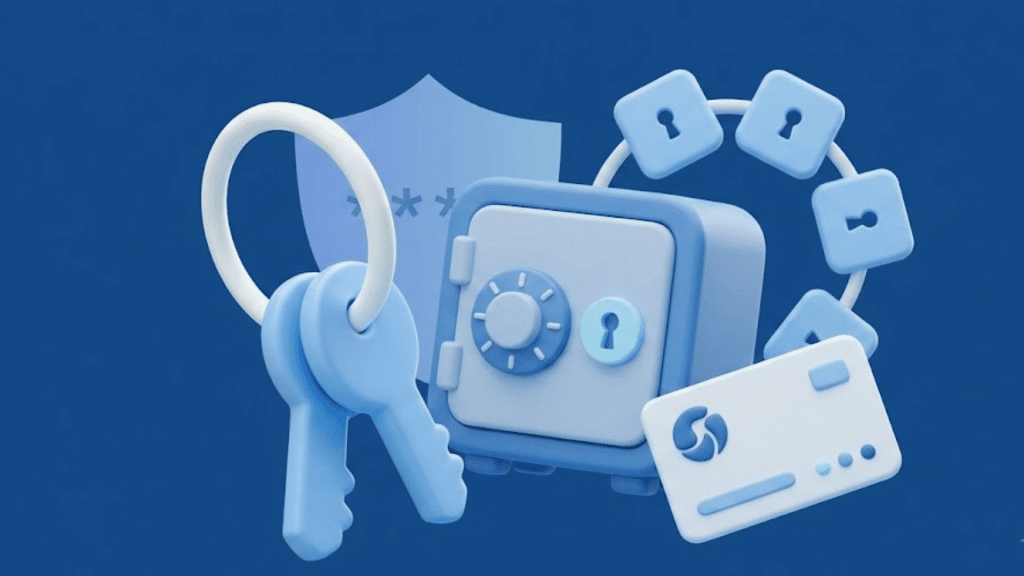
Password managers protect login credentials by encrypting them in a secure vault and making them available only after successful authentication.
- Password Vault Encryption: Stores passwords and other sensitive information inside an encrypted vault, making the data unreadable without the correct decryption key.
- Master Password: The main key that unlocks the password vault; it should be unique, long, and protected with multi-factor authentication whenever possible.
- Zero-Knowledge Architecture: Encrypts data on the user’s device, preventing the service provider from accessing or reading stored passwords, notes, or other sensitive information.
- Password Generation: Creates strong, random passwords with customizable length and complexity, helping reduce password reuse and improve account security.
- Autofill and Auto-save: Automatically fills saved login credentials on websites and apps, and securely saves new or updated passwords.
- Multi-Device Synchronization: Securely syncs the encrypted password vault across supported computers, smartphones, and tablets, keeping credentials up to date everywhere.
- Passkeys and Passwordless Login: Support modern passkeys that use cryptographic authentication, allowing secure sign-ins without relying on traditional passwords.
Best Free Password Managers
Choosing the right free password manager depends on security, ease of use, and the features included at no cost.
1. Bitwarden
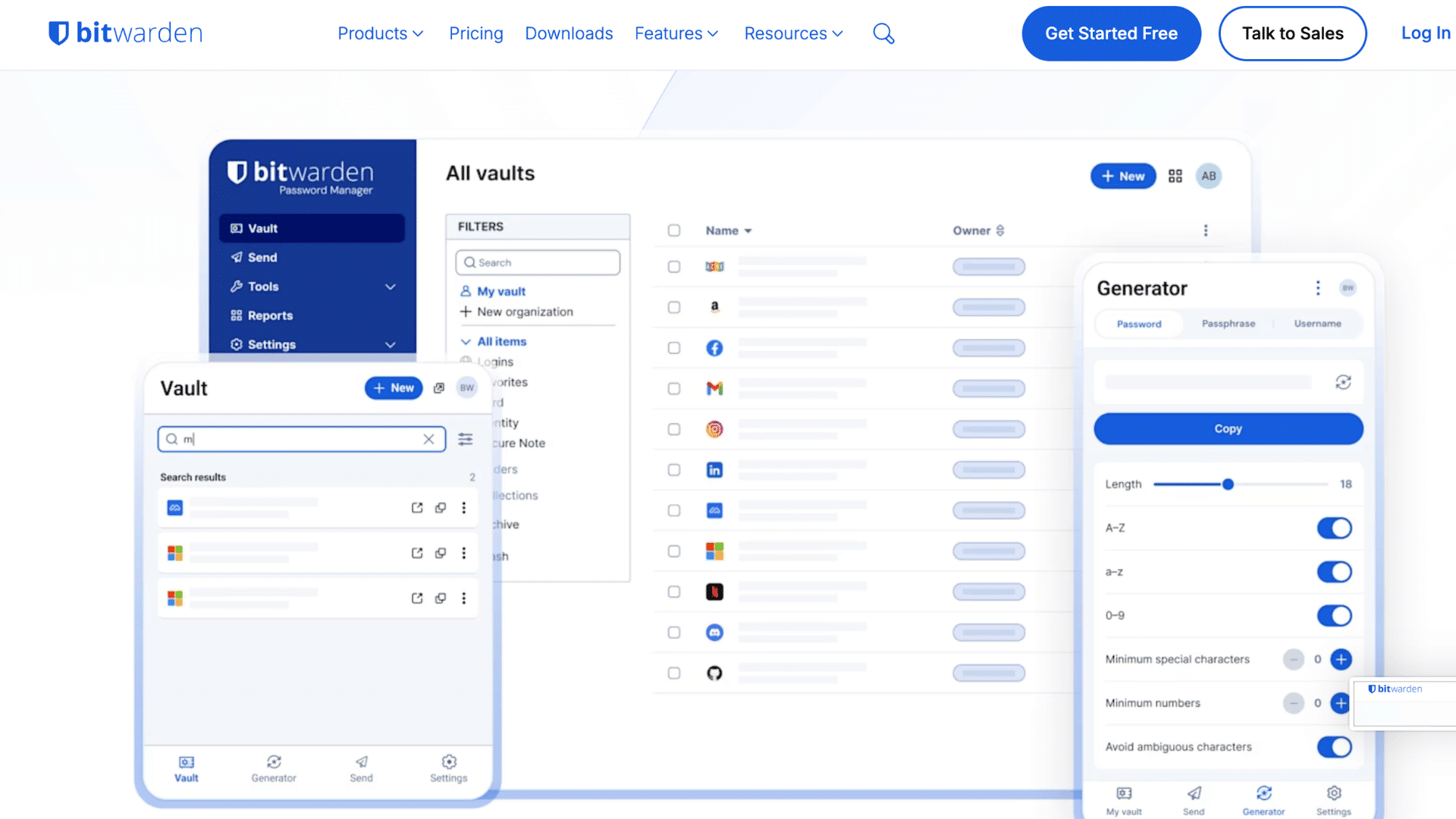
Bitwarden offers unlimited password storage, cross-device sync, AES-256 encryption, and passkey support in one of the most generous free plans available.
Its code is fully open source on GitHub and has been independently audited by firms such as Cure53, Fracture Labs, and ETH Zurich’s Applied Cryptography Group.
| Pros | Cons |
|---|---|
| Unlimited passwords and sync | Basic interface |
| Open-source and audited | Some premium features locked |
| Supports MFA and passkeys | No file attachments on the free plan |
| Works on all major platforms | Advanced reports require Premium |
- Best for: Individuals and families who want a secure, feature-rich free password manager.
- Free Plan Limitations: Emergency access, encrypted file attachments, and advanced security reports require a Premium plan.
2. Proton Pass
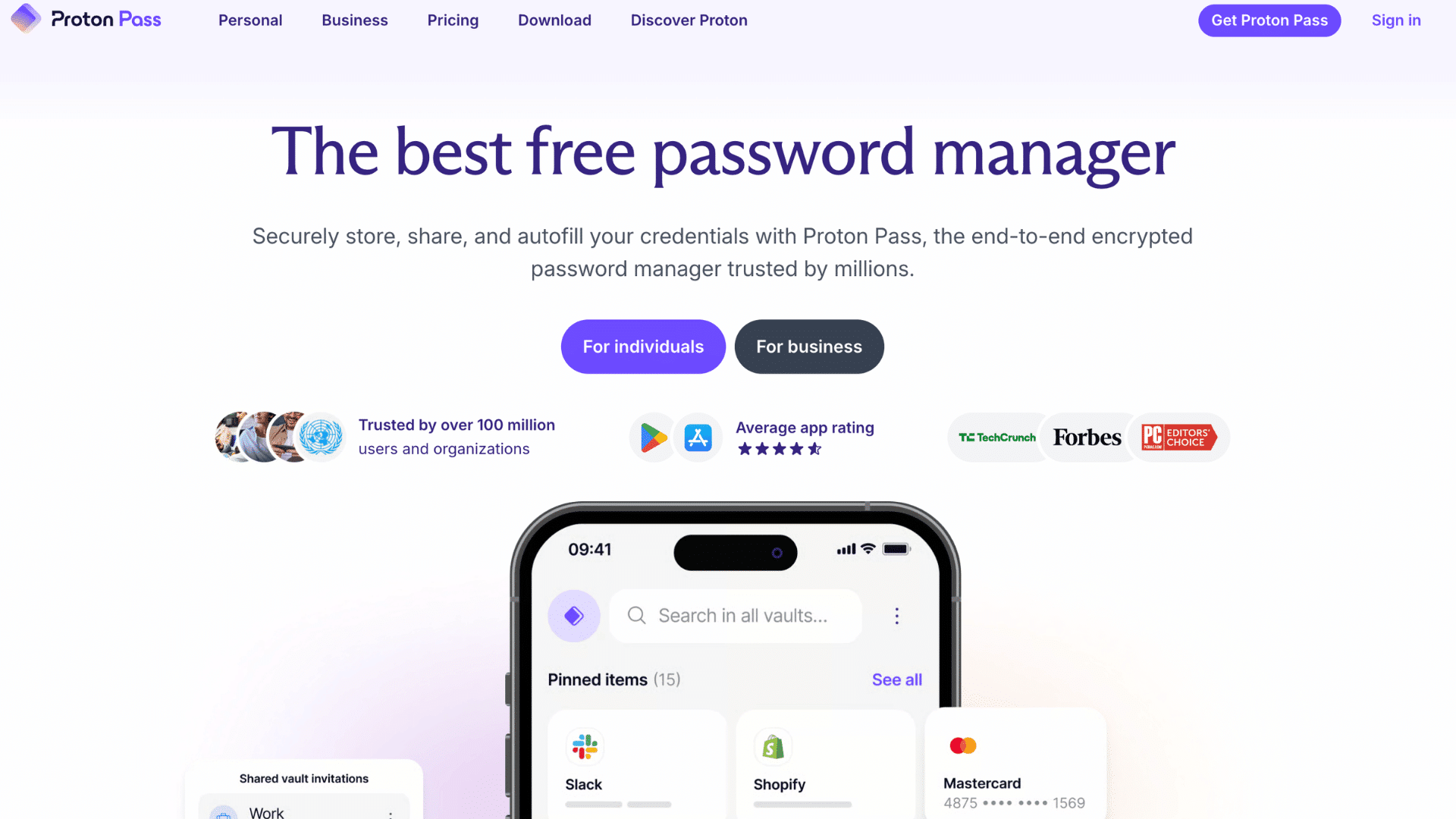
Proton Pass combines unlimited password storage, end-to-end encryption, passkey support, and hide-my-email aliases in a privacy-focused free plan.
Built by the Swiss team behind Proton Mail and Proton VPN, its apps and browser extensions have been independently audited by the German security firm Cure53, and the code is open source for anyone to inspect
| Pros | Cons |
|---|---|
| Privacy-focused design | Fewer advanced features than some rivals |
| Open-source and audited | Business tools require paid plans |
| Includes email aliases | Limited sharing features on the free plan |
| Easy-to-use interface | Premium features locked |
- Best for: Privacy-conscious users who want strong encryption and email alias protection.
- Free Plan Limitations: Password sharing, advanced authentication features, and premium tools require a paid subscription.
3. NordPass
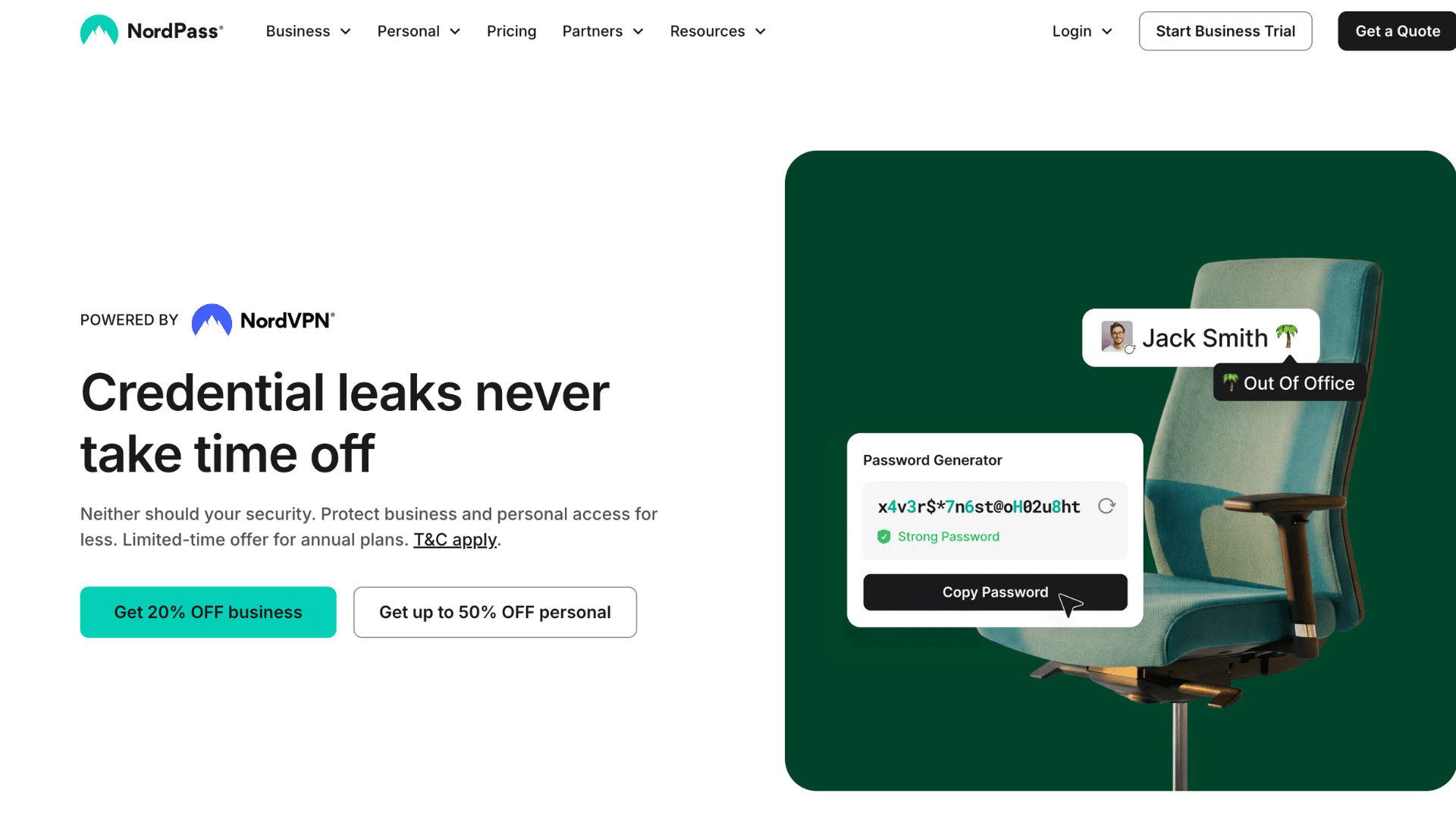
NordPass includes a password generator, passkey support, password health monitoring, secure notes, and fast autofill built on XChaCha20 encryption, a modern cipher that performs faster than the AES-256 standard most rivals use.
| Pros | Cons |
|---|---|
| Clean and simple interface | The free plan limits simultaneous device use |
| Strong security | Advanced monitoring requires Premium |
| Supports passkeys | Sharing features are limited |
| Fast autofill | Some features are subscription-only |
- Best for: Beginners looking for an easy-to-use password manager.
- Free Plan Limitations: Simultaneous multi-device access and advanced security features require a Premium plan.
4. KeePassXC
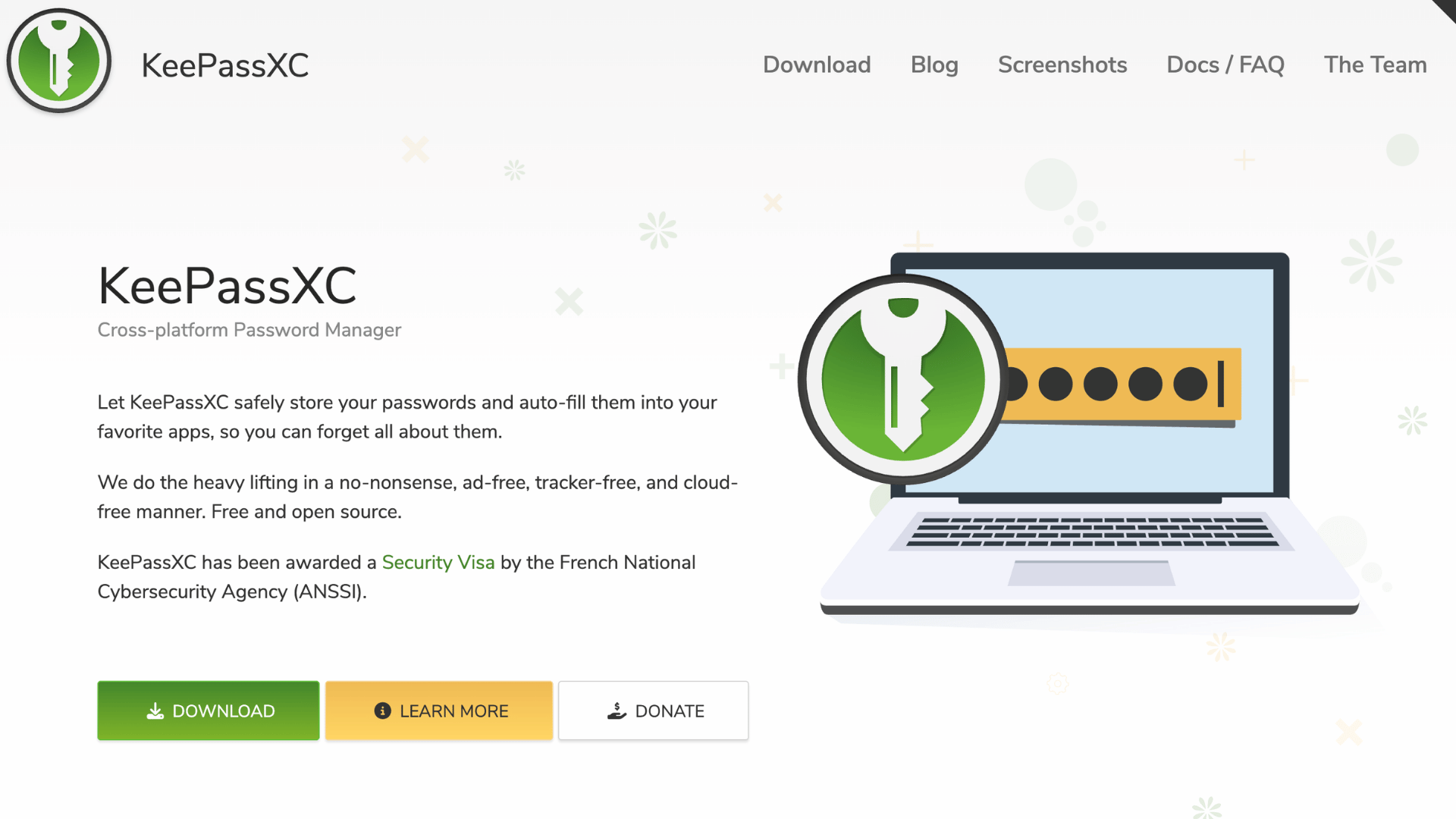
KeePassXC provides offline password storage, AES encryption, a built-in password generator, and open-source security for users who prefer complete control over their data without relying on cloud storage.
It is fully open-source, works offline on Windows, macOS, and Linux, and includes a built-in password generator and a browser extension for autofill.
| Pros | Cons |
|---|---|
| Completely free | No built-in cloud sync |
| Open-source | Less beginner-friendly |
| Full local control | Manual setup required |
| Works offline | Fewer convenience features |
- Best for: Users who prefer local storage over cloud synchronization.
- Free Plan Limitations: Cloud syncing and mobile integration require third-party solutions.
5. RoboForm
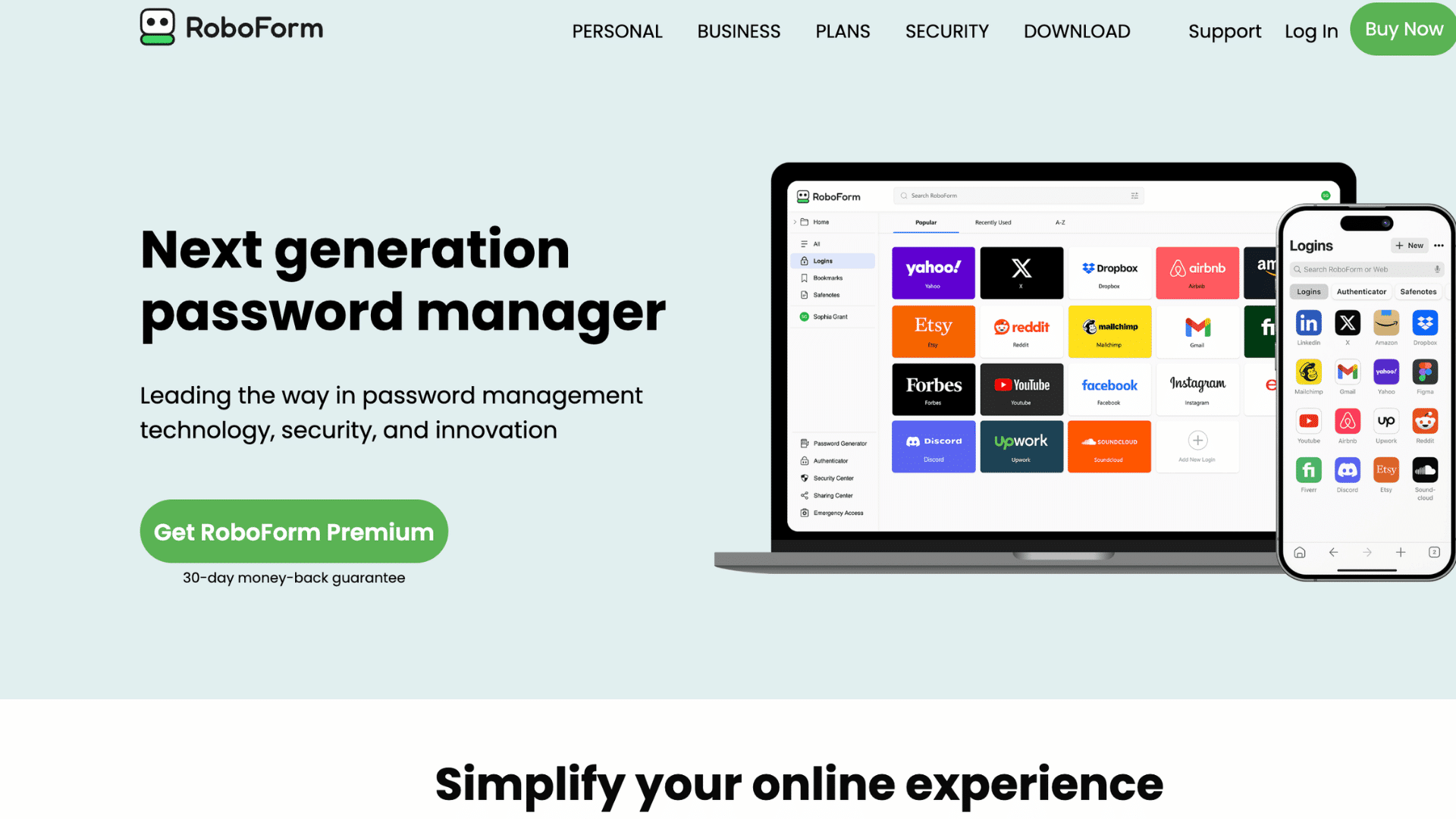
RoboForm has specialized in fast, accurate autofill since 2000, and its free plan still includes unlimited storage for passwords and personal data, plus a strong password generator.
A standout feature on the free tier is its breach scanner, which checks stored passwords against known exposures using data from Have I Been Pwned and flags any that need to be changed.
| Pros | Cons |
|---|---|
| Excellent autofill | Cross-device sync is premium |
| Easy to use | The free plan is limited |
| Supports major browsers | Fewer advanced security tools |
| Strong password generator | Sharing requires a paid plan |
- Best for: Users who want fast and accurate autofill.
- Free Plan Limitations: Device syncing and password sharing require a paid subscription.
6. Dashlane
Dashlane pairs a modern, easy-to-navigate interface with password health monitoring, autofill, and passkey support, giving users clear visibility into weak or reused logins.
The free plan restricts access to a single device, and features like VPN access and dark web monitoring are reserved for paid tiers.
| Pros | Cons |
|---|---|
| Modern interface | One-device limit on free plan |
| Easy setup | VPN is premium only |
| Strong security tools | Device sync requires Premium |
| Reliable autofill | Limited free features |
- Best for: Users who want an intuitive interface with security insights.
- Free Plan Limitations: Multi-device syncing, VPN, and dark web monitoring require a Premium plan.
7. Enpass
Enpass takes a local-first approach, storing an AES-256-encrypted vault on your own device with PBKDF2-SHA512 key derivation rather than on Enpass servers.
Free desktop users get unlimited passwords and biometric login, and syncing across devices is handled manually via Google Drive, iCloud, Dropbox, or a local Wi-Fi connection rather than Enpass’s own cloud.
| Pros | Cons |
| Local data storage | The mobile version has limits |
| No subscription for desktop | Smaller ecosystem |
| Flexible sync options | Fewer cloud features |
| Strong encryption | Interface feels dated |
- Best for: Users who prefer managing their own password storage.
- Free Plan Limitations: The mobile version limits the number of stored passwords; upgrading is required.
8. Zoho Vault
Zoho Vault is designed for small teams, offering password storage, a password generator, and secure credential sharing for easy access to shared logins.
Browser extensions the available across major platforms, and encryption protects vault data both at rest and in transit. The
| Pros | Cons |
|---|---|
| Good for teams | The interface is less modern |
| Secure password sharing | Advanced admin tools are paid |
| Easy browser integration | Better suited to Zoho users |
| Strong encryption | Fewer consumer features |
- Best for: Small businesses and teams already using Zoho products.
- Free Plan Limitations: Advanced administrative controls and reporting require a paid business plan.
9. Google Password Manager
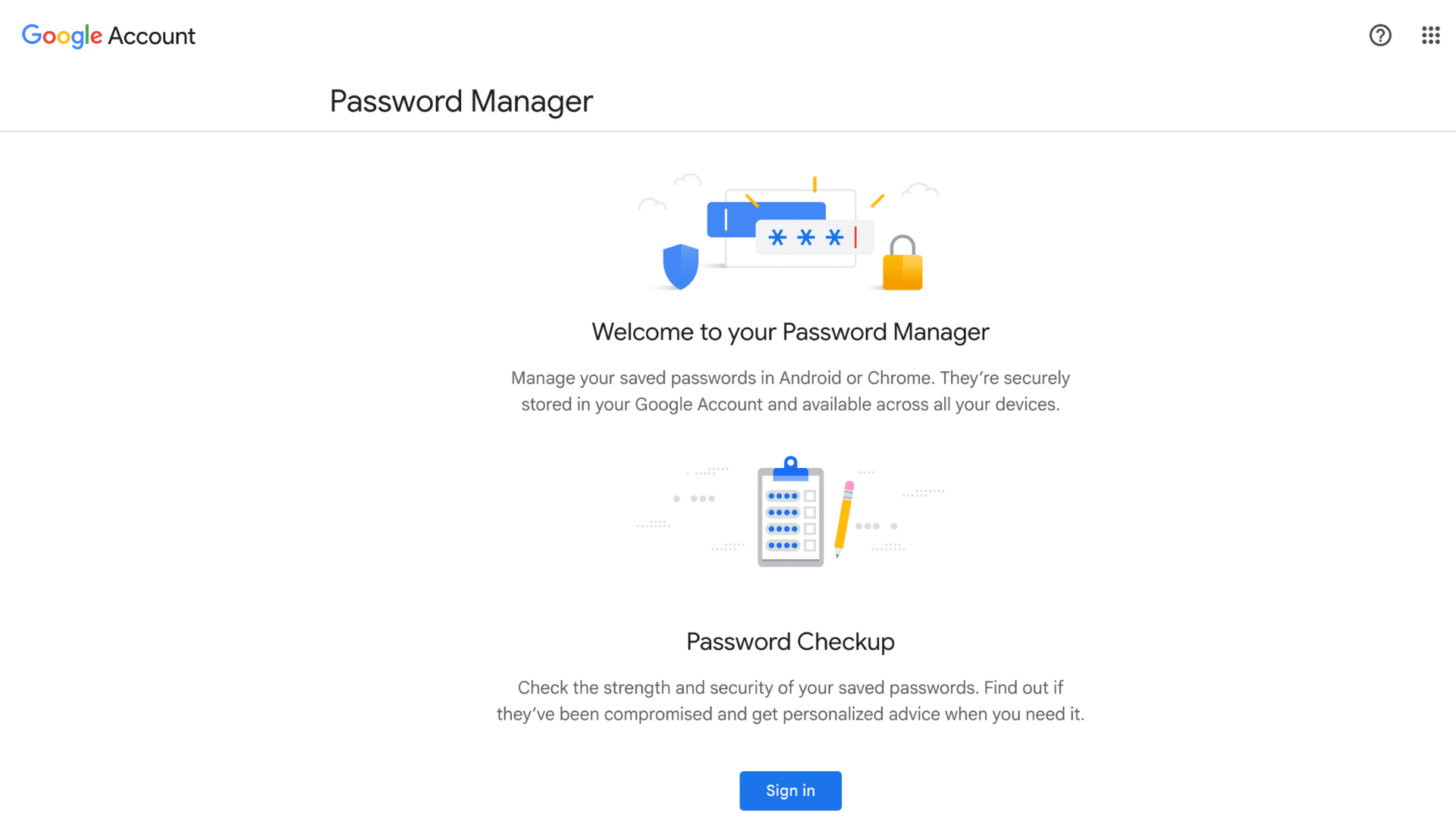
Google Password Manager comes built into Chrome and Android, so most people are already using it without installing anything extra.
It autofills logins, generates passwords, supports passkeys, and runs Password Checkup to flag credentials exposed in known breaches.
| Pros | Cons |
|---|---|
| Completely free | Best within Google’s ecosystem |
| No extra installation | Limited sharing features |
| Easy to use | Fewer advanced tools |
| Seamless Chrome integration | Less control than dedicated managers |
- Best for: Chrome and Android users who want a simple built-in password manager.
- Free Plan Limitations: Advanced sharing, vault organization, and business credential management features are not available.
What Is Credential Management?
Credential management is the process of securely creating, storing, organizing, sharing, rotating, and protecting digital credentials used to verify identity and control access to systems, applications, and data.
These credentials include passwords, API keys, SSH keys, digital certificates, secrets, and authentication tokens.
While an identity refers to a user, device, or application, a credential is the information that proves that identity. Effective credential management reduces the risk of unauthorized access, data breaches, and credential theft.
Password managers play an important role by securely storing passwords and, in many cases, other credentials such as passkeys, secure notes, and API keys.
However, enterprise credential management platforms typically offer broader capabilities, including access controls, credential rotation, auditing, and lifecycle management for organizations.
Features that Matter Most in a Free Password Manager
The best free password managers offer more than basic password storage. These features improve security, simplify account management, and help protect sensitive information across multiple devices.
- Strong Encryption: Look for AES-256 or XChaCha20 encryption to keep stored passwords protected against unauthorized access.
- Zero-Knowledge Architecture: Ensures only the account owner can access stored credentials, even the provider cannot view the vault.
- Multi-Factor Authentication (MFA): Adds an extra layer of security by requiring a second verification method during sign-in.
- Password Generator: Creates strong, unique passwords for every account, reducing the risk of password reuse.
- Autofill: Automatically fills saved usernames and passwords on supported websites and apps, saving time and reducing typing errors.
- Password Health Reports: Identify weak, reused, or compromised passwords so they can be updated promptly.
- Secure Notes: Stores sensitive information such as recovery codes, PINs, and important documents in an encrypted vault.
- Passkey Support: Enables passwordless sign-ins using cryptographic credentials to improve security and reduce the risk of phishing.
- Cross-Platform Compatibility: Syncs passwords across computers, smartphones, tablets, and major browsers for convenient access.
Community Favorites Among Free Password Managers
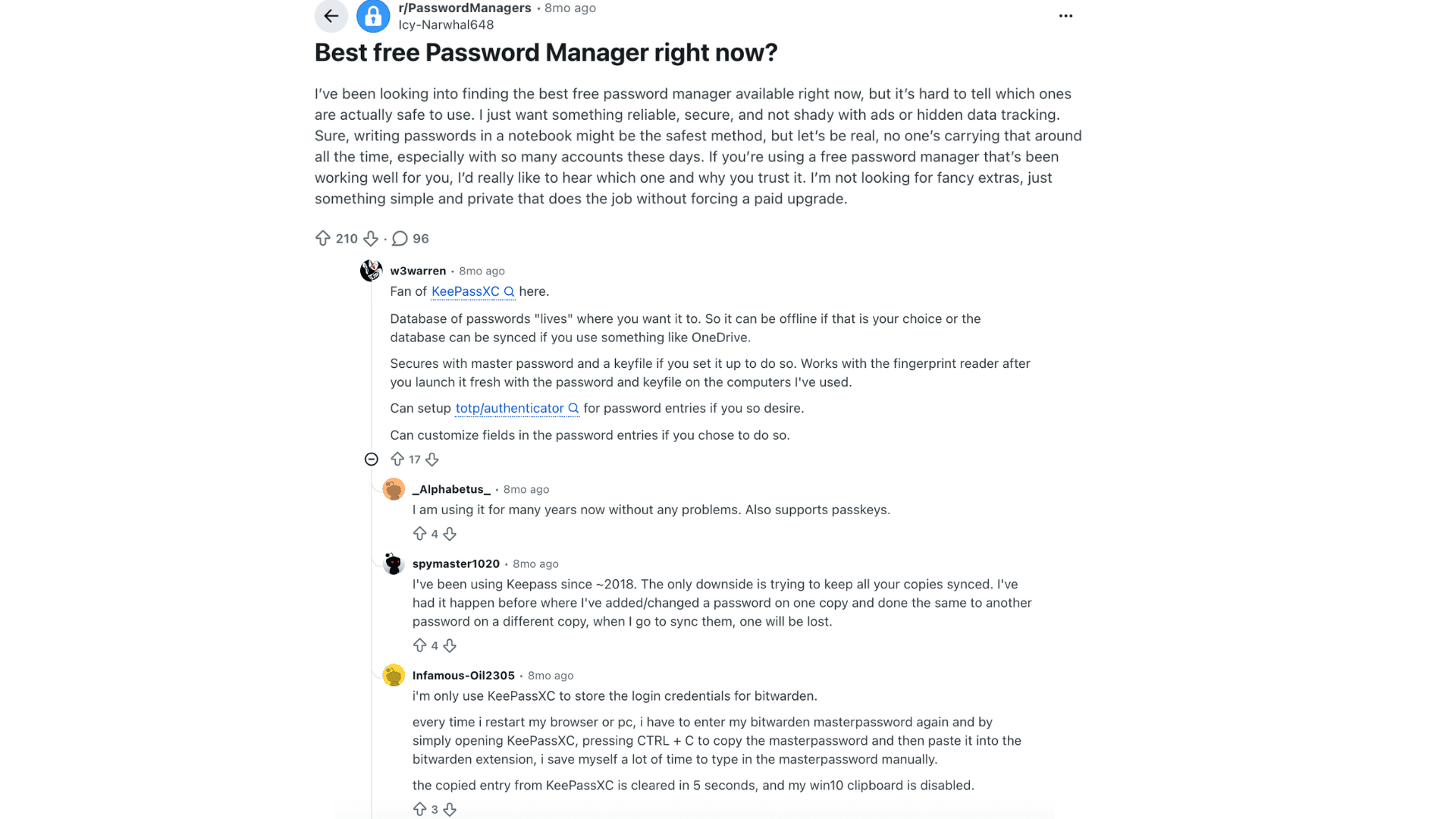
Reddit discussions show that most users prioritize security, transparency, and reliability over extra features.
Bitwarden is consistently recommended for its generous free plan, open-source development, and seamless cross-device syncing.
KeePassXC is popular with users who prefer offline storage and full control over their password database.
Some community members point out that managing a local password vault can take more effort, particularly when syncing changes across multiple devices.
In contrast, cloud-based password managers are often praised for their convenience and ease of access.
The right password manager depends on preference. Some users prefer offline or open-source tools, while others choose cloud sync for convenience.
Are Password Managers Worth It?
Yes, password managers are worth using because they improve security while making it easier to manage online accounts.
They generate long, unique passwords for every website, reducing the risk of password reuse that can lead to multiple accounts being compromised after a single data breach.
Password managers can reduce phishing by filling in credentials only on recognized websites, making fake login pages easier to spot.
In addition to stronger security, they save time by storing and autofilling login details across devices.
By encouraging unique passwords for every account and securely storing sensitive credentials, password managers significantly lower the chances of unauthorized account access while simplifying everyday password management.
Common Misconceptions About Password Managers
Many concerns about password managers come from outdated information or misunderstandings. Knowing the facts makes it easier to choose a secure and reliable solution.
- Password managers can see stored passwords: Reputable providers use zero-knowledge encryption, so they cannot access or read the contents of a user’s vault.
- They’re easy to hack, but strong encryption, multi-factor authentication, and regular security audits make trusted password managers highly secure.
- Browser password managers provide the same protection: Dedicated password managers usually offer stronger security, better sharing options, and more advanced features.
- One data breach exposes every password: Encrypted vaults remain protected unless an attacker also has the user’s master password or authentication credentials.
- Remembering passwords is enough: Managing unique, complex passwords for every account is difficult, making password reuse much more likely.
- Password managers slow down devices: Modern password managers are lightweight and generally have little to no noticeable impact on system performance.
Conclusion
Choosing the right password manager comes down to balancing security, convenience, and the features that matter most.
There are reliable free options for unlimited storage, strong encryption, offline access, and cross-device syncing.
Understanding how password managers work and how they fit into credential management also makes it easier to protect personal and professional accounts from unauthorized access.
Comparing features, limitations, and real user experiences can help narrow down the best choice.
Building stronger password habits today can make protecting online accounts much easier in the long run.
Frequently Asked Questions
Why Don’t Older Adults Use Password Managers?
Older adults may avoid password managers due to unfamiliarity with the technology, concerns about complexity, or a preference for traditional methods such as written password lists.
Which Password Manager Has Never Been Hacked?
No password manager can guarantee it has never faced security incidents. Choosing providers with strong encryption, independent audits, and zero-knowledge architecture offers better long-term protection.
What Are the Downsides of Using a Password Manager?
Potential drawbacks include relying on a master password, learning a new tool, and limited features in free plans. These risks are generally outweighed by stronger security.
Can Passwords Be Stolen from a Password Manager?
Passwords in reputable password managers are encrypted and inaccessible without the master password or approved authentication methods.