Pressing print feels simple until you wonder how a screen file turns into a real page in seconds.
Most people use printers at home, at work, in shops, at schools, or at events, but rarely think about what happens inside.
I used to think every printer worked the same way until I learned why some are better for photos, labels, documents, or badges.
A printer has to read the file, understand the layout, move the paper, and apply ink, toner, heat, or other materials in the right spots.
The process also varies by printer type, as inkjet, laser, thermal, and 3D printers use different methods.
I will explain how printers work, what different types of printers do, and how to choose the right printer for your needs.
Before that, let us start with what happens after you click Print.
What Happens When You Click “Print”?
The printing process begins long before ink or toner reaches the paper. When you click Print, your document is sent to the printer driver, which converts it into a machine-readable format.
This includes instructions for page size, resolution, color settings, and layout. The processed data is then stored in the printer’s memory, awaiting printing.
Next, the printer’s control board takes over, coordinating components like rollers, motors, and the print head or drum.
Before printing starts, the printer performs a quick self-check for issues such as low ink, paper jams, or an open cover. If everything is in order, the printer begins transferring your document onto the paper.
This preparation process is the same across most printer types. What changes next is the technology each printer uses to create the final output.
How Does a Printer Actually Create Text and Images?
No matter which printer you use, the basic idea is simple: the printer recreates your document by placing thousands of tiny dots in the right spots on the page.
Think of it like a mosaic. Up close, you only see small dots. Step back, and those dots become letters, photos, charts, and graphics.
It tells the printer what to print, where to place each dot, what paper size to use, and whether the page should print in color or black and white.
From there, the printer works step by step:
- It turns the page into a dot map: The printer breaks your document into a grid of tiny dots, similar to pixels on a screen. Every letter, line, image, and shaded area is mapped out before printing begins.
- It creates the dots: This depends on the printer type. Inkjet printers spray liquid ink through nozzles as small as 10 micrometers in diameter, laser printers use toner powder and heat, and thermal printers use heat on special paper. Color printers combine cyan, magenta, yellow, and black (CMYK) to produce different shades.
- It moves the paper carefully: Rollers pull the paper through in small, controlled steps while the printer adds each line or section of the page.
- It finishes the print: Once the page is complete, it comes out through the output tray. Inkjet pages may need a short time to dry, while laser prints usually come out dry because the heat has already bonded the toner to the paper.
This general process stays the same across most printers. The main difference is the method each printer uses to create those tiny dots.
The Main Types of Printers and How They Work
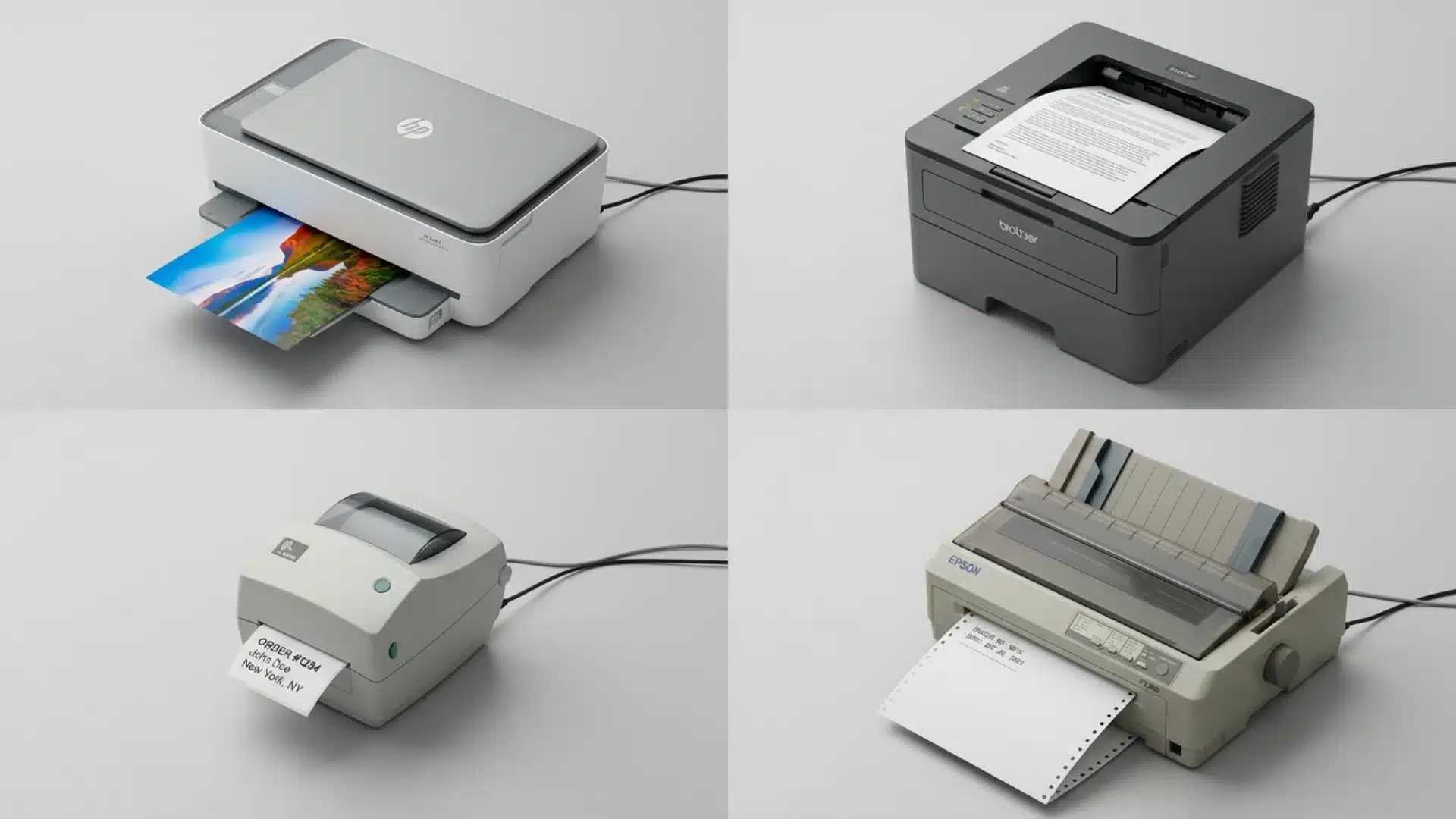
Not all printers create pages the same way. Different printers use different technologies to create output, and each is designed for a specific purpose.
The most common printer types listed below vary in speed, print quality, operating costs, and ideal use cases.
1. Inkjet Printers
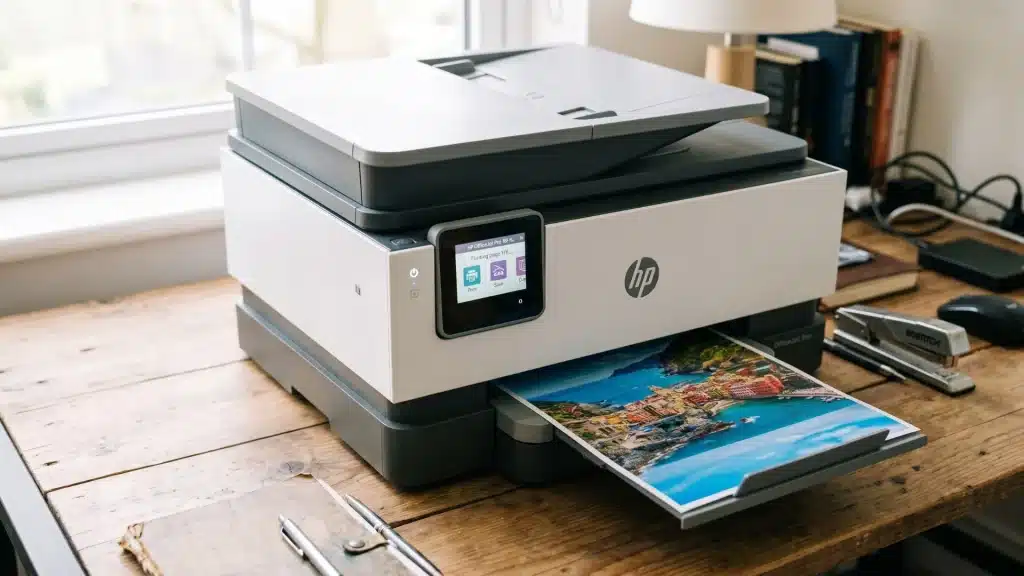
Inkjet printers create images by spraying microscopic droplets of liquid ink onto paper through a moving print head.
Inkjet printers account for roughly 60% of global printer sales, largely because of their low entry cost and strong color output.
Most use either thermal inkjet, which heats ink to form a bubble that pushes a droplet out of the nozzle, or piezoelectric inkjet, which uses an electrically charged crystal to push ink through the nozzle.
Piezoelectric models tend to handle a wider range of ink types and are more common in professional and commercial machines.
Their ability to blend colors precisely makes them a popular choice for photos, graphics, and everyday home printing.
However, prints can smudge if the ink has not fully dried, and nozzles can clog if the printer sits unused for long periods.
Best for: Home users, students, photographers, and anyone who frequently prints color documents or photos.
2. Laser Printers
Laser printers use static electricity, toner powder, and heat to produce sharp, durable prints.
A laser creates an electrostatic image on a drum, toner sticks to the image, and a heated fuser permanently bonds the toner to the paper.
Laser printers typically print at 20 or more pages per minute, compared to the slower output of most inkjet models.
Standard toner cartridges often yield 2,000 or more pages, and toner does not dry out when left unused, a real advantage for offices that do not print every day.
They are widely used in offices because of the lower long-term cost per page. However, they are generally less suitable for high-quality photo printing.
Best for: Businesses and users who regularly print large volumes of documents.
3. Thermal Printers
Thermal printers use heat rather than ink or toner to produce prints.
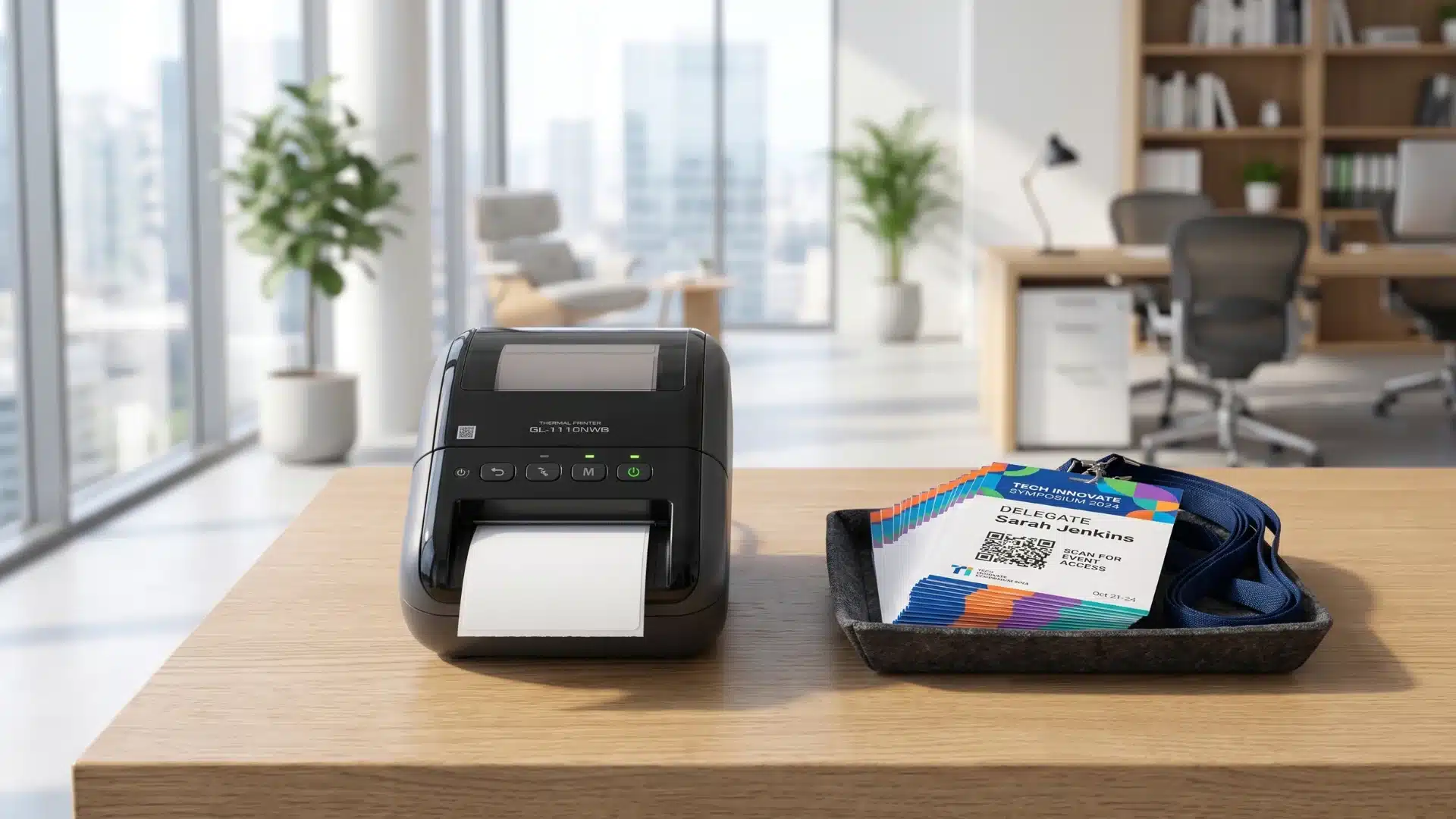
Direct thermal printers print on heat-sensitive paper, while thermal transfer printers use a wax or resin ribbon to produce longer-lasting labels and badges.
In my experience testing setups for event clients, thermal printers are consistently the fastest option at a badge-printing station.
There is no ink to smudge, no warm-up delay, and prints are scannable the moment they come out.
Because they require minimal maintenance and produce instantly dry prints, thermal printers are widely used for receipts, shipping labels, and event badges.
Direct thermal prints can fade over time when exposed to heat or sunlight, so thermal transfer is the better choice for anything that needs to last.
Best for: Label printing, receipts, barcodes, and event badge printing.
4. Dot Matrix Printers
Dot matrix printers are impact printers that create text and images by striking an inked ribbon against paper with a series of small pins.
Characters are formed from tiny dots rather than continuous lines.
Although the print quality is lower than modern printers, they’re extremely durable and can print through multi-part forms. However, they’re slower, noisier, and produce lower-quality output than newer printer technologies.
Best for: Warehouses, manufacturing, logistics, and businesses that rely on carbon-copy documents.
5. LED Printers
LED printers work similarly to laser printers but use a fixed row of light-emitting diodes (LEDs) instead of a moving laser to create the image on the drum.
With fewer moving parts, they are often more compact and require less maintenance.
They deliver fast print speeds, crisp text, and reliable performance for everyday business use. However, they can cost slightly more than comparable laser printers.
Best for: Offices that need dependable, high-volume document printing.
6. Multifunction Printers (MFP)
Multifunction printers combine printing, scanning, copying, and sometimes faxing into a single device. Rather than using a unique printing method, they rely on either inkjet or laser technology internally.
By replacing multiple machines with one device, MFPs save space, simplify workflows, and reduce equipment costs. However, they’re usually larger than standard single-function printers.
Best for: Homes and small offices that need several document functions in one machine.
7. Dye Sublimation Printers
Dye sublimation printers use heat to turn solid dye into a gas, allowing it to bond directly with specially coated paper. This process produces smooth color transitions, vibrant images, and long-lasting prints that resist fading.
They are commonly used for professional photo printing, ID cards, event credentials, and photo booth prints where image quality is the priority.
However, they’re more expensive than standard inkjet printers.
Best for: Professional photographers, photo booths, and ID card printing.
8. 3D Printers
Unlike traditional printers that produce images on paper, 3D printers create physical objects by building them layer by layer from a digital design.
Consumer models typically use plastic filament, while industrial machines may print with resin, metal, or other specialized materials.
Because they manufacture objects instead of documents, 3D printers are widely used in engineering, healthcare, education, architecture, and product design. However, printing complex objects can take several hours.
Best for: Prototyping, manufacturing, education, and product development.
If you are running an event and deciding between printer types for your badge station, the printer choice feeds directly into the larger question of streamlining your event registration from the first guest to the last.
Key Components Inside a Printer
Although different printers use different technologies, most share the same core parts. Each one plays a key role in turning your digital file into a printed page.
- Print Head or Drum: This is where the image is created. Inkjet printers use a print head to spray tiny ink droplets, while laser printers use a photoreceptor drum to transfer toner onto paper.
- Printer Driver and Control Board: The printer driver converts your document into instructions the printer can understand. The control board then processes those instructions and manages all mechanical actions during printing.
- Ink or Toner Supply: Inkjet printers use liquid ink cartridges, while laser printers use powdered toner. Toner typically lasts longer and offers a lower cost per page.
- Paper Feed Mechanism: Rollers pull paper from the tray and move it through the printer. Worn rollers or poor-quality paper often cause jams or misfeeds.
- Fuser Unit: Found only in laser printers, the fuser uses heat and pressure to bond toner permanently to the paper, preventing smudging.
- Motors and Drive Belt: These control the movement of the print head and paper. Their precision directly impacts print quality, helping avoid streaks and alignment issues.
- Output Tray: Collects finished pages after printing and helps keep them aligned.
How Printers Connect to Devices?
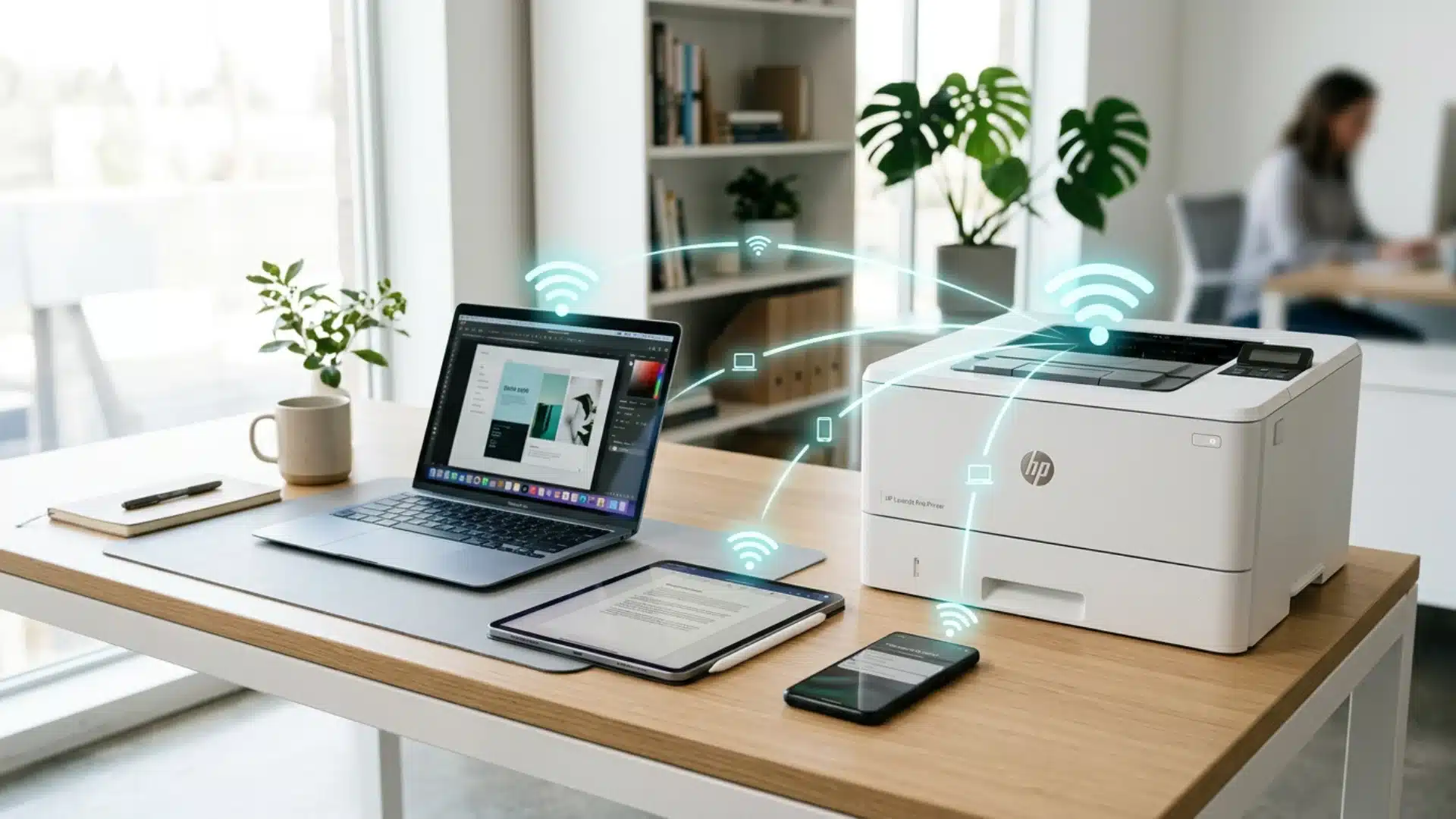
The way a printer connects to your device affects its convenience, reliability, and the number of people who can use it at once. Here are the most common connection methods:
1. USB
A USB connection is the simplest option for a single computer. Just plug the printer into your device, install the driver, and you’re ready to print.
It’s reliable and fast, but it limits access to one connected device. This makes it ideal for personal setups where only one user needs consistent access.
2. Wi-Fi
Wi-Fi allows multiple computers, phones, and tablets on the same network to share one printer without cables.
It’s the most common choice for homes and offices, although network interruptions or IP address changes can occasionally disrupt printing.
In busy event environments, a stable Wi-Fi network paired with a self-check-in setup enables multiple staff members to print badges simultaneously, reducing wait times and improving attendee flow.
3. Bluetooth
Bluetooth is designed for short-range wireless printing from mobile devices.
It’s commonly used with portable receipt and label printers, but it isn’t ideal for high-volume printing because of its limited range and slower transfer speeds.
It works best for quick, on-the-go printing tasks where portability matters more than speed.
4. Ethernet
Ethernet provides a wired network connection, making it the most stable option for offices, warehouses, and event venues with heavy printing demands.
A reliable wired connection is especially worth planning for if you are thinking through your full conference room setup, where consistent printing speed can affect how smoothly presentations and documents are shared.
It also reduces the risk of connectivity issues that can occur with wireless networks.
Common Printer Problems and Quick Fixes
Even the best printers can run into occasional issues. Here are some of the most common printing problems and simple troubleshooting tips to help you get back up and running quickly.
| Problem | Quick Fix |
|---|---|
| Paper jam | Remove damaged paper and clean rollers |
| Blank pages | Check ink/toner and print head |
| Streaky prints | Clean the print head or drum |
| Printer offline | Restart the printer and check the connection |
| Faded prints | Replace toner or ink |
Why Printer Type Matters at Events
At an event, your printer affects more than print quality; it impacts check-in speed and the attendee experience.
A slow printer or smudged badge can quickly create long lines and unnecessary delays. Choosing the right printer helps registration run smoothly from the moment guests arrive.
- Thermal Printers (Best for Event Badges): Fast and reliable, they print badges in seconds without ink or toner, with output that’s instantly dry and scannable. Direct thermal is ideal for single-day indoor events, while thermal transfer is better for multi-day events or outdoor use.
- Inkjet Printers: A good choice for colorful badge designs and graphics, but slower print speeds and drying time make them less suitable for busy check-in counters.
- Laser Printers: Excellent for printing schedules, signage, agendas, and other event documents in high volumes. However, they aren’t designed for on-demand badge printing.
Many event organizers pair thermal printers with a coordinated event check-in setup to automatically print attendee badges as guests arrive, cutting wait times and keeping the line moving.
The right printer often goes unnoticed when everything runs smoothly, but choosing the wrong one can slow down your entire event.
How to Choose the Right Printer for Your Needs?
Knowing how different printers work makes the buying decision much easier. A few key questions narrow the field quickly.
- How much do you print? Low-volume users, a few pages per week, are usually fine with an inkjet. Anyone who regularly prints dozens or hundreds of pages will save money in the long term with a laser printer, despite the higher upfront cost.
- What are you printing? Photos and graphics are best printed with inkjet or dye sublimation. Text-heavy documents favor laser or LED. Labels, badges, and receipts favor thermal.
- How many people need access? A USB connection works for one user. Multiple users sharing a printer need Wi-Fi or Ethernet. Busy offices or event venues almost always benefit from a wired Ethernet connection for reliability.
- What is your total cost budget? Purchase price is only part of the equation. Factor in the cost per page, the frequency of ink or toner replacement, and whether the printer will sit idle for long stretches (which can cause inkjet nozzles to clog).
Knowing how to the it can help you choose the best printer for your needs and your pocket, too.
Conclusion
Understanding how printers work makes it easier to choose a machine that fits your real printing needs, not just the cheapest option.
Photos, documents, labels, receipts, and event badges all require different print technologies, paper-handling capabilities, speeds, and running costs over time.
I would always check total cost, ink or toner use, connection type, and daily volume before buying any printer today.
That choice matters even more at events, where slow printing can create lines before guests reach the registration desk quickly.
You should leave with a setup that saves time, avoids waste, and keeps each print job simple for everyone using it.
Which printer type fits your work best, and what do you print most often? Tell us, share with us in the comments below.
Frequently Asked Questions
How Long Does Toner Last Compared to Ink Cartridges?
Toner cartridges typically print 2,000 or more pages, while standard ink cartridges usually last only a few hundred pages. Toner also doesn’t dry out when left unused.
Can a Printer Work without Wi-Fi?
Yes. Most printers can connect via USB, Bluetooth, or Ethernet, making Wi-Fi optional. USB is ideal for single devices, while Ethernet offers the most reliable connection for heavy printing.
What is DPI, and Why Does It Matter?
DPI (dots per inch) measures print resolution. Higher DPI produces sharper text and more detailed images. For most documents, 300 DPI is sufficient, while photos and graphics benefit from 600 DPI or higher.
What’s the Difference Between a Label Printer and a Regular Printer?
A label printer is designed for labels, barcodes, badges, and receipts, often using thermal printing. A regular printer is built for full-page documents and typically uses inkjet or laser technology.
What Causes Inkjet Nozzles to Clog?
Inkjet nozzles clog when a printer sits unused for extended periods, and the ink dries inside the nozzle channels.
Most printers include a built-in head cleaning function to fix this. Printing at least a few pages per week prevents the problem from developing in the first place.