Your Apple Pencil picking the worst moment to stop working can turn a calm drawing break into a full tech headache fast.
Maybe it charges, maybe Bluetooth sees it, or maybe your iPad acts like the pencil is not even there today.
That is why Apple Pencil not connecting feels confusing, because the cause can be pairing, battery, software, or compatibility issues.
I will explain why your Apple Pencil won’t connect, what Apple Pencil not working signs mean, and which fixes are worth trying.
You also need to know when charging longer will help and when the pencil may need repair or replacement.
Before trying every random fix online, let us first understand what is usually happening behind the screen.
What’s Actually Happening when Your Apple Pencil Won’t Connect?
Your Apple Pencil does not work like a regular stylus that just touches the screen.
It connects to your iPad over Bluetooth and uses a tiny internal battery to send signals, track pressure, and register tilt. When that Bluetooth link drops or the battery dies, the pencil just stops working, even if it looks fine on the outside.
The confusing part is that “connected” in Bluetooth settings does not always mean “working.”
Your iPad can show the pencil as connected, even though the pencil is not responsive at all. This happens when the pairing gets stuck in a bad state, which is more common after an iPadOS update.
So before you assume the pencil is broken, know that a software glitch is often the real culprit, and those are fixable.
If you want to get more out of your setup beyond the pencil, check out our list of the best iPad accessories that genuinely improve daily use
Common Reasons Your Apple Pencil is Not Connecting
There are two kinds of people who land on this page. The first group has never been able to get the pencil working at all; maybe it is new or just switched iPads.
We’ll cover both, whether it’s your first time or a random issue that happened again.
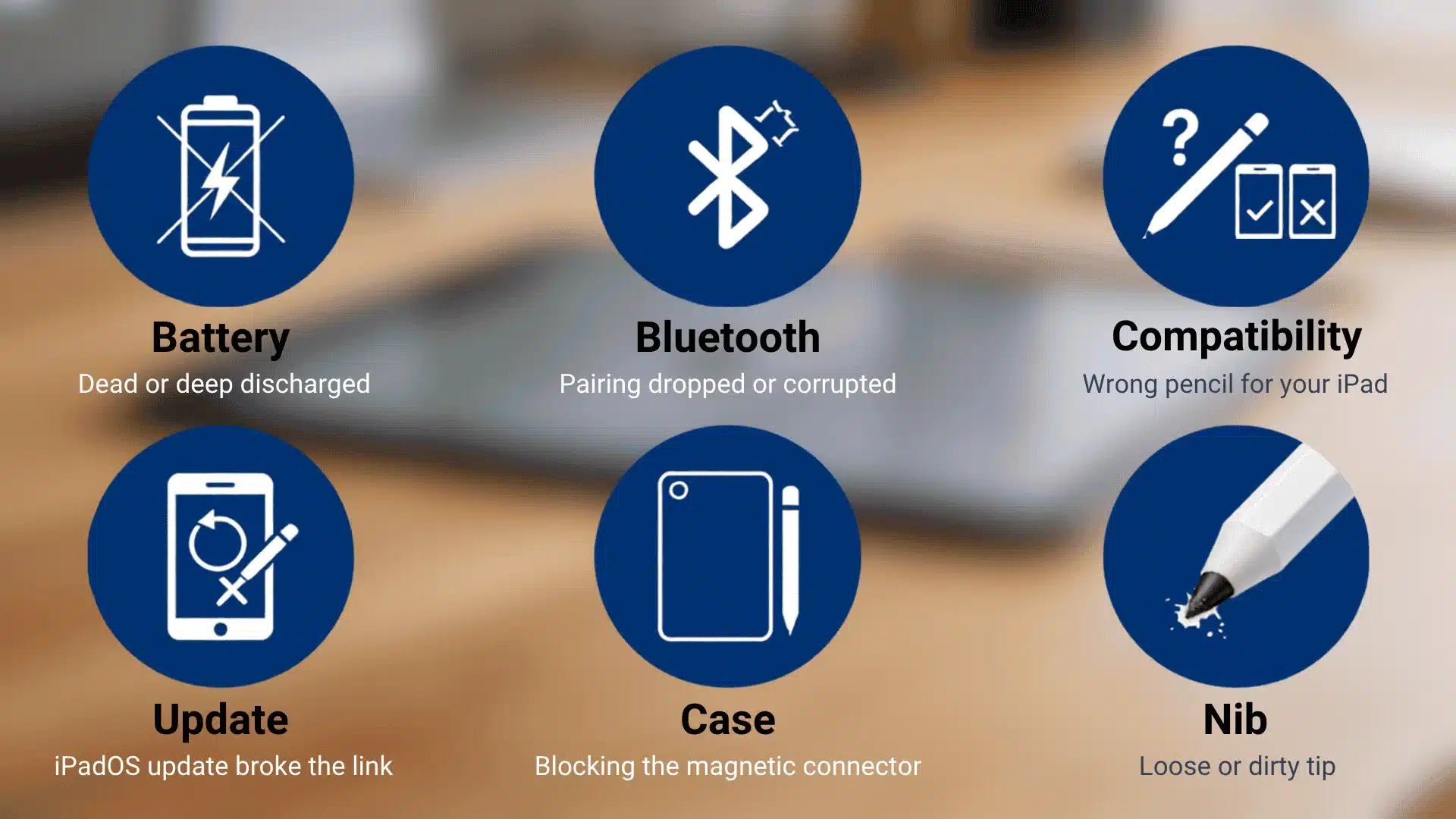
1. Battery is Too Low or Deeply Discharged
This is the most common reason. If your pencil’s battery drops to 0% and stays there for weeks or months, the tiny Li-ion cell inside can permanently stop accepting a charge.
Apple Pencils have very small batteries, smaller than the eraser on a regular pencil, and they do not handle long periods of zero charge well at all.
2. Bluetooth Pairing Got Dropped or Corrupted
Even if the pencil has a charge, the Bluetooth pairing can go bad. This often happens after an iPadOS update, after switching between iPads, or after the iPad restarts when the pencil is not nearby.
The fix is usually just to forget the device and re-pair it.
3. Your Pencil Model is Not Compatible with Your iPad
Not every Apple Pencil works with every iPad. The 1st gen uses Lightning and works with older iPads.
The 2nd gen and Pencil Pro attach magnetically and only work with iPads that have the right magnetic connector on the side.
The USB-C Pencil works with most USB-C iPads but does not support pressure sensitivity. If you bought a used pencil or a different gen than the one that came with your iPad, this could be the problem.
Go to Settings > General > About, check your iPad model, and cross-check it on Apple’s official compatibility page.
If you are still deciding between iPad configurations, our MacBook vs iPad comparison breaks down which setup works better depending on how you work day to day.
4. An iPadOS Update Broke the Connection
This one catches a lot of people off guard. A perfectly working pencil can stop connecting right after an iPadOS update.
Apple Community threads show this happening repeatedly across iOS 18 and iPadOS 26 updates. A force restart with the pencil attached is usually the first fix to try here.
5. Your iPad Case is Blocking the Magnetic Connector
If you use a 2nd gen or Pencil Pro and it connects fine without the case but drops connection with it on, the case is interfering with the magnetic strip.
Some third-party cases are thicker over the magnetic side and physically block the connection. Try pairing without the case to confirm.
6. The Pencil Tip is Loose or Dirty
A loose nib can cause the pencil to show as connected but not register on screen. Gently twist the tip clockwise to tighten it.
If it is dirty or worn down, a replacement tip (sold separately by Apple for 19$) can solve it. A bent or damaged nib will also cause this.
7. The Scribble Feature is Turned off
If your Apple Pencil connects and charges but won’t write inside text fields or apps, the Scribble setting may be disabled.
Scribble lets you write directly into any text field using the pencil. Go to Settings > Apple Pencil and make sure Scribble is toggled on. This is only available on iPadOS 14 or later.
Step-by-Step: How to Fix Apple Pencil Not Connecting
Here are the fixes ordered from easiest to most involved. Try them in order before jumping to the last resort options.
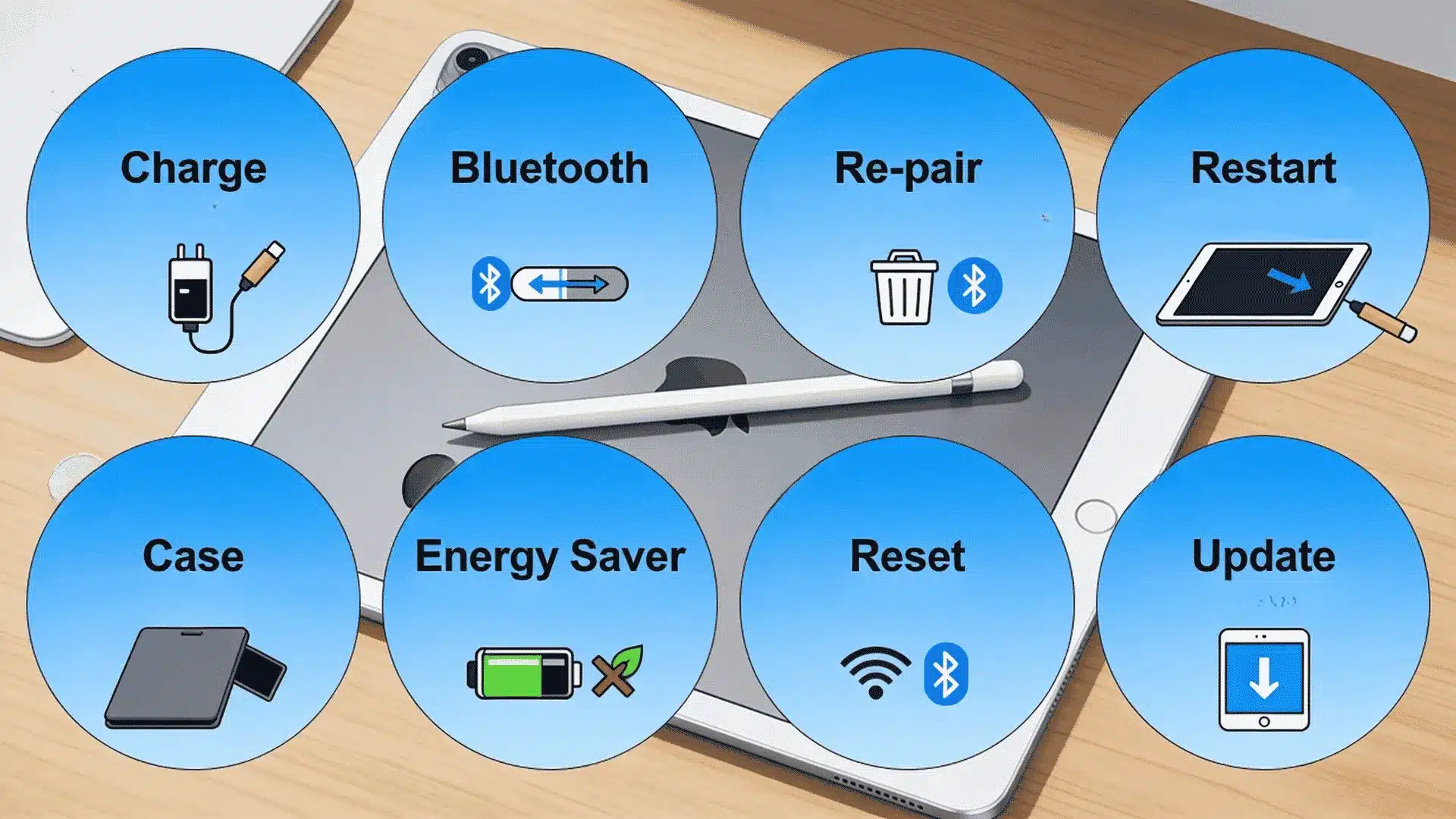
1. Charge It First and Wait
Attach the pencil the right way for your model. For the 2nd gen and Pencil Pro, snap it flat against the magnetic side of the iPad.
For the 1st gen, remove the cap and plug it into the Lightning port, or use the USB-C to Apple Pencil Adapter for 10th gen iPads. Wait at least 30 seconds before trying to pair.
2. Toggle Bluetooth off and on
Go to Settings > Bluetooth, toggle it off, wait 10 seconds, then toggle it back on.
This clears the Bluetooth stack and often re-establishes the connection on its own without any extra steps. Check whether the pencil appears under “My Devices” after this.
3. Forget the Device and Re-Pair
In Settings > Bluetooth, tap the info icon next to your Apple Pencil and select “Forget This Device.”
Then reconnect the pencil the same way you first paired it. For magnetic models, snap it to the side. For the 1st gen, plug it into the port. Tap “Pair” when the prompt appears on screen.
If the Pair button takes a minute to show up, that is normal.
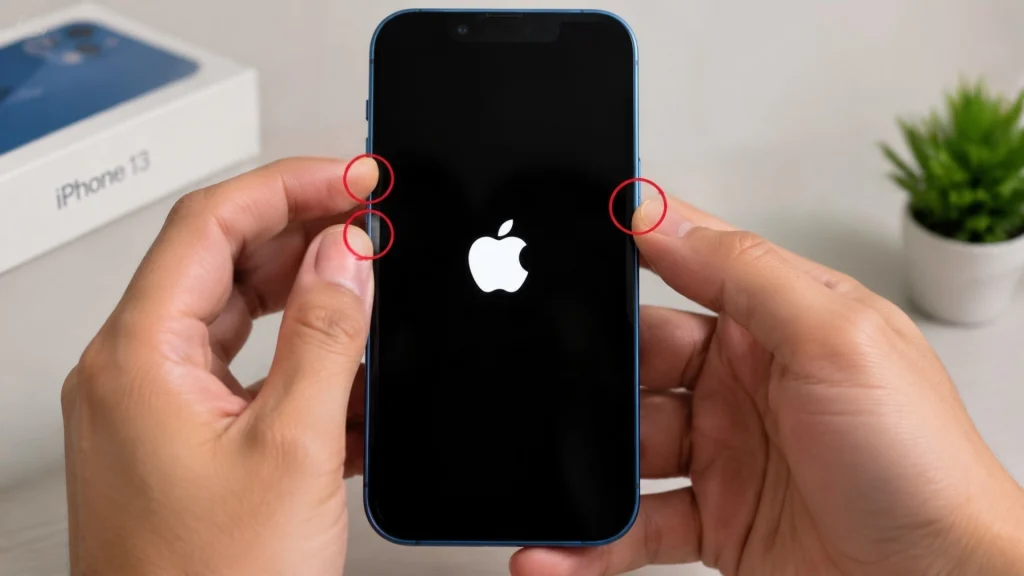
4. Force Restart with the Pencil Attached
Keep the pencil attached or plugged in, then do a force restart.
For iPads without a Home button: press and quickly release the volume button closest to the top, press and quickly release the volume button farthest from the top, then hold the top button until the Apple logo appears.
With the pencil connected during the restart, the iPad reinitializes the accessory link, which clears most software glitches.
5. Remove Your iPad Case
Take the case off completely and try pairing again. This matters most for the 2nd-gen Pencil and Pencil Pro, which charge and pair through the magnetic side.
If the pencil connects without the case and drops with it on, the case is the issue.
6. Turn off the Hidden Bluetooth Energy Saver Setting
This one is almost never mentioned in any troubleshooting guide, but it fixes the issue for a solid chunk of users on newer iPads.
Some iPad models have a Bluetooth accessory power-saving mode that can interrupt the pencil connection.
Go to Settings > Bluetooth, look for the “Advanced” or “Energy Saver for Accessories” option, and turn it off. This is especially relevant for Pencil Pro users on iPad Pro M4 and M5 models.
7. Reset Network Settings
This clears all stored Bluetooth and Wi-Fi pairing data, which can fix stubborn connection issues that survive force restarts.
Go to Settings > General > Transfer or Reset iPad > Reset > Reset Network Settings. You will need to reconnect to Wi-Fi after this. Then re-pair the pencil fresh.
8. Update iPadOS
If the problem started after an update, the next update often fixes it. Go to Settings > General > Software Update and check for a pending release.
Apple has pushed patches for pencil connectivity bugs in the past, usually within a couple of update cycles.
9. Try Airplane Mode Instead
Swipe down from the top-right corner to open Control Center, tap the Airplane icon to turn it on, wait five seconds, then tap it again to turn it off.
This resets all wireless connections at once, including Bluetooth, and sometimes works when the Bluetooth toggle alone does not.
The Deep Discharge Problem: When Charging Doesn’t Help
This is the fix nobody talks about, but it is worth knowing before you spend money on a replacement.
If your Apple Pencil was left in a drawer uncharged for a month or longer, the internal Li-ion battery may have dropped below the minimum voltage required to accept a charge.
When this happens, plugging it in or snapping it to the magnetic strip does nothing. The battery is essentially locked. I’ve seen this come up more than once when reviewing accessories that get set aside during travel.
A pencil that looks fine and shows no damage can still be completely unresponsive after sitting idle long enough for the battery to fully collapse.
The community-discovered workaround is gentle heat. Hold the pencil tightly in your hand for 10 to 15 minutes, or wrap it in a warm (not hot) cloth.
The heat slightly raises the battery’s internal resistance and can sometimes allow it to accept just enough charge to get going.
If the pencil starts charging after this, keep it connected to the iPad while the iPad is plugged in to power for a full hour.
Do not remove it. After that, the battery should recover enough for normal use. Going forward, never leave the pencil uncharged for more than a week or two, even if you are not using it.
Is it the Pencil or the iPad? How to Tell the Difference
Before replacing anything, run this quick test. It takes five minutes and tells you exactly where the problem is.
| Test | What to Do | What Does It Tell You |
|---|---|---|
| Test the pencil on another iPad | Borrow a compatible iPad and try pairing your pencil to it | If it connects fine, the issue is with your original iPad, not the pencil |
| Test another pencil on your iPad | Borrow a compatible pencil and try it on your iPad | If it connects fine, your pencil has a hardware fault |
| Both fail on different devices | Try your pencil on two different iPads | If it fails on both, the pencil battery or hardware is dead |
| Both work on swapped devices | Pencil works elsewhere, another pencil works on yours | A deep software pairing bug; try resetting network settings or a full iPadOS reset |
| Visit an Apple Store display | Pair your pencil with a demo unit in the store | Apple staff can help confirm the fault and initiate the warranty process on the spot |
If your pencil pairs fine on a friend’s iPad but not yours, and a different pencil also fails on your iPad, the issue is with the iPad’s magnetic charging strip or its Bluetooth hardware.
That requires a Genius Bar visit, not a software fix.
When to Replace Your Apple Pencil?
Apple Pencil warranty and repair options depend on when the issue happens and what kind of coverage you have.
The Pencil comes with a 1-year limited warranty from the date of purchase. If the battery fails within that window and there is no physical damage, Apple will exchange the pencil at no cost.
Keep these things ready before visiting Apple:
- Proof of purchase: Bring your original receipt or any valid purchase record.
- Serial number: Find it in Settings > Bluetooth > pencil info icon.
- Service location: Visit the Genius Bar or an Apple Authorized Service Provider.
- Coverage check: Confirm whether the pencil is still inside the 1-year warranty window.
AppleCare+ for iPad does not cover Apple Pencil unless you bought separate coverage (available in some regions). Out-of-warranty battery service is about $29 via Apple, usually a full unit swap.
This can be worth it vs. buying new ($79 USB-C, $129 2nd gen). If failure followed an iPadOS update, mention it, Apple may offer a goodwill replacement, but it’s not guaranteed.
If you are weighing whether to repair or upgrade the whole setup, our iPad vs. Samsung tablet breakdown can help put accessory costs in context relative to the broader device decision.
What Real iPad Users Say About Apple Pencil Connection Issues?
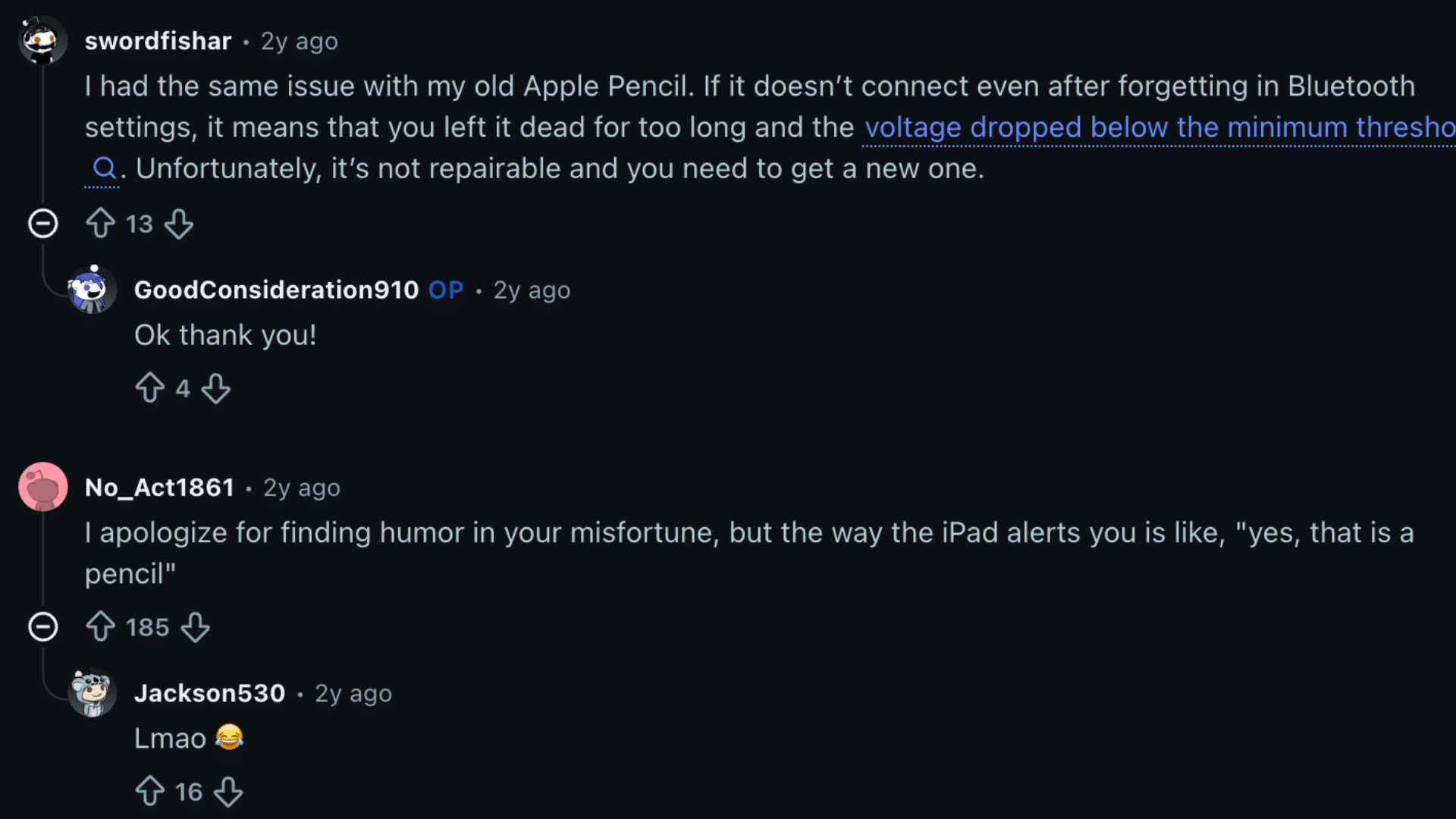
People who ran into Apple Pencil connection issues took the conversation to Reddit, and the thread quickly became detailed.
The most repeated answer in the thread was a dead battery.
Several users, including people who identified as Apple repair technicians, said an Apple Pencil left discharged for too long may stop holding a charge permanently.
In that case, software fixes usually will not help, and battery service often means replacing the unit.
Users also found a few smaller fixes worth trying first. One person said turning off a VPN fixed the connection issue, and others reported the same result.
Another common problem was the Pencil showing as connected in Bluetooth, while still not drawing on the screen. That usually points to a battery or hardware fault.
A few users fixed the issue with an iPad factory reset or by waiting for an iPadOS update, but those seemed less common.
Conclusion
Apple Pencil not connecting can feel annoying, but the smartest move is to find the real cause before replacing anything.
Start with simple checks like charging, Bluetooth, model support, and the Pencil tip before moving on to resets or repairs.
That one check can save you from paying for a new accessory when your iPad settings are the issue instead.
When the battery has failed or the issue follows an update, Apple support is usually the next step for you. You should leave with a clear answer, not a drawer full of fixes that waste more drawing time again today.
Which fix finally got your Apple Pencil working again, or did it need service? Tell us, share with us in the comments below.
Frequently Asked Questions
Does Apple Pencil connect to iPhone?
No, Apple Pencil does not work with any iPhone model. Apple has not enabled Apple Pencil support in iOS.
Even the USB-C Pencil, which shares the same port as newer iPhones, will not pair with an iPhone. For stylus input on iPhone, you need a third-party capacitive stylus, which lacks pressure sensitivity.
Can a VPN Cause the Apple Pencil Not to Connect?
It sounds unlikely, but yes, some users have confirmed that disabling their VPN fixed Apple Pencil connection issues.
The exact reason is not fully understood, but it may interfere with Bluetooth service processes on the iPad. If you’re running a VPN and having trouble, disable it completely before trying other fixes.
Will a Factory Reset Fix My Apple Pencil Connection Problem?
A factory reset can work if the issue is a deep software bug that forces a restart, and the network settings reset cannot be cleared.
Before doing a full reset, back up your iPad to iCloud or a computer. After the reset, try pairing the pencil before restoring anything else. If it works on a fresh install, the problem is on the software side.
How Do I Check if My Apple Pencil is Still Under Warranty?
Go to Apple’s coverage check page and enter the pencil’s serial number.
To find the serial number, go to Settings > Bluetooth on your iPad, tap the info icon next to the Apple Pencil, and the serial number will be listed there. Apple’s standard warranty is 1 year from the original purchase date.