When documents pile up, it can get hard to know where each file is, who has it, and what still needs to be done. I know how quickly this can slow down work, especially when you deal with contracts, forms, reports, or client files every day.
That is where doc tracking helps. It gives you a clear way to follow documents from start to finish, so nothing gets lost or delayed.
In this article, I will explain what it means, why it matters, how document-tracking services work, and which features to look for when choosing one.
You will also learn how to track documents so your files stay organized, secure, and easier to manage.
What Is Doc Tracking?
Doc tracking is the process of following a document from creation to final storage. It shows where the file is, who accessed it, what changed, and what action is still pending.
In simple terms, it helps you manage documents without guessing. A good tracking process can record views, edits, approvals, signatures, dates, and version history.
It can also include an audit trail that logs key actions taken on a document to improve accountability.
This is useful for contracts, invoices, HR forms, legal files, reports, and client records.
Instead of searching through emails or folders, you can quickly see the document’s status and next step. For businesses, doc tracking supports faster work, fewer errors, and better control over important files.
Why Is Document Tracking Important?
Document tracking matters because it helps teams manage files with better clarity, speed, and control.
| Reason | Why It Matters | Business Impact |
|---|---|---|
| Prevents Lost Files | Teams can quickly find where a document is and what stage it is in. | Improves workflow visibility and reduces delays caused by missing documents. |
| Saves Time | Users spend less time searching for folders or emails or asking others for updates. | Boosts productivity and allows teams to focus on higher-value tasks. |
| Improves Accountability | It shows who viewed, edited, approved, signed, or delayed a document. | Creates transparency and helps managers track responsibilities clearly. |
| Reduces Errors | Clear versions and status updates help prevent duplicate or outdated files. | Minimizes costly mistakes and improves document accuracy. |
| Supports Security | Access controls help protect private, legal, financial, or client documents. | Reduces the risk of data leaks and unauthorized access. |
| Speeds Up Approvals | Teams can see pending actions and move documents forward faster. | Accelerates decision-making and project completion timelines. |
| Helps With Compliance | Audit trails create a clear record of document activity and changes. | Supports regulatory compliance and simplifies audits. |
Key Features of a Document Tracking System
A document tracking system works best when it gives you clear control, status updates, and a record of each document’s movement.
- Real-Time Status Updates: Show whether a document is drafted, shared, viewed, approved, signed, completed, or still awaiting action.
- Version Control: Keeps the latest document version clear, so teams do not work on old files or confusing duplicate copies.
- Audit Trail: Records key actions, such as views, edits, approvals, signatures, downloads, and dates, for better accountability and compliance.
- Role-Based Access: Lets admins control who can view, edit, share, approve, or download each document based on their role.
- Search and Filters: Helps users find documents faster by name, date, owner, status, department, document type, or approval stage.
- Automated Notifications: Sends alerts for pending reviews, missed deadlines, new comments, required signatures, or changes in document status.
- Reporting and Analytics: Shows document progress, delays, user activity, completion rates, and workflow gaps in a simple report format.
- Secure File Sharing: Allows documents to be shared safely with the right people while reducing the risk of unwanted access.
How to Track Documents Effectively?

Tracking documents works best when every file has a clear place, owner, status, and activity record.
1. Start with the Documents that Matter Most
Start with documents that affect daily work, payments, clients, approvals, or compliance. These often include contracts, invoices, HR forms, legal records, purchase orders, reports, and client files.
Not every file needs detailed tracking, because that can add extra work and slow the team down.
Instead, focus on documents that move between people, need review, or require proof of action. This keeps the tracking process simple, useful, and easier for everyone to follow from the beginning.
2. Keep Documents in One Central Place
A central document location keeps files from being spread across emails, desktops, shared drives, and chat apps.
It gives your team one clear place to store, find, and manage important documents.
I have experienced how messy it gets when one file has three versions in different places, and no one knows which one is final.
A good system helps users access the latest version, share files safely, set permissions, and keep audit trails. This reduces confusion, saves time, and makes tracking easier.
3. Set Clear Status Labels
Use clear status labels so everyone can quickly understand where a document stands.
Simple labels like draft, under review, approved, sent, viewed, signed, completed, and archived work well for most teams.
They help users see what needs attention without opening each file or asking others for updates.
Clear status tracking is especially useful when documents move through several steps, such as review, approval, signature, and final storage, because it keeps the process easy to follow.
4. Use Version Control
Version control helps your team avoid old files, duplicate copies, and confusing names like “final final.”
Use clear naming rules, central storage, approval steps, and regular checks to keep files organized.
This helps protect document accuracy and keeps everyone working from the right file. It also supports better teamwork when several people review or edit one document.
5. Set Permissions and Ownership
Each important document should have a single clear owner and proper access controls.
The owner is responsible for moving the file to the next step, while access rules decide who can view, edit, approve, sign, or manage it.
This helps protect private information and lowers the risk of unwanted changes.
Role-based access also keeps the process organized because each person only gets the control they need. Clear ownership makes follow-ups easier and prevents confusion.
6. Use Audit Trails and Activity Logs
Audit trails show the full history of a document, including what happened and when. They can record views, edits, approvals, signatures, downloads, and user actions.
This makes it easier to check who handled the file, what changes were made, and whether each step was completed.
Audit trails are also helpful for accountability, compliance, and recordkeeping. Instead of depending on memory or long email threads, teams can review clear activity logs when needed.
Types of Document Tracking Systems
Different document tracking systems operate differently, depending on how a team stores, shares, and manages its files.
| Type | What It Means | Best For |
| Manual Tracking Logs | Uses spreadsheets or registers to track document names, owners, dates, and status. | Small teams with fewer documents |
| Cloud-Based Tracking Tools | Stores and tracks files online with real-time access and updates. | Remote or growing teams |
| Document Management Systems | Combines storage, search, permissions, version control, and tracking in one place. | Businesses with many files |
| E-Signature Tracking Systems | Tracks documents that need signatures, approvals, or client action. | Contracts and agreements |
| Workflow Tracking Systems | Moves documents through set steps, such as review, approval, and storage. | Teams with approval processes |
What Document Tracking Services Usually Include?
Document tracking services usually combine storage, monitoring, access control, and reporting to help teams manage files more clearly.
- Document Storage: Keeps files in one organized place, so users can find, manage, and track important documents without searching everywhere.
- Status Tracking: Indicates whether a document is drafted, sent, viewed, approved, signed, completed, rejected, or awaiting further action.
- Access Control: Let teams decide who can view, edit, share, approve, download, or manage each document safely.
- Version History: Tracks different document versions, so users can see updates, avoid old files, and keep the latest copy clear.
- Workflow Management: Helps move documents through steps like review, approval, signing, storage, and final completion without losing track.
- Notifications: Sends alerts for pending approvals, missed deadlines, required signatures, new comments, or changes in document status.
- Reports And Analytics: Shows document progress, delays, user activity, completion rates, and workflow issues in a simple report format.
Choosing the Right Document Tracking Service
Many document tracking services offer similar tools, but the right choice depends on your document type, team size, and daily workflow.
1. Adobe Acrobat
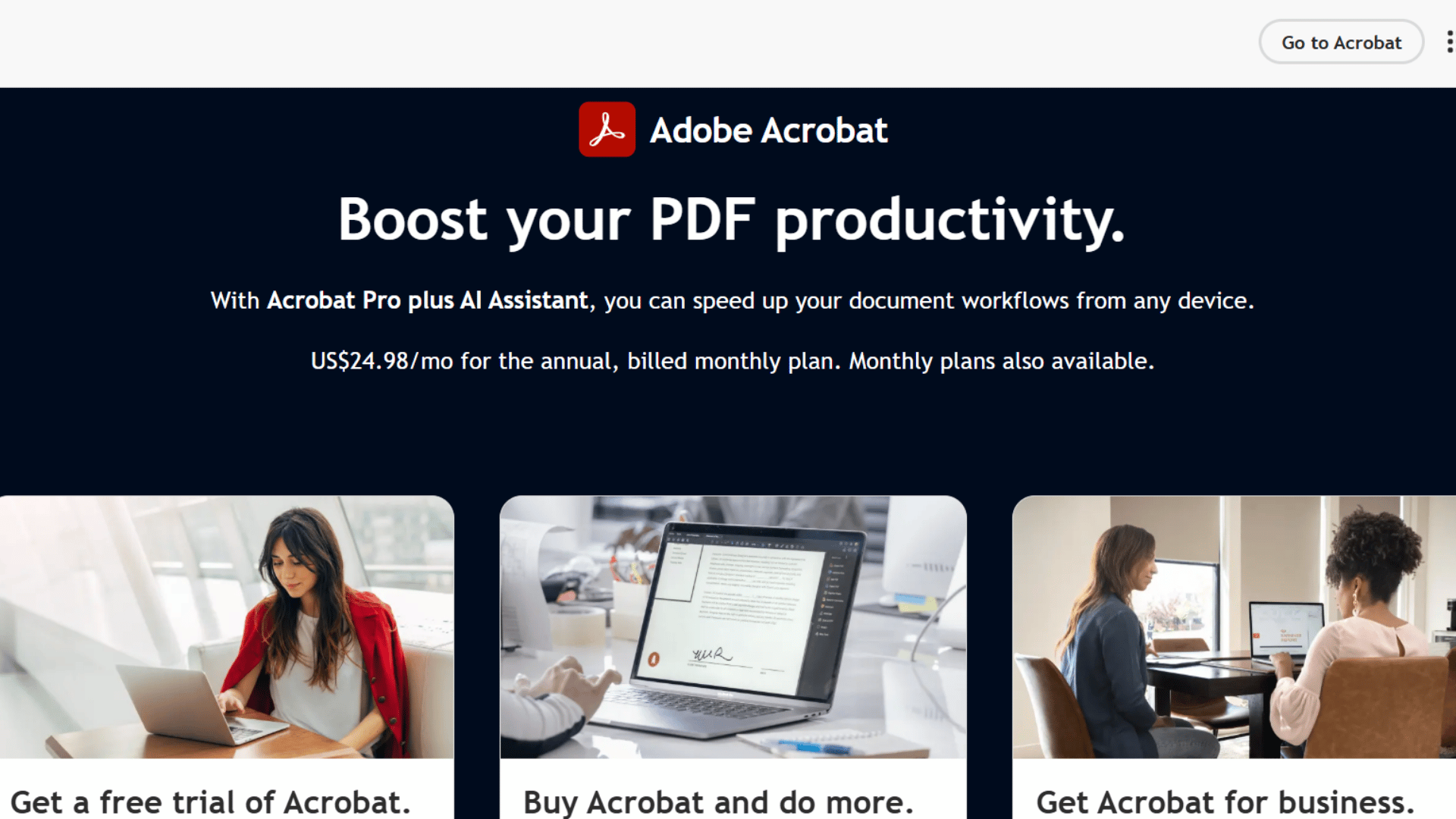
Adobe Acrobat is a strong choice for teams that work with PDFs every day. It helps users create, edit, share, protect, and track documents in a familiar format.
Teams can use it for contracts, reports, forms, proposals, and client files. It also supports e-signatures, password protection, and access controls.
Acrobat works best for teams using PDFs that need simple reviews, secure sharing, and easy-to-use tools.
It is not the right fit if your team primarily collaborates in real time on editable documents, since it is built around finalized files rather than live co-editing.
2. DocuSign
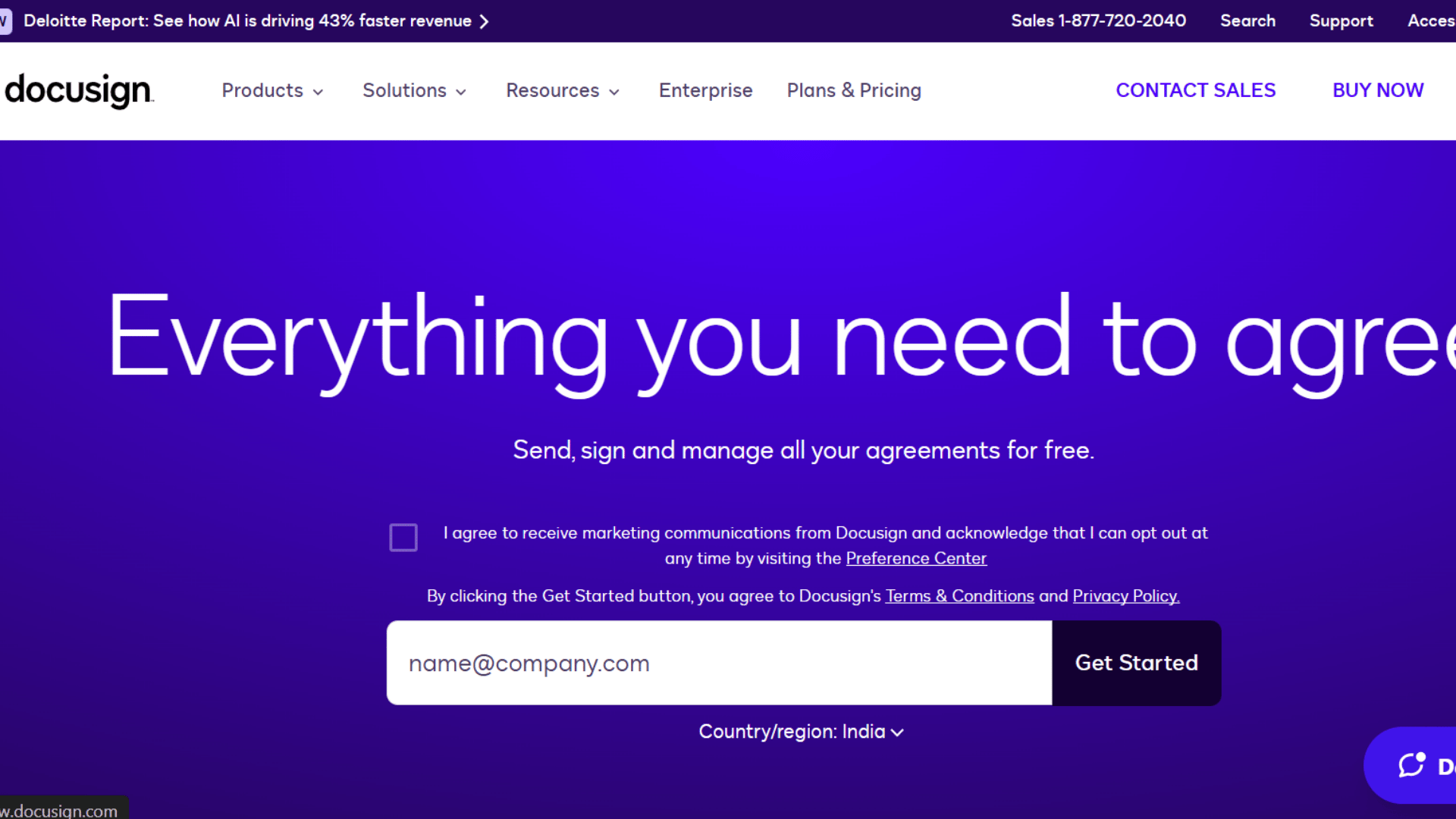
DocuSign is best known for electronic signatures and agreement tracking. It is useful when your team often sends contracts, approvals, consent forms, or legal documents for signing.
You can track who received, opened, signed, or still needs to act on a document.
This makes it helpful for sales, HR, legal, finance, and client-facing teams.
DocuSign is a good fit when signing speed, audit trails, document status, and secure approval records matter more than general file storage.
3. PandaDoc
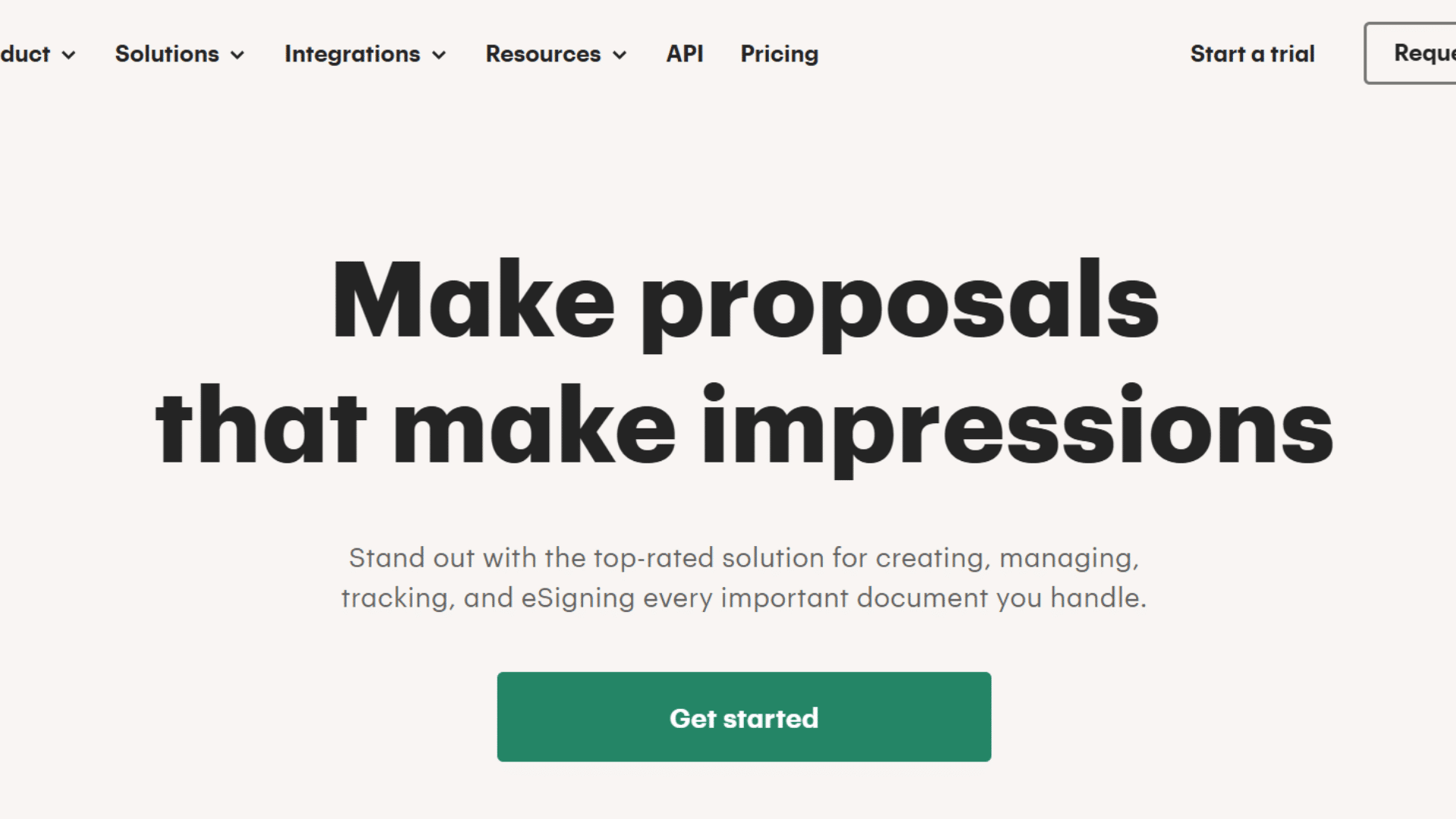
PandaDoc is a good option for teams that handle proposals, quotes, contracts, and sales documents. It helps users create professional documents, send them for approval, collect signatures, and track activity.
Sales teams often like it because they can see when a client opens a proposal or spends time on certain sections.
It also supports templates, pricing tables, and workflow steps. PandaDoc works well when your documents need both tracking and a smooth approval or sales process.
4. Dropbox DocSend
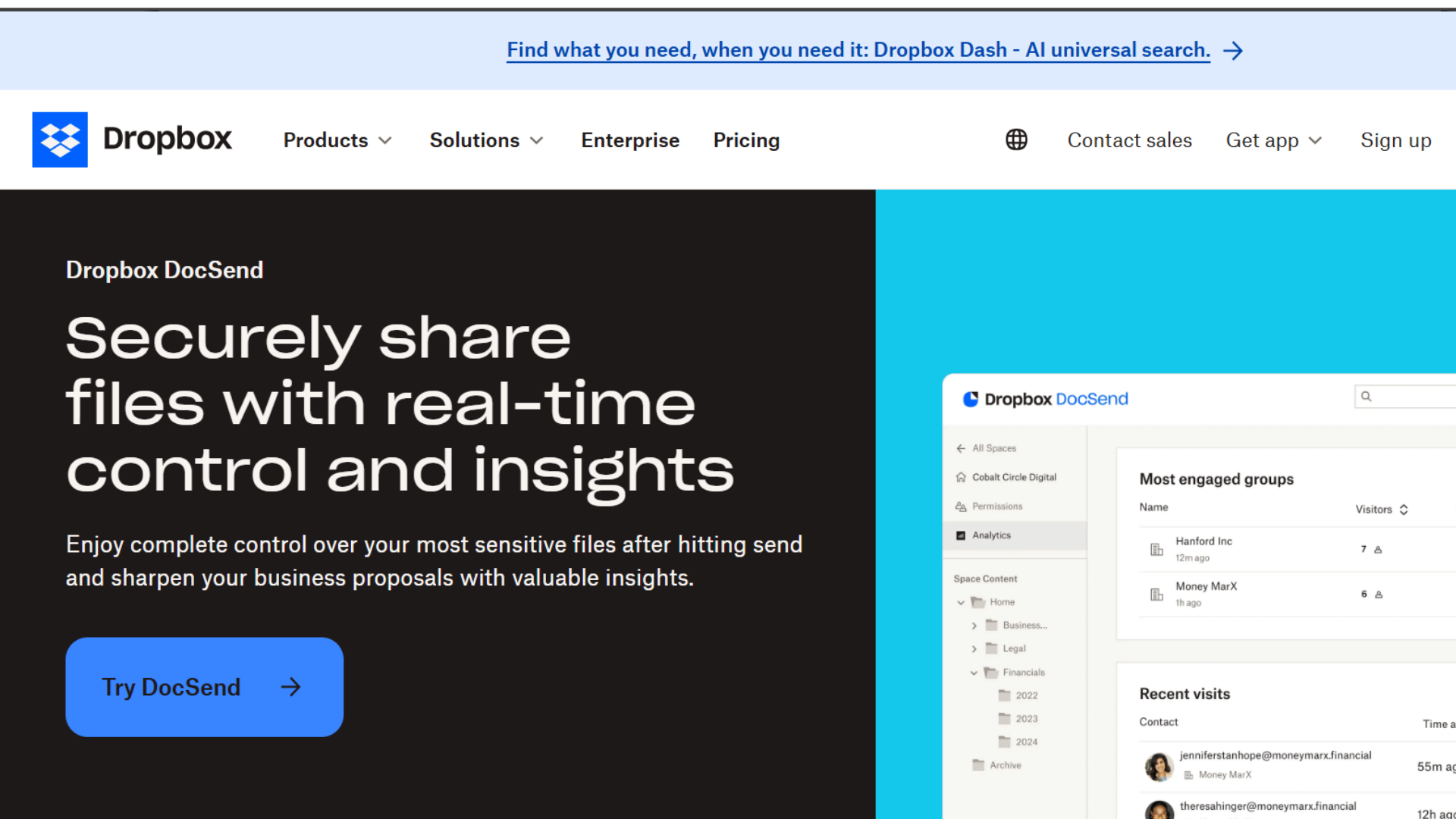
Dropbox DocSend is useful when your team needs to track how people engage with shared documents.
It is often used for pitch decks, proposals, reports, investor files, and client materials. You can see who viewed a file, when they opened it, and how much time they spent on each page.
This makes it helpful for sales, marketing, fundraising, and business development teams.
DocSend is best when document-viewing insights matter more than editing or signing.
5. Microsoft SharePoint
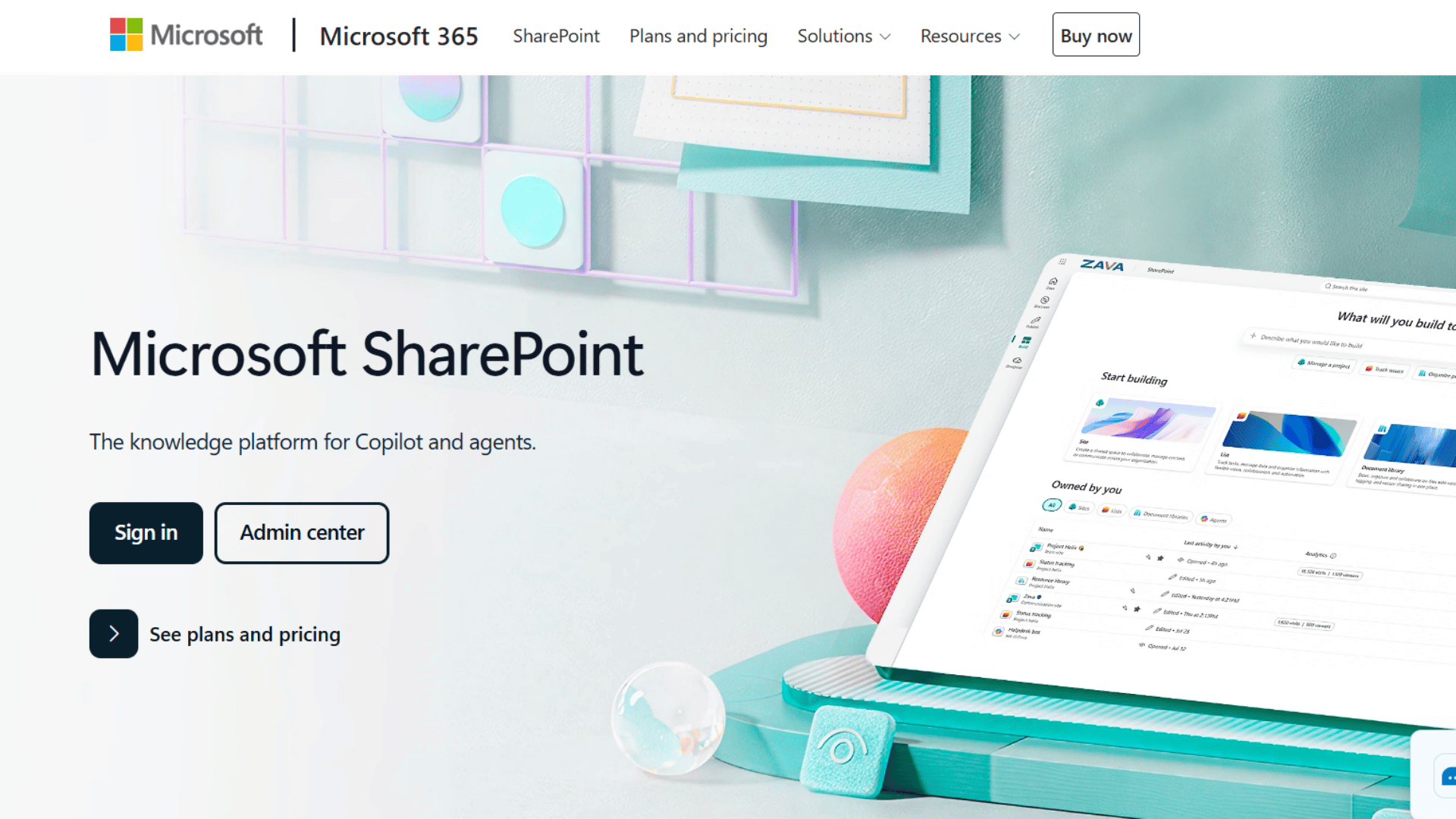
Microsoft SharePoint works well for teams that need shared document storage, version control, permissions, and internal workflows.
It is often used by companies already working in Microsoft 365. Teams can store files, manage access, track changes, and keep documents organized across departments.
SharePoint is helpful for HR forms, policies, legal records, project files, and internal reviews.
It is a strong choice when your team needs a central place for collaboration, document history, and secure file management.
How to Integrate Document Tracking Into Your Existing Workflow?
One area most guides skip is the practical challenge of adoption. A document tracking system only works if your team actually uses it. Rollout approach matters as much as the tool itself.
Start by picking one document category, such as vendor contracts or client onboarding forms, and run it through the new system for 30 days.
Use that test period to identify friction points before rolling out to the full organization. Assign a point person in each department who can answer questions and reinforce the process.
Tracking compliance improves dramatically when someone with internal authority champions it from the start.
Best Practices for Document Tracking
Good document-tracking habits help teams keep files organized, accurate, and secure, and easier to manage over time.
- Use Clear File Names: Name files with dates, document types, owners, or version numbers, so users can identify them quickly.
- Keep One Main Location: Store documents in one trusted place to avoid scattered copies across emails, desktops, drives, and apps.
- Set Access Rules Early: Give users only the access they need, such as view, edit, approve, sign, or manage permissions.
- Use Standard Status Labels: Apply labels like draft, review, approved, signed, completed, or archived to keep document progress clear.
- Track Versions Carefully: Keep version history clear, so teams do not work on old, duplicate, or incorrect document copies.
- Review Activity Logs: Check views, edits, approvals, signatures, and downloads regularly to spot delays, mistakes, or unusual activity.
Mistakes to Avoid with Doc Tracking
Doc tracking can become less useful when teams follow unclear processes or add too many extra steps.
| Mistake | Why To Avoid It |
| Tracking Every Small File | It creates extra work and makes the process harder to manage. |
| Using Email Only | Email threads can hide updates, versions, approvals, and important document details. |
| Ignoring Access Rules | Too much access can lead to unwanted edits, sharing, or security risks. |
| Skipping Version Control | Teams may use old, duplicate, or incorrect copies without knowing it. |
| Not Reviewing Activity Logs | Missed logs can hide delays, errors, approvals, or unusual document activity. |
Conclusion
Knowing where documents are, who viewed them, and what’s pending helps teams work faster with less confusion.
It also helps protect important files, reduce errors, and keep a clear record of every step.
The right document tracking process does not need to be complicated. It should fit how your team works and make files easier to manage, not harder.
No matter if you use a simple log or a full tracking service, the goal is better control, teamwork, and fewer lost documents.
How do you track documents in your work? Share your experience in the comments below.
Frequently Asked Questions
How Much Does Doctrack Cost?
DocTrack says it offers a free, open-source plan. Some premium or enterprise features may depend on the selected plan.
How to Tell if a PDF Is Being Tracked?
You usually cannot tell just by opening it. Tracked PDFs are often shared via special links, portals, or document-tracking platforms.
What happens when the Tracking Is Turned Off?
The system may stop recording views, opens, downloads, location data, engagement time, or user activity after tracking is disabled.
How to Tell If the Device Is Being Tracked?
Look for tracked links, login requests, watermarks, viewer portals, unusual permissions, or notices saying document activity may be monitored.