Scrolling on your iPhone feels insanely smooth, but have you ever wondered if that slick experience is quietly draining your battery? That is where ProMotion comes in.
While it boosts visuals with a higher refresh rate, not everyone actually needs it all the time.
If you are trying to squeeze out more battery or just prefer a steadier screen, learning how to turn off ProMotion on iPhone can make a real difference.
In this blog, you will get clear, no-nonsense steps along with what actually changes once you switch it off.
What is ProMotion on iPhone?
ProMotion on iPhone is Apple’s way of making the screen feel smoother and more responsive.
ProMotion is designed to balance performance and efficiency without requiring manual control. If you want a deeper breakdown, check out how ProMotion technology works.
It uses a 120Hz refresh rate, which means the display updates up to 120 times per second instead of the usual 60.
This makes scrolling, animations, and gameplay look cleaner and more fluid. ProMotion is available on iPhone 13 Pro models and newer Pro variants.
Apple enables it by default because it adjusts dynamically based on what you are doing, giving you smooth visuals when needed while saving battery in the background.
It is designed to balance performance and efficiency without requiring manual control.
Why You Might Want to Turn Off ProMotion?
Turning off ProMotion can make sense depending on how you use your iPhone. One of the main reasons is battery savings.
Limiting the refresh rate to 60Hz can reduce peak power consumption, but real-world gains are usually modest.
Most users see about a 3-5% improvement in everyday use, with more noticeable savings during intensive tasks like gaming.
It can also help users who feel slight discomfort or motion sensitivity with ultra-smooth scrolling.
In some apps and games that are not optimized for 120Hz, sticking to 60Hz can actually give more stable performance.
That said, for basic use like messaging or casual browsing, the difference is not always noticeable, so keeping it on or off often comes down to personal preference rather than a major upgrade or downgrade.
How to Turn Off ProMotion on iPhone?
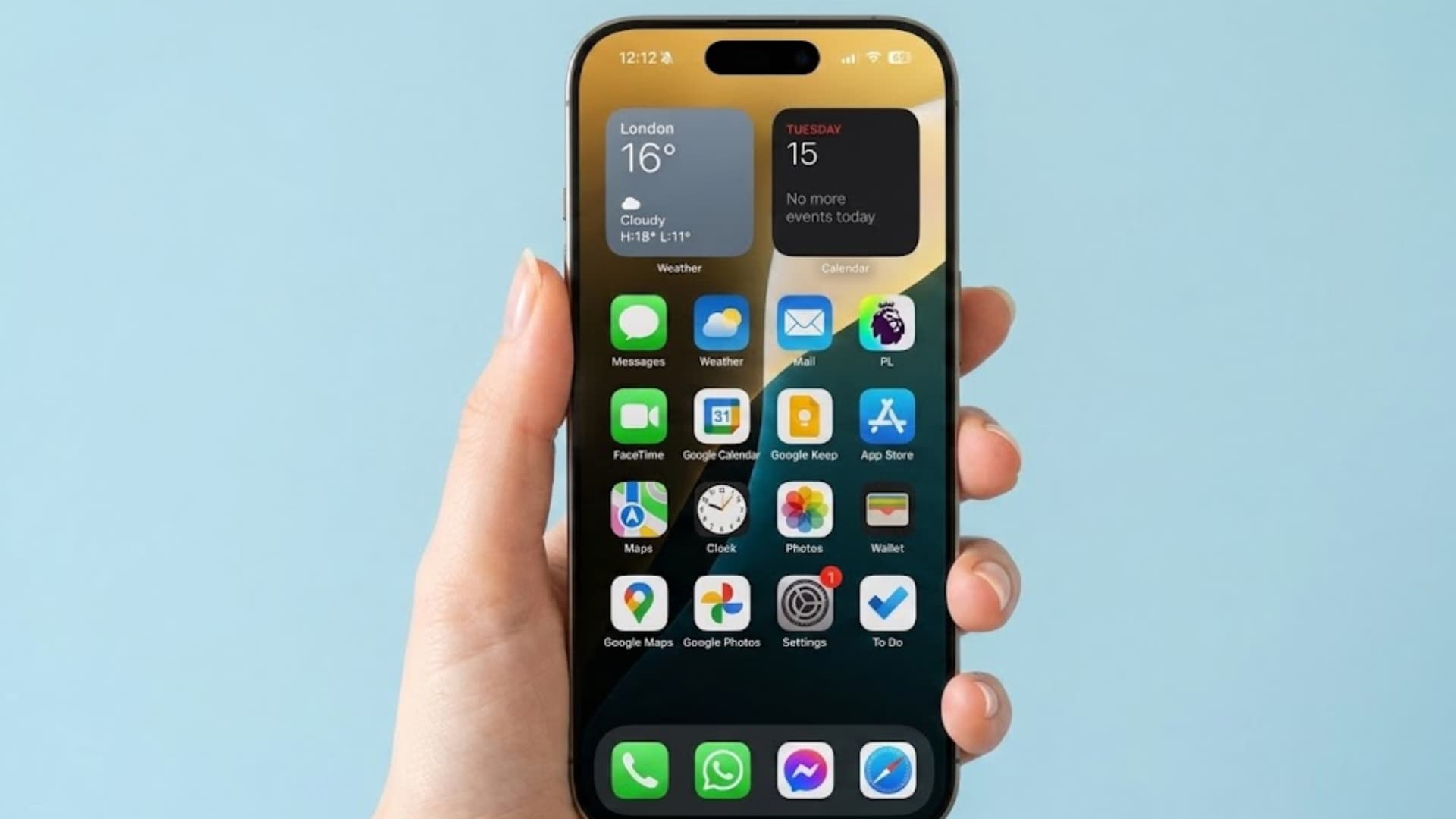
If you want a simpler viewing experience or better battery control, you can disable ProMotion in just a few taps using built-in iPhone settings.
Step 1: Open Settings
Start by unlocking your iPhone and heading to the Settings app from your home screen. This is where Apple keeps all system-level controls, including display and performance-related options.
You do not need any extra apps or tools for this process. Just make sure your device is updated and running normally so you can access all the available settings without any issues.
Step 2: Go to Accessibility
Once you are inside Settings, scroll down a bit until you find the Accessibility option. Tap on it to open a range of features designed to improve usability and comfort.
Apple places display-related adjustments here as well, including motion and animation controls. This section might seem unrelated at first, but it is where the ProMotion toggle is actually located.
Step 3: Tap Motion
Inside Accessibility, look for the Motion option and tap on it. This section controls how animations and movement behave across your iPhone.
It includes settings that can reduce motion effects, limit frame rates, and make the interface feel more stable.
This is where you will find the exact control needed to turn off ProMotion without affecting other important display features.
Step 4: Turn on “Limit Frame Rate”
Now, simply toggle on the “Limit Frame Rate” option. Once enabled, your iPhone will cap the display at 60Hz instead of allowing it to scale up to 120Hz.
You will notice slightly less smooth scrolling, but it can help save battery and create a more consistent visual experience.
You can always switch it back off anytime if you prefer the smoother feel again.
I’d like to give credit to LoFi Alpaca for their informative video, which served as a reference for this guide.
What Happens After You Turn It Off?
Once you turn off ProMotion, your iPhone display is limited to a 60Hz refresh rate instead of dynamically reaching 120Hz.
If you have ever wondered, does ProMotion always run at 120Hz, the answer is no, as it adjusts based on usage.
The most noticeable change is in scrolling, which feels slightly less fluid, especially in apps like Safari or social media. However, many users adjust to this quickly.
In real-world use, you may see a small improvement in battery life, particularly during extended screen time.
For gaming, some titles may feel more stable if they are not optimized for higher refresh rates. Video playback remains mostly unchanged since most content runs at standard frame rates already.
Pro Tips for a Better Battery without Compromising
Small tweaks can improve battery life without ruining your overall iPhone experience.
- Use Low Power Mode wisely: Turn it on during low-battery situations instead of leaving it enabled all the time.
- Lower brightness manually: Avoid max brightness indoors, as it drains battery faster than most background processes.
- Manage background app refresh: Disable it for apps that do not need constant updates to reduce unnecessary power usage.
- Keep auto brightness enabled: Let iPhone adjust brightness based on lighting to balance visibility and battery usage.
- Avoid over-tweaking settings: Changing too many options can hurt usability more than it helps battery life in daily use.
Conclusion
Turning off ProMotion is not about right or wrong; it is about what works best for you. If smoother scrolling matters, keep it on.
If battery life or comfort is your priority, switching it off makes sense. Now that you know how to turn off ProMotion on iPhone, you can test both settings and see which one works better for your daily use.
Small changes like this can actually improve your overall experience when used the right way. Try it out for a few days and notice the difference yourself.
Got questions or want to share your own experience? Drop your comments below.
Frequently Asked Questions
Does Turning Off ProMotion Affect Touch Responsiveness on iPhone?
No, turning off ProMotion does not reduce touch responsiveness. Apple separates touch sampling rate from display refresh rate in most cases, so your taps and gestures will still feel fast and accurate even at 60Hz.
Can ProMotion Automatically Turn Back on After Updates or Restarts?
In most cases, if you have enabled “Limit Frame Rate,” the setting stays active even after restarting your iPhone. However, after major iOS updates, it is a good idea to double-check the settings, as system updates can sometimes reset certain accessibility preferences.
Does ProMotion Impact Screen Recording or Screenshots?
No, screenshots are completely unaffected since they capture a static image. For screen recordings, the output is usually capped at standard frame rates like 30fps or 60fps, regardless of ProMotion being on or off. So disabling it will not reduce recording quality in any meaningful way.