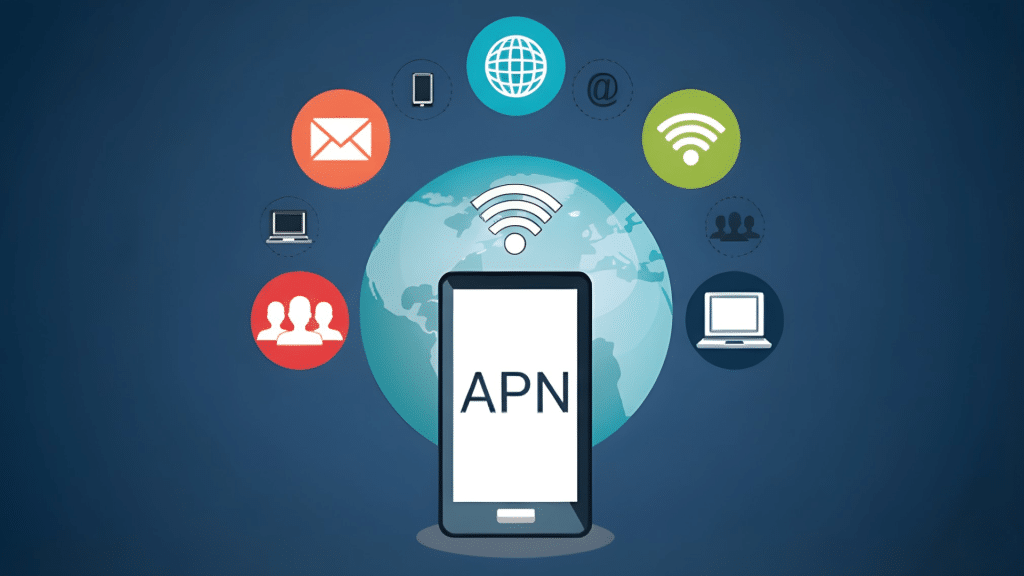
Have you ever thought about how your phone connects to the internet when Wi-Fi is off?
I’ve asked myself the same thing, especially when mobile data suddenly stops working. That curiosity usually leads to one key setting many people overlook: the APN.
In simple terms, APN means how to reach your carrier’s data network so apps, messages, and browsers can work as expected.
Searching for what an APN is helped me see that it affects everyday phone tasks, not just technical settings.
It affects everyday tasks like sending photos, loading maps, or checking email on the go.
Knowing the basics helps me spot issues faster and avoid unnecessary frustration. If you’ve ever dealt with slow data or connection errors, understanding this setting can make things clearer overall today.
What is an APN?
An Access Point Name, commonly called an APN, is a network setting that allows a mobile device to connect to a carrier’s mobile data system.
It works behind the scenes, guiding phones on how to send and receive data for browsing, messaging, and app usage.
Without the correct configuration, mobile internet services may load slowly or fail.
Many devices apply these settings automatically, but changes can occur after switching carriers, traveling internationally, or updating system software.
Understanding what an APN is helps users recognize why data problems happen and how simple adjustments can fix them.
Checking or updating this setting can restore connectivity, improve reliability, and prevent repeated network errors.
Although it sounds technical, the concept is straightforward and closely linked to everyday smartphone use for calls, apps, maps, and daily online access.
Types of APNs and Their Specific Functions
Different APN types handle specific mobile services, ensuring data, messaging, and multimedia features work correctly across networks and devices globally.
- Default APN: Handles general internet access, allowing apps, browsers, and background services to connect to mobile data for everyday online activities.
- MMS APN: Manages multimedia messaging, enabling phones to send and receive picture, video, and group messages through the carrier network.
- IMS APN: Supports voice over LTE and Wi-Fi calling services, helping calls and texts function reliably using internet-based carrier systems.
- Supl APN: Assists location services by supporting GPS and assisted positioning, improving map accuracy, navigation performance, and location-based app features.
- DUN APN: Enables tethering and mobile hotspot use, allowing other devices to share a phone’s internet connection through the carrier network.
- EnterpriseAPN: Provides secure, private network access for businesses, supporting internal apps, encrypted data transfer, and controlled device connectivity management.
Knowing these APN types helps users troubleshoot connection issues, choose the correct settings, and understand how different mobile services rely on specific network pathways.
This reduces downtime, improves reliability, and avoids confusion when switching plans, phones, or regions during travel, updates, or setup.
How to Change APN Settings on iPhone (iOS)?
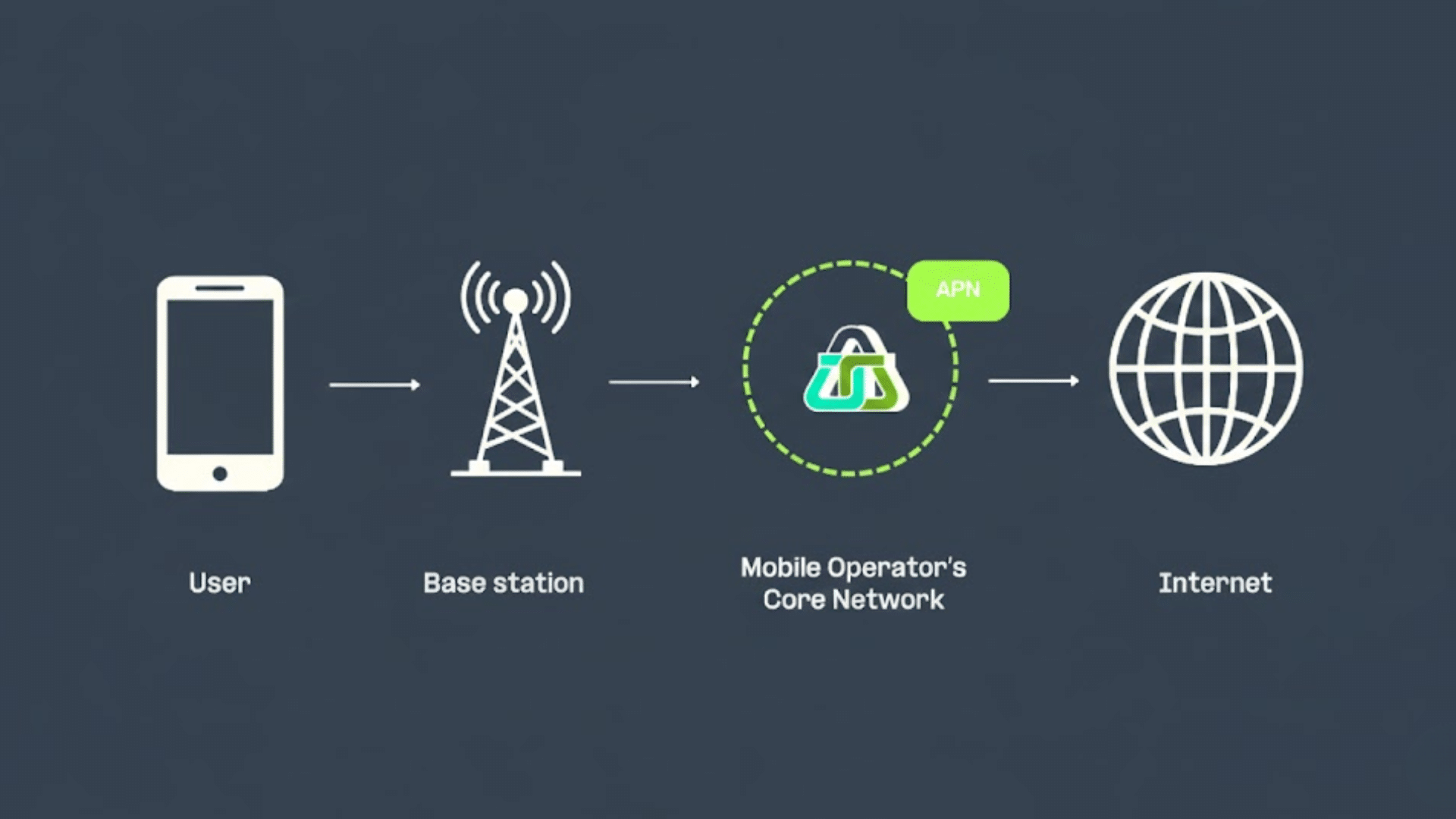
Changing APN settings on an iPhone helps fix mobile data issues by updating how the device connects to a carrier’s network correctly and restores connectivity.
Step 1: Open Cellular Settings
Open the Settings app from the iPhone home screen and scroll until the Cellular or Mobile Data option appears.
Tap it to access network-related options. Next, select Cellular Data Network to view APN fields. This section may only appear when a SIM card is active and supported by the carrier.
If the option is missing, the carrier may manage APN settings automatically. Ensure mobile data is enabled before continuing.
Step 2: Enter Cellular Data APN Details
Review the existing APN information shown under Cellular Data. Compare these values with those provided by the mobile carrier, usually found on its official support page.
Tap each field carefully and enter the correct details exactly as given, including spelling and punctuation. Avoid adding extra spaces, as minor errors can stop data services from working.
Do not change fields that are not required. Accurate entries help ensure mobile internet, apps, and background services work correctly.
Step 3: Configure MMS Settings
If the carrier requires MMS settings, scroll down to the MMS section on the same screen.
Enter values for MMSC, MMS Proxy, and MMS Max Message Size if provided. These settings control picture and group messaging.
Without correct MMS details, images may fail to send or download. Leave fields blank if not required. Double-check entries before moving on to avoid messaging issues.
Step 4: Refresh Network Connection
After entering all required details, return to the previous menu. iOS saves APN changes automatically.
Turn Airplane Mode on for a few seconds, then turn it off to refresh the network connection. This forces the phone to reconnect using the updated settings.
Wait for signal bars to reappear, then test mobile data and messaging to confirm the changes worked.
Step 5: Restart and Test Connectivity
If mobile data still does not work, restart the iPhone to apply changes fully. Restarting clears temporary network issues and reloads carrier settings.
After rebooting, test browsing, app downloads, and picture messages.
If issues continue, contact the carrier to confirm APN details or check for account restrictions. This ensures stable and reliable connectivity moving forward.
How Do I Find My APN Number On My Phone?
Finding an APN on a phone involves checking the mobile network settings provided by the carrier.
On most devices, the APN appears inside the cellular or mobile data menu, where network connection details are stored.
Android users can open Settings, tap Network or Connections, then select Access Point Names to view active profiles.
iPhone users can go to Settings, choose Cellular, and open Cellular Data Network if available. The APN is not a number but a set of values that guide data routing.
Learning what an APN is helps users understand why these fields matter and how they affect browsing, messaging, and app access.
If the fields are hidden or locked, the carrier may manage them automatically.
In that case, contacting carrier support or checking official documentation provides accurate APN information for the device models.
Troubleshooting Common APN-Related Issues
APN problems can disrupt mobile data, messaging, and hotspot use, but most issues are easy to identify and fix quickly.
- Incorrect APN settings: Entering wrong values or missing fields prevents phones from connecting to mobile data, causing no internet access or limited connectivity.
- APN not selected: Multiple APNs may exist, and choosing an inactive or outdated profile stops data services from working correctly on the network.
- Carrier restrictions: Some carriers lock APN menus, blocking manual edits and requiring support assistance or automatic updates to restore proper data connectivity.
- Software updates issues: System updates can reset APN details, leading to sudden data loss until correct carrier settings are reapplied.
- Roaming or travel problems: Using a phone in another region may require different APN settings to access local mobile networks.
Conclusion
In wrapping up, I see APN settings as a minor detail with a significant impact on daily phone use.
When mobile data fails, messages stall, or hotspots refuse to connect, checking this setting often saves time.
Understanding what an APN is helped me connect the dots between carriers, networks, and the apps I rely on.
The basics are simple, the fixes are practical, and the results are immediate when values are correct. Keeping the APN meaning handy and reviewing settings after updates or travel prevents repeat issues.
With a few careful steps, most connection problems become manageable. If this guide helped clarify things, share your experience or questions below.
Please drop a comment now and tell us what worked, what didn’t, or what you want covered next for future guides and updates.
Frequently Asked Questions
Can I Use Any APN with My Carrier?
No, carriers require specific APN settings designed for their network, and using the wrong one can stop mobile data or messaging services.
Will Changing APN Settings Affect My Phone Plan?
Changing APN settings does not alter the phone plan, but understanding APN meaning helps users avoid setup mistakes that disrupt connectivity.
Do APNs Affect Mobile Data Speed?
APNs do not directly control speed, but incorrect settings can cause slow connections, dropped data sessions, or unstable mobile internet performance.