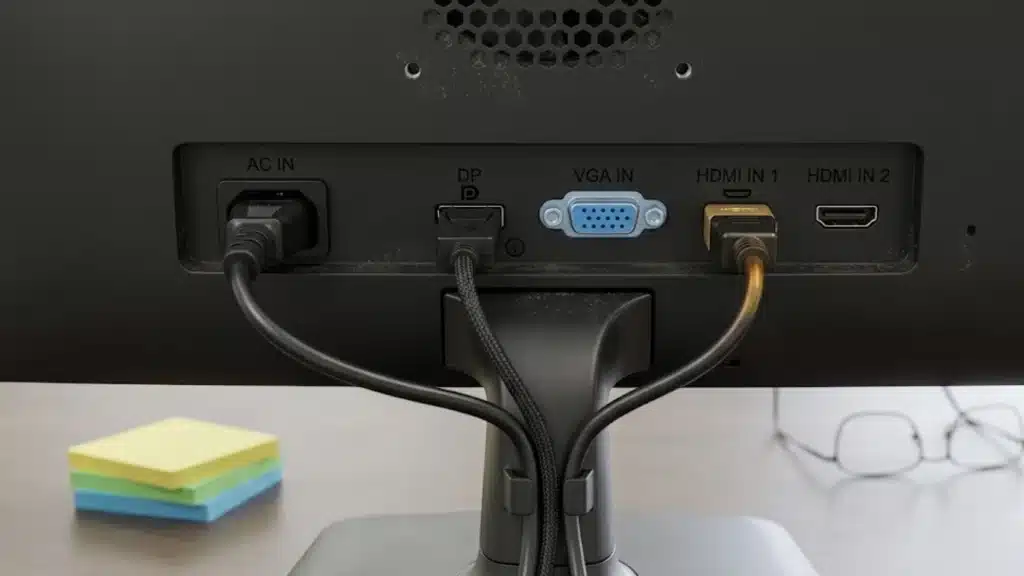
If you’ve ever looked at the back of a monitor or laptop and felt confused by all the ports, you’re not alone.
Picking the right cable or display connection can make a big difference in picture quality, refresh rate, and even sound support.
Some ports are made for gaming, while others work better for office setups or older devices.
In this guide, I’ll break down the most common monitor connection types in a simple way so everything feels easier to understand.
You’ll also learn about compatibility issues, adapter confusion, and which port makes the most sense for your setup.
By the end, choosing the right monitor connection should feel a lot less confusing.
What are Monitor Connection Types?
Monitor connection types are the different ports and cables used to link a monitor to a computer, laptop, gaming console, or other device.
Each port is designed to send video, audio, or both from one device to another. Some of the most common options include HDMI, DisplayPort, VGA, DVI, and USB Type-C.
Different ports exist because technology keeps changing. Older ports like VGA were made for basic displays, while newer ones support higher resolutions, faster refresh rates, and better sound quality.
Some ports are focused on gaming, while others work better for office setups or thin laptops.
The port you use can affect image sharpness, color quality, refresh rate, and additional features such as audio support or charging.
Using the wrong connection may limit your monitor’s performance, even if the screen itself is capable of much more.
Main Monitor Connection Types You Should Know
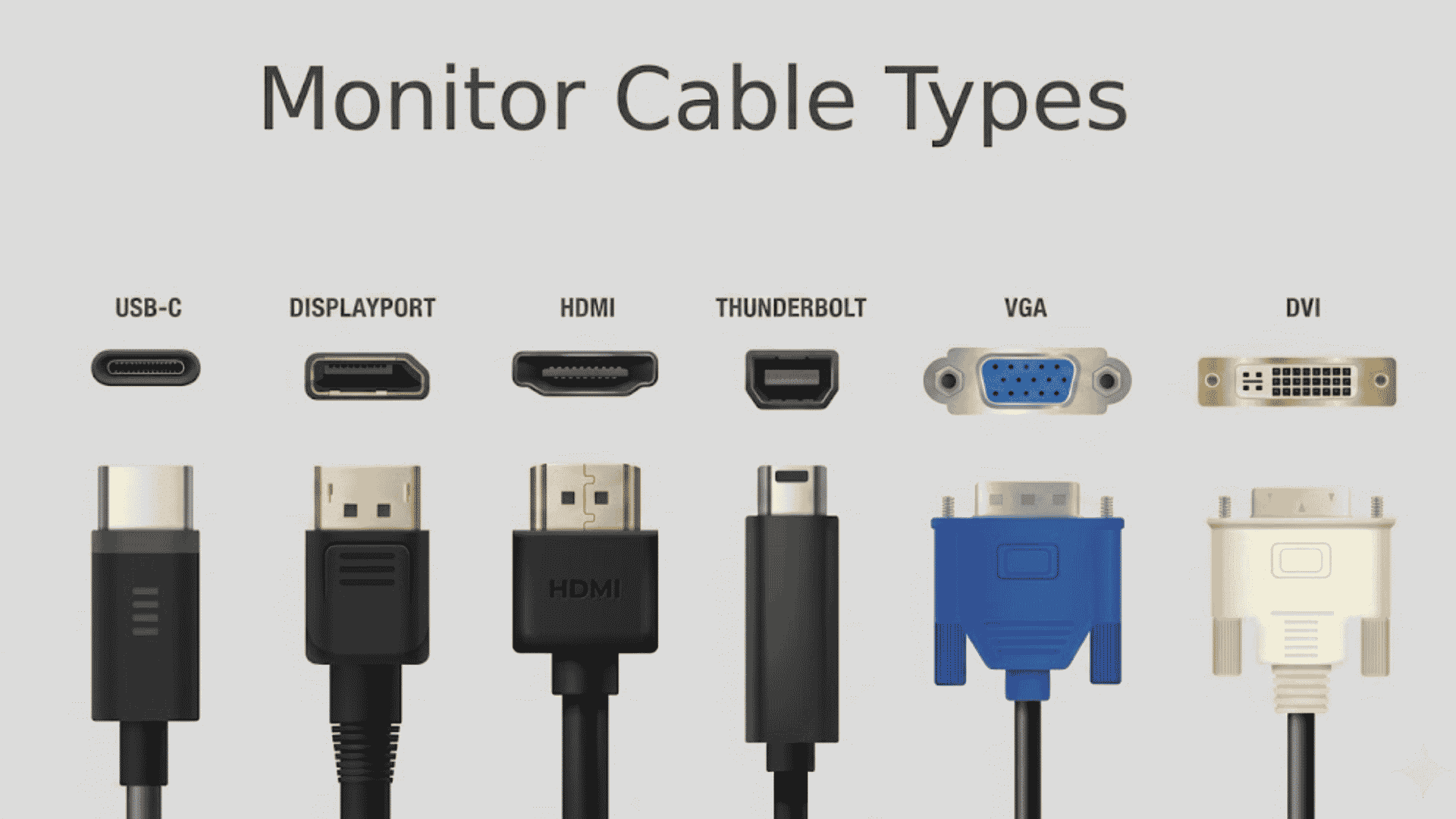
Different monitor ports are made for different devices and needs. Some focus on gaming, while others work better for office setups or older hardware.
1. HDMI Port
HDMI is one of the most common monitor connections today. It is found on monitors, TVs, laptops, gaming consoles, and streaming devices.
One reason people like HDMI is that it carries both video and audio through a single cable, which keeps setups simple and clean.
Most users will never need anything more. HDMI 2.0 handles 4K at 60Hz comfortably; HDMI 2.1 pushes to 4K at 120Hz and 8K at 60Hz, which is why the PlayStation 5 and Xbox Series X both use it exclusively.
For office monitors, casual desktop setups, or anything connected to a TV, HDMI is the easiest choice because nearly every device supports it.
2. DisplayPort
DisplayPort is the port of choice for PC gaming and high-performance monitors.
DisplayPort 1.4 supports 4K at 144Hz; DisplayPort 2.1 goes further to 4K at 240Hz and beyond, depending on the monitor.
Another big advantage is multi-monitor support. DisplayPort can connect several monitors together in some setups without needing extra ports.
It also supports adaptive sync, which helps reduce screen tearing during gameplay. While it is less common on TVs, it is widely used on desktop graphics cards and gaming monitors.
If you’re deciding between the two options, our breakdown of DisplayPort vs HDMI covers the technical differences in more detail.
3. VGA Port
VGA is one of the oldest monitor connection types still seen on some devices today. It uses an analog signal instead of a digital one, which means image quality is usually lower compared to modern ports.
Text can look less sharp, and colors may not appear as clear on higher resolutions. Even though it is outdated, VGA still appears on older PCs, office monitors, projectors, and school equipment.
Some businesses continue using it because older systems still rely on VGA hardware. However, it does not support modern display features like high refresh rates or advanced color quality.
Most newer laptops and monitors no longer include VGA ports, but adapters are still available for compatibility with old devices.
4. DVI Port
DVI came after VGA and improved display quality by using a digital signal. Because of this, images usually look sharper and cleaner than VGA, especially on computer monitors.
DVI was once very common on desktop PCs and older gaming setups before HDMI and DisplayPort became more popular.
DVI comes in two main variants: Single-link DVI supports resolutions up to 1920×1080 (Full HD), and Dual-link DVI supports up to 2560×1600.
One downside is that many DVI connections only carry video, not audio. That means separate speakers or audio cables may be needed.
DVI also lacks support for some newer display features found in modern ports. While it can still handle decent resolutions, it is slowly disappearing from newer hardware.
5. USB Type-C
USB Type-C has become very popular on newer laptops, tablets, and monitors. It is small, reversible, and much more flexible than older display cables.
A single USB Type-C cable can carry video, audio, data, and even charging power at the same time. That means one cable can handle multiple tasks.
Many modern monitors now support USB Type-C, creating a cleaner desk setup with fewer cables. It is especially useful for laptops, as one cable can connect the monitor and charge the device.
Some USB Type-C ports even support high resolutions and fast refresh rates. However, not every USB-C port supports video output, so checking compatibility before buying is important.
For a broader look at what different cables can and can’t do, our guide to types of USB cables is a useful reference.
6. Thunderbolt
Thunderbolt looks almost identical to USB Type-C, but it offers much faster data transfer speeds and more advanced features.
It supports displays, charging, storage devices, and docking stations through a single connection. Thunderbolt is mostly found on premium laptops and professional workstations.
One major benefit is its ability to handle multiple high-resolution displays while also transferring data quickly.
This makes it popular among video editors, designers, and users of advanced desktop setups. Thunderbolt docks can also connect multiple accessories with a single cable, keeping workspaces neat and simple.
While Thunderbolt is powerful, it usually costs more than standard USB Type-C devices. For basic users, a regular USB-C may already be enough without paying extra for Thunderbolt support.
How to Check Which Monitor Ports Your Device Supports?
Checking monitor ports is simple and only takes a few minutes. Start by looking at the sides or back of your laptop, desktop, or monitor to identify the available ports.
HDMI ports are thin and wide, DisplayPort looks similar but has one angled corner, VGA is larger with pin holes, and USB-C is small and oval-shaped.
Most monitors also label each input near the port. For desktops, check the graphics card outputs because those are the ports used for display connections.
You can also visit the manufacturer’s website or check the product specifications page to confirm supported ports, resolutions, and refresh rates.
If the device has a USB-C port, make sure it supports video output because not all USB-C ports can connect to monitors.
Which Monitor Port Should You Use?
The best port depends on your device, screen needs, refresh rate, and whether you want a simple or cleaner setup.
| Use Case | Best Monitor Port | Why It Works Well |
|---|---|---|
| Gaming | DisplayPort or HDMI | DisplayPort supports high refresh rates for PC gaming, while HDMI is great for consoles. |
| Office Work | HDMI | Simple setup with wide support for monitors, laptops, and desktops used for daily tasks. |
| Laptops | USB Type-C | Handles video, charging, and data through one cable for a cleaner and easier setup. |
| Older Devices | VGA or DVI | Useful for connecting old PCs, projectors, and monitors that lack newer ports. |
| Clean Desk Setups | USB Type-C or Thunderbolt | One cable can manage display, charging, and accessories with less cable clutter. |
Common Monitor Connection Issues
Compatibility problems are common when connecting monitors, especially if the cable, port, or adapter does not fully match the device.
- No Signal Error: The monitor is not receiving video input from the computer. This often happens because of a loose cable, a wrong input source, or an inactive display port.
- Wrong Resolution Display: The screen looks stretched, blurry, or cropped because the selected resolution does not match the monitor’s native resolution.
- Low Refresh Rate: The monitor is stuck at 60Hz or lower due to cable limitations, outdated ports, or incorrect display settings.
- Flickering Screen: Random screen flickering can happen because of damaged cables, unstable refresh rates, or graphics driver issues.
- USB-C Display Not Working: Some USB-C ports only support charging or data transfer and do not support video output.
- No Audio Through HDMI: Audio settings may still be connected to internal speakers instead of the HDMI display device.
- Adapter Compatibility Issues: Certain adapters cannot properly convert signals between analog and digital ports, causing display failure.
- Monitor Not Detected: The computer fails to recognize the monitor because of outdated drivers, disabled display outputs, or faulty cables.
Conclusion
Understanding monitor connection types makes it much easier to choose the right setup for gaming, work, streaming, or everyday use.
HDMI, DisplayPort, USB-C, VGA, and DVI all serve different purposes, and knowing their strengths helps avoid compatibility problems, poor image quality, and refresh rate limitations.
Before buying a monitor or cable, checking supported ports on both devices can save money and frustration later.
A simple connection choice can greatly improve display performance and overall user experience.
Which port do you use most on your setup? Drop your questions or thoughts in the comments.
Frequently Asked Questions
Can One Monitor Use More Than One Input Port?
Yes, many modern monitors include multiple input ports like HDMI, DisplayPort, and USB-C. Users can easily switch between connected devices through the monitor’s input selection menu.
Does Cable Length Affect Monitor Quality?
Yes, excessively long cables can weaken signal quality and cause flickering, lag, or reduced resolution, especially when using high refresh rates or 4K and 8K displays.
Can a Monitor Work Without a Graphics Card?
Yes, a monitor can work without a dedicated graphics card if the processor includes integrated graphics and the motherboard provides compatible display output ports like HDMI or DisplayPort.