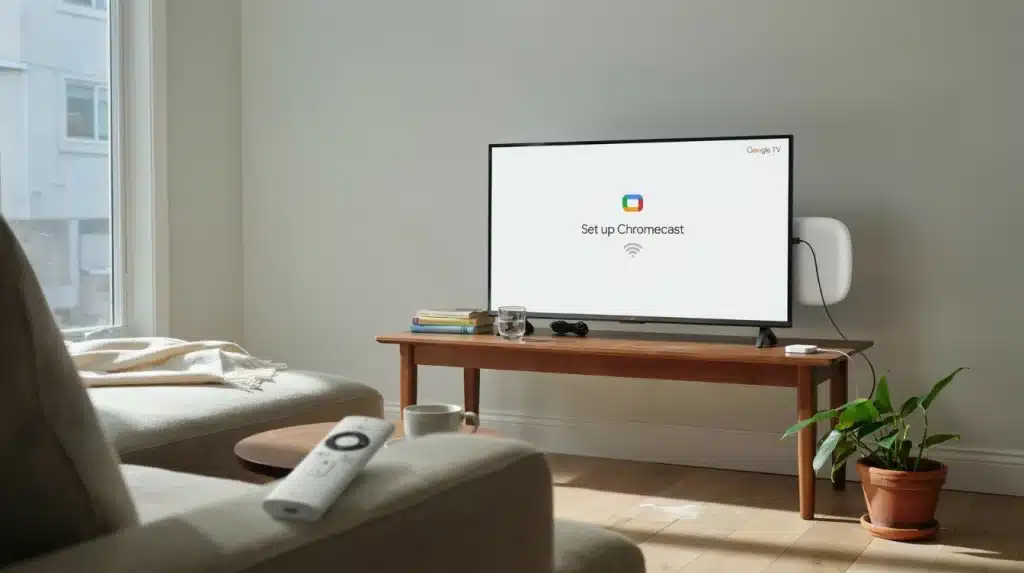
Chromecast problems rarely show up at a convenient time. The device freezes mid-movie, disappears from the Google Home app, or refuses to connect after a router change.
In most cases, the fix is a simple restart, but sometimes learning how to reset Chromecast is the only way to clear the issue for good. Selling or handing off the device also calls for a reset, since it removes personal Wi-Fi details and account information first.
The steps below cover every current model, including the Google Home app, the TV remote, and the physical button for situations where neither is available.
Each method also covers what happens once the reset finishes and how to get the device back online.
What Happens When You Reset Chromecast?
A factory reset erases information stored directly on the Chromecast, not content linked to your Google account. After the reset, the device forgets its Wi-Fi network, display preferences, paired remotes, and other saved settings.
Chromecast with Google TV models also remove installed apps, sign-in details, and personalized recommendations.
However, purchases made through Google Play and subscriptions such as Netflix or Disney+ remain connected to their respective accounts.
This makes a factory reset useful before selling, giving away, or transferring the device because it clears personal information without deleting account-based purchases or memberships.
Reboot or Reset: Which One Do You Need?
Not every issue calls for starting over completely. This quick comparison shows when a simple restart is enough and when a full reset makes more sense.
| Situation | Reboot | Factory Reset |
|---|---|---|
| Occasional freezing or lag | Yes | Not needed |
| An app won’t open or cast | Yes | Not needed |
| Preparing to sell or give away | No | Yes |
| Repeated Wi-Fi connection failures | Try first | If reboot fails |
| Setup errors that continue after basic checks | Try first | If reboot fails |
A restart clears most everyday glitches within a minute. Save the factory reset for ownership changes or problems that continue after a restart.
Reset Chromecast with the Google Home App
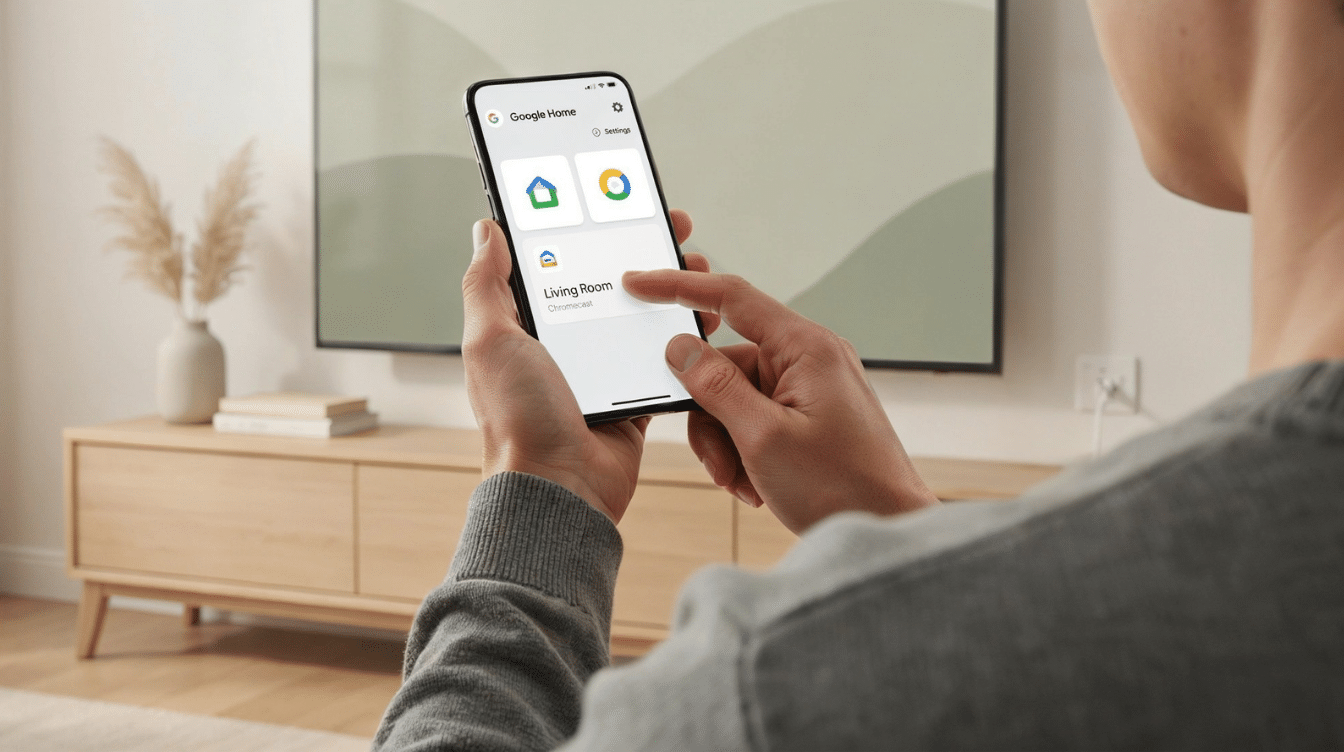
This method works for every current Chromecast model, as long as the phone and the device share the same Wi-Fi network used during the original setup. It’s the most convenient option when both the remote and the on-screen menu are unavailable or simply not the preferred route.
- Open the Google Home app on a connected phone or tablet.
- Tap Home, then All devices, to view every linked device.
- Touch and hold the Chromecast tile until its settings open.
- Tap the settings icon in the top right corner, then select More.
- Choose Factory reset, then confirm Factory reset a second time to finish.
Menu wording shifts slightly between app versions, but the factory reset option stays under device settings either way, regardless of phone or tablet used.
After the reset and setup are complete, Chromecast is ready for connecting your phone to the TV over the same Wi-Fi network.
Reset Chromecast with the Remote
Chromecast with Google TV includes an on-screen reset option that skips the app entirely, provided the remote still responds. Start by pressing the profile icon on the home screen, then select All settings from the menu that appears.
From there, open System, followed by About, and choose Factory Reset near the bottom of that screen. A warning pops up asking for confirmation before the process actually begins, giving one last chance to back out if the reset was triggered by mistake.
Once confirmed, everything stored on the device clears, including signed-in accounts, installed apps, and saved Wi-Fi details.
The screen goes dark briefly while the reset finishes, then returns to the initial setup screen, ready to be configured again from scratch.
How to Reset Chromecast without Wi-Fi or an App
When the app can’t find the device or the remote stops responding, the physical button resets Chromecast without needing a network connection at all.
1. Chromecast with Google TV
Locate the small button on the back of the device before starting.
- Keep the device plugged into power and connected to the TV.
- Press and hold the reset button.
- Wait for the light to blink yellow.
- Release once the light turns solid white.
The TV screen goes blank briefly as the reset finishes processing.
2. Chromecast (2nd/3rd Generation) and Ultra
These models place the reset button along the side edge of the device.
- Leave the Chromecast connected to power.
- Hold the side button down.
- Watch for the light to blink orange.
- Release once the light becomes solid white.
Setup mode starts on its own once the blinking stops.
3. Chromecast (1st Generation)
Google ended software support for this model, though the manual reset still works.
- Hold the button for at least 25 seconds.
- Watch the solid light change to flashing red.
- Release once it blinks white, and the TV screen clears.
Expect a slower response overall, since this Generation no longer receives updates.
4. Chromecast Audio
The process mirrors the standard Chromecast button, minus a screen to confirm progress.
- Keep the device connected to a power source.
- Hold the side button.
- Wait for the light to blink orange.
- Release once the light turns solid white.
A short light change is the only confirmation that setup mode has begun.
If none of these steps complete the way they should, the cause is usually something simpler than a broken device.
Why Won’t Chromecast Reset?
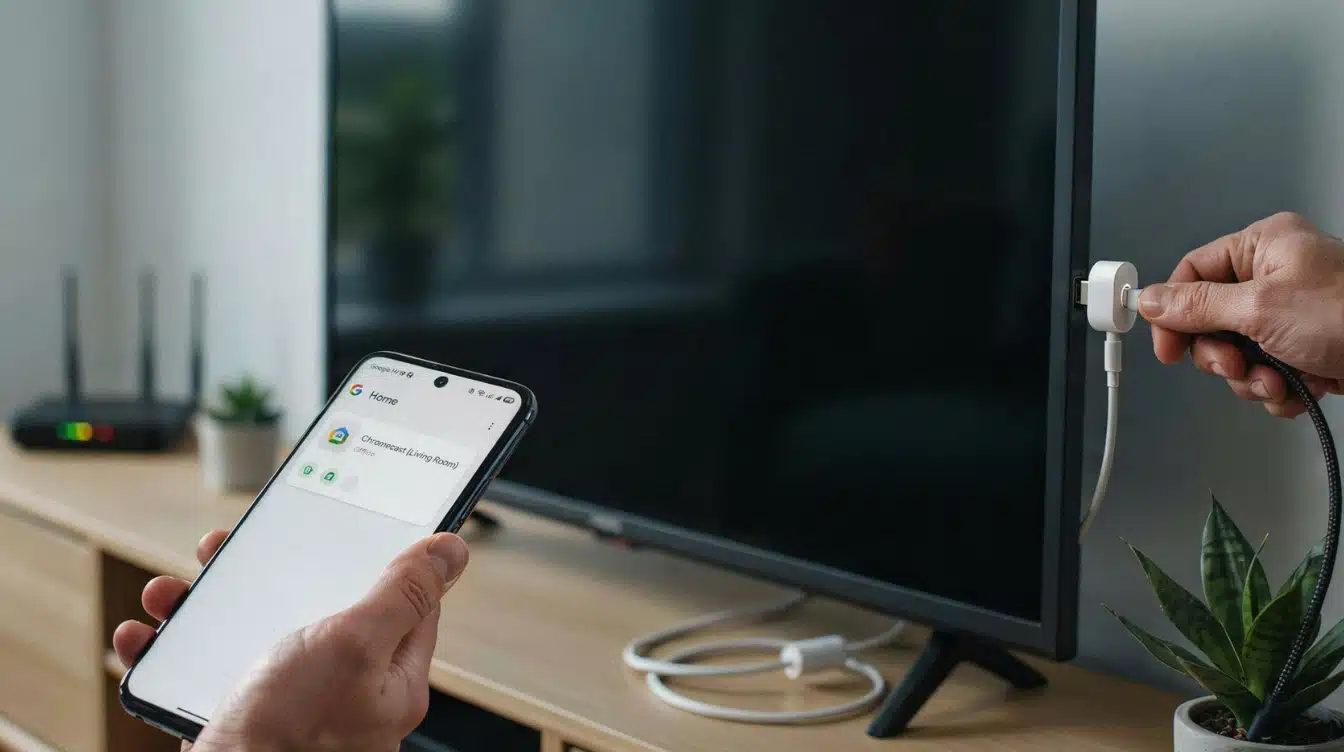
A reset that won’t complete usually points to power, connection, or permission issues rather than a broken device. Work through this checklist first.
- Confirm the power cable and adapter are fully connected.
- Use the button on the Chromecast itself, not the TV remote.
- Avoid disconnecting power while a software update is running.
- Check that Google Home has local network and Bluetooth permissions enabled.
- Restart the phone and router if the app still can’t detect the device.
- Try a different cable if no light appears at all.
For a full breakdown of light patterns by model, Google’s LED status reference covers each one directly. Most failed resets trace back to one of the steps above, so work through them before assuming the hardware has failed.
What to Expect After Resetting Chromecast
After a factory reset, Chromecast returns to its original setup state and cannot be used until it is configured again.
Open the Google Home app on a phone or tablet, allow it to detect the device, and reconnect it to the preferred Wi-Fi network. You will also need to link the appropriate Google account before casting YouTube to your TV again.
On Chromecast with Google TV, previously installed streaming apps and saved sign-in details are removed, so each service must be downloaded and signed into again.
The entire setup may take about five to ten minutes, although timing depends on network speed, device updates, and the number of apps being restored.
Keep Chromecast powered throughout the process and wait until the home screen appears.
Common Chromecast Reset Mistakes
A handful of mistakes account for most failed or unnecessary resets. Avoiding them saves time and prevents losing settings that never needed to be erased.
- Unplugging the HDMI cable instead of the power cable.
- Releasing the reset button before the light finishes changing.
- Following steps meant for a different Chromecast model.
- Resetting the streaming device to fix a remote that stopped working.
- Expecting a reset to fix a router outage or internet drop.
Checking the model and the actual cause of the problem first prevents nearly all of these before they cost extra setup time.
Wrapping It Up
Resetting a Chromecast comes down to matching the method to the situation. A quick restart clears most everyday glitches, while knowing how to reset Chromecast properly suits ownership changes or problems that don’t improve after restarting.
The Google Home app and TV remote cover most cases, and the physical button handles everything else when Wi-Fi or an app connection isn’t available.
Once the reset finishes, setup takes only a few minutes through the same app used for the original installation.
Keep the correct light sequence and button location in mind for the specific model in use, since small differences between models are easy to overlook.
Grab the Google Home app and follow the steps above for the fastest path back to a working Chromecast.
Frequently Asked Questions
Can You Stop a Chromecast Factory Reset Once It Starts?
No. Once the reset begins, keep Chromecast connected to power until the setup screen appears. Interrupting the process may cause startup or setup problems.
Does Factory Resetting Chromecast Update Its Firmware?
No. A factory reset removes settings and data. Chromecast checks for available firmware updates after it reconnects to Wi-Fi during the new setup.
Can a Factory Reset Fix a Black TV Screen?
It may help when corrupted settings cause the problem. First, check the HDMI input, power supply, and cables, since a reset cannot repair hardware faults.
What If the Physical Reset Button is Damaged?
Use Google Home or the Google TV Settings menu if the device remains accessible. If neither works, contact Google Support for further assistance.