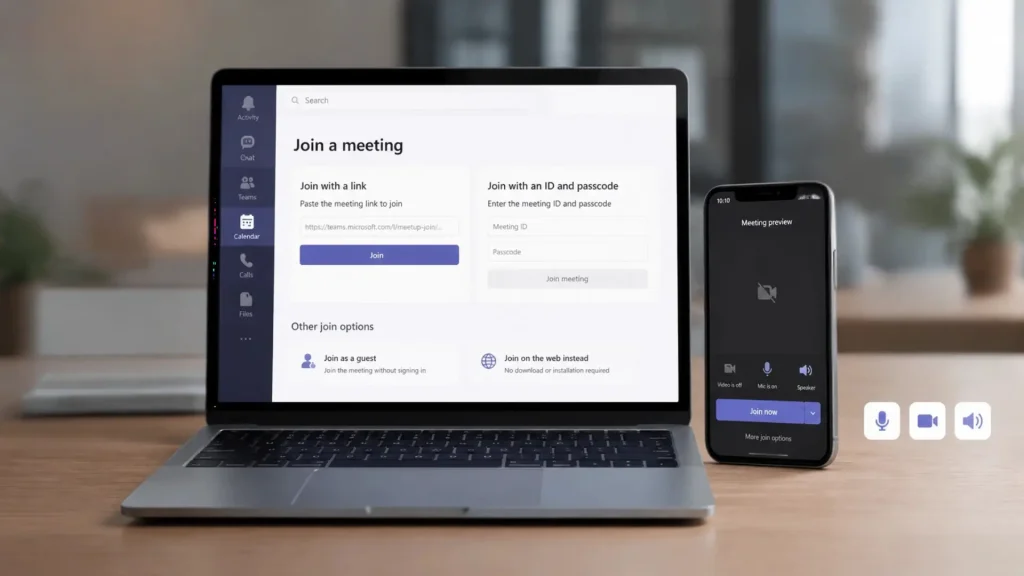
Finding the right option to join a Microsoft Teams call can feel confusing when an invite includes different details. I know how frustrating it can be to find the right button, especially when a meeting is about to begin.
You can complete a Join Teams meeting task easily once the available options become clear. This content covers the main ways to access a meeting using links, IDs, invitations, apps, browsers, and mobile devices.
It also explains common issues that may stop you from joining and simple ways to fix them. With the right steps
You can approach every Teams meeting with more confidence and less delay. I hope these tips help you handle future meetings smoothly and easily.
What You Need Before Joining a Microsoft Teams Meeting
Before joining, an attendee typically needs one of three things: an invitation link, a Teams or Outlook calendar event, or a meeting ID together with its passcode. Some invitations also include a dial-in phone number and a conference ID for people who prefer to call in instead of using video.
A stable internet connection, a working microphone and speakers, and camera permission (when video is needed) all help a meeting start without trouble.
The FCC’s broadband speed guide lists roughly 6 Mbps as the recommended download speed for smooth HD video teleconferencing, along with the Teams app or a supported desktop browser.
Restricted meetings may require the exact Microsoft account that received the invitation, while other meetings allow guest entry with no sign-in at all. Attendees may also be placed in a lobby until the organizer lets them in.
How to Join a Teams Meeting From Different Methods
Microsoft Teams provides multiple ways to join an existing meeting depending on how you received the invitation. You can join using a meeting link, meeting ID, calendar invite, the Teams app, a browser, or a mobile device. Follow the steps below based on the method available to you.
1. Join Through a Teams Meeting Link
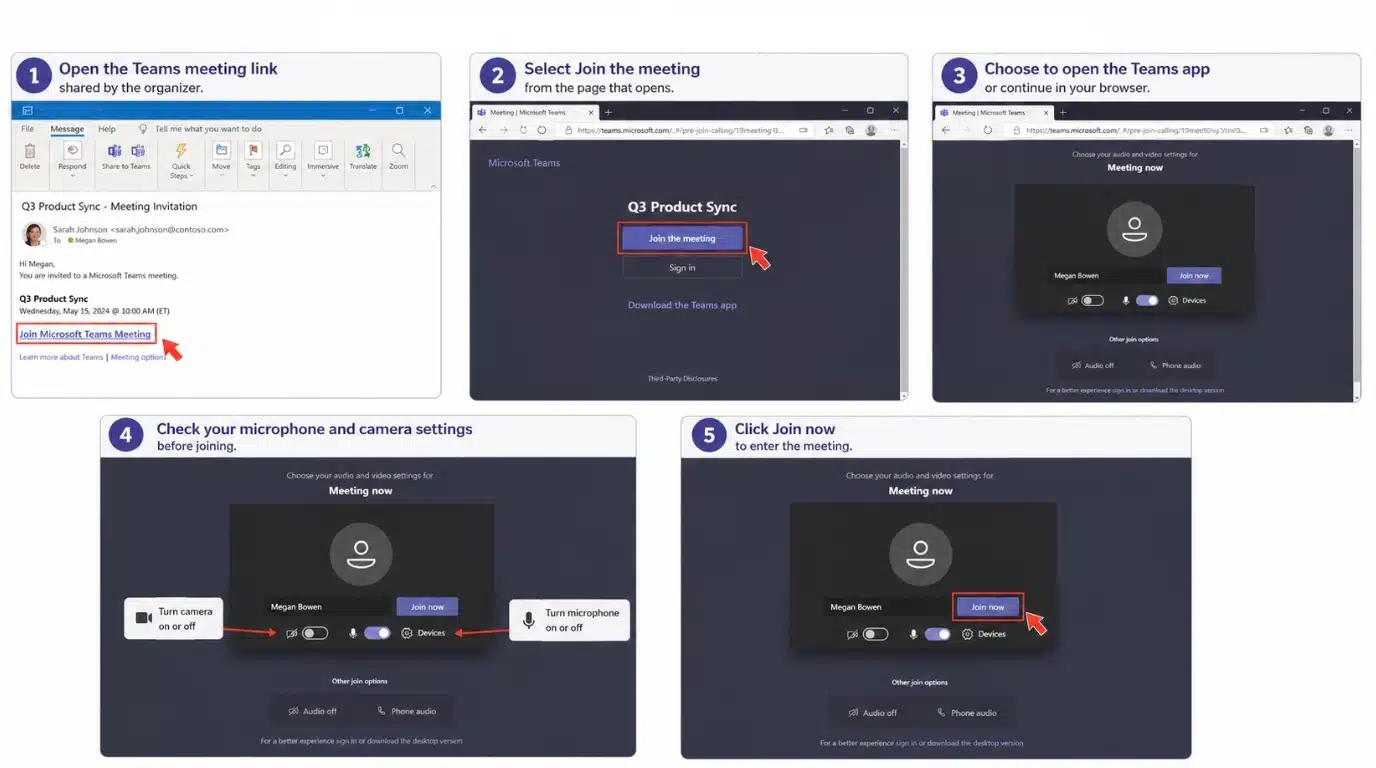
A Microsoft Teams meeting link is the most common way to access a meeting. The organizer usually shares this link through email, calendar invites, or messages, and opening it correctly is often the difference between a smoother video call and a delayed one.
Steps to Join:
- Open the Microsoft Teams meeting link the organizer shared.
- Select Join the meeting from the page that opens.
- Choose to open the Teams app or continue in your browser.
- Check your microphone and camera settings before joining.
- Click Join now to enter the meeting.
2. Enter a Meeting ID and Passcode
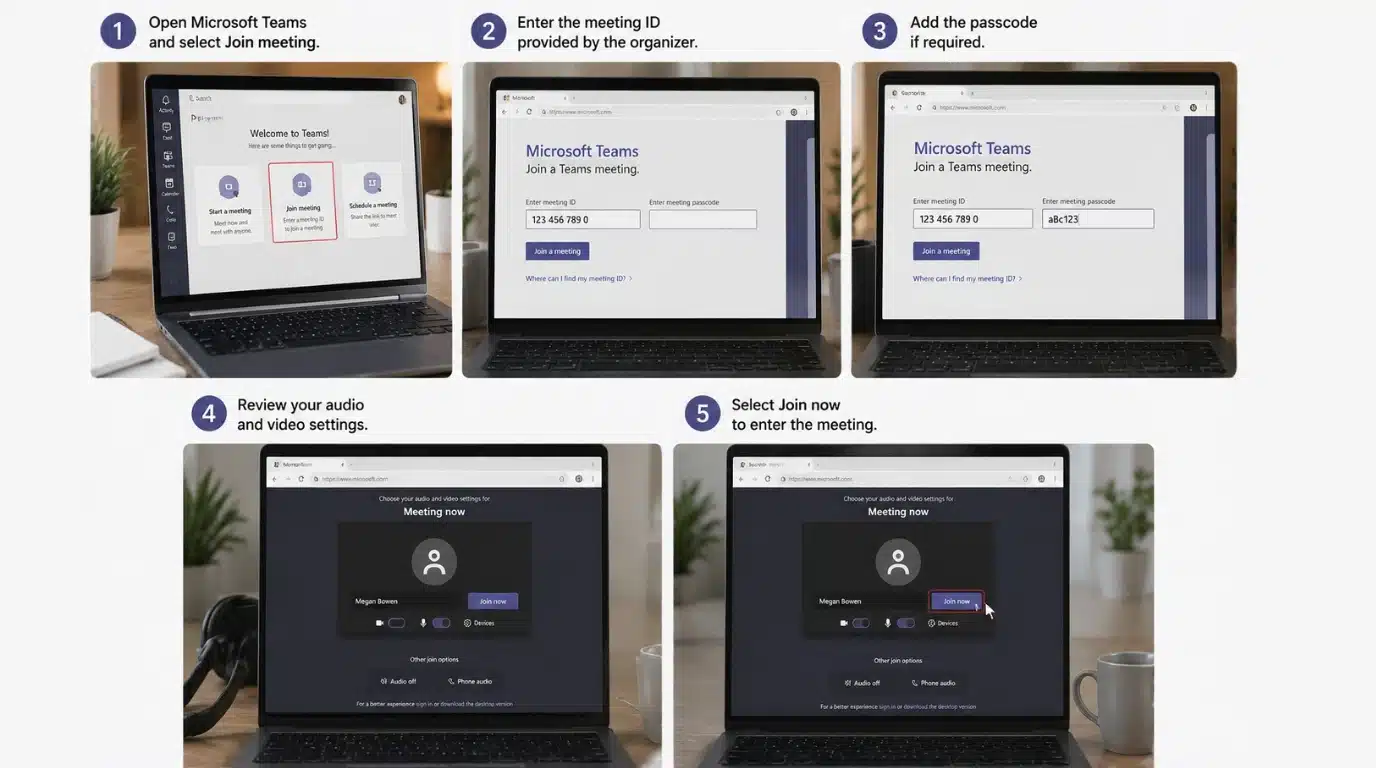
A meeting ID and passcode let you join when you don’t have the original Teams meeting link.
Treat this passcode with the same care recommended in federal guidance on strong passwords to keep the meeting secure; the meeting ID method also provides an alternative way to access Teams meetings when the invitation link is unavailable.
Steps to Join:
- Open Microsoft Teams and select Join meeting.
- Enter the meeting ID provided by the organizer.
- Add the passcode if required.
- Review your audio and video settings.
- Select Join now to enter the meeting.
3. Access a Teams Meeting from Email Invite
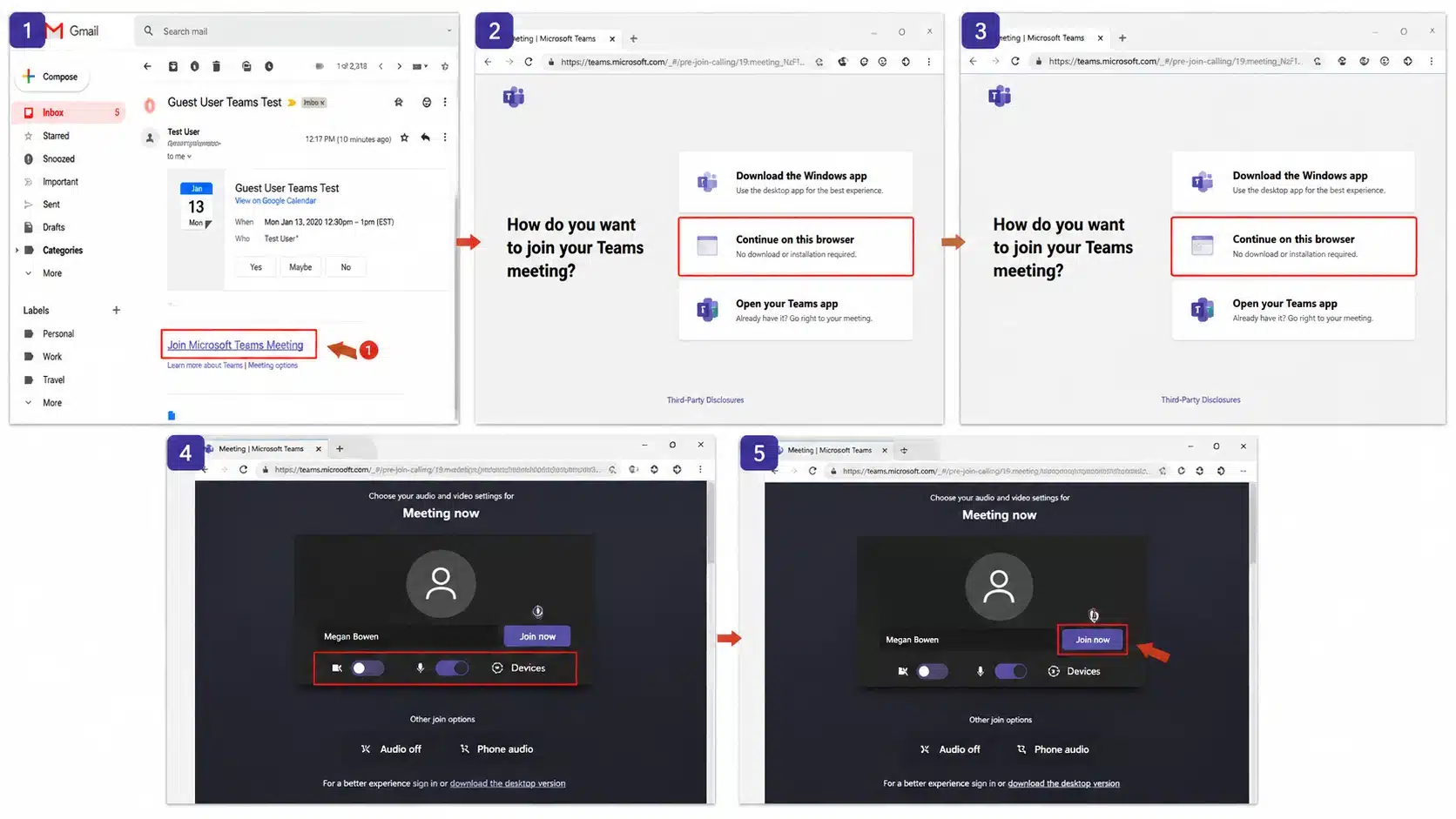
Teams meeting invitations are often sent by email and include all the details you need to join. Email invitations make it easy to access scheduled meetings without manually searching for meeting details.
Steps to Join:
- Open the Teams meeting invitation from your email inbox.
- Find and select the Join Microsoft Teams Meeting link.
- Choose the Teams app or browser option.
- Adjust your microphone and camera preferences.
- Click Join now to participate.
4. Join as a Guest Without a Microsoft Account
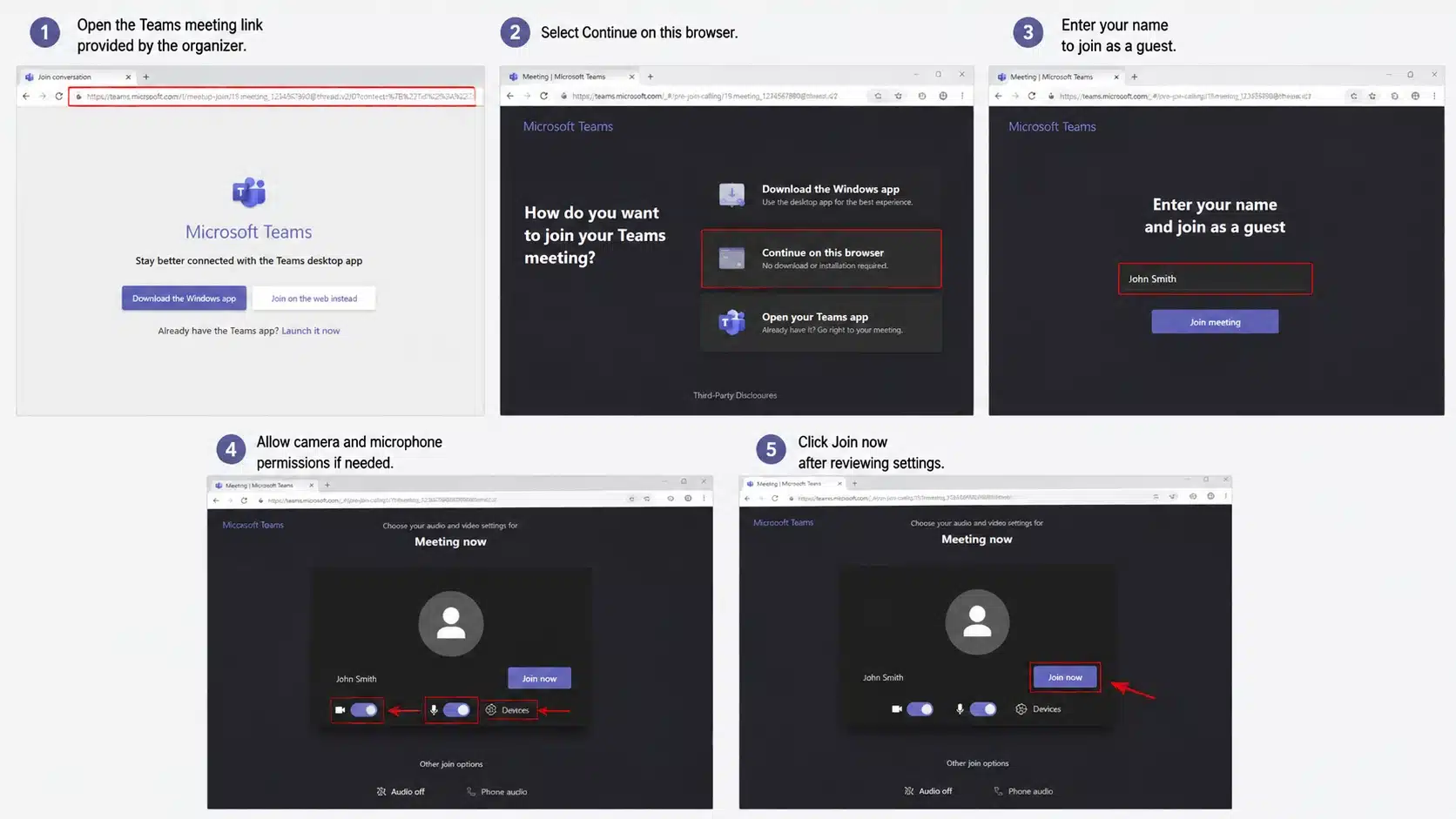
You can often join Teams meetings as a guest without signing into a Microsoft account. Because guests connect without the usual account checks, it’s worth a moment’s attention to follow recommended conferencing security steps, and guest joining still makes Teams meetings accessible to external participants without requiring a Microsoft account.
Steps to Join:
- Open the Teams meeting link provided by the organizer.
- Select Continue on this browser.
- Enter your name to join as a guest.
- Allow camera and microphone permissions if needed.
- Click Join now after reviewing settings.
5. Use the Teams Desktop App to Join
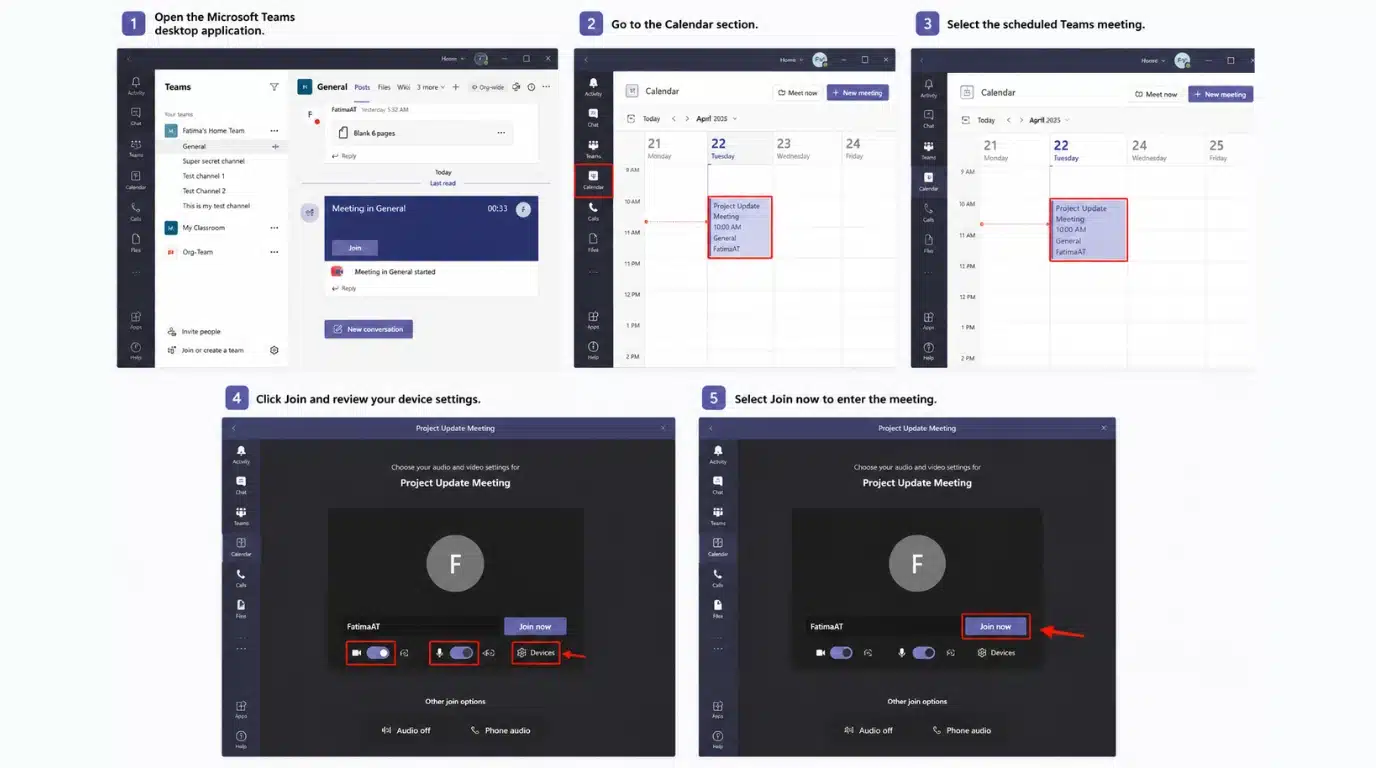
The Teams desktop app provides full access to meeting features and controls. Pairing it with other tools for remote teams makes it suitable for users who regularly attend Teams meetings and need complete functionality.
Steps to Join:
- Open the Microsoft Teams desktop application.
- Go to the Calendar section.
- Select the scheduled Teams meeting.
- Click Join and review your device settings.
- Select Join now to enter the meeting.
6. Open a Teams Meeting in Your Browser
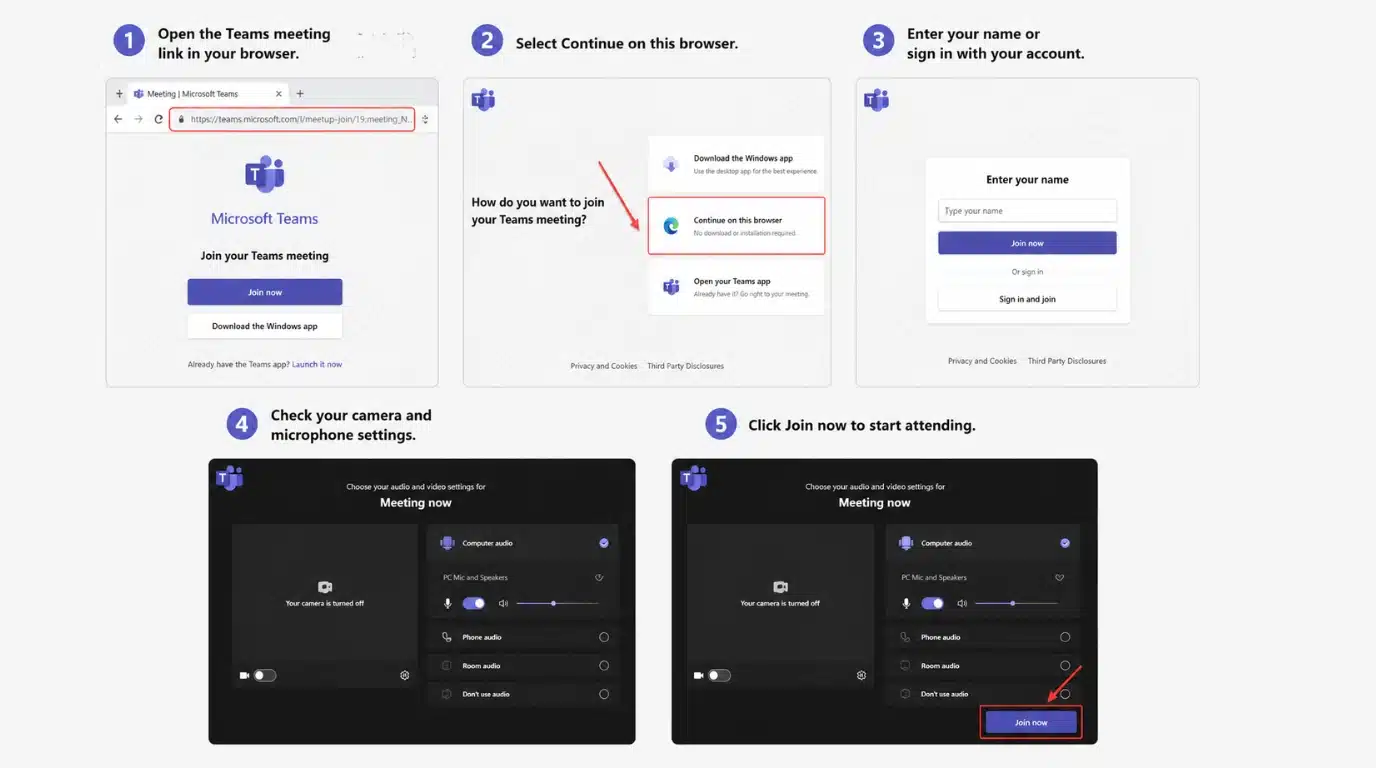
You can join a Teams meeting directly through a browser without installing the app. The browser option provides quick access for users who want to join without downloading Microsoft Teams.
Steps to Join:
- Open the Teams meeting link in your browser.
- Select Continue on this browser.
- Enter your name or sign in with your account.
- Check your camera and microphone settings.
- Click Join now to start attending.
7. Attend a Teams Meeting From Mobile
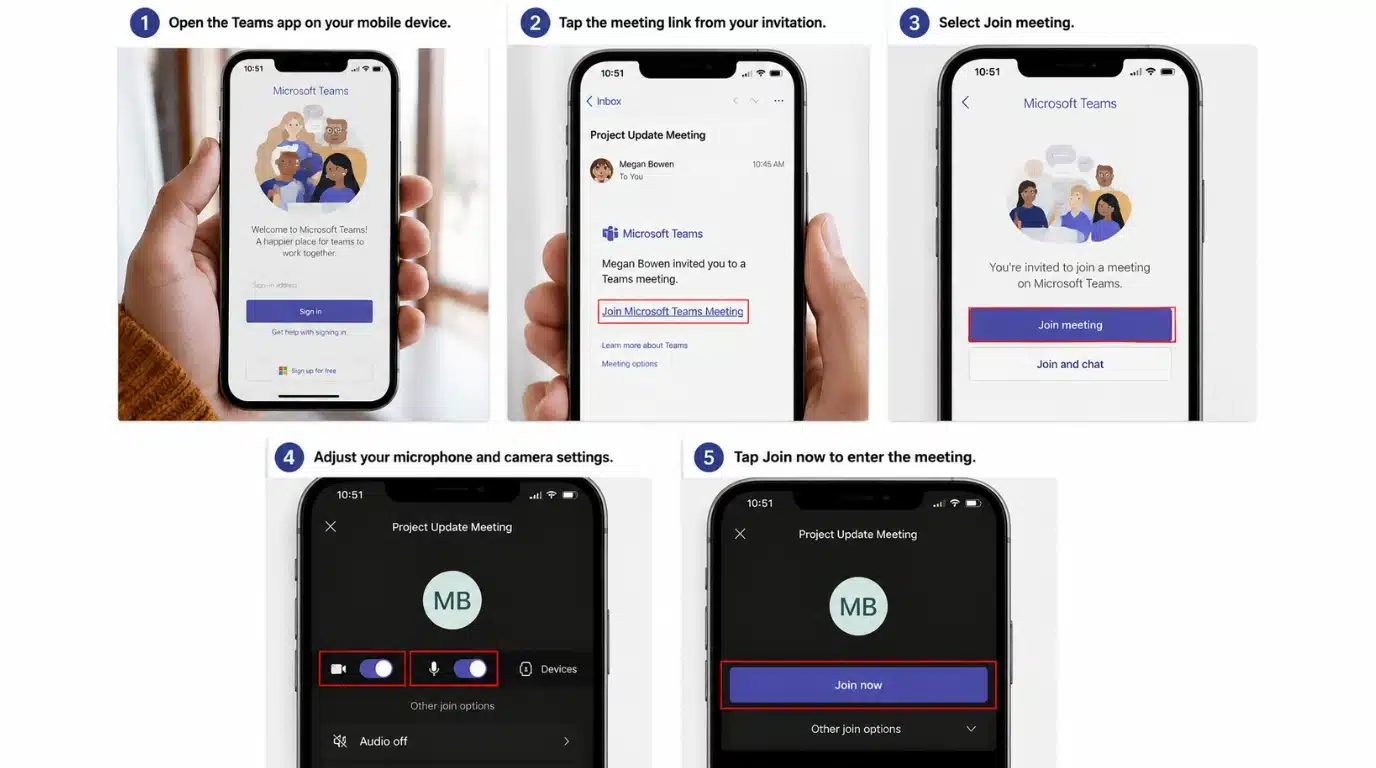
Microsoft Teams mobile apps allow users to join meetings from Android and iOS devices, alongside other apps that save time, giving users the flexibility to attend Teams meetings conveniently while away from their computers.
Steps to Join:
- Open the Teams app on your mobile device.
- Tap the meeting link from your invitation.
- Select Join meeting.
- Adjust your microphone and camera settings.
- Tap Join now to enter the meeting.
With multiple joining options, Microsoft Teams makes it easy to access meetings from any device or platform, based on your preferred method and the meeting details provided.
Why Can’t I Join the Teams Meeting?
If the Teams meeting link doesn’t open, copy the full link and try accessing it through a supported desktop browser.
When a meeting ID is rejected, re-enter the ID and passcode carefully without extra spaces. If Teams asks you to sign in, use the Microsoft account that received the invitation, or switch accounts if the wrong one appears.
If the Join button is missing, ask the organizer to resend or confirm the meeting invitation. If camera or microphone access is blocked, check Teams or browser permissions in the device settings. If you are stuck in the lobby, confirm the meeting time and contact the organizer if needed.
A locked meeting requires the organizer to reopen access. If the Teams app does not open, update the app or join through a supported browser instead. To prevent audio echoes, turn off audio on one of the connected devices.
What Happens After You Join a Teams Meeting?
After joining a Microsoft Teams meeting, you can use different controls to communicate, manage your settings, and interact with other participants. Understanding these basic options helps you join discussions without confusion.
- Turn microphone on or off: Use the microphone control to mute or unmute yourself. Keeping your mic muted when not speaking helps prevent unwanted background sounds.
- Enable or disable camera: You can turn your camera on to share your video or switch it off when you prefer not to appear on screen.
- Use chat: The chat option lets you send messages, share quick updates, and communicate with attendees during the meeting.
- Raise hand: Use the raise hand feature when you want to ask a question or speak without interrupting the ongoing conversation.
- Leave meeting: Click the leave button when you have finished participating and want to exit the meeting.
Using these meeting controls makes your Teams experience smoother and more organized. You can communicate clearly, manage your settings, and participate confidently throughout every meeting.
Common Problems When Joining a Teams Meeting and How to Fix Them
Users may face issues joining a Microsoft Teams meeting because of connection problems, incorrect details, or device settings. Here are common problems and quick fixes.
| Problem | Reason | Fix |
|---|---|---|
| Meeting link not opening | Browser, internet, or app issues | Check connection, try another browser, update Teams, or reopen the link |
| Cannot join meeting | Wrong ID, expired invite, or access limits | Verify details, request a new invite, or wait for approval |
| Microphone or camera not working | Permission or device settings | Enable permissions and select the correct devices |
| Teams app keeps loading | App errors or outdated version | Restart app, clear cache, or update Teams |
Quick troubleshooting helps resolve common Teams joining issues and allows users to connect to meetings with minimal delays.
Final Check Before Selecting Join Now
A quick check of the device and account can prevent audio, video, and sign-in problems once the meeting starts. Running through a short checklist before selecting Join Now takes only a minute
Yet it can save an attendee from scrambling for a working microphone or the right account after everyone else has already arrived.
- Correct meeting date and start time
- Correct Microsoft account
- Recognizable display name
- Working microphone and speakers
- Camera positioned correctly
- Headphones connected when needed
- Stable internet connection
- Unneeded applications closed
- Phone notifications silenced
Reaching the pre-join screen about five minutes early is worth it, especially for interviews, classes, appointments, presentations, and client calls.
Summing up
Getting into a Microsoft Teams call becomes much easier when you know the right steps for each situation. I believe having options like links, meeting IDs, invitations, apps, and browsers helps you connect without confusion.
You can use these methods to join quickly and solve common issues with access, audio, video, or loading problems. The right approach to joining Teams meetings saves time and keeps your meetings running smoothly.
I hope these tips help you feel more confident whenever you need to attend a Teams session, so you can handle future meetings with fewer interruptions.
Try these steps during your next meeting and share your thoughts or any questions in the comments.
Frequently Asked Questions
Can I Join a Teams Meeting Before the Organizer?
Attendees can enter immediately or wait in the lobby based on the organizer’s settings. In some meetings, they must wait for an authorized participant to admit them.
Can I Join the Same Teams Meeting on Two Devices?
Teams allows you to join from a second device, but turn off audio on one of them to prevent echo, feedback, or doubled sound. This helps maintain clear communication and ensures a smoother meeting experience for everyone involved.
Can I Change My Name Before Joining?
Guests can normally type in a display name before joining. Signed-in attendees usually show the name tied to their Microsoft account instead. This helps create a more personalized experience during the event.
Why is there No Phone Number in the Invitation?
Dial-in access depends on the organizer’s Microsoft 365 setup. When no phone number is listed, join through the link, app, browser, or meeting ID instead. If you experience any issues, please contact the meeting organizer for assistance.