How to cast YouTube to TV is one of the easiest ways to enjoy videos on a bigger screen without extra cables or setup stress.
Watching YouTube on a TV feels better, especially when I want clear sound, a larger view, or when friends are around.
Casting simply means sending a video from your phone, tablet, or computer straight to your TV using Wi-Fi. You don’t need to download files or log in again and again.
In this blog, you’ll learn the main ways to cast YouTube using Chromecast and Google TV. I’ll also cover other simple options that work if casting fails.
You’ll see what devices you need, how the process works step by step, and what to do when the cast button doesn’t show up.
By the end, you’ll know which method fits your setup and how to fix common issues fast.
What You Need Before Casting?
Before you start casting, make sure you have the right setup ready. First, you’ll need a device that supports casting.
This can be a Chromecast, a TV with Google TV built in, or most modern smart TVs that support the YouTube app.
Many TVs already have casting support, so you may not need extra hardware. Next, a stable Wi-Fi connection is important.
Your phone, tablet, or computer must be connected to the same Wi-Fi network as your TV or Chromecast. If they’re on different networks, the cast option may not show up at all.
Lastly, you need the YouTube app or access to YouTube in a browser.
The app works best on phones and tablets, while a browser works well on a computer. Once these are ready, casting becomes simple and quick.
How to Cast YouTube to TV?
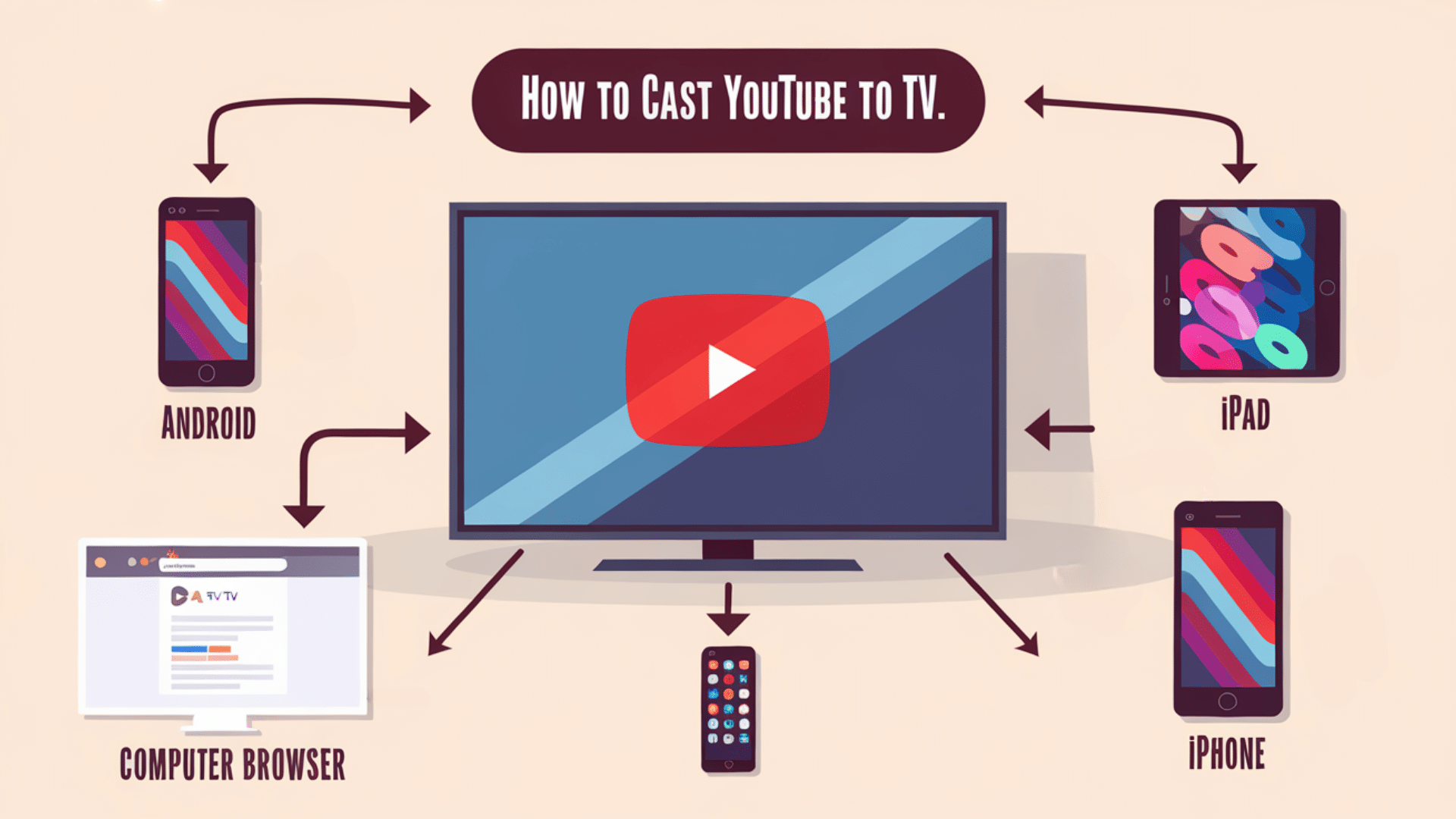
There are a few easy ways to cast YouTube to your TV, and the steps change a bit based on the device you’re using.
1. Casting from an Android Phone
Open the YouTube app on your Android phone and start playing a video. Look for the Cast icon at the top of the screen and tap it.
A list of nearby devices will appear. Select your TV or Chromecast from the list. The video will begin playing on the TV, while your phone acts as the remote.
You can pause, skip, or change videos right from your phone without stopping the cast.
2. Casting from an iPhone or iPad
Start by opening the YouTube app on your iPhone or iPad. Make sure your device and TV are connected to the same Wi-Fi network.
Play any video, then tap the Cast icon near the top. Choose your TV or Chromecast from the list.
Once connected, the video plays on the TV, and you can use your device to control playback, volume, and video selection easily.
3. Casting from a Computer Browser
Open YouTube in a Chrome browser on your computer and play a video. Click the Cast icon in the video player or right-click the video and choose “Cast.”
Select your TV or Chromecast from the options shown. The video will move to the TV screen while your browser stays open.
You can switch tabs, search for new videos, and queue content without stopping playback.
Casting YouTube on Google TV
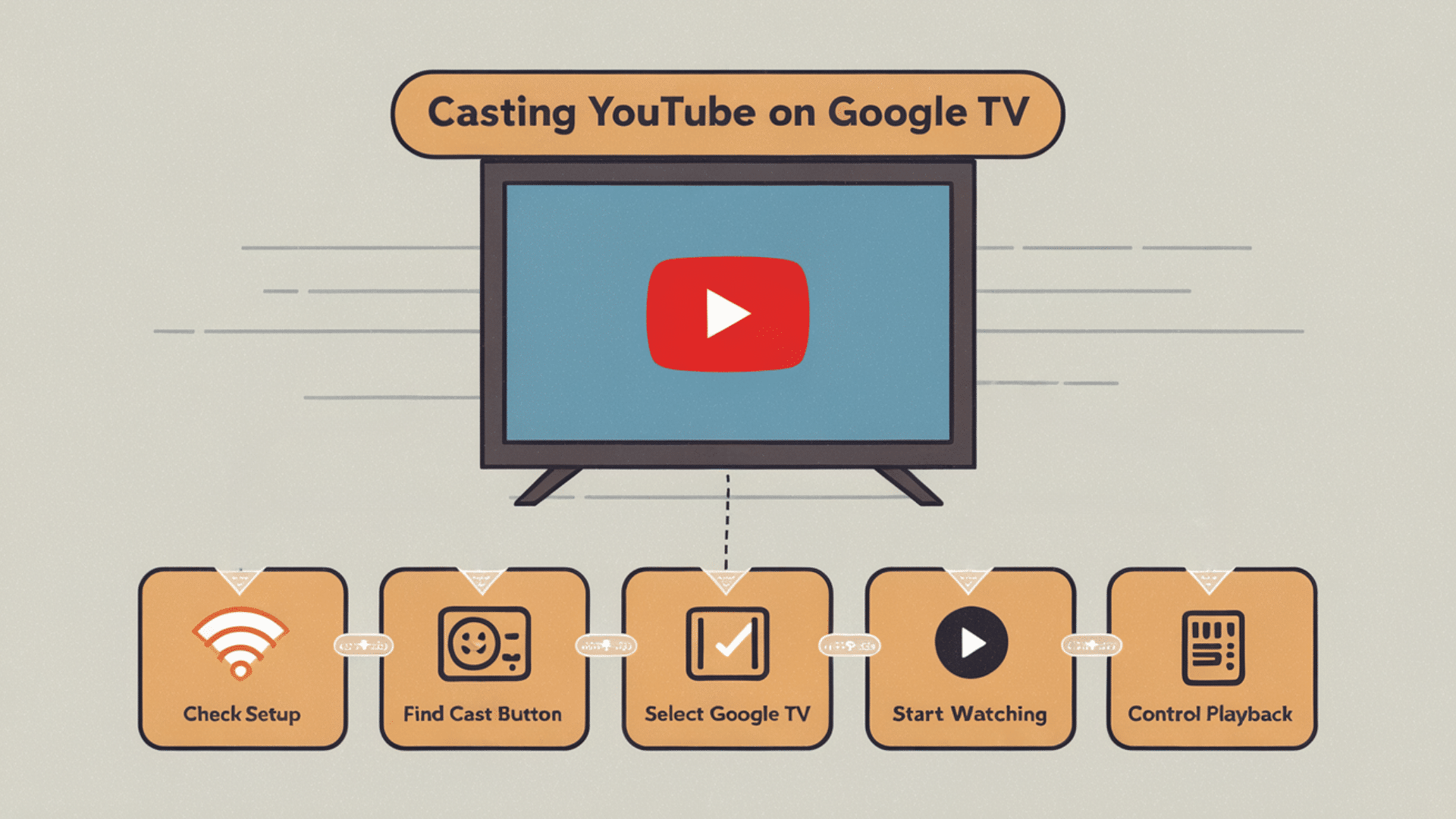
Follow these simple steps to cast YouTube from your phone to Google TV smoothly and avoid common setup or connection issues.
1. Check your setup: Make sure your phone and Google TV are on the same WiFi network. Open the YouTube app, sign in, and keep your TV awake.
2. Open YouTube and find Cast: Play any video in the YouTube app. Look for the cast icon at the top. Restart or update the app if needed.
3. Choose your Google TV: Tap the cast icon and select your Google TV from the list. Wait a few seconds until the icon stays highlighted.
4. Start watching on TV: Select a video, and it plays on the TV right away. Your phone switches to controls, letting you use other apps freely.
5. Control and disconnect: Use your phone to pause, skip, or search videos. When finished, tap the cast icon again and select Disconnect.
Common Casting Problems and Fixes
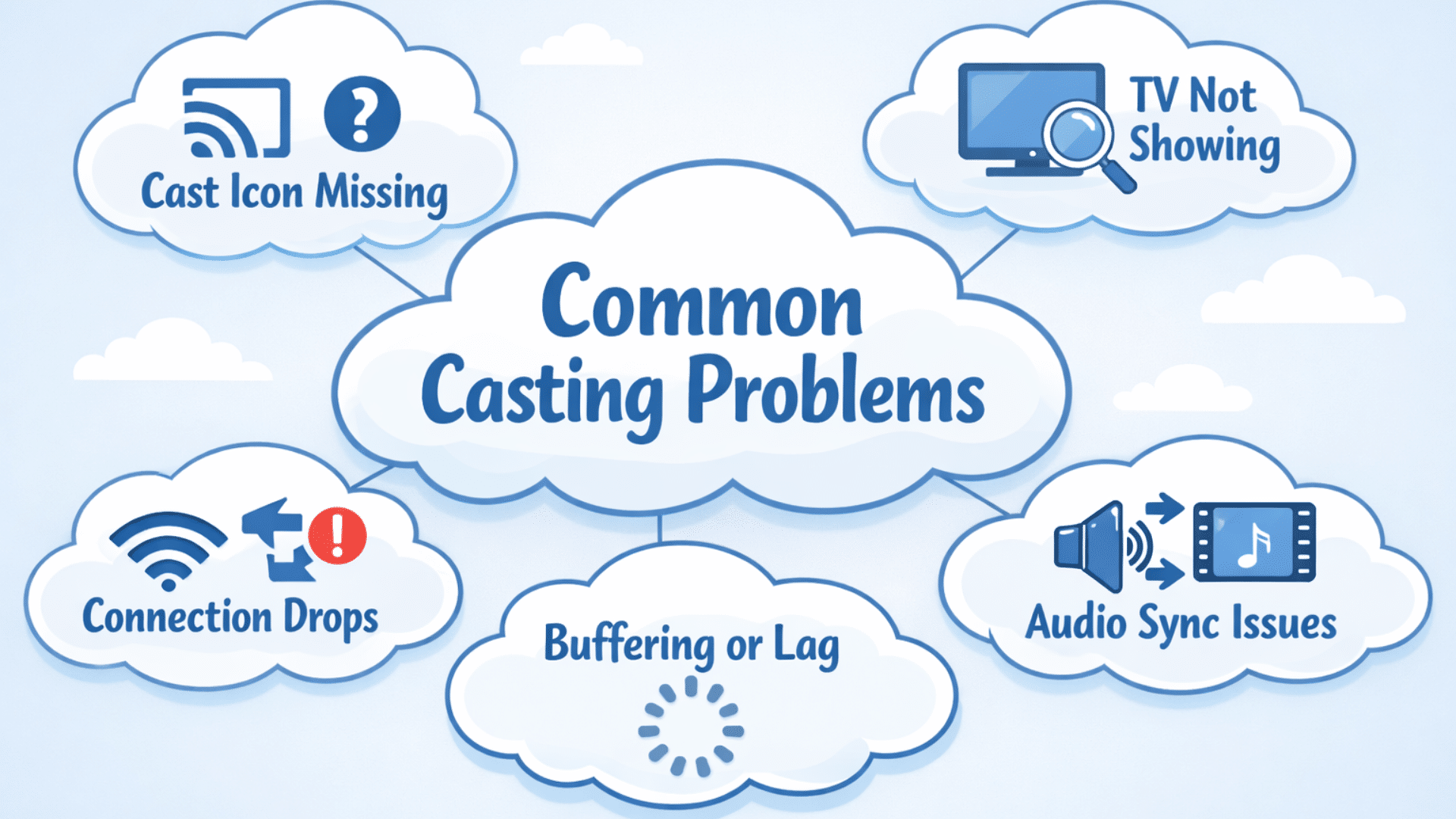
Casting usually works well, but small issues can interrupt the experience. These common problems show up often, and each one has simple fixes you can try at home.
1. Can’t Find the Cast Icon
If the Cast icon is missing, the first thing to check is Wi-Fi. Both your phone or computer and your TV must be on the same network.
Close the YouTube app fully and open it again. Restarting your phone often helps. You should also restart the TV or Chromecast to refresh the connection.
Updating the YouTube app is important too, since older versions may hide the Cast icon or fail to load it.
2. Devices not Showing Up
When your TV or Chromecast does not appear in the list, it is usually a network issue. Make sure both devices use the same Wi-Fi name, not mobile data or a guest network.
Restarting the router can fix detection problems. Turn the TV off for a minute, then power it back on.
Some smart TVs also need casting to be enabled in settings before it appears as an option.
3. Connection Drops
If casting keeps disconnecting, weak Wi-Fi is often the cause. Try moving closer to the router or removing other devices that are using a lot of data.
Close background apps on your phone to free up memory. Restarting Chromecast or Google TV clears small glitches.
Keeping your TV and phone software updated also helps reduce sudden drop issues during longer videos.
4. Video Buffering or Lag
Buffering happens when the internet cannot keep up with the video. Lower the video quality in the YouTube app to reduce load.
Pause the video for a few seconds before playing again to allow buffering. Avoid downloads, gaming, or other streaming on the same network.
If possible, using an Ethernet cable for the TV gives more stable playback and reduces lag during casting.
5. Audio and Video Sync Issues
When audio feels out of sync with the video, pause the video and play it again. This often resets timing. Restart the cast session if the problem continues.
Check TV audio settings and turn off sound delay or enhancement options. Restarting both the TV and your phone usually fixes ongoing sync problems.
Keeping firmware updated also helps prevent these issues from returning.
Backup Options for Watching on TV
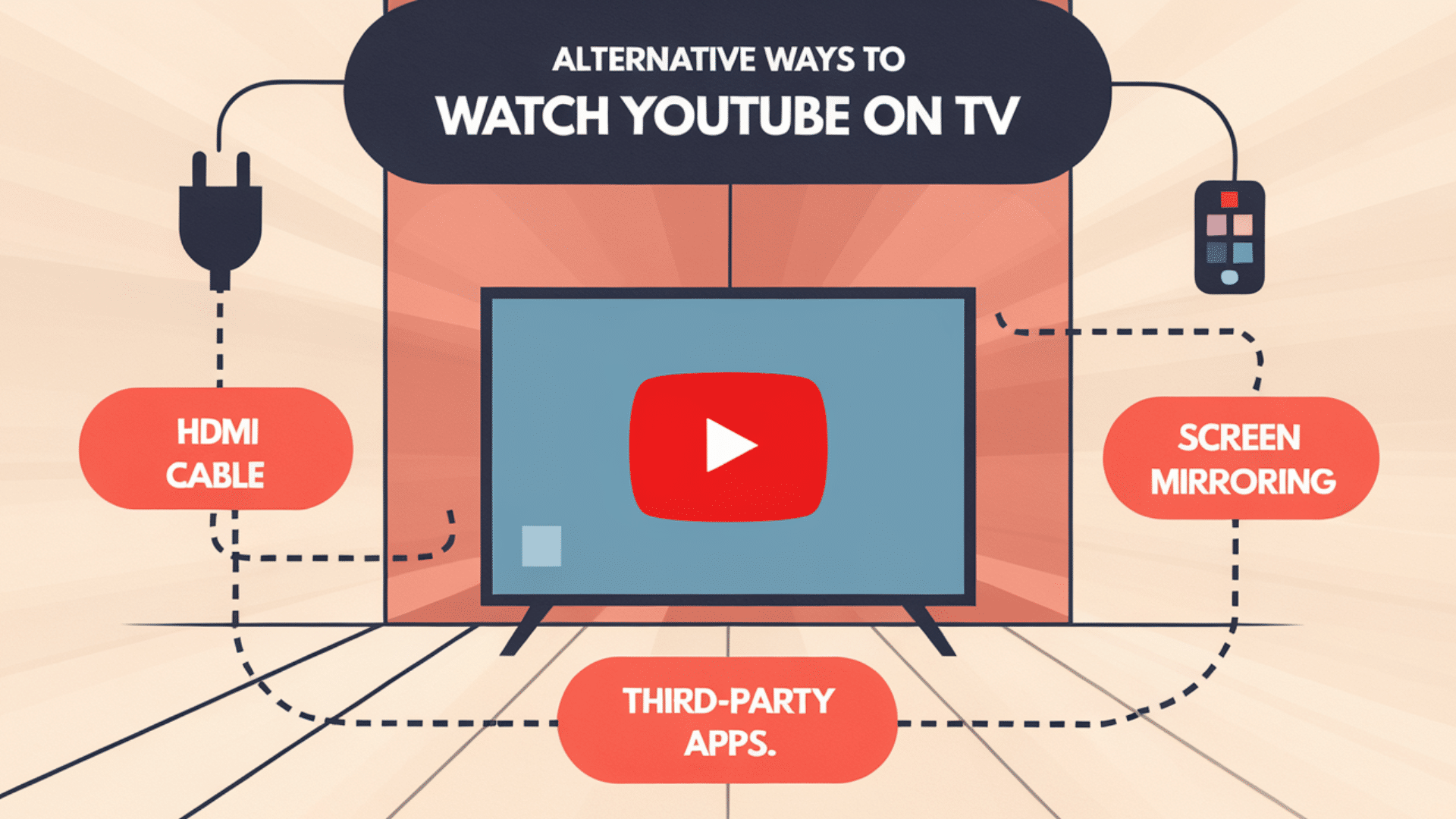
If casting fails or feels unstable, these backup options give you simple and reliable ways to watch YouTube on your TV without extra setup stress.
1. HDMI cable connection: This is the most stable option. Connect your laptop or phone adapter to the TV using an HDMI cable, switch the input, and play YouTube without Wi-Fi.
2. Screen mirroring: This shows your full phone or computer screen on the TV. It is easy to use but may show notifications and drain the battery faster.
3. Third-party casting apps: These apps help stream YouTube when built-in casting fails. They work over Wi-Fi, but quality can vary, and ads are common.
4. Offline-friendly setup: HDMI connections work well when the internet is slow or unstable since they do not rely on Wi-Fi or casting features.
5. Quick viewing option: Screen mirroring and third-party apps are useful for short videos when you need a fast solution.
What Quora Users Say About Casting YouTube to TV?
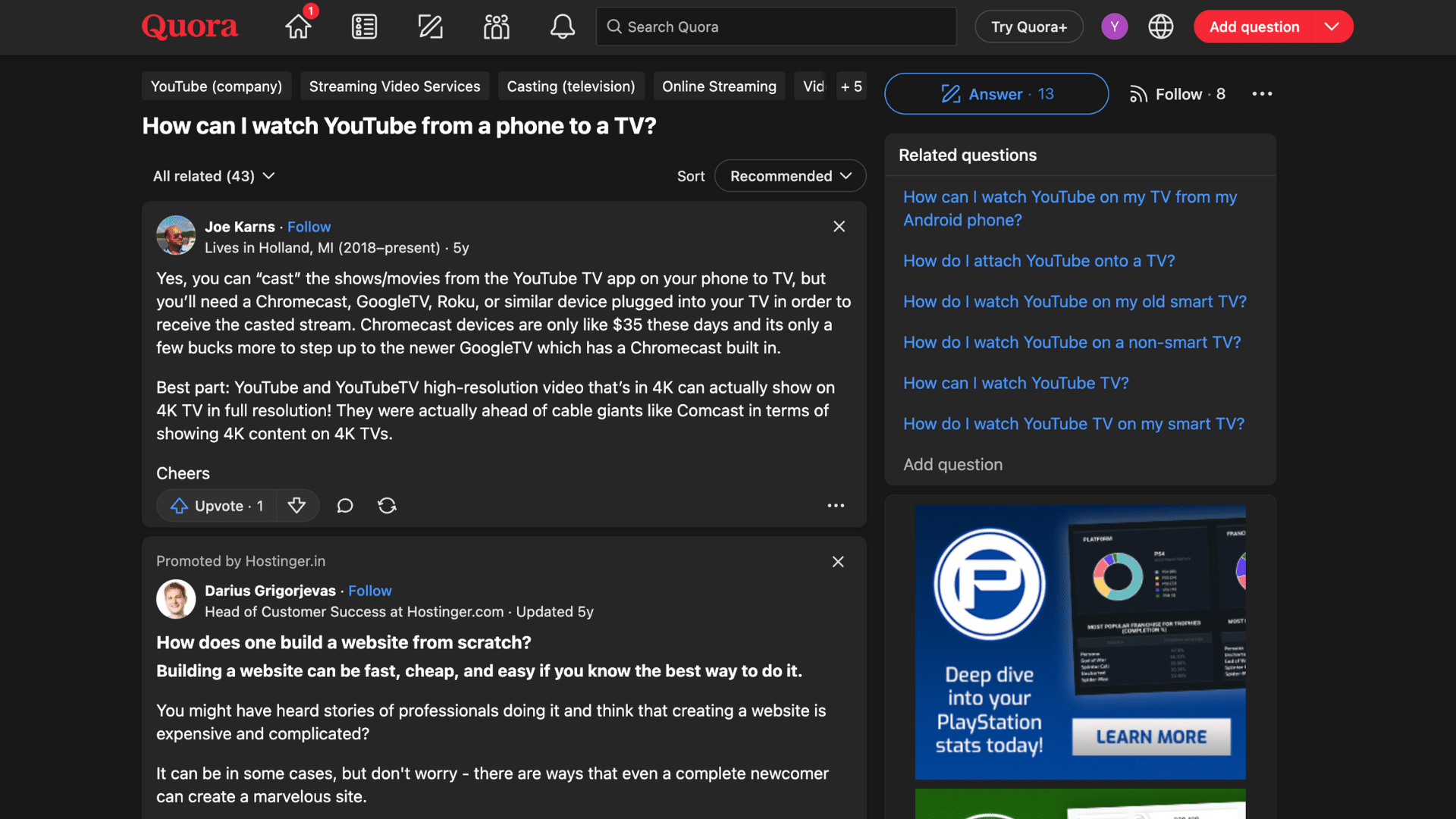
Many users say casting YouTube works best when the right devices are in place.
Most agree that you can cast shows and videos from the YouTube or YouTube TV app, but the TV needs a Chromecast, Google TV, Roku, or similar device to receive the stream.
Some users like Chromecast because it is affordable and supports 4K playback on 4K TVs, which still surprises people.
Others point out that both the phone and TV should be updated. Older TVs may not support casting at all. In that case, screen-sharing apps can help.
A few users also shared a simple method using the YouTube app’s “Watch on TV” option, which connects over WiFi.
Some smart TVs can mirror videos directly from phones, depending on the TV model and app support.
Conclusion
How to cast YouTube to TV makes watching videos easier, clearer, and more fun when a small phone screen just isn’t enough.
In this blog, I covered the main ways to cast using Android phones, iPhones, and computer browsers.
I also explained how Google TV works, including voice control and switching videos without stopping playback.
When casting doesn’t work, the troubleshooting section helps fix common problems like missing cast icons, connection drops, or buffering issues.
I also shared alternative options like HDMI cables, screen mirroring, and third-party apps. Simple tips for better streaming can improve quality and reduce lag.
Which method do you use most when watching YouTube on your TV? Drop a comment and share what works best for you.